
📆 Revision Date:
To Transfer Charges to a Reservation, House Account, or Group Master.
Single or multiple charges can be selected for one transfer action.
|
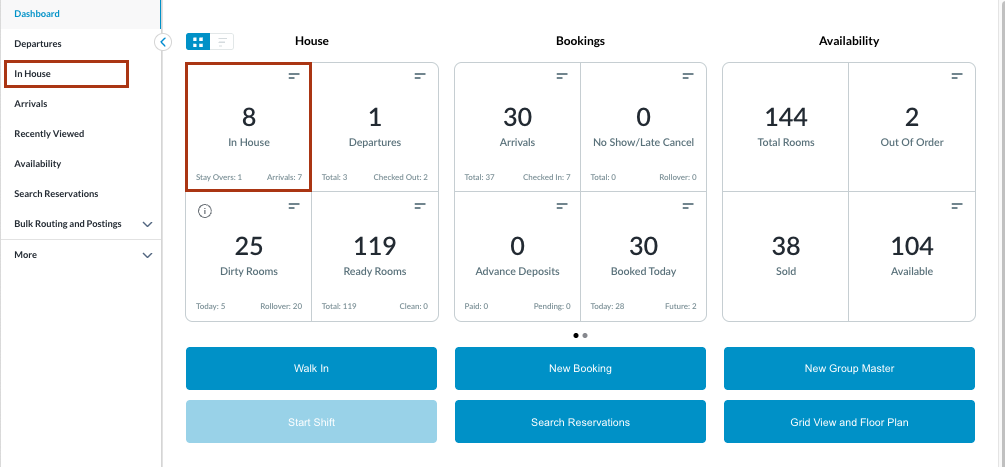
Select In House tile on the Dashboard. You can also search for in-house reservations using the options in the left-side menu. |
|
|
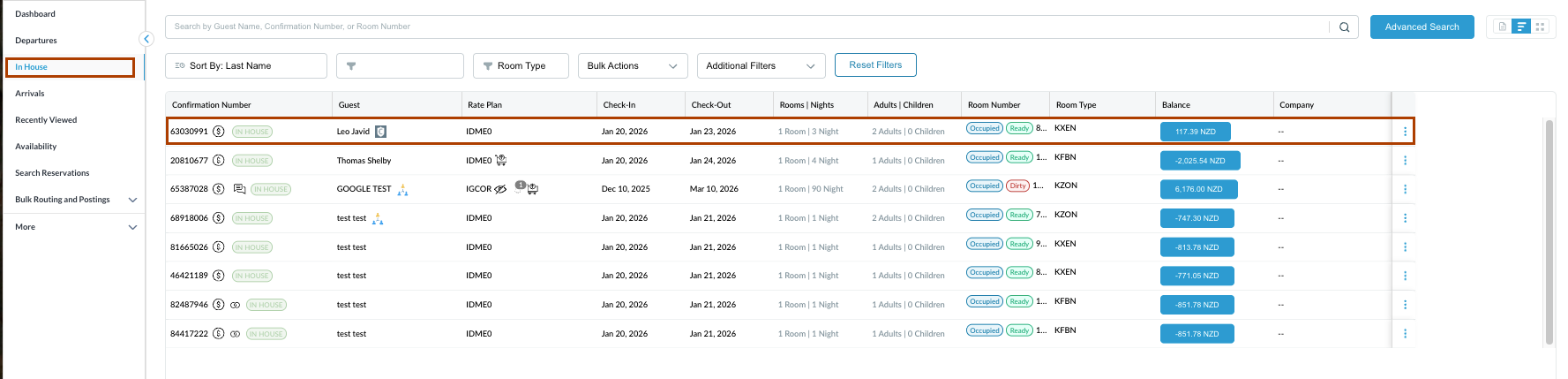
The In House listings page will load. Select the reservation from which the charges need to be transferred. |
|
|
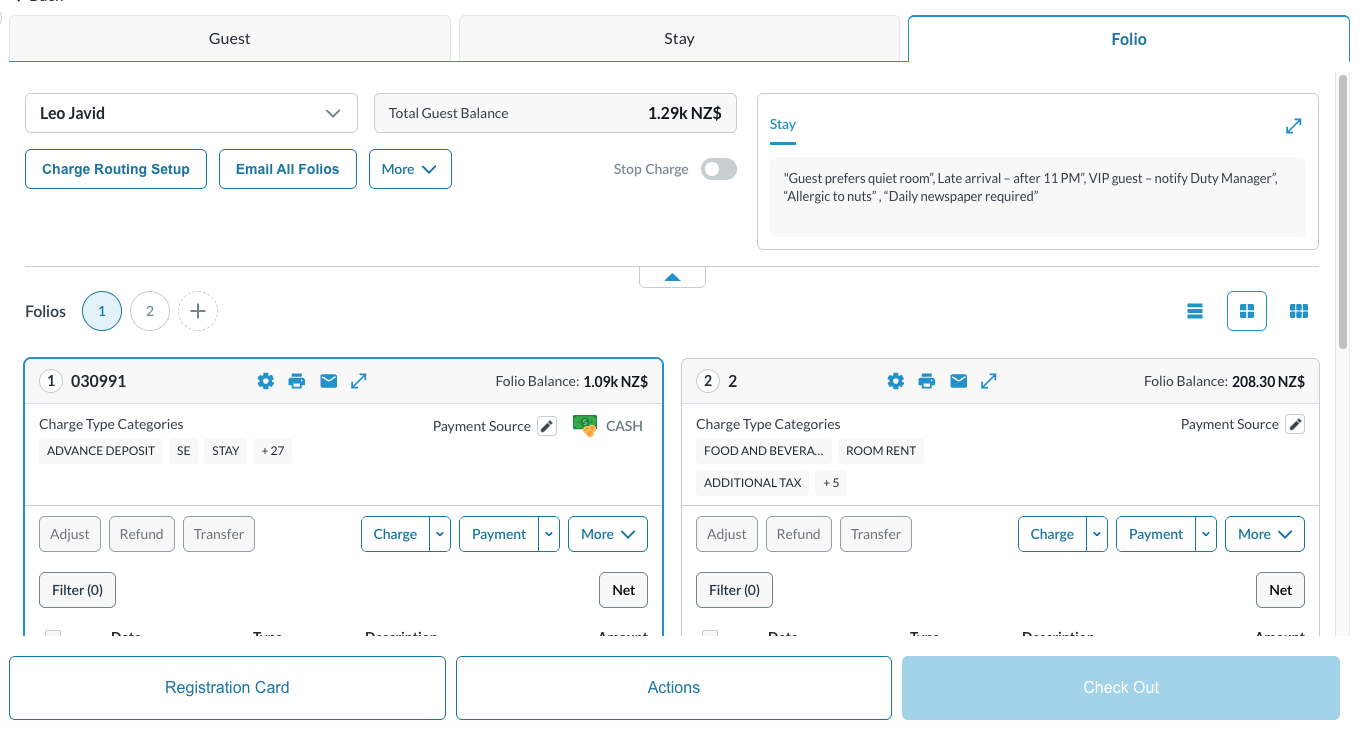
The Reservation Details page opens, displaying the Guest tab by default.
A charge can be transferred in 2 ways: |
|
|
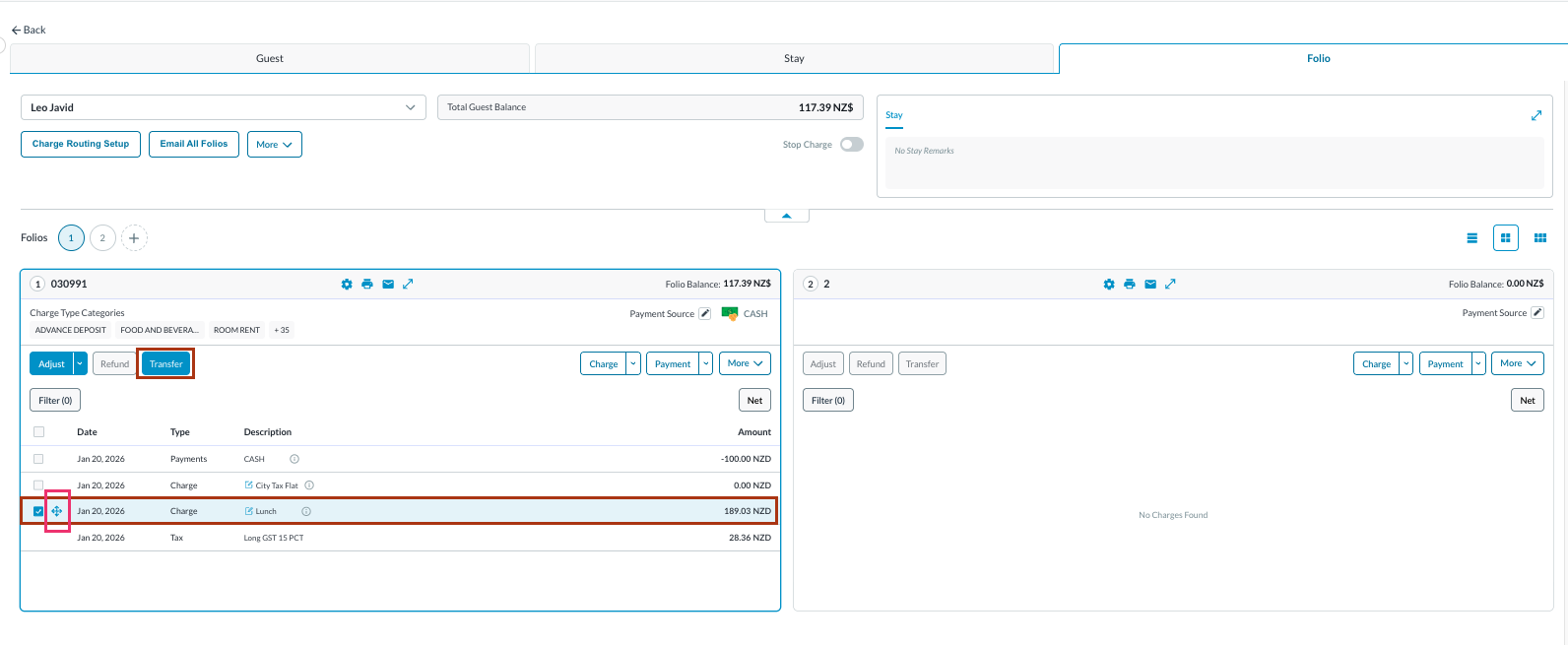
Select a Charge and Transfer -
By this you can transfer a charge to another Reservation, House Account or Group or within different Folio of same reservation.
|
|
|
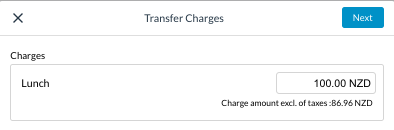
The Transfer Charges window opens. The entire or desired amount can be transferred from the charge.
|
|
|
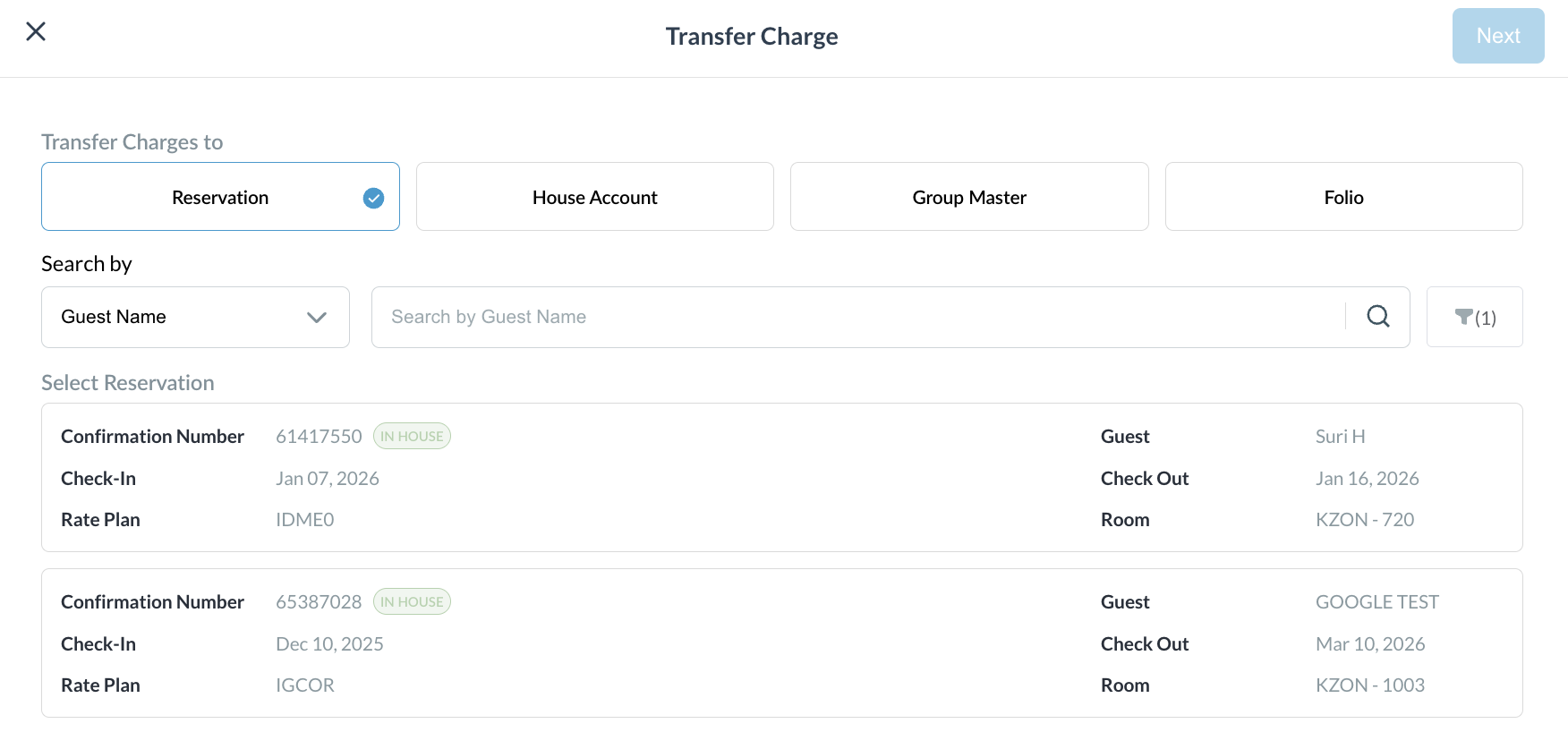
A new Transfer Charge window opens.
|
|
|
Click Folio the Transfer Charge window opens Select the appropriate Folio where the charges should be transferred.
|

|
|
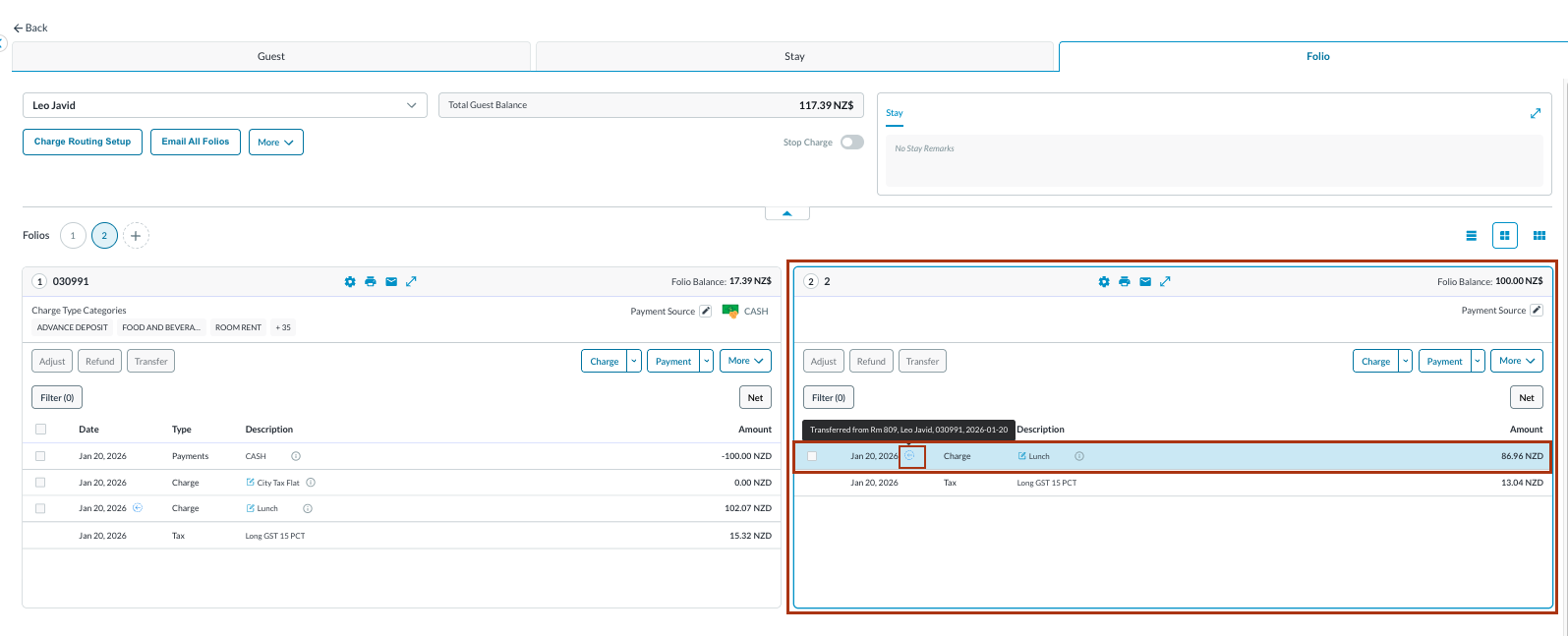
Back on the Folio tab, the transferred charges appear in the selected Folio and are marked with a blue arrow, indicating an transfer. Hover over the blue arrow to view detailed transfer information.
|
|
|
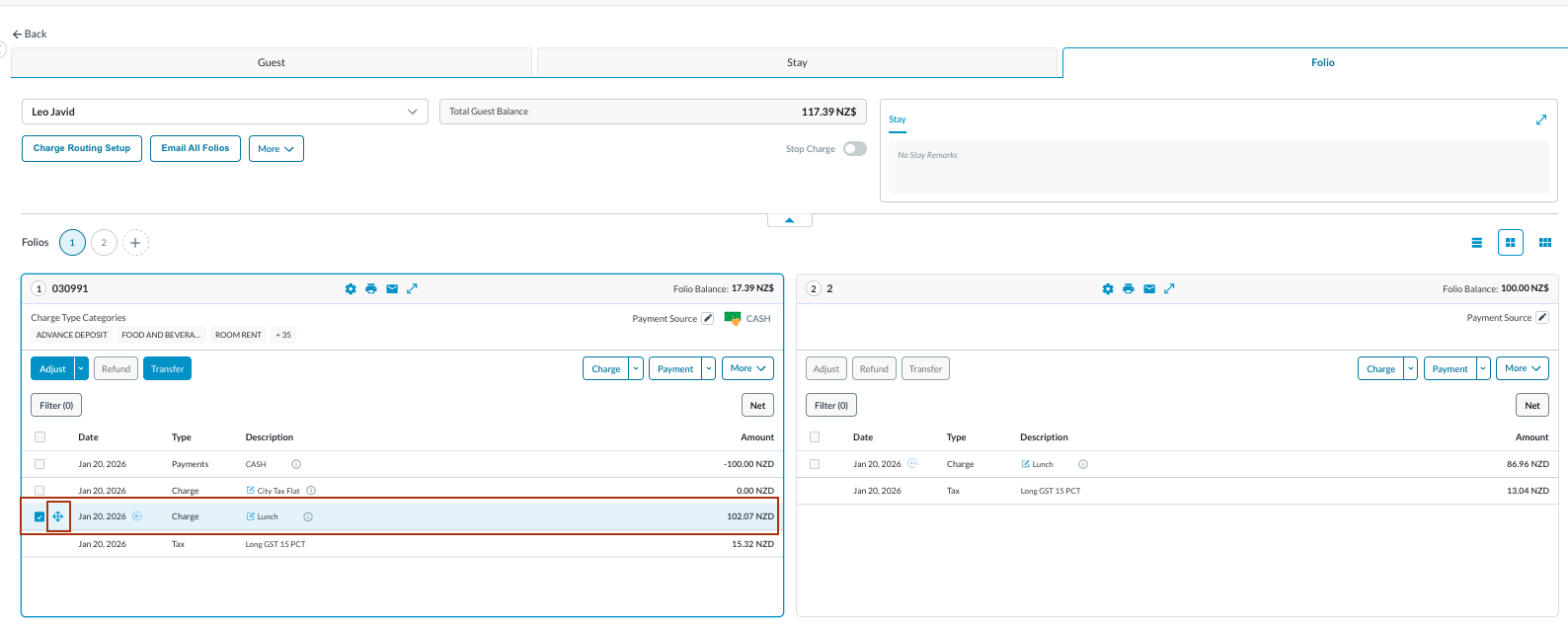
Drag and Drop The same action can be accomplished by using the Drag and Drop feature: Select the checkbox next to the charge you want to transfer.
|
|
|
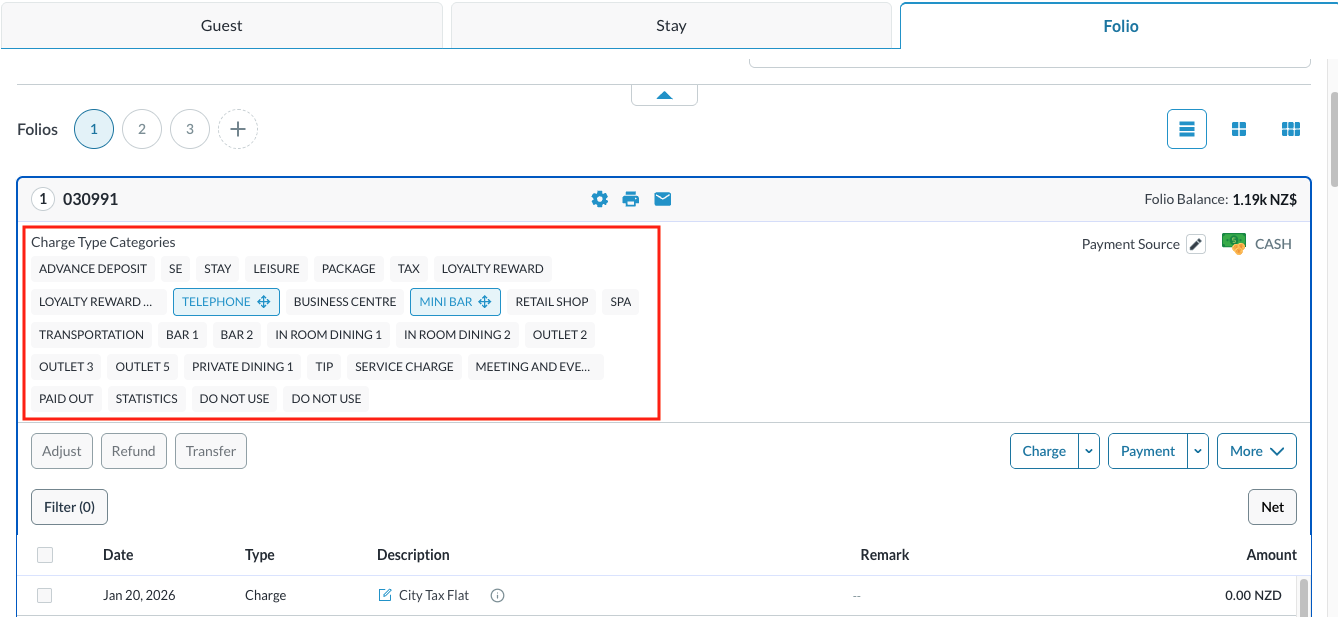
Additionally, the action can be accomplished from selecting the charge type(s) from those listed on the folio, as seen in the image.
|
|
|
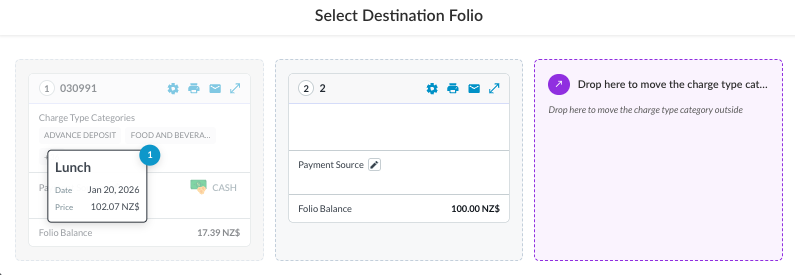
Drag the charge to the desired Folio in the same reservation or to another folio outside the reservation to a House Account or Group Master and drop. |
|
|
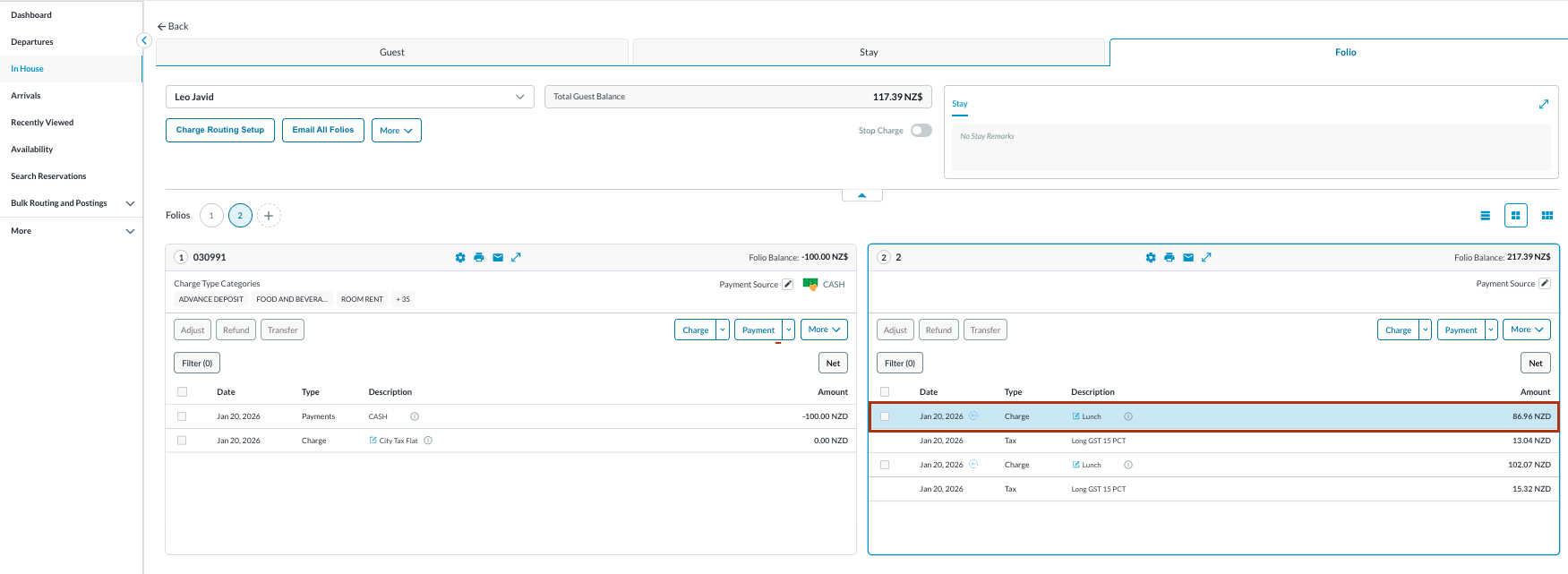
Back on the Folio tab, the transferred charges appear in the selected Folio and are marked with a blue arrow, indicating an transfer. Hover over the blue arrow to view detailed transfer information. |
|

Transfer Charge to a Reservation
|
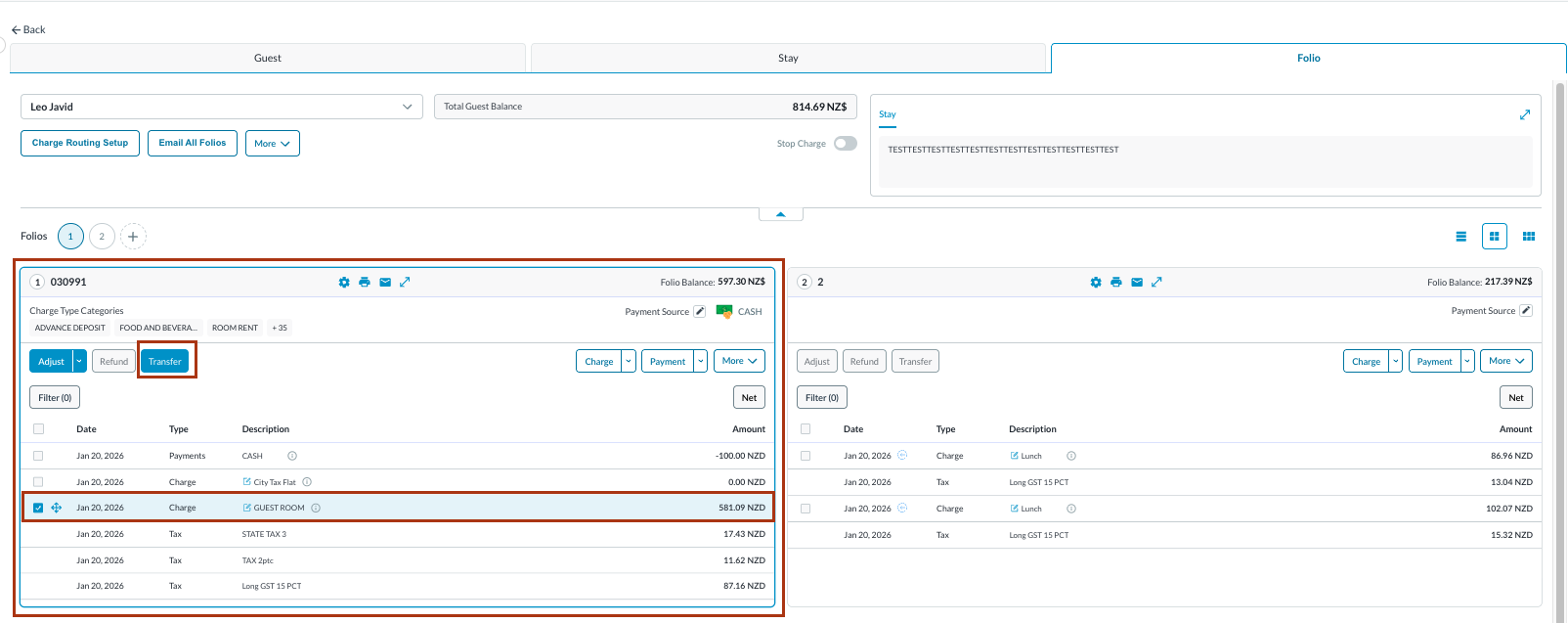
From the Folio tab of the reservation , Select a Charge and Transfer Select the checkbox next to the charge you want to transfer. Click Transfer to proceed. |
|
|
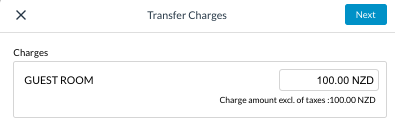
The Transfer Charges window opens. The entire or desired amount can be transferred from the charge. Select Next to continue.
|
|
|
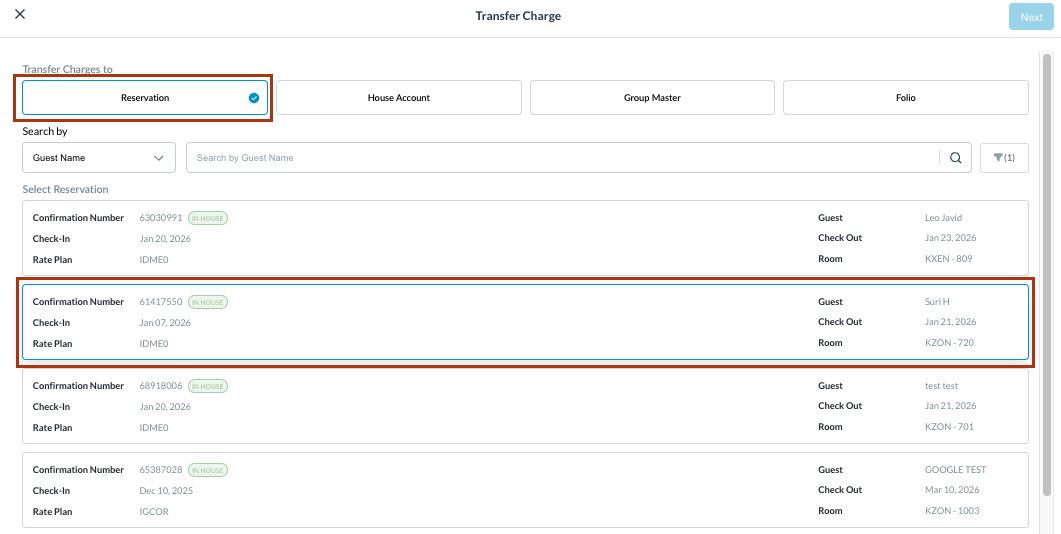
A new Transfer Charge popup opens. Select the Reservation where the charge needs to be transferred. |
|
|
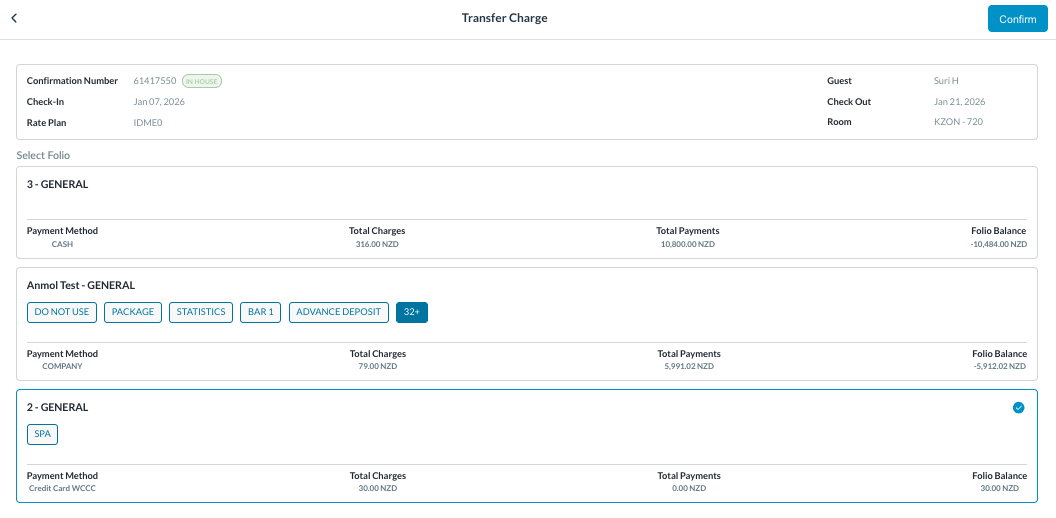
Select the Folio in the chosen Reservation. Select Confirm to continue. Upon completion a “success” notification screen will appear. The Drag and Drop action can also be used in the transfer to a Reservation outside the current one. |
|
|
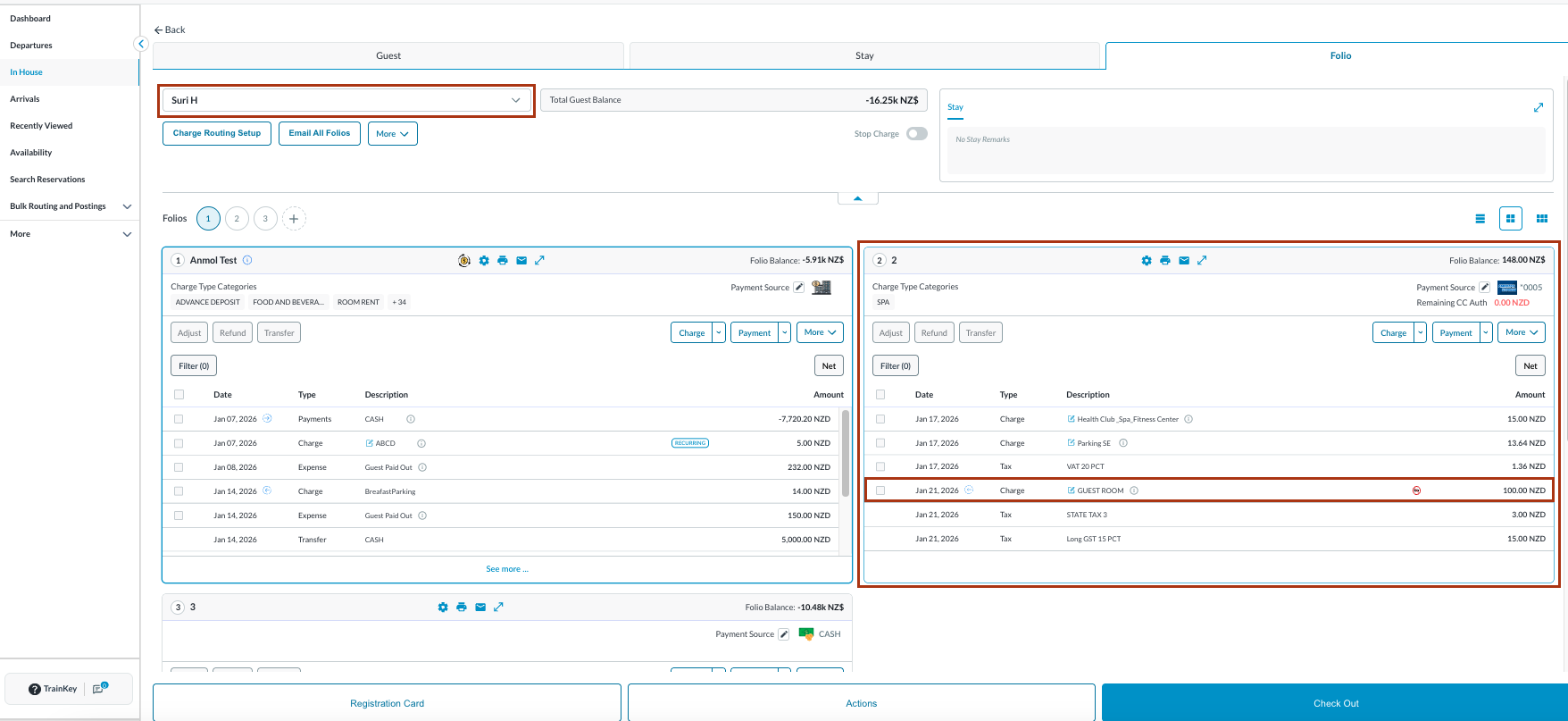
Check the corresponding reservation to see the transfer. |
|
Transfer Charge to a House Account
|
From the Folio tab of the reservation , Select a Charge and Transfer Select the checkbox next to the charge you want to transfer. Click Transfer to proceed. |
|
|
The Transfer Charges window opens. The entire or desired amount can be transferred from the charge. Select Next to continue.
|
|
|
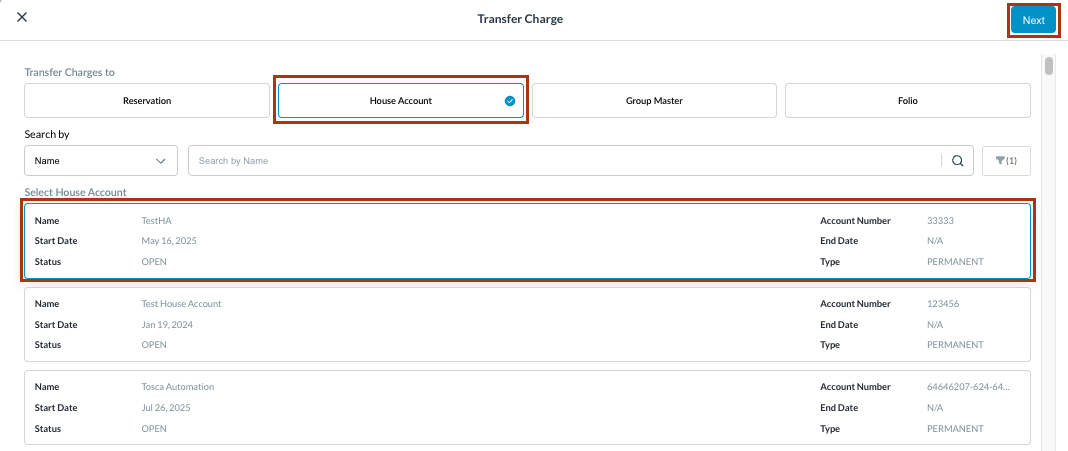
A new Transfer Charge popup opens. Select the House Account where the charge needs to be transferred. |
|
|
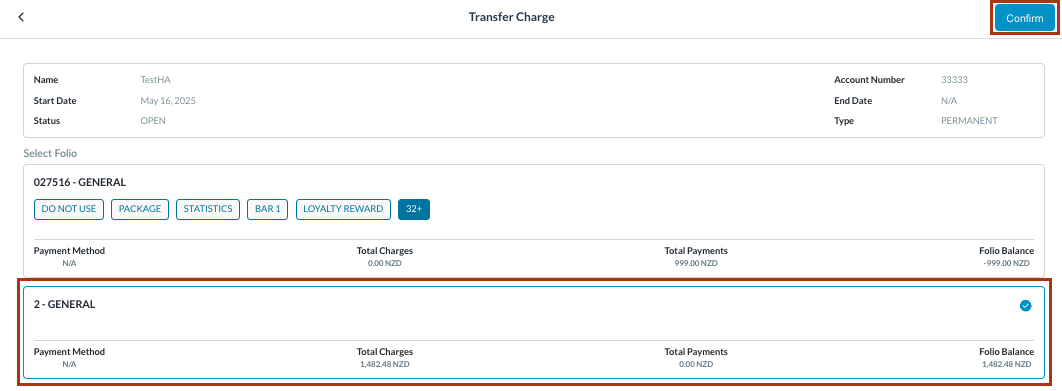
Select the Folio in the chosen House Account.
Upon completion a “success” notification screen will appear. The Drag and Drop action can also be used in the transfer to a House Account. |
|
|
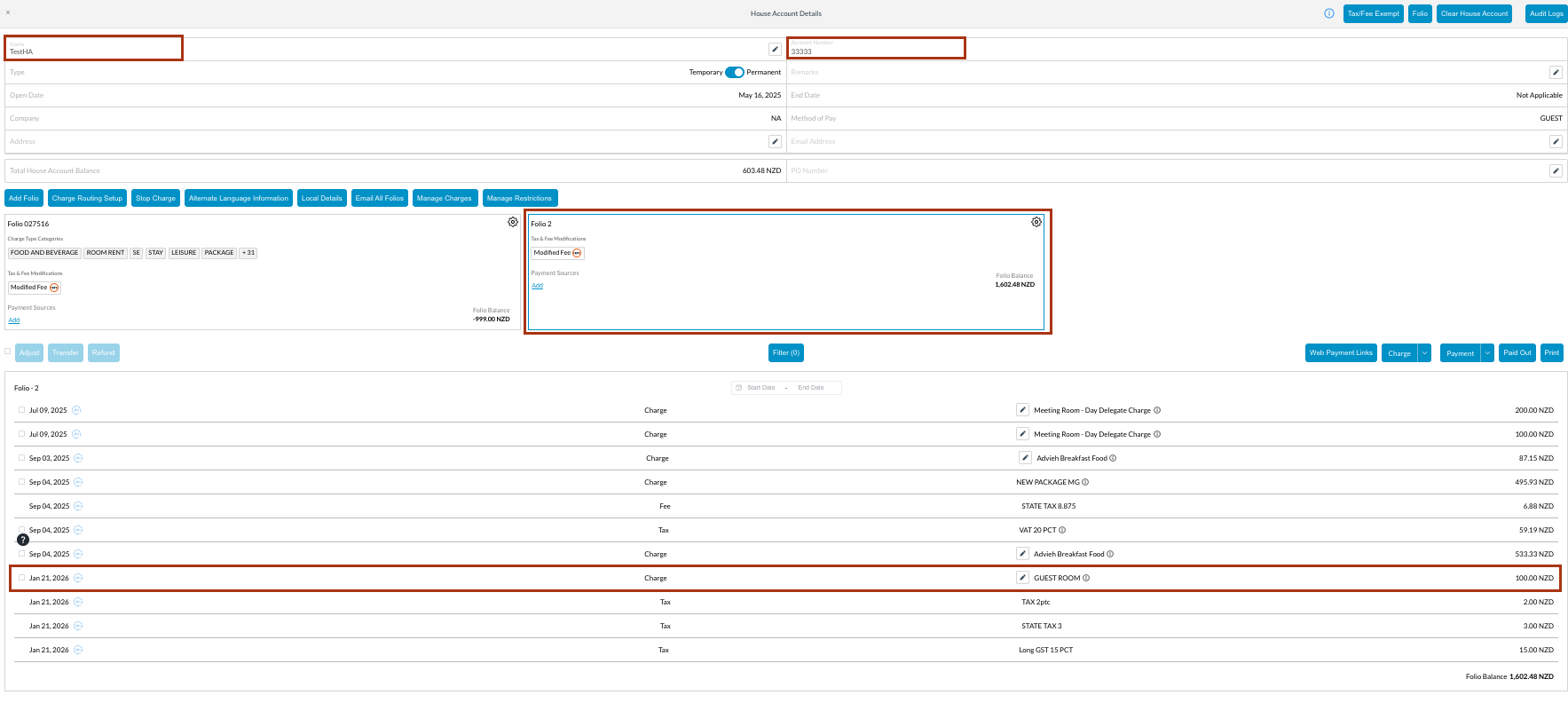
Check the corresponding House Account to see the transfer. Find the House Account from the left side menu and search for the relevant account |
|
Transfer Charge to a Group Master
|
From the Folio tab of the reservation , Select a Charge and Transfer Select the checkbox next to the charge you want to transfer.
|
|
|
The Transfer Charges window opens. The entire or desired amount can be transferred from the charge.
|
|
|
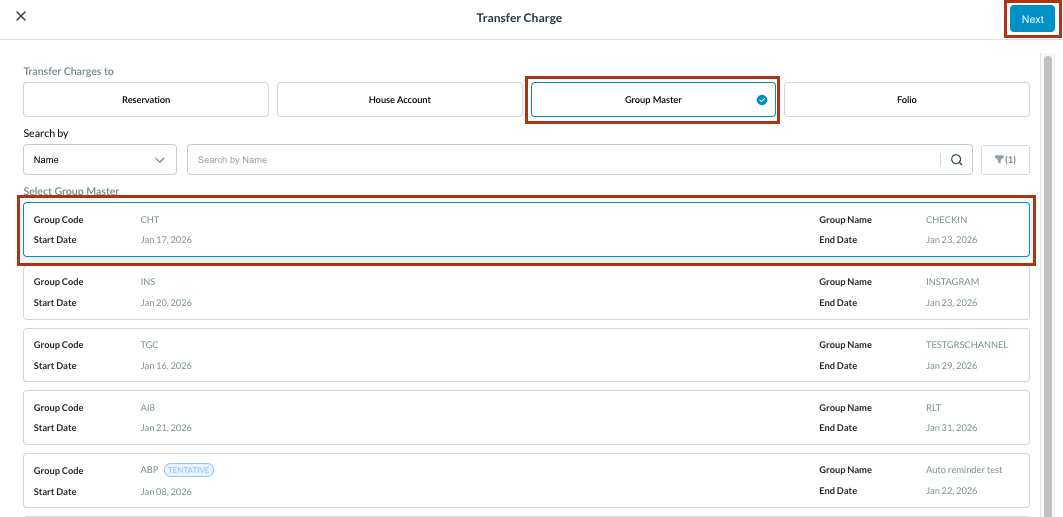
A new Transfer Charge popup opens.
|
|
|
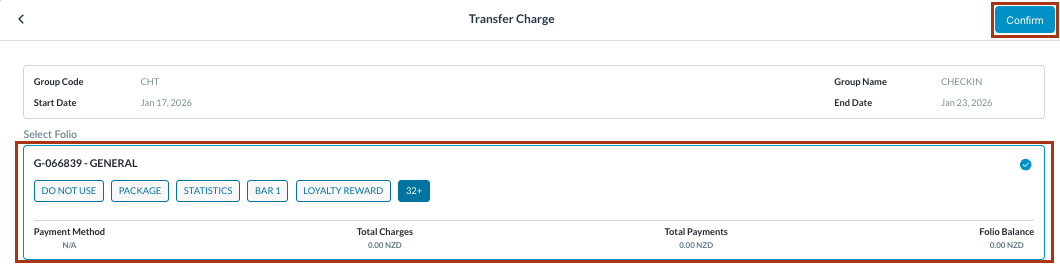
Select the Folio in the chosen Group Master.
Upon completion a “success” notification screen will appear. The Drag and Drop action can also be used in the transfer to a Group Master. |
|
|
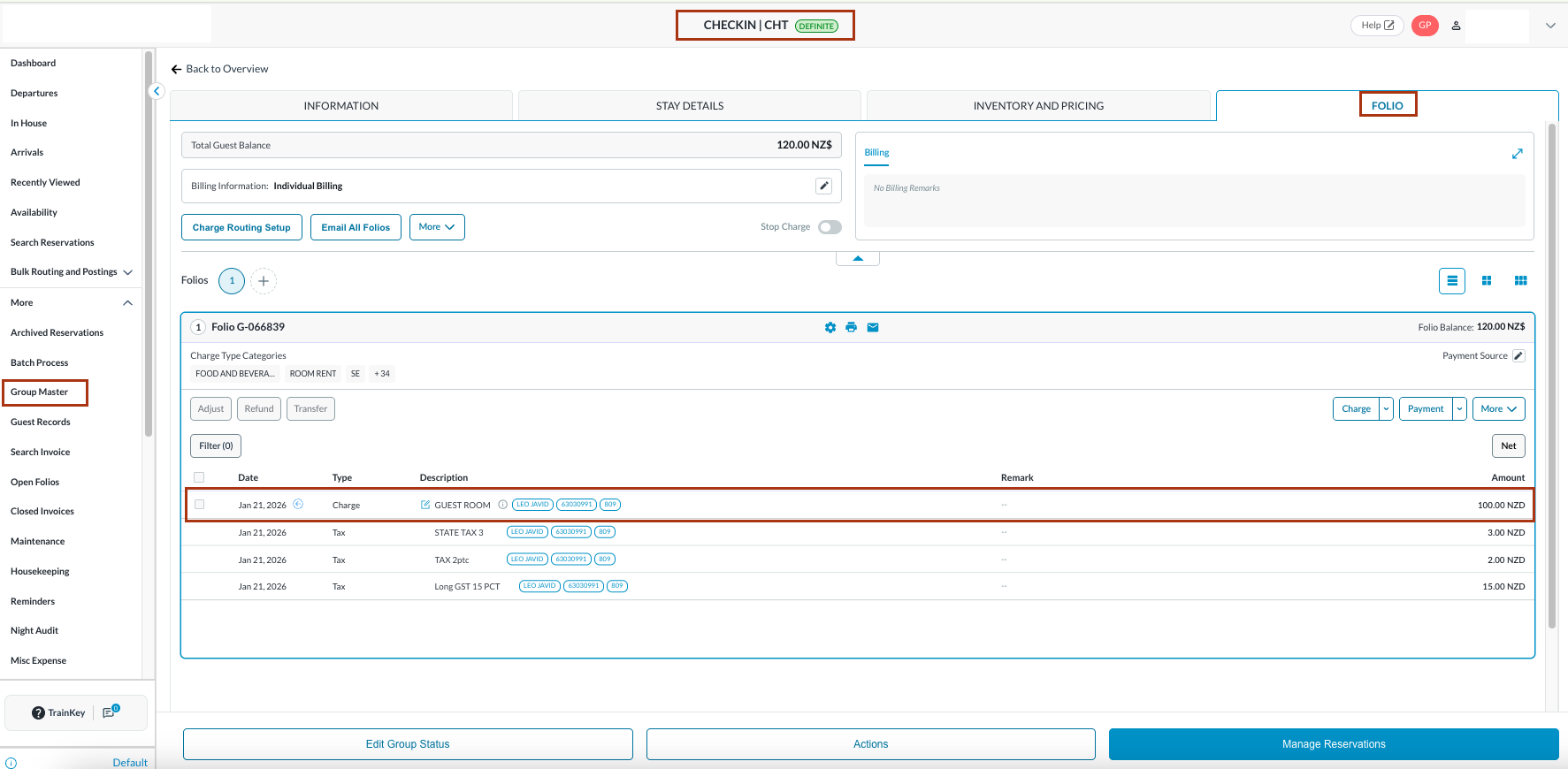
Check the corresponding Group Master to see the transfer. Find the Group Master from the left side menu and search for the relevant group |
|