
📆 Revision Date:
The room rate charge can be split among multiple people in the reservation. You can setup an Equal Split, or a Custom Split - which includes by percentage or by dollar amount.
Note - Ensure the reservation has additional guests created prior to activating a spilt
Activate Split Rates
|
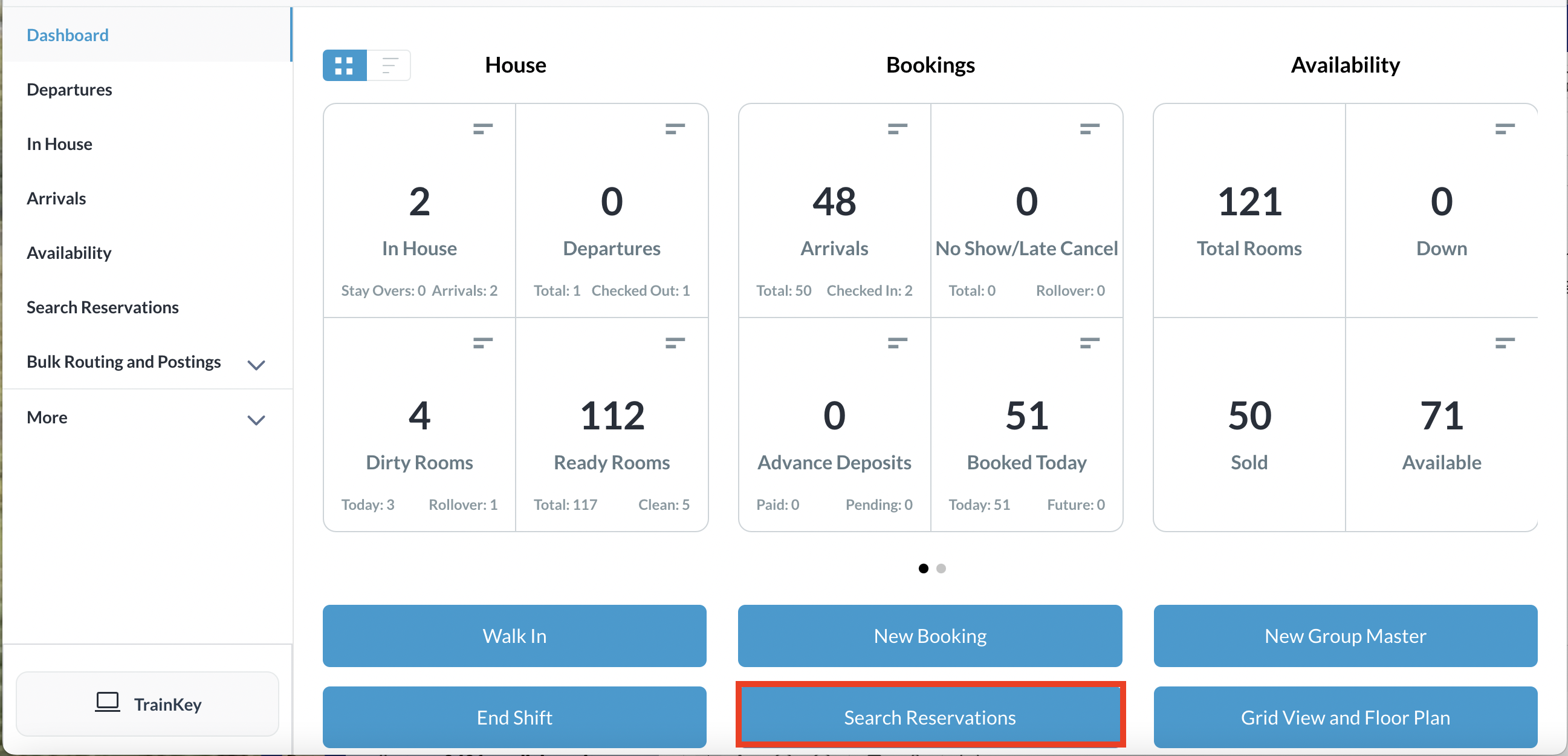
You can activate Split Rates on any reservation status; arrivals or in house From the Dashboard, select Search Reservations, enter the search criteria to find the reservation you wish to setup split rates for.
|
|
|
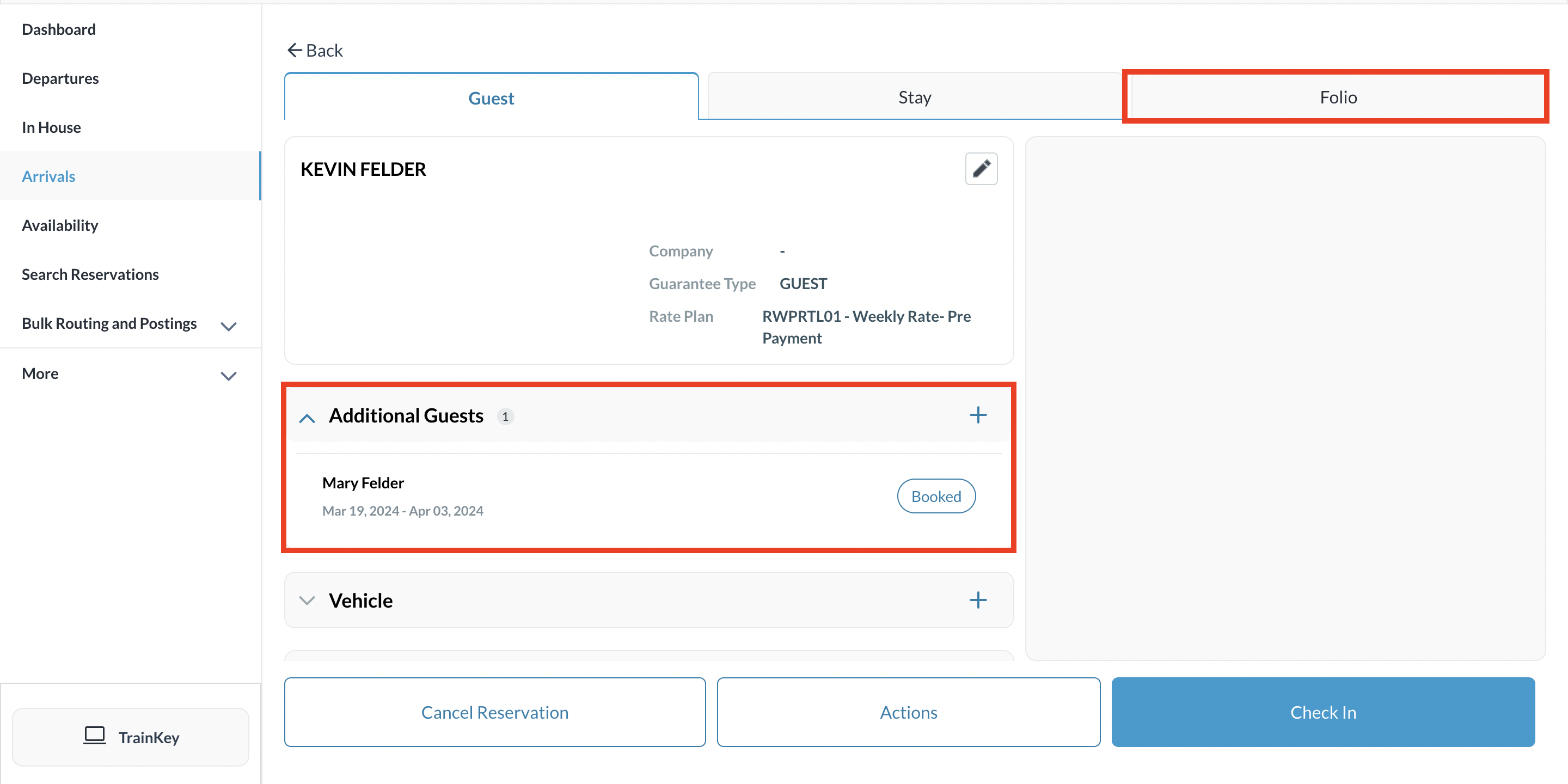
Open the reservation once located. Ensure Additional Guests are added to the reservation Click on Folio |
|
|
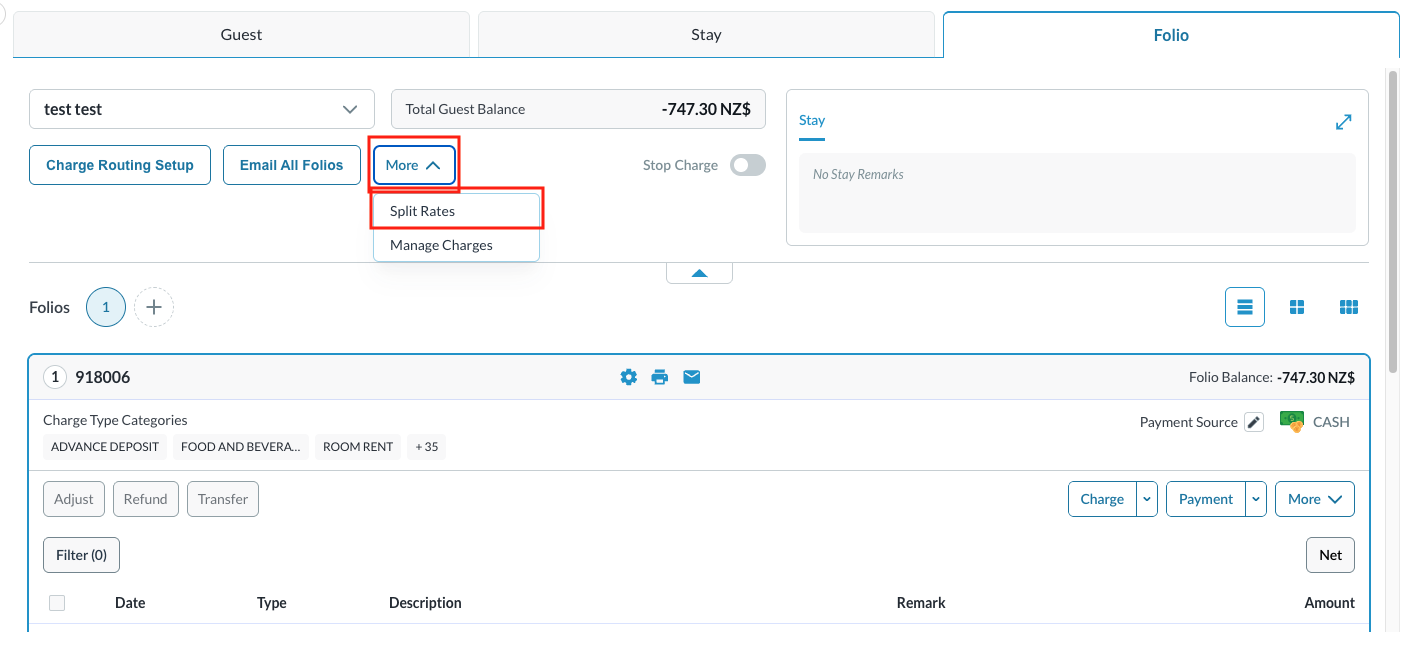
Create Split Rates
|
|
|
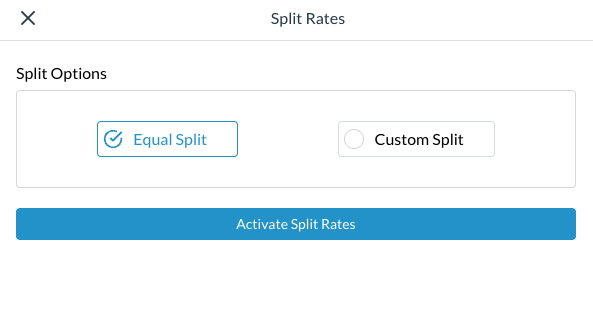
The Split Rates screen opens Select between Equal Split or Custom Split then click on Activate Splits |
|
|
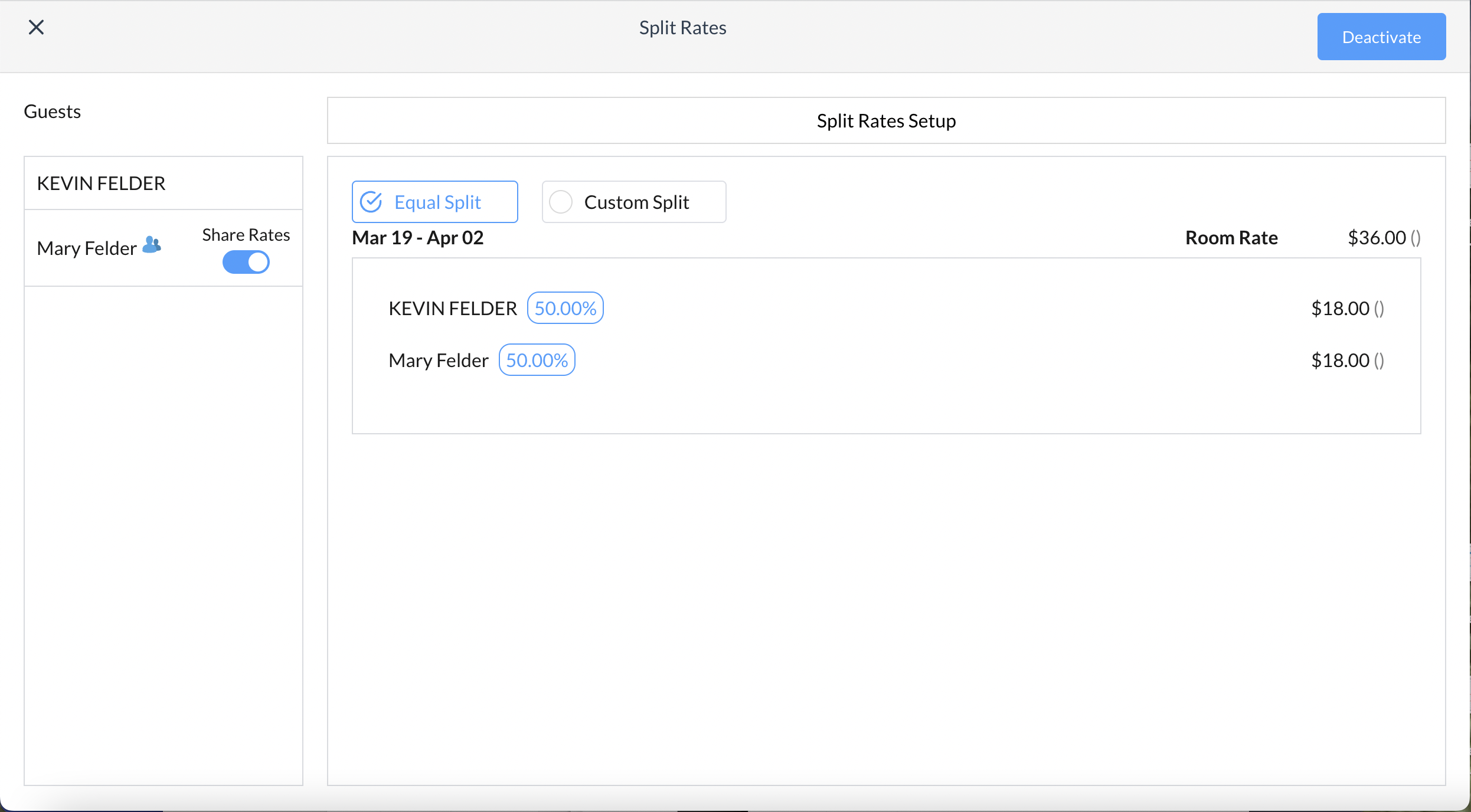
Equal Split - split rates setup screen loads The room rate between the number of guests on the reservation shows Equally split
|
|
|
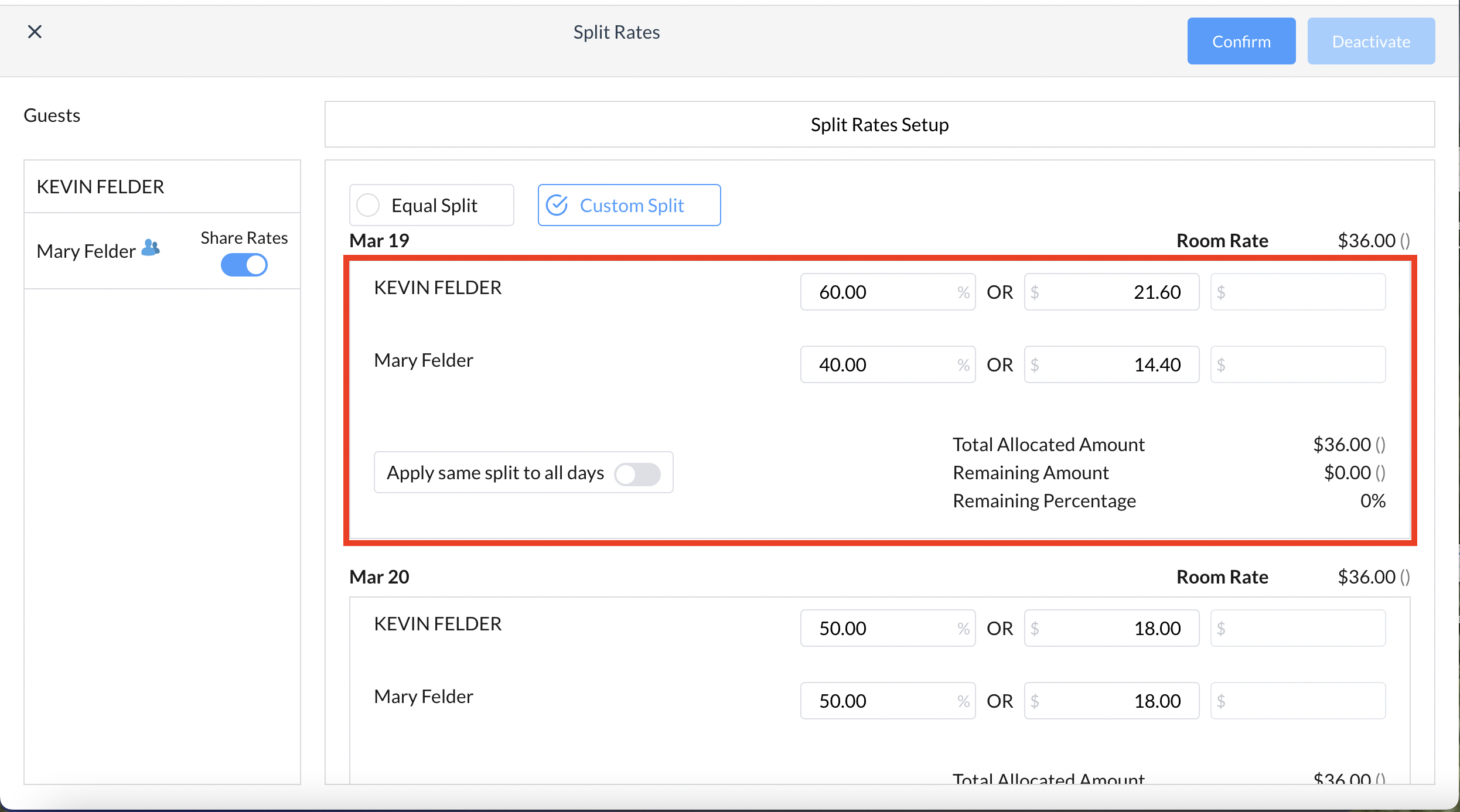
Custom Split - split rates setup screen loads Split by Percentage In the example to the right, the first guest is responsible for 60% - once entering the initial percentage, notice the total allocated amount shows the remaining balance - the remaining guest(s) need to be setup for 40% split to balance the split rate setup
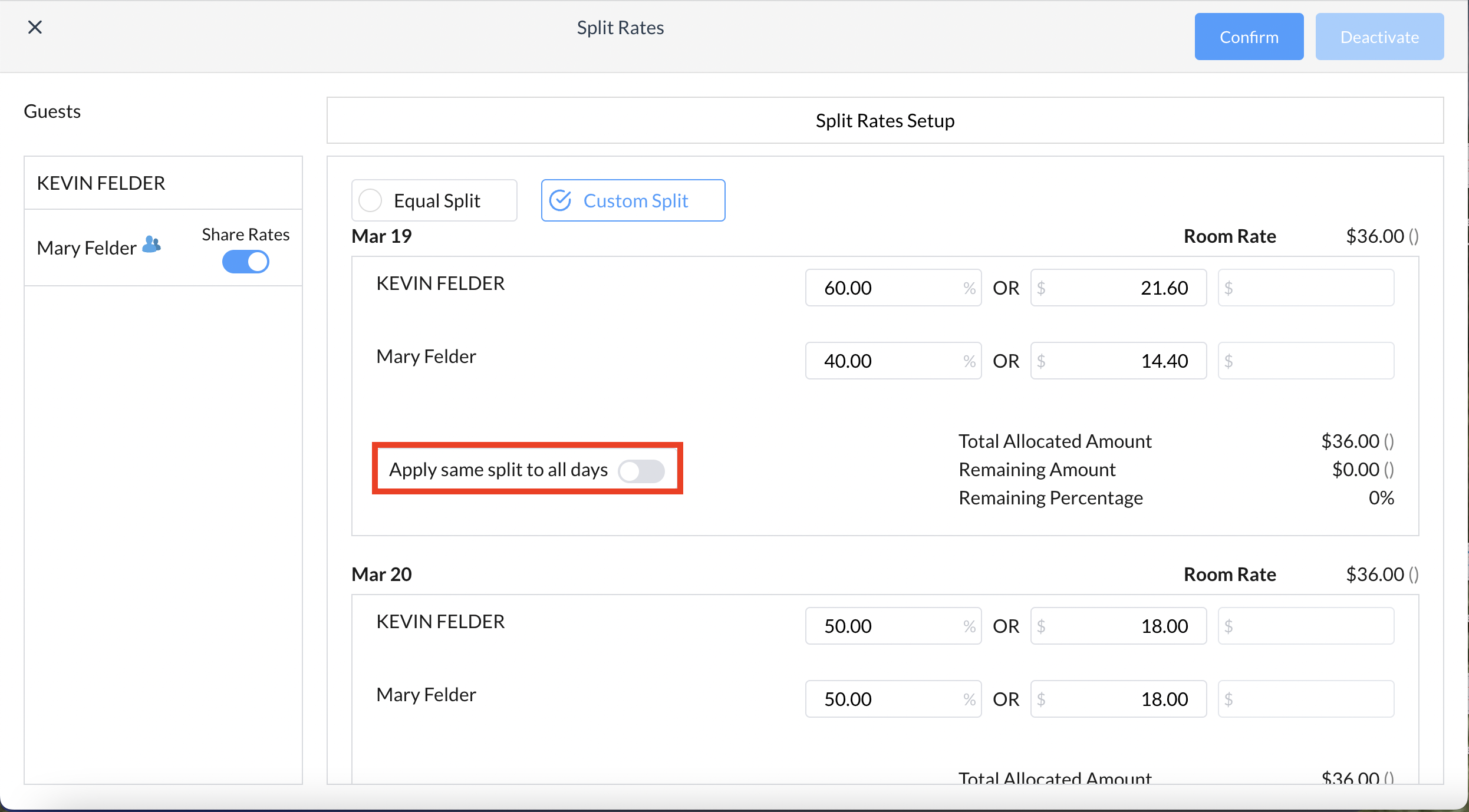
Choose to Apply same split to all days or manually enter the split for the remaining days, if applicable, to complete the setup
|
|
|
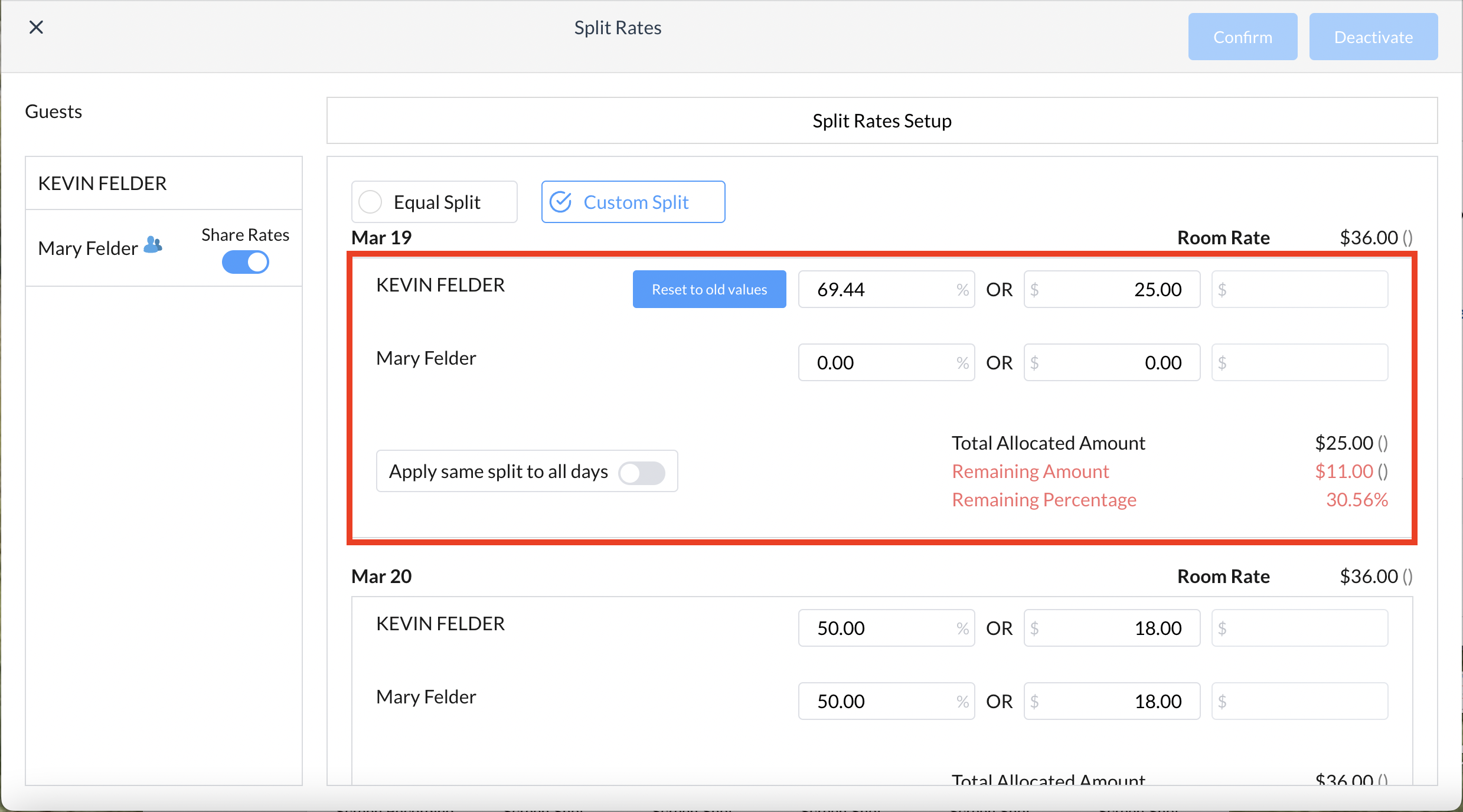
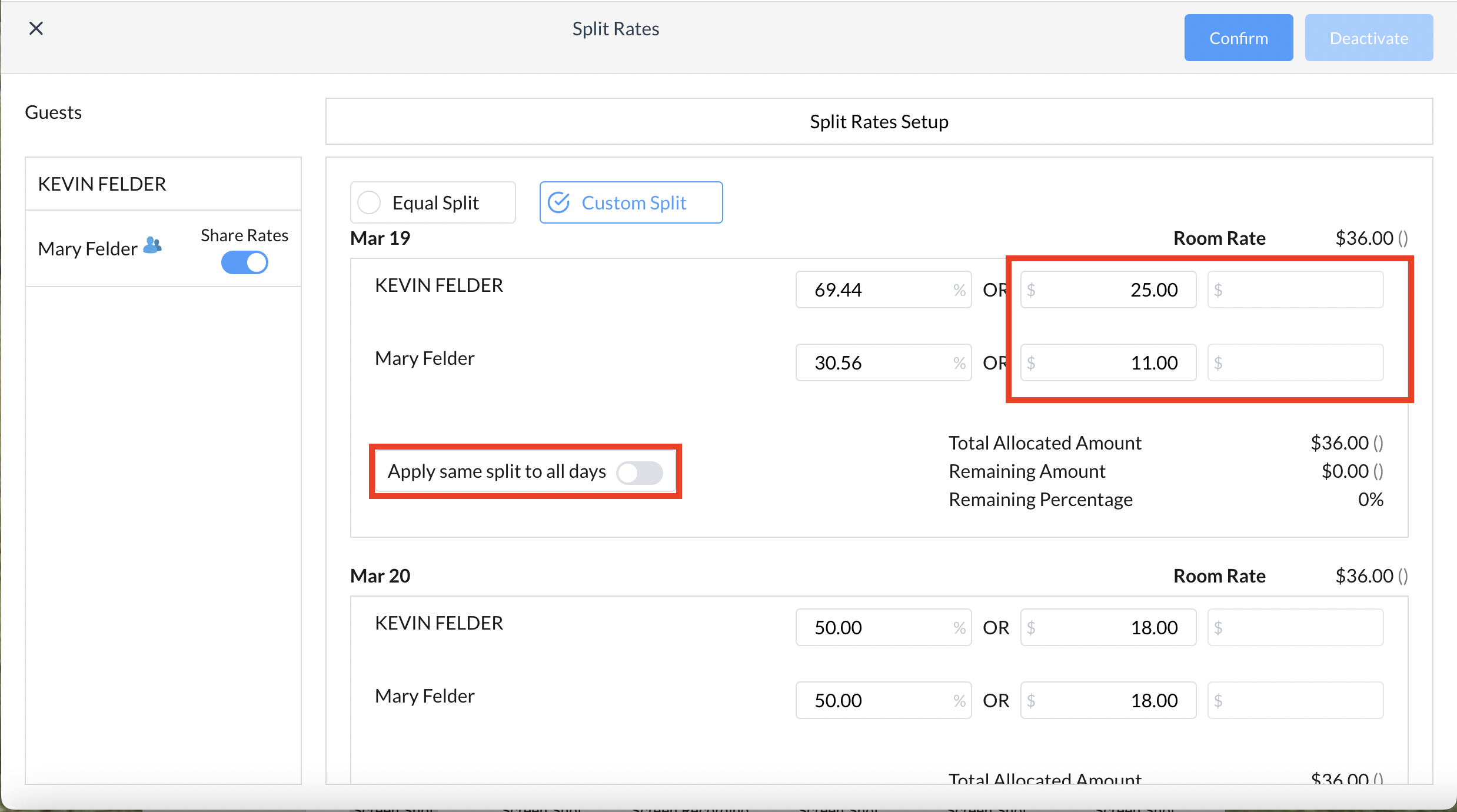
Split by Amount In the example to the right, the first guest is responsible for $25 - once entering the initial amount, notice the total allocated amount shows the remaining balance - the remaining guest(s) need to be setup for $11 to balance the split rate setup
Choose to Apply same split to all days or manually enter the split for the remaining days, if applicable, to complete the setup
|
|
|
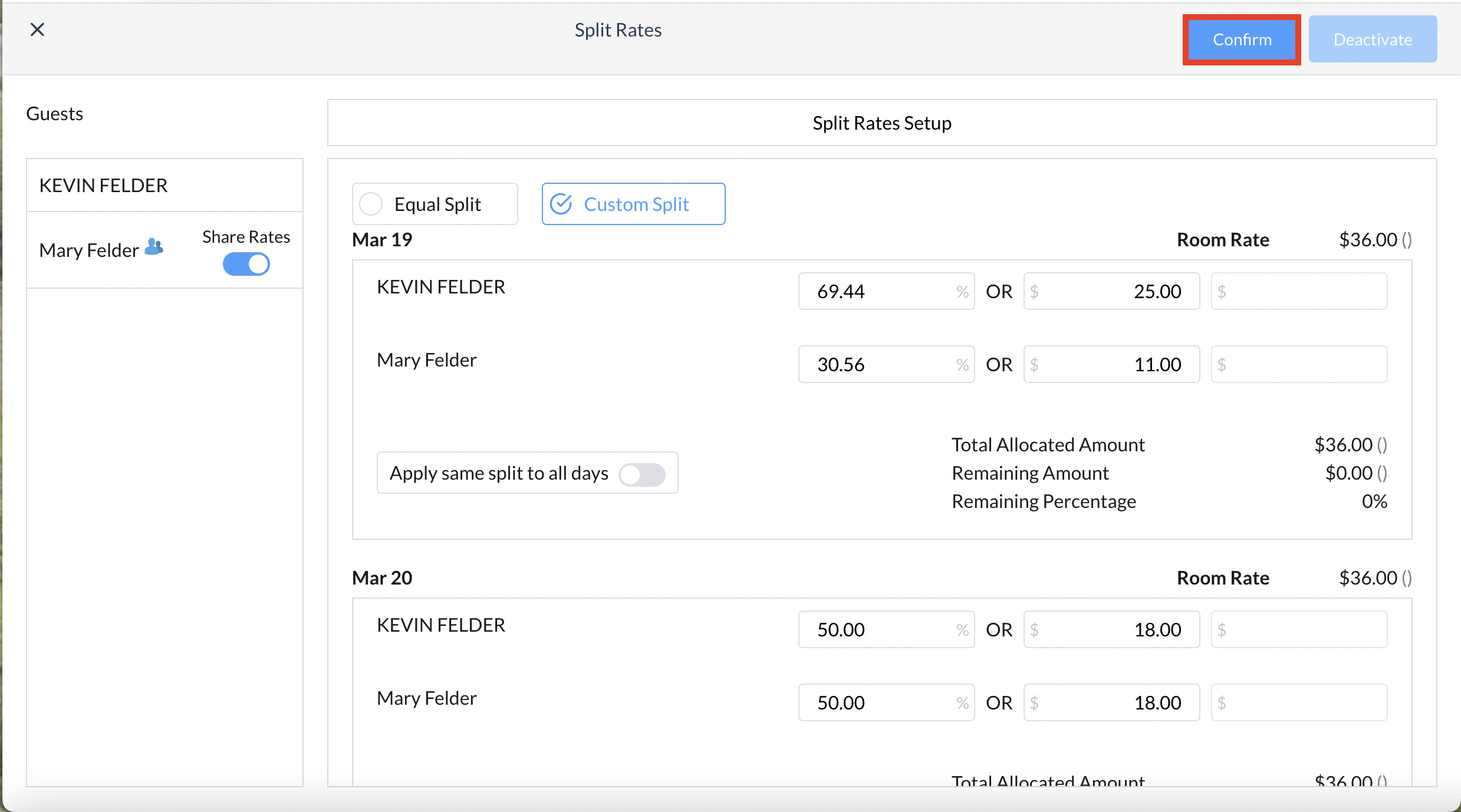
Once the custom split setup has been completed, click on Confirm |
|
|
Note - if at any time you need to change the setup, for either percentage of amount First, Confirm the setup then click on Deactivate to start over |

|