
Revision Date:
Charge Routing Setup controls where charges post for a reservation. Instead of every charge landing on the guest's default folio, you can:
-
Send specific charge categories to another folio within the same reservation (for example, room and tax on Folio 1, incidentals on Folio 2).
-
Send charges outside the reservation, typically to another guest, a master or company account, or another booking.
-
Do the same at the individual charge type level for finer control.
Common use cases:
-
Company pays for room and tax, and the guest pays for incidentals
-
Split billing between two guests sharing a room
-
Group or master account billing
-
Keeping personal expenses (phone, beverage, club lounge) off the main folio
|
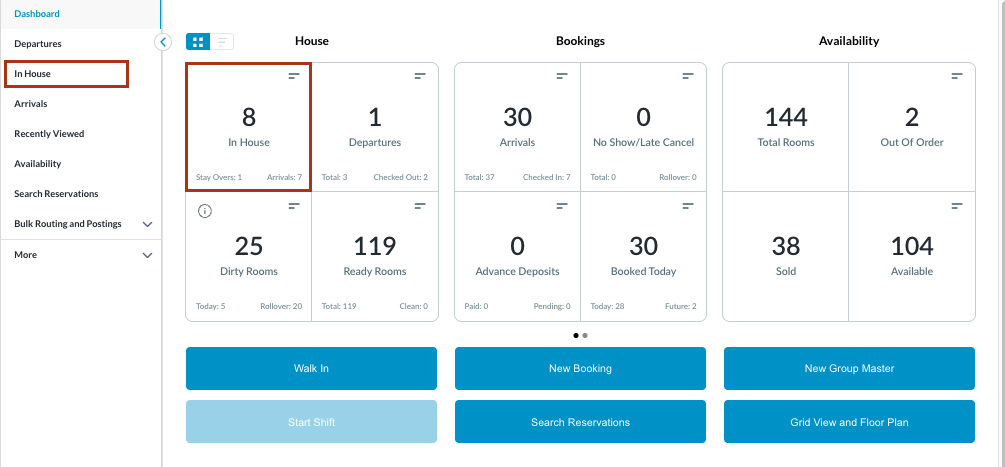
Select In House tile on the Dashboard. You can also search for in-house reservations using the options in the left-side menu. |
|
|
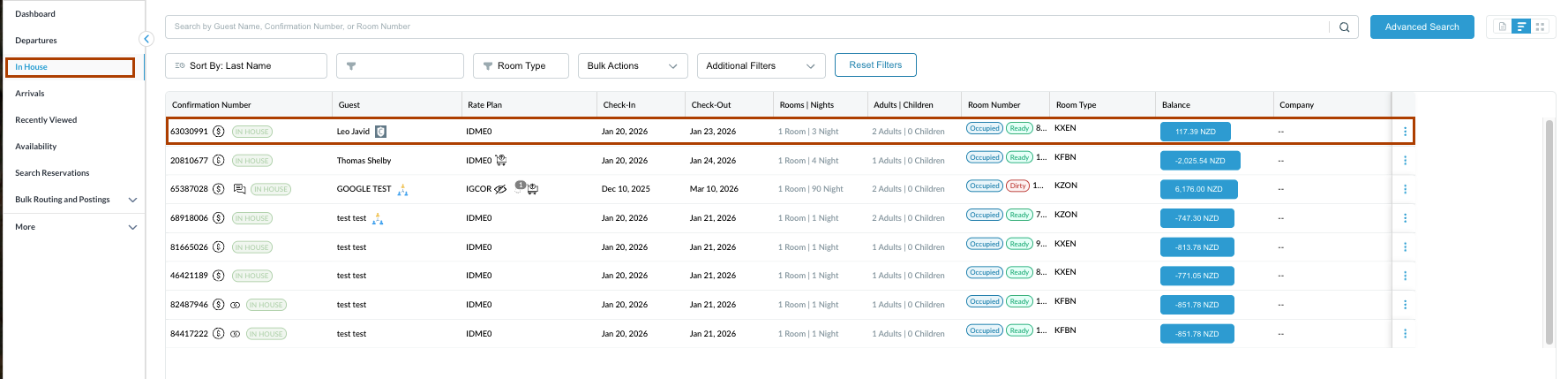
The In House listings page will load. Select the reservation from which the charge category needs to be routed. |
|
|
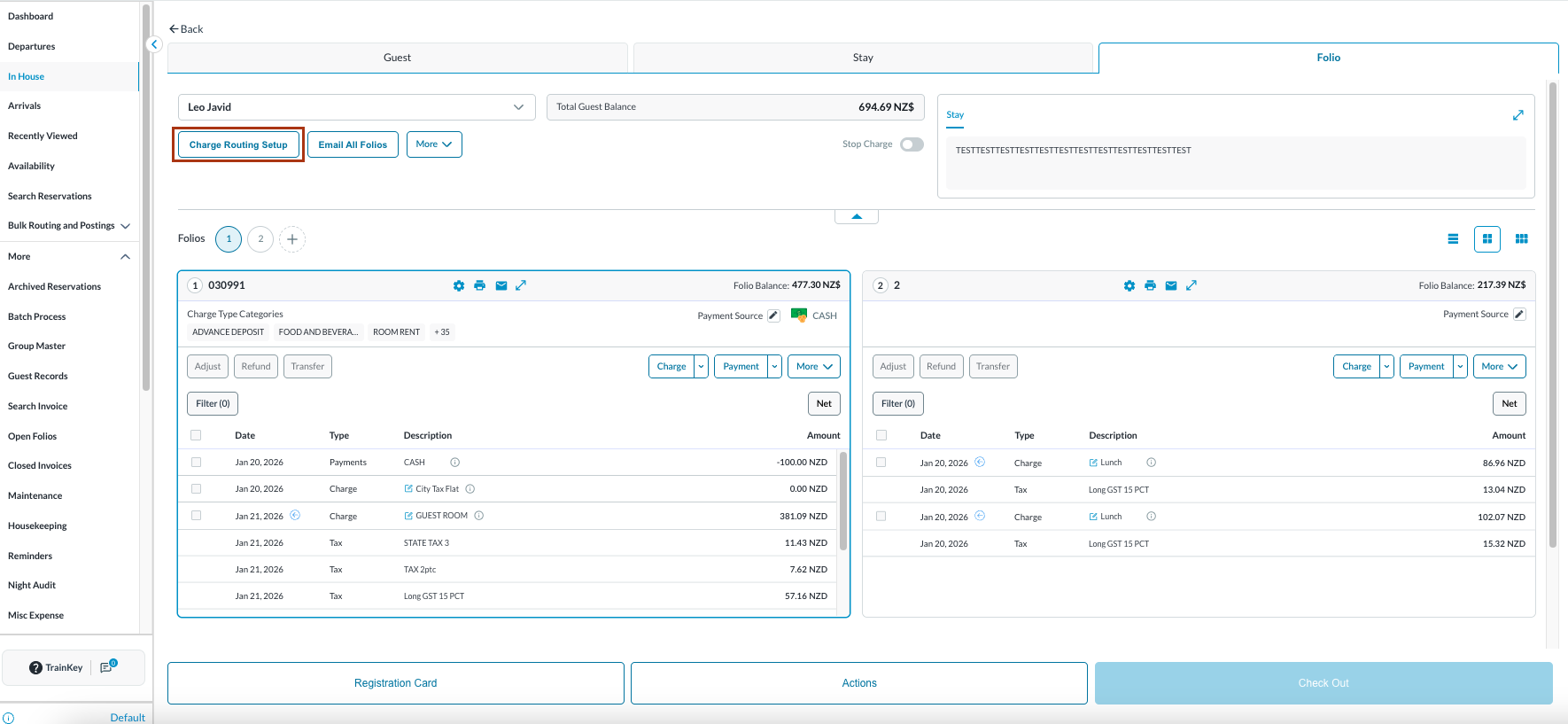
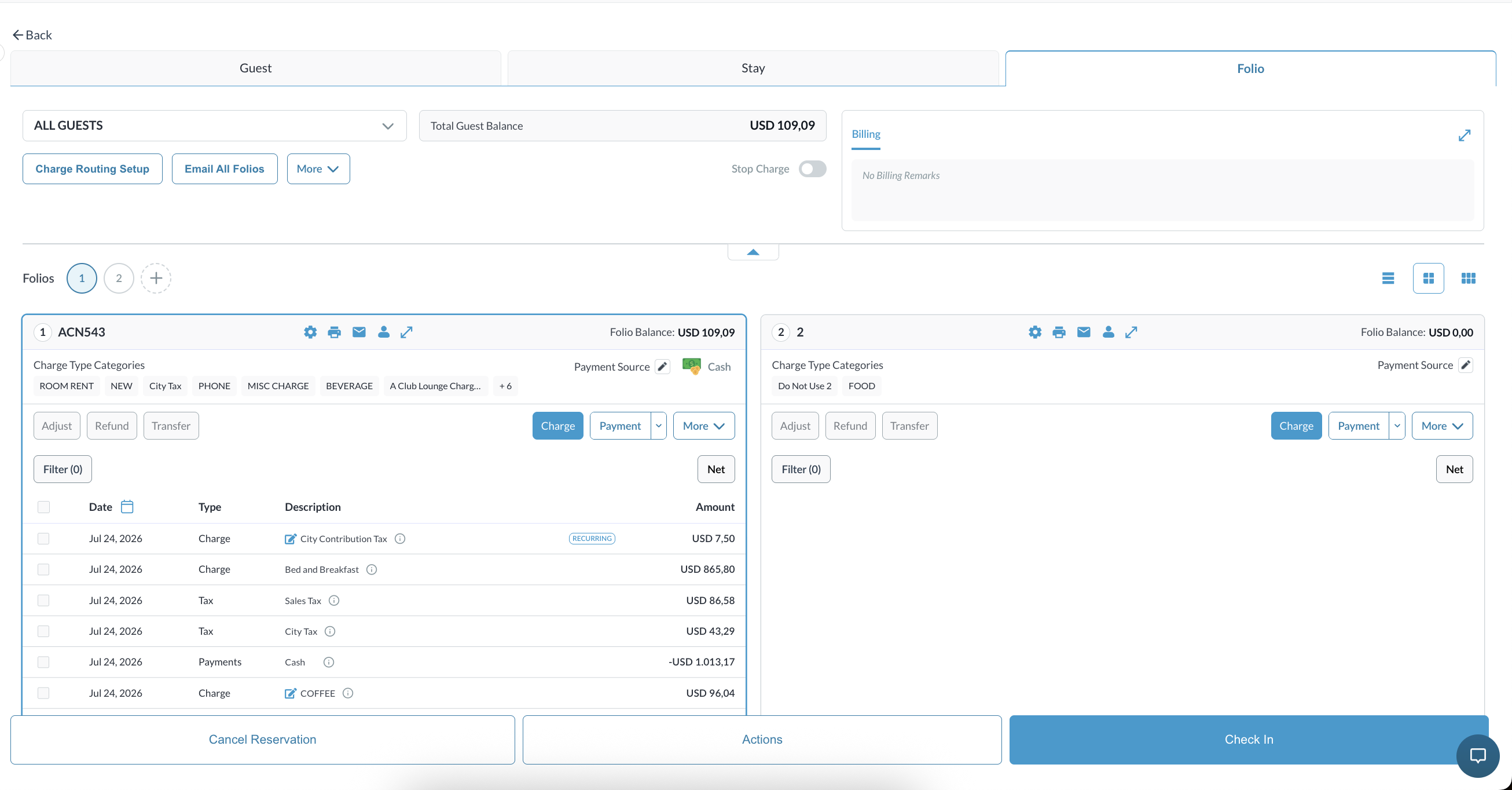
The Reservation Details page opens, displaying the Guest tab by default. Select the Folio tab. Within the Folio, select the Charge Routing Setup as highlighted shown in the image.
Note: the folio screen automatically adjusts to the most efficient layout. If a reservation contains multiple folios, the screen defaults to Side-by-Side View. If there is a single folio, the screen will open in Full Detail View. |
|
|
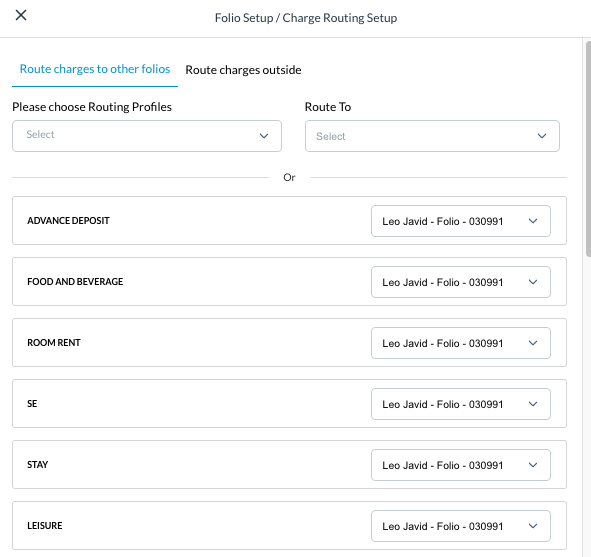
The Folio Setup / Charge Routing Setup screen will open, displaying all charge type categories linked to the reservation.
Note - Routing Profiles is a permission based feature. The profiles can be property specific - created and defined at the property level. Not all users will have access to utilize the feature. |
|
Internal Routing
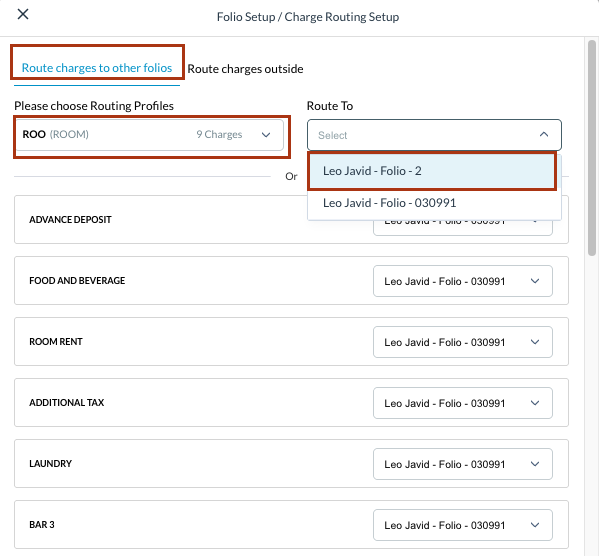
Use internal routing to route charge category between folios within the same reservation. Option 1: Select the Routing Profile that includes the charge categories that need to be routed to the desired folio. In the example, check the routing profile ROOM (which includes 9 charge categories) to be routed to Folio 2. Note - Routing Profiles is a permission based feature, the profiles can be property specific and created at the property level. Upon completion a notification screen will appear “Success.Routing Profiles Applied Successfully”
|
|
|
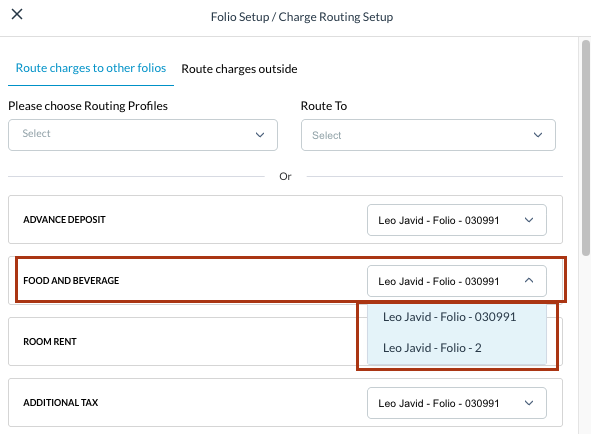
Option 2: Manually select the charge category and assign the chosen folio for the charges. Click the dropdown located to the right of the Charge Category and select the appropriate Folio on the current reservation. |
|
|
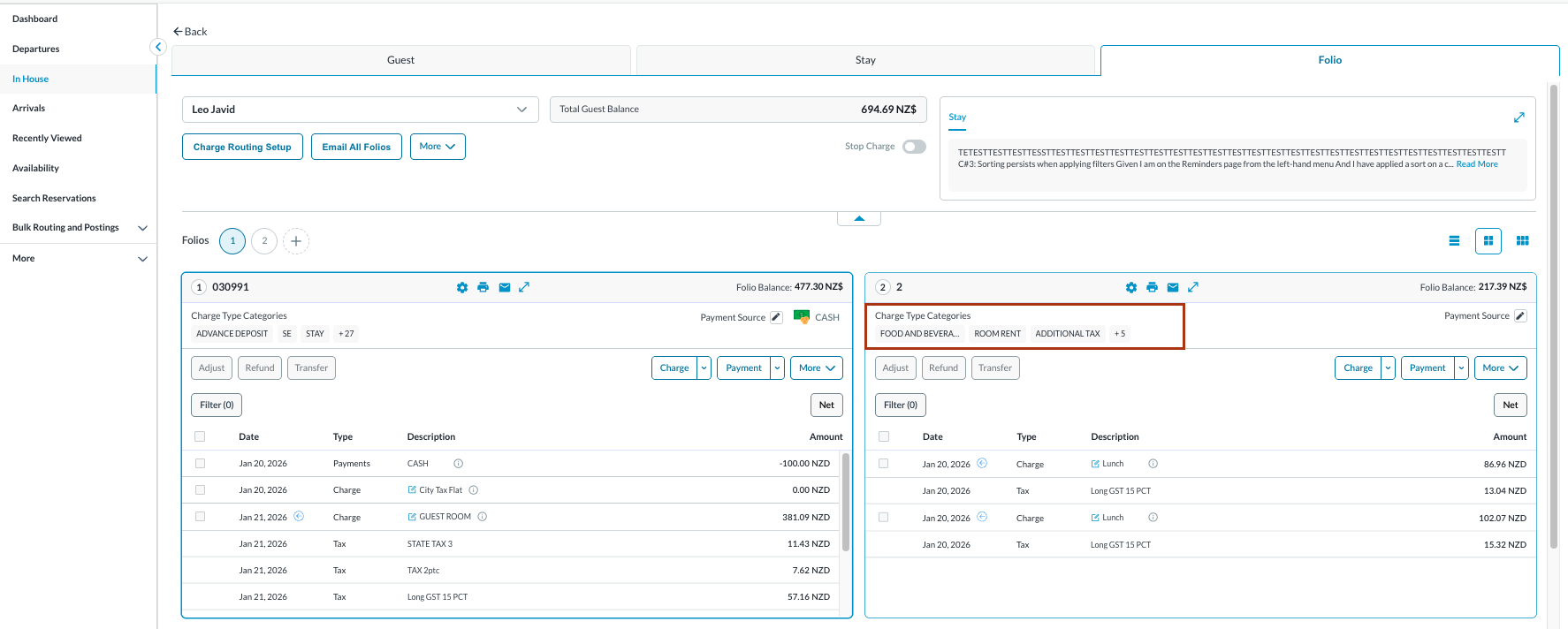
The routed charge category can be now seen in Folio 2.
Pro-Tip: Click on full detail view for better visibility. |
|
External Routing
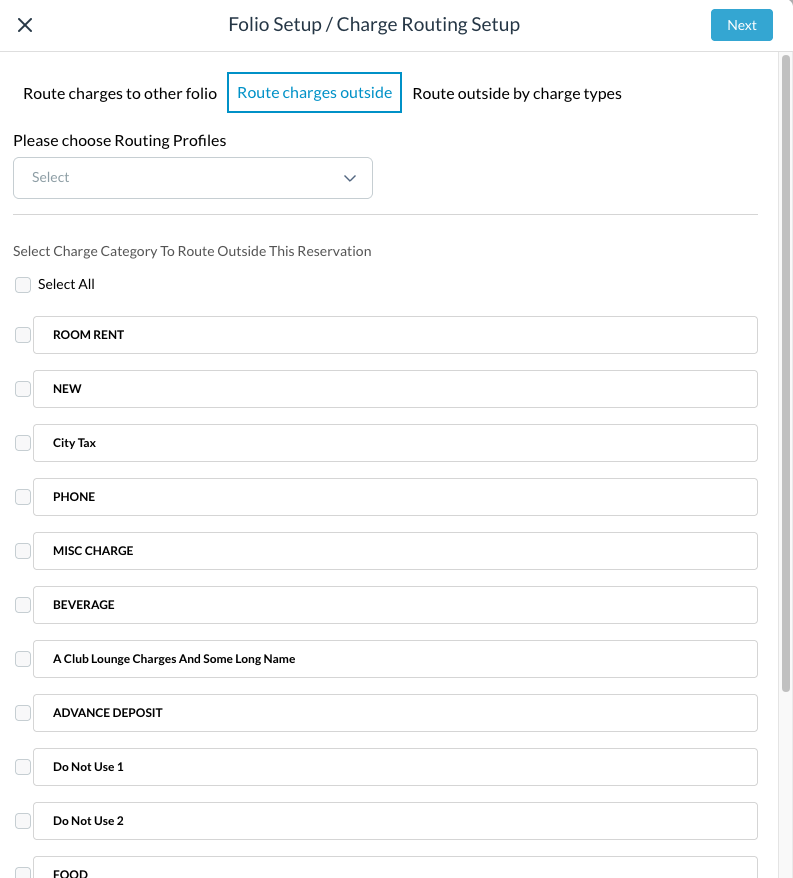
Use external routing to route charges outside (by charge category) to another reservation outside of the current one.
|
|
|
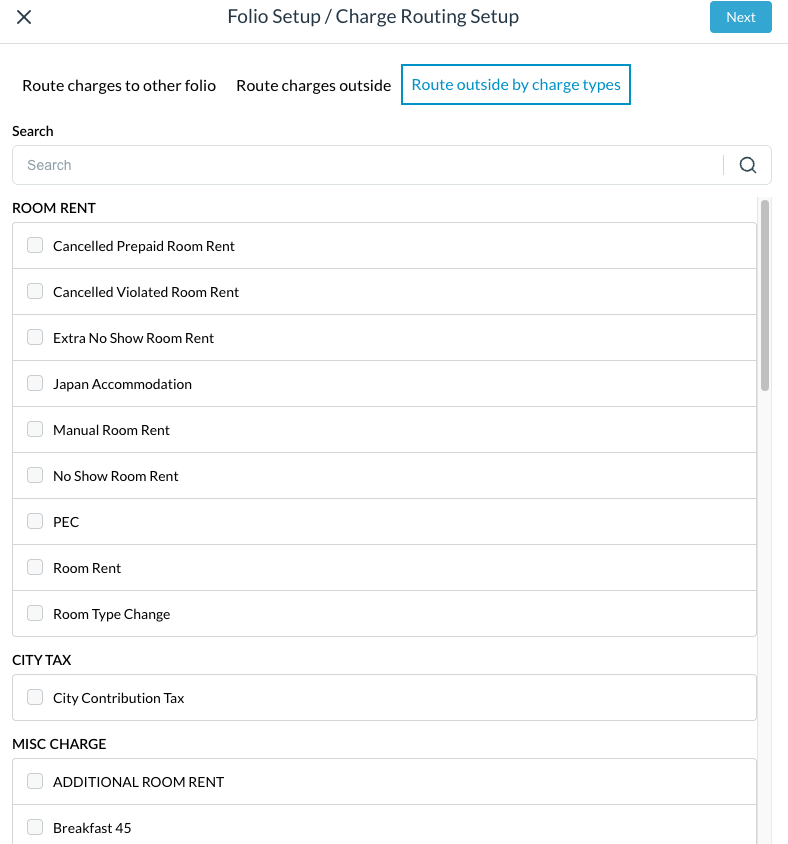
Use external routing to Route outside by charge types
Charge types are grouped under their parent category. For example:
|
|
|
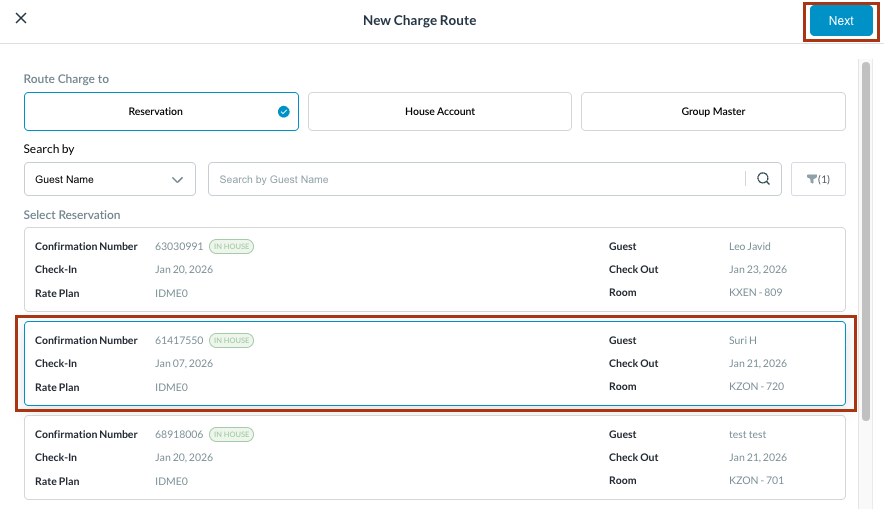
Choose the destination reservation where the Charge should be routed. ex - Here another Reservation is selected
|
|
|
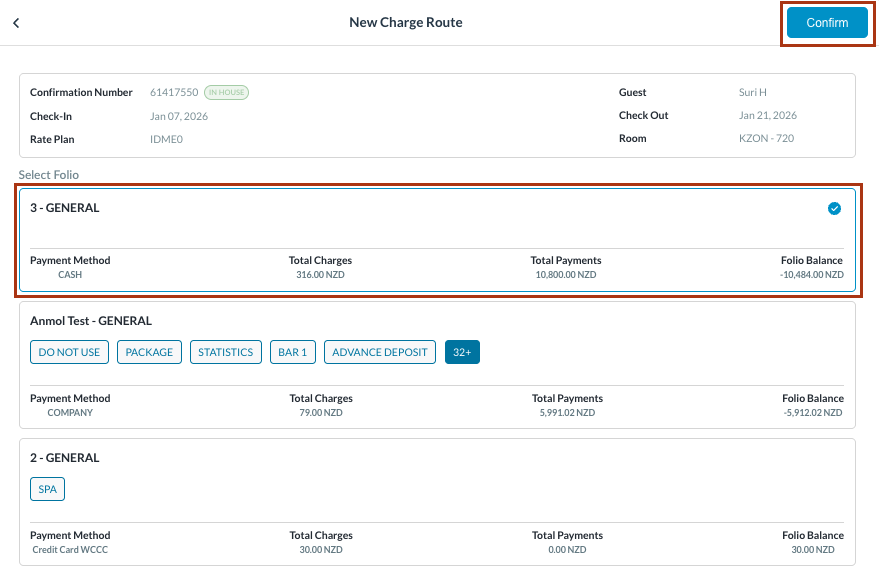
Select the appropriate folio for routing the charge. Then click Confirm. Upon completion a notification screen will appear “Success. Charge Routing done successfully” |
|
|
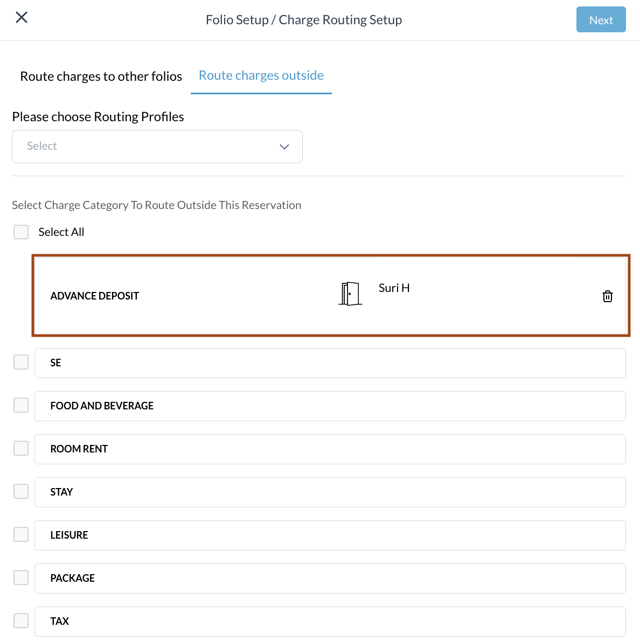
The routed charge(s) can be seen in the Folio Setup / Charge Routing Setup screen or on the Reservation where the charge is routed. |
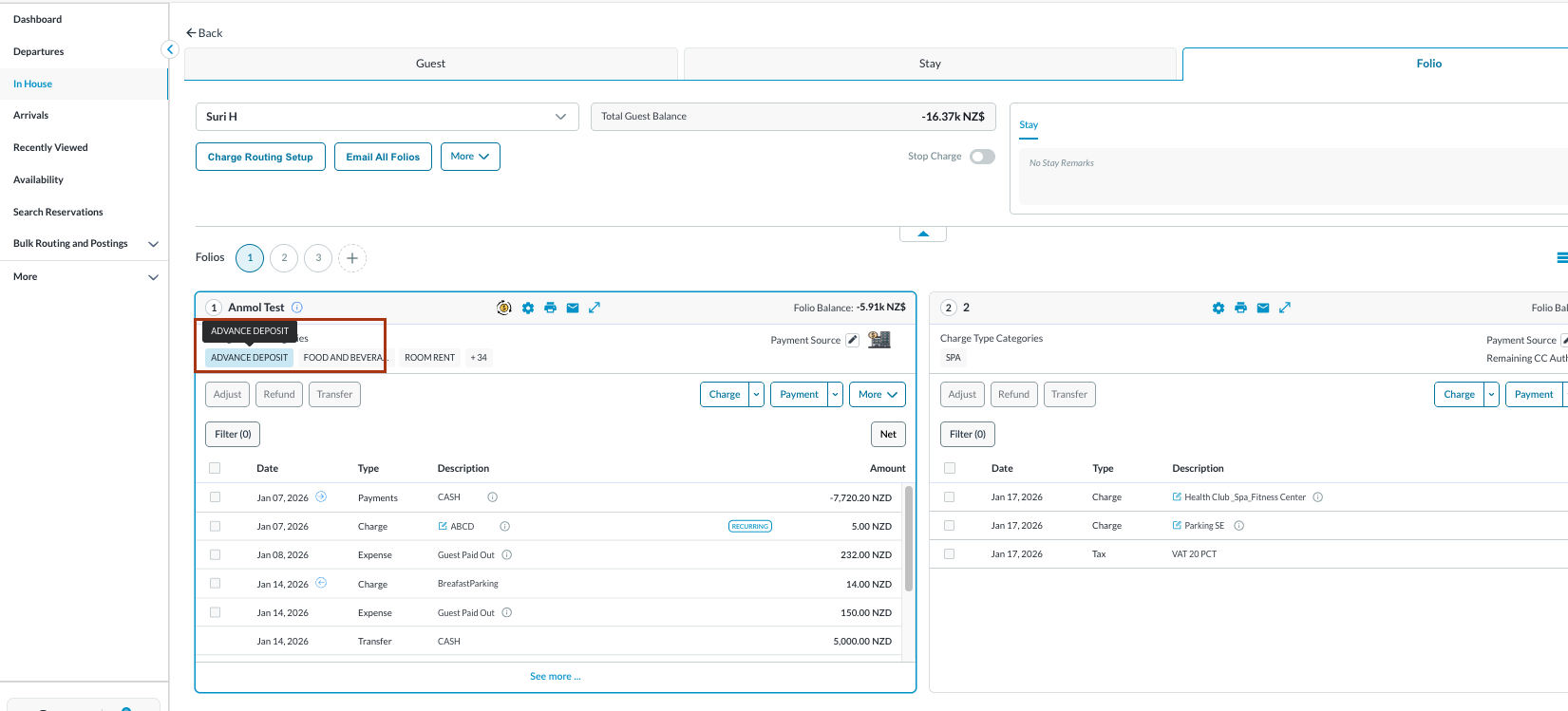
|
Drag and Drop
The same action can be accomplished by using the Drag and Drop feature: Select the charge type(s) from those listed on the folio, as seen in the image.
|
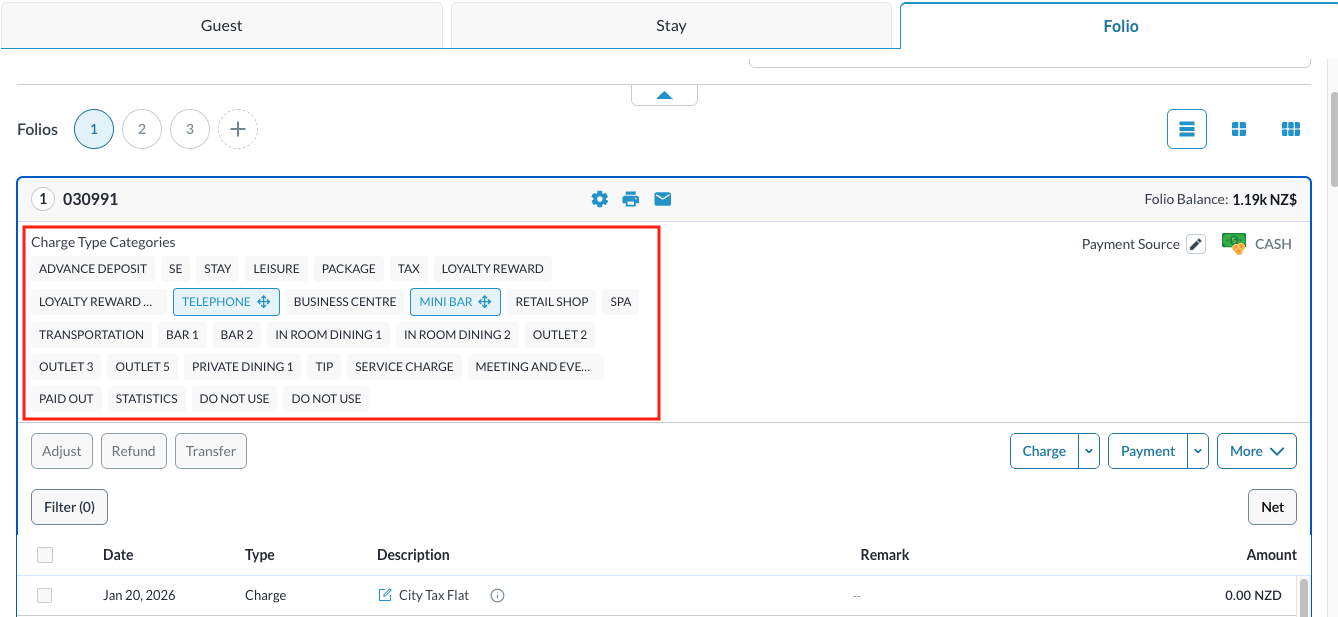
|
|
Drag the charge to the desired Folio in the same reservation or to another folio outside the reservation, to a House Account or Group Master, and drop. |
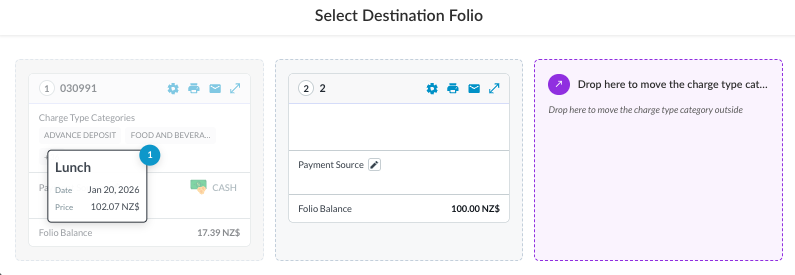
|
Charge Routing Remarks and Indicator
|
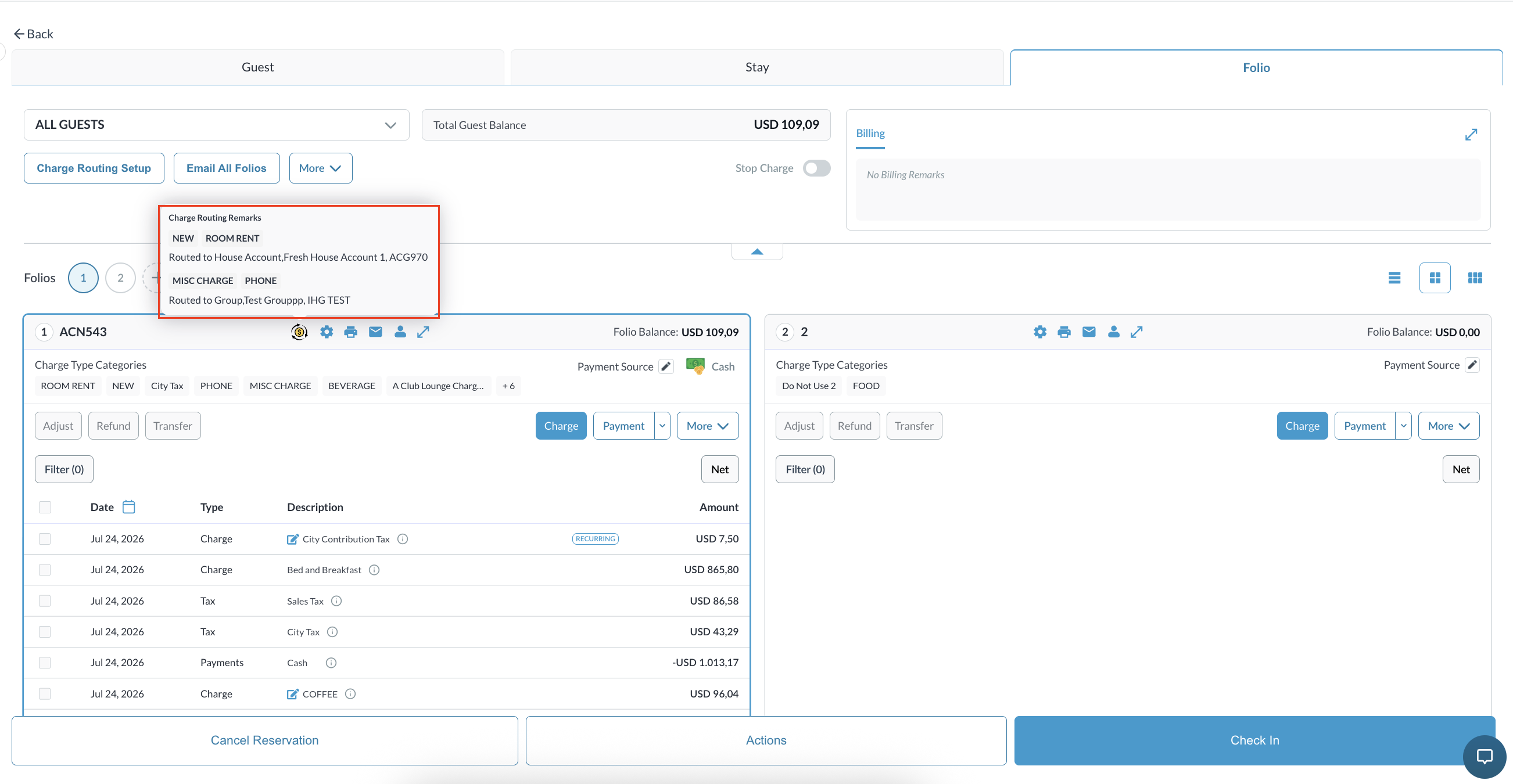
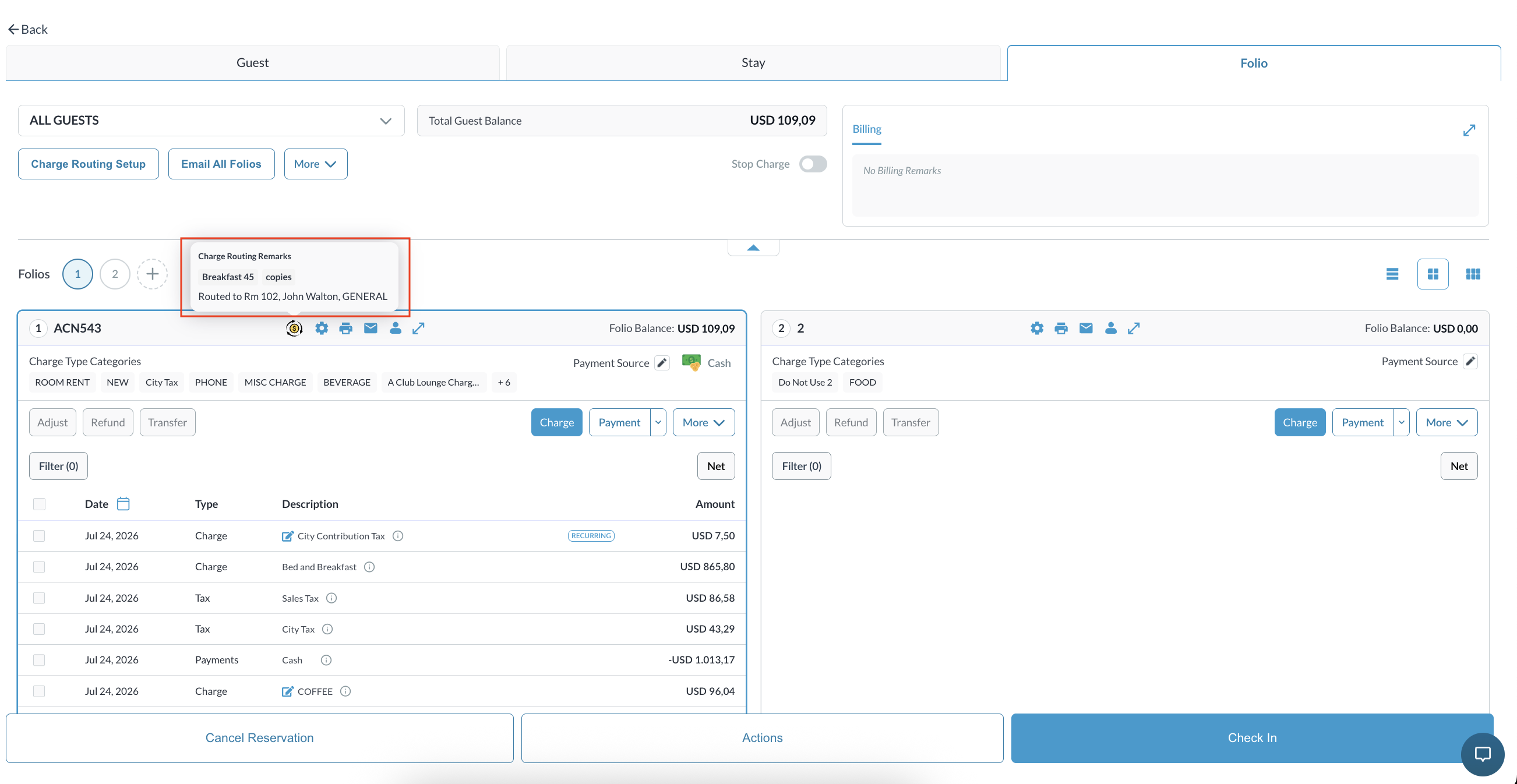
If both Charge Categories and Charge types are present.Charge Categories are listed first, followed by Charge Types. |
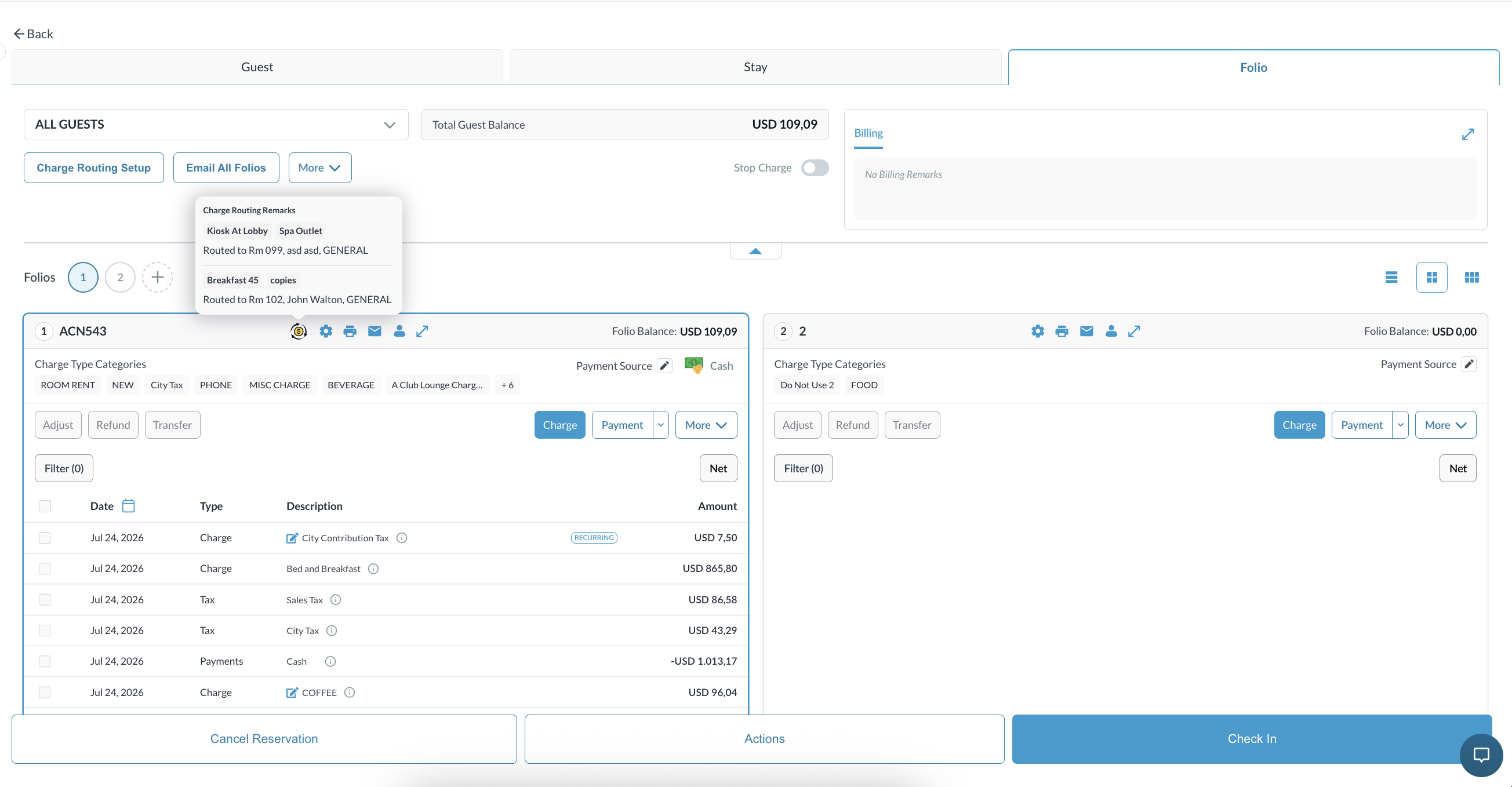
|
|
Hover over the indicator to see exactly where the charges are being sent:
|
|
|
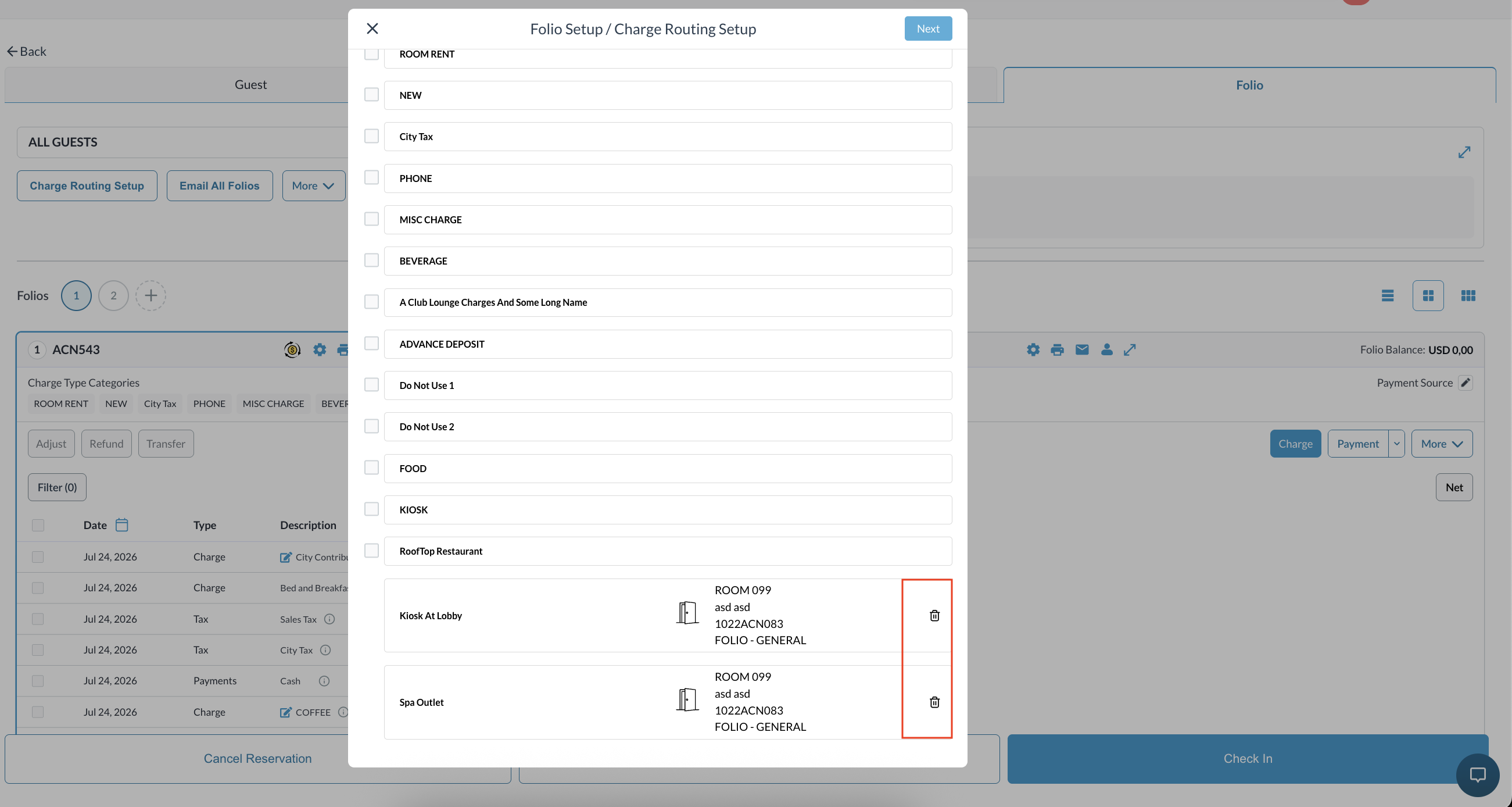
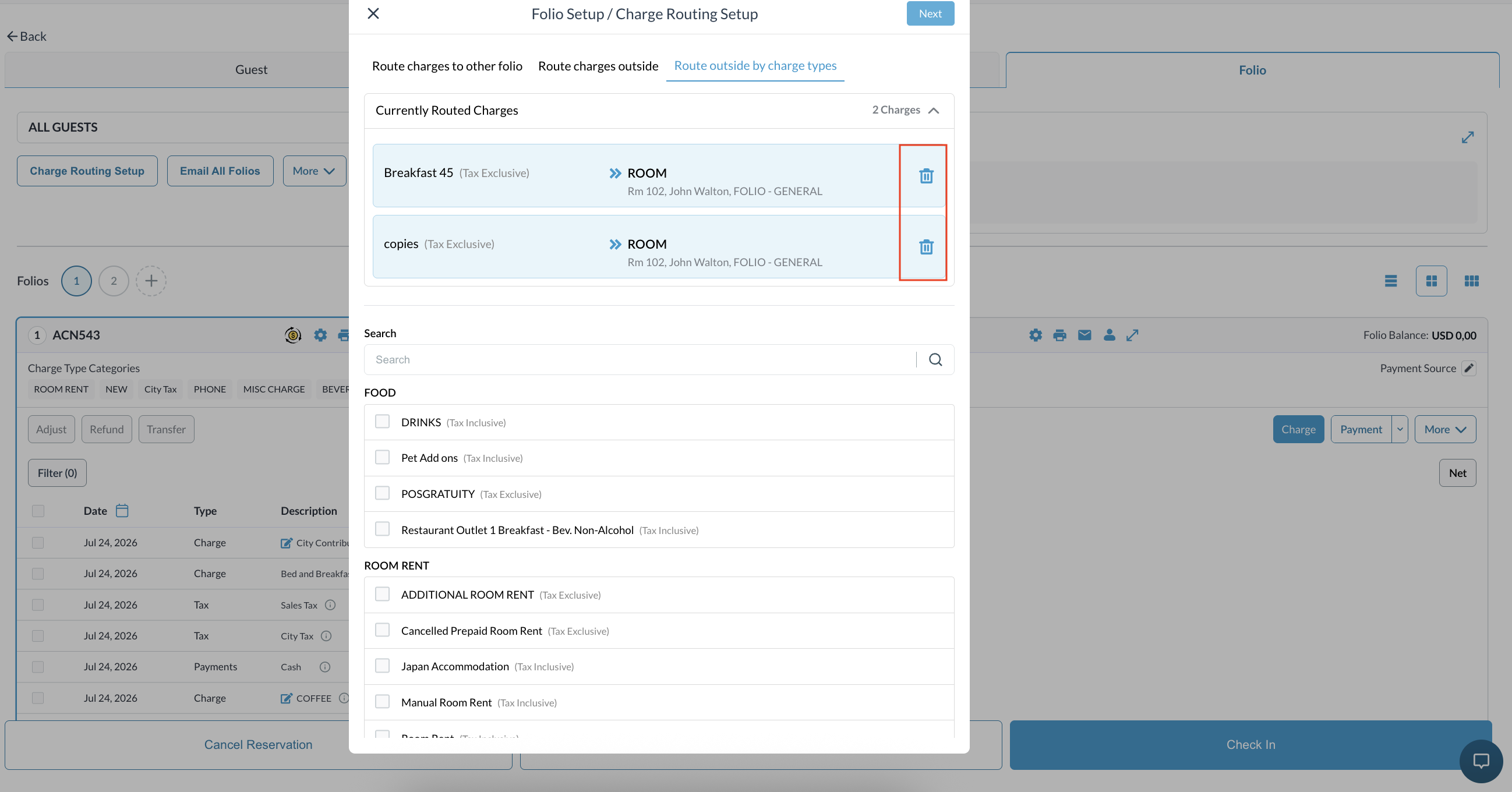
Removing specific routing rules immediately removes those items from the Charge Routing Remarks tooltip. |
|
|
If all routing rules (Categories and Types) are removed, the indicator icon will disappear immediately.
|
|
|
|