
📆 Revision Date:
There are two options to collect credit card payments - Authorize & Capture or Direct Sale.
-
Direct Sale refers to the action of process the credit card as a direct payment at the time of transaction (point of sale).
-
Authorize & Capture refers to the action of authorizing a credit card at time of transaction to be stored for later consumption (at check out).
-
When the property utilizes Authorize & Capture at the time of check in, the reservation is authorized for the amount of the stay and that amount remains on the folio until the time of check out.
-
Should you need to manually authorize any amount above the original authorization, ie. additional charges have been applied to the folio and you need to ensure the method of payment covers the charges.
-
|
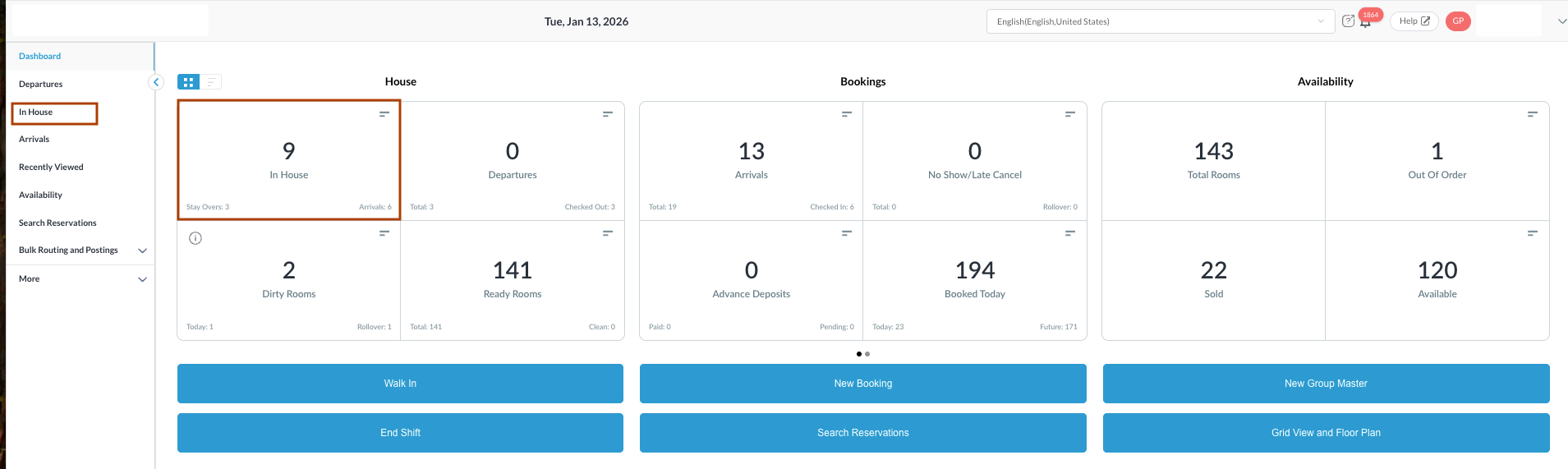
Navigate to In House reservations from FrontDesk Dashboard You can also search for in-house reservations using the options in the left-side menu. |
|
|
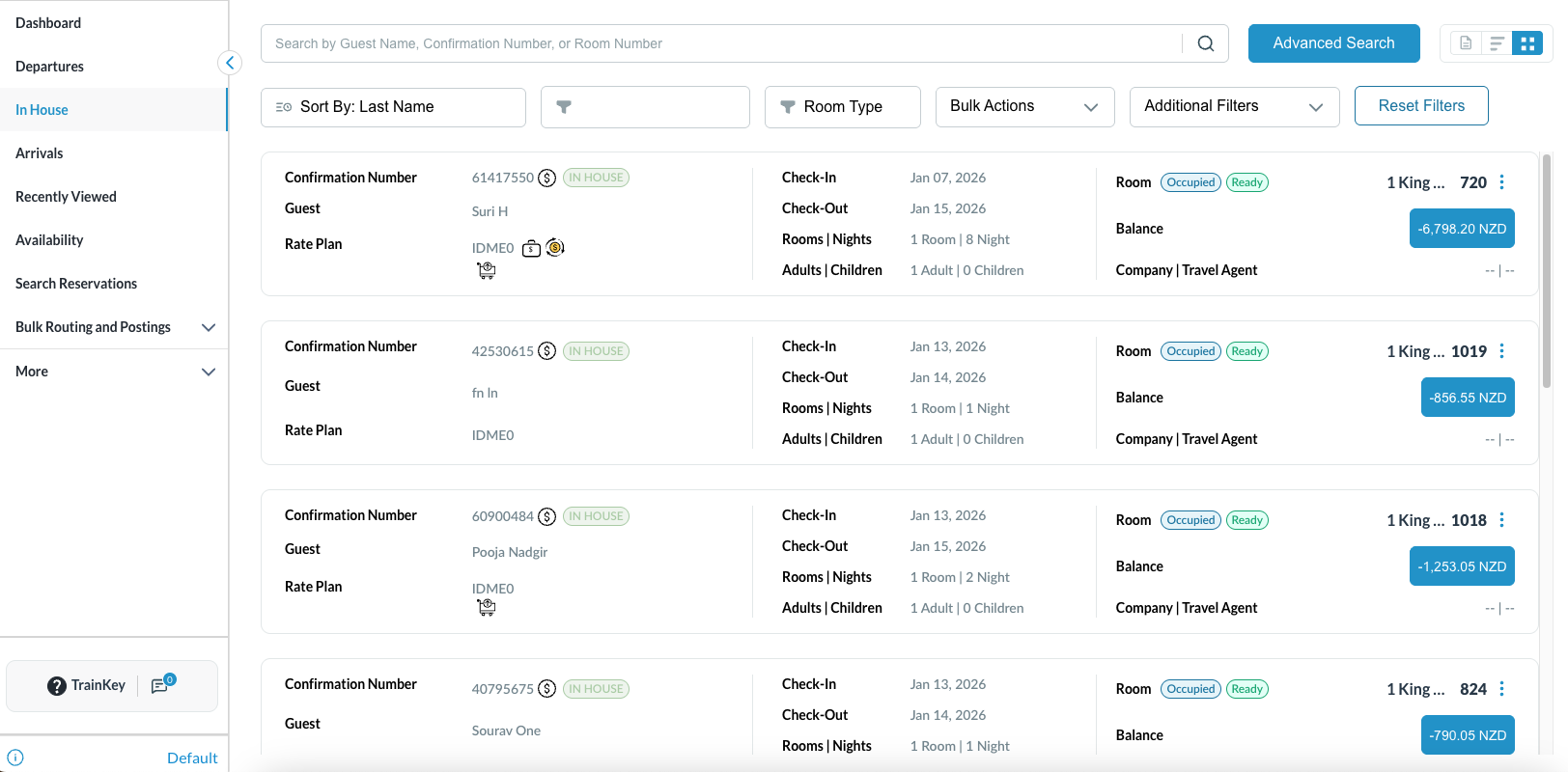
The In House listings page loads. Select the reservation for which the Credit Card needs to be authorized. |
|
|
The Reservation Details page opens, displaying the Guest tab by default. Note: the folio screen automatically adjusts to the most efficient layout. If a reservation contains multiple folios, the screen defaults to Side-by-Side View. If there is a single folio, the screen will open in Full Detail View.
Ensure a Credit Card is added to the reservation.
|
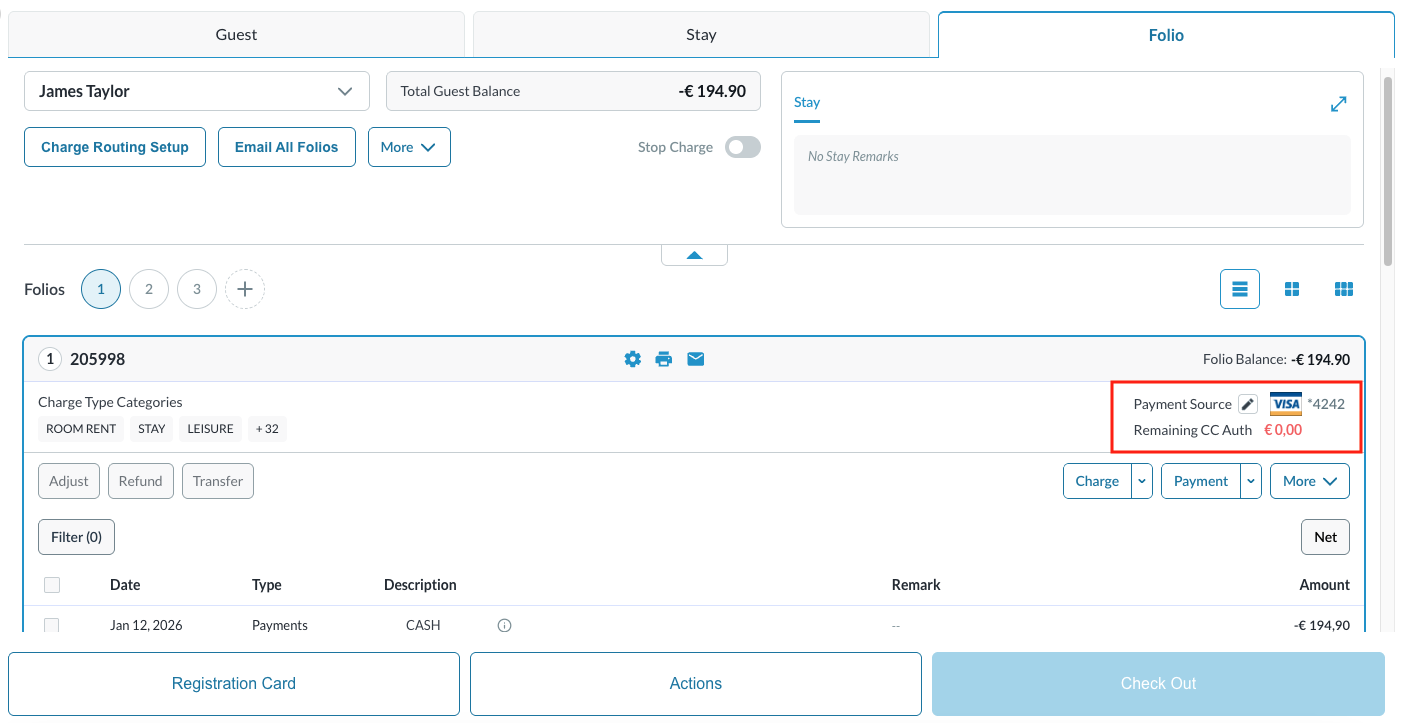
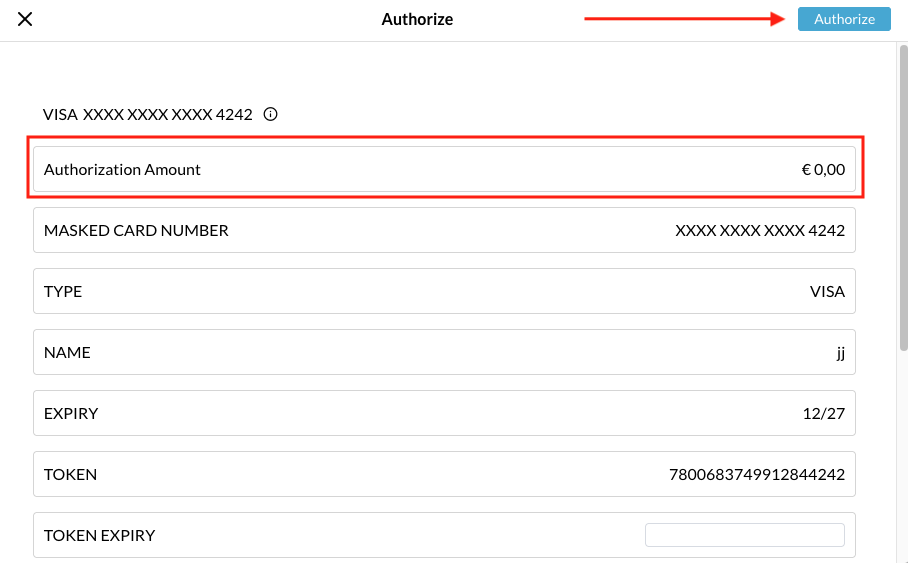
The authorization amount displayed in red text, as seen in the image, indicates that there is 0.00 dollars authorized on the payment source. |
|
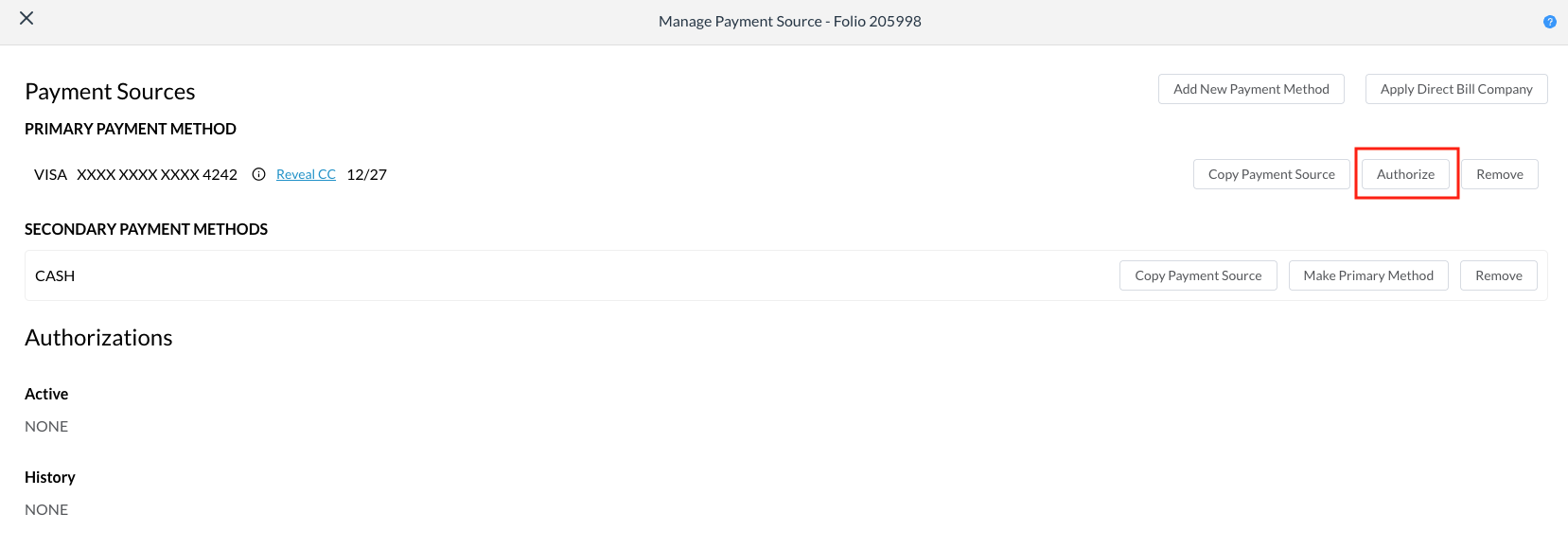
The Manage Payment Source screen opens.
|
|
|
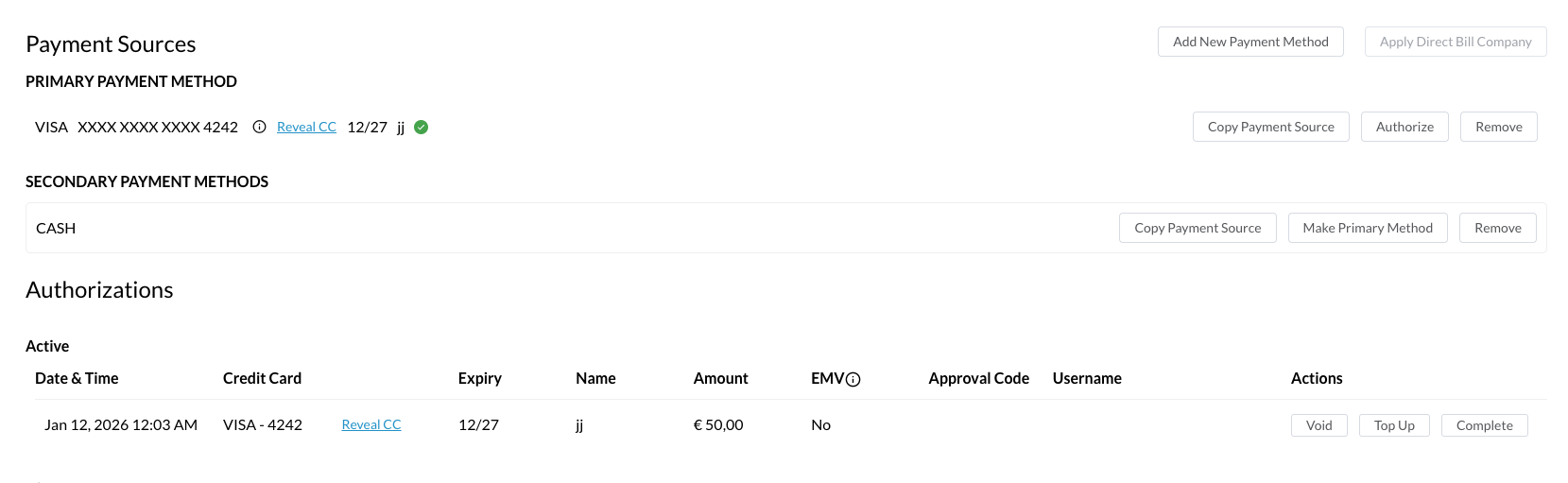
The updated authorization is displayed on the Payment Source screen. Note - Authorization History can also be found on this screen and provides a complete log of all authorizations, including completed and voided transactions. |
|
|
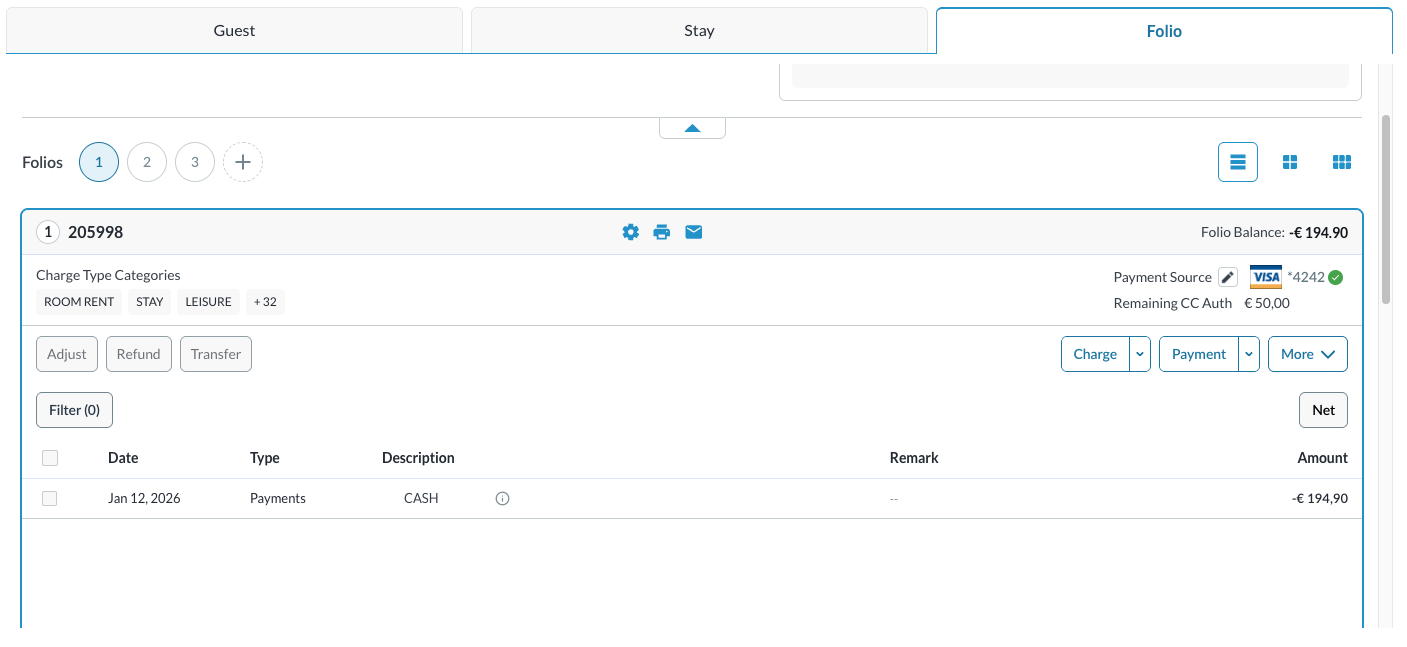
The authorization also appears on the Folio tab and will automatically convert to a payment during checkout. The authorization amount displayed in black text, as seen in the image, indicates that there is an authorization on the payment source. |
|