
Revision Date :
Manager Payment Refund allows authorized hotel staff to process negative payments that act as refunds within the Property Management System (PMS). A defining feature of this functionality is that it allows managers to issue refunds to any payment method, rather than being restricted to the original payment method that was captured.
Use Cases
-
Duplicate Payment: Refunding a guest who was accidentally charged twice for the same reservation.
-
Reservation Cancellation: Returning an advance deposit when a stay is canceled per hotel policy.
-
Billing Correction: Issuing a refund after an incorrect charge was applied and paid for on the guest's folio.
-
Overpayment: Returning the excess amount if a guest pays more than their total final bill.
-
Service Not Provided: Refunding the guest for amenities or services they paid for but did not receive.
Permissions
-
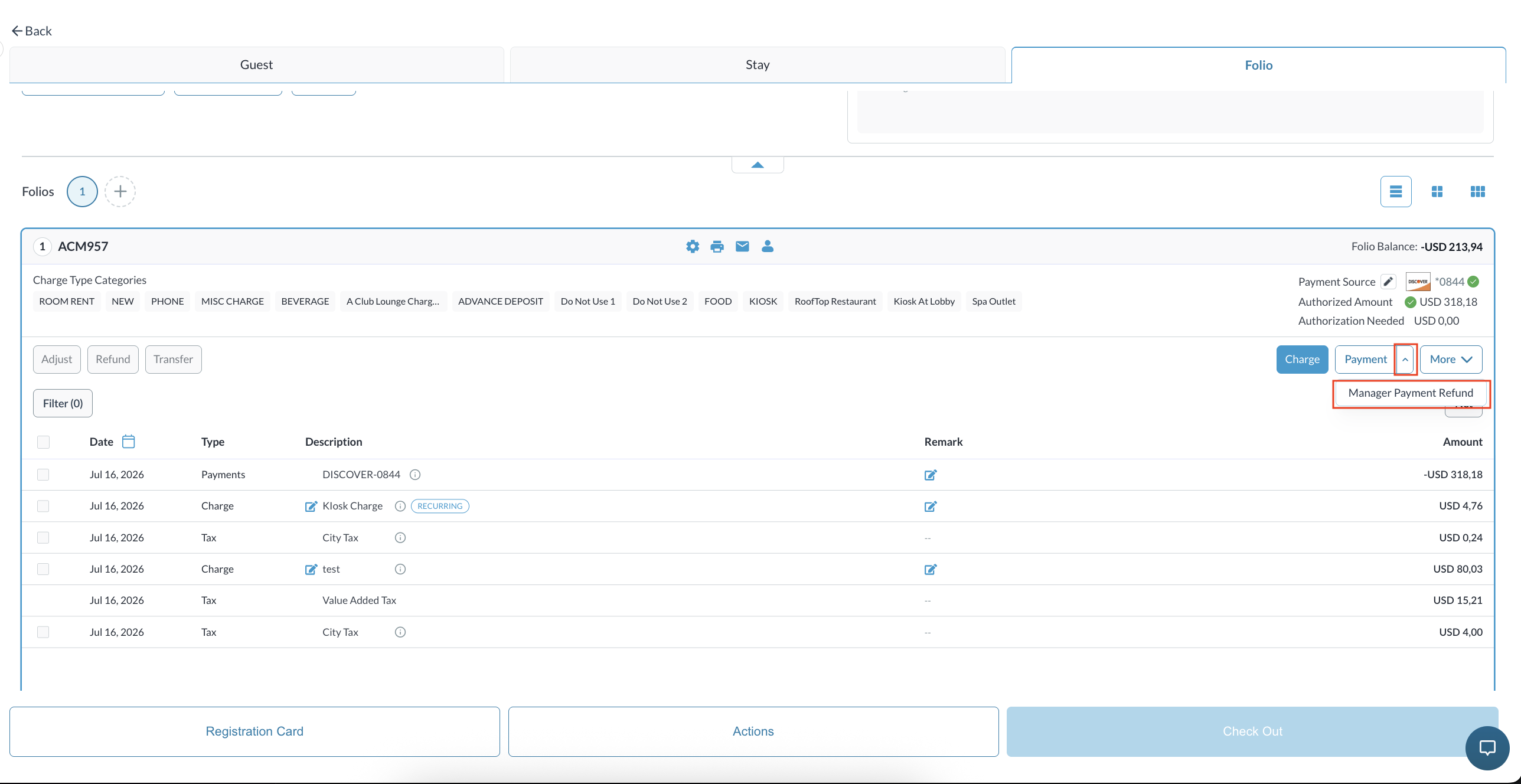
If this permission is restricted, only the primary payment button will be visible, and the dropdown menu will remain hidden. Enabling the permission displays the dropdown arrow next to the primary Payment button, granting access to options like Manager Payment Refund.
Navigation Path
|
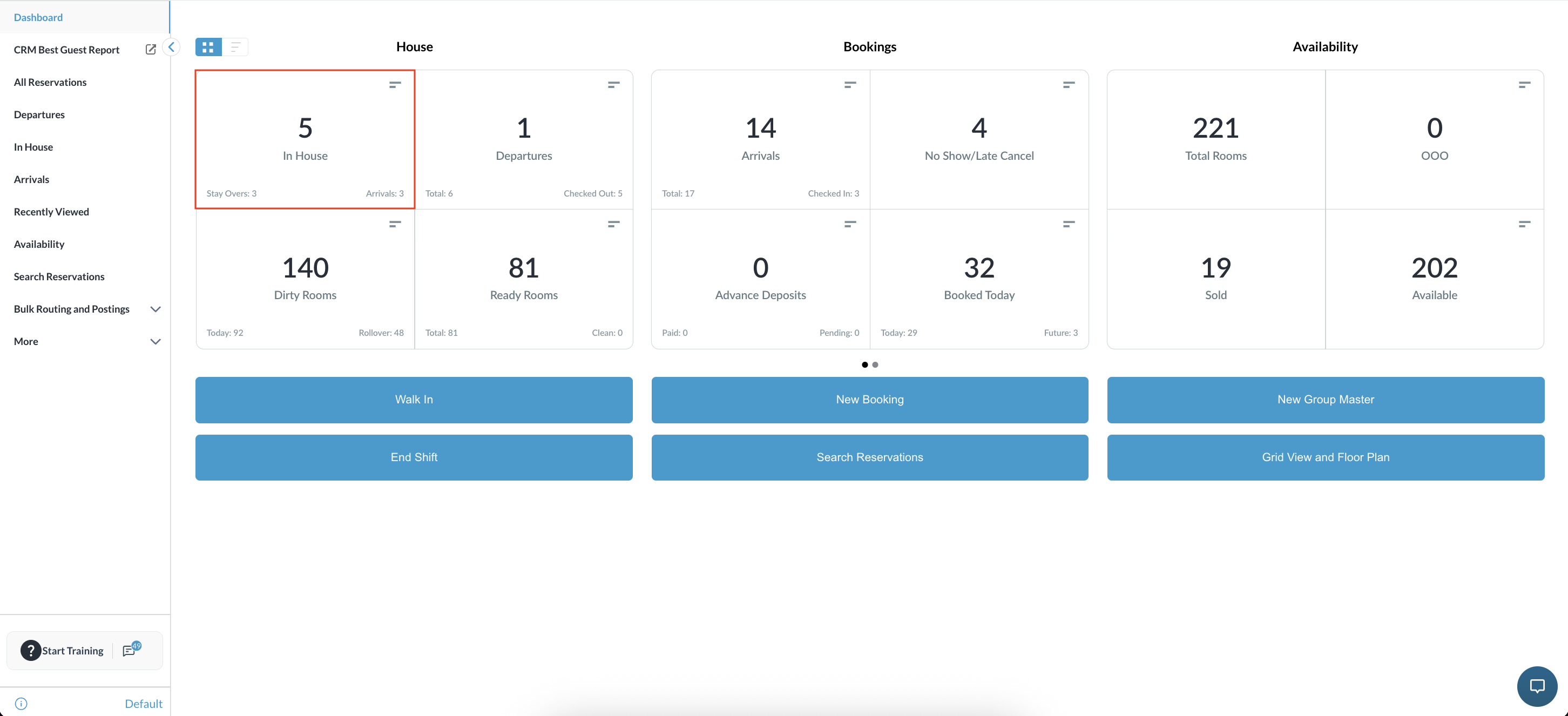
Navigate to the Frontdesk Dashboard and select either the Arrivals or In House reservations list.
|
|
|
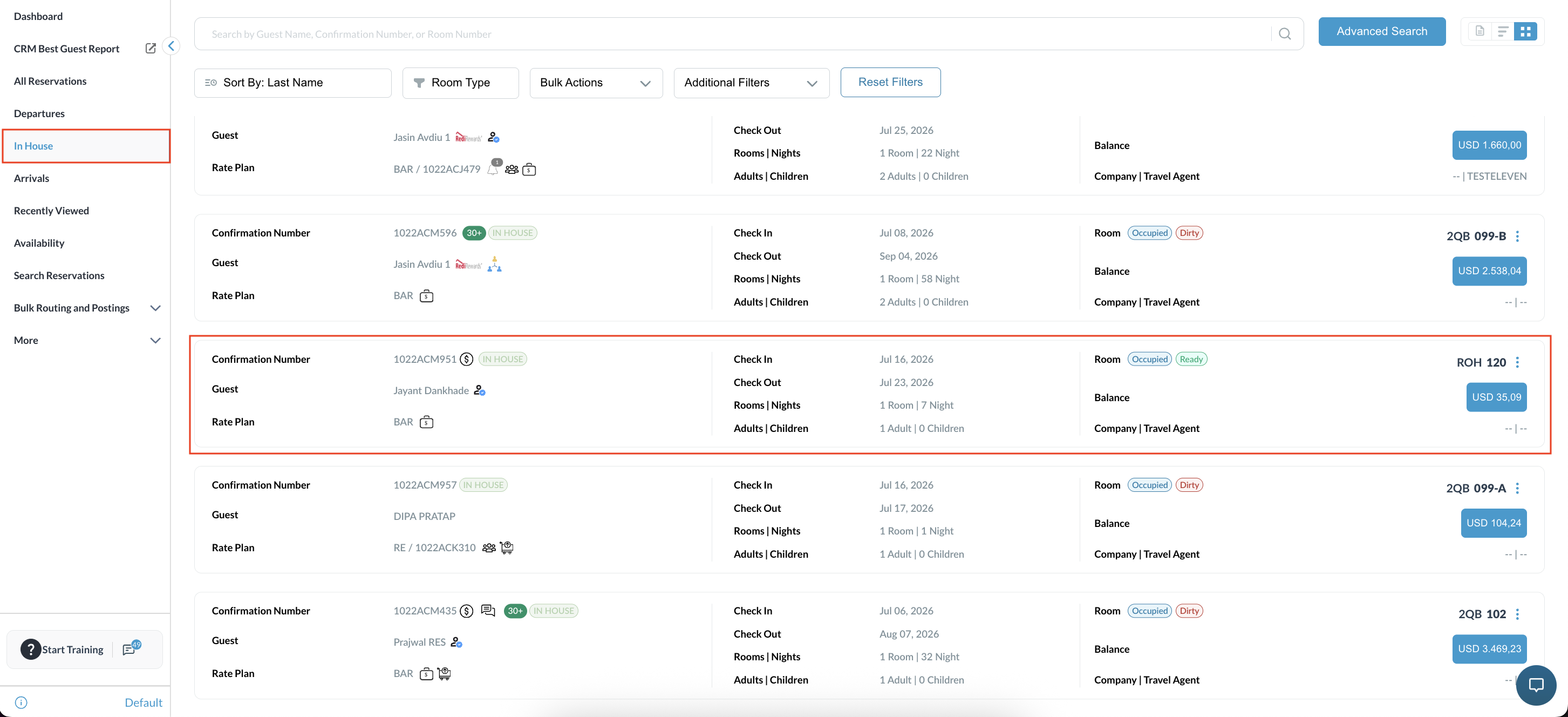
Locate and select the required reservation. |
|
|
Go to the Folio tab. Click the arrow next to the Payment button to open the drop-down menu, and select Manager Payment Refund.
|
|
|
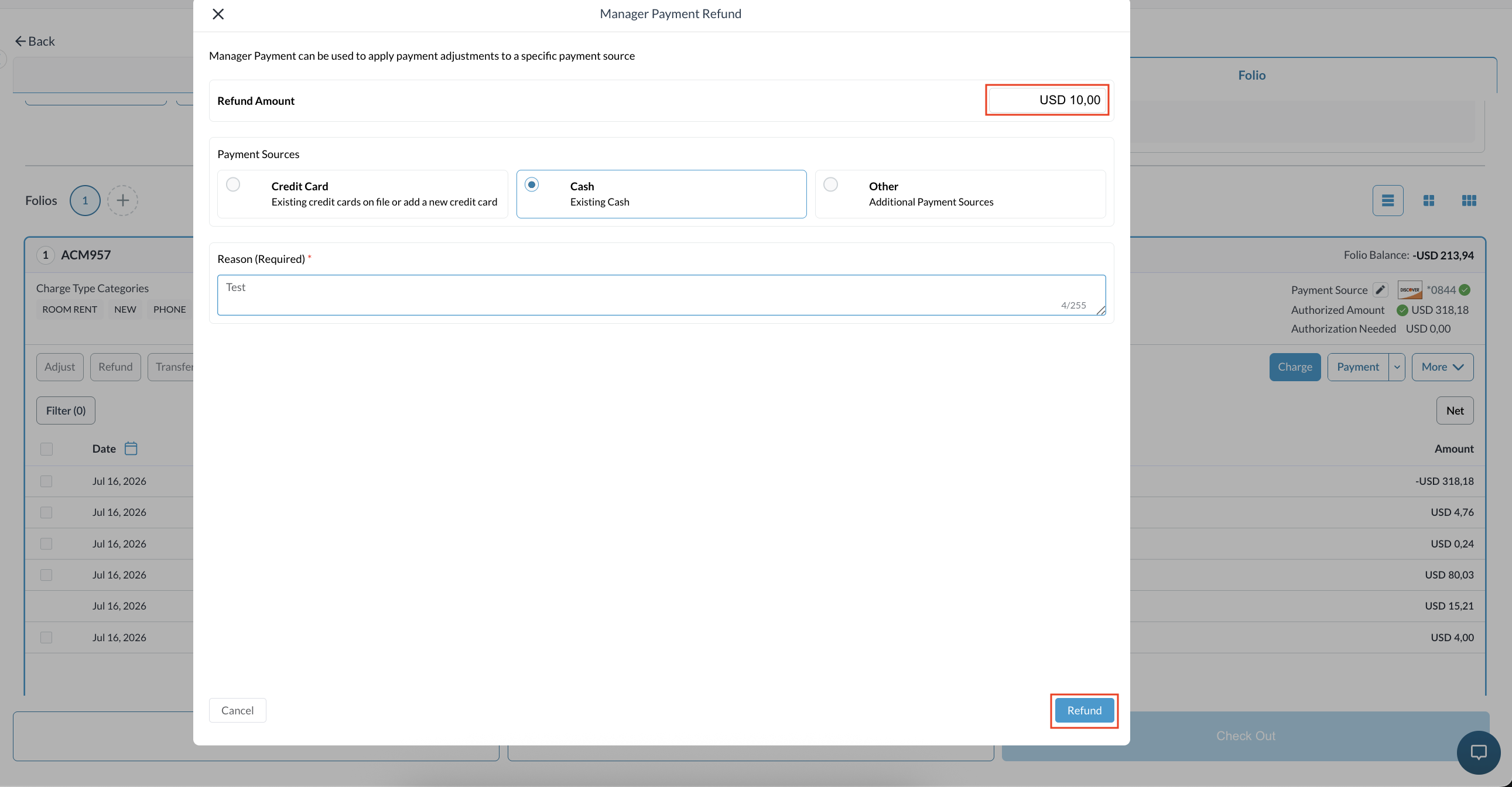
A refund modal will appear. Enter the desired refund amount. Once the amount is entered, select a payment source from the available options (e.g., Cash, Credit Card, or Other Payment sources).
Click Refund to process the transaction, or click Cancel to exit without processing the refund. |
|
|
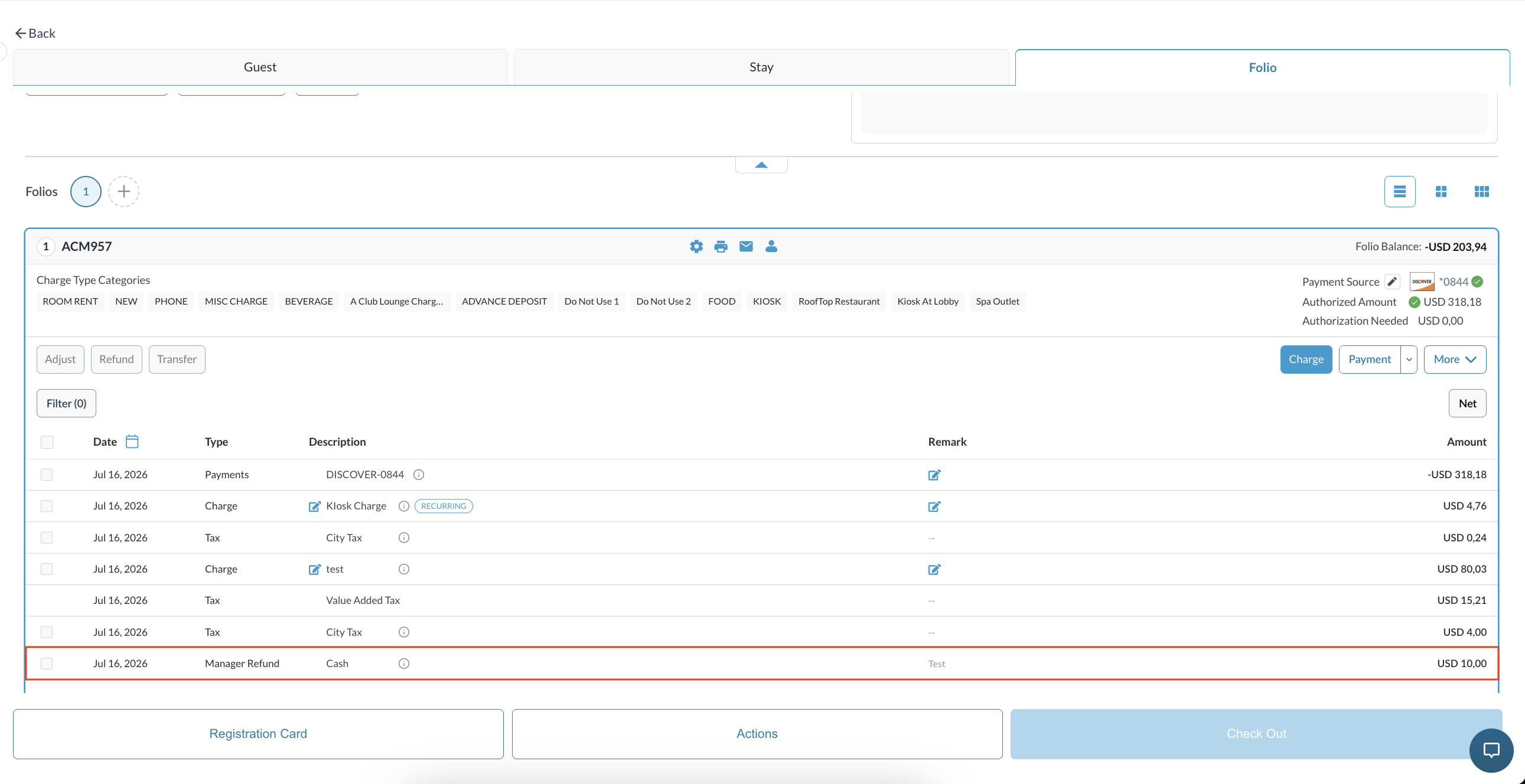
Once processed, the manager refund amount and the entered remarks will be reflected in the Charge Details section. |
|
|
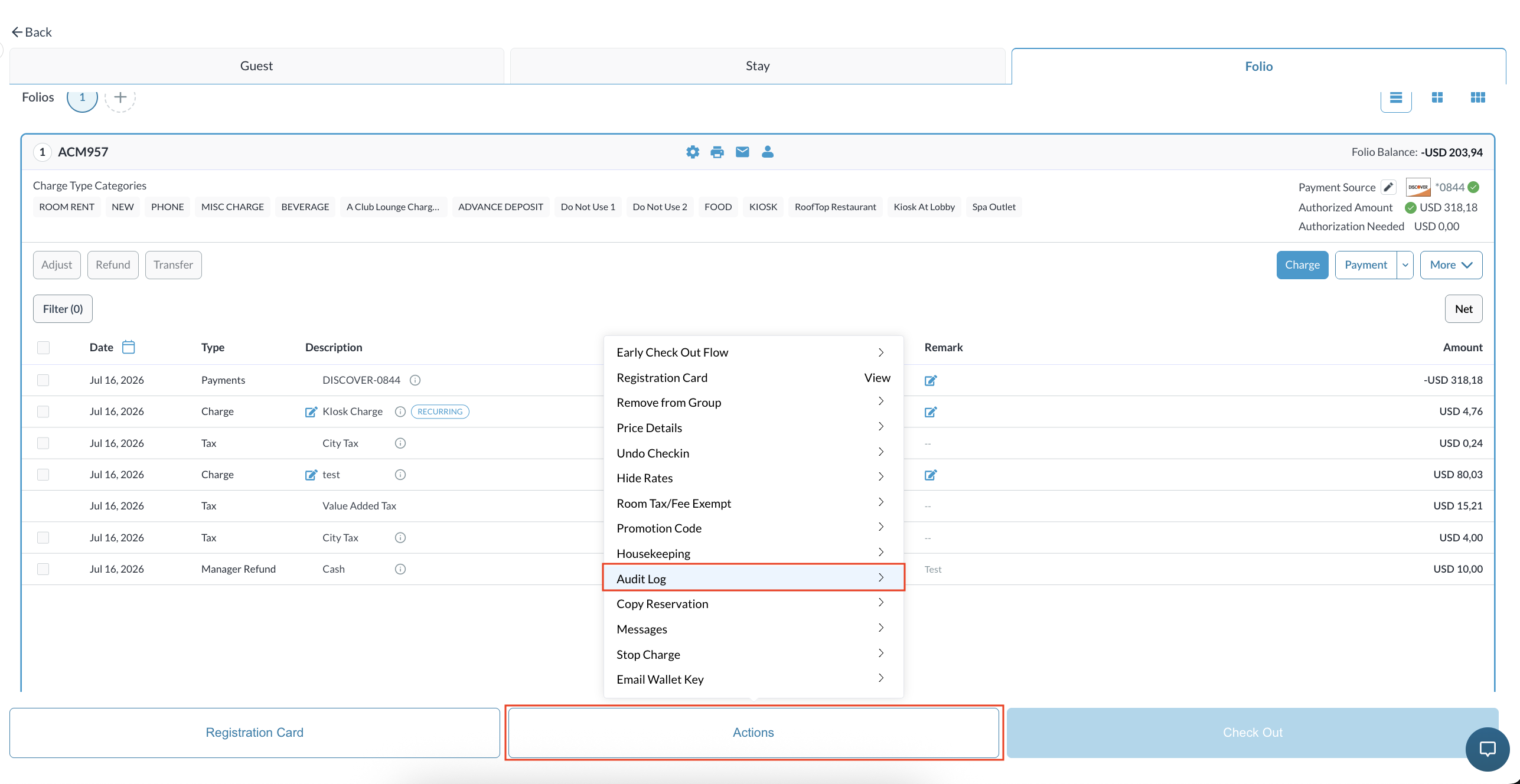
To verify the transaction, click on Actions and select Audit Log from the drop-down menu.
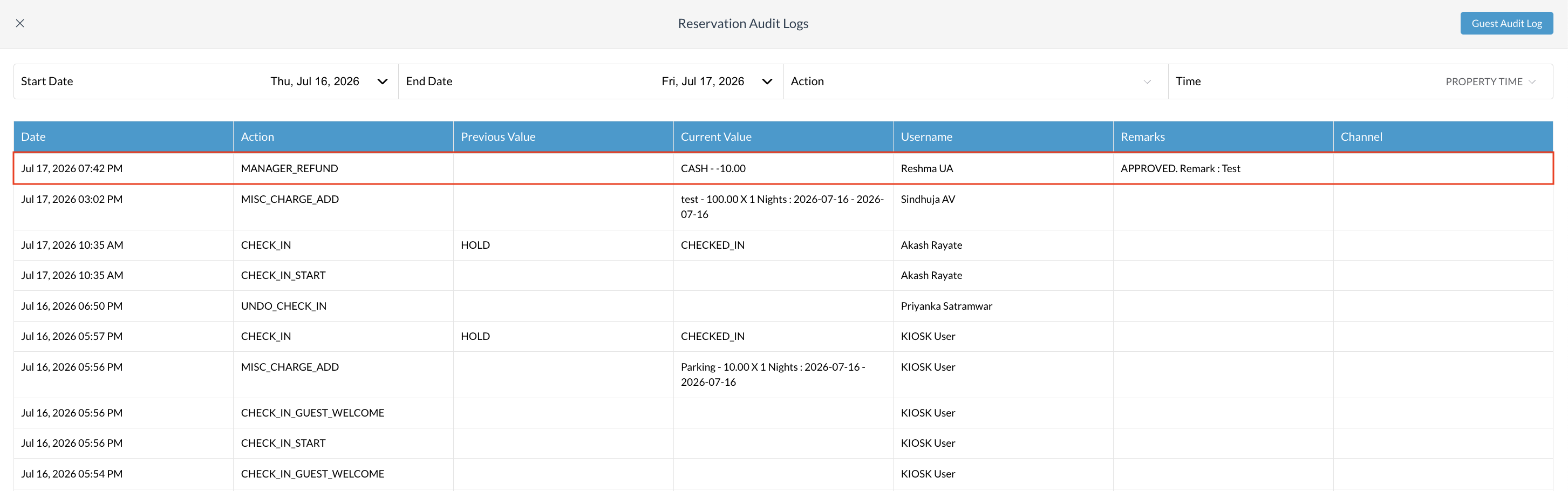
The manager refund activity and the deducted amount (e.g., -$10.00) will be visible in the log.
|
|