
📆 Revision Date:
This allows users to locate a reservation and apply an adjustment — such as modifying an amount or applying a discount — to an existing folio charge.
|
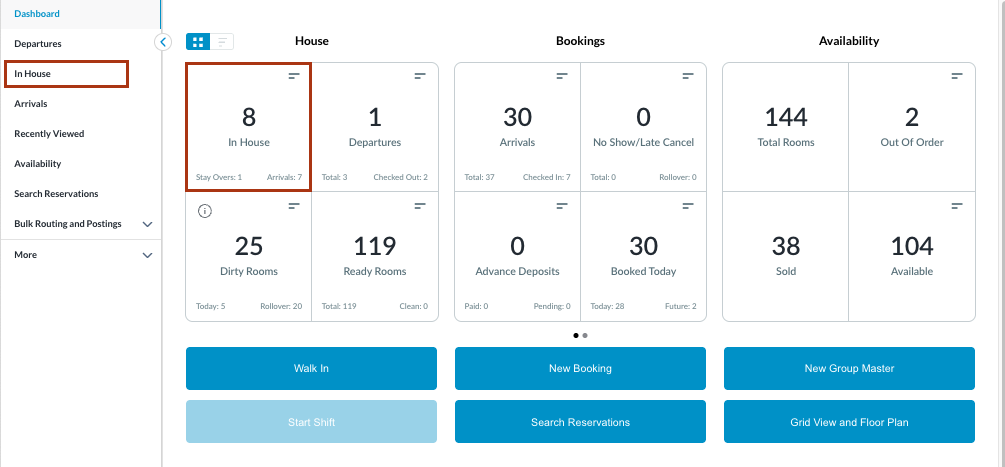
Select the In House tile on the Dashboard. You can also search for in-house reservations using the options in the left-side menu. |
|
|
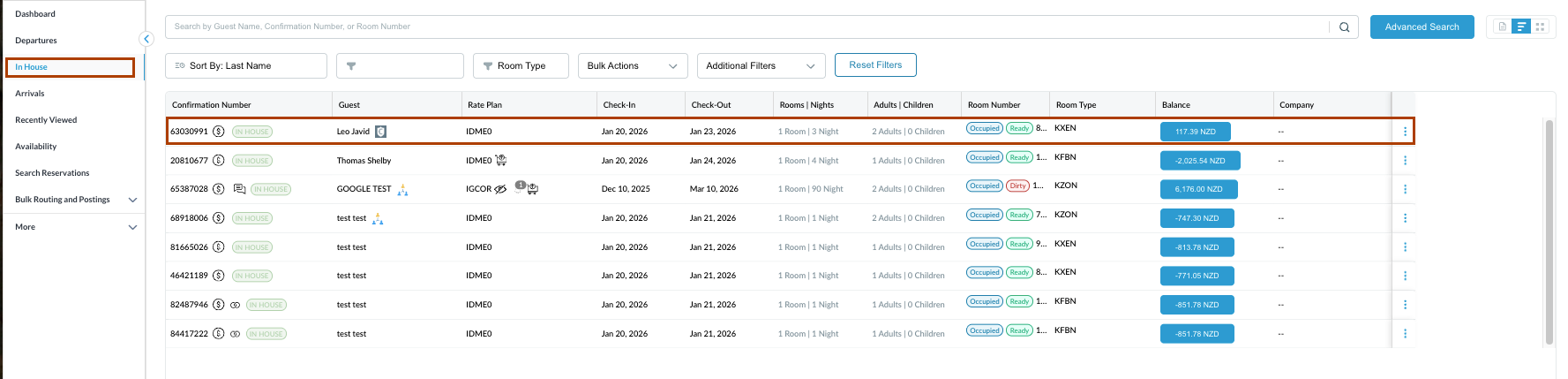
The In House listings page will load. Select the reservation from which the charges need to be adjusted. |
|
|
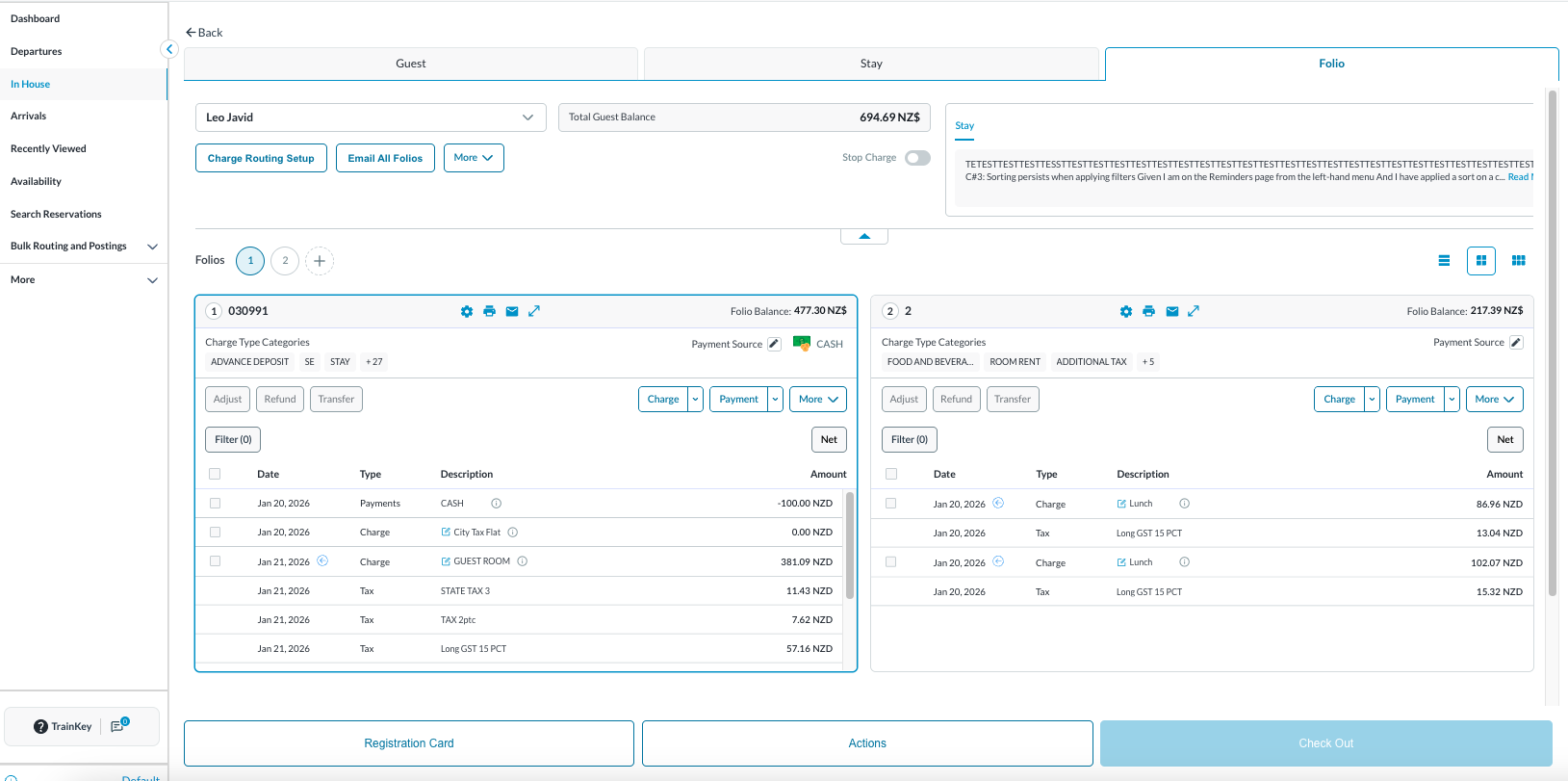
The Reservation Details page will open, displaying the Guest tab by default. Navigate to and select the Folio tab to proceed.
Note: the folio screen automatically adjusts to the most efficient layout. If a reservation contains multiple folios, the screen defaults to Side-by-Side View. If there is a single folio, the screen will open in Full Detail View. |
|
|
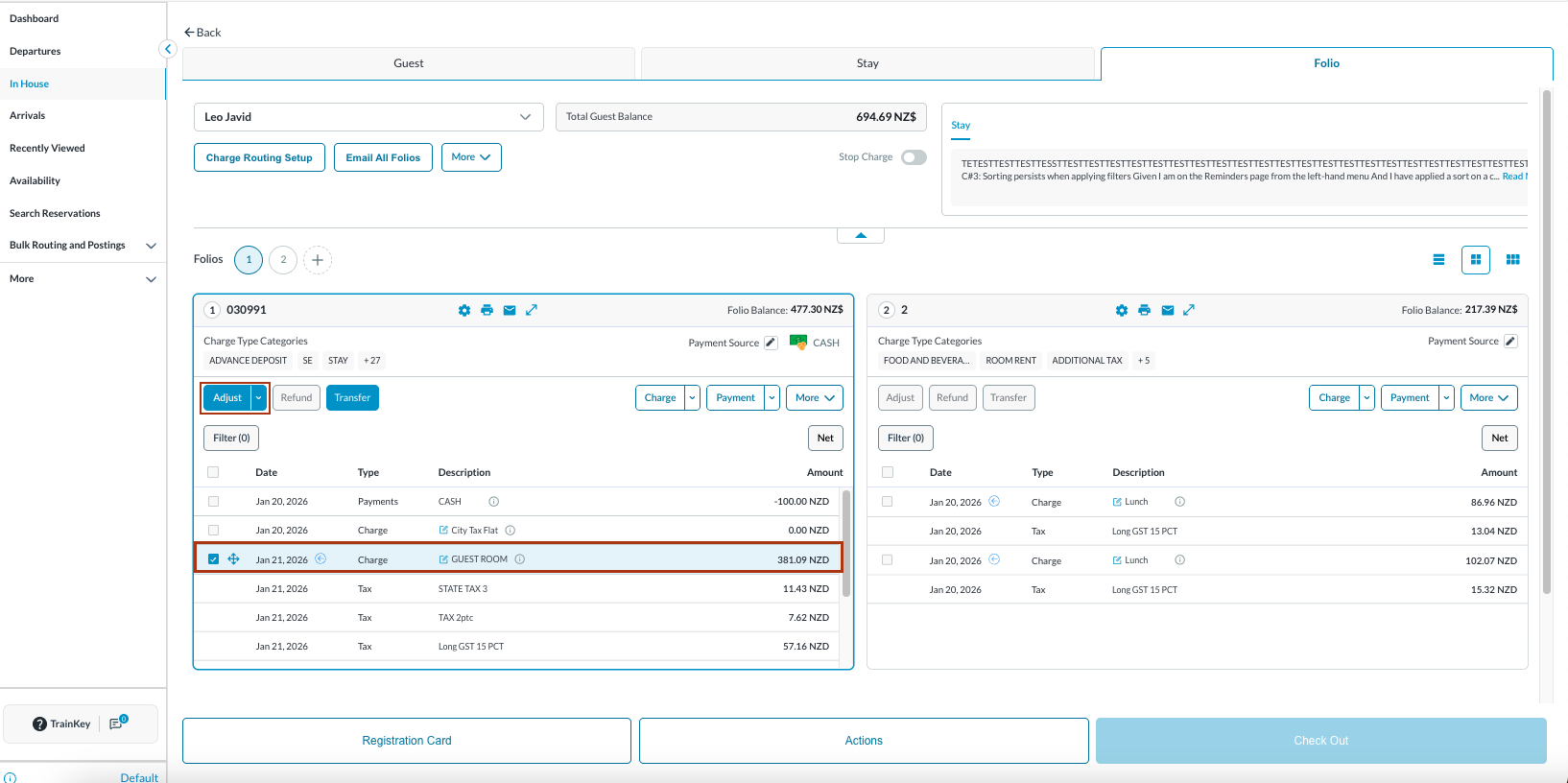
Locate and select the charge that requires adjustment; this activates the Adjust button.
|
|
|
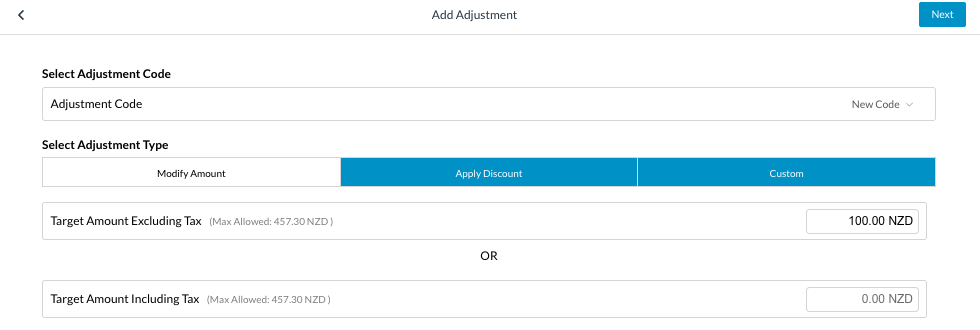
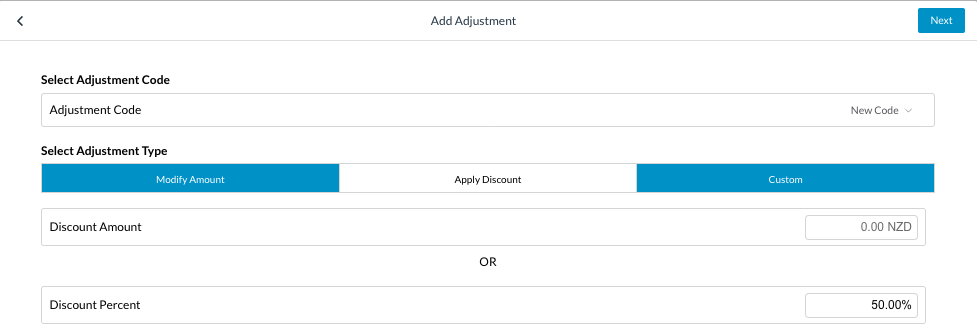
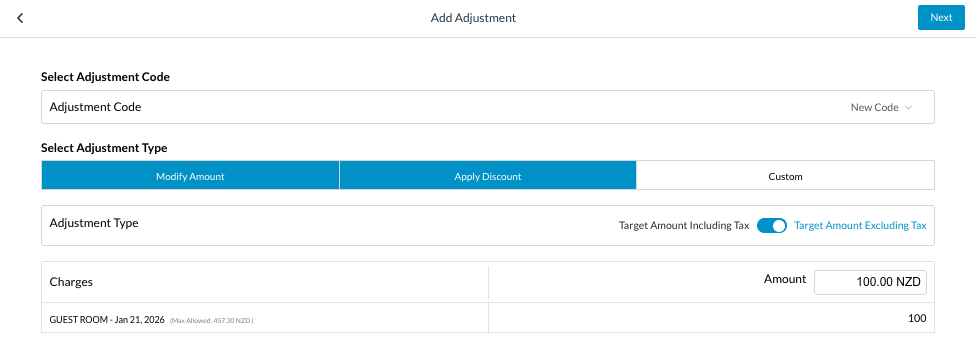
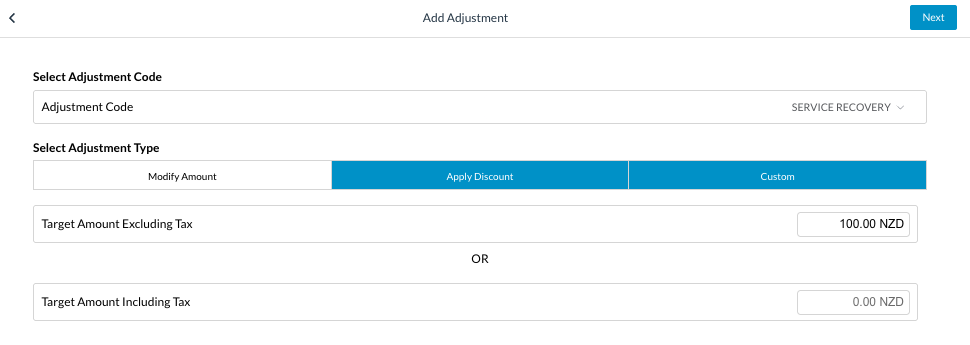
In the Add Adjustment popup, choose the appropriate Adjustment Code. Select the required Adjustment Method:
|
|
|
Example : Consider adjusting charges by modifying amount.
Select Next to continue |
|
|
Enter mandatory Remarks then select Next again. |

|
|
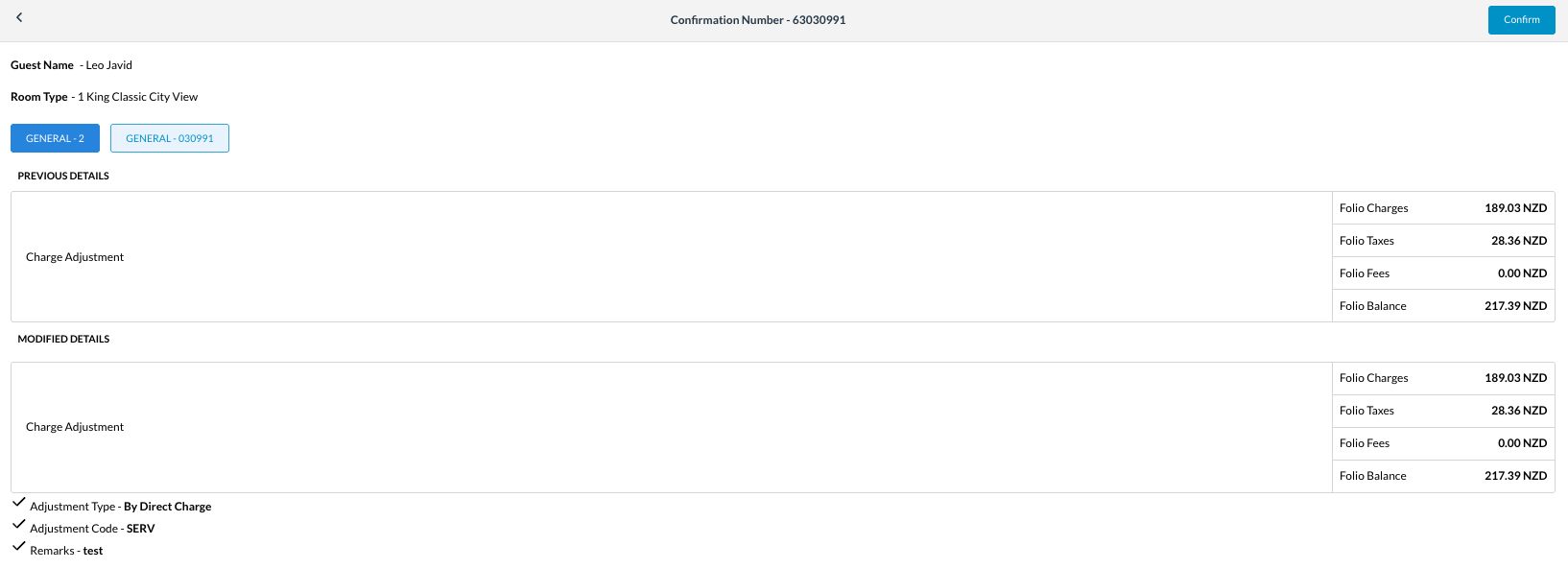
Review the confirmation page showing Previous Details and Modified Details.
Select Confirm to finalize the adjustment. On confirmation you will receive a message “Success: Charge(s) adjusted successfully “ |
|