
📆 Revision Date:
|
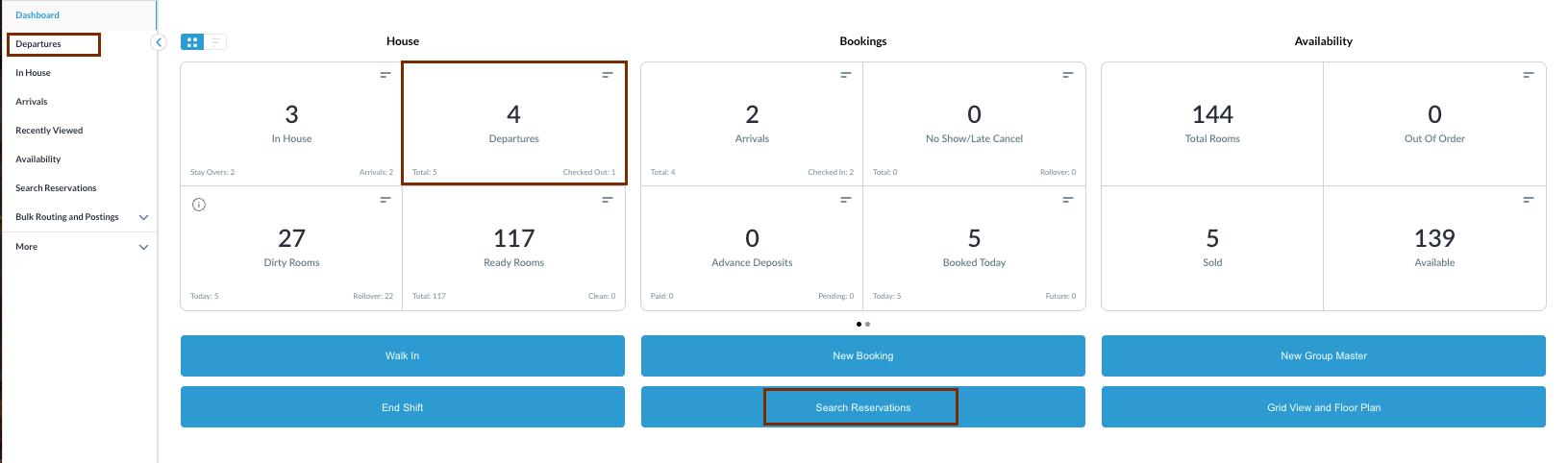
Navigate to Departures from the Front Desk Dashboard You can find Departures reservations using the options in the left-side menu. You can also find Checked Out reservations from Search Reservations. |
|
|
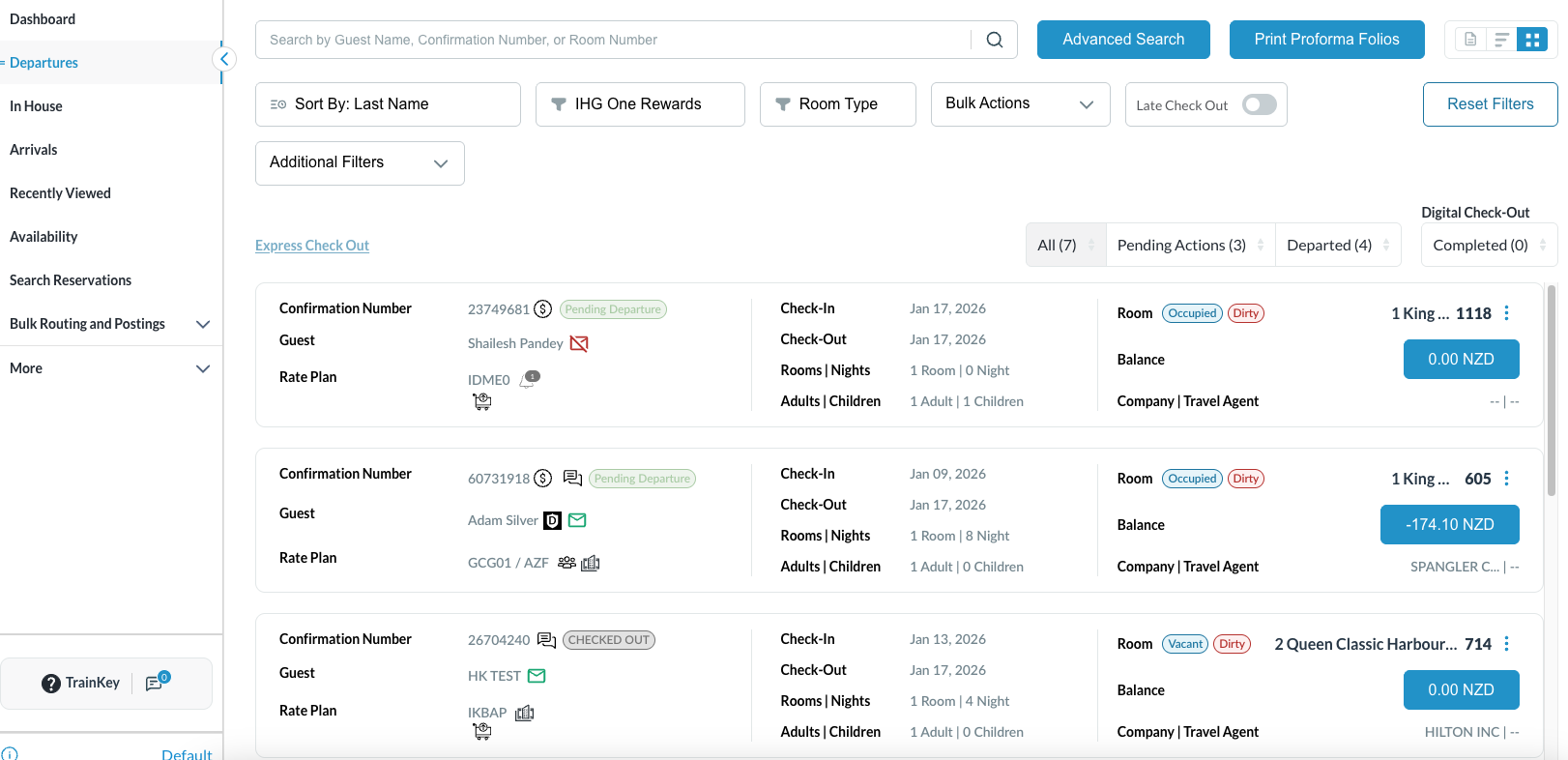
The Departures listings screen opens. By default, all departures are shown. Select one of the filters to narrow your list to show only Departed reservations. Select the Departed reservation you wish to send the email guest folio. |
|
|
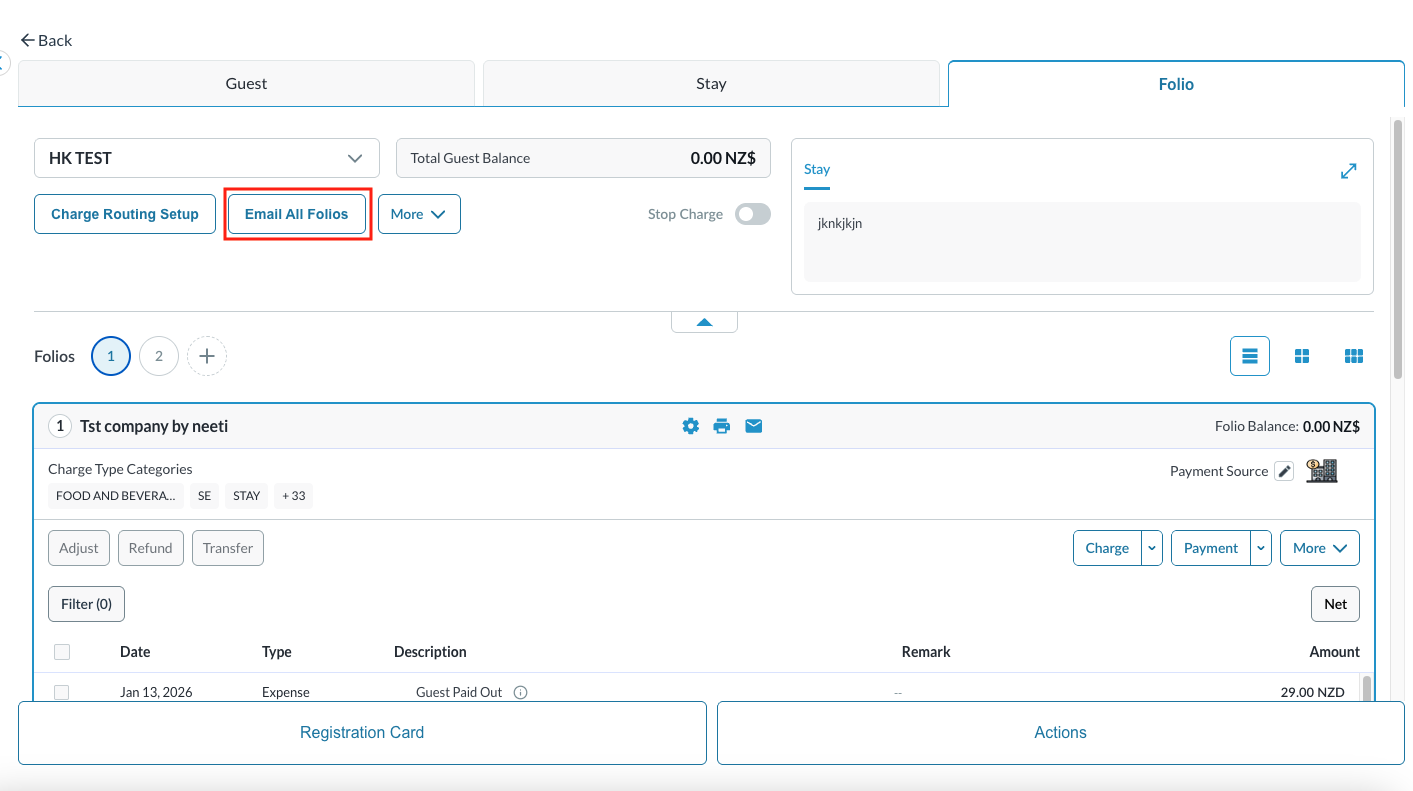
The reservation details page loads to the Guest tab by default.
Note: The folio screen automatically adjusts to the most efficient layout. If a reservation contains multiple folios, the screen defaults to Side-by-Side View. If there is one single folio, the screen will open in Full Detail View.
|
|
|
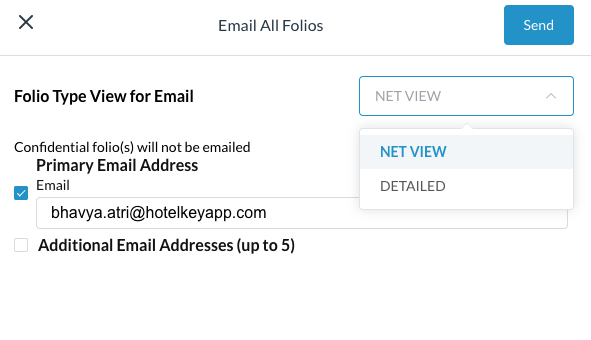
The Email All Folios window opens up. Select the folio type from the dropdown, Net View or Detailed View - Net View will be the default.
|
|