
Product Inventory: Applying Product Inventory to a Reservation
Parent Hub: Cashiering & Billing
Category: 💳 Classic Cashiering
Target Roles: Guest Service Representatives (GSR), General Managers (GM), System Administrators
Last Updated: November 17, 2026
Executive Overview
HotelKey's Product Inventory module integrates physical stock tracking directly with financial folio posting on the PMS. By linking both revenue-generating and non-revenue ($0.00) items to specific charge types and tracking modes (Rolling vs. Fixed), properties can monitor real-time availability, prevent overselling, automate daily postings, and accurately reconcile inventory across guest stays and early check-outs.
Notes:
-
Request a Reports Configuration update via support ticket so
$0.00Charge Type transactions do not appear on printed or emailed guest folios. -
Verify that all required
$0.00(non-revenue) and paid charge types exist in the system; submit a support ticket if new charge types need to be created.
Creating and/or Editing product inventory can be completed in the Property Settings for the property and requires specific permissions roles to complete. Submit a support ticket if any new products need to be created and/or if any edits to inventory counts need to be updated.
Applying Product Inventory Charges to a Reservation
Once product inventory items are created and linked to their respective charge types, follow these steps to apply them to a guest folio:
-
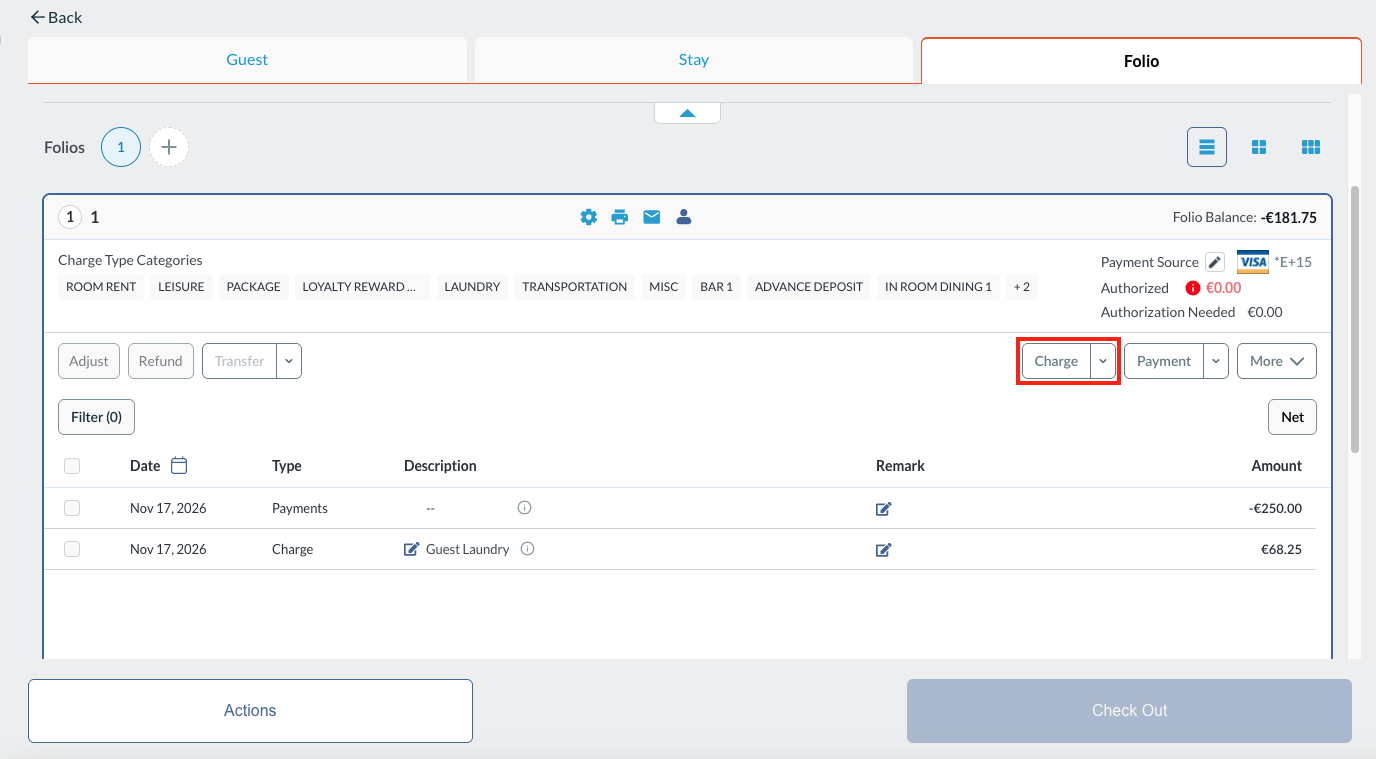
Access the Folio Tab: Open the desired reservation and navigate to the Folio tab.
-
Initiate Charge: Click the CHARGE button to open the full list of available charge types.
-
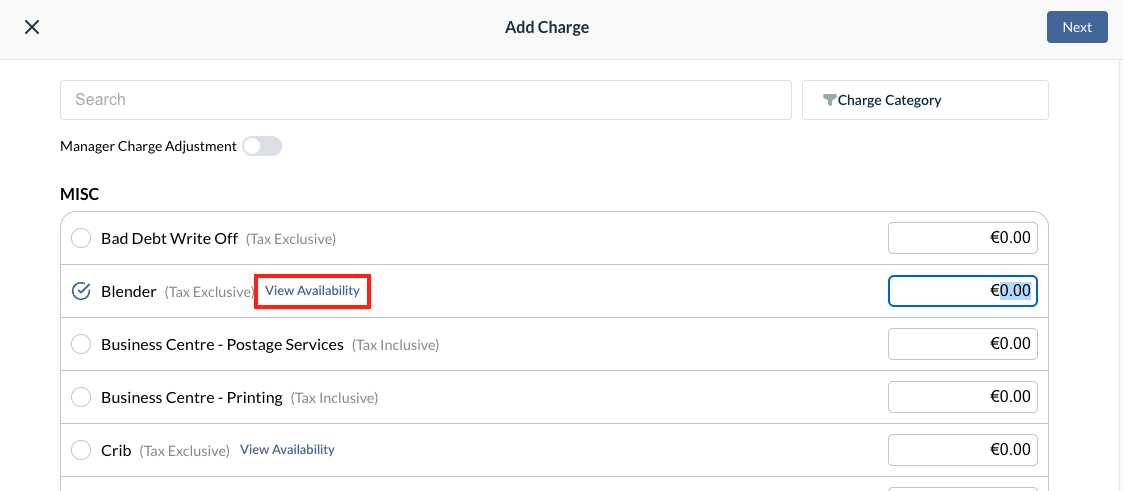
Locate the Item: Use the scroll function or the on-screen search bar to locate the specific Product Inventory charge type by name.
-
Verify Availability: Click the View Availability link next to the charge type name to view a real-time snapshot of the inventory screen and confirm stock counts before finalizing the charge.
-
Select the Product: Click on the inventory item and select Next.
-
Define Charge Frequency: Designate the charge frequency and adjust quantity/dates as needed:
-
One-Time: Select this option for single-use items (e.g., an item requested for one night only).
-
Recurring (Daily): Select this option for items utilized for the duration of the stay. Ensure the Post Until Departure checkbox is enabled to automate daily posting through the day before departure.
-
📷 VISUAL CALLOUT:


System Behavior & Folio Visibility:
-
-
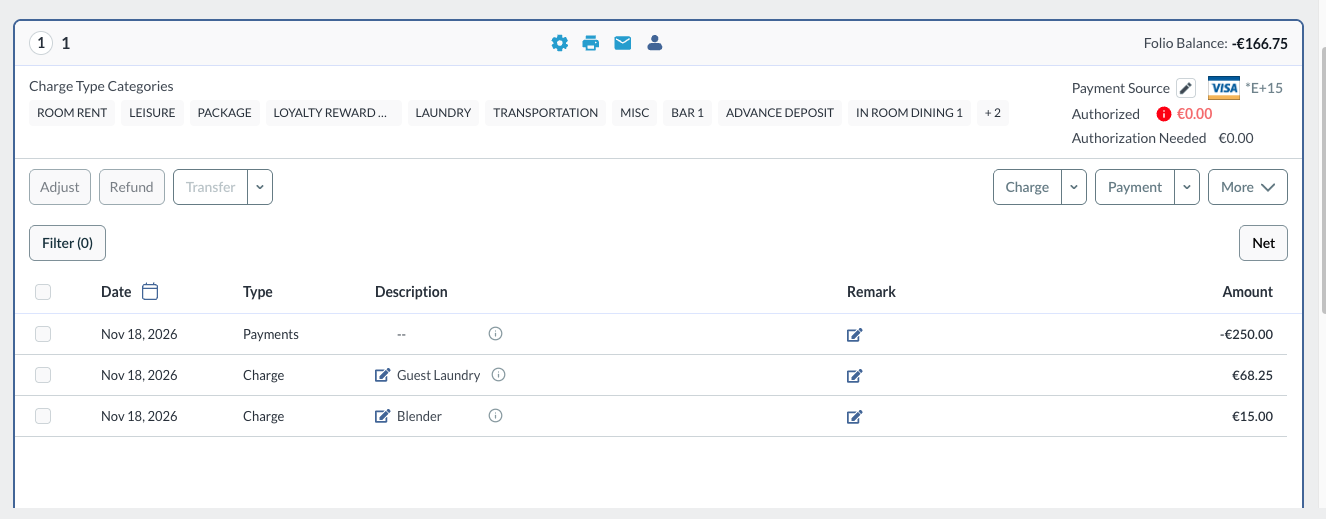
Real-Time Synchronization: Once the charge is applied, HotelKey automatically updates the guest folio and adjusts the Product Inventory counts in real time.
-
Non-Monetary Items ($0.00): Charges with a $0.00 value remain visible on the folio to internal users for tracking purposes, but will not appear on printed or emailed guest folios.
-
Monetary Items: Any inventory item with an assigned price will appear on both the internal folio and the guest-facing version.
-
Managing Inventory Returns and Early Check-Outs
HotelKey handles returned items differently depending on whether they were posted as a One-Time or Recurring charge:
-
Automated Returns upon Check-Out: When a guest checks out, the system automatically identifies the departure and reconciles the product inventory levels in real time.
-
One-Time Charge Restrictions: If an item was processed as a One-Time charge, the inventory remains allocated for the full 24-hour calendar cycle. Even if the guest returns the item early, the system cannot manually revert the count or re-add the unit to available inventory until the next day's reset.
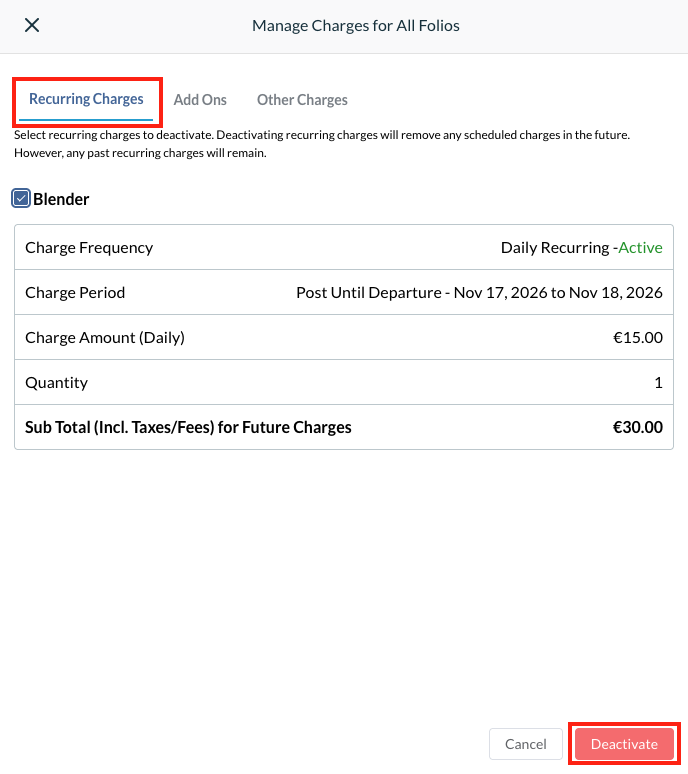
Releasing Recurring Inventory Early: If an item was posted as Recurring (or with Post Until Departure enabled) and the guest returns it prior to their scheduled departure date, follow these steps to release the inventory back into the available count:
-
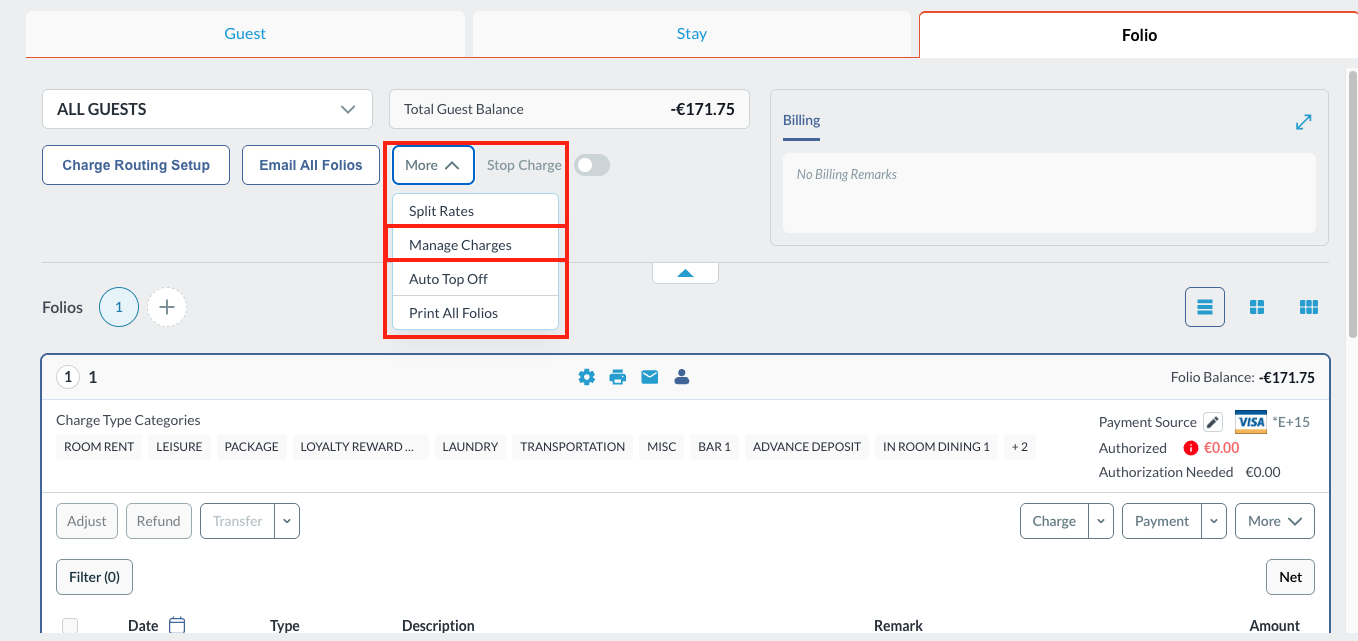
Open the reservation and navigate to the Folio tab.
-
Click the More dropdown button and select Manage Charges.
-
Under the Recurring Charges tab, locate and check the box next to the active recurring inventory item.
-
Click Deactivate to stop future scheduled postings and immediately release the inventory back into the available stock count (past posted charges will remain unaffected).
📷 VISUAL CALLOUT:
Troubleshooting
-
Preventing Double-Booking on Checkout Dates: Always ensure recurring items are set to post through the day before departure (automated via Post Until Departure) so the item becomes available for incoming guests on the checkout date.
⚠️ Important: Automated returns occur upon standard guest check-out; however, if an item was processed as a One-Time charge, the unit remains allocated for the full 24-hour cycle and cannot be manually returned to available stock until the next day's reset.