Target Roles: Accounts Receivable Managers, Credit Managers, Finance Directors, Night Auditors, System Administrators
Last Updated:
Executive Overview
The Accounts Receivable (AR) Dashboard in HotelKey provides real-time financial tracking for corporate billing, outstanding receivables, payment statuses, and customer credit balances across all direct-bill accounts. This unified workspace combines high-level financial summary cards, aging visualizations, an actionable Company List directory, and a detailed Transaction Log / List View with multi-format financial export capabilities.
Configuration Guide: Navigating & Utilizing the AR Dashboard
System Navigation Path
Home > More > Accounts Receivable > Dashboard
Step
Action
Platform Guidance & Operational Details
Access Module
In the left sidebar, click More and select Accounts Receivable to open the Dashboard.
Loads the primary AR overview with real-time KPI summary cards, Company Aging chart, and Top Outstanding Company chart.
Filter by Account
Use the All Companies dropdown selector at the top left to isolate a single corporate profile.
Dynamically filters all dashboard cards, aging distributions, and balances for the selected account (e.g., Delta Airlines Crew Block - DTL).
Review KPI Cards
Inspect the high-level financial summary cards across the top of the dashboard.
Displays Account Receivable, Invoiced, Overdue, Payments, and Balance alongside total invoice counts and average aging brackets.
Analyze Aging Tiers
Examine the Company Aging donut chart and the Top Outstanding Company (Balance) bar chart.
Categorizes receivables into aging brackets (0-30d, 31-60d, 61-90d, 91-120d, 121-150d, Over 150d) and ranks top balance debtors.
Search & Filter Companies
Scroll down to the Company List grid. Use the search bar and filter dropdowns (Status, Account Type, Direct Bill).
Filters corporate accounts by keyword/code, operational status (Active, Inactive, Cancelled), account type, and direct-bill rules.
Sort Table Columns
Click any column header arrow icon (e.g., Account Name, Total AR Amount, Open Invoice Amount).
Re-sorts corporate account records in ascending or descending numerical/alphabetical order.
Switch to Transaction Log
In the upper-right header, click the List View / Transaction Log icon (clock/list icon next to the dashboard icon).
Transitions from graphical dashboard mode into the detailed line-item transaction audit view.
Query Transaction Records
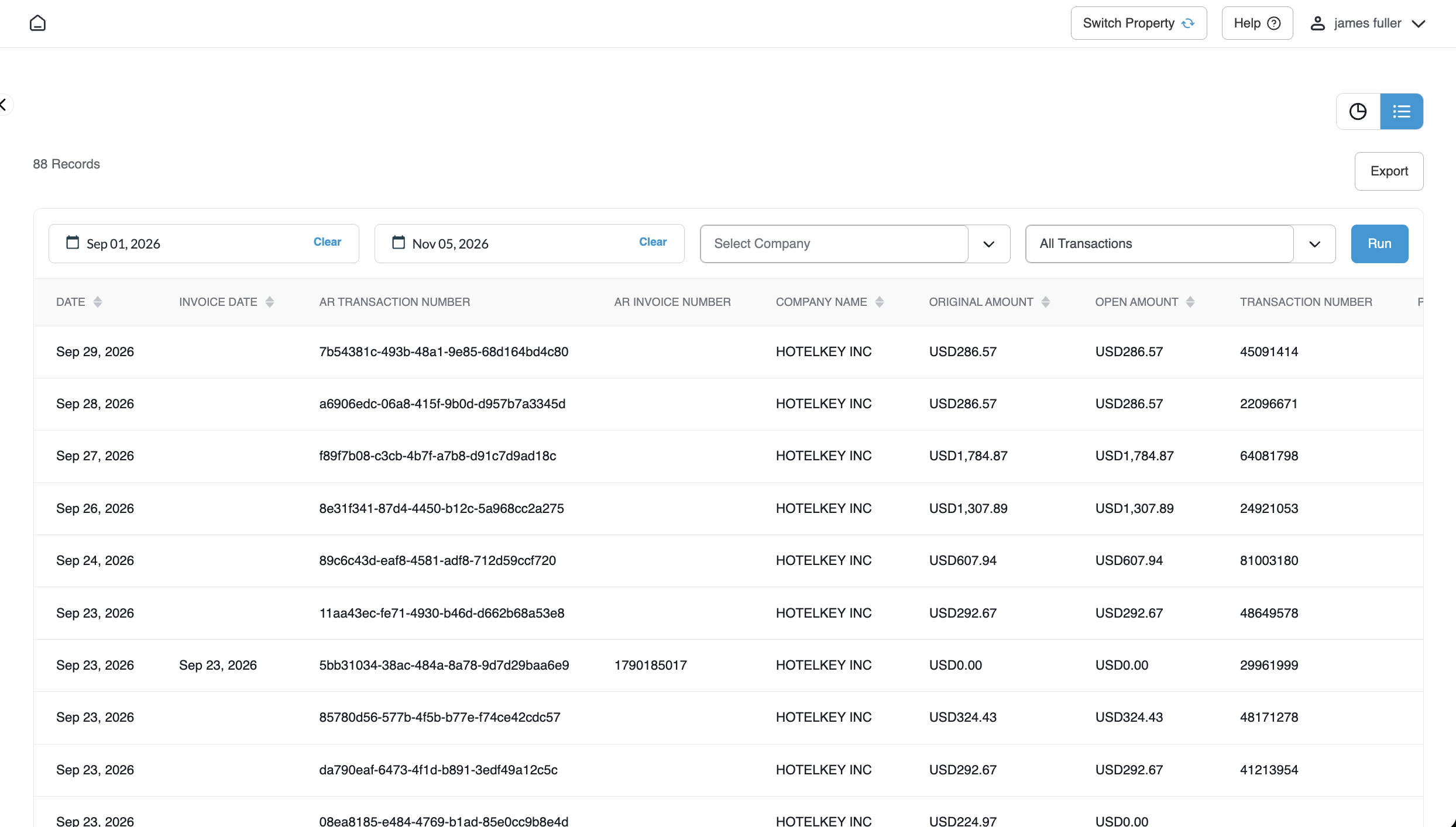
Select the Date Range (Start and End dates), pick an optional Company, select transaction view (All Transactions or Net View), and click Run.
Queries and renders itemized line-item AR transactions matching the specified criteria.
Export Financial Data
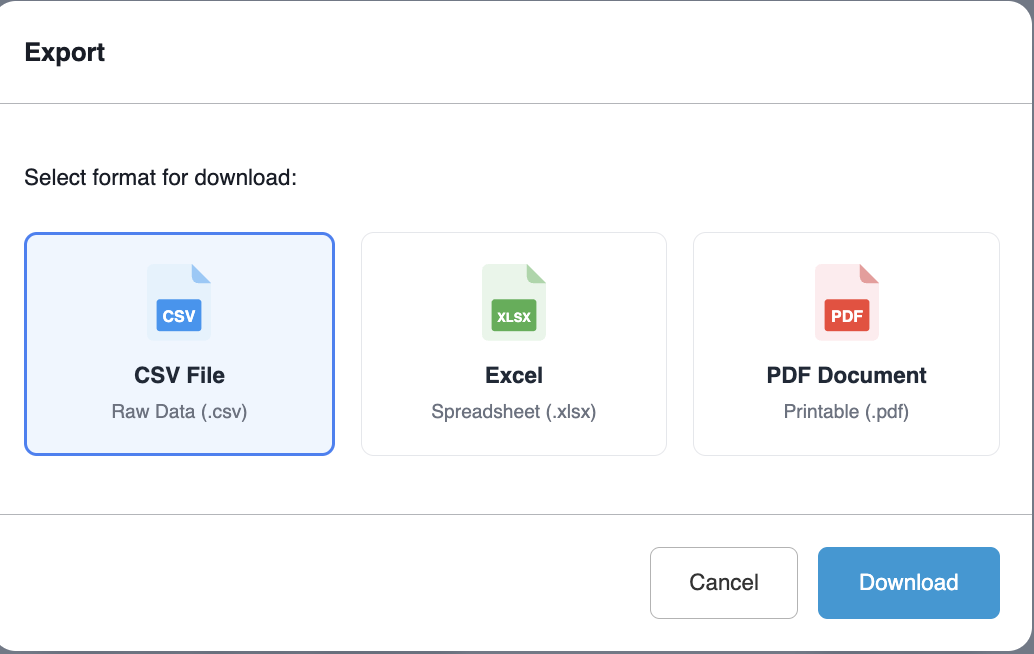
Click the blue Export button in the upper-right corner of the transaction log.
Opens the export format modal (CSV File, Excel, or print-ready document) and downloads the dataset.
Overview capture of the top financial KPI summary cards (Account Receivable, Invoiced, Overdue, Payments, Balance), the central Company Aging donut chart, and the Top Outstanding Company (Balance) bar chart.
Accounts Receivable Dashboard KPI Cards Overview
Detailed Field Breakdown
1. High-Level Financial KPI Summary Cards
Account Receivable: Displays the total gross receivables balance across direct-bill accounts, total closed invoice count, and average aging tier.
Invoiced: Tracks total billed receivables from recently closed invoices awaiting payment settlement.
Overdue: Highlights outstanding invoices that have exceeded negotiated corporate payment terms.
Payments: Summarizes total applied and unapplied payments collected, total payment transactions, and payment processing aging.
Balance: Calculates the net balance currently owed across corporate accounts.
📷 VISUAL CALLOUT:
Company List Grid & Filter Control Bar
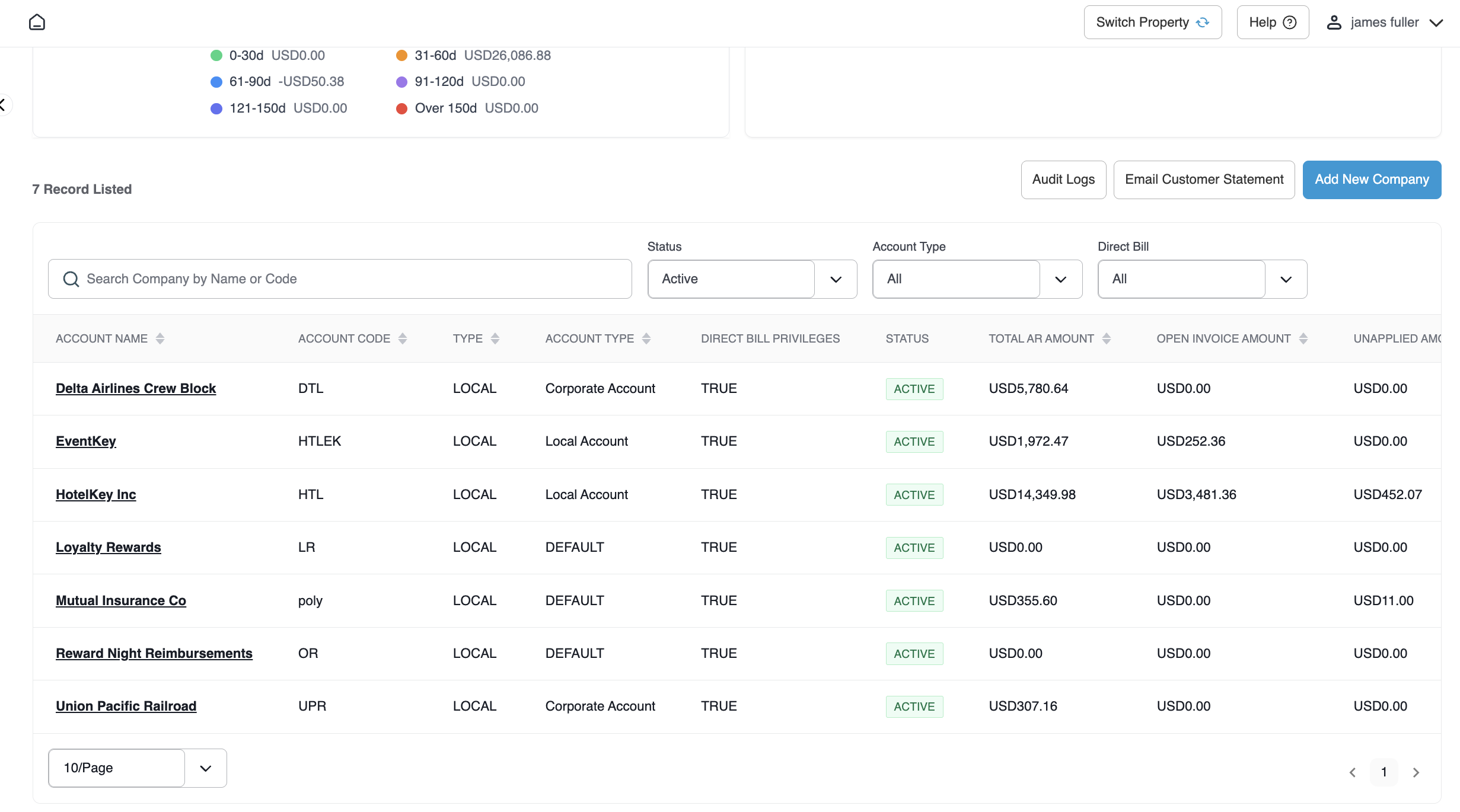
Interface screenshot showing the corporate directory grid below the charts, highlighting the Search Company by Name or Code input, the Status (Active), Account Type, and Direct Bill dropdown filters, and the + Add New Company button.
Company List Grid
2. Company List Grid & Filtering Parameters
Search Company by Name or Code: Real-time text search field that filters accounts by full or partial name or code (e.g., entering HTL filters to HotelKey Inc).
Status Filter:
Active: Corporate profiles currently approved and operational.
Inactive: Disabled profiles restricted from new charge posting.
Cancelled: Closed or terminated corporate billing profiles.
All: Renders all accounts regardless of active state.
Account Type Filter: Filters by account classification determined by the property (e.g., Corporate Account - CORP, Local Account, DEFAULT, or All).
Direct Bill Filter:
Company Pays: Directs master billing to the corporate account.
Guest Pays: Directs charges to individual guest settlement.
All: Renders both billing categories.
Grid Data Columns:
Account Name: Registered title of the corporate profile.
Account Type: Structural designation (e.g., Corporate Account, Local Account, DEFAULT).
Direct Bill Privileges: Boolean indicator (TRUE/FALSE) confirming direct billing authorization.
Status: Visual badge reflecting account state (ACTIVE / INACTIVE).
Total AR Amount: Gross receivables balance recorded against the company.
Open Invoice Amount: Outstanding unpaid balance across finalized invoices.
Unapplied Amount: Unallocated pre-payments or credit balances pending invoice reconciliation.
Company Balance: Net financial position of the company profile.
📷 VISUAL CALLOUT:
Transaction Log Query & Export Modal
(Left) Transaction Log query screen showing Start/End date selectors, Company dropdown, and the blue Run button; (Right) Export modal displaying options for CSV File (.csv), Excel (.xlsx), and print-ready document.
Transaction Log Query
Export Modal within Transaction Log Query
3. Transaction Log Audit Parameters
Date Range Pickers (Start Date / End Date): Date calendar inputs defining the historical or current reporting window.
Company Selector: Isolates transactional activity to a specific corporate entity or displays all companies.
Transaction Mode Dropdown:
All Transactions: Renders all individual postings, payments, and adjustments.
Net View: Displays aggregated net balances per transaction group.
Transaction Data Columns:
Date / Invoice Date: Operational posting date and formal invoice generation date.
AR Transaction Number: System-generated unique transaction identifier.
AR Invoice Number: Associated billing invoice reference.
Company Name: Corporate account tied to the record.
Original Amount / Open Amount: Original transaction value vs. remaining outstanding balance.
Transaction Number / Room Number / Folio Name: Direct links back to the originating guest folio or PMS transaction.
FD Tax Invoice Number / PO Number / Invoice Number: Client and tax compliance reference numbers.
Billing Status / Invoice Status: Live workflow badges (e.g., Unbilled, Open).
Operational Actions & Secondary Buttons
Audit Logs: Located in the Company List header; opens historical system audit records tracking user edits, direct-bill privilege modifications, and status changes.
Email Customer Statement: Opens automated dispatch controls to deliver consolidated billing statements directly to corporate accounting contacts.
+ Add New Company: Launches the account creation workflow to register new direct-bill profiles.
Export Data: Generates downloadable reports in CSV File (Raw Data), Excel (Spreadsheet), or print-ready format for financial audits, executive reviews, and bank reconciliations.