Target Roles: Accounts Receivable Managers, Credit Managers, Finance Directors, Night Auditors, General Managers
Last Updated: Nov 5, 2026
Executive Overview
In HotelKey PMS, opening an individual corporate direct-bill profile launches the centralized Company Account management screen. This interface combines corporate demographic details, approved credit limit monitoring, real-time aging buckets, and dedicated ledger sub-tabs: Account Receivable, All Invoices, Open Invoices, Closed Invoices, Voided Invoices, and Payments & Expenses. Finance and accounting teams use this console to review unbilled room charges, audit aging transactions, generate new billing statements, transfer receivables, manage invoice lifecycles, and record incoming corporate payments.
Configuration Guide: Navigating the Corporate Account Screen
From the AR Dashboard, locate the Company List and click on the account name link (e.g., HotelKey Inc).
Loads the dedicated corporate account profile view, header KPI cards, and sub-tabbed transaction ledgers.
Inspect Header & Limits
Review the corporate header card: account code, physical address, primary phone/email, credit terms, and total balance.
Displays total balance due (e.g., USD 14,637.00), approved Credit Limit (USD 30,000.00), and agreed Payment Term (30-59).
Review Aging Buckets
Inspect the interactive aging summary cards displayed directly above the ledger tabs.
Tracks balances across Account Receivable, 0-30d, 31-60d, 61-90d, 91-120d, 121-150d, Over 150d, and Payments.
Audit Unbilled Receivables
On the default Account Receivable tab, review unbilled guest stay folios, room nights, and transaction amounts.
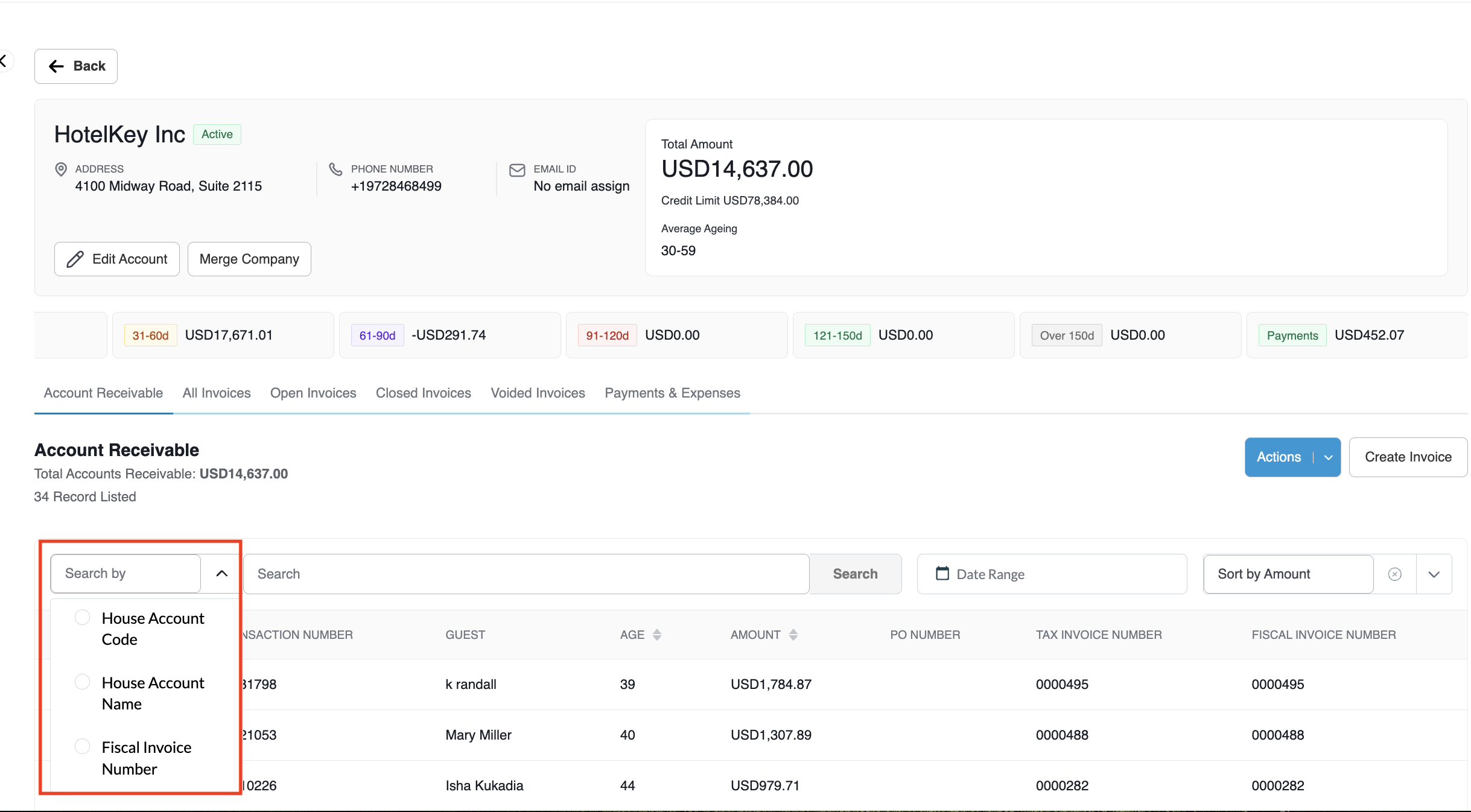
Click the Search By dropdown to filter by First Name, Last Name, Transaction Number, Room Number, Amount, or Code.
Query by Date or Sort
Use the Date Range calendar picker or the Sort By dropdown (Sort by Amount, Sort by Date, Transaction Number, Age).
Sorts and isolates unbilled line items; click table column headers (e.g., AGE) to invert sort order.
Execute AR Actions
Click the blue Actions button or the blue Create Invoice button in the upper-right corner of the table.
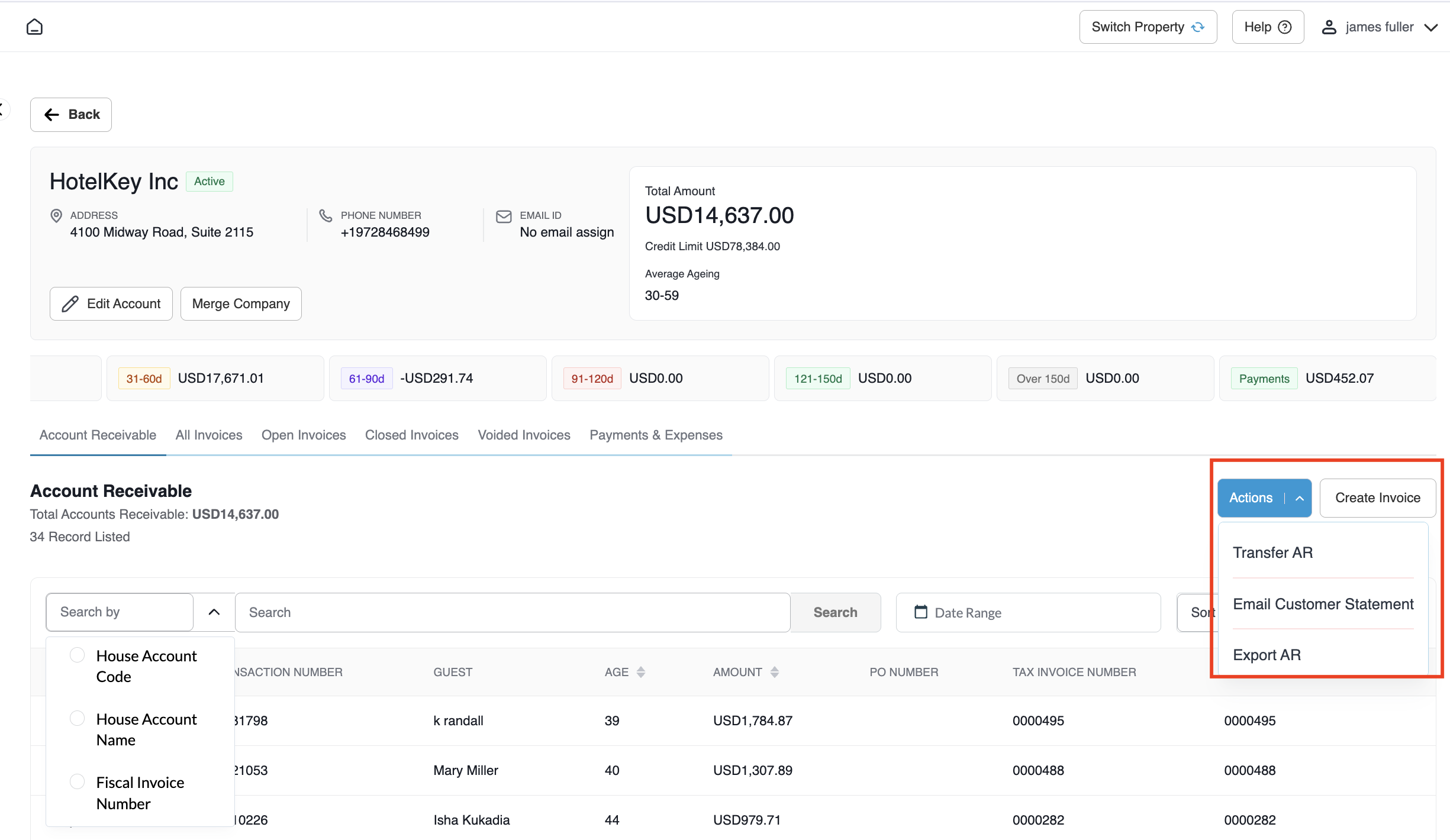
Actions: Access Transfer AR, Email Customer Statement, or Export.
Create Invoice: Compiles selected unbilled receivables into a formal direct-bill invoice.
Navigate Invoicing Tabs
Click across invoice tabs: All Invoices, Open Invoices, Closed Invoices, and Voided Invoices.
Audits invoice lifecycles, checks payment statuses, voids open statements, or dispatches copies using Email Invoice and Print Invoices.
Track Payments & Postings
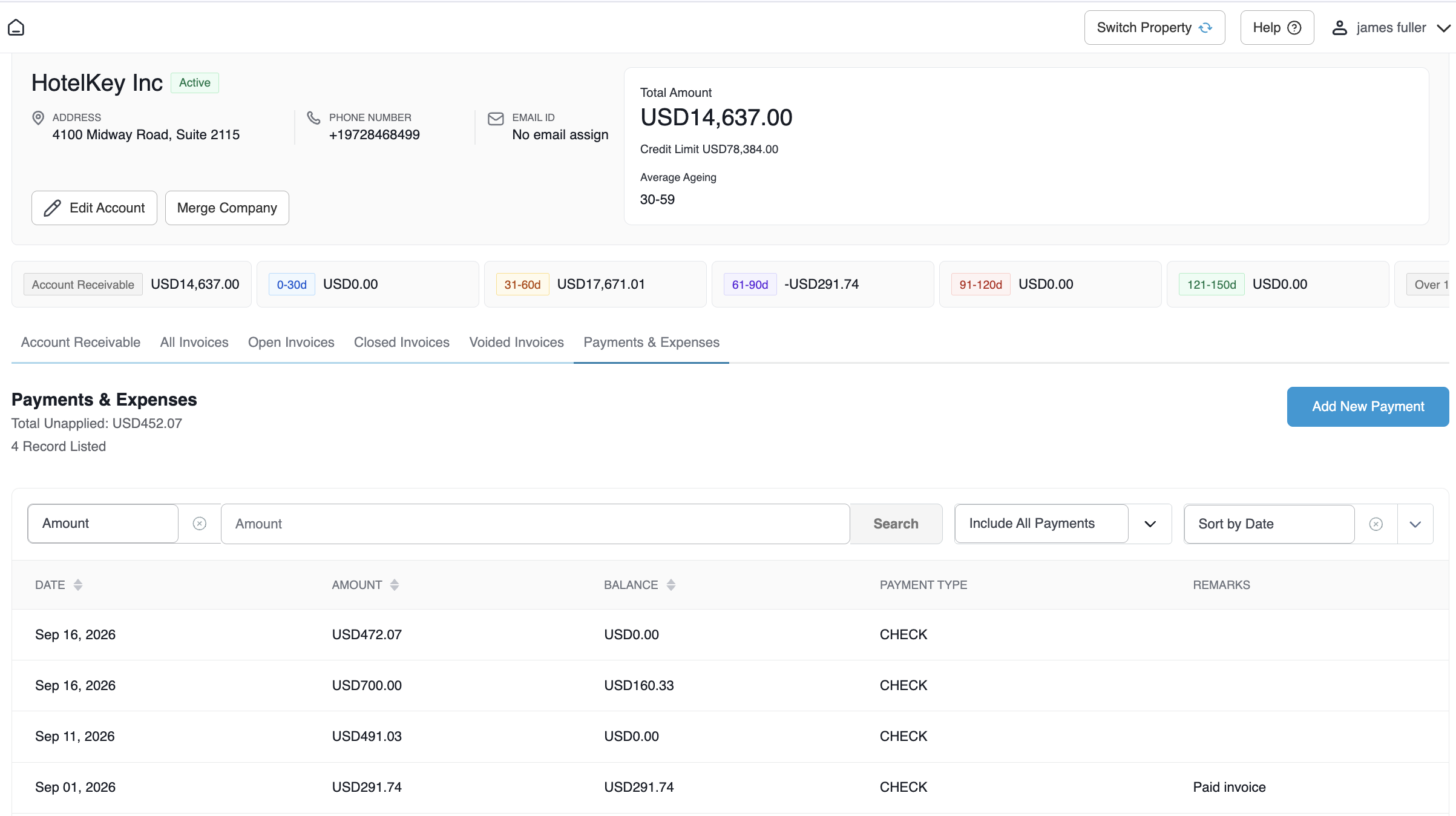
Click the Payments & Expenses sub-tab to inspect settled checks, wire transfers, and unapplied credits.
Click the blue Add New Payment button to record incoming checks, electronic funds transfers (EFT), or credit card settlements.
📷 VISUAL CALLOUT:
Tour of a Company Account Management Screen
Overview capture of the company account showing total balance ($14,637.00), Edit Account, the interactive horizontal aging cards (Account Receivable, 0-30d through Over 150d, and Payments) and the All Invoices, Open Invoices, Closed Invoices and Voided Invoices tab.
Company Account Management Walkthrough
Detailed Sub-Tab Breakdown & Operational Controls
1. Account Receivable (Unbilled Items)
Houses all finalized guest stay folios and room charges transferred to direct bill that have not yet been compiled into an invoice:
Metrics Indicator: Displays total unbilled receivables count and sum (e.g., USD 4,637.00 - 24 Record Listed).
Search By Dropdown: Enables targeted line-item lookups by:
First Name / Last Name (e.g., searching First Name Kevin isolates Guest Kevin Hill).
Transaction Number
Room Number
Amount
Code
Sort By Dropdown & Column Sorting: Allows sorting by Sort by Amount, Sort by Date, Transaction Number, or Age. Direct clicking on the AGE or AMOUNT column header arrows toggles ascending/descending order.
Table Data Columns:
Date: Transaction posting or guest departure date.
PO Number: Client purchase order tracking reference.
Tax Invoice Number / Fiscal Invoice Number: Compliance accounting numbers.
Header Action Buttons:
Actions Dropdown:
Transfer AR: Reallocates selected receivables to another corporate direct-bill profile.
Email Customer Statement: Dispatches an updated statement of accounts directly to corporate billing contacts.
Export: Downloads unbilled line items to CSV or Excel.
Create Invoice: Initiates invoice compilation for selected line items.
📷 VISUAL CALLOUT:
Account Receivable Search Dropdown & Actions Menu
(Left) Search By dropdown open showing field options (First Name, Last Name, Transaction Number, Room Number, Amount, House Account Code, Fiscal Invoice Number); (Right) Blue Actions dropdown open revealing Transfer AR, Email Customer Statement, and Export.
Search By Dropdown
Actions Dropdown
2. All Invoices
Consolidates all generated corporate invoices regardless of payment state:
Total Invoiced Amount Indicator: Sum of all finalized invoices (e.g., USD 6,344.38 - 10 Record Listed).
Table Data Columns:AR Invoice Number, Amount, Settled Amount, Status (OPEN, CLOSED), Invoice Date, Age, Balance, and Due Date.
Action Buttons:Email Invoice, Print Invoices, and Export.
3. Open Invoices
Isolates finalized invoices with outstanding unpaid balances:
Operational Scope: Lists invoices where Settled Amount = Amount and Balance = $0.00 with status tagged as CLOSED.
Action Buttons:Email Invoice, Print Invoices, and Export.
5. Voided Invoices
Provides a compliance audit log of canceled billing records:
Operational Scope: Displays historical invoices that were dissolved via the Void Invoice action (e.g., status tagged as VOID in green).
Audit Tracking: Retains original invoice numbers, compilation dates, ages, and voided monetary amounts.
Action Buttons:Email Invoice, Print Invoices, and Export.
📷 VISUAL CALLOUT:
Payments & Expenses Sub-Tab & Add New Payment Action
Grid view displaying posted payment records, payment dates, amounts, payment types (CHECK), and reference numbers, highlighting the blue Add New Payment button.
Payments & Expenses Sub-Tab
6. Payments & Expenses
Tracks historical payments, remittances, and credit adjustments:
Total Collected Amount Indicator: Sum of all recorded payments (e.g., USD 4,452.07 - 4 Record Listed).
Payment Grid Columns: Itemizes Date, Amount, Balance, Payment Type (e.g., CHECK, EFT, CREDIT CARD), and Remarks (e.g., Post Invoice).
Include All Payments Dropdown: Filters records between applied payments and unapplied account credits.
+ Add New Payment Button: Opens the remittance modal to log incoming corporate funds, enter check/wire reference numbers, and apply settlement amounts against open invoices.
Header Utilities & Account Management
Edit Account (Pencil Icon): Opens the multi-tab corporate configuration wizard to update company demographics, payment terms, PO requirements, and invoicing settings.
Merge Company: Launches the account consolidation utility to combine duplicate corporate profiles, migrating balance ledgers and transaction histories into a single primary record.
Back Button: Returns navigation directly to the primary Accounts Receivable Dashboard and Company List.