Target Roles: Accounts Receivable Specialists, Staff Accountants, Night Auditors, Financial Controllers, Systems Administrators
Last Updated:
Executive Overview
In HotelKey Accounts Receivable (AR), an Expense Settlement allows finance and billing specialists to resolve residual, uncollectible invoice balances following a payment allocation. This operational scenario most frequently arises in international corporate billing when currency conversion differences occur—such as when a client remits payment in US Dollars (USD) against a folio denominated in Canadian Dollars (CAD) or British Pounds (GBP). Even after applying the full converted settlement sum, small fractional balances can remain that the business will not collect.
By executing an Expense Settlement, properties apply a designated non-revenue write-off expense credit to absorb the remaining balance, reducing the invoice open amount to exactly 0.00 and transitioning the invoice to CLOSED status. Dedicated configuration rules ensure that expense settlements do not distort operating revenues on night audit reports.
Operational Prerequisites & System Setup
Before processing an Expense Settlement in an Accounts Receivable company ledger, two system-level configurations must be established:
1. Payment Type Configuration (Is Expense Settlement = YES)
Configuration Requirement: A dedicated payment method (e.g., Currency Conversion Write Off, AR Shortfall Write-Off) must be created in system administration.
Architecture Constraint: The parameter Is Expense Settlement must be toggled to YES (enabled).
System Impact: Restricts this payment type exclusively to the Add New Expense settlement workflow, preventing billing agents from erroneously selecting write-off codes as routine payment tender methods during standard AR cash receipts or front-desk checkouts.
Configuration Toggle: Set Display Direct Bill Settlement Payments in New Section in Final Audit to YES.
Accounting & General Ledger Safeguard:
When Enabled (YES): Creates an independent, segregated Settlement Expense tab on the Night Audit Final Audit Report, isolating write-off totals from gross cash/electronic collections.
When Disabled (NO): Expense write-offs display within the general Payments section, causing non-cash expense credits to appear as cash income and misstating net operational revenue.
End-to-End Workflow: Applying an Expense Settlement
System Navigation Path
Home > Accounts Receivable > Select Company Account > Payments & Expenses > Add New Expense
Step
Action
Platform Guidance & Operational Details
Access Company AR Ledger
Navigate to the Accounts Receivable directory, search for the target corporate profile (e.g., HotelKey Inc), and click to open the master account.
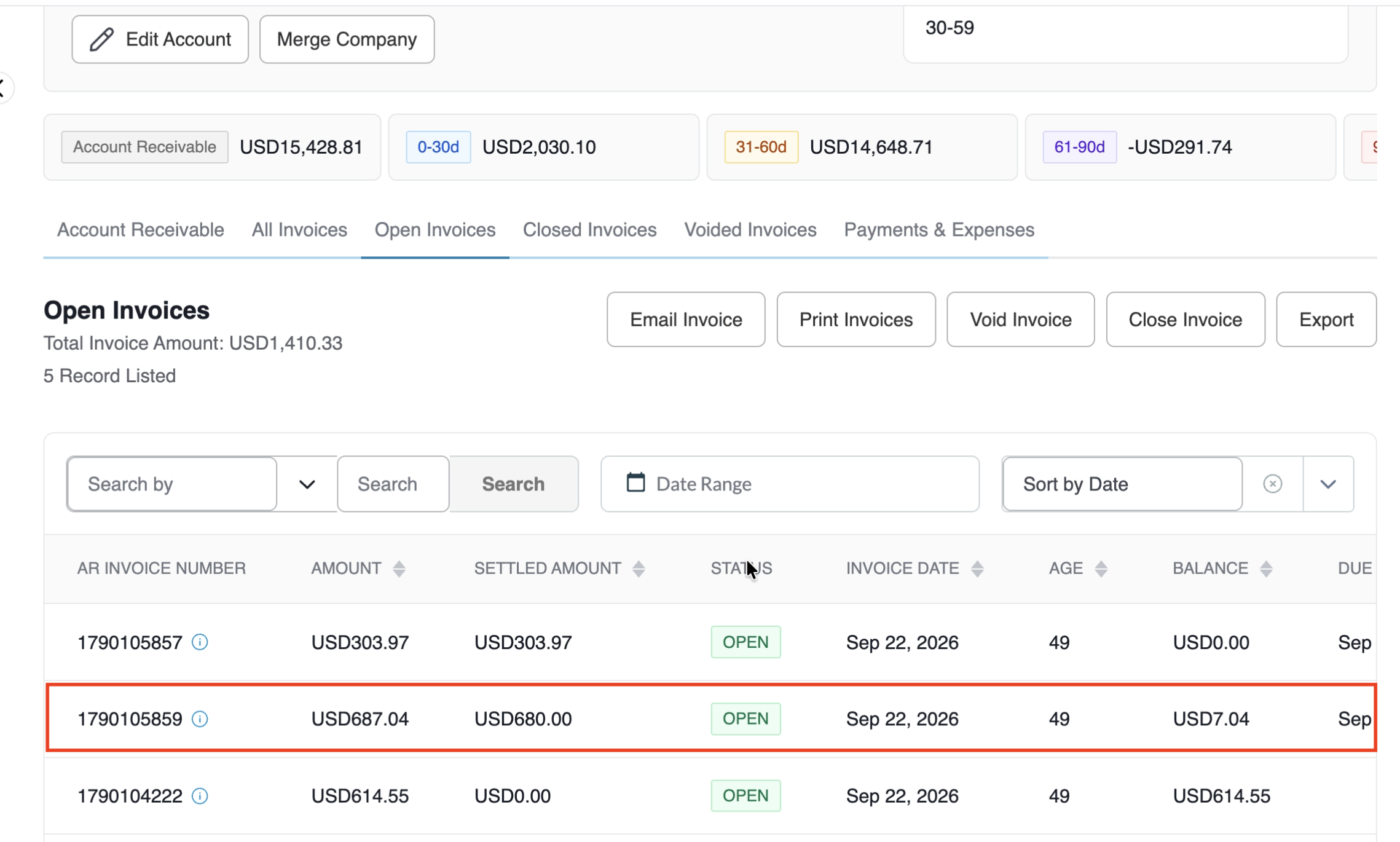
Opens the corporate AR ledger summary showing the total balance, aging buckets (0-30d, 31-60d, 61-90d, Over 150d), and sub-tabs.
Identify Remaining Balance
Click the Open Invoices sub-tab. Locate the partially settled invoice (e.g., AR Invoice #1790105859 with Original Amount $687.04, Settled Amount $680.00, and remaining Balance $7.04).
Confirms the exact uncollectible residual variance requiring settlement. Click the invoice number to inspect transaction line items if necessary.
Initiate New Expense
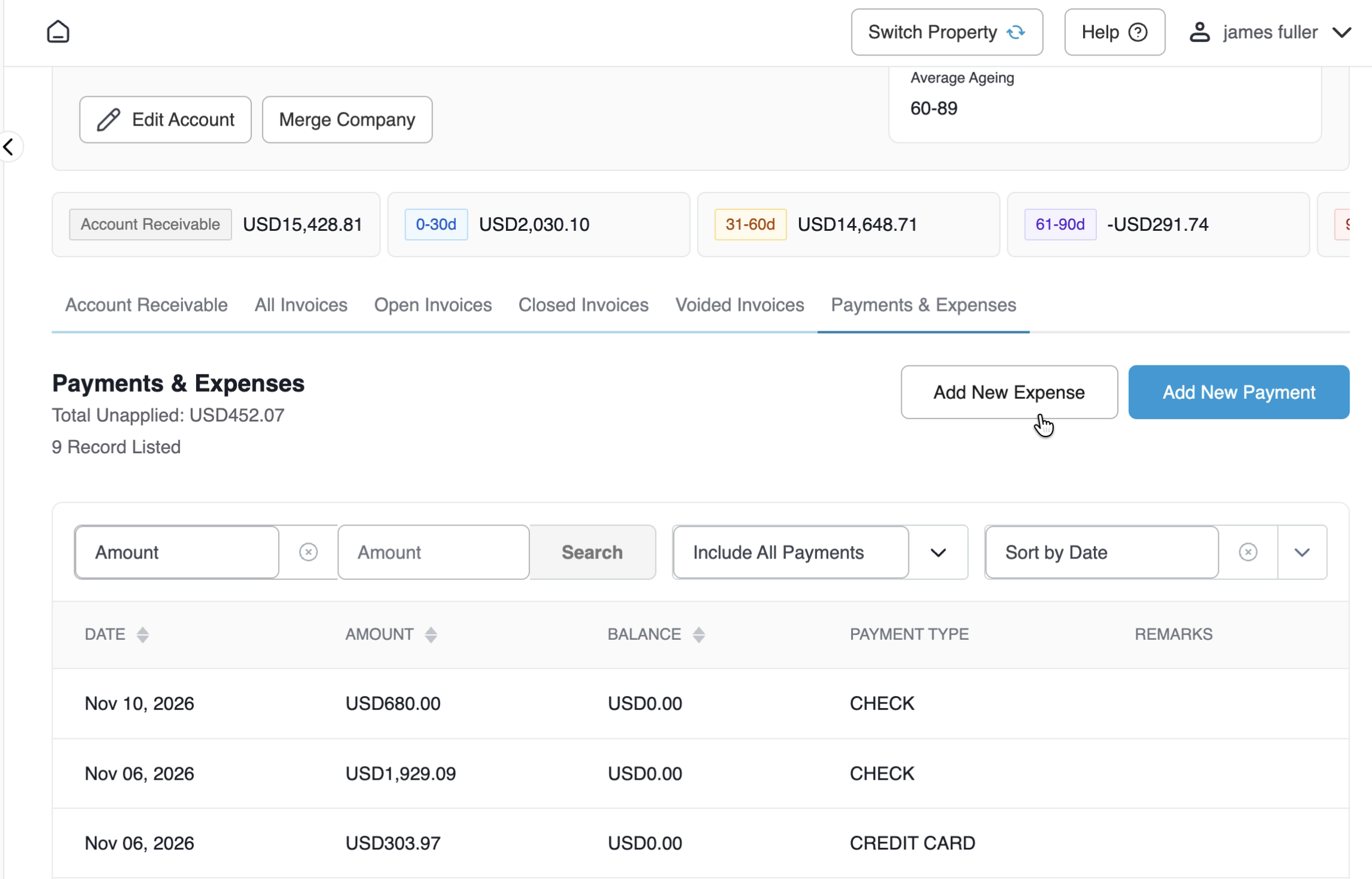
Click the Payments & Expenses sub-tab in the corporate ledger menu, then click the white Add New Expense button in the upper-right corner.
Launches the 4-step Add Expense settlement wizard displaying the current Company Balance at the top.
Step 1: Expense Details
In Enter Expense Amount, enter the exact residual balance (e.g., 7.04).
In Select Expense Type, choose the configured write-off method from the dropdown (e.g., Currency Conversion Write Off).
Stages the credit write-off total and maps it to the designated general ledger expense account. Click Next.
Step 2: Select Invoices
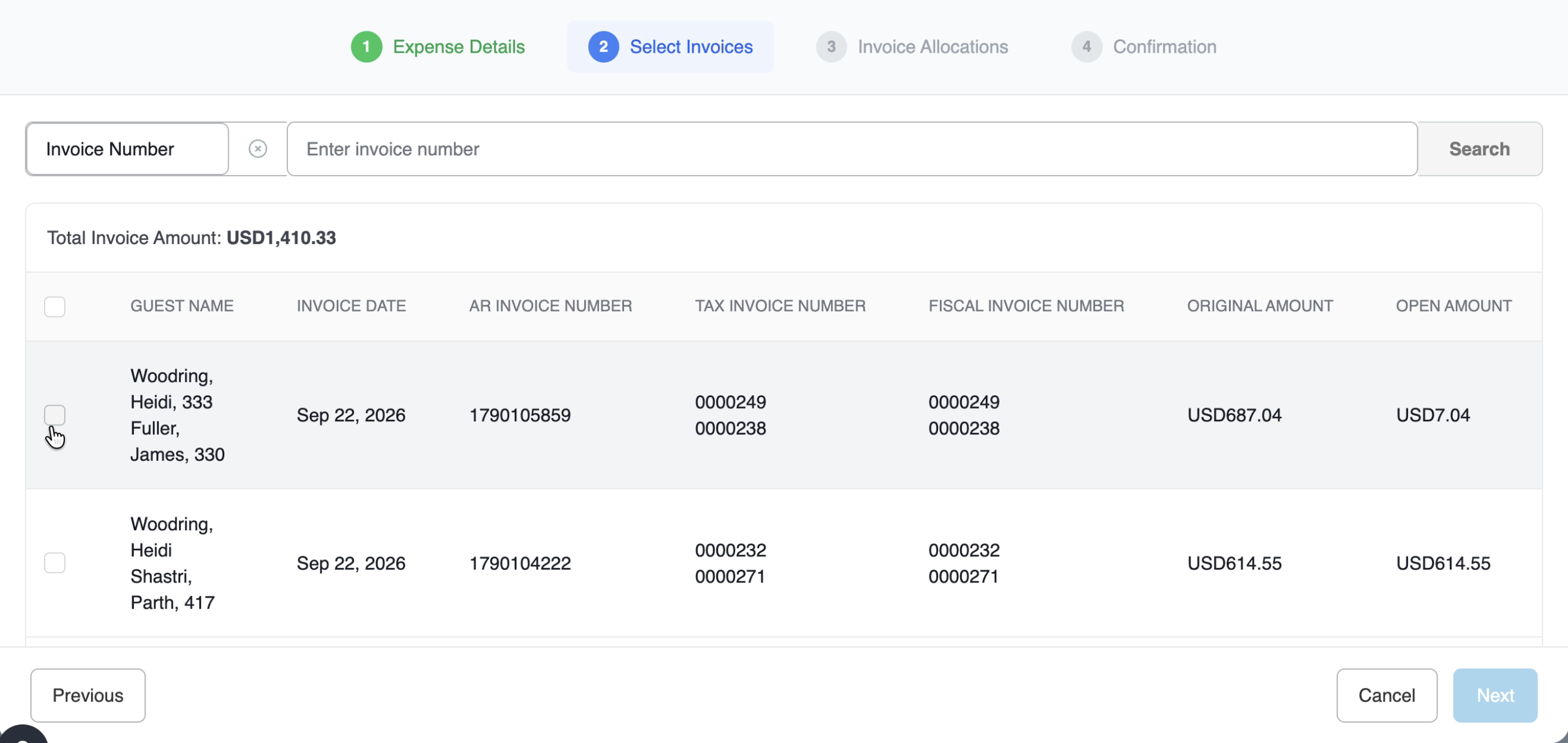
Locate the target invoice row in the staged grid (or enter the AR invoice number in the search query bar) and check its selection box.
Displays the invoice guest names, invoice dates, original amounts, and remaining open amounts (e.g., $7.04). Click Next.
Step 3: Invoice Allocations
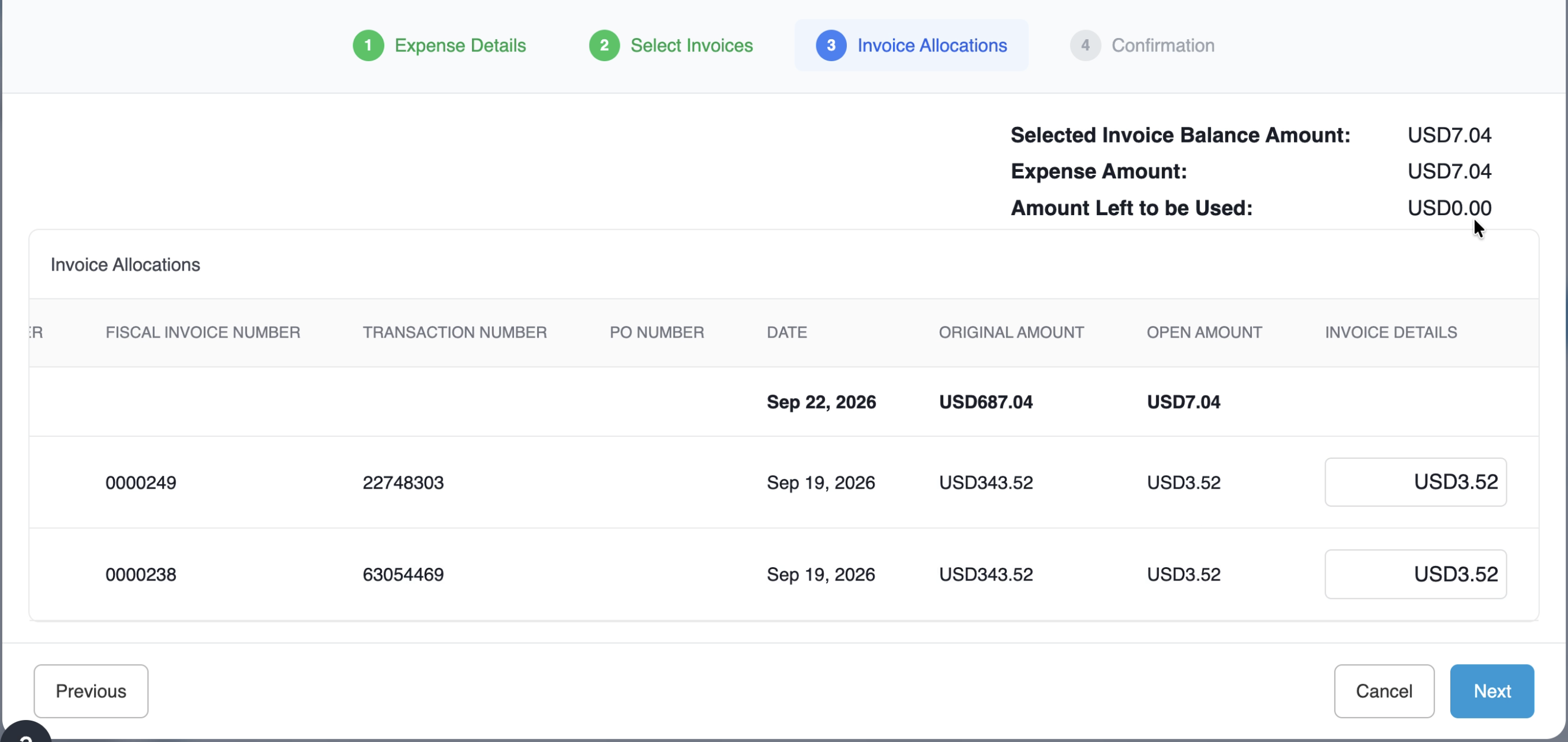
Review the distribution breakdown: Selected Invoice Balance Amount ($7.04), Expense Amount ($7.04), and Amount Left to be Used ($0.00).
Ensures the expense credit matches the residual invoice balance. Enter or verify line-item allocation amounts in the far-right input fields (e.g., $3.52 and $3.52 across two guest folios). Click Next.
Step 4: Confirmation & Close
Review the final reconciliation card detailing the AR Invoice Number, Confirmation Numbers, Original Amounts, Open Amounts, Settlement Amounts, and projected Invoice Balance (After Confirm) showing $0.00.
Click the blue Confirm & Close button in the lower-right corner.
System Verification
The platform displays a green notification toast (Success: Saved Successfully) and returns to the corporate ledger.
The invoice automatically clears from Open Invoices and moves to Closed Invoices with a $0.00 balance.
📷 VISUAL CALLOUT:
Corporate Ledger Navigation & Add New Expense
(Left) The corporate AR sub-tab bar highlighting Open Invoices showing invoice #1790105859 with an open balance of $7.04; (Right) The Payments & Expenses sub-tab displaying historical receipts, the blue Add New Payment button, and the white Add New Expense button.
Open Invoices Tab
Payments & Expenses Tab: Add New Expense Button
Detailed 4-Step Wizard Breakdown
Step 1: Expense Details
Add New Expense: On the payments and expenses tab, click Add New Expense button to initiate the wizard.
Enter Expense Amount*: Numerical monetary input capturing the write-off sum. Must correspond to the exact residual balance being settled (e.g., 7.04).
Select Expense Type Dropdown*: Dedicated selector listing only payment methods provisioned with Is Expense Settlement = YES (e.g., Currency Conversion Write Off). Standard cash, check, or credit card tenders are systematically filtered out.
Step 2: Select Invoices
Search By Invoice Number: Direct lookup field allowing billing specialists to isolate specific invoices across high-volume accounts.
Total Invoice Amount Counter: Dynamically sums open balances across the ledger (e.g., USD 1,410.33).
Invoice Selection Grid:
Checkbox: Designates target invoice(s) for settlement.
Invoice Date: Billing post date (e.g., Sep 22, 2026).
AR Invoice Number: Master accounts receivable identifier (e.g., 1790105859).
Tax / Fiscal Invoice Numbers: Government tax and fiscal compliance sequence references (e.g., 0000249 / 0000238).
Original Amount: Initial gross invoice charge (e.g., USD 687.04).
Open Amount: Residual balance remaining after previous payment applications (e.g., USD 7.04).
📷 VISUAL CALLOUT:
Step 2: Invoice Selection Table
Selection interface showing invoice #1790105859 checked, displaying guest names, September 22, 2026 invoice date, original charge of $687.04, and residual open amount of $7.04.
Selected Invoices Table
Step 3: Invoice Allocations
Summary Calculation Sidebar:
Selected Invoice Balance Amount: Total unpaid balance across selected invoices (USD 7.04).
Expense Amount: Credit sum entered in Step 1 (USD 7.04).
Net Payment Available to Apply: Total available settlement funds (USD 7.04).
Amount Left to be Used: Remaining unallocated credit funds (must equal USD 0.00 to advance).
The system strictly prevents over-allocating write-off expenses. If the allocated amount exceeds the balance or expense total, an inline red warning triggers: Allocated Amount cannot be greater than balance amount: USD 7.04.
Line-Item Split Allocation:
For multi-folio invoices, operators can enter custom allocation figures in the far-right input fields (e.g., allocating $3.52 to folio transaction 22748303 and $3.52 to folio transaction 63054469).
📷 VISUAL CALLOUT:
Step 3: Allocation Summary & Split Adjustment
Allocation screen showing the summary block (Selected Invoice Balance $7.04, Expense Amount $7.04, Amount Left $0.00) and the itemized allocation rows with editable currency boxes.
Invoice Allocations Screen with Split Adjustments
Step 4: Confirmation & Final Commit
Settlement Reconciliation Table:
Master Summary: Displays Expense Amount (USD 7.04), AR Invoice Number (1790105859), and Date (Sep 22, 2026).
Itemized Line Breakdown: Confirms underlying reservation confirmation numbers, original line amounts, open amounts, and final settlement write-off values.
Confirm & Close Button (Blue): Commits the financial adjustment, closes the invoice, and updates AR aging balances.
📷 VISUAL CALLOUT:
Full Expense Settlement Walkthrough( Including Posting Settlement Payment and Posting Expense Payment
Review the full Expense Settlement walkthrough including posting settlement payment, invoice balance and posting expense payment settlement to the same invoice.
Expense Settlement Walkthrough
Ledger Verification & Audit Trail
Following settlement confirmation:
Closed Invoices Sub-Tab: Navigate to Closed Invoices in the company ledger. Invoice #1790105859 is listed with:
Amount:$687.04
Settled Amount:$687.04
Status:CLOSED (in green badge)
Balance:$0.00
Payments & Expenses Directory Filter:
On the Payments & Expenses sub-tab, open the status filter dropdown menu (defaults to Include All Payments).
Select Include All Expenses to isolate non-cash expense write-offs from actual monetary receipts.
Audit Logs Tracking: The transaction log records an immutable entry capturing the timestamp, staff user ID (James Fuller), expense settlement type (Currency Conversion Write Off), applied credit value, and affected AR invoice number.
Downstream Night Audit & Final Audit Integration
When the night audit process runs, the system reconciles AR transactions against daily general ledger accounts:
Dedicated Settlement Expense Tab: With Display Direct Bill Settlement Payments in New Section in Final Audit enabled, the Final Audit report isolates all expense write-offs onto an independent Settlement Expense tab.
Financial Integrity: Prevents non-revenue currency conversion adjustments and write-offs from commingling with cash, credit card, and check totals, ensuring cashiers balance out precisely and general ledger variance accounts balance without manual reconciliation.