Target Roles: Accounts Receivable Managers, Credit Managers, Finance Directors, Night Auditors, System Administrators
Last Updated:
Executive Overview
The Email Customer Statement function in HotelKey enables finance teams to compile and dispatch itemized billing statements directly to corporate clients and direct-bill accounts. Dispatched directly from the Accounts Receivable Dashboard, statements aggregate real-time account balances, credit limits, transaction histories (including invoices and posted payments), and aging bucket summaries. This automated workflow accelerates collection cycles, provides transparent auditing for corporate bookers, and reduces manual statement preparation.
Home > Companies and Direct bill > Accounts Receivable > Dashboard
Step
Action
Platform Guidance & Operational Details
Access AR Dashboard
Navigate to the Accounts Receivable section and scroll down to the Company List directory.
Displays configured corporate accounts, current balances, and operational action buttons.
Initiate Statement Workflow
Click the Email Customer Statement button located above the company list header.
Activates multi-selection mode, displaying checkboxes next to each company record and updating the top-right header with Cancel and Send Email (0).
Select Target Companies
Select the checkbox next to one or multiple corporate profiles (e.g., HotelKey, Inc.).
Updates the action button counter dynamically to reflect selected accounts (e.g., Send Email (1)).
Open Dispatch Modal
Click the blue Send Email (X) button in the upper-right corner.
Opens the Email Customer Statement dialog window confirming the count of selected companies.
Add Recipient Emails
Input the recipient's email address into the Email Addresses field and click the + (Add) button.
Validates email syntax, stages the address under Recipient (X) with a removal option, and activates the send control. Repeat to add multiple recipients.
Dispatch Statement
Click the blue Send button in the lower-right corner of the modal.
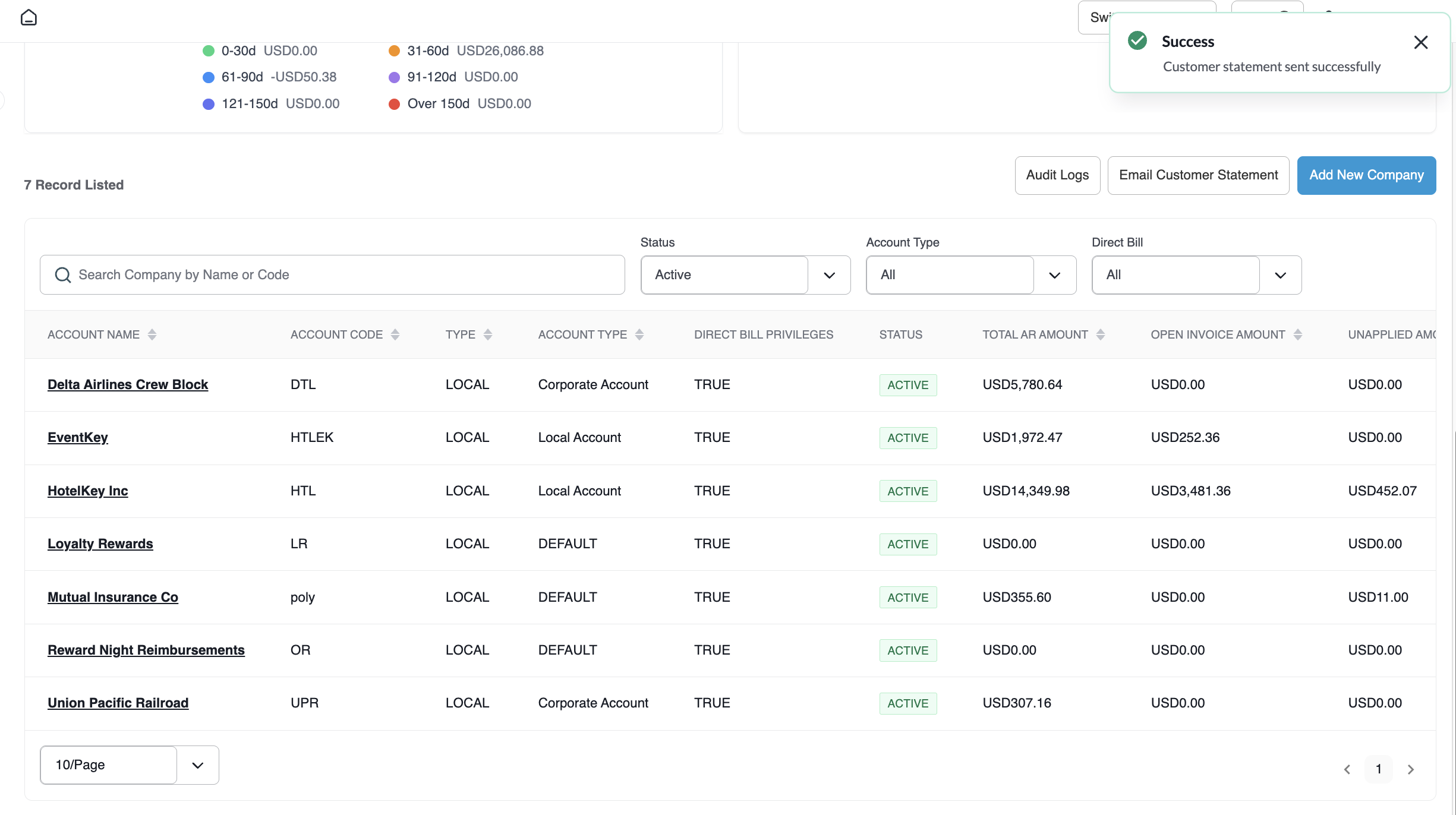
Transmits the statement file to all designated recipients and displays a green notification banner (Success: Customer statement sent successfully).
📷 VISUAL CALLOUT:
Company Multi-Selection & Email Customer Statement Modal
The Email Customer Statement modal capturing recipient address input, the + add button, and staged recipient chips.
Email Customer Statement Modal
Detailed Configuration Field Breakdown
1. Selection Mode Controls
Email Customer Statement Button: Activates selection mode across the active company list.
Company Checkboxes: Allows individual or batch selection of accounts across all pages.
Cancel Button: Exits statement selection mode without generating or sending records.
Send Email (Count): Context-aware button displaying the exact number of accounts staged for statement dispatch.
2. Email Customer Statement Modal Parameters
Sending Statements to X Select Company: Subtitle confirming the total number of corporate accounts included in the current batch dispatch.
Email Addresses Field: Input field for recipient contact addresses. Enforces real-time email format validation (prompts "This field must be a valid email address" if syntax is incomplete).
Add Recipient (+ Button): Stages the entered email into the recipient queue.
Recipient List (Recipient (n)): Displays all staged email addresses with individual delete icons for auditing before dispatch.
Send Button: Executes background statement compilation and dispatches emails via system mail servers.
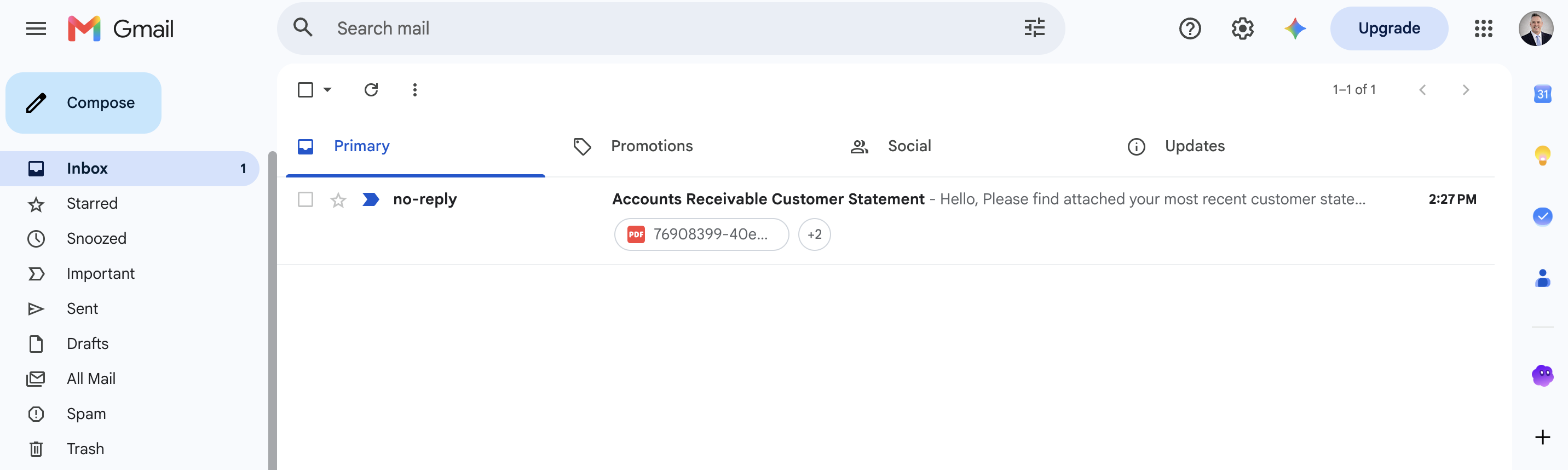
(Top) Green Success confirmation toast notification banner; (Bottom) Received email in client inbox from no-reply@hotelkeyapp.com featuring the standardized subject line and attached statement file.
Customer Statement Sent Successfully Notification Banner
Received Email in Client Inbox
Generated Customer Statement Anatomy & Layout
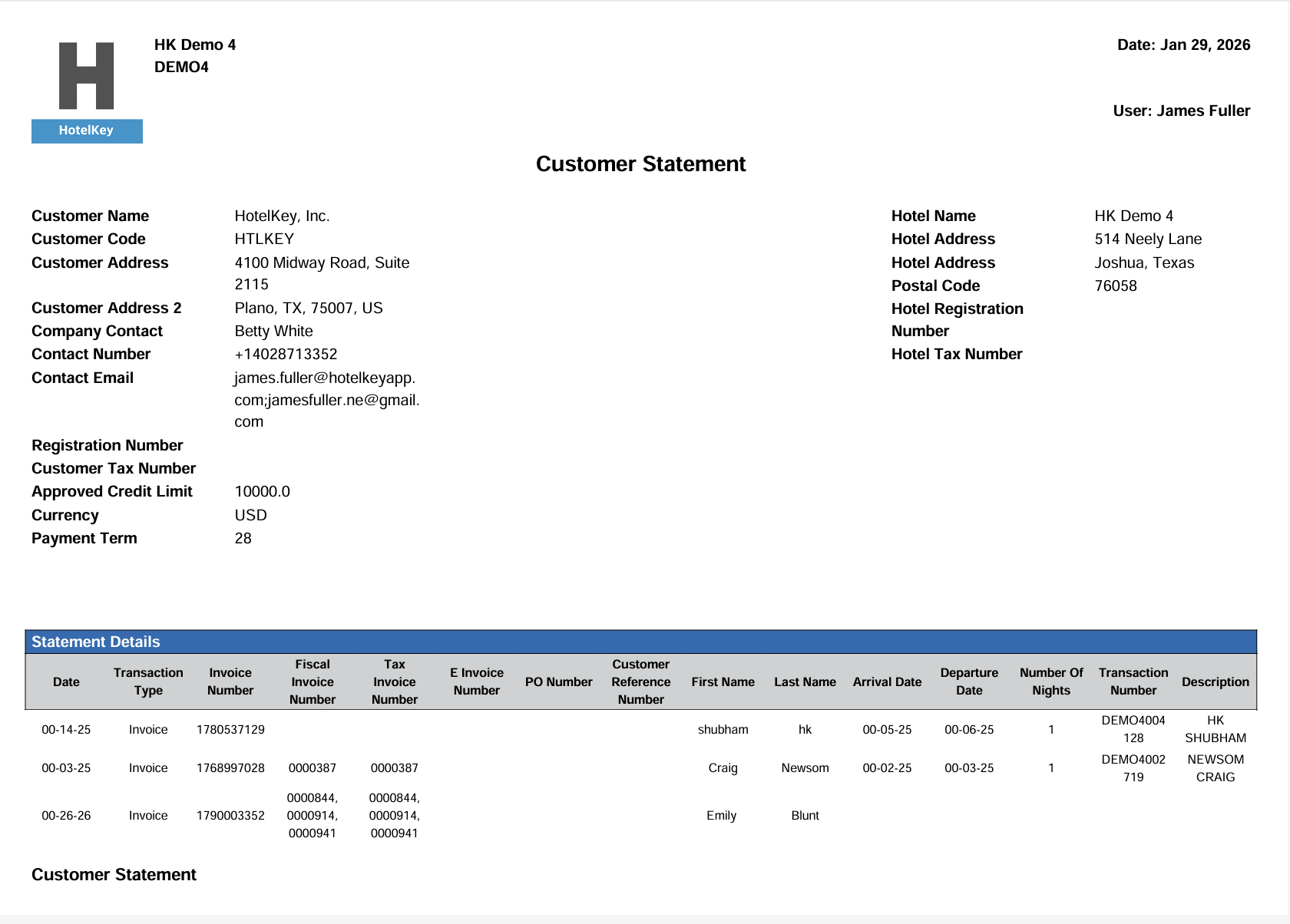
The system compiles an official, multi-page statement document delivered as a file attachment to the customer's email:
Header & Account Identification Block
Hotel Details (Right Header): Hotel Name (e.g., HK Demo 4), Hotel Code, Physical Address, Telephone, Fax, Registration Number, and Tax ID.
Metadata Bar: Statement Issue Date and the executing User Name (e.g., James Fuller).
Statement Details Transaction Grid
Itemizes all historical activity within the active billing cycle:
Date & Transaction Type: Chronological listing distinguishing between Invoice and Payment entries.
Invoice Reference Numbers: Itemizes Fiscal Invoice Number, Tax Invoice Number, and Internal AR Invoice Number.
PMS Tracking Identifiers: Links directly to originating guest stays via Transaction Number, PO Number, Room Number, Guest First/Last Name, Arrival Date, Departure Date, and Number of Nights.
Financial Posting: Individual line-item Transaction Amount and Description (e.g., ROOM CHARGES, FOOD AND BEVERAGE, DIRECT BILL TRANSFER).
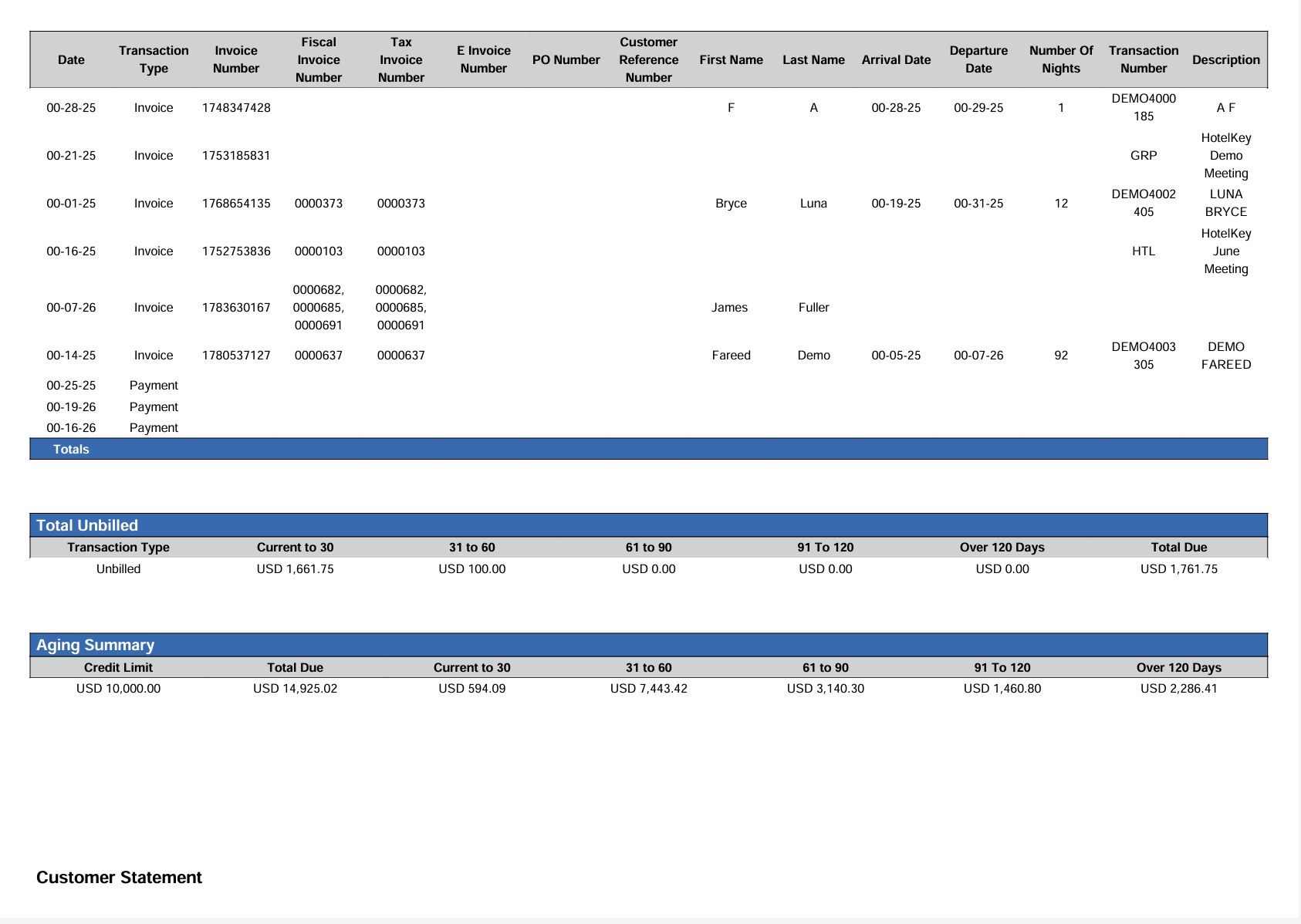
Aging Summary & Total Liabilities Block
Positioned at the base of the statement to summarize aging liabilities:
Account Balances: Breaks down Total Unbilled versus Total Invoiced receivables.
Aging Brackets: Categorizes open balances across standard accounting intervals:
Current to 30 Days
31 to 60 Days
61 to 90 Days
91 to 120 Days
Over 120 Days
Credit Compliance Summary: Displays Approved Credit Limit, Net Total Due, and Over Credit exposure figures.
Batch Dispatches: Corporate accounts can be selected simultaneously for batch dispatch during monthly billing cycles or night audit financial closes.
Multiple Recipients: For accounts requiring statements delivered to both local property bookers and central corporate accounting teams, add multiple recipient addresses before clicking Send.
Audit Tracking: All dispatched customer statements log to the account's historical communication record, viewable via the Audit Logs button in the Accounts Receivable header.