Target Roles: Accounts Receivable Managers, Credit Managers, Finance Directors, Night Auditors, General Managers
Last Updated:
Executive Overview
In HotelKey PMS, credit recovery documentation recorded against corporate direct-bill accounts is managed through the Collection Notes tab within the company profile configuration. Beyond logging new recovery actions, finance and credit managers can filter historical collection entries by customizable date ranges, filter by active or archived status, export full audit reports into formatted spreadsheets, and archive resolved notes to keep daily operational logs organized while preserving compliance records.
Dashboard > Select Company > Edit Account > Collection Notes
Step
Action
Platform Guidance & Operational Details
Access Corporate File
From the AR Dashboard Company List, click on the target corporate profile (e.g., HotelKey, Inc.).
Loads the company account overview displaying credit metrics, balances, and ledger tabs.
Enter Edit Account
Click the white Edit Account button (with pencil icon) in the corporate header card.
Launches the tabbed corporate account configuration screen.
Open Collection Notes
In the top horizontal navigation bar, click the Collection Notes tab.
Renders the collection ledger showing recorded notes, query filters, and action buttons.
Apply Date Range Filter
Click the Date Range input field to open the dual-calendar picker. Select the Start Date and End Date (e.g., Jan 01, 2026 – Jan 30, 2026).
Restricts the collection history table to notes logged within the selected timeframe. Click Clear to reset dates.
Select Status Filter
Click the status dropdown (defaulted to Active Notes) and select All Notes, Active Notes, or Archived.
All Notes: Displays both active and archived records.
Active Notes: Shows currently open follow-up actions.
Archived: Displays retired or resolved collection entries.
Execute Query
Click the blue Search button.
Queries system records and refreshes the table grid matching the date and status criteria.
Export Collection Report
Click the white Export Excel button located next to Search.
Generates and downloads a structured .xlsx spreadsheet report (Company Collection Notes) to your local workstation.
Initiate Archiving
Click the white Archive Notes button located in the top-right header next to Add Note.
Activates selection mode, displaying checkboxes next to each collection note row and staging Cancel and Archive (0) buttons.
Select Notes to Archive
Select the individual checkbox next to the target note, or check the header checkbox to select all listed notes.
Updates the button dynamically to reflect the count of selected records (e.g., Archive (1)).
10. Confirm Archive
Click the blue Archive (X) button in the upper-right corner.
Commits the archive status, displays a green notification banner (Success: Saved Successfully), and updates the note's status tag to ARCHIVED.
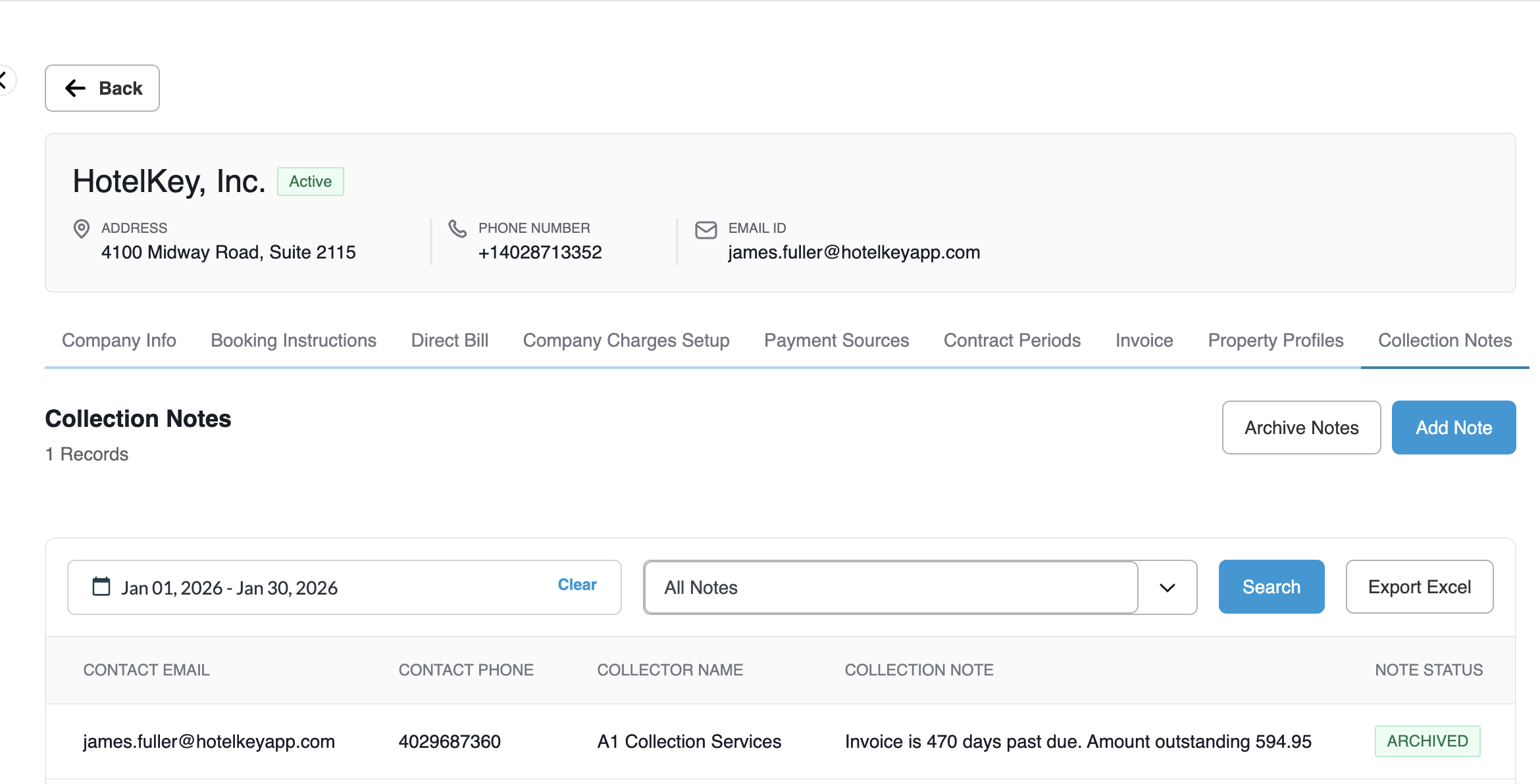
📷 VISUAL CALLOUT:
Collection Notes Management Overview
Collection Notes Management Overview
Detailed Screen & Data Field Breakdown
1. Ledger Query Controls
Date Range Field: Dual-calendar date input filtering collection actions by recorded timestamp. Includes a quick Clear link to remove active date constraints.
Status Dropdown Filter:
Active Notes: Isolates unresolved collection items requiring ongoing follow-up.
Archived: Displays retired records where collection actions were finalized or closed.
All Notes: Combines active and archived records into a single consolidated view.
Search Button: Primary query execution trigger applying the active date range and status filters.
Export Excel Button: Instantly compiles all queried table rows into a formatted spreadsheet export.
Archive Notes Button: Toggles row-selection mode to enable multi-record archiving.
📷 VISUAL CALLOUT:
Archive Action Confirmation
Table view in selection mode showing the archived collection notes with green Success: Saved Successfully toast banner and the updated green ARCHIVED status badge.
2. Collection Notes Ledger Data Columns
Date: Calendar date when the collection note was posted to the account (e.g., 2026-01-30).
Time: Exact time of note creation (e.g., 04:48:21 PM).
Invoice: Clickable link displaying the referenced system AR invoice number (e.g., 1747742624).
Invoice Date: Original generation and posting date of the linked invoice (e.g., 2024-10-17).
User ID: Email address of the system user who created and submitted the note (e.g., james.fuller@hotelkeyapp.com).
Contact Name: Primary debtor contact person recorded during follow-up (e.g., James Fuller).
Contact Email: Client contact email address on file.
Contact Phone: Client telephone number on file (e.g., 4026987360).
Collector Name: Designated staff member or third-party collection agency (e.g., A1 Collection Services).
Collection Note: Full operational narrative detailing delinquency age, balance sought, and recovery status (e.g., "Invoice is 470 days past due. Amount outstanding $594.95 transferred to collection partner for recovery").
Note Status: Color-coded operational badge indicating record lifecycle:
ACTIVE (Green outlined badge): Currently active collection item.
ARCHIVED (Green solid/outlined badge): Settled or closed collection record.
Clicking Export Excel produces an executive-quality spreadsheet containing two main sections:
Header Summary Block
Property Identification: Hotel Name (e.g., HK Demo 4) and Property Code (DEMO4).
Run Metadata: Date Range queried, Report Run Date, Report Run Time, and the executing User Name (e.g., James Fuller).
Account Parameters: Account Type (Direct Bill Account), Account Code (HTLKEY), Account Name (HotelKey, Inc.), Total Balance due, Approved Credit Limit, and Available Credit balance.
Tabular Export Data Structure
Itemizes all queried records across standardized accounting columns:
Date
Time
Invoiced (Invoice Number)
Invoiced Date
User ID
Contact Name
Contact Number
Contact Email
Collector Name
Collection Notes
Note Status (ACTIVE / ARCHIVED)
Operational Best Practices
Routine Auditing: Filter by Active Notes at the start of each accounting cycle to review pending agency assignments and unresolved past-due balances.
Archiving Settled Accounts: Once an overdue invoice is settled via the Payments & Expenses tab or legally resolved, navigate to Collection Notes, select the entry, and click Archive to remove it from active queues while preserving the audit trail.
Auditing Bad-Debt Files: When preparing financial write-offs or audits with external accountants, set the status filter to All Notes, select the full fiscal date range, and click Export Excel to provide documented proof of all collection efforts undertaken.