Target Roles: Accounts Receivable Managers, Credit Managers, Finance Directors, Front Office Managers, System Administrators
Last Updated:
Executive Overview
Maintaining accurate corporate account profiles in HotelKey ensures that billing details, account classifications, contact information, credit limits, and invoicing rules remain synchronized across front office and accounting operations. Through the Edit Account interface, authorized users can update corporate parameters—from basic company demographics to advanced booking instructions and collection notes—to reflect renegotiated contracts, updated billing addresses, or revised payment terms.
📝 Multi-Tab Configuration Scope:
While operational walkthroughs may focus on updating foundational fields within the Company Info tab, authorized users can edit any configuration tab across the corporate profile:
Company Info
Booking Instructions
Direct Bill
Payment Sources
Contract Periods
Invoice
Property Profiles
Collection Notes
To update any section, click directly on the desired tab header, make the necessary modifications, and click the blue Save button in the upper-right corner of the form.
Configuration Guide: Editing a Corporate Account
System Navigation Path
Companies and Direct Bill > Dashboard > Select Company > Edit Account
Step
Action
Platform Guidance & Operational Details
Locate Company
On the Accounts Receivable Dashboard, scroll to the Company List grid.
Use the search bar or filter dropdowns to find the target corporate profile (e.g., HotelKey Inc).
Open Company File
Click on the company name link (e.g., HotelKey Inc) in the Account Name column.
Opens the detailed Company Account file showing live balances, credit limits, and the transaction grid.
Initiate Edit Mode
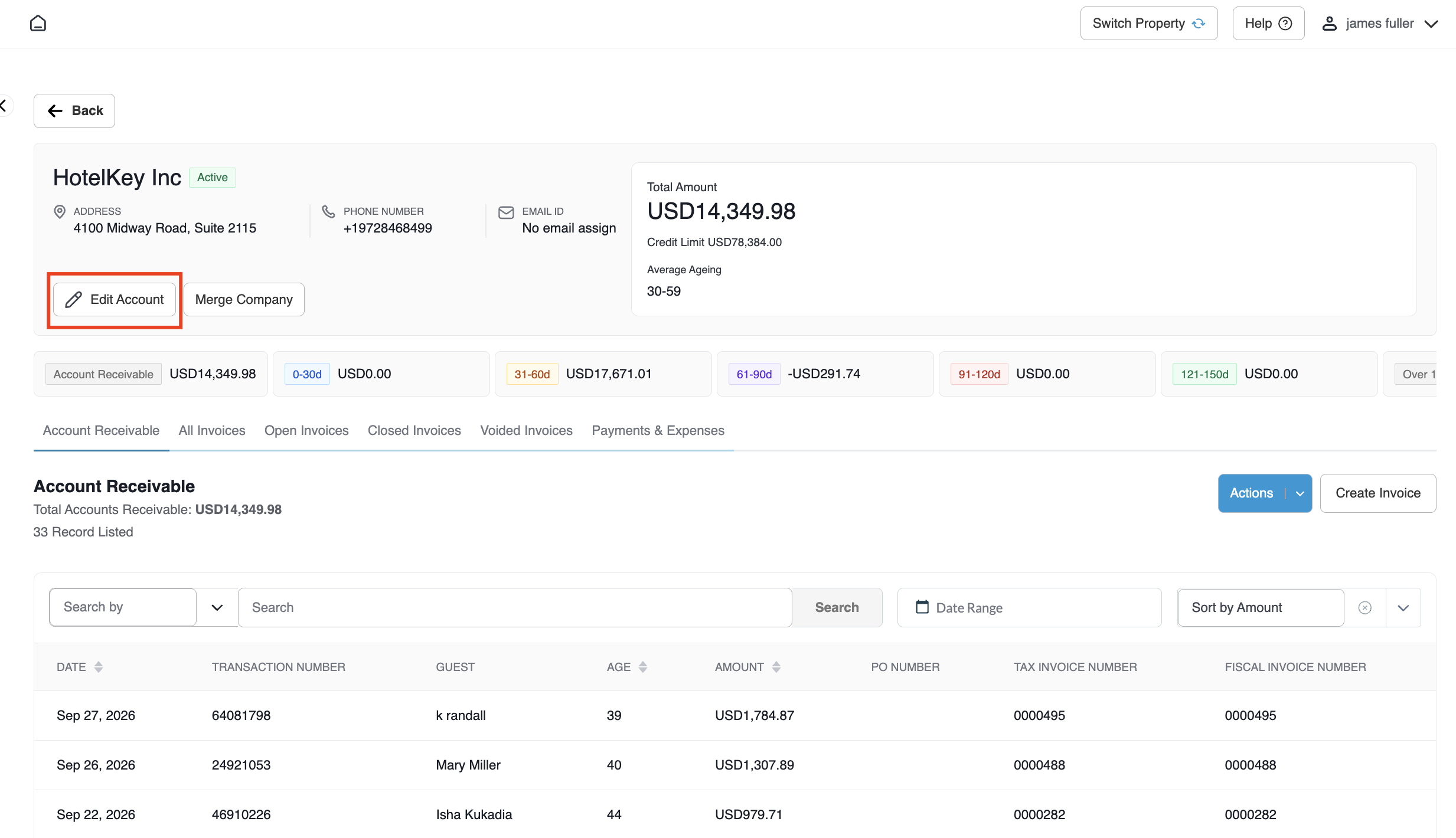
In the company header card, click the white Edit Account button (with pencil icon).
Launches the tabbed Edit Company configuration console.
Select Target Tab
Click on any tab header: Company Info, Booking Instructions, Direct Bill, Payment Sources, Contract Periods, Invoice, Property Profiles, or Collection Notes.
Displays editable fields specific to the selected configuration module.
Apply Required Updates
Modify fields as needed (e.g., update Account Type from LOC-Local Account to CORP-Corporate Account, adjust street address, or change Payment Term in Days from 30 to 28).
Updates account parameters according to new corporate agreements or billing rules.
Save Changes
Click the blue Save button located in the upper-right corner of the configuration screen.
Commits the updates to the database and displays a green notification banner (Success: Updated Successfully).
📷 VISUAL CALLOUT:
Company Account Edit Account Button
Company Account Edit Account Button
Detailed Configuration Tab Breakdown
📷 VISUAL CALLOUT:
Edit Company Account Workflow
Edit Company Account Workflow
Operational Validation & System Impact
Instant Field Synchronization: Saved changes apply immediately across both Front Desk intake workflows and backend Accounts Receivable ledgers.
Audit Trail Tracking: Profile modifications, including timestamp and user ID, are captured in the system audit logs accessible via the Audit Logs button on the Accounts Receivable Dashboard.
Invoicing Continuity: Existing finalized invoices retain their historical snapshots, while new statements and folios generated after saving will reflect the updated company name, address, payment terms, or contact personnel.