Target Roles: Accounts Receivable Managers, Credit Managers, Finance Directors, Front Office Managers, System Administrators
Last Updated: Nov 5, 2026
Executive Overview
In HotelKey PMS, the Company Charges Setup configuration tab determines which folio charges automatically route to a company direct-bill master account versus remaining on the guest's personal folio for direct settlement. Properties can configure billing rules across two operational modes: Setup as Charge Type Category (enabling entire transactional groupings such as Room Rent, Food & Beverage, or Miscellaneous) or Setup as Charge Type (enabling item-level charge codes with custom monetary allowance limits, such as a $15.00 daily parking allowance or a $10.00 breakfast credit). Automating these charge routing rules ensures strict compliance with negotiated corporate contracts, prevents unauthorized incidental billing, and eliminates manual folio splitting at checkout.
Configuration Guide: Setting Up Direct Bill Charge Routing & Allowances
System Navigation Path
Dashboard > Select Company > Edit Account > Company Charges Setup
Step
Action
Platform Guidance & Operational Details
Access Corporate File
From the AR Dashboard Company List, click on the target corporate profile (e.g., HotelKey, Inc.).
Loads the company profile displaying active credit metrics, balances, and ledger tabs.
Enter Edit Account
Click the white Edit Account button (with pencil icon) in the corporate header card.
Launches the tabbed corporate account configuration console.
Open Company Charges Setup
In the top horizontal navigation bar, click the Company Charges Setup tab.
Renders the charge configuration interface, mode selection radios, and charge category tables.
Choose Setup Mode
Select either Setup as Charge Type Category or Setup as Charge Type.
Category Mode: Enables broad category-level direct billing.
Charge Type Mode: Enables specific item codes with monetary allowance caps.
Configure Category Routing
Under Setup as Charge Type Category, toggle POST TO DIRECT BILL to ON for desired categories (e.g., ROOM RENT, MISC, OUTLET 1).
Automatically routes all transactions under selected categories to the company master folio. Click Save to commit.
Configure Item Allowances
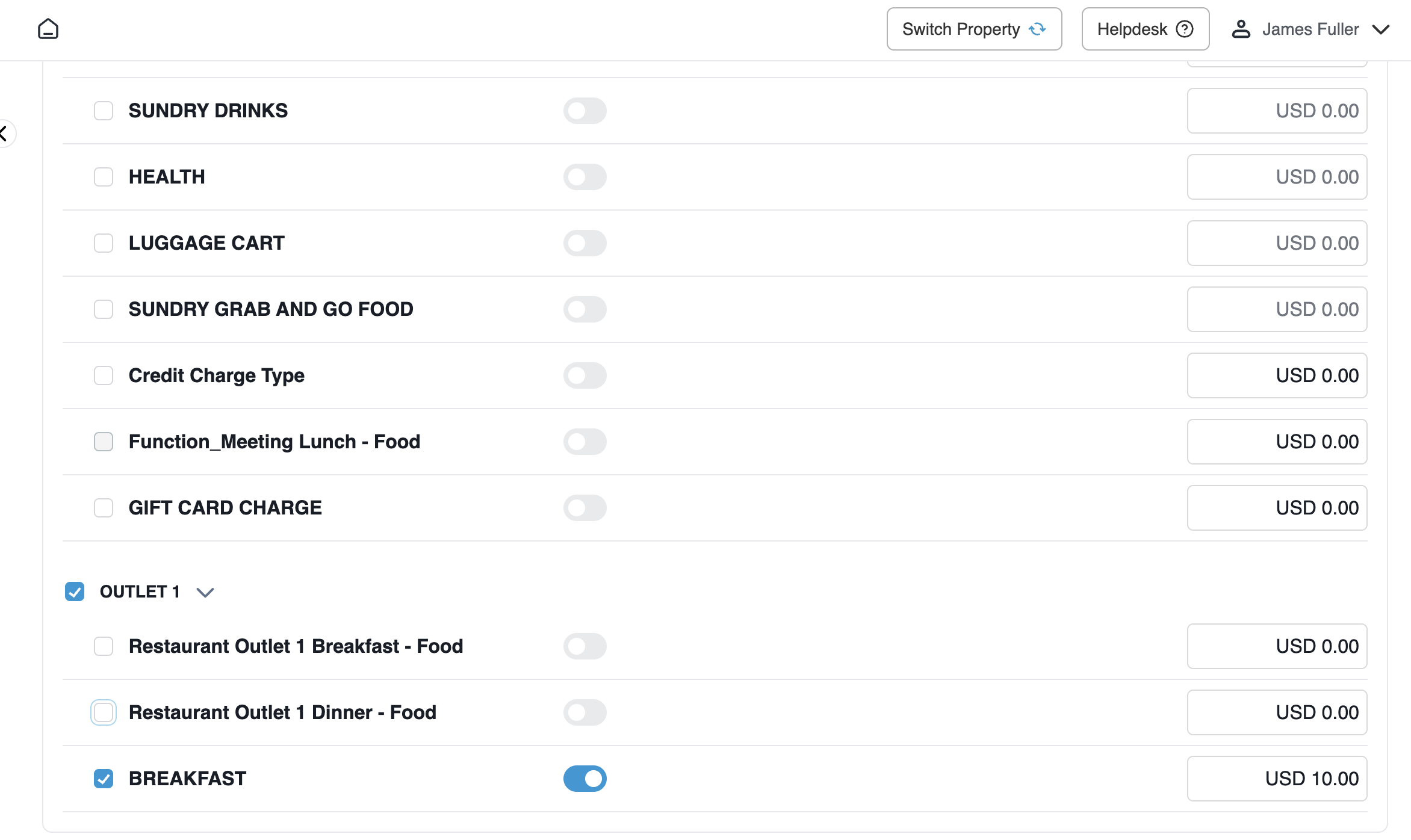
Under Setup as Charge Type, expand parent categories, locate specific codes, toggle POST TO DIRECT BILL to ON, and enter an AMOUNT (e.g., Parking Fee: USD 15.00, Breakfast: USD 10.00).
Enforces itemized direct-bill eligibility and sets maximum covered allowance amounts per charge code.
Save & Deploy
Click the blue Save button in the upper-right corner.
Commits routing rules to the database and displays a green confirmation notification (Success: Updated Successfully).
📷 VISUAL CALLOUT:
Company Charges Setup: Category Mode Interface
Overview screen capturing the Company Charges Setup tab with the Setup as Charge Type Category radio option selected, displaying the POST TO DIRECT BILL toggle switches enabled for ROOM RENT, MISC, and OUTLET 1.
Company Charges Setup Overview
Detailed Configuration Field Breakdown
1. Header Controls & Configuration Modes
Company Allowance Config: Dropdown menu (Select Company Allowance Setup) allowing properties to inherit predefined property-level billing allowance templates.
Company Charges Setup Radio Buttons:
Setup as Charge Type Category: High-level operational mode where billing authorization is granted across whole transactional families. All individual transaction codes assigned to an enabled category automatically post to direct bill without individual dollar limits.
Setup as Charge Type: Granular operational mode where each individual transaction code is independently authorized for direct billing and assigned a specific monetary cap.
2. Setup as Charge Type Category Mode
Category Name: Master billing categories configured in PMS general ledger settings:
ADVANCE_DEPOSIT: Pre-payments and reservation guarantee postings.
ROOM RENT: Base room accommodation charges, room packages, and room fees.
MISC: Ancillary fees, meeting room rentals, parking, and resort amenities.
OUTLET 1 / F&B: Food, beverage, and dining charges posted from property outlets.
Post to Direct Bill (Category-Level Toggle): Master toggle switch next to each category name. Setting this toggle to ON authorizes all current and future transaction types within that category to transfer to the corporate folio.
Category Expansion Panel: Clicking any category row expands the sub-panel to display all mapped charge types and verify which individual transaction codes are encompassed by the category.
📷 VISUAL CALLOUT:
Itemized Charge Type Setup & Allowance Capping
Interface screenshot showing the Setup as Charge Type view with the POST TO DIRECT BILL toggle switch enabled for BREAKFAST ($10.00), illustrating itemized rate controls.
Itemized Charge Type Setup & Allowance Capping
3. Setup as Charge Type Mode (Itemized Routing & Caps)
Select Charge Types Table: Displays a hierarchical tree view listing all system transaction codes nested beneath their parent category headings.
Selection Checkboxes: Designates whether a charge code is visible and active within the corporate routing schema.
Post to Direct Bill (Item-Level Toggle): Independent toggle switch beside each specific charge code (e.g., Parking Fee, Airport Transfer, Function_Meeting - Room Hire, BREAKFAST). Only charge types with this toggle enabled will route to direct bill.
Amount (Allowance Limit Field): Numerical currency input defining the maximum monetary threshold covered by the company:
USD 0.00 (No Cap / Full Coverage): If the toggle is ON and the amount remains USD 0.00, the company covers the entire charge without limitation.
Specific Dollar Value (e.g., USD 15.00, USD 10.00): Establishes a maximum corporate coverage ceiling per posting. Any amount posted up to this limit routes to direct bill, while overages are automatically directed to the guest's personal incidental folio.
Operational Folio Routing Logic
When a guest reservation linked to this corporate account checks in or incurs charges during their stay, HotelKey PMS applies the following automated routing sequence:
Transaction Assessment: When a charge is posted (manually at Front Desk, via POS interface, or through automated night audit room and tax posting), the PMS identifies the transaction's charge code.
Eligibility Verification: The system checks Company Charges Setup to determine whether the code (or its parent category) has Post to Direct Bill enabled.
Allowance Cap Check:
If the code is not enabled, the full charge remains on Guest Folio 1.
If enabled with no cap ($0.00), 100% of the charge moves to the corporate direct-bill master folio.
If enabled with an allowance cap (e.g., $10.00 Breakfast), the system routes up to $10.00 to the corporate direct-bill master folio, while any remaining balance automatically directs to the guest's personal folio for checkout settlement.