In HotelKey PMS, if an unapplied remittance or corporate payment was allocated to an open invoice in error—or if custom split amounts must be reconfigured—finance teams can reverse the settlement using the Cancel Settlement feature. Located within the payment record console under Payments & Expenses, canceling an allocation unbinds the payment from the invoice line item, restores the unapplied credit balance on the payment instrument, and immediately recalculates the invoice's open balance back to its pre-settlement amount.
Configuration Guide: Canceling a Payment Settlement Allocation
From the AR Dashboard Company List, click on the target corporate profile link (HotelKey Inc).
Loads the corporate account profile displaying header credit metrics, balances, aging summary cards, and ledger sub-tabs.
Navigate to Payments
In the horizontal sub-tab bar below the aging KPI summary cards, click Payments & Expenses.
Renders recorded payment transactions, settlement methods, unapplied amounts, and payment action controls.
Open Payment Record
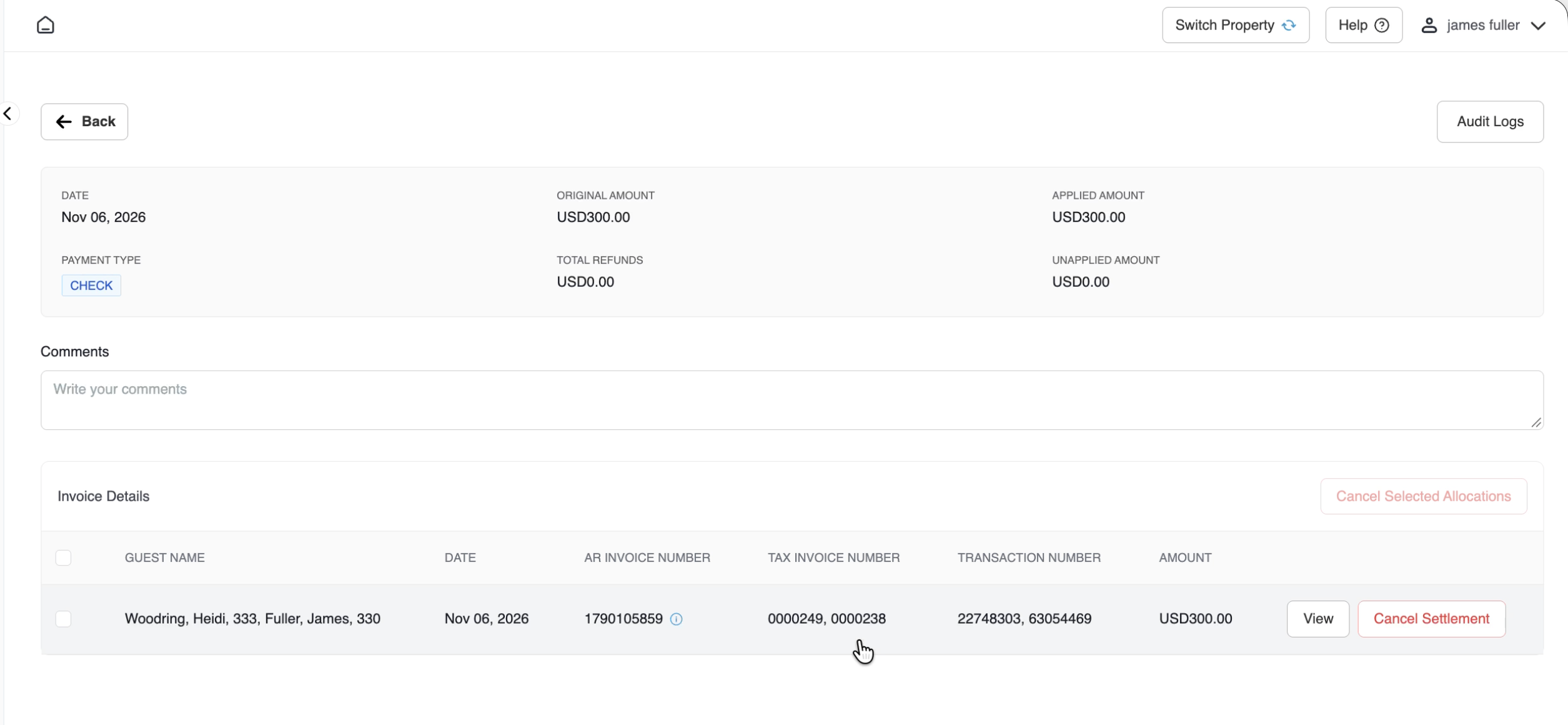
Click directly on the payment row containing the active allocation to be reversed (Check payment of USD 300.00 dated Nov 06, 2026).
Opens the detailed payment transaction console displaying the original amount (USD 300.00), applied amount (USD 300.00), and unapplied balance (USD 0.00).
Locate Applied Allocation
Under the Invoice Details section, locate the target allocation row: Woodring, Heidi, 323; Fuller, James, 303 (AR Invoice #1790105859, Amount USD 300.00).
Identifies the specific line-item allocation linked to the corporate invoice.
Initiate Cancel Settlement
In the far-right column of the target allocation row, click the red Cancel Settlement link/button.
Launches the Cancel Settlement Confirmation modal displaying invoice metadata and financial reversal impacts.
Review Reversal Parameters
Review the parameters in the modal: Invoice Number (1790105859), Invoice Date (Sep 22, 2026), Total Invoice Amount (USD 687.04), Settled Invoice Amount (USD 300.00), Invoice Status (OPEN), Applied Settlement Date (Nov 06, 2026), Applied Settlement Amount (USD 300.00), and projected Invoice Balance (After Cancellation) of USD 687.04.
Confirms the exact balance that will be restored to the invoice.
Confirm Cancellation
Click the red Confirm button in the lower-right corner of the modal.
Executes the reversal, displays a green notification banner (Success: Settlement Cancelled Successfully), and updates the payment console.
Audit Payment Balances
Verify on the payment console that Applied Amount resets to USD 0.00 and Unapplied Amount restores to the full USD 300.00.
Confirms all remittance funds are returned to unapplied credit, re-activating the white Apply Payment button in the top action bar.
Verify Invoice Details
In the Invoice Details table on the payment console, click the View button next to invoice #1790105859.
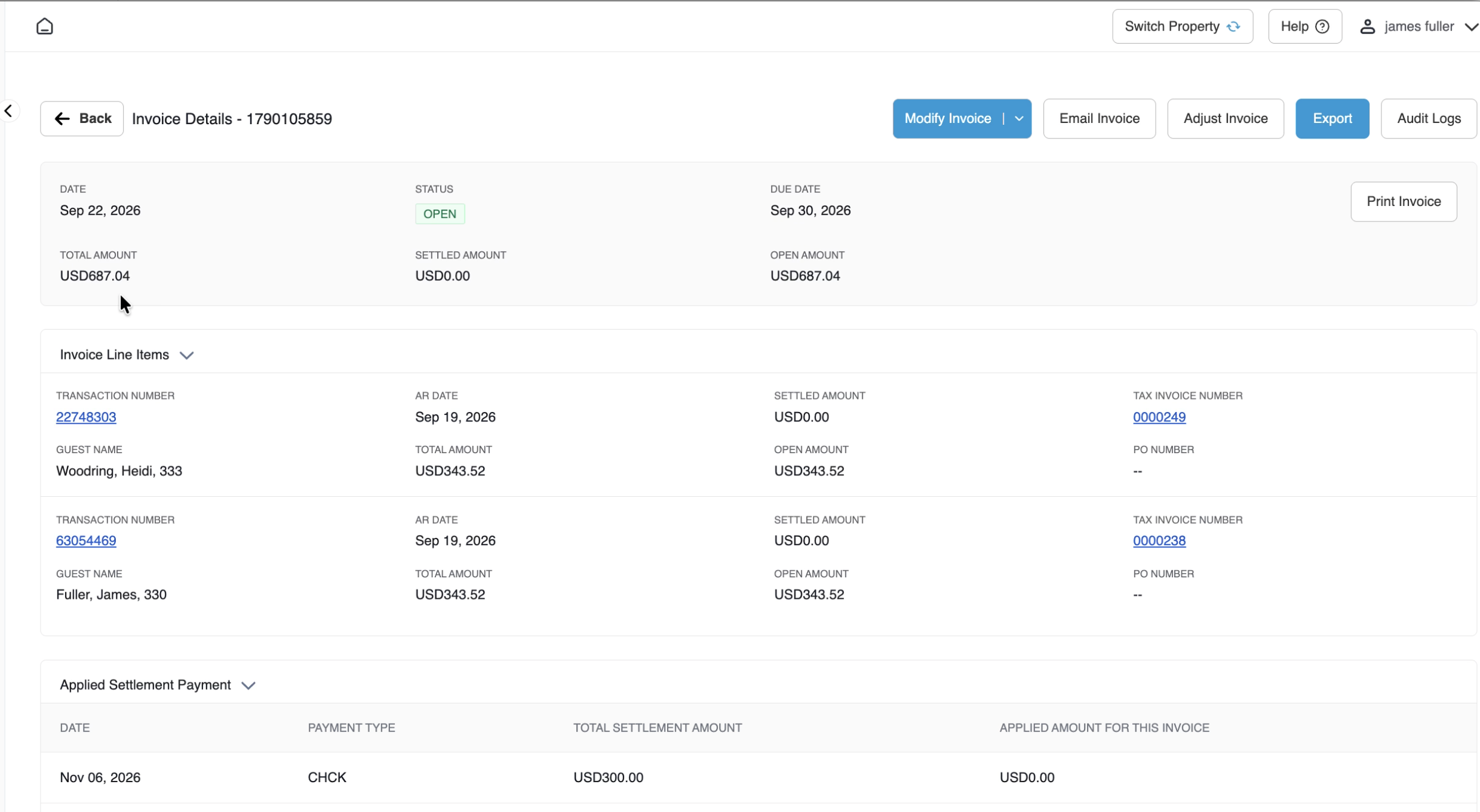
Opens the Invoice Details console showing the invoice remains in OPEN status, with Settled Amount restored to USD 0.00, Open Amount restored to full USD 687.04, and the applied settlement table cleared.
Payment record screen displaying Original Amount (USD 300.00), Applied Amount (USD 300.00), Unapplied Amount (USD 0.00), and a highlighted callout on the red Cancel Settlement action link in the Invoice Details table.
Payment Transaction Console
Detailed Screen & Modal Breakdown
1. Payment Transaction Console Parameters
Transaction Header:
Payment Date: Date of payment entry (Nov 06, 2026).
Invoice Details screen showing Status OPEN, Total Amount USD 687.04, Settled Amount reset to USD 0.00, Open Amount restored to USD 687.04, and the applied settlement grid cleared.
Reversed Invoice Details Console
Ledger & Financial System Impact Post-Cancellation
Unapplied Balance Restoration: The payment's Applied Amount resets to $0.00, and the Unapplied Amount returns to the full original payment amount (USD 300.00), making the full balance available for re-allocation.
Invoice Balance Recalculation:
The invoice's Settled Amount drops back to $0.00.
The invoice's Open Amount restores to the full billed sum (USD 687.04).
Under Applied Settlement Payment, the applied row is removed, and individual invoice line items revert to fully open status.
Audit Trail Compliance: The cancellation event is permanently recorded in the system audit logs under both the payment record and the AR invoice, capturing the timestamp, canceled amount, and the user login ID.