In HotelKey PMS, finalized direct-bill invoices can be modified to adjust billed guest charges without voiding the entire statement. Using the Modify Invoice utility on the Invoice Details screen, accounting teams can remove specific transaction line items from an open invoice (for example, disputed room charges, charges requiring separate billing, or incorrectly batched reservations). Removing a line item automatically recalculates the invoice’s total billed and open balances, updates applied settlement metrics, and immediately releases the removed transaction back to the unbilled Account Receivable ledger for subsequent re-invoicing or reconciliation.
Configuration Guide: Removing a Line Item from an Open Invoice
System Navigation Path
Dashboard > Select Company > Open Invoices > Select Invoice > Modify Invoice > Remove Line Items
Step
Action
Platform Guidance & Operational Details
Access Company Account
From the AR Dashboard Company List, click on the target corporate profile link (HotelKey Inc).
Loads the company profile displaying header credit metrics, balances, aging summary cards, and ledger sub-tabs.
Navigate to Open Invoices
In the horizontal sub-tab bar, click Open Invoices.
Displays all finalized, outstanding corporate statements awaiting full or partial settlement.
Select Target Invoice
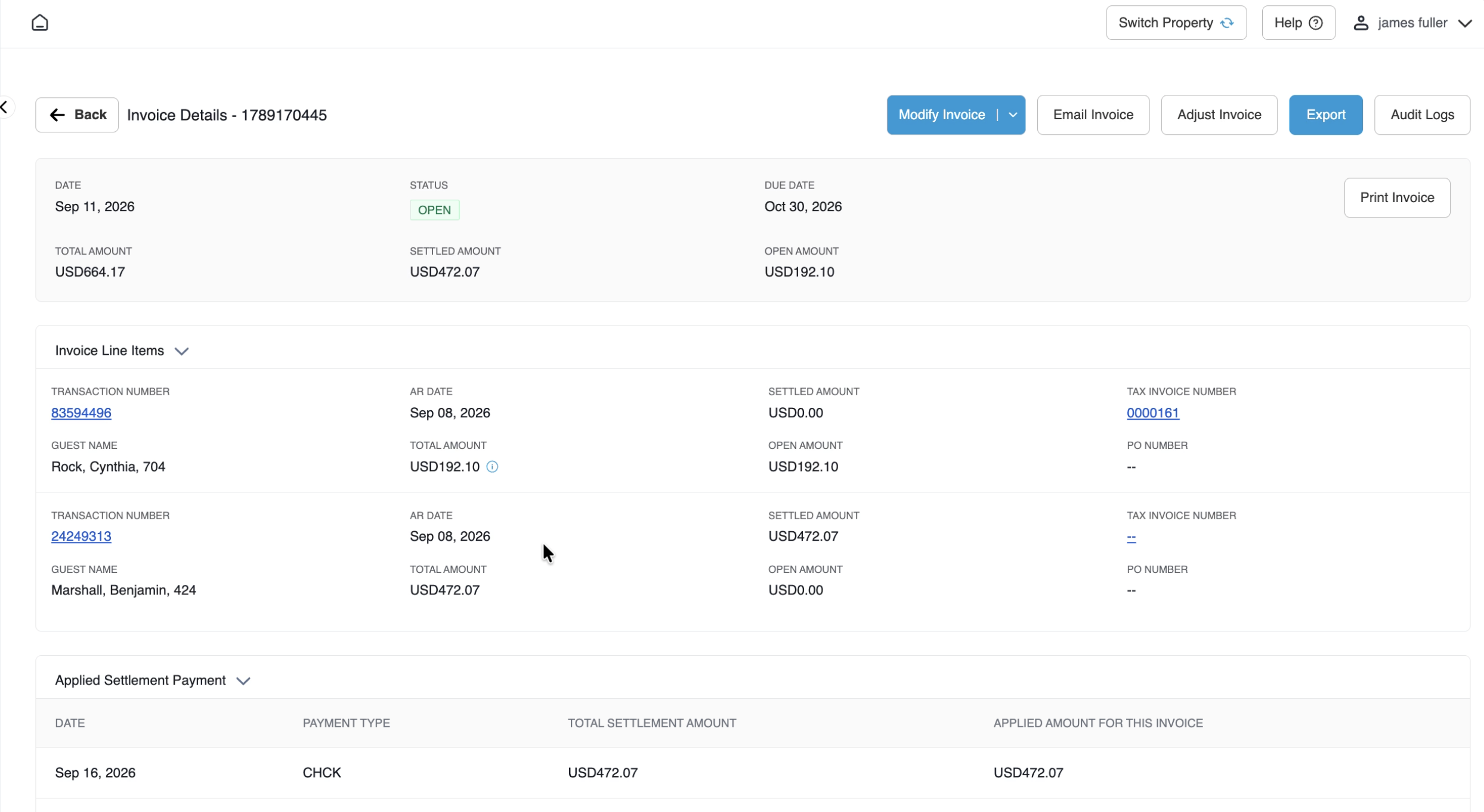
Click directly on the target invoice row (e.g., AR Invoice #1783170445, Total Amount USD 664.17, Settled USD 472.07, Open USD 192.10).
Opens the Invoice Details console showing the invoice status (OPEN), due date, balance metrics, line items, and applied settlements.
Open Modify Invoice Menu
In the top-right action bar next to Email Invoice, click the blue Modify Invoice button.
Displays the action dropdown options: Add Line Items and Remove Line Items.
Select Remove Line Items
Click Remove Line Items from the dropdown menu.
Activates line-item selection mode, displaying checkboxes next to each transaction row and staging Cancel and Confirm (0) in the upper-right header.
Select Line Item to Remove
Select the checkbox next to the specific transaction to be removed (e.g., Transaction # 83594496 for Rock, Cynthia, 704, Amount USD 192.10).
Updates the confirmation button counter dynamically (e.g., Confirm (1)).
Confirm Removal Action
Click the blue Confirm (1) button in the upper-right corner.
Launches the confirmation pop-up prompt: "Are you sure you want to remove this line item?"
Commit Line Item Removal
In the confirmation pop-up, click Yes.
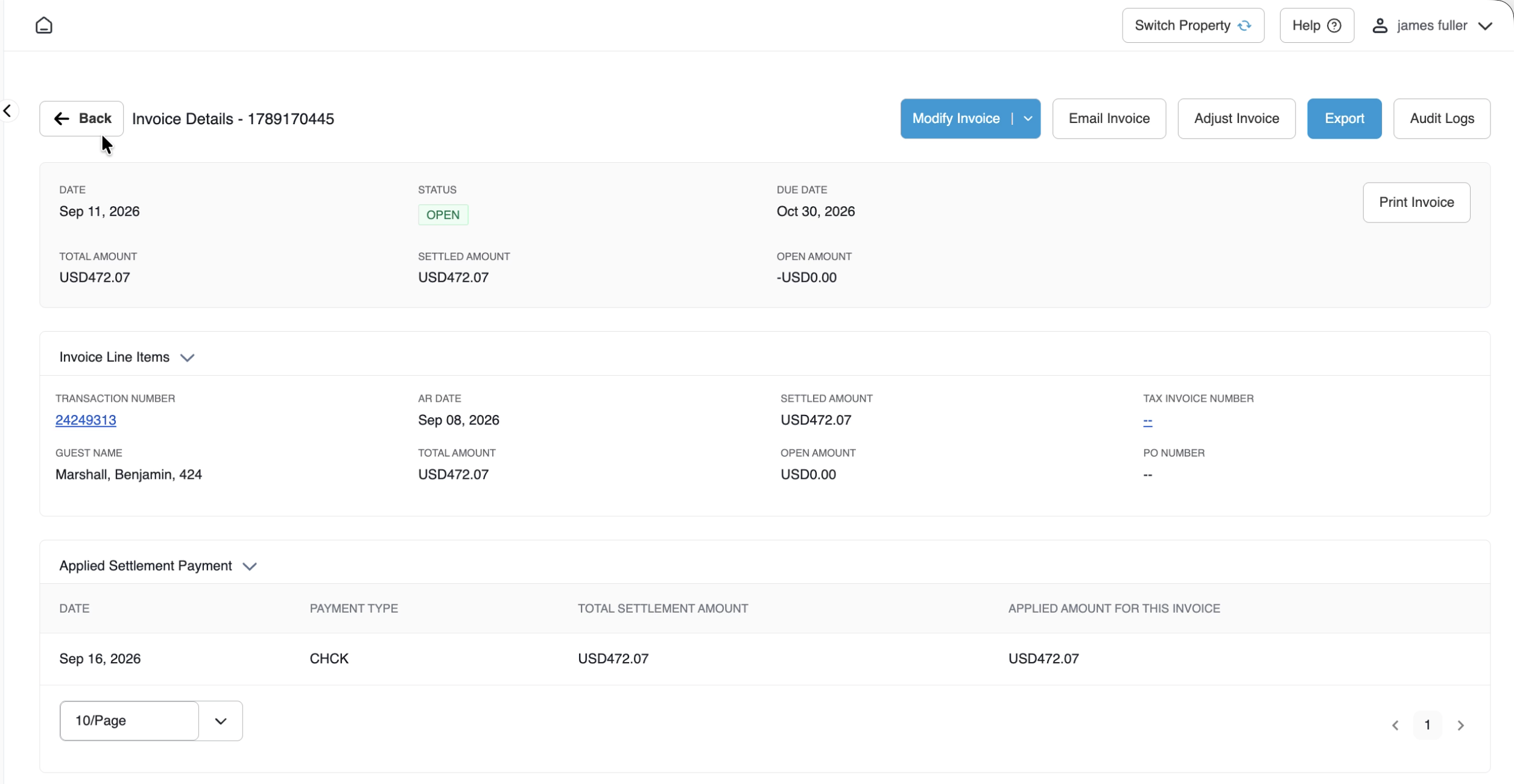
Removes the selected charge, displays a green notification banner (Success: Line Item Removed Successfully), and updates the invoice view.
Verify Invoice Recalculation
Review the updated invoice header metrics.
Verifies that Total Amount recalculates to USD 472.07, Settled Amount remains USD 472.07, and Open Amount drops to USD 0.00. Only the remaining line item (Marshall, Benjamin) is displayed.
10. Audit Unbilled AR Ledger
Click Back to return to the company overview, open the Account Receivable tab.
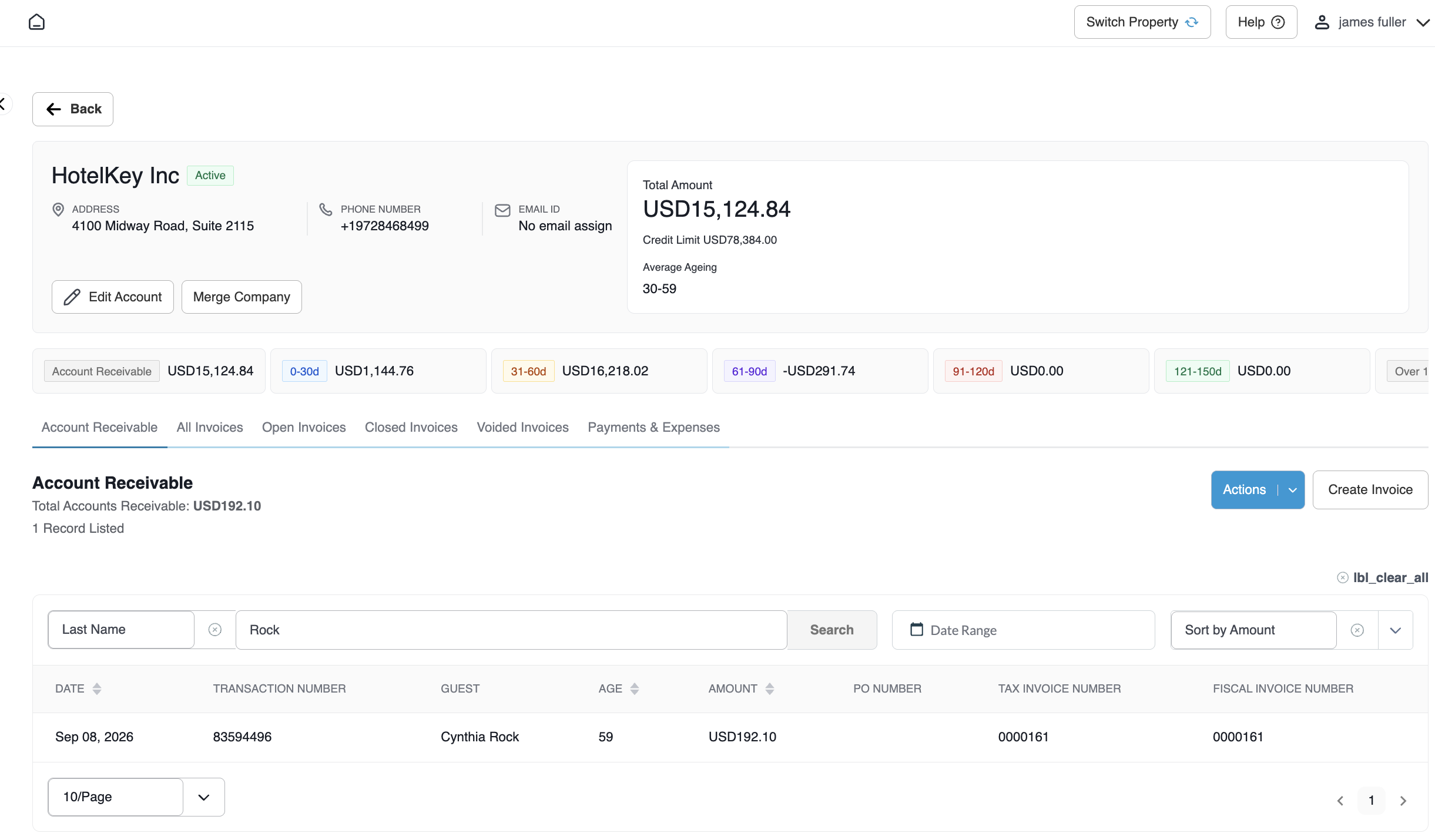
Confirms that the removed line item (Rock, Cynthia, 704, Transaction # 83594496, Amount USD 192.10, Tax Invoice # 0000161) has been released back into unbilled Accounts Receivable.
📷 VISUAL CALLOUT:
Invoice Details Action Bar & Modify Invoice Dropdown
Invoice Details console for Invoice highlighting the blue Modify Invoice button expanded to show Add Line Items and Remove Line Items options.
Invoice Details
Detailed Screen & Modal Field Breakdown
1. Invoice Details Console (Pre-Modification)
Invoice Header Metadata:
Invoice Number: Unique system invoice ID (e.g., 1789170445).
Date: Formal invoice creation date (Sep 11, 2026).
Status: Current payment lifecycle state (OPEN in green badge).
Due Date: Contracted payment deadline (Oct 30, 2026).
Total Amount: Gross billed value across all original line items (USD 664.17).
Settled Amount: Total payments applied to date (USD 472.07).
Open Amount: Net outstanding unpaid balance (USD 192.10).
Top Action Bar Utilities:
Modify Invoice: Dropdown allowing users to add or remove line items.
Email Invoice: Directly transmits the invoice statement package to corporate billing contacts.
Cancel: Exits line-item selection mode without altering the invoice.
Confirm (X): Displays the count of selected line items and triggers the confirmation dialog.
3. Confirmation Dialog Parameters
Confirmation Warning: Displays: "Are you sure you want to remove this line item?"
Execution Buttons:
Cancel: Discards the action and returns to line-item selection.
Yes: Commits permanent removal of the transaction from the invoice.
📷 VISUAL CALLOUT:
Recalculated Invoice Details & Released AR Audit
(Top) Invoice Details screen post-removal showing the green Success: Line Item Removed Successfully toast banner, Total Amount updated to USD 472.07, and Open Amount reduced to USD 0.00; (Right) The unbilled Account Receivable ledger displaying Cynthia Rook (USD 192.10) restored to unbilled status.
Invoice Details Screen Post Removal of Transaction
Removed Transaction Returned to Accounts Receivable
Financial & System Impact Post-Removal
Following the removal of a line item from an open invoice, HotelKey PMS applies the following automated updates:
Invoice Financial Recalculation:
The invoice's Total Amount immediately decreases by the removed line item's value (e.g., reducing from USD 664.17 to USD 472.07).
If the remaining line items are already covered by previously applied payments, the Open Amount drops to USD 0.00.
The removed line item is permanently purged from the invoice's Invoice Line Items grid.
Automatic Release to Unbilled Accounts Receivable:
The detached transaction (e.g., Cynthia Rook, Transaction # 83594496, USD 192.10, Tax Invoice # 0000161) is instantly released back to the unbilled Account Receivable tab of the corporate account.
It retains its original transaction date, aging calculation, guest details, and tax reference, allowing finance teams to bundle it into a new invoice or reassign it as needed.
Audit Trail Compliance:
The system records the removal event in the invoice's Audit Logs, capturing the timestamp, executing user ID, removed transaction number, and updated balance metrics.