In HotelKey PMS, corporate account settlements, client remittances, checks, and credit card payments are recorded directly within the corporate direct-bill profile. Through the Add New Payment workflow under the Payments & Expenses sub-tab, finance teams can record received funds against stored cards on file or alternative payment methods (such as Check, Cash, or Balance Forward), capture check numbers or banking reference identifiers, and post payments to the account ledger.
Operational Prerequisites
⚠️ Mandatory Operational Prerequisite — Active User Shift Required:
The user performing this transaction must have an open, active shift started in HotelKey PMS before posting a payment. If an active shift is not detected when initiating the transaction, the PMS will prompt the user to start their shift during the Add Payment flow before allowing the payment to proceed.
Configuration Guide: Adding a Payment to a Company Account
System Navigation Path
Dashboard > Select Company > Payments & Expenses > + Add New Payment
Step
Action
Platform Guidance & Operational Details
Access Corporate File
From the AR Dashboard Company List, click on the target corporate account link (e.g., HotelKey Inc).
Loads the company profile displaying header credit metrics, balances, aging summary cards, and ledger sub-tabs.
Navigate to Payments
In the horizontal sub-tab bar below the aging KPI summary cards, click Payments & Expenses.
Renders the historical payment ledger, unapplied credit balance indicator, and payment action buttons.
Initiate New Payment
Click the blue Add New Payment button located in the upper-right corner above the table.
Launches the Add New Payment modal displaying the company's active total balance. (Note: If your shift is not open, the system prompts you to start your shift at this stage).
Input Payment Amount
In the Enter Payment Amount field, type the exact remittance amount received (e.g., USD 1,929.09).
Defines the monetary credit to post to the corporate account ledger.
Select Payment Method
Choose between Card on File or Other Payments:
Card on File: Select a saved tokenized card (or click Create New Payment Source to tokenize a new card).
Other Payments: Select an alternative settlement method (e.g., CHECK, CASH, Bad Debt Write-Off, Loyalty Reward Adjustment, BALANCE FORWARD).
Advance to Confirmation
Click the blue Next button in the lower-right corner of the modal.
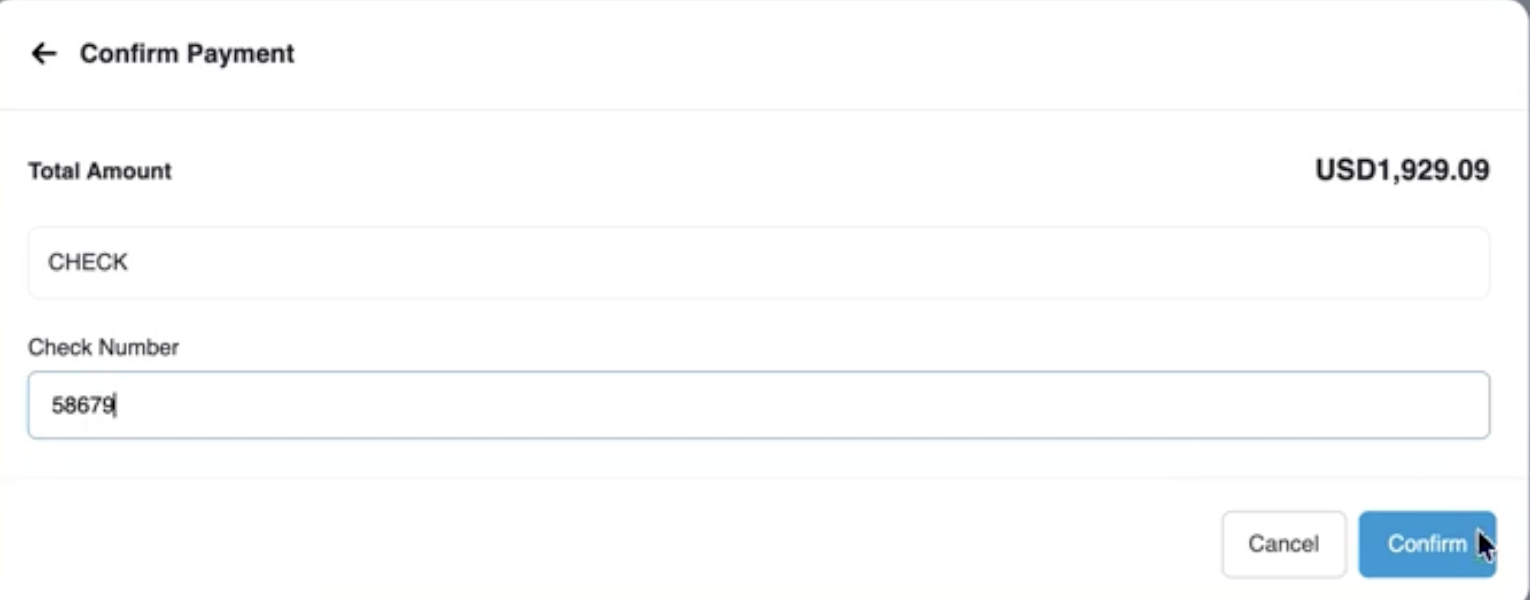
Opens the Confirm Payment review screen.
Enter Reference / Check Number
In the Check Number field, enter the check number, EFT transaction ID, or remittance reference (e.g., 58076).
Captures the physical check or transaction identifier for audit logs and accounting reconciliations.
Confirm Posting
Click the blue Confirm button in the lower-right corner.
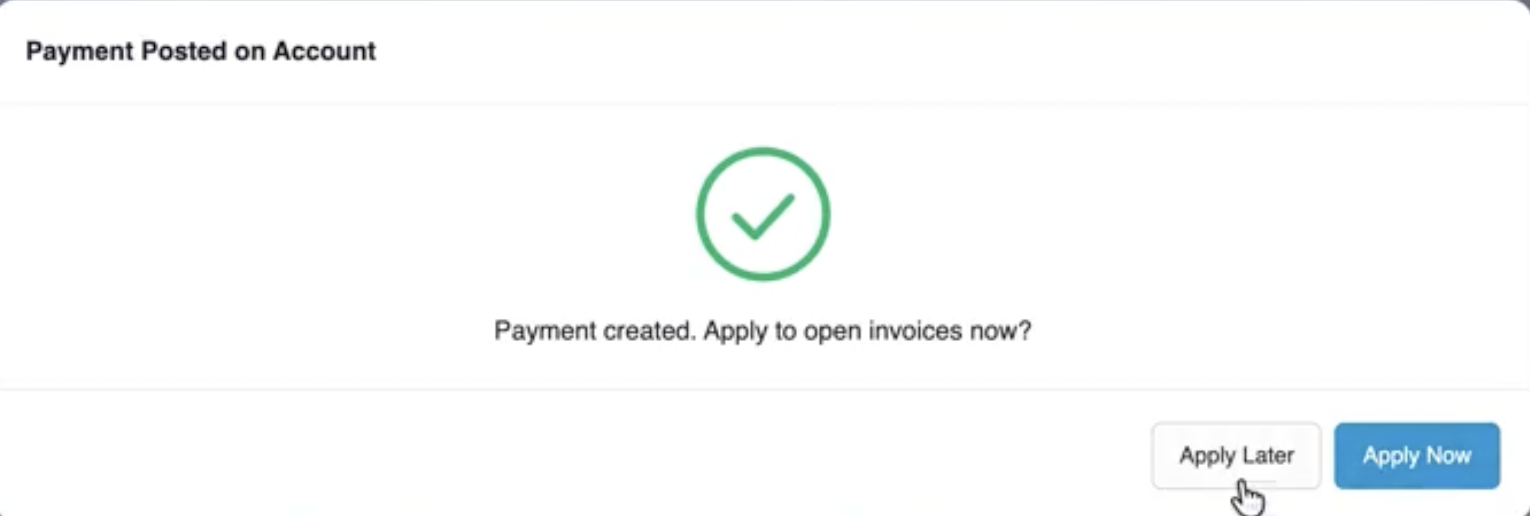
Commits the financial record to the account and displays the Payment Posted On Account confirmation dialog with a green checkmark.
Complete Workflow
In the completion pop-up, click Apply Later (or click the close icon ✕).
Concludes the payment addition workflow and returns to the updated Payments & Expenses ledger showing the newly added payment record.
📷 VISUAL CALLOUT:
Add New Payment Modal & Method Selection
Add New Payment Modal_Other Payment (Check)
Add New Payment Modal_Credit Card on File
Detailed Modal & Screen Field Breakdown
1. Add New Payment Modal Parameters
Company Balance: Read-only metric displaying the net outstanding balance currently owed by the corporate entity (e.g., USD 19,604.10).
Enter Payment Amount: Numerical currency entry box capturing the total incoming funds received (e.g., USD 1,929.09).
Payment Source Radios:
Card on File: Displays saved tokenized corporate credit cards on file (with card brand logo, masked account number, and expiration date) and provides a Create New Payment Source button to add and tokenize a new card profile.
Other Payments: Expands alternative settlement methods:
CASH
Loyalty Reward Reconciliation Adjustment
Bad Debt Write-Off
Loyalty Reward Adjustment
CHECK
BALANCE FORWARD
Action Buttons:
Cancel: Discards inputs and closes the modal without creating a transaction.
Next: Advances to reference entry and confirmation.
📷 VISUAL CALLOUT:
Confirm Payment Screen & Check Number Input
Modal window displaying Confirm Payment with Total Amount (USD 1,929.09), Payment Type (CHECK), the required Check Number text field (58076), and the Confirm action button.
Add New Payment Modal
Check Number Input and Payment Confirmation
2. Confirm Payment Screen
Total Amount: Summary display of the total remittance value to be credited.
Payment Type: Displays the selected payment classification (e.g., CHECK).
Check Number: Required text field capturing bank check numbers, wire tracking IDs, EFT reference codes, or cashier notes.
Action Buttons:
Cancel: Returns to the payment method selection screen.
Confirm: Executes the financial transaction posting.
3. Payment Posted On Account Modal
Success Graphic: Green animated checkmark confirming successful transaction creation.
Notification Text: Prompts "Payment created. Apply to open invoices now?"
Action Buttons:
Apply Later: Staged payment remains in the account's unapplied balance and posts to the ledger without immediate invoice linking.
Apply Now: Advances to open invoice allocation.
Close (✕): Dismisses the dialog and refreshes the ledger view.
📷 VISUAL CALLOUT:
Payment Posted Confirmation Dialog
Pop-up modal displaying the green checkmark with the confirmation prompt: "Payment created. Apply to open invoices now?" alongside the Apply Later and Apply Now buttons.
Payment Posted Confirmation Dialog
Financial & System Impact
Ledger Update: The newly added payment row immediately appears in the Payments & Expenses table displaying the posting Date, Amount, Payment Type (e.g., CHECK), and reference details.
Unapplied Balance Accounting: When added with Apply Later, the full payment amount is reflected in the Total Unapplied metric at the top of the Payments & Expenses screen.
Audit Trail Stamping: Every posted payment records the timestamp, user login ID, and check/reference number, preserving compliance records for daily cashier balancing and shift audits.