In HotelKey PMS, when a corporate payment is erroneously posted, overpaid, or recorded under the wrong settlement method, finance teams can issue a refund directly against the payment record. Located within the Payments & Expenses sub-tab of the corporate direct-bill profile, the Refund Payment workflow allows operators to select an approved refund code, define the refund amount up to the available unapplied balance, capture mandatory audit remarks, and post the refund. This immediately updates the account ledger and preserves an auditable transaction history.
Operational Prerequisites
⚠️ Mandatory Operational Prerequisite — Active User Shift Required:
The user performing this transaction must have an open, active shift started in HotelKey PMS before issuing a payment refund. If an active shift is not detected when initiating the transaction, the PMS will prompt the user to start their shift during the payment flow before allowing the action to proceed.
Configuration Guide: Refunding a Corporate Payment
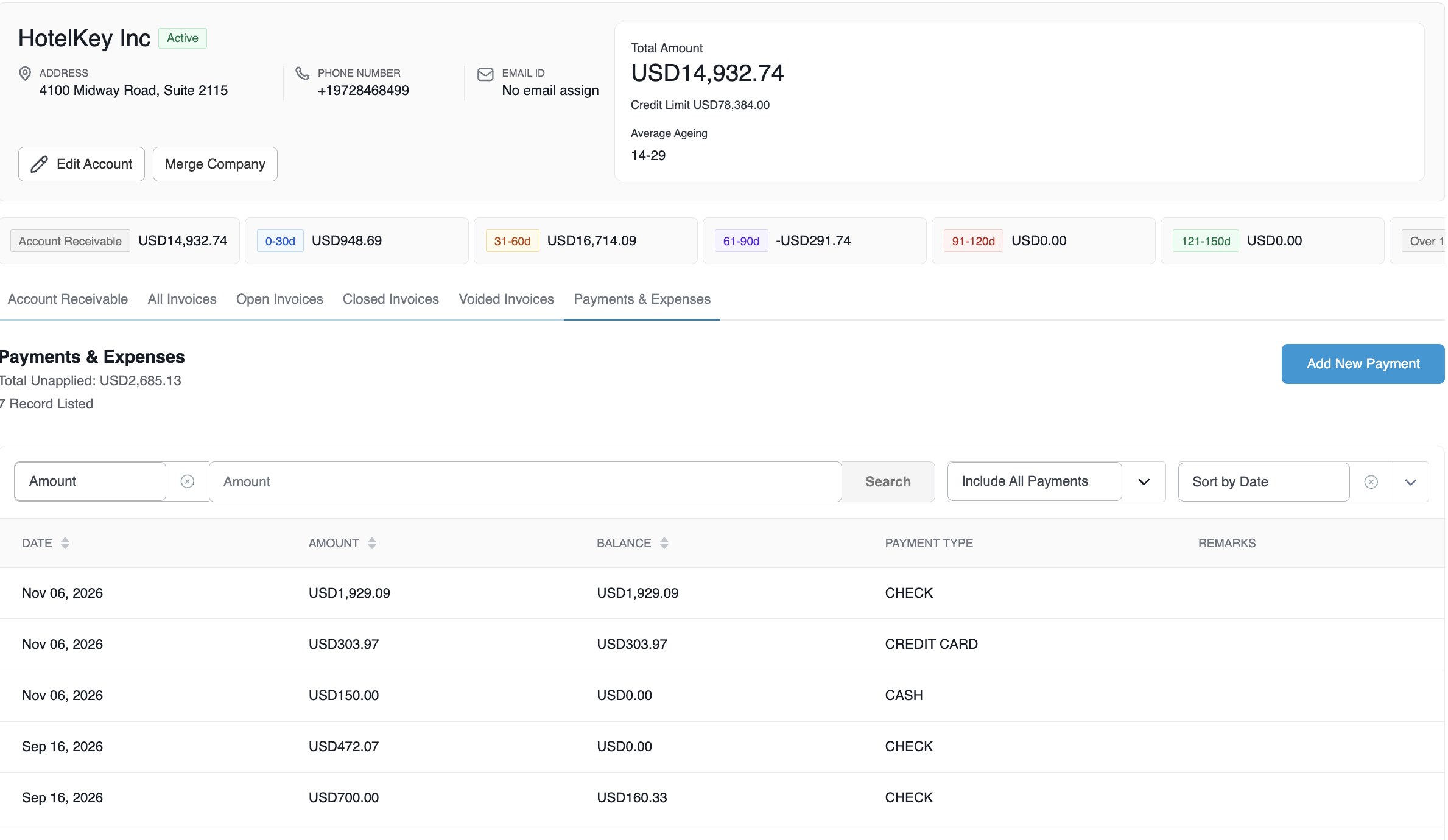
From the AR Dashboard Company List, click the target corporate profile link (e.g., HotelKey Inc).
Loads the corporate account profile displaying header balances, credit metrics, and ledger sub-tabs.
Open Payments & Expenses
In the horizontal sub-tab bar below the aging KPI cards, click Payments & Expenses.
Renders the historical payment ledger, unapplied balance metrics, and recorded payments.
Locate & Open Payment
Click directly on the payment row containing unapplied funds to be refunded (e.g., Cash payment of USD 150.00).
Opens the detailed payment record console displaying transaction dates, original amounts, and action buttons.
Initiate Refund
In the upper-right action bar, click the blue Refund Payments button.
Launches the Refund Payment modal displaying the available unapplied settlement amount.
Select Refund Code
Click the Select Refund Code dropdown and choose the appropriate operational reason (e.g., PRICE OVERRIDE).
Note: Refund Codes are configurable for each property.
Categorizes the accounting reason for issuing the refund for financial reporting.
Enter Refund Amount
In the Refund Amount field, input the monetary value to refund (e.g., USD 150.00).
(Note: The refund amount cannot exceed the available Unapplied Settlement Amount).
Provide Audit Remarks
In the Refund Remarks* field, type a clear explanation for the transaction (e.g., "Wrong payment type applied").
Mandated field capturing operational context for auditing and management reviews.
Confirm Refund
Click the blue Confirm Refund button in the lower-right corner of the modal.
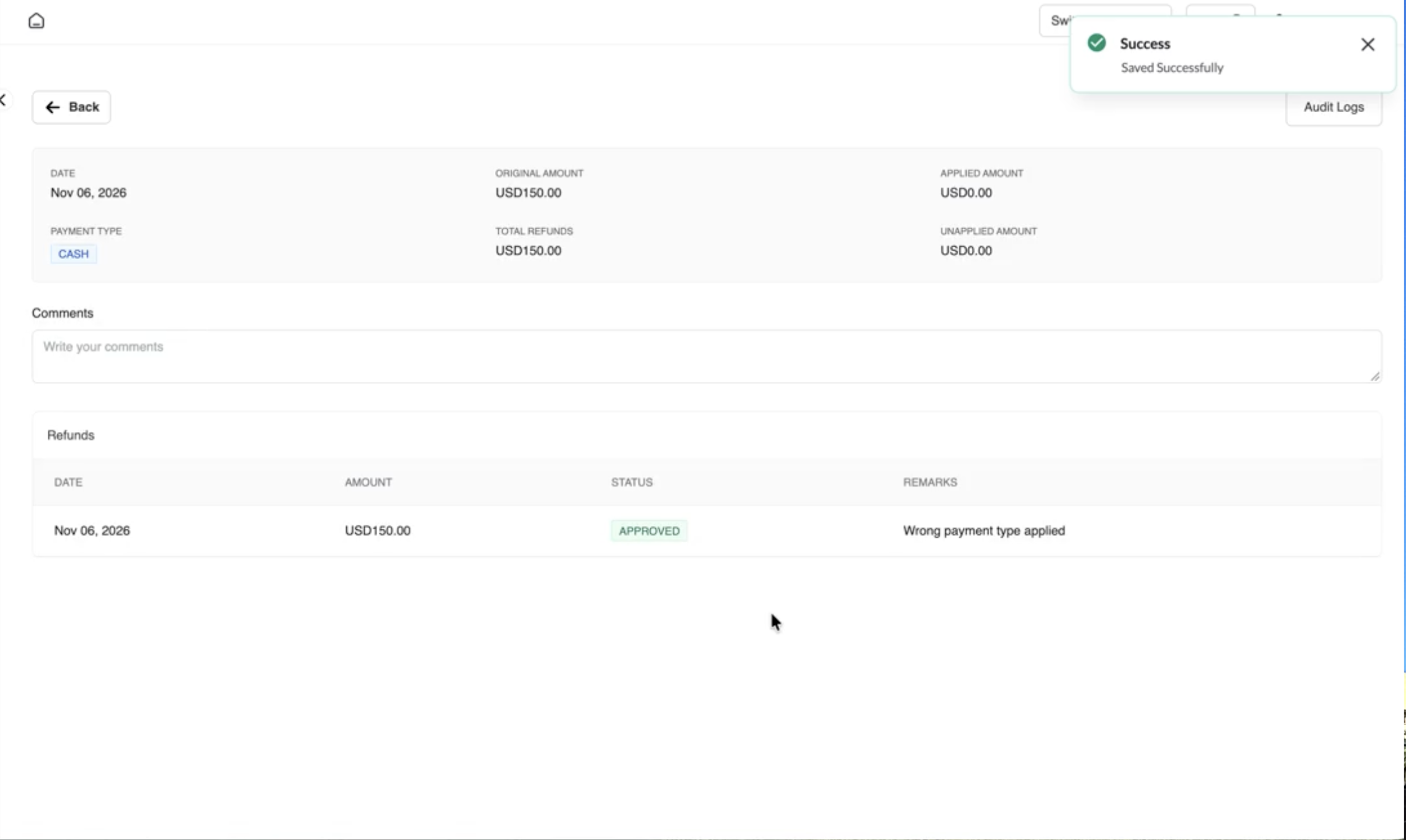
Executes the refund transaction and displays a green notification banner (Success: Saved Successfully).
Verify Refund Record
Review the updated payment detail view under the Refunds grid.
Confirms the refund Date, Amount (USD 150.00), Status (APPROVED), Remarks, and updates the Unapplied Amount balance to $0.00.
📷 VISUAL CALLOUT:
Payment Record Console & Refund Payments Action
Detailed payment transaction screen displaying Date (Nov 06, 2026), Payment Type (Cash), Original Amount (USD 150.00), Unapplied Amount (USD 150.00), and a highlighted callout on the blue Refund Payments button.
Payments & Expenses Tab
Detailed Modal & Screen Field Breakdown
1. Refund Payment Modal Parameters
Unapplied Settlement Amount: Read-only reference displaying the maximum refundable balance available on the payment record (e.g., USD 150.00).
Select Refund Code Dropdown: Required dropdown classifying the transactional justification (note: The reason list is configured by property. Not all properties will have the same refund code list):
EARLY DEPARTURE
DISCOUNT
CUSTOMER SATISFACTION
PRICE OVERRIDE
Refund Amount: Numerical currency entry box defining the value to be refunded.
ℹ️ Balance Validation Rule:
The system enforces a strict boundary rule: "Note: The Refund Amount Should not be Greater than Unapplied Amount (USD [X.XX])".
Refund Remarks*: Required text area where the operator must document the operational circumstance requiring the refund (e.g., "Wrong payment type applied" or "Duplicate payment entry").
Modal Actions:
Cancel: Discards inputs and closes the modal without altering the payment.
Confirm Refund: Submits the transaction for immediate approval and posting.
📷 VISUAL CALLOUT:
Refund Payment Modal Interface
Modal window showing Unapplied Settlement Amount (USD 150.00), Refund Code selected as PRICE OVERRIDE, Refund Amount entered as USD 150.00, entered Refund Remarks, and the blue Confirm Refund action button.
Refund Payment Modal
2. Refunds Table & Post-Refund Payment Detail
Following confirmation, the payment detail view updates with a dedicated Refunds section:
Date: Calendar date when the refund transaction was executed (e.g., Nov 06, 2026).
Amount: Total monetary value reversed (e.g., USD 150.00).
Status: Operational authorization tag displayed as a green badge (APPROVED).
Remarks: Narrative entered during refund processing (e.g., "Wrong payment type applied").
Updated Unapplied Amount Metric: The top metric card dynamically recalculates to reflect the deduction (e.g., reducing from USD 150.00 down to USD 0.00).
📷 VISUAL CALLOUT:
Approved Refund Status & Ledger Recalculation
Payment details screen showing the green toast notification (Success: Saved Successfully), the Refunds audit row showing Status APPROVED, and the Unapplied Amount reduced to USD 0.00.
Payment Transaction with Refund Recalculation
Financial & System Impact
Unapplied Balance Reduction: The refund immediately reduces the account's unapplied payment balance by the refunded amount.
Payment Record Retention: The original payment transaction is retained in historical ledgers rather than deleted, ensuring complete audit transparency.
Audit Trail Stamping: The transaction is permanently logged with the executing user's login ID, timestamp, refund code, and operational remarks, viewable anytime via the Audit Logs button in the upper-right corner.