Target Roles: Accounts Receivable Managers, Credit Managers, Finance Directors, Front Office Managers, System Administrators
Last Updated: Nov 5, 2026
Executive Overview
In HotelKey PMS, company profiles can store secure, tokenized payment methods to streamline billing settlements, automate direct-bill collections, and facilitate recurring payments. Through the Payment Sources tab within the corporate account configuration, finance teams can add company credit cards using secure PCI-compliant tokenization (via manual entry or EMV payment terminals), set default settlement cards, and manage saved card profiles without exposing sensitive payment card data.
Configuration Guide: Adding a Payment Method to a Company Account
System Navigation Path
Dashboard > Select Company > Edit Account > Payment Sources
Step
Action
Platform Guidance & Operational Details
Access Corporate File
From the AR Dashboard, locate the Company List and click on the target company link (e.g., HotelKey Inc).
Loads the company account overview displaying credit metrics, balances, and ledger tabs.
Enter Edit Account
Click the white Edit Account button (with pencil icon) located in the corporate header card.
Launches the corporate profile configuration console.
Open Payment Sources
In the top horizontal tab bar, click the Payment Sources tab.
Navigates to the card management interface displaying current payment details and defaults.
Initiate Add Card
Under Card Details, click the + Add New Payment Method link.
Opens the Add New Payment Method tokenization selection modal.
Select Tokenization Mode
Choose how to tokenize the card: click Manual Entry or Via Terminal.
Manual Entry: Opens the secure digital keypad.
Via Terminal: Routes the card prompt to a paired physical payment terminal.
Input Card Details
In the secure payment form, enter Card Holder Name (e.g., HotelKey Inc), Card Number, Expiration Date (MM/YY), and CVV.
Validates card brand (Mastercard, Visa, AMEX, Discover) and ensures PCI-compliant tokenization in system memory.
Confirm & Tokenize
Click the green Confirm button.
Displays "In progress...", stores the tokenized profile, and returns to the Payment Sources screen.
Verify & Set Default
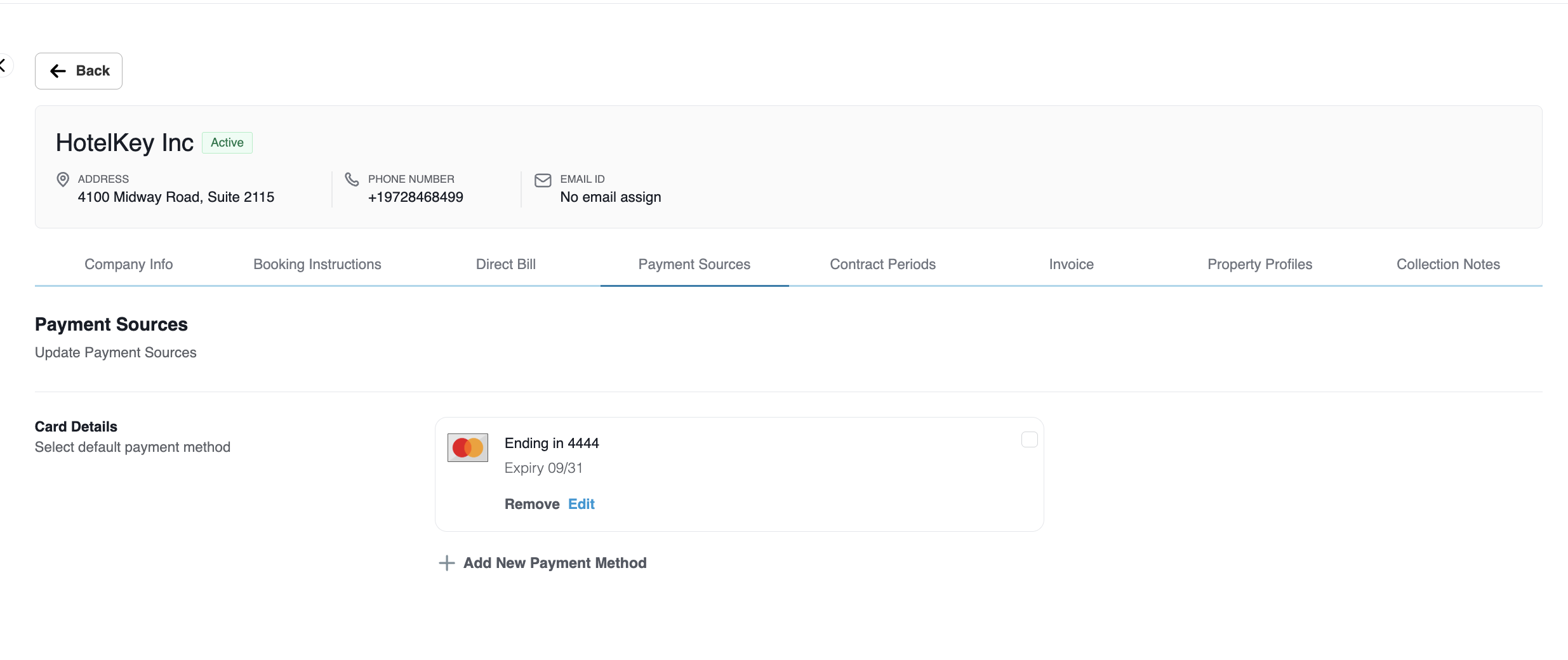
Review the saved card tile (e.g., Mastercard ending in 4444, Exp 09/31). Select the radio button/checkbox to set as default.
The card is immediately available for AR invoice settlements and automated folio routing.
📷 VISUAL CALLOUT:
Add Payment Method to Company Account
Add company credit cards using secure PCI-compliant tokenization (via manual entry or EMV payment terminals).
Add Payment Method to Company Account
Detailed Configuration Field Breakdown
1. Tokenization Method Selection
Manual Entry: Launches an encrypted, hosted PCI-compliant payment modal directly within the browser, allowing billing agents to key in corporate card details securely.
Via Terminal: Prompts an active EMV payment terminal (PIN pad) on the front desk or finance counter, allowing an attendant to swipe, insert, or tap a physical corporate card.
📷 VISUAL CALLOUT:
Payment Sources Card Details
Secure payment card details displaying masked Card Number with recognized brand icon, Expiration Date (09/31).
Company Account Payment Sources
2. Secure Card Capture Form Fields
Card Holder Name: Full corporate name or authorized cardholder name as printed on the card (e.g., HotelKey Inc).
Card Number: 15- or 16-digit primary account number (PAN). The field automatically masks all digits except the last 4 for security and detects card brand.
Expiration Date: Two-digit month and two-digit year (MM/YY) defining card validity.
Security Code (CVV/CVC): 3-digit (or 4-digit for AMEX) verification code used for initial gateway authorization and fraud prevention.
Confirm Button: Submits the card details directly to the integrated payment gateway for tokenization. Card numbers are never stored in raw text within the PMS database.
3. Card Details Management
Saved Card Tile: Displays the card brand logo, masked card reference (e.g., Ending in 4444), and expiration date (e.g., Expiry 09/31).
Default Payment Method Selection: Checkbox/radio toggle allowing finance staff to mark a specific card as the default source for settling direct-bill folios or recurring invoices.
Remove Button: Permanently deletes a saved tokenized card profile from the company account.
+ Add New Payment Method: Allows additional corporate cards to be staged (e.g., secondary departmental or executive cards).
Operational Best Practices & Security Standards
PCI-DSS Compliance: All credit card data captured through Payment Sources is processed through an encrypted gateway frame. Only tokenized references and truncated card details (last 4 digits) are retained within HotelKey PMS.
Multiple Payment Profiles: Properties can maintain multiple tokenized cards on file for an account, designating one as the primary default while retaining backup corporate cards for specific billing events.
Post-Configuration Save: If other account tabs were adjusted during the session, always click the blue Save button in the upper-right corner of the Edit Account console before returning to the Accounts Receivable Dashboard.