In multi-property enterprise environments, company and direct-bill accounts often operate across multiple hotel locations or cluster portfolios. In HotelKey PMS, the Property Profiles configuration tab enables administrators to link an existing corporate account to sister properties within the organization and synchronize profile configurations across those properties using the Sync Properties feature. This eliminates duplicate account creation, maintains consistent corporate codes and credit terms, and ensures seamless direct billing when contracted clients book stays across different hotel locations.
Configuration Guide: Adding Properties & Synchronizing Company Profiles
System Navigation Path
Dashboard > Select Company > Edit Account > Property Profiles
Step
Action
Platform Guidance & Operational Details
Access Corporate File
From the AR Dashboard Company List, select the corporate account you wish to share across properties (e.g., ACME Design).
Loads the company account overview displaying credit metrics, balances, and ledger sub-tabs.
Enter Edit Account
Click the white Edit Account button (with pencil icon) in the corporate header card.
Launches the tabbed corporate account configuration console.
Open Property Profiles
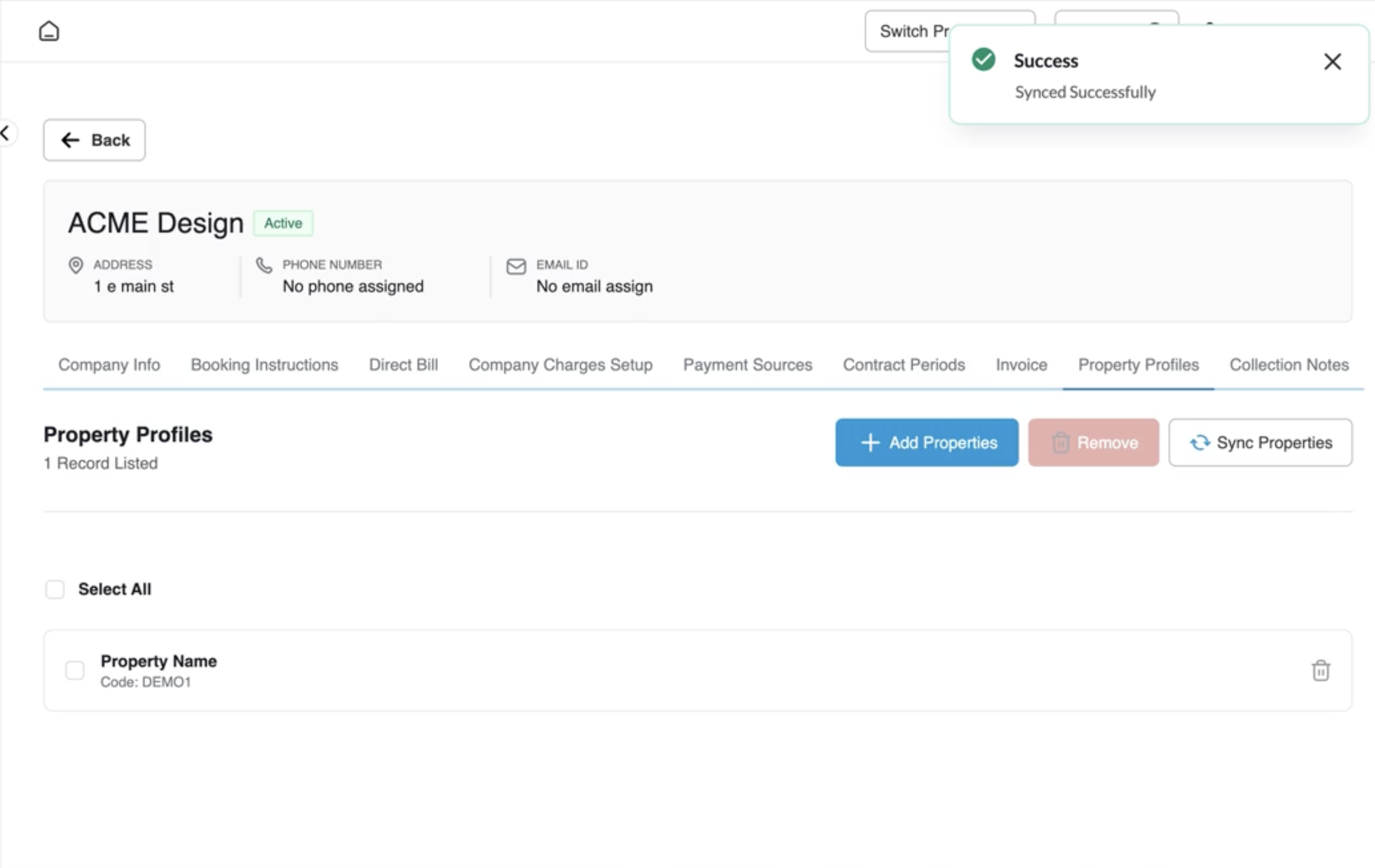
In the horizontal tab bar, click the Property Profiles tab.
Navigates to the property mapping interface displaying currently assigned hotel locations.
Add Sister Properties
Click the blue + Add Properties button in the upper-right corner.
Launches the Add Properties modal displaying all available sister properties within the portfolio.
Select Target Hotels
Use the search box or scroll to locate destination properties (e.g., HK DEMO LOCATION - CMN - DEMO1), and select the corresponding checkboxes.
Allows selection of individual properties or checking Select All (n) to assign the entire hotel chain.
Confirm Association
Click the blue Add button in the bottom-right corner of the modal.
Associates the selected hotel properties, displays a green notification banner (Success: Saved Successfully), and lists the newly added property records.
Synchronize Across Properties
Click the white Sync Properties button (with refresh icon) in the upper-right corner.
Propagates the corporate account details, codes, and billing rules to the mapped properties, displaying a green confirmation banner (Success: Synced Successfully).
Verify in Target Property
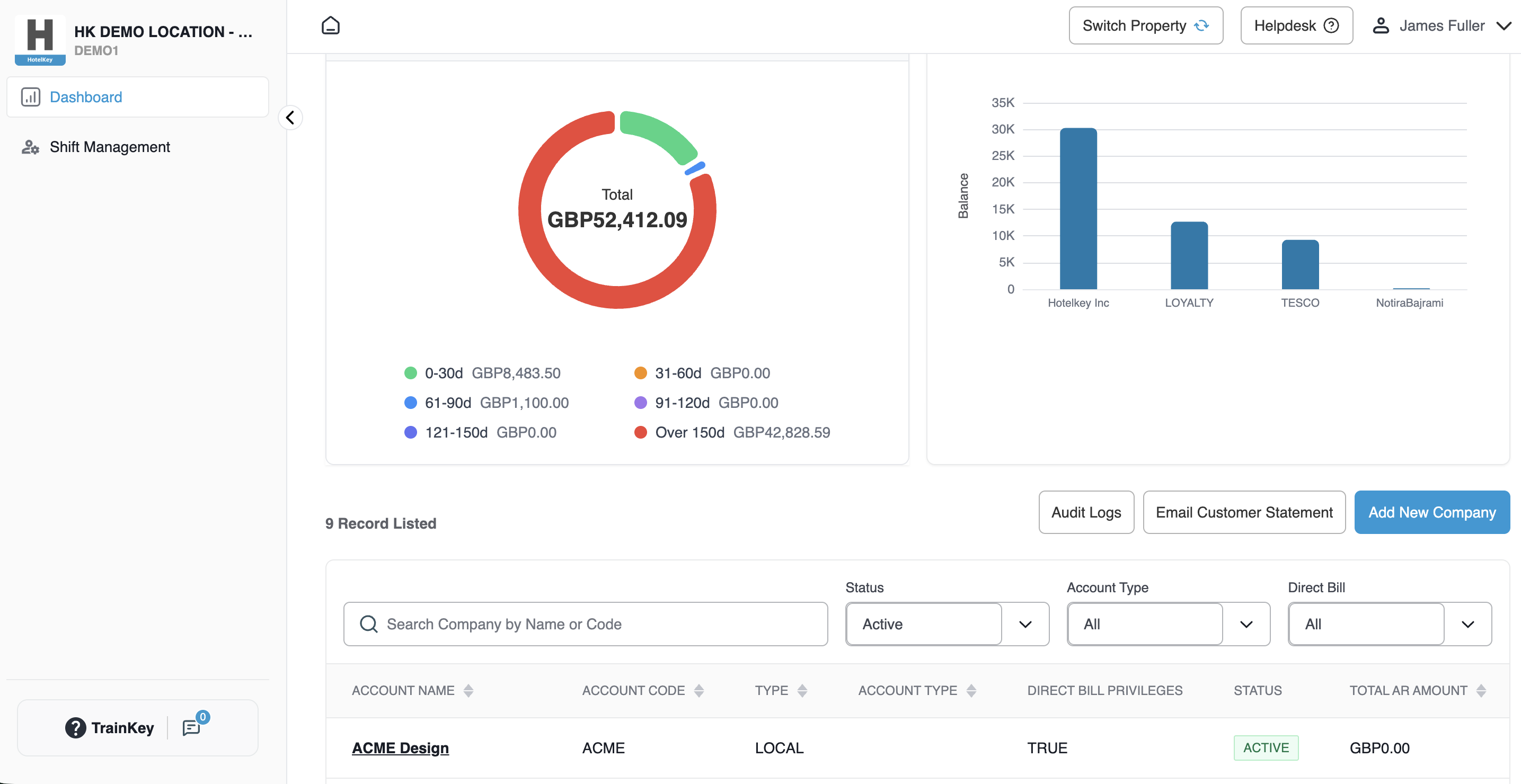
Switch property context (via Switch Property or HK Home) to the assigned location (e.g., DEMO1 - HK DEMO LOCATION - CMN). Navigate to Accounts Receivable > Dashboard.
Confirms the corporate account (e.g., ACME Design) is immediately visible and operational in the target hotel's corporate directory.
Property Record Counter: Indicates total assigned sister properties (e.g., 0 Record Listed prior to mapping; 1 Record Listed post-save).
+ Add Properties Button: Opens the multi-property portfolio assignment dialog.
Remove Button: Unlinks selected properties from the corporate account profile.
Sync Properties Button: Triggers real-time synchronization to push all updated profile metadata, credit limits, and charge configurations across all assigned property databases.
Select All Checkbox: Checks or unchecks all listed property rows for batch removal.
2. Add Properties Modal Parameters
Search Property by Name or Property Code: Real-time query field to quickly find specific properties using code or name keywords (e.g., DEMO1, TH01, AD01).
Select All (n) Checkbox: Bulk selection control that selects all hotels in the enterprise portfolio simultaneously.
Property Selection Checkboxes: Independent selection controls displaying the official property name and assigned property code (e.g., HK DEMO LOCATION - CMN / Code: DEMO1).
Action Buttons:
Cancel: Discards selections and closes the modal without changes.
Add: Attaches selected properties and stages them for portfolio deployment.
(Top) Confirmation toast notification: Success: Synced Successfully; (Bottom) Target property AR Dashboard (HK DEMO LOCATION - CMN) showing the newly synced corporate account ACME Design listed as active in the company grid.
Confirmation Toast Notification of Synced Properties
Property DEM01 with ACME Design Company Profile Propagated from DEMO4 (Top)
3. Property Profiles Data Table Columns
Checkbox: Row-selection control used when unlinking an assigned property.
Property Name & Code: Displays the linked sister property's official trading title and internal alphanumeric property code (e.g., HK DEMO LOCATION - CMN, Code DEMO1).
Lock / Status Indicator: Confirms active database binding between the primary entity and the child property.
Operational Best Practices & Multi-Property Data Flow
Centralized Credit Consistency: When establishing corporate contracts valid across multiple brand properties, map and synchronize the account via Property Profiles to ensure uniform corporate codes, credit limits, and booking constraints.
Local Balance Separation: While the corporate profile structure (name, code, contact personnel, and direct-bill rules) synchronizes across all linked properties, accounts receivable ledgers remain property-specific. Each property tracks its own local room charges, unbilled folios, and invoices under its local currency (e.g., GBP vs. USD) independently.
Removing Property Links: If a corporate agreement ceases at a specific location, navigate to Property Profiles, select the checkbox next to the target property, and click Remove to revoke direct-bill privileges at that site without affecting other properties.