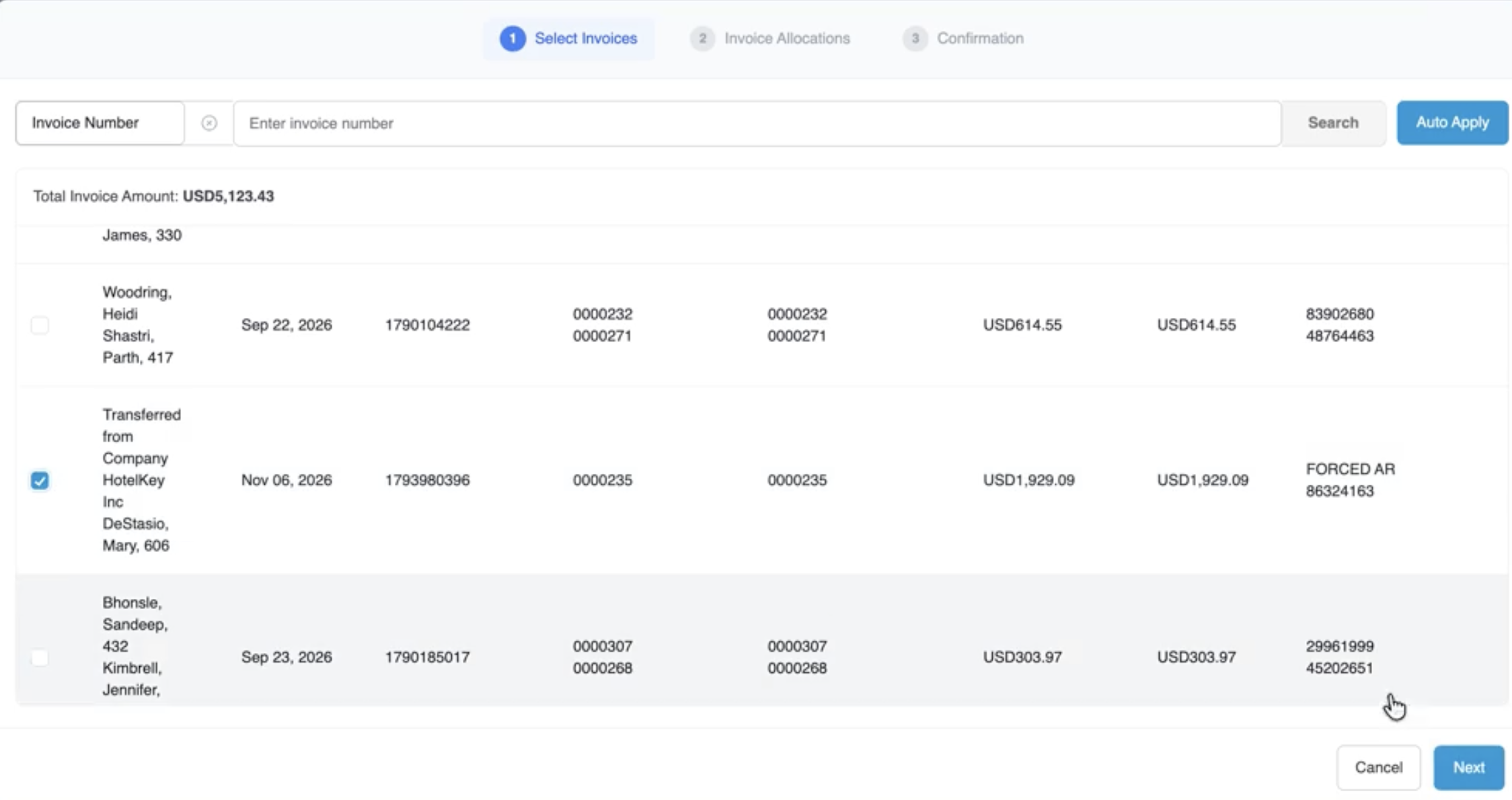
In HotelKey PMS, unapplied corporate remittances and customer payments can be matched against specific open direct-bill statements via the Apply Payment workflow. Located within the payment record under the Payments & Expenses sub-tab, this three-step allocation wizard allows finance teams to select open invoices, review transaction line items, allocate payment amounts up to the available balance, and finalize settlement. Once applied, the invoice status transitions to Closed, remaining open balances adjust to zero, and complete settlement audit records are generated across both the payment profile and the invoice details screen.
Configuration Guide: Applying a Payment to Open Invoices
From the AR Dashboard Company List, click on the target corporate profile link (e.g., HotelKey Inc).
Loads the company profile displaying active credit metrics, balances, and ledger sub-tabs.
Open Payments & Expenses
In the horizontal sub-tab bar below the aging KPI summary cards, click Payments & Expenses.
Renders recorded payment records, unapplied amounts, payment types, and action controls.
Open Target Payment
Click directly on the payment row containing unapplied funds (e.g., Check payment of USD 1,929.09).
Opens the detailed payment transaction console showing original amount, applied amount, and unapplied balance.
Initiate Apply Payment
In the upper-right action bar next to Refund Payments, click the white Apply Payment button.
Launches the 3-step payment allocation modal on Step 1: Select Invoices.
Step 1: Select Invoices
Locate the target invoice in the list or enter the invoice number in the search bar. Select the checkbox next to the invoice row (e.g., AR Invoice #1783086096, Amount $1,929.09).
Stages the open invoice for payment matching. Click the blue Next button. (Note: Users can also click Auto Apply to let the system automatically distribute funds across oldest open invoices).
Step 2: Invoice Allocations
Review selected invoice balance amounts, available funds, and individual line items.
Displays Selected Invoice Balance Amount, Original Payment Amount, Net Payment Available to Apply, and Amount Left to be Used (USD 0.00). Click Next.
Step 3: Confirmation
Review the Settlement Amount breakdown, invoice number, issue date, and projected post-confirmation balance (Invoice Balance (After Confirm): USD 0.00).
Summarizes the settlement transaction before committing changes to the ledger.
Confirm & Close
Click the blue Confirm & Close button in the lower-right corner.
Commits the allocation, displays a green notification banner (Success: Saved Successfully), and updates the payment detail console.
Verify Settlement Details
On the payment console, inspect the Invoice Details table. Click View next to the invoice to inspect the full invoice record.
Verifies that the invoice status displays CLOSED (in red/pink badge), open amount reflects $0.00, and the payment appears under Applied Settlement Payment.
Payment record screen displaying Original Amount (USD 1,909.09), Unapplied Amount (USD 1,909.09), and a highlighted callout on the white Apply Payment button in the top action bar.
Payment Transaction Console
Detailed Allocation Wizard Step Breakdown
Step 1: Select Invoices
Invoice Number Search Field: Targeted search box enabling quick lookup by entering a specific AR invoice number.
Auto Apply Button: Automatically distributes available unapplied payment funds across outstanding invoices based on chronological aging.
Total Invoice Amount Indicator: Displays the aggregate open value across all unpaid invoices listed (e.g., USD 5,123.43).
Open Invoices Selection Table:
Checkbox: Designates which invoice(s) will receive payment funds.
Guest Name: Lists associated guest stays or notes (e.g., Transferred from Company HotelKey Inc, DeStasio, Mary, 606).
Invoice Date: Issuance date of the invoice (e.g., Nov 06, 2026).
AR Invoice Number: Unique system invoice ID (e.g., 1783086096).
Original Amount: Gross billed total at invoice creation (e.g., USD 1,929.09).
Open Amount: Current unpaid balance remaining on the statement (e.g., USD 1,929.09).
Transaction Number: PMS transaction ID (e.g., FORCED AR, 88324153).
📷 VISUAL CALLOUT:
Allocation Wizard: Apply Payment Modal
Apply Payment Modal
Step 2: Invoice Allocations
Financial Balance Summary Block:
Selected Invoice Balance Amount: Total balance of all invoices selected in Step 1 (e.g., USD 1,929.09).
Original Payment Amount: Full incoming remittance value (e.g., USD 1,929.09).
Net Payment Available to Apply: Remaining unallocated balance on the payment.
Amount Left to be Used: Unapplied funds that will remain after completing the allocation (e.g., USD 0.00 when fully settled).
Invoice Allocations Breakdown Grid: Itemizes guest names, AR invoice numbers, tax/fiscal invoice numbers, transaction numbers, and stay dates covered by the allocation.
Step 3: Confirmation
Settlement Amount Header: Summarizes the total monetary credit applied in this session (e.g., USD 1,929.09).
Confirmation Summary Table:
Invoice Number & Date: Displays target invoice and compilation date (e.g., 1783086096 / Nov 06, 2026).
Invoice Balance (After Confirm): Projected balance once the transaction posts (e.g., USD 0.00).
Confirmation / Transaction # Rows: Itemizes individual reservation or forced AR confirmation numbers, original amounts, open amounts, and allocated settlement amounts.
Modal Action Controls:
Previous: Returns to earlier steps to modify selections.
Cancel: Discards all allocations without altering account balances.
Confirm & Close: Finalizes the payment allocation across ledgers.
Post-Settlement Verification & Reversal Controls
Once confirmed, HotelKey PMS applies the following automated updates:
Payment Record Recalculation:
The payment's Applied Amount updates to the allocated sum (e.g., USD 1,929.09).
The Unapplied Amount reduces accordingly (e.g., down to USD 0.00).
An Invoice Details section appears on the payment console showing linked invoice numbers, guest names, tax numbers, and allocated amounts.
Cancel Selected Allocations Action: If an allocation is made in error, selecting the line item in the payment's Invoice Details grid activates Cancel Selected Allocations, allowing operators to unbind the payment and restore both the open invoice and unapplied credit balances.
Invoice State Transition:
The invoice is immediately removed from the Open Invoices tab and moved to Closed Invoices.
The invoice details record displays status as CLOSED, updates Settled Amount to match the billed total, and reduces Open Amount to $0.00.
The payment reference, payment type (CHECK), total instrument amount, and applied amount are permanently appended to the invoice's Applied Settlement Payment table.