In HotelKey PMS, unbilled room charges, incidental folios, and manual adjustments transferred to direct billing accumulate under the Account Receivable tab of each corporate account profile. The Create Invoice workflow enables finance teams to select specific unbilled line items, assign optional purchase order (PO) tracking numbers, define custom payment due dates, and compile transactions into a finalized, numbered AR Invoice. Once generated, the selected transactions are removed from the unbilled ledger and tracked under Open Invoices until settled, providing transparent billing packages for corporate clients.
Configuration Guide: Creating an AR Invoice from Unbilled Receivables
System Navigation Path
Dashboard > Select Company > Account Receivable > Create Invoice
Step
Action
Platform Guidance & Operational Details
Access Corporate Profile
From the AR Dashboard Company List, click on the target corporate profile link (e.g., HotelKey Inc).
Opens the corporate account overview displaying balances, credit terms, and ledger sub-tabs.
Navigate to Unbilled AR
Ensure you are on the default Account Receivable tab.
Lists all unbilled guest folio charges, manual postings, and transferred receivables.
Initiate Invoice Mode
Click the Create Invoice button in the upper-right corner above the table.
Activates selection mode, displaying checkboxes beside each line item and staging Cancel and Create Invoice (0) in the header.
Select Target Transactions
Select the checkboxes next to the specific line items you wish to bill together (e.g., select manual AR postings and guest stay folios).
Dynamically updates the action button counter with the total items selected (e.g., Create Invoice (2)).
Open Confirmation Modal
Click the blue Create Invoice (X) button in the upper-right corner.
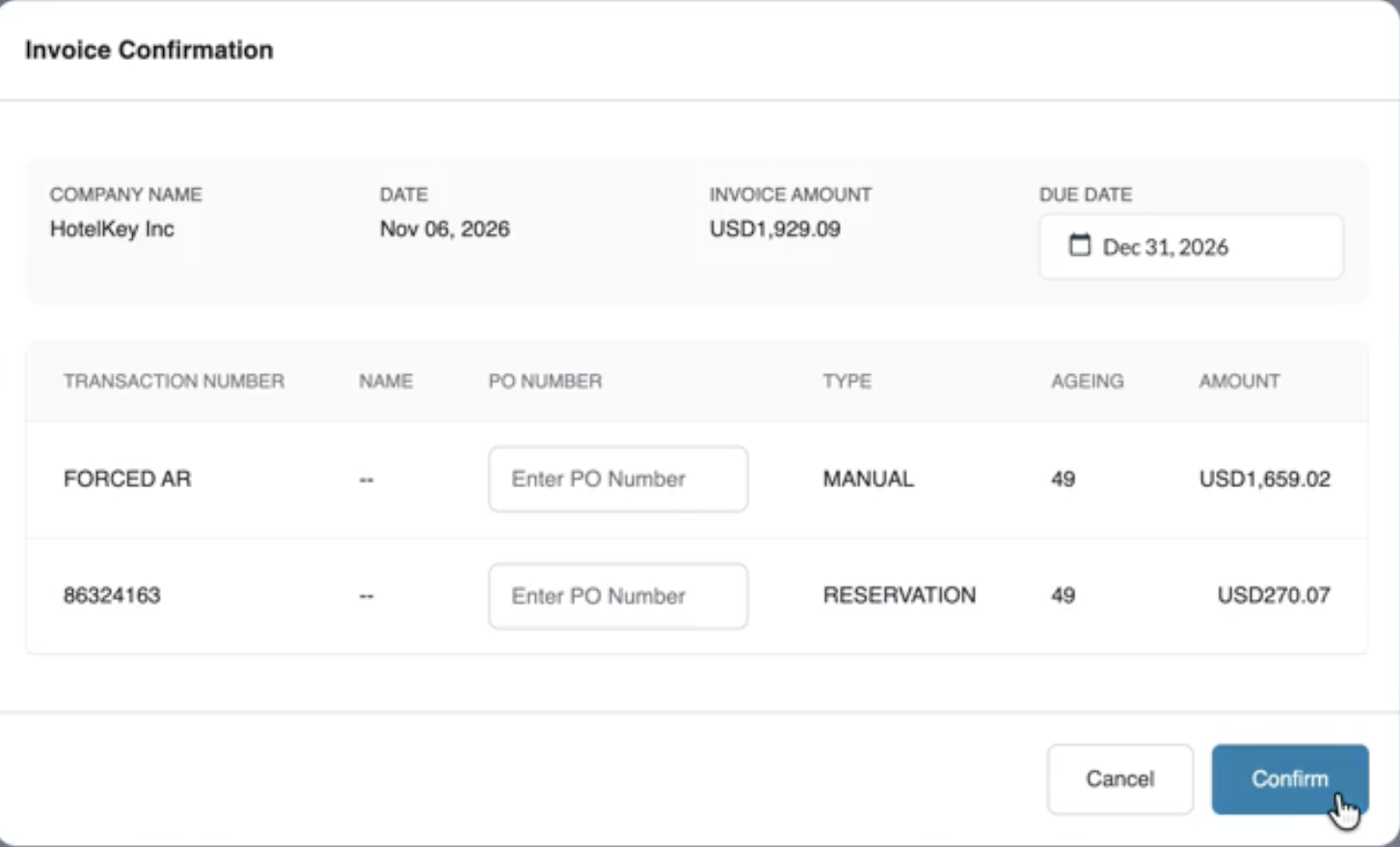
Launches the Invoice Confirmation modal displaying account name, total invoice amount, and staged line items.
Set Payment Due Date
Click the Due Date calendar picker and select the agreed payment deadline (e.g., navigate to Dec 31, 2026).
Establishes the payment deadline enforced on client statements and aging reports.
Assign PO Numbers (Optional)
In the line-item grid, enter client-provided purchase order references into the Enter PO Number fields.
Attaches PO reference numbers directly to individual guest charges for corporate accounting reconciliation.
Finalize Invoice
Click the blue Confirm button in the lower-right corner of the modal.
Generates the finalized AR Invoice, displays a green notification banner (Success: Invoice Created Successfully), and provides a direct link to the new invoice.
Review Invoice Details
Click the View Invoice # link in the modal (e.g., View Invoice #1783086096).
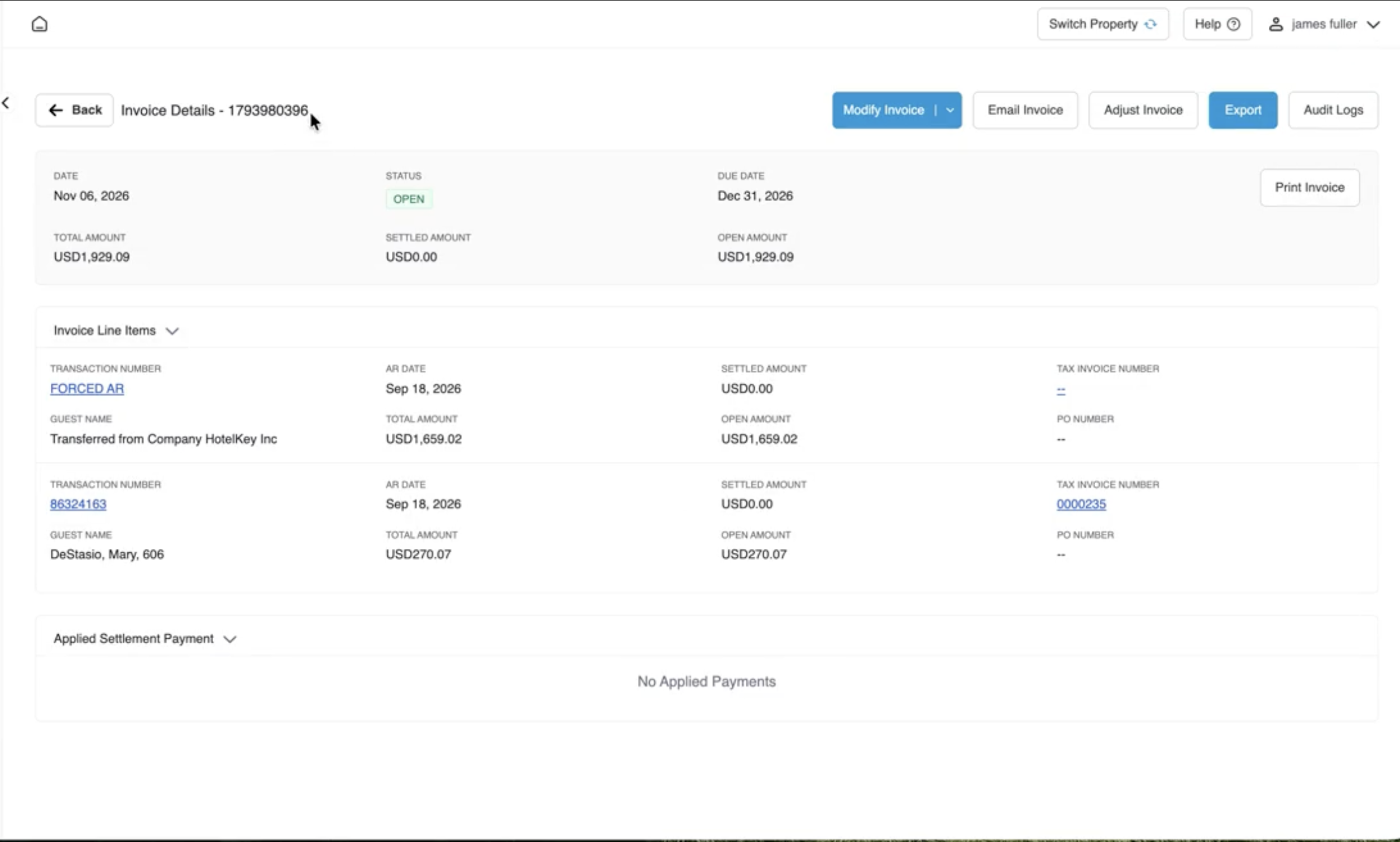
Opens the comprehensive Invoice Details console showing the assigned invoice number, status (OPEN), due date, balance, and action bar.
10. Audit in Open Invoices
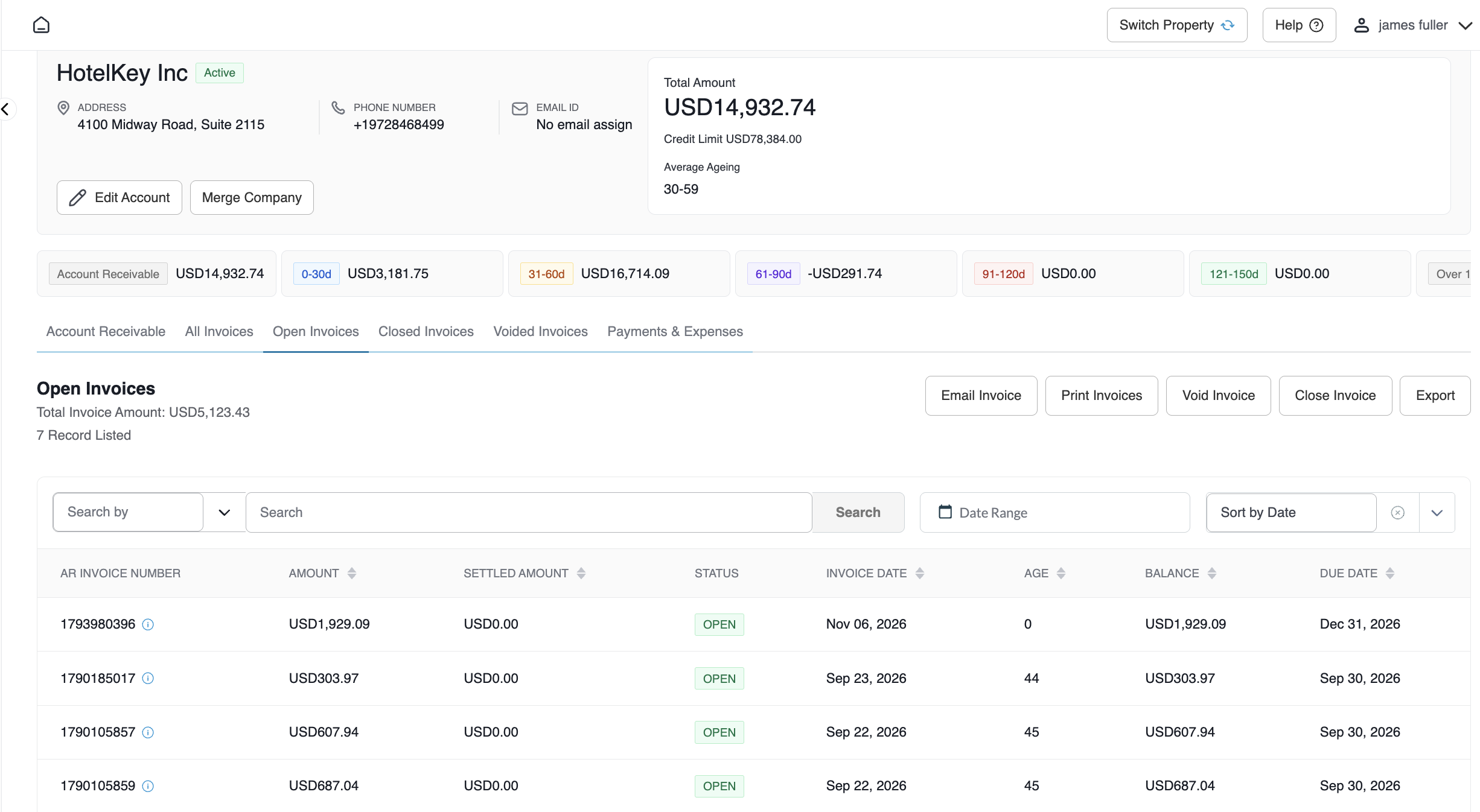
Return via Back and click the Open Invoices tab. Use the Search By filter to locate the invoice by number.
Confirms the invoice is actively tracked with open balance, creation date, and due date.
📷 VISUAL CALLOUT:
Creating an AR Invoice from Unbilled Receivables Overview
Creating an AR Invoice Walkthrough
Detailed Modal & Screen Field Breakdown
1. Invoice Confirmation Modal Parameters
Company Name: Displays the debtor company profile being billed (e.g., HotelKey Inc).
Date: Generation timestamp defaulted to the active system business date (e.g., Nov 06, 2026).
Invoice Amount: Calculated total gross sum of all selected line items (e.g., USD 1,929.09).
Due Date (Pick a Date): Interactive calendar selector defining the enforced payment due date. If left blank, defaults to standard corporate payment terms.
Line Items Grid:
Transaction Number: PMS folio transaction ID or manual AR code (e.g., FORCED AR, 86324163).
Name / Guest: Full guest name linked to the room stay (if applicable).
PO Number Input Field: Editable text box allowing manual entry of purchase orders per line item.
Age(in d): Elapsed days since original transaction posting.
Amount: Individual monetary charge amount.
Modal Action Controls:
Cancel: Discards selection and returns to the unbilled AR table without generating an invoice.
Confirm: Compiles records into a finalized AR Invoice.
View Invoice # Link: Hyperlink displayed upon successful creation that routes directly to the invoice detail record.
📷 VISUAL CALLOUT:
Invoice Confirmation Modal & Due Date Calendar
Modal window showing the Invoice Confirmation dialogue with itemized transactions, PO number inputs, and the active calendar dropdown selecting the Due Date (Dec 31, 2026).
Invoice Confirmation Modal
2. Invoice Details Screen
Header Metadata:
Date: Formal invoice creation date.
Status: Current payment lifecycle state (OPEN in green).
Due Date: Contracted payment deadline.
Total Amount / Settled Amount / Open Amount: Gross billed value vs. applied payments and remaining unpaid balance.
Action Bar Utilities:
Modify Invoice: Allows updating billing notes or due dates prior to payment processing.
Email Invoice: Directly transmits the finalized invoice package to corporate billing contacts.
Adjust Invoice: Opens debit/credit adjustment workflows for disputed charges.
Export: Downloads the line-item statement data into spreadsheet formats.
Audit Logs: Displays chronological system records of generation time, user ID, and modifications.
Print Invoice: Formats the document for local printing or client presentation.
Invoice Line Items: Detailed audit section displaying transaction numbers, posting dates, guest names, tax invoice numbers, and individual charge amounts.
Applied Settlement Payment: Displays matching payment records once remittances are applied (defaults to No Applied Payments upon creation).
📷 VISUAL CALLOUT:
Invoice Details Summary & Open Invoices Audit
(Top) The Invoice Details console displaying status OPEN, open amount, and the top action bar (Modify Invoice, Email Invoice, Export); (Bottom) The Open Invoices tab filtered by invoice number showing the finalized record.
Invoice Details Console
Open Invoices Tab
System Integration & Ledger Lifecycle
Ledger Transfer: Compiling an invoice immediately purges the selected transactions from the unbilled Account Receivable tab, preventing duplicate invoicing.
Open Invoices Tracking: The generated invoice automatically routes to the Open Invoices and All Invoices tabs, incrementing the open invoice count and updating aging buckets according to the invoice issue date.
Payment Allocation: Once an invoice is finalized in Open status, incoming checks, wire transfers, or credit card settlements logged under Payments & Expenses can be directly allocated against the specific AR Invoice Number.