Target Roles: Accounts Receivable Managers, Credit Managers, Finance Directors, Night Auditors, System Administrators
Last Updated: Nov 5, 2026
Executive Overview
In HotelKey PMS, finalized direct-bill invoices in Open status that require structural correction, charge adjustments, or cancellation can be voided directly from the company account profile. Voiding an open invoice dissolves the finalized billing record and converts the underlying guest transactions back into unbilled Account Receivable items. This reversal allows accounting teams to modify disputed charges, adjust billing details, reassign billing folios, or compile corrected transactions into a new invoice without creating balance discrepancies or manual reconciliation workarounds.
Configuration Guide: Voiding an Open Invoice
System Navigation Path
Dashboard > Select Company > Open Invoices
Step
Action
Platform Guidance & Operational Details
Access Company File
On the Accounts Receivable Dashboard, scroll to the Company List and click on the target account link (e.g., EventKey).
Opens the corporate profile showing balances, credit limits, and aging tabs.
Navigate to Open Invoices
Click the Open Invoices tab in the secondary navigation bar below the credit summary.
Displays all finalized, unpaid invoices currently issued to the corporate profile.
Review Invoice Details (Optional)
Click on the AR Invoice Number link (e.g., 1780388604).
Opens the Invoice Details screen to inspect line items, guest names, tax invoice numbers, and current balances before voiding. Click Back to return.
Initiate Void Workflow
In the action bar above the invoice table, click the Void Invoice button.
Activates selection mode, displaying checkboxes next to eligible open invoice rows and staging Cancel and Void Invoice actions in the upper-right corner.
Select Invoice
Select the checkbox next to the target invoice number.
Marks the invoice record for cancellation and enables the confirmation action.
Confirm Void
Click the blue Void Invoice button in the upper-right corner of the table.
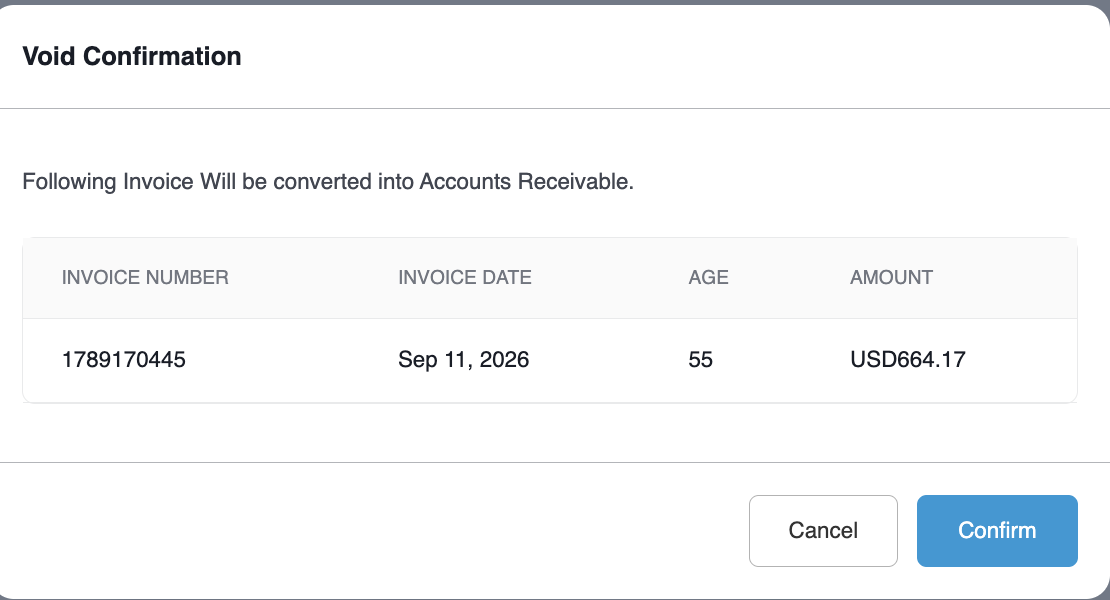
Launches the Void Confirmation modal detailing the invoice number, date, age, and amount.
Process Reversal
Review the prompt ("Following Invoice will be converted into Accounts Receivable") and click the blue Confirm button.
Voids the invoice, displays a green confirmation notification (Invoice Voided Successfully), and moves the transactions back to unbilled status.
📷 VISUAL CALLOUT:
Voiding Open Invoice Workflow
Video showing the Open Invoices tab with the active selection checkbox marked next to AR Invoice Number 1780388604, displaying invoice amount, open balance, and the blue Void Invoice action button activating the void invoice workflow.
Voiding Open Invoice Workflow
Detailed Modal & Screen Field Breakdown
1. Open Invoices Tab Controls & Attributes
Total Open Invoices Indicator: Displays total outstanding monetary value across all open invoices for the company.
Search By: Text input field to filter listed invoices by invoice number, guest name, or room number.
Date Range & Sort Filters: Filters open invoices by billing date range and sorts records by aging days, invoice date, or balance amount.
Invoice Action Bar:
Email Invoice: Dispatches copies of selected invoices to corporate billing contacts.
Print Invoices: Generates printable document layouts of selected invoices.
Void Invoice: Initiates selection mode to cancel an open invoice and return line items to unbilled receivables.
Close Invoice: Manually settles or closes an invoice outside standard payment matching.
Export: Downloads listed invoice data into raw spreadsheet formats.
Table Data Columns:
AR Invoice Number: Unique system-generated billing invoice identifier.
Amount: Total gross invoice amount at time of generation.
Settled Amount: Payments or credits applied toward the invoice.
Status: Current invoice workflow state (OPEN).
Invoice Date: The date when the invoice was generated and finalized.
Age: Days elapsed since invoice creation.
Balance: Remaining unpaid balance due on the invoice.
Due Date: Enforced payment deadline based on agreed corporate credit terms.
📷 VISUAL CALLOUT:
Void Confirmation Modal
Modal overlay displaying the warning message: "Following Invoice will be converted into Accounts Receivable", showing the itemized invoice row (Invoice Number, Invoice Date, Age, Amount), and the Cancel and Confirm buttons.
Void Confirmation Modal
2. Void Confirmation Modal Parameters
System Warning Banner: Alerts the user that confirming the action will dissolve the finalized invoice and restore the transaction line items into the unbilled Account Receivable ledger.
Invoice Details Summary:
Invoice Number: Displays the specific AR invoice number being voided.
Invoice Date: Original compilation date of the invoice.
Age: Outstanding age in days.
Amount: Full monetary value converted back to unbilled receivables.
Action Buttons:
Cancel: Closes the modal without modifying the invoice.
Confirm: Executes the void action, removes the invoice from the Open Invoices tab, and updates ledger balances.
Post-Void Ledger & Transaction Lifecycle
Once confirmed, the system executes the following operational updates:
Removal from Open Invoices: The voided invoice is immediately removed from the Open Invoices grid. If no other open invoices remain, the view updates to No Data Found with an open invoice balance of $0.00.
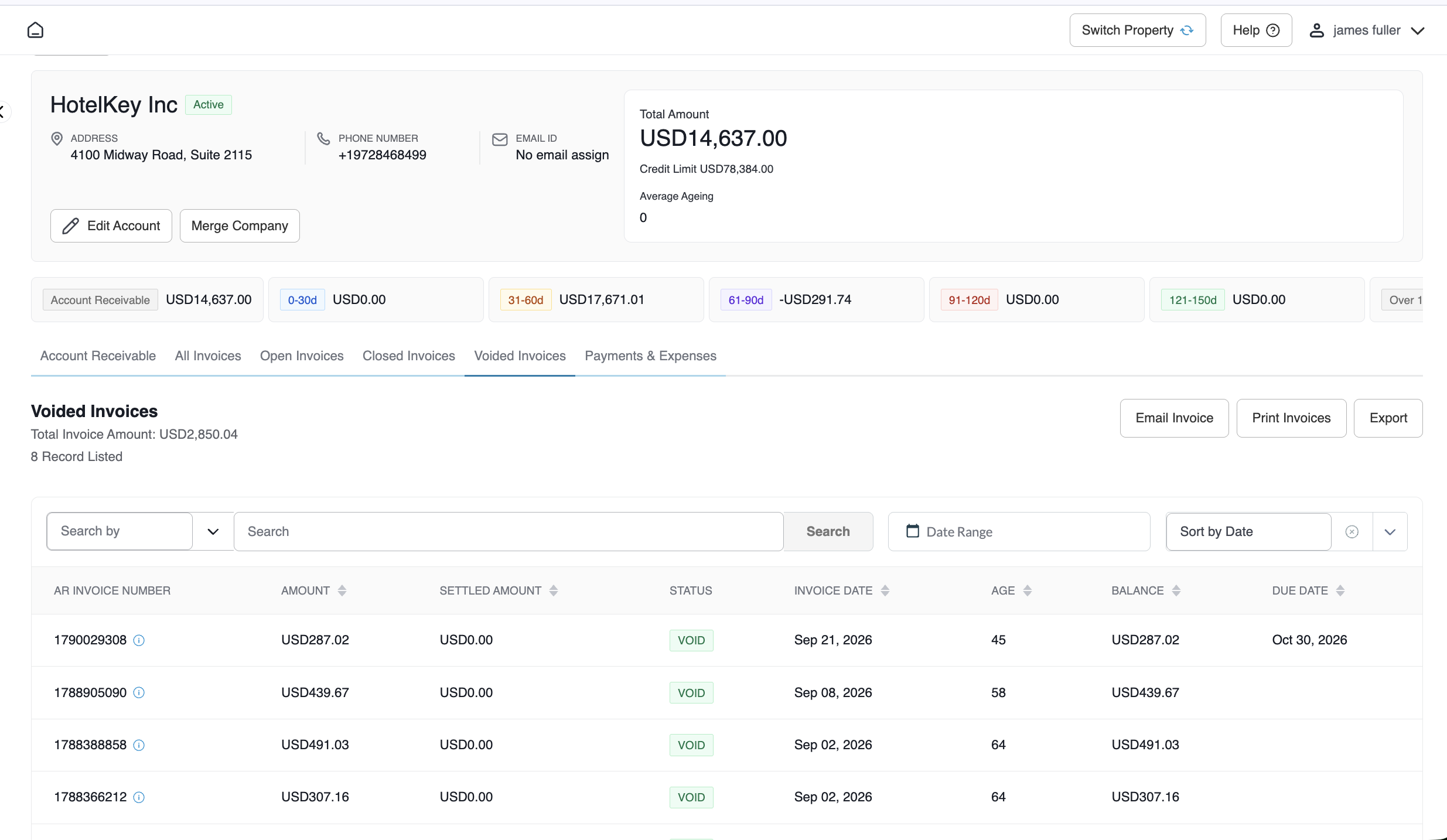
Voided Invoices Audit Log: A historical record of the canceled document is archived under the Voided Invoices tab for audit compliance, preserving user timestamps and original invoice numbers.
Conversion to Unbilled Account Receivable: The original transaction line items (including guest folio charges, room nights, and tax invoice numbers) reappear immediately on the company's Account Receivable tab.
Actionable Next Steps: From the Account Receivable tab, billing coordinators can:
Select the restored line items and click Create Invoice to re-bill with corrected dates or corporate details.
Click Actions to transfer charges, adjust rates, or reverse erroneous postings.
📷 VISUAL CALLOUT:
Voided Invoices Tab
Historical record of the canceled invoice for audit compliance and original invoice numbers.