
📆 Revision Date:
Event Cancellation Reasons Overview
A Event Cancellation Reason on a cancelled Event Record represents the specific reason why a potential booking or event did not materialize into a confirmed reservation. It helps the property or sales team understand why business was lost and supports tracking demand trends and revenue opportunities. For example, an event might be turned away because of no space availability, budget constraints, client cancellation, or date conflicts. Capturing a Event Cancellation Reason allows management to analyze lost business patterns, evaluate pricing and capacity strategies, and improve future conversion rates by identifying the most common causes for declined or cancelled events.
|
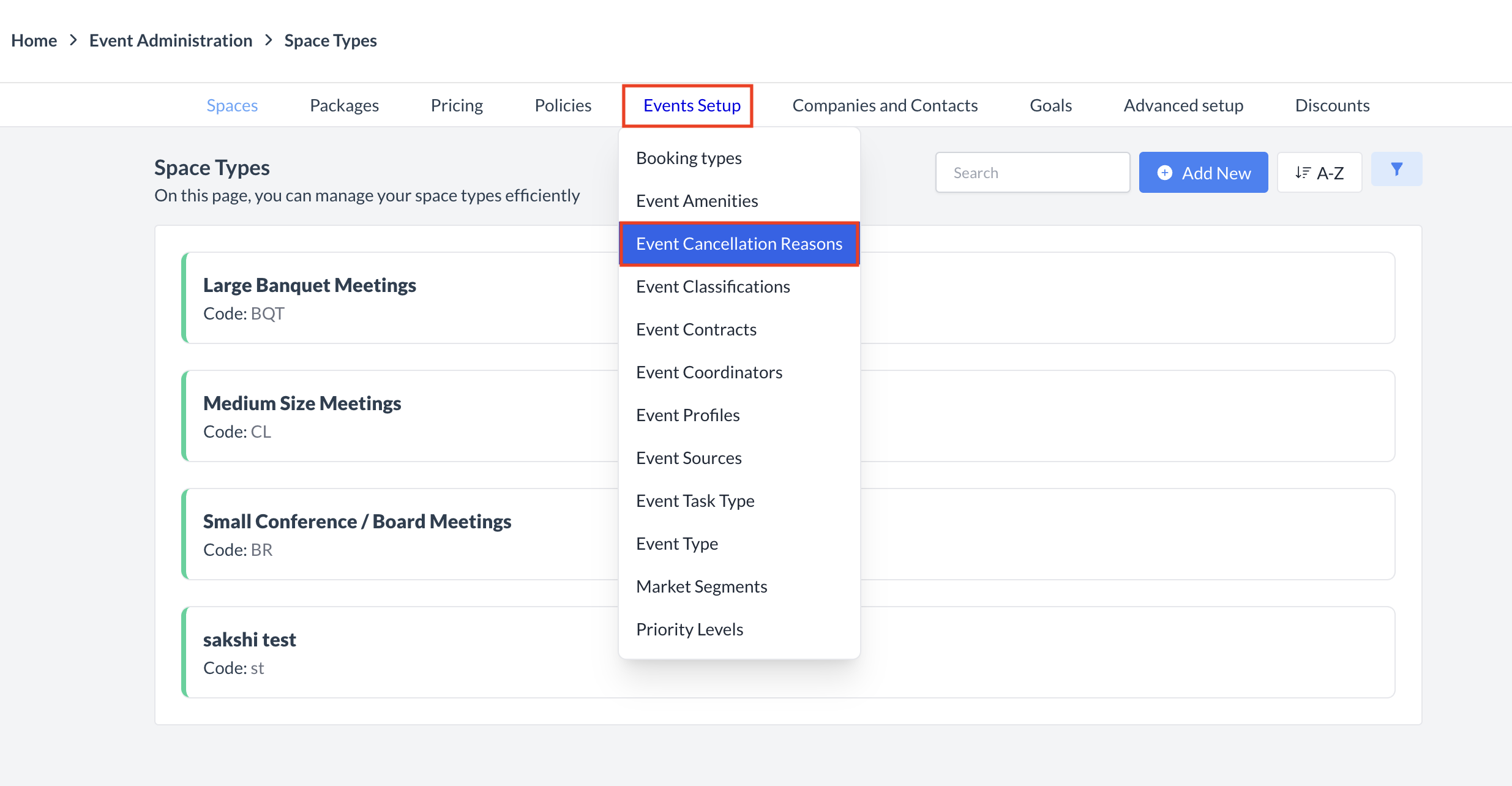
Navigate to Home > Event Administration > Event Setup > Event Cancellation Reasons |
|
Accessing and Creating Event Cancellation Reasons Codes
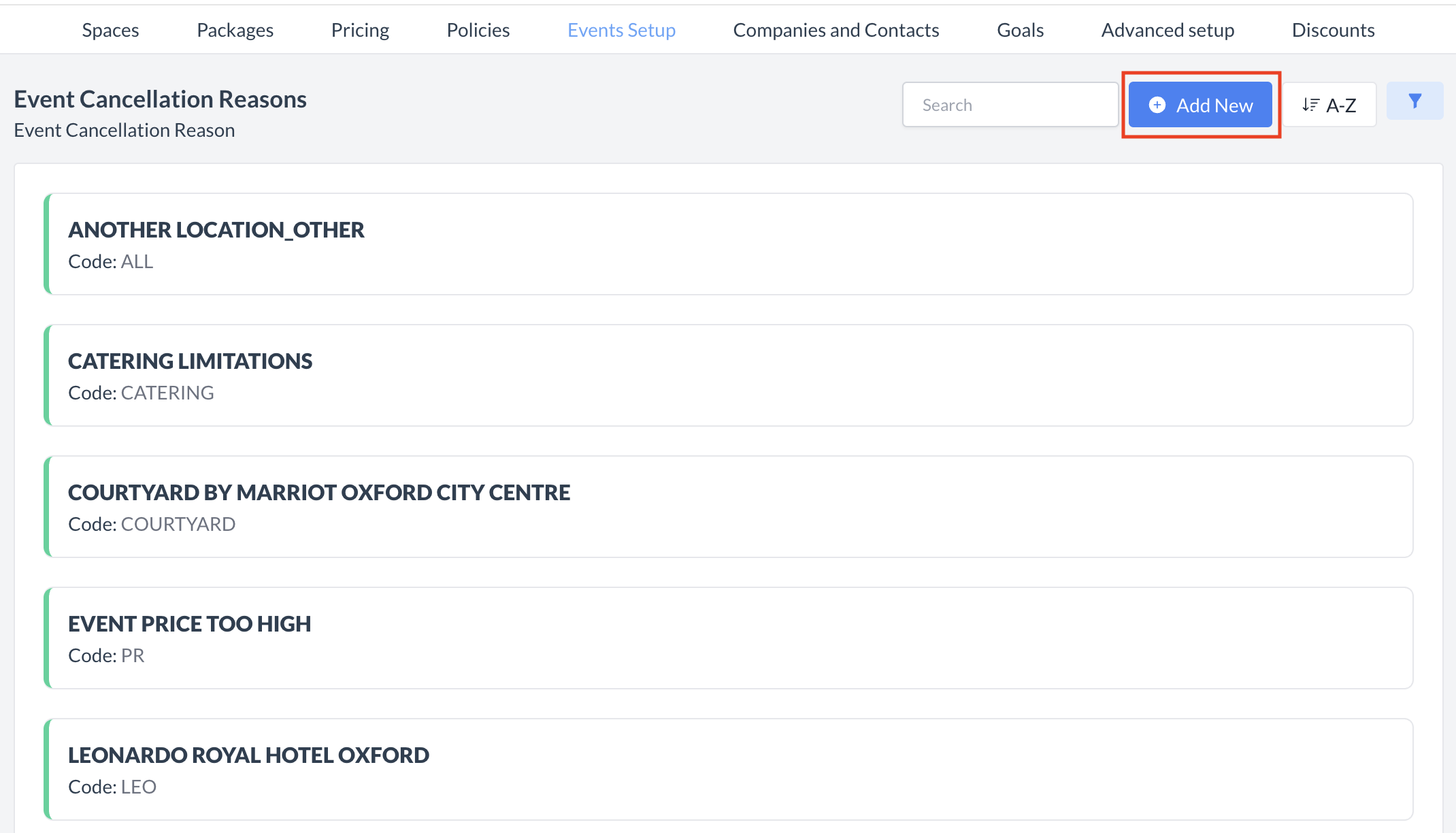
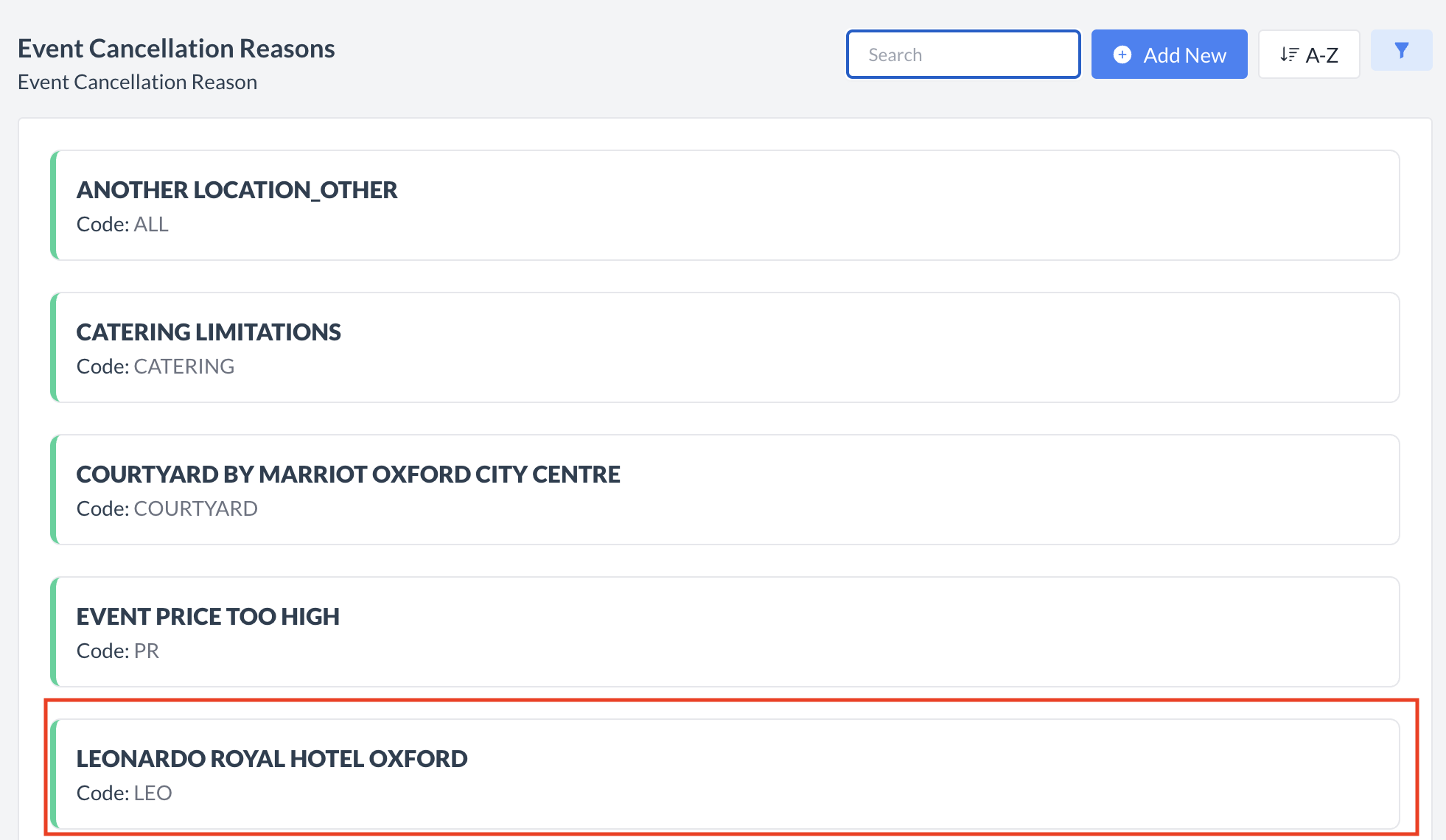
The Event Cancellation Reasons Codes screen displays a list of all existing cancellation reasons available for use with an event. To create a new cancellation reason:
|
|
Add Event Cancellation Reason
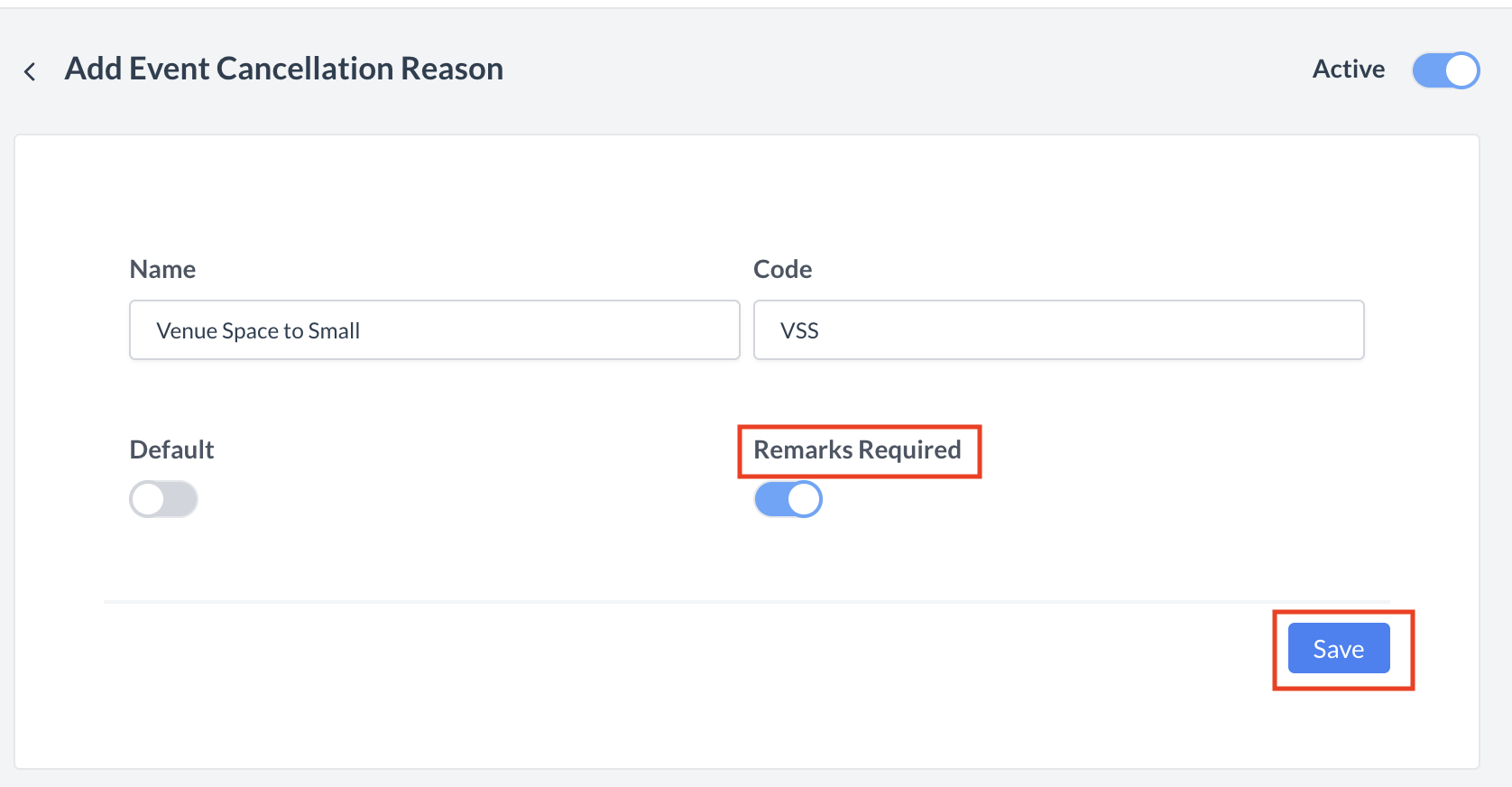
When you select Add Event Event Cancellation Reason, the following screen will appear:
Enter a clear and descriptive name for the event cancellation reason.
Enter a unique code or internal identifier for this reason.
Toggle ON if this is the default or most frequently used Event Cancellation Reason.
Toggle ON if you want remarks to be required when selecting this Event Cancellation Reason on a cancelled event.
This field defaults to ON.
Once all fields are complete, click the blue Save button to create the Event Cancellation Reason. |
|
Confirmation
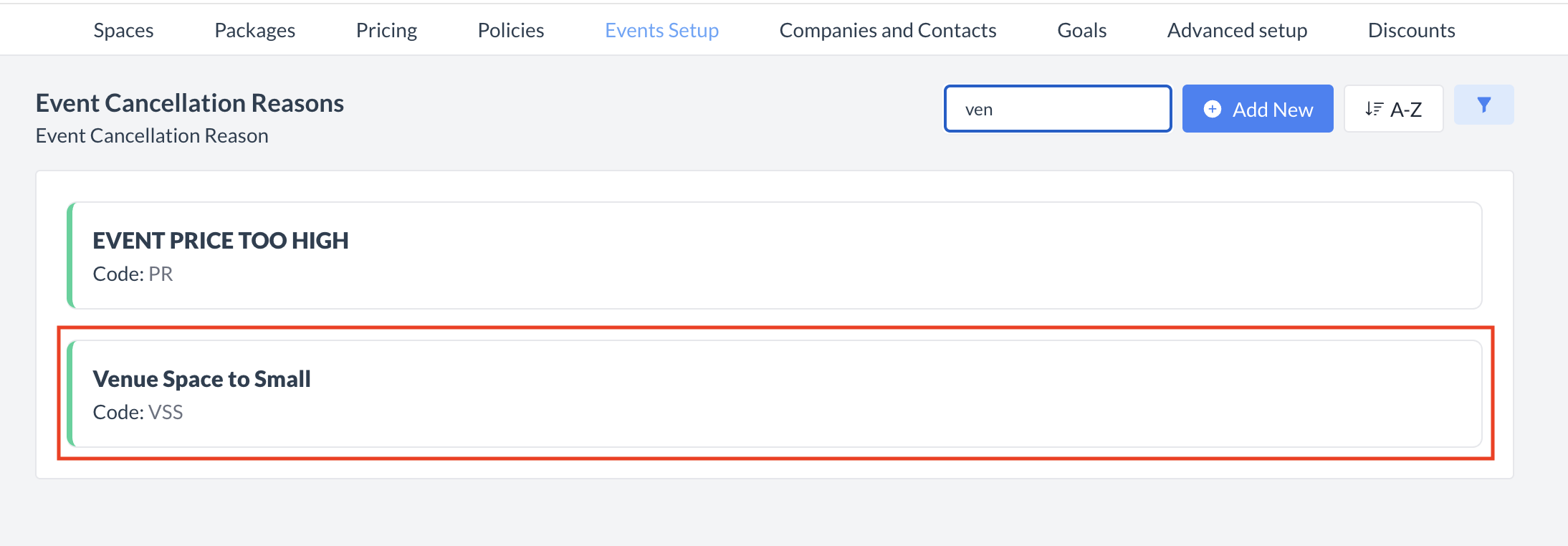
After saving, you will be returned to the Event Cancellation Reasons Code listing screen.
|
|
🔄 Inactivating a Event Cancellation Reasons Code
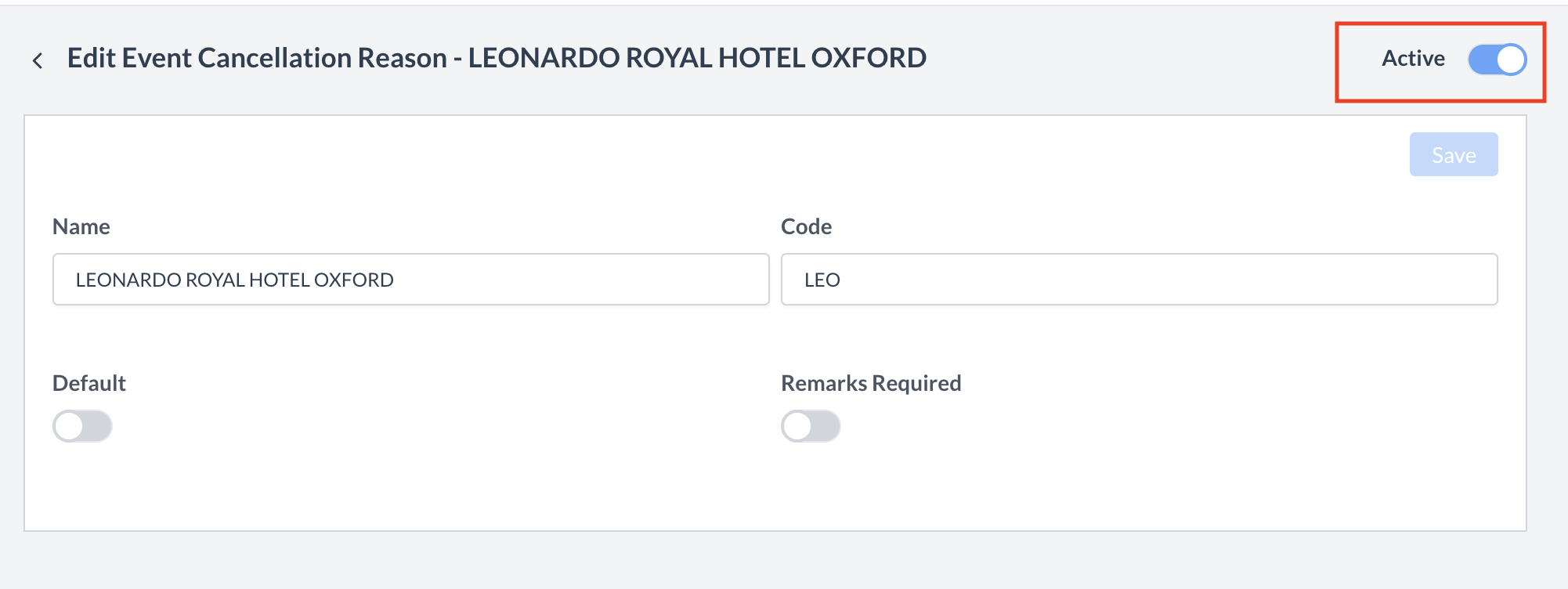
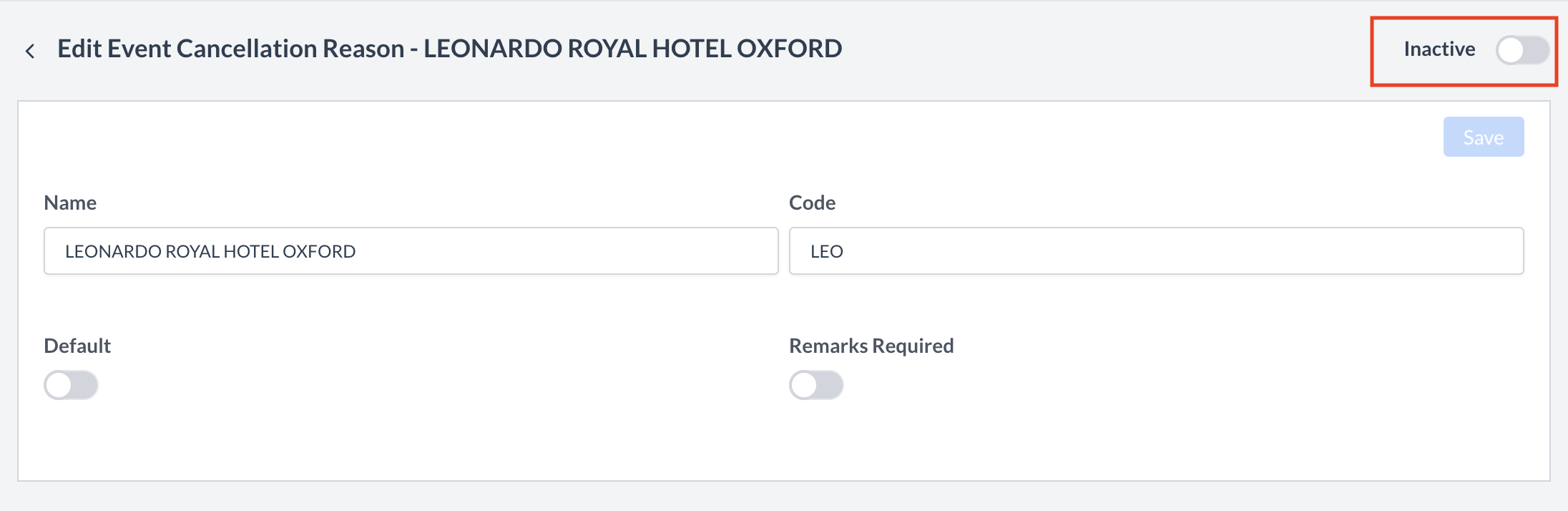
To deactivate a turn away reason:
Once inactivated, the event cancellation reasons code will no longer appear in the Event Cancellation Reasons Code listing and will not be available for selection on cancelled events. |
|
🔁 Reactivating an Inactive Event Cancellations Reasons Code
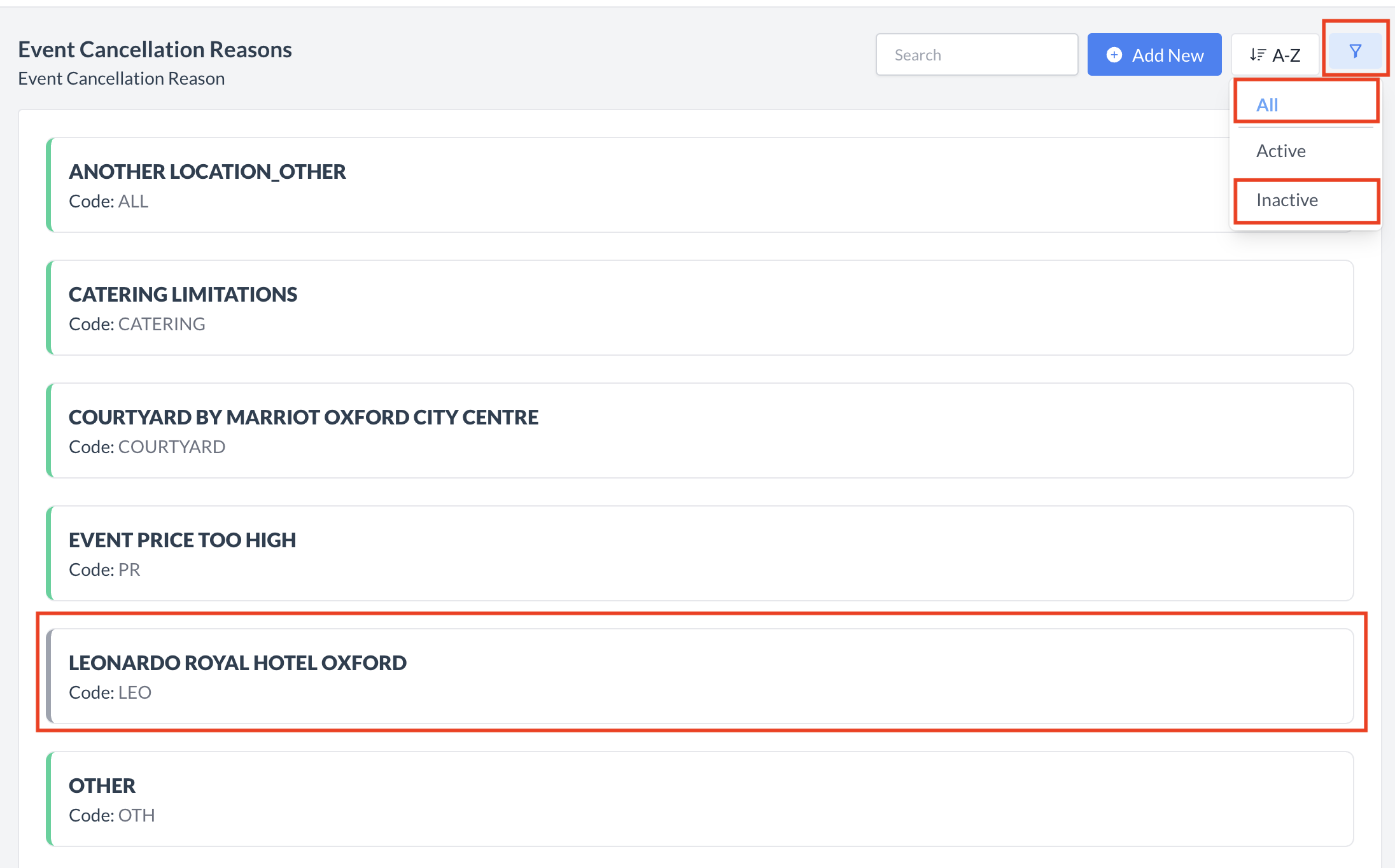
To reactivate a event cancellation reasons code:
The event cancellation reason is now reactivated and will appear in the main Event Cancellation Reasons Code listing screen, making it available for use again. |
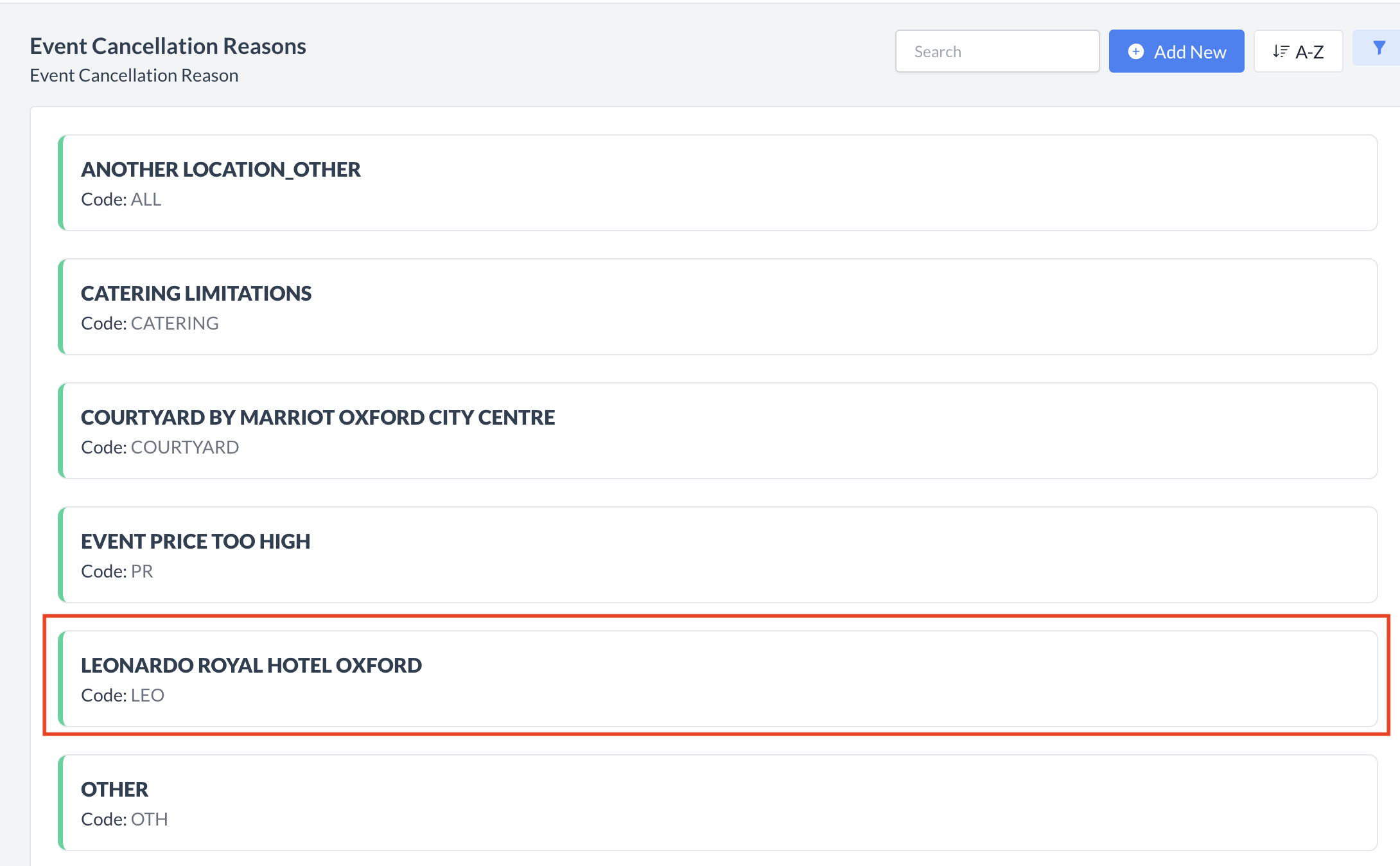
|
🖥️ Where “Event Cancellation Reasons” Appears in the User Interface (UI)
The "Event Cancellation Reasons” will appear when you cancel an event.
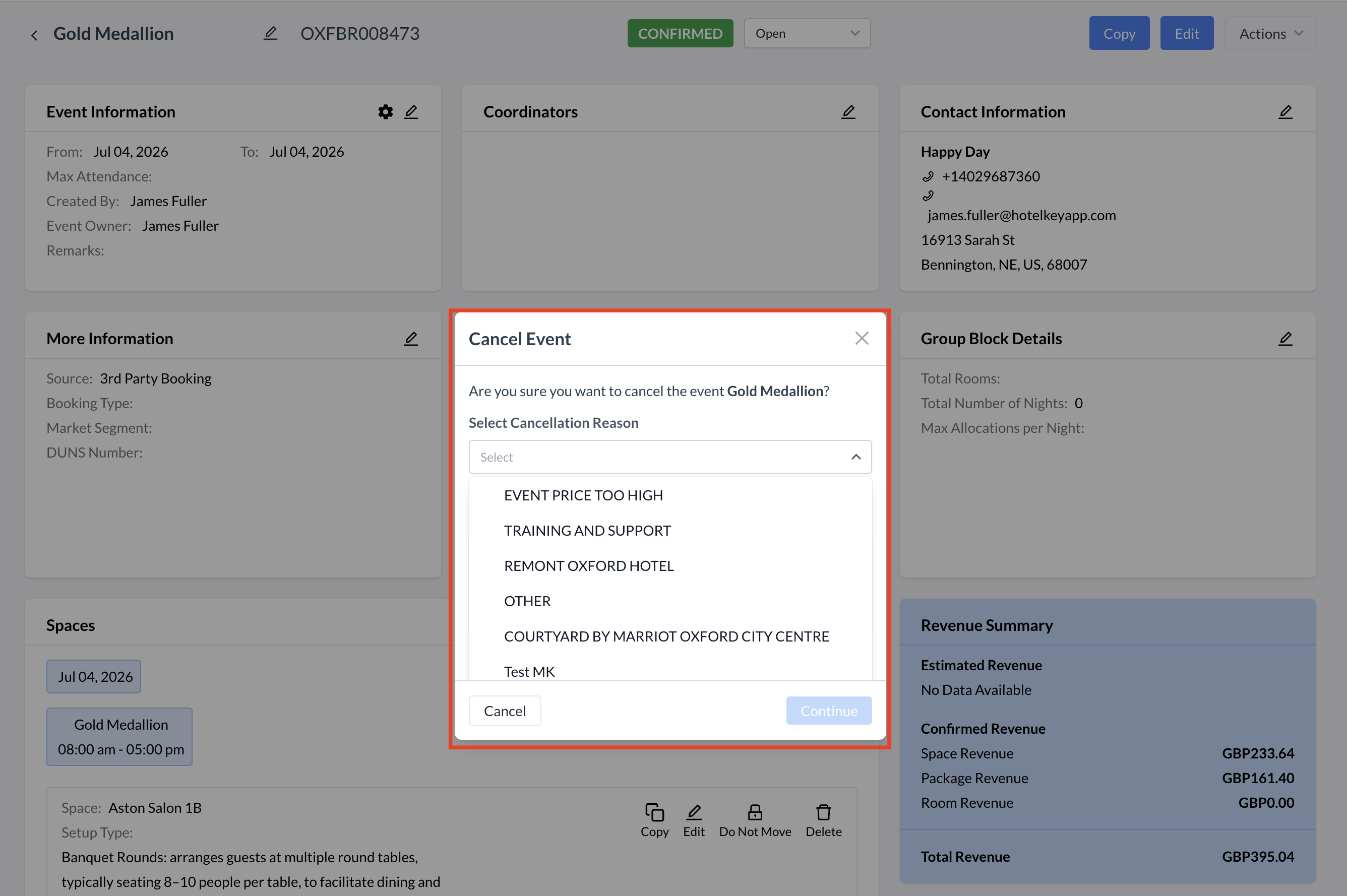
Event Cancellation Reason: Cancel Event Window