
Revised Date
The Auto Assign Rooms feature allows users to assign available rooms to one or more reservations directly from the Arrivals screen. Users can optionally apply room selection filters, and the system automatically assigns the most suitable available rooms based on the selected criteria.
Use Cases
-
Bulk Room Assignment – Assign rooms to multiple arrivals at once instead of updating each reservation individually.
-
Filtered Room Assignment – Restrict assignments to rooms that match specific criteria, such as building, floor, or housekeeping status.
-
Faster Check-in Preparation – Reduce manual effort and speed up room assignment during busy arrival periods.
Prerequisites
-
The property must have rooms configured with active floors and buildings in Property Details.
-
Reservations must be in Booked or Hold status and visible on the Arrivals screen.
-
Reservations must not have a room number assigned; only unassigned reservations are eligible for auto room assignment.
Auto Room Assignment
|
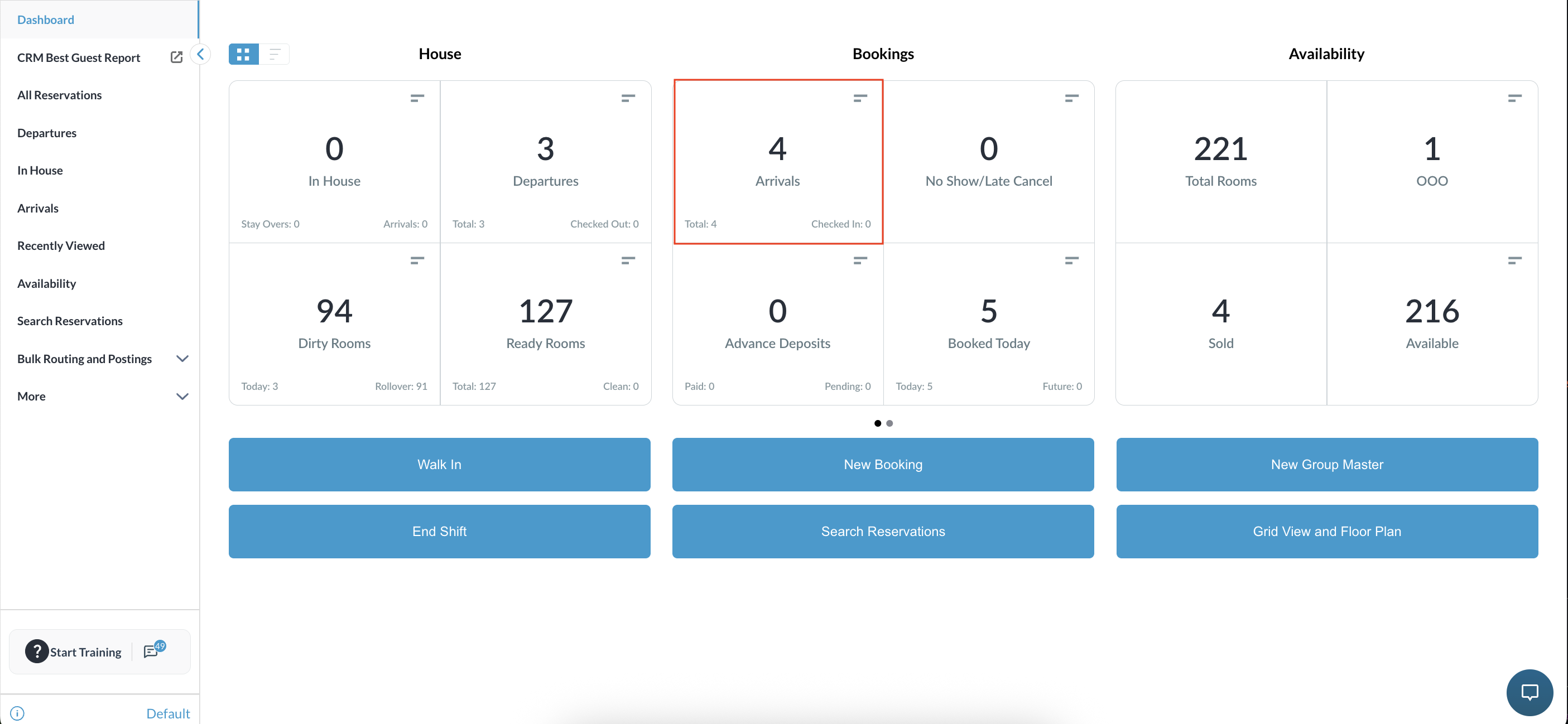
Navigate to the Frontdesk Dashboard and select the Arrivals screen. |
|
|
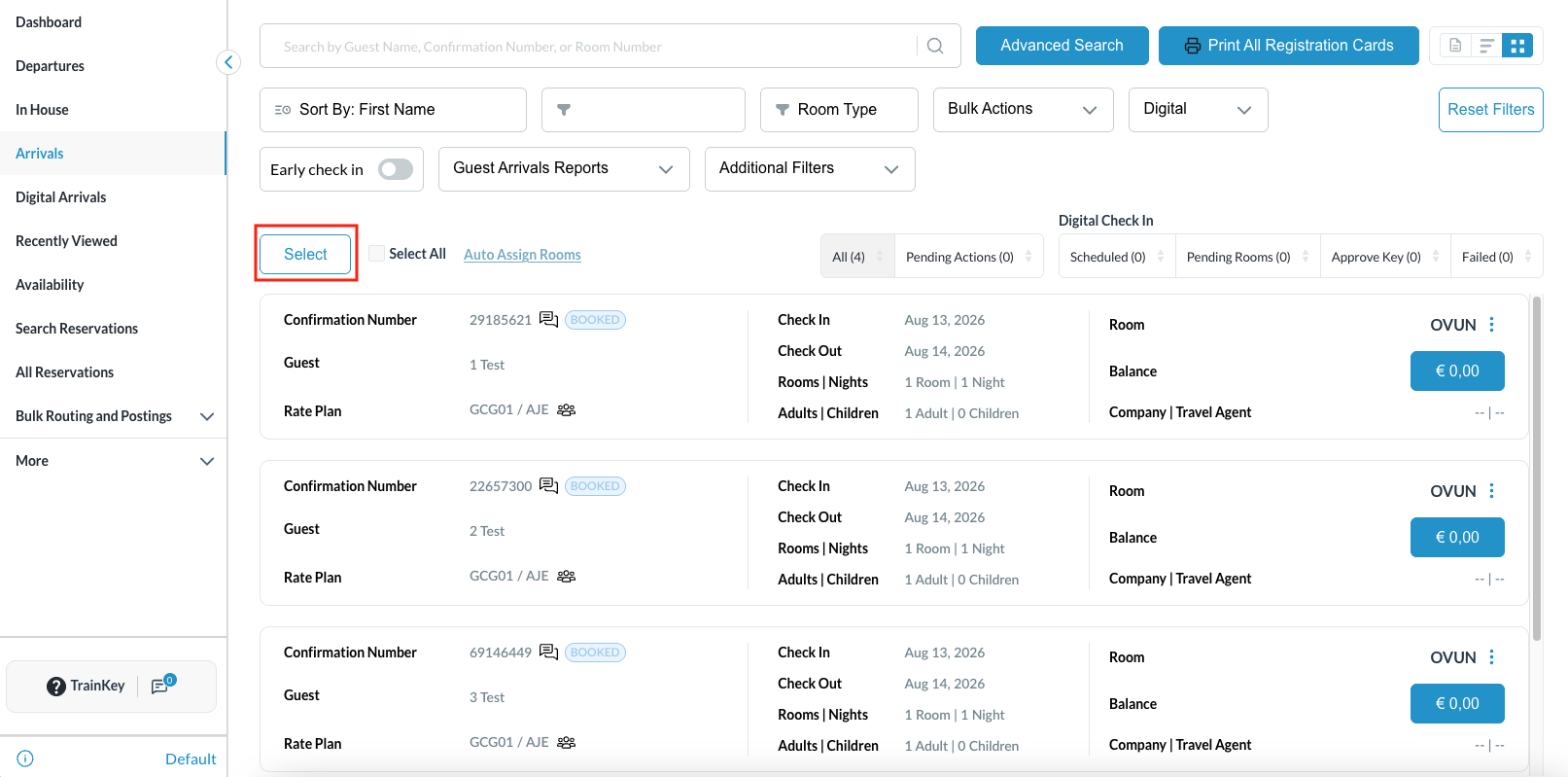
Click the Select button to activate the checkbox selection mode for the arrivals list. |
|
|
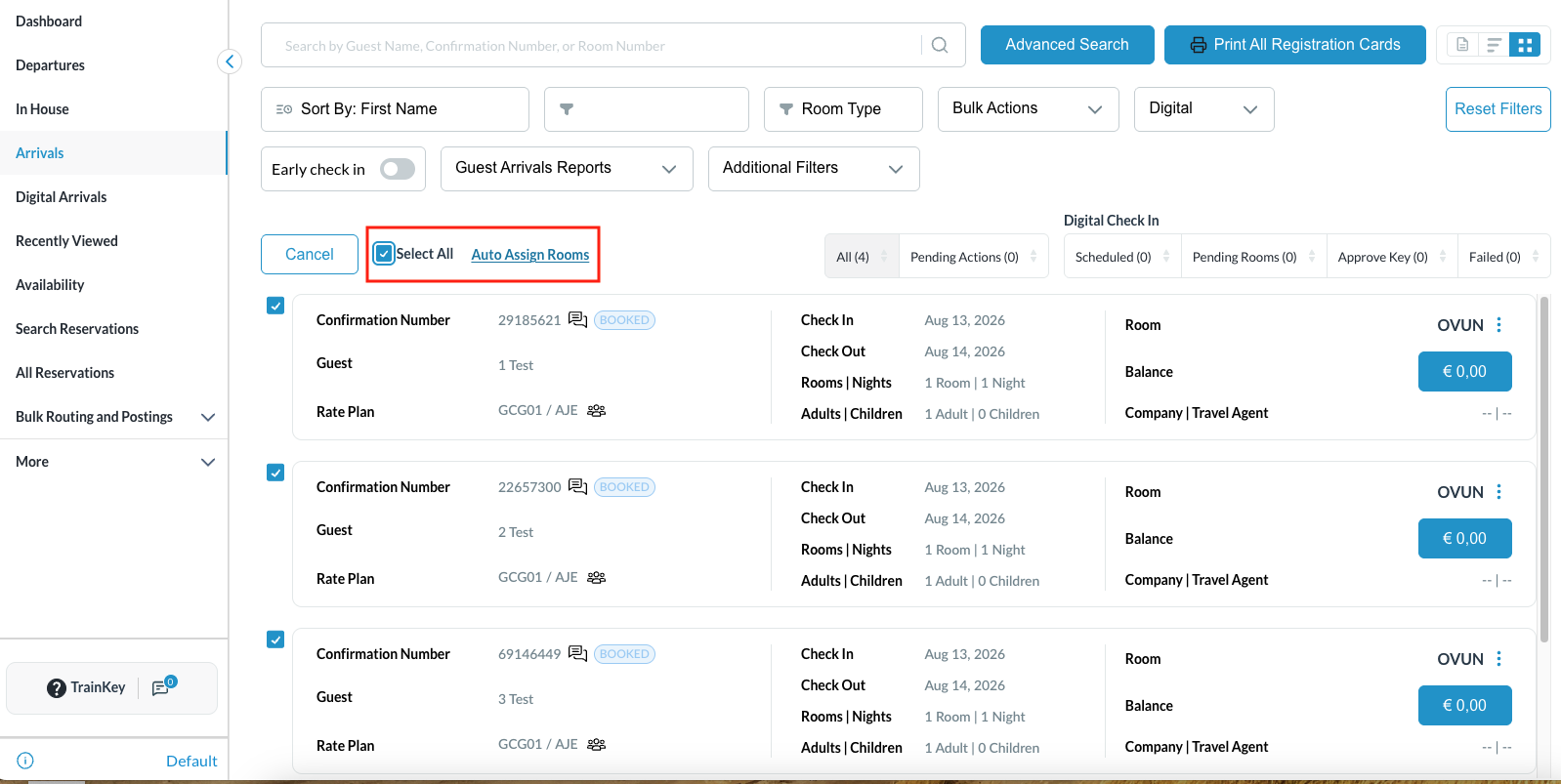
Use the checkboxes to choose the specific unassigned reservations you wish to process (or select all)
|
|
|
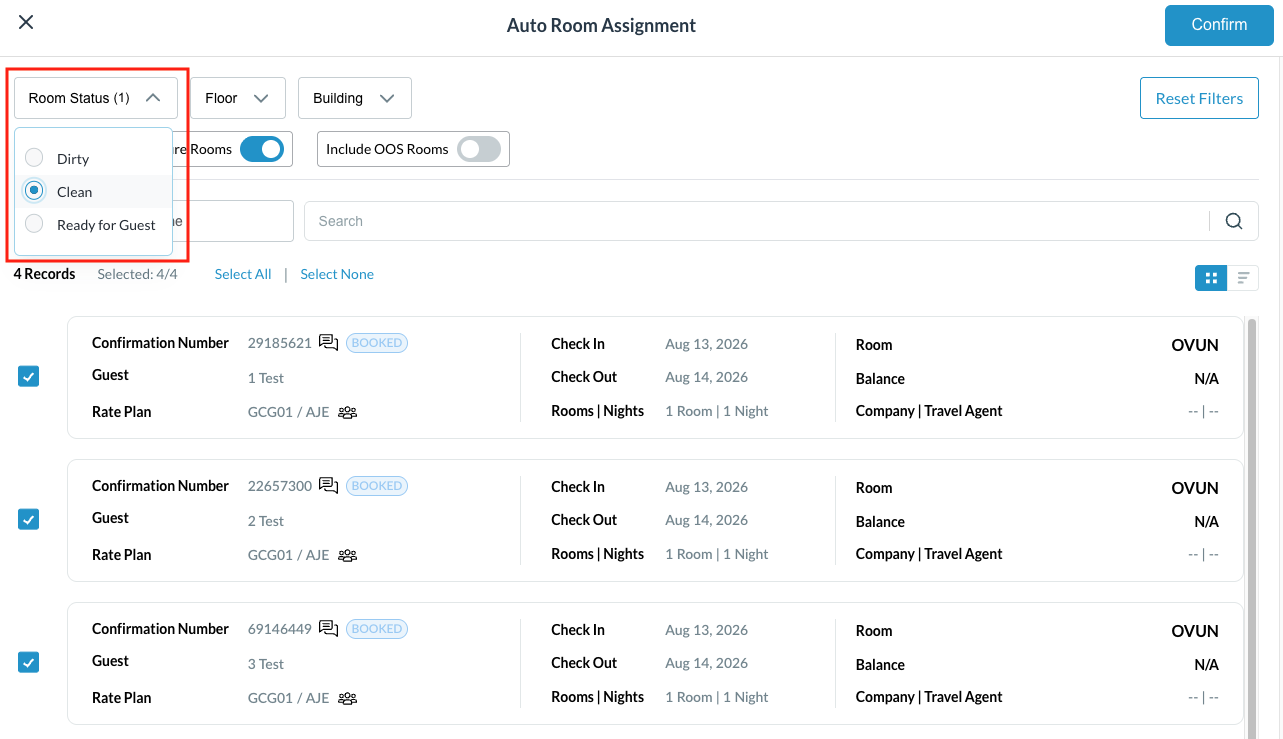
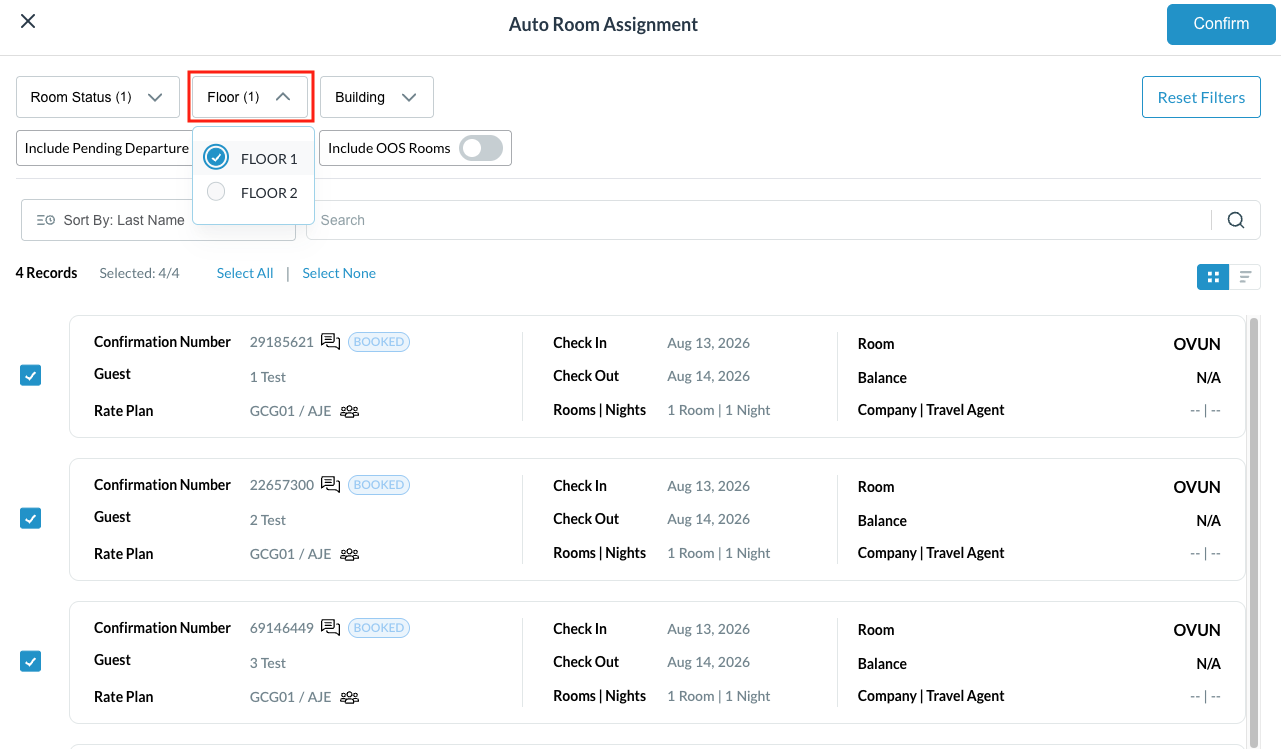
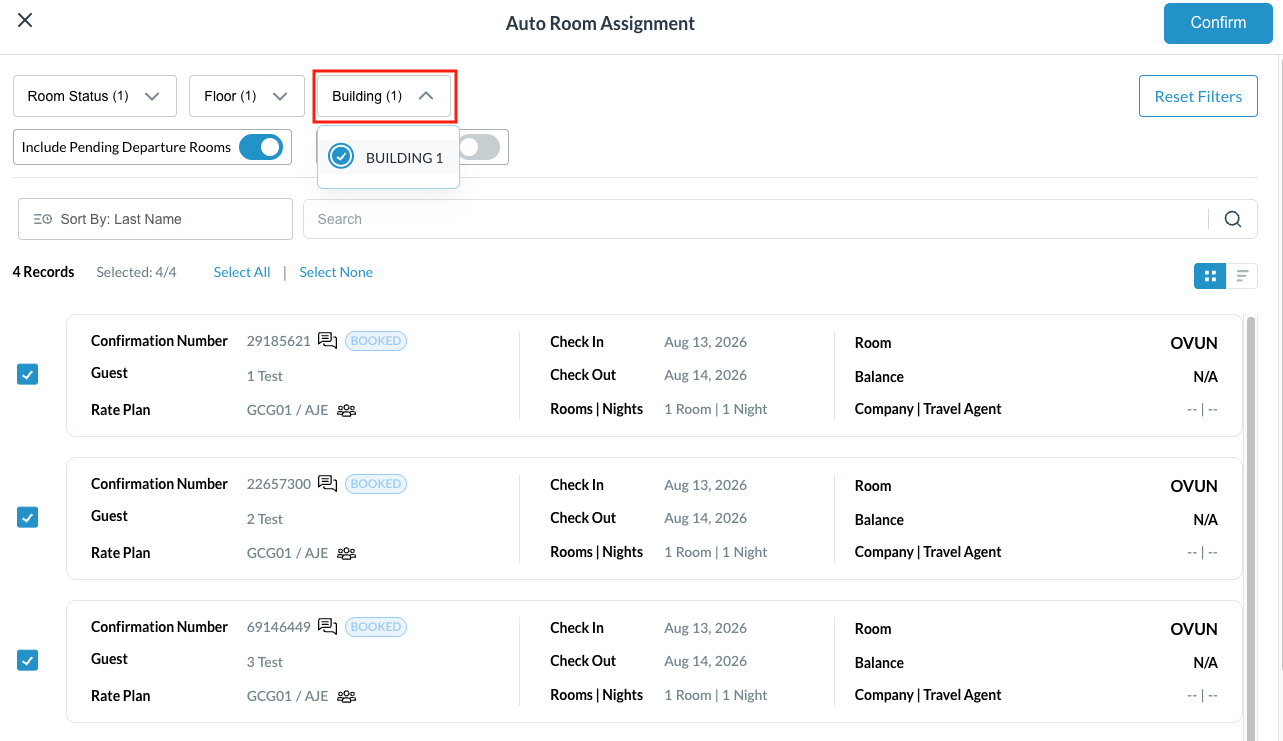
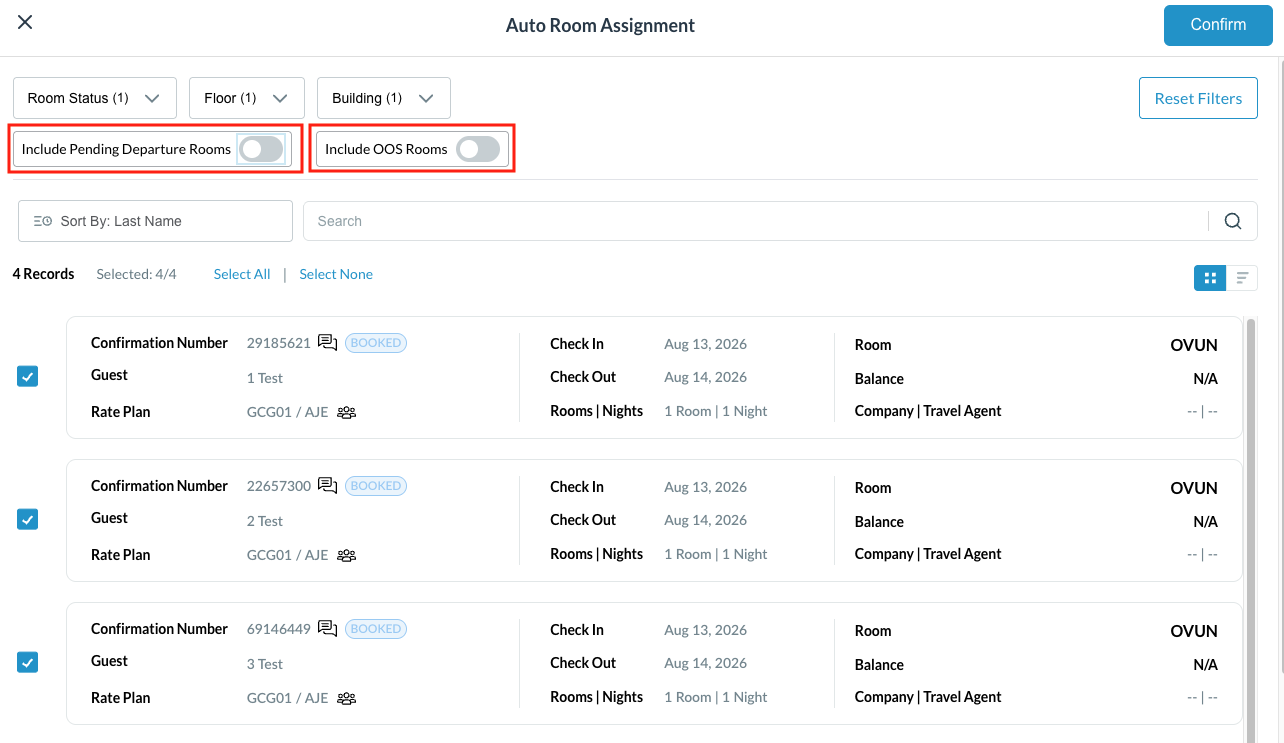
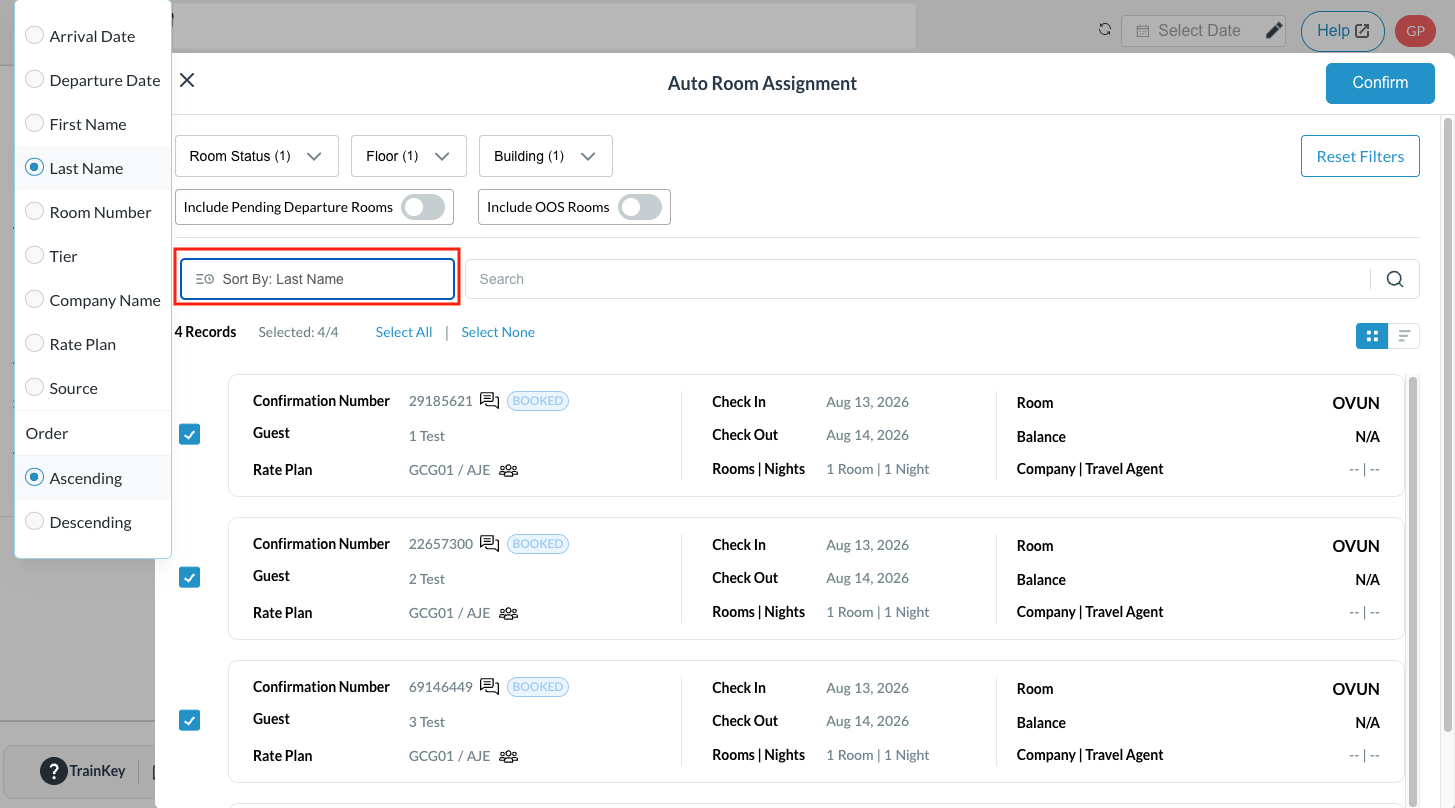
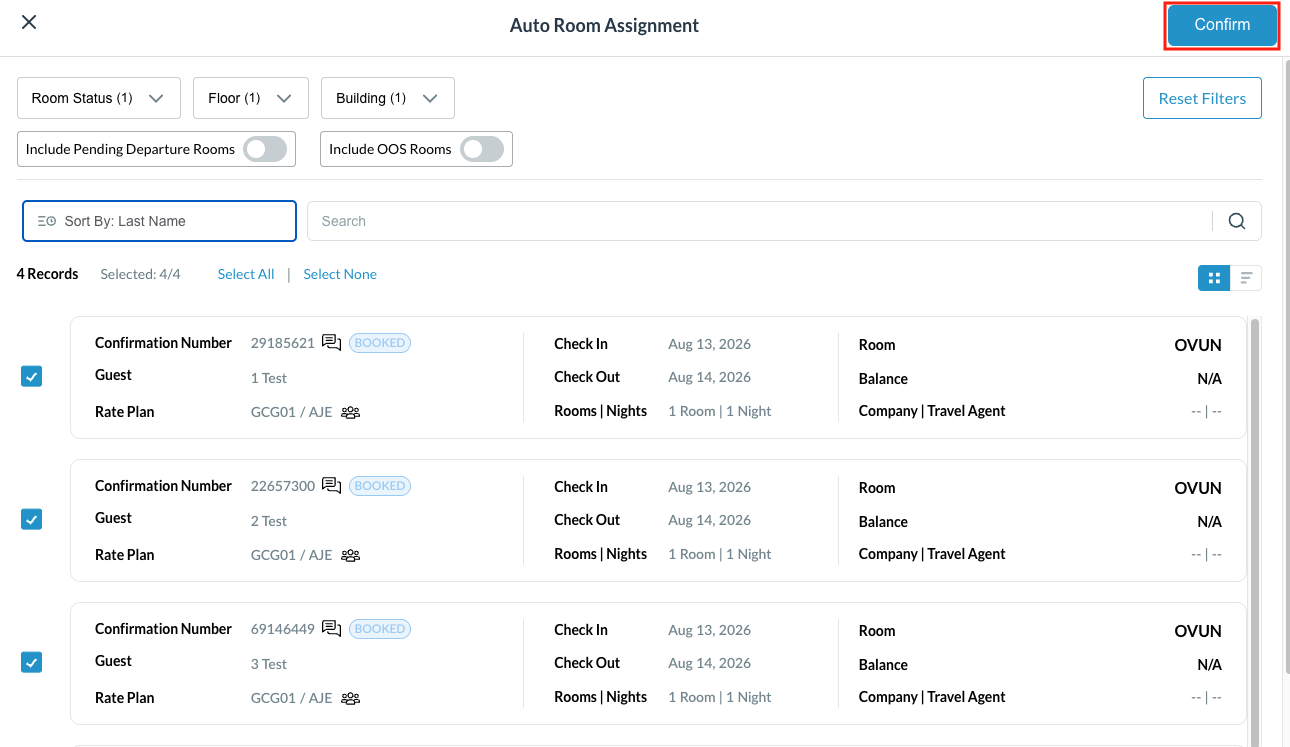
The Auto Room Assignment screen will open. Use the Customization section to refine the system's logic:
|
|
|
|
|
|
|
|
|
|
|
Click Confirm to execute the auto-assignment based on the selected criteria. Click Reset at any time to clear all filters and return to system defaults. |
|
|
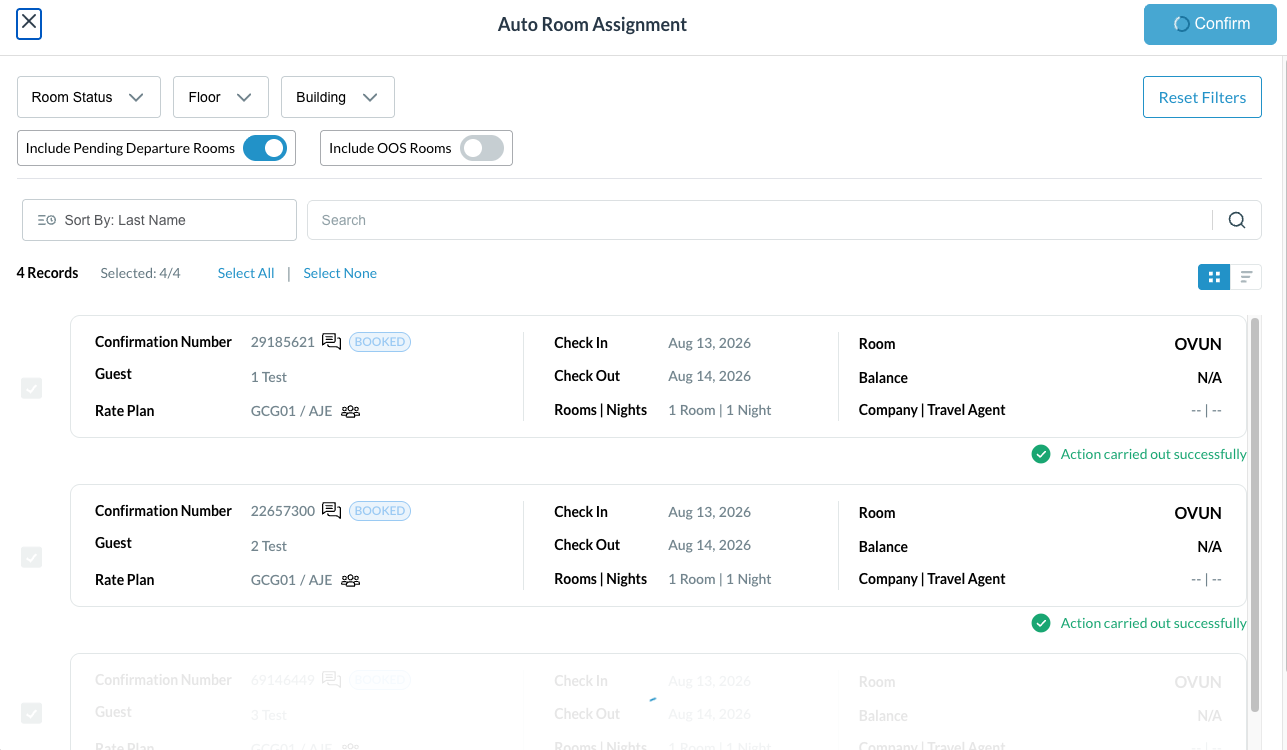
The system will display a success message for each reservation that was successfully assigned. |
|
|
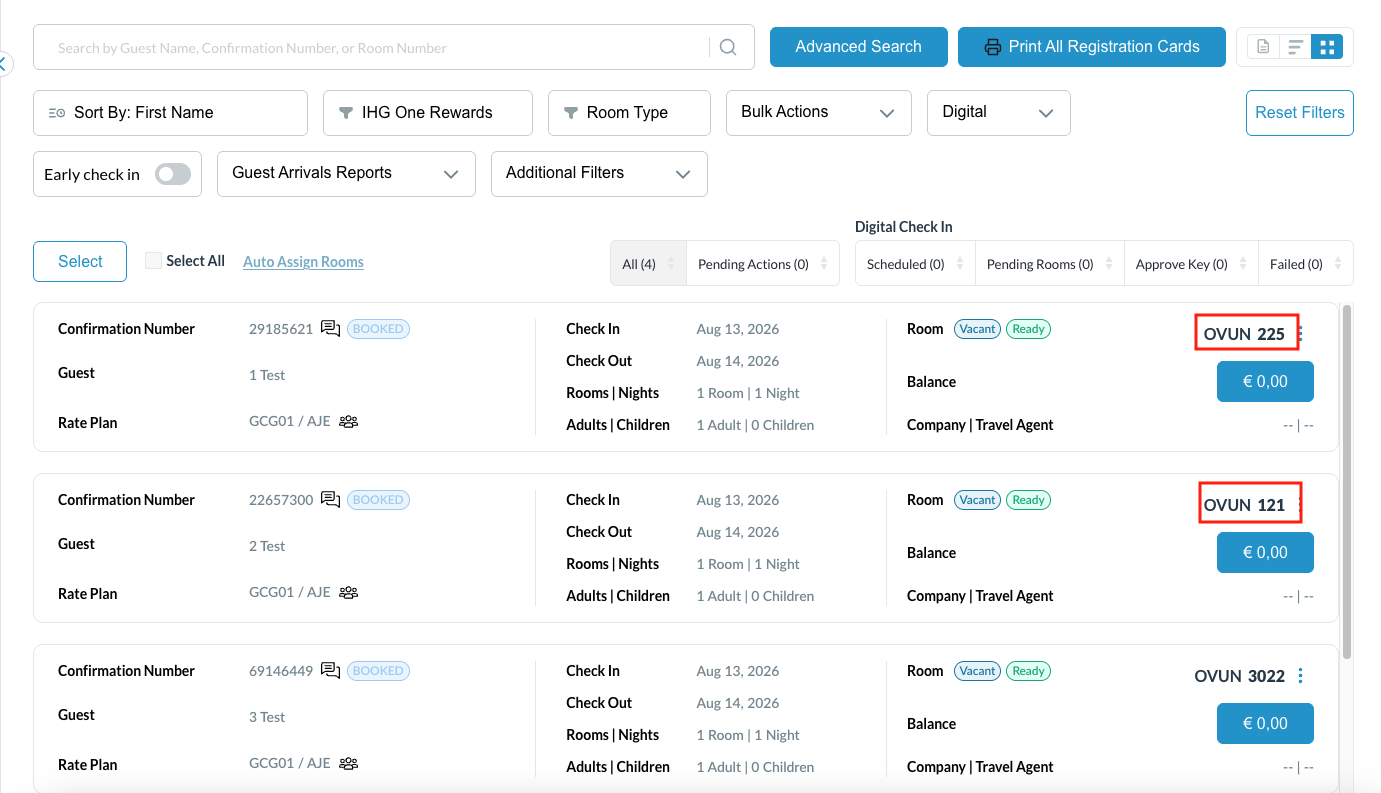
On the arrivals screen, room assignments can be seen at the top right of the reservation listing.
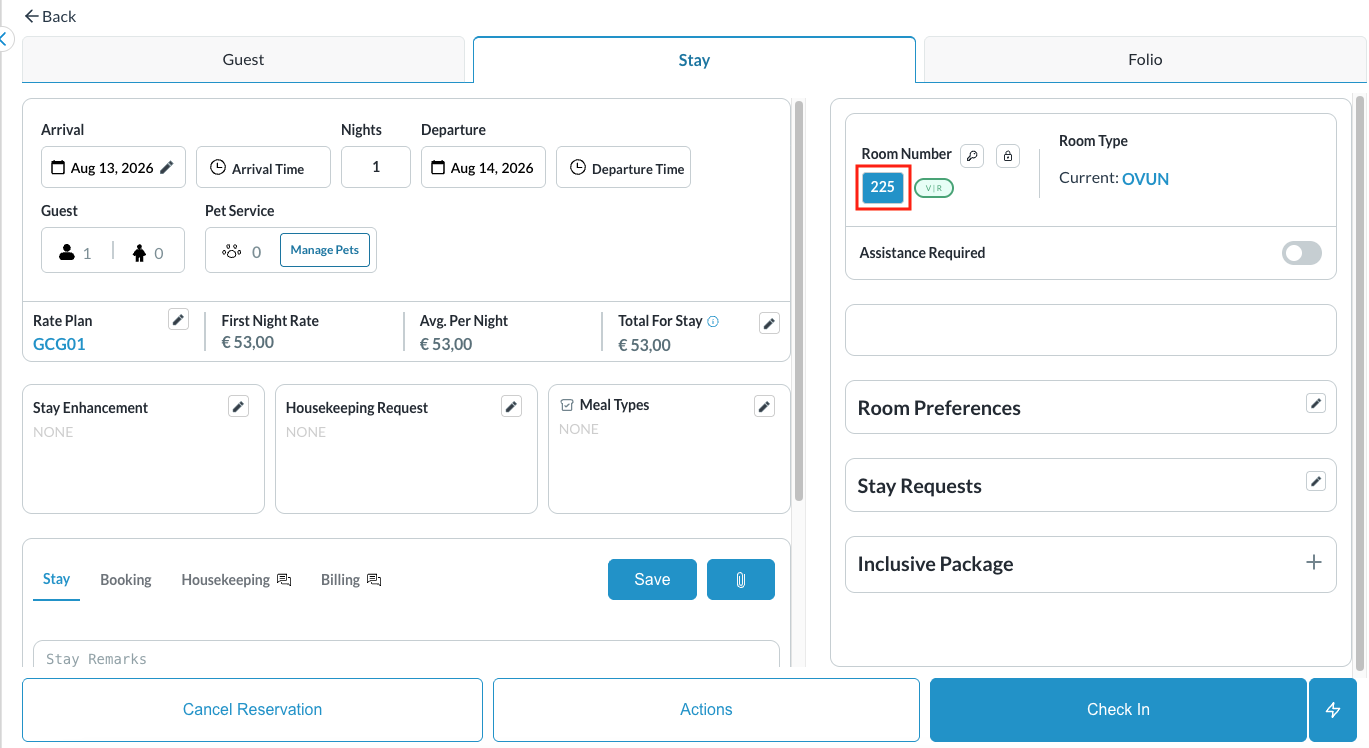
Open the individual reservation and navigate to the Stay tab to confirm the room assignment. |
|