
Revision Date:
Undo Check-Out allows you to reverse a check-out on an individual or group reservation that was performed. This is useful when a guest has been checked out prematurely or incorrectly, and the error is caught on the same day as their scheduled departure.
Once you undo a check-out, the reservation is restored to In-House status, as if the check-out never happened. The guest's folio and charges remain intact, and a record of the reversal is automatically logged in the system's audit trail.
Execution Steps
Navigate to the Group Master Reservation
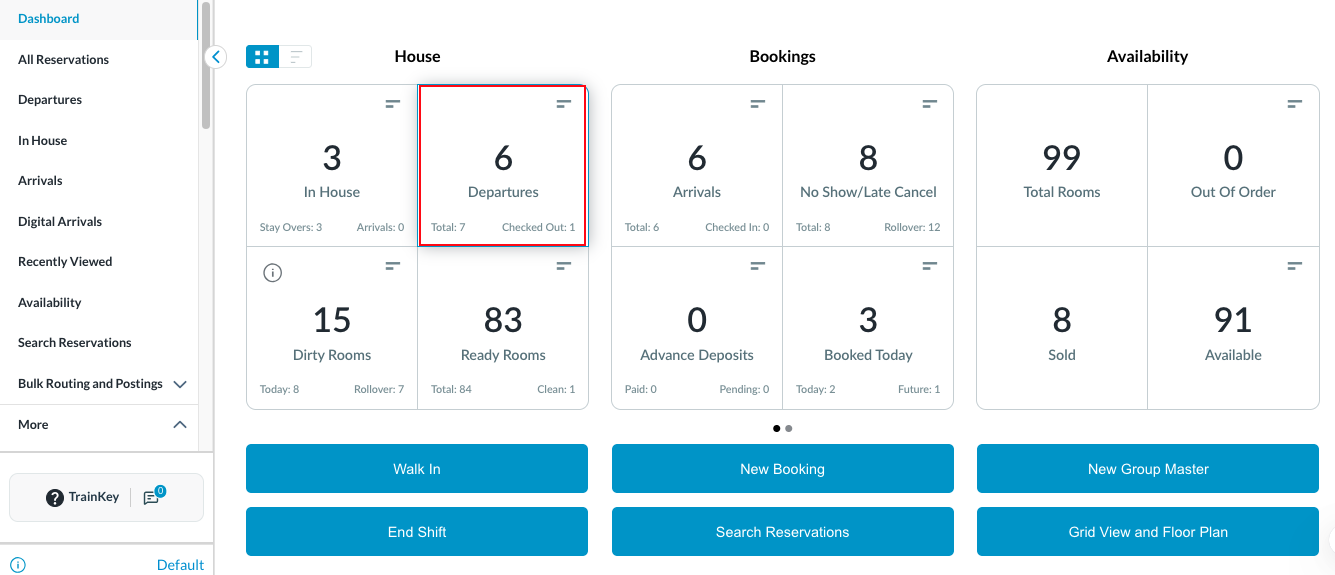
From the Front Desk dashboard, go to Departures and search for the reservation. |
|
|
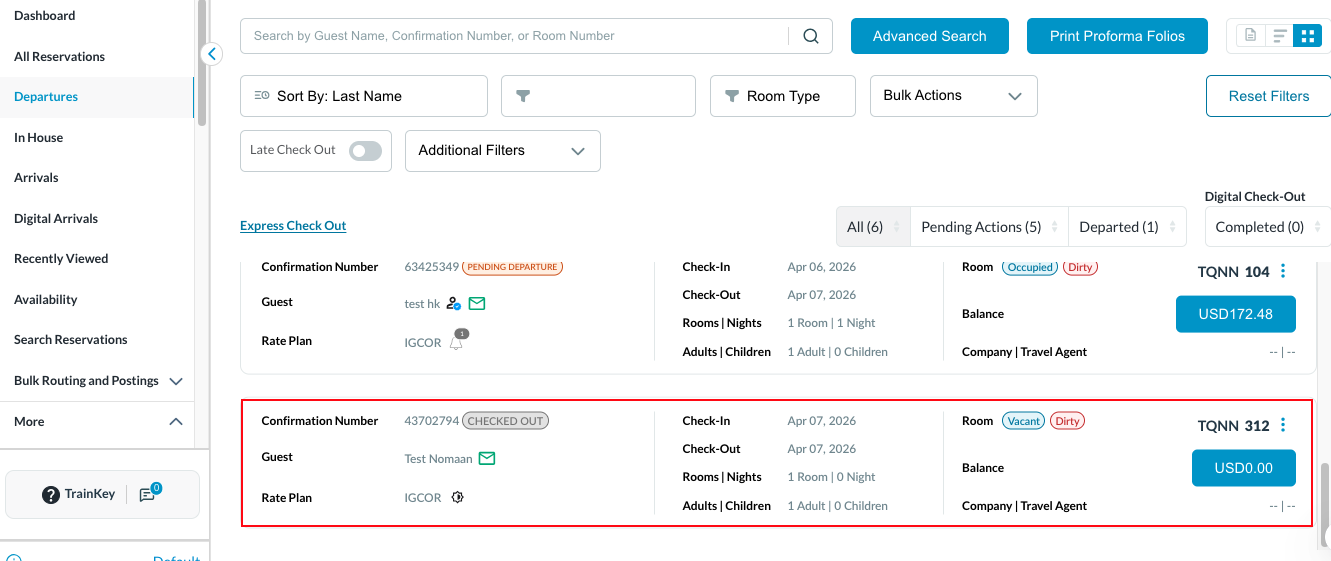
Inside the Departures, find the reservation that was incorrectly checked out. Look for a reservation showing a Checked Out status badge. |
|
Verify the Departure Date
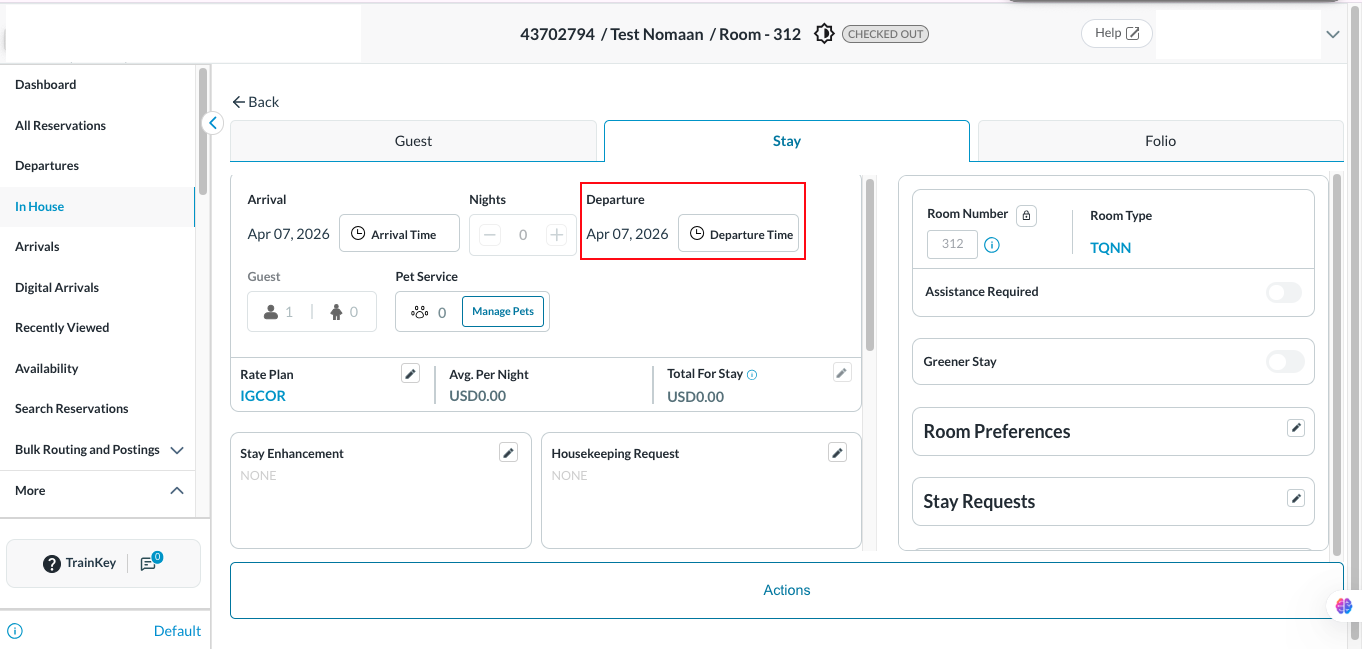
Before proceeding, confirm that the departure date on the reservation matches today's current business date. You will typically see the departure date displayed in the reservation header area.
Important: If the date does not match today, stop — Undo Check-Out is not available for past departures. |
|
Find the Undo Check-Out Option
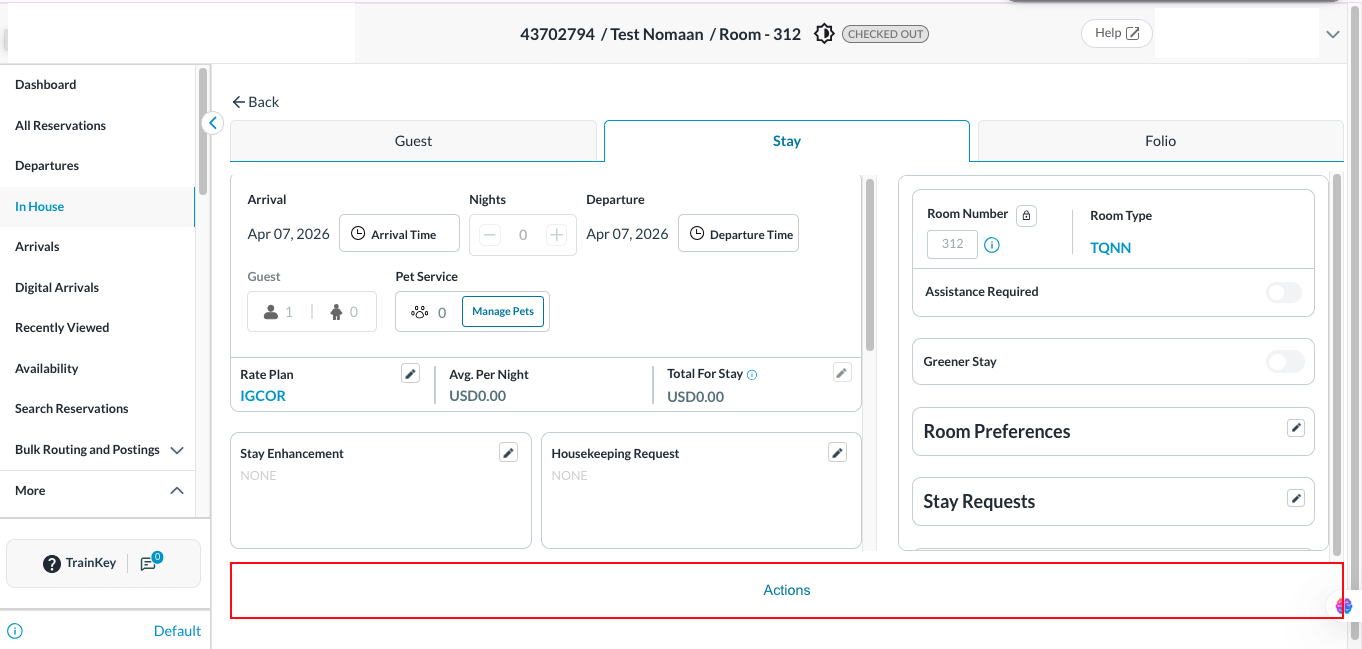
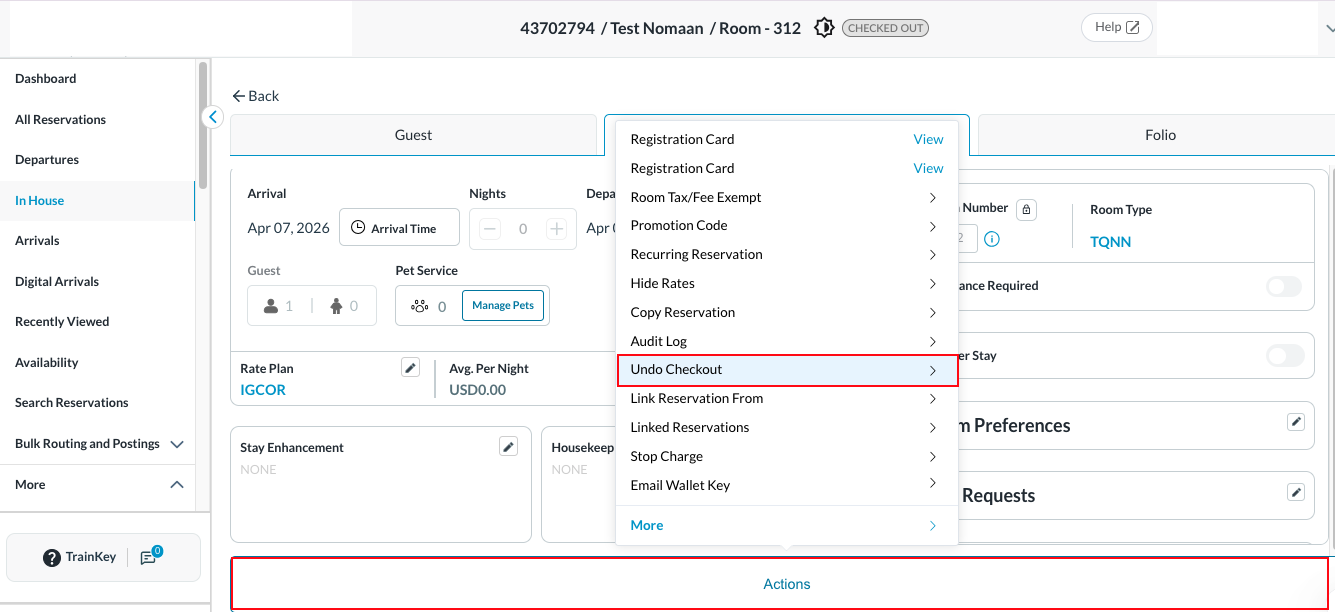
With the reservation detail screen open, look for the Undo Check-Out action. This may appear as a button on the screen or within an Actions menu.
|
|
Confirm the Action
Click or tap Undo Check-Out. The system may ask you to confirm the action before proceeding.
|
|
Verify the Result
After the action completes, the reservation status should return to In-House. The screen will refresh to reflect the updated status.
|
|