
Revision Date:
The Scheduled Room Move feature allows front desk users to reserve a future room change for an in-house guest. A new room (and optionally a different room type) can be assigned in advance, ensuring the room is held until the move date.
When a schedule is created, the system automatically places a maintenance hold on the target room using the configured maintenance code, preventing it from being assigned to another guest.
Applicable for: Checked-In (In-House) reservations with a checkout date later than the Current Business Date (CBD).
Common Use Cases
-
Stay Extension: Reserve a different room in advance when the guest extends their stay and the current room is unavailable.
-
Room Upgrade/Downgrade: Secure a new room for a guest who requests a room change during their stay.
-
Planned Relocation: Schedule a room move ahead of maintenance work or other operational requirements.
Schedule a Room Move
|
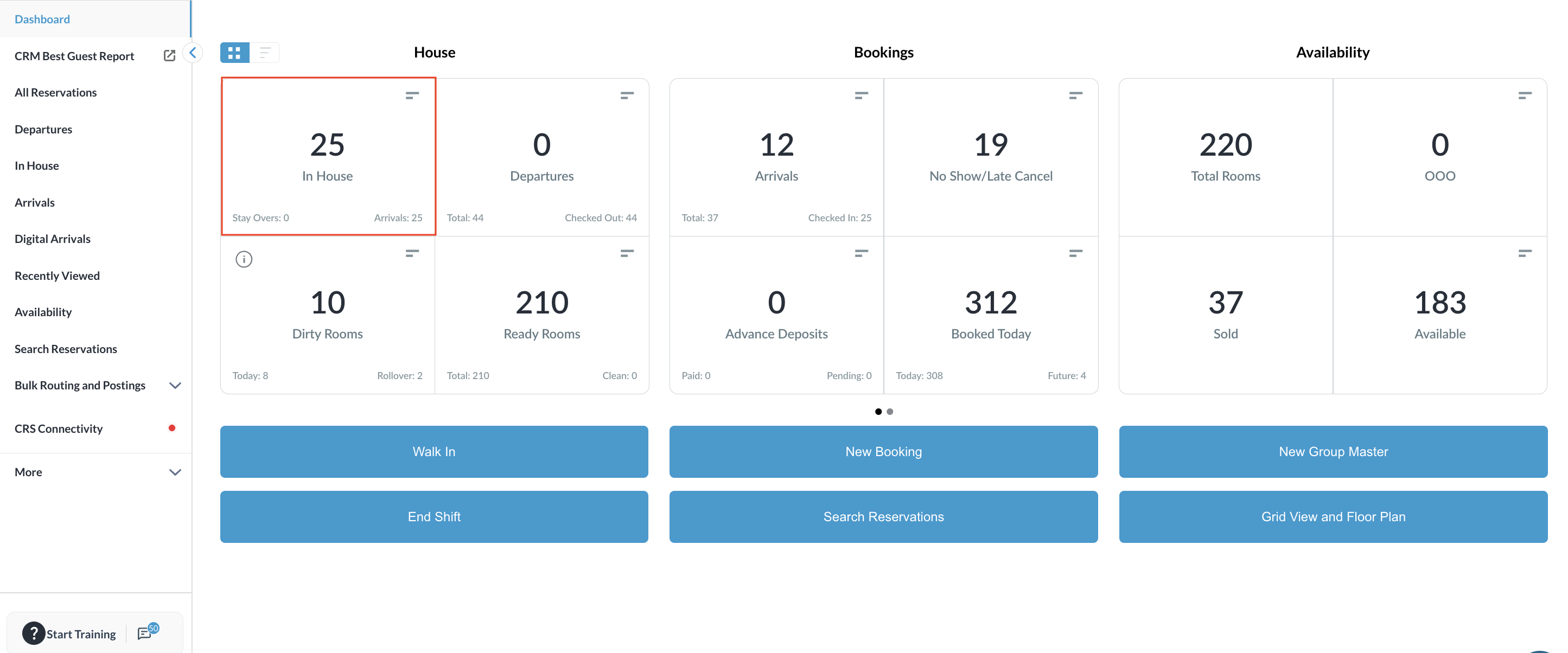
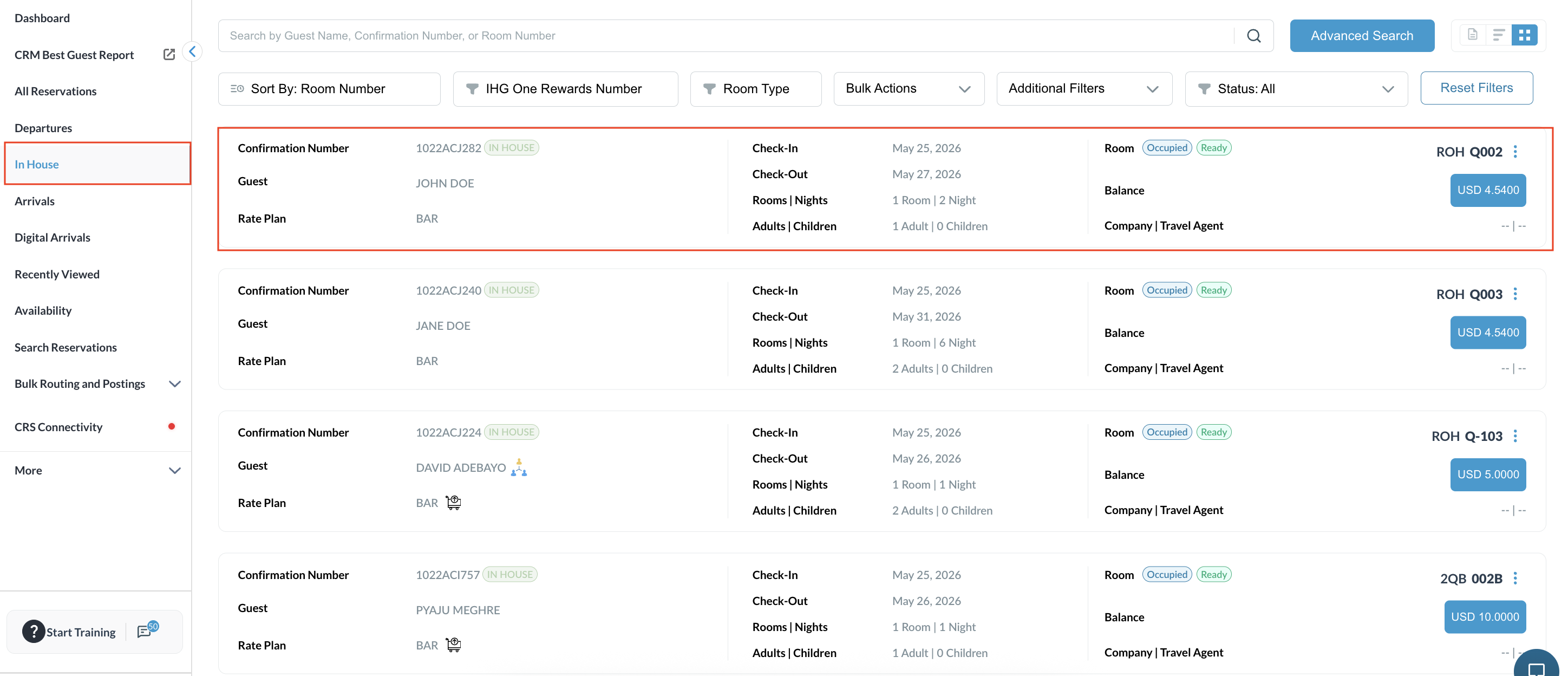
Navigate to the Frontdesk Dashboard and click on In House . |
|
|
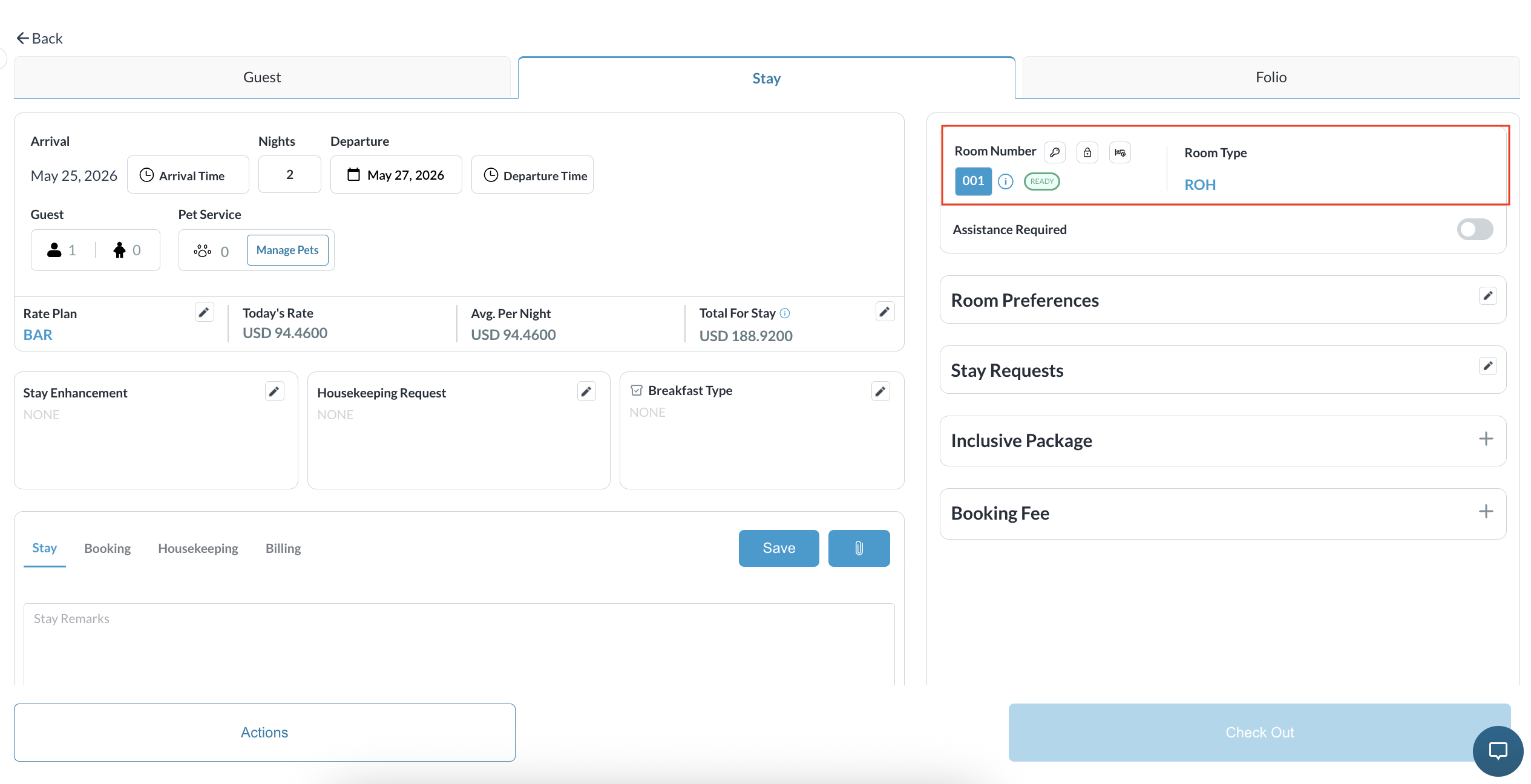
Open a checked-in reservation ,then select the Stay Tab. |
|
|
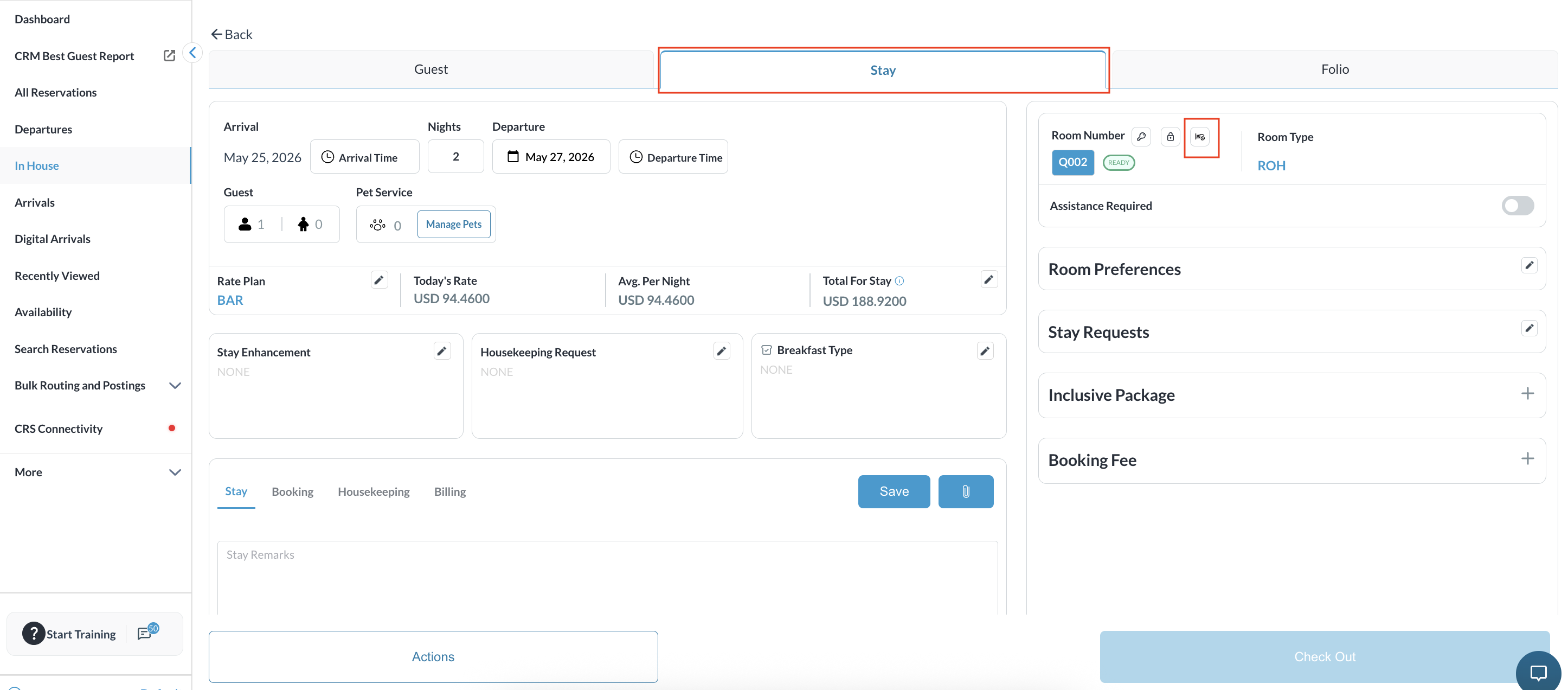
Locate the room details on the tab. Hover over the small icon next to the Room Number (it will display “Schedule Room Move”) and click it to open the tool. |
|
|
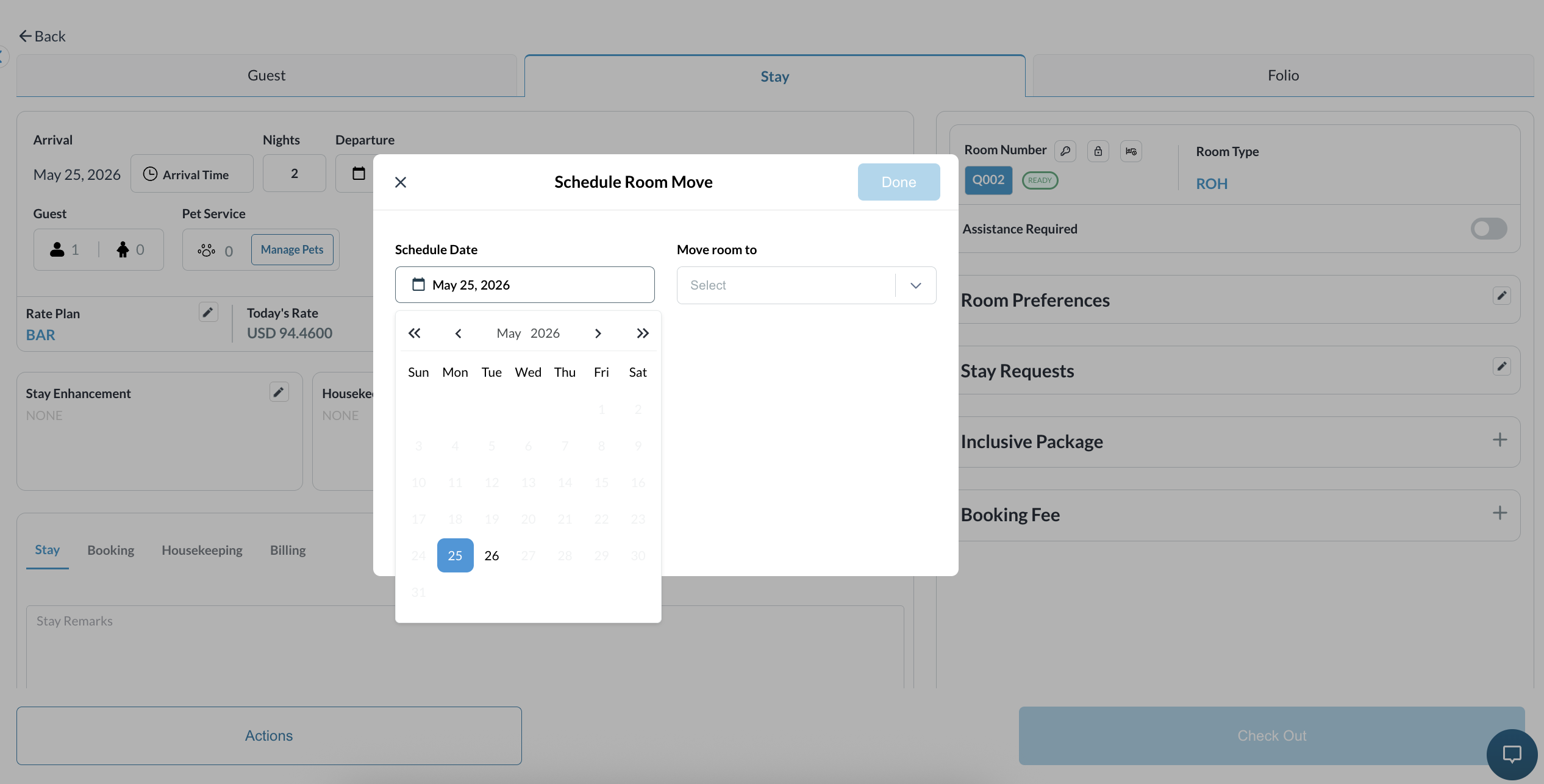
Open the scheduler and complete the required fields in the popup window:
|
|
|
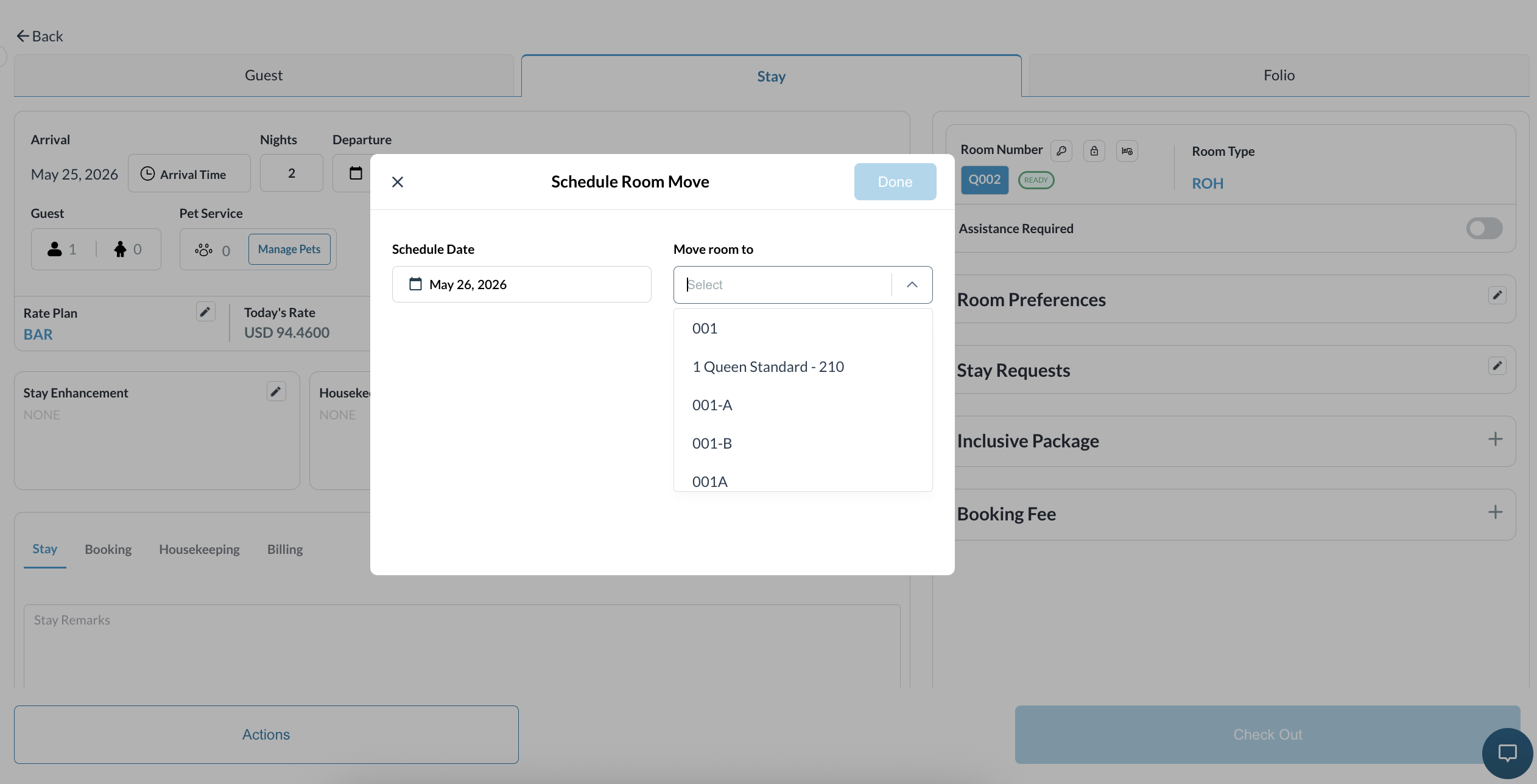
|
|
Once submitted, the icon turns blue to signal that a future move is successfully scheduled.
|
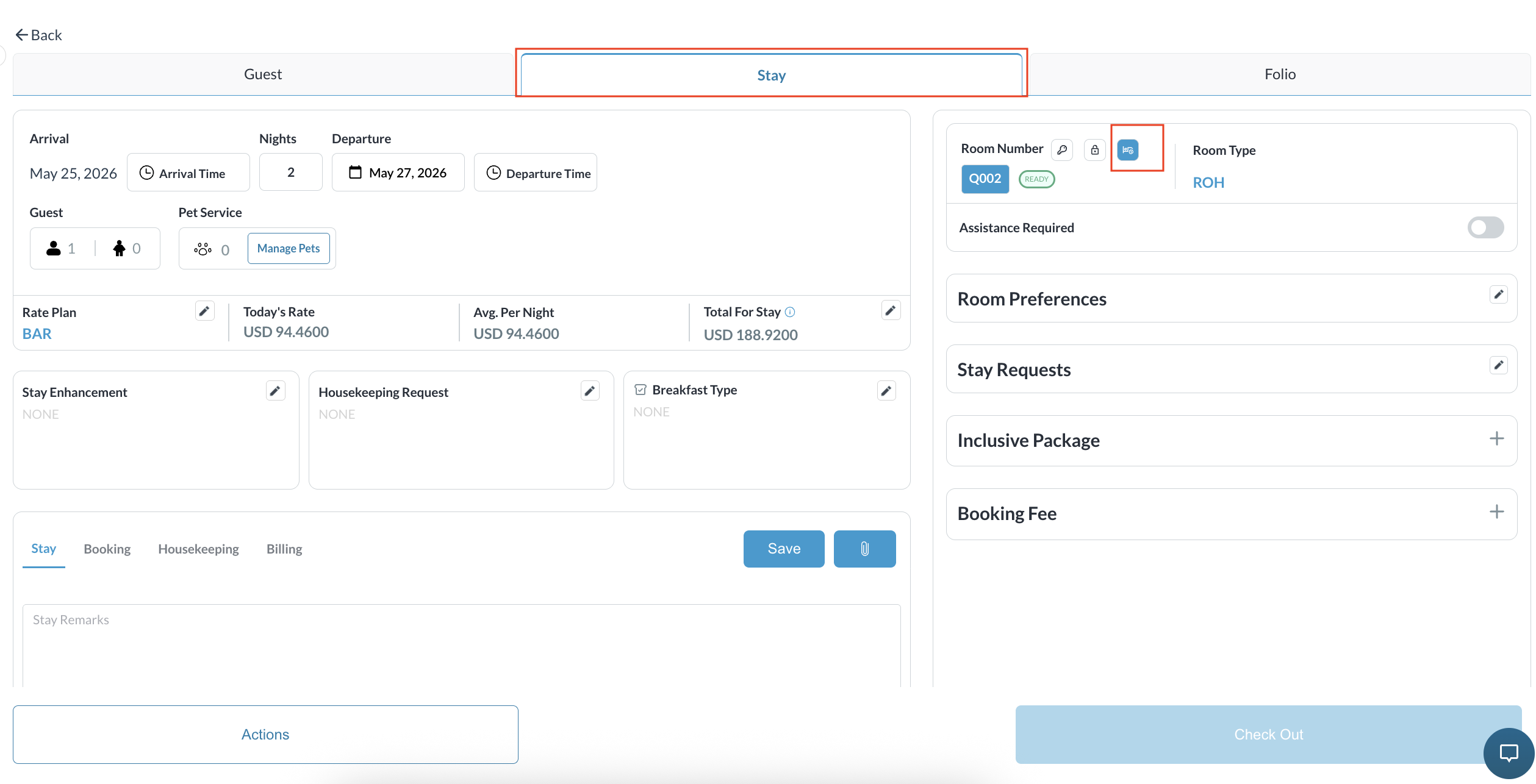
|
|
Managing an Active Schedule
1. Remove Schedule 2. Move Now |
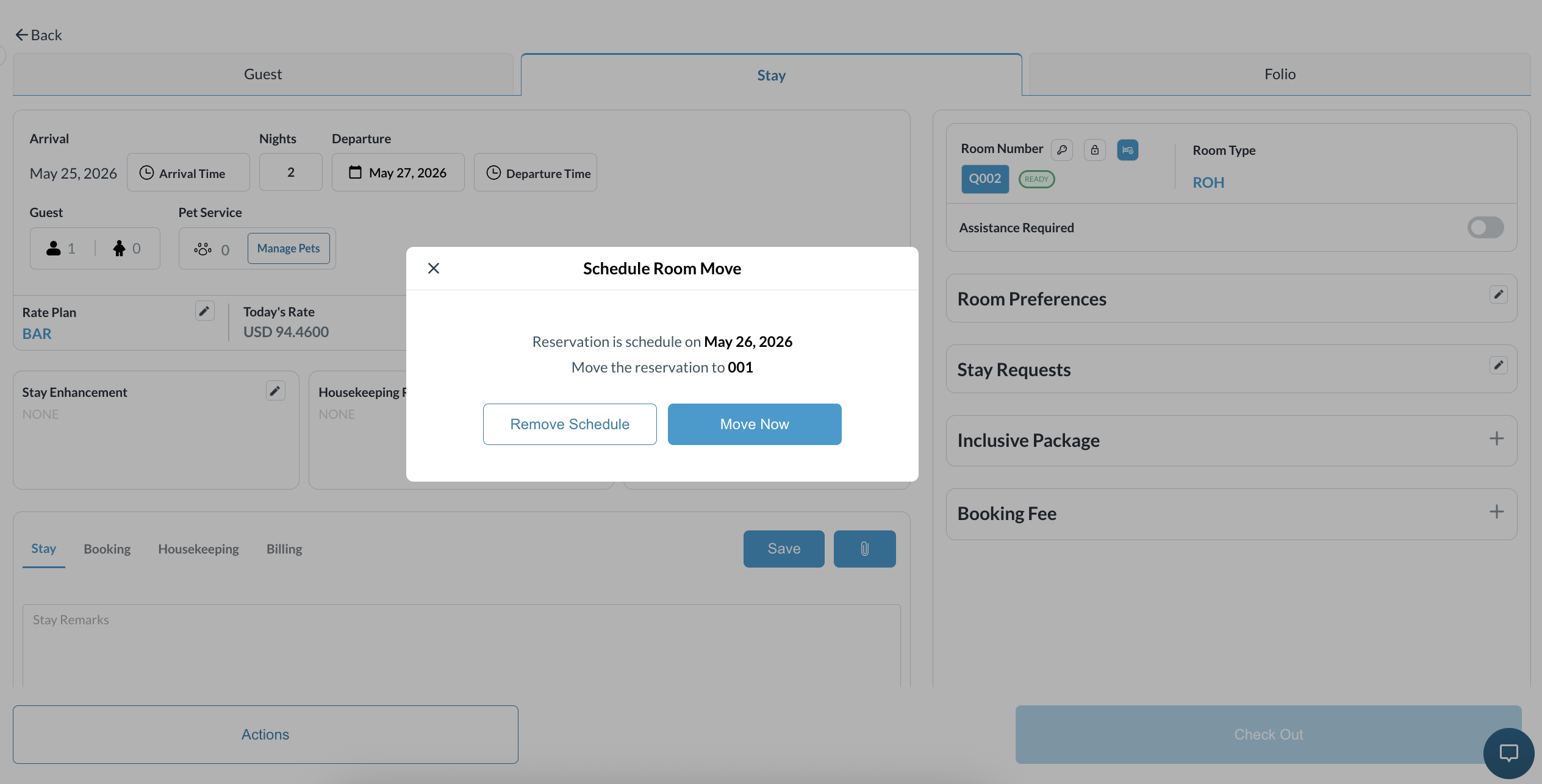
|
|
If plans change and the guest no longer wants to move:
|
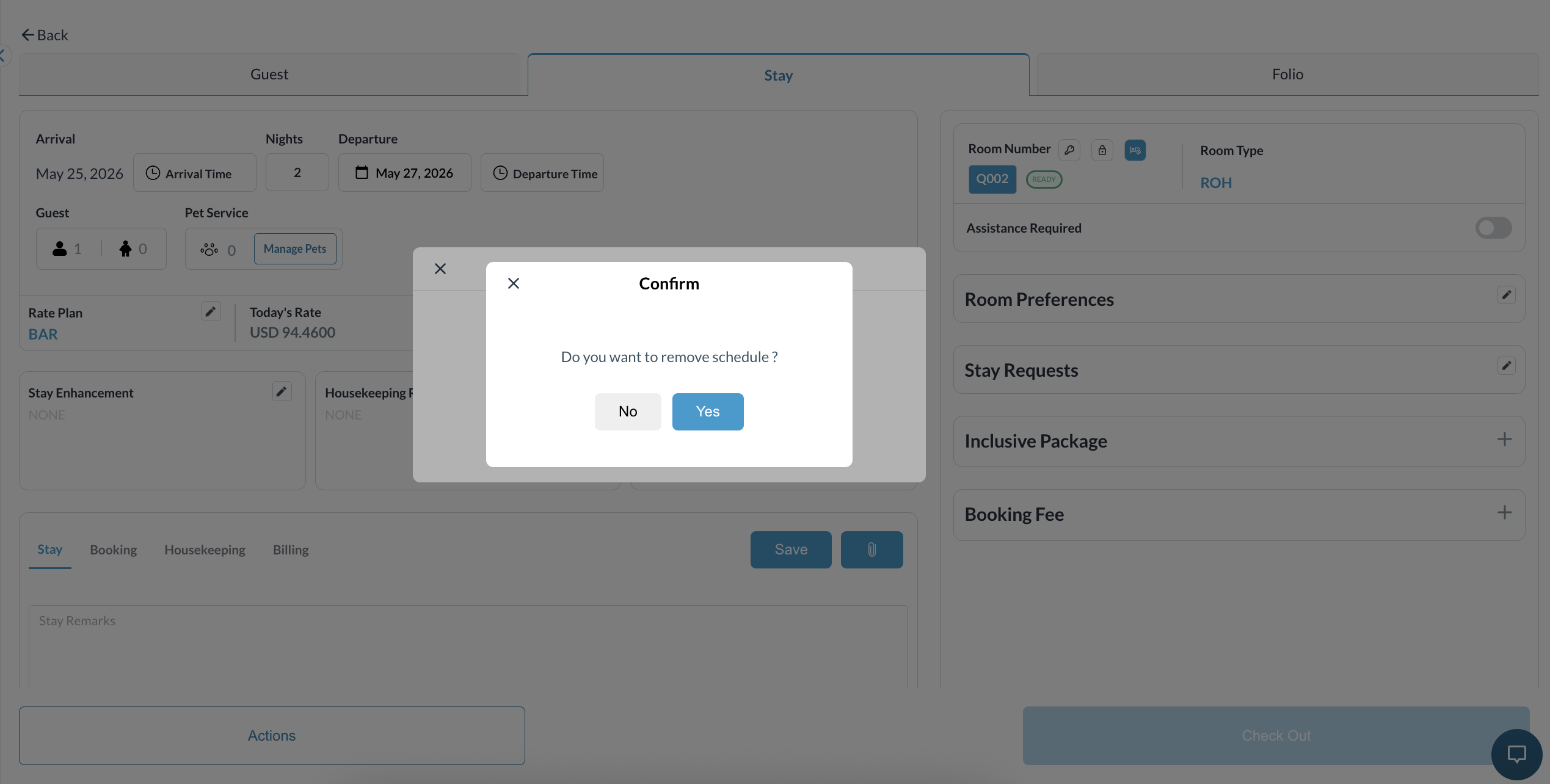
|
|
If the guest wants to move to their pre-assigned room immediately (before the scheduled date):
|
|