
Revision Date:
Overview
The Enhanced Reservation Modification feature provides Front Desk users with greater control over guest pricing when changing stay details. Previously, modifying a room type or rate plan would trigger an automatic rate refresh, causing any manual price overrides to be lost and forcing staff to re-enter data.
This enhancement introduces a "Keep Current Rate vs. Use New Rate" prompt and an integrated Override Rate tool directly within the modification workflow. This ensures that manually negotiated rates are preserved during room moves or rate changes, reducing billing errors and improving the speed of service.
Modifying a Stay
|
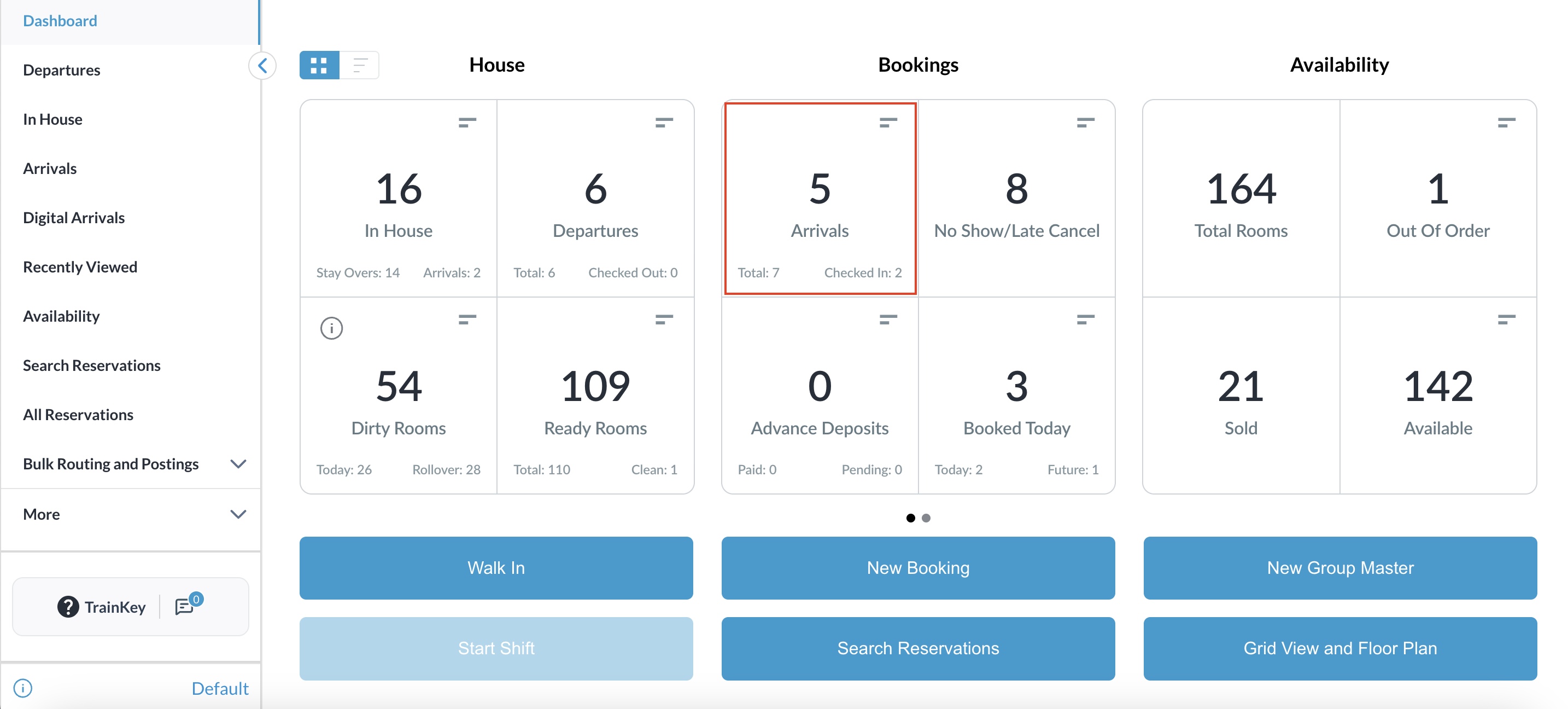
Open the desired reservation in Booked, In-House, or Arrival status. |
|
|
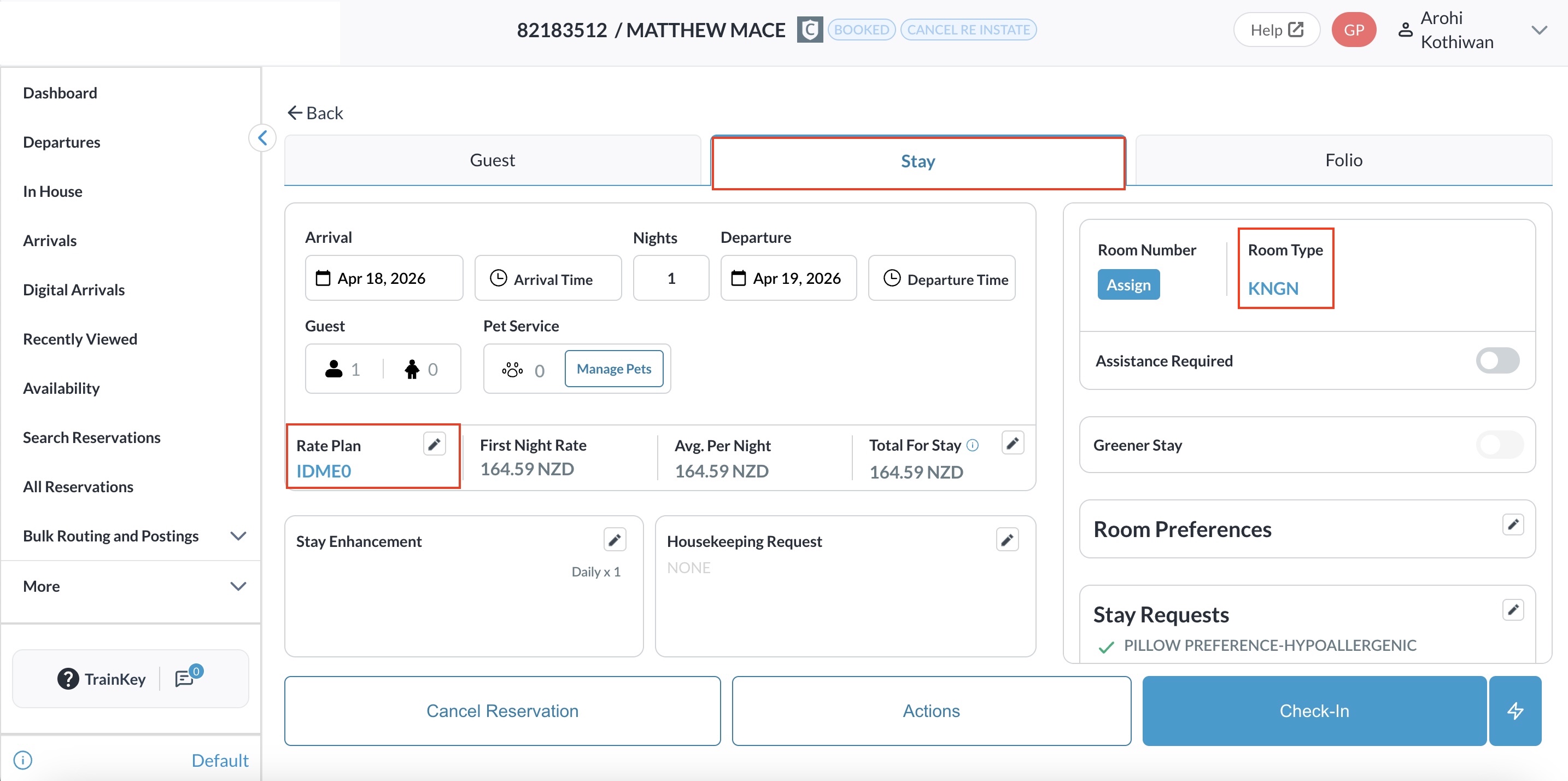
Initiate a Change Rate Plan or Change Room Type action. |
|
Change Rate Plan
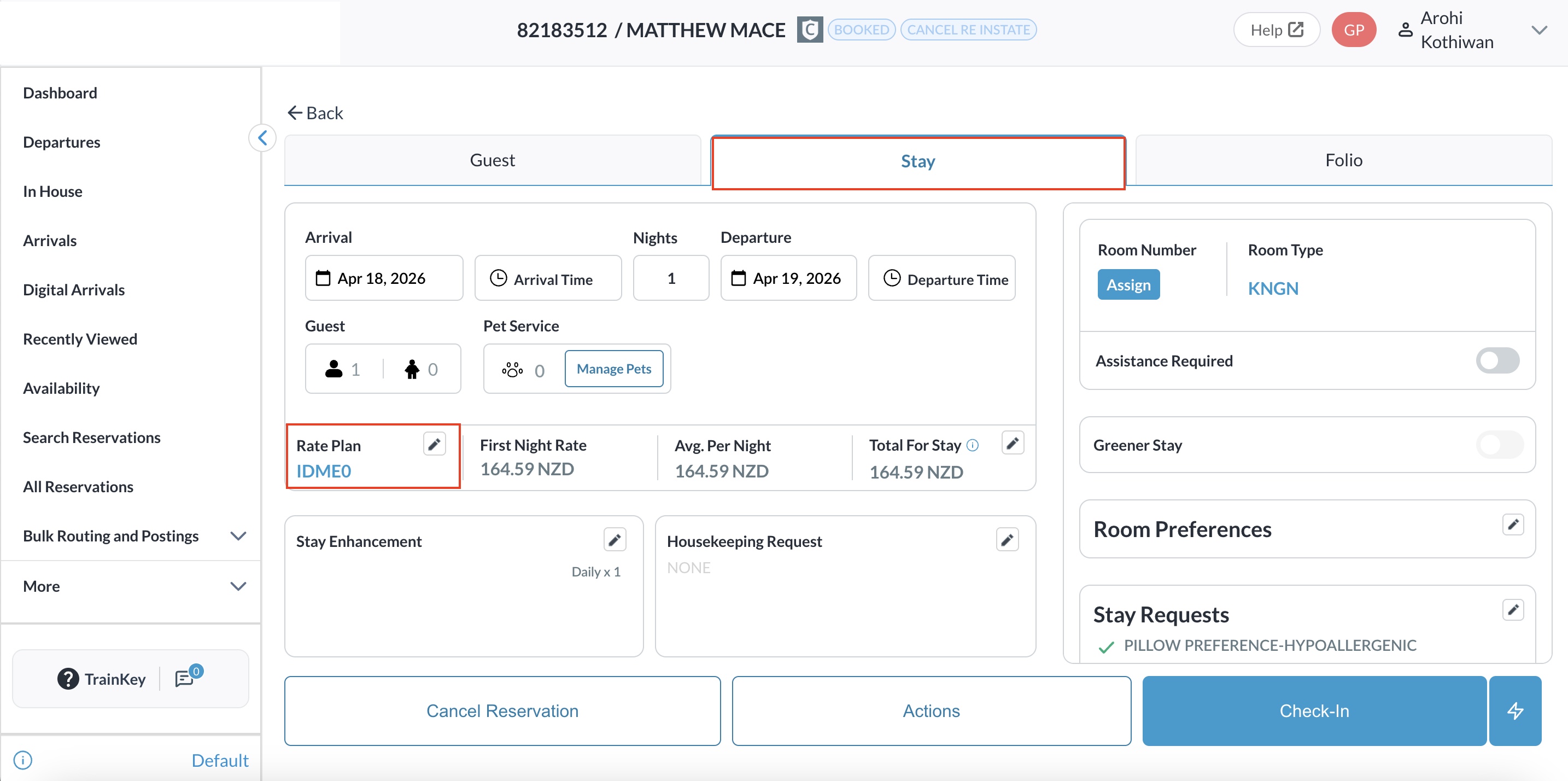
Locate the Rate Plan section and click the Pencil Icon next to it.
|
|
|
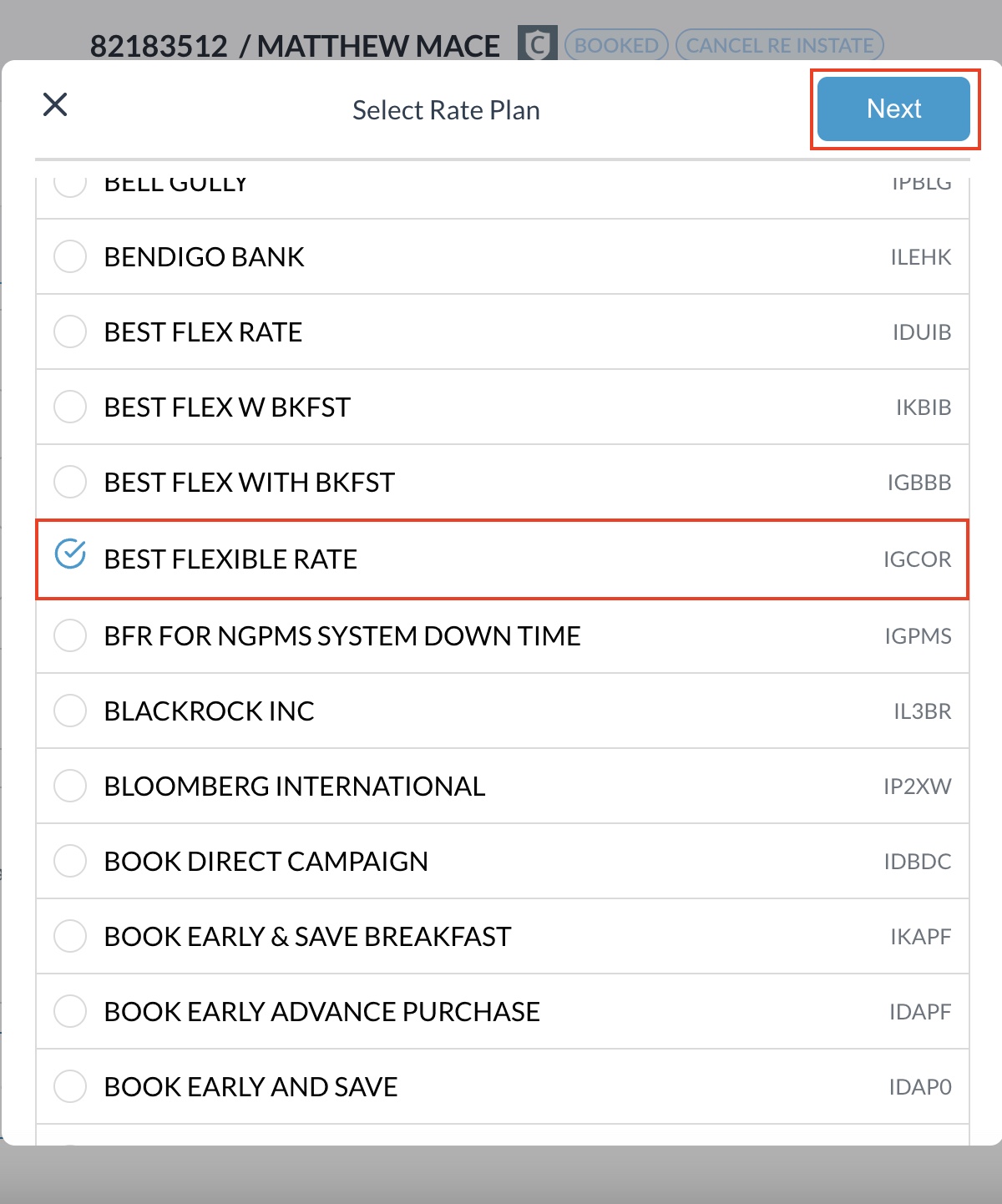
Choose the new rate plan from the list and click Next. |
|
|
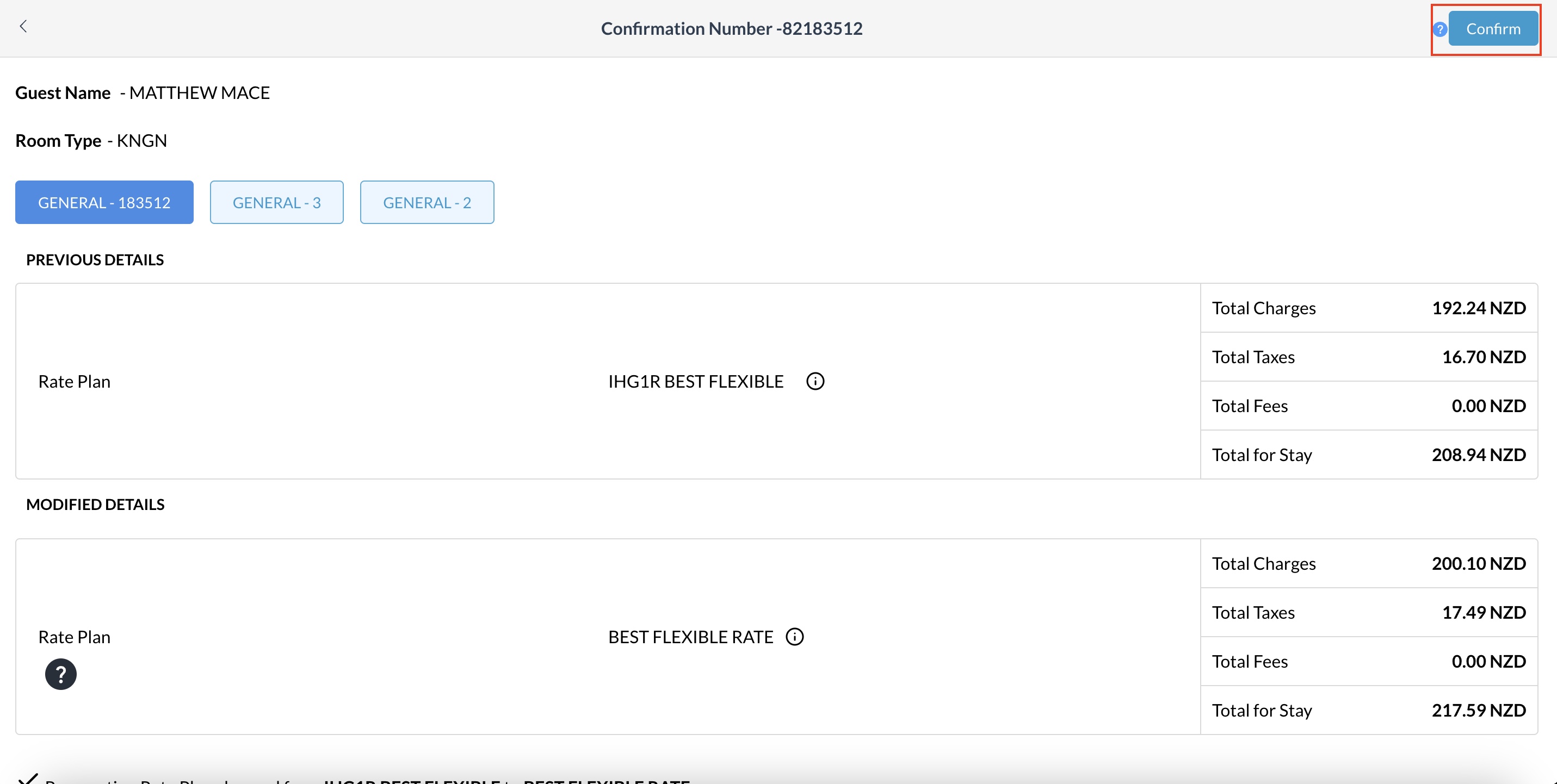
Review the modified rates on the summary screen and click Confirm. |
|
Change Room Type
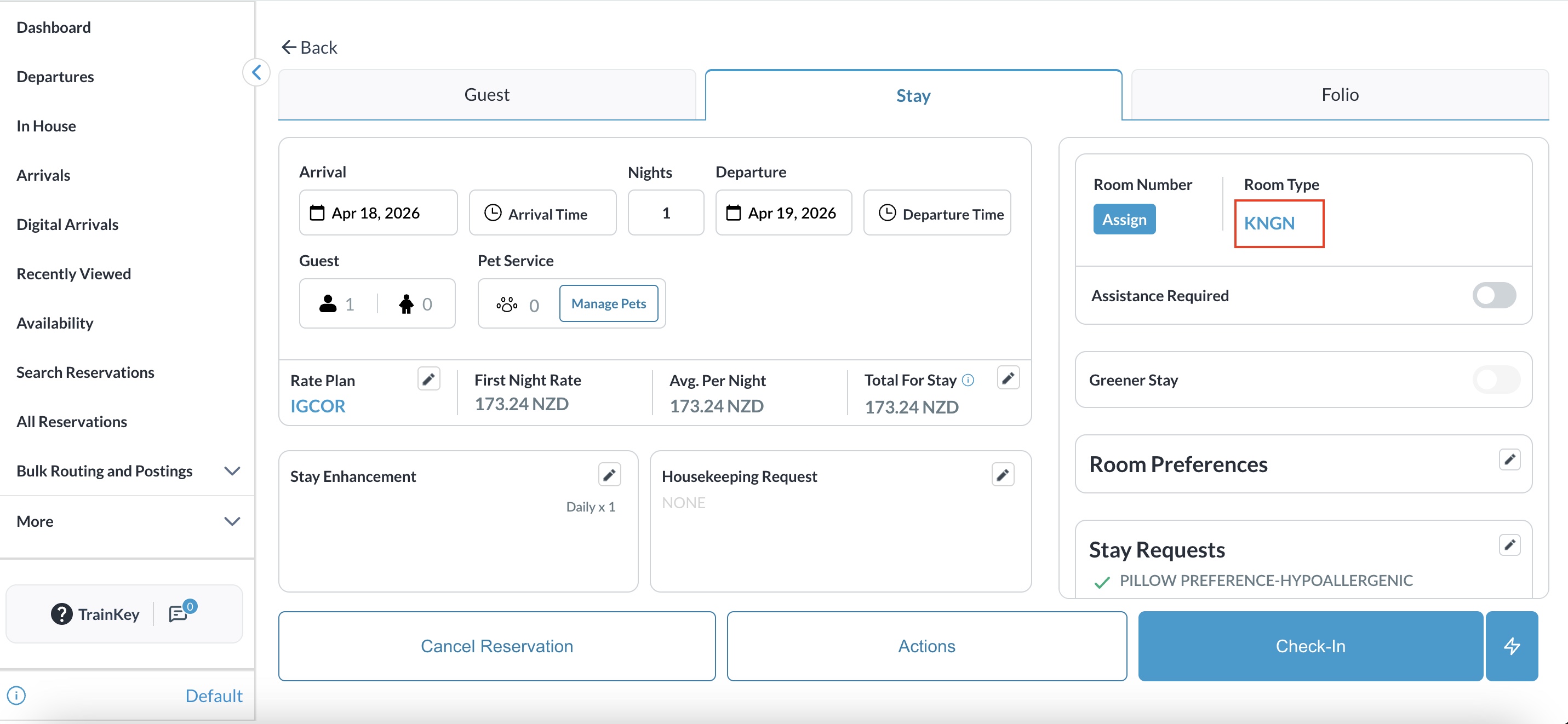
Click on the Room Type field. |
|
|
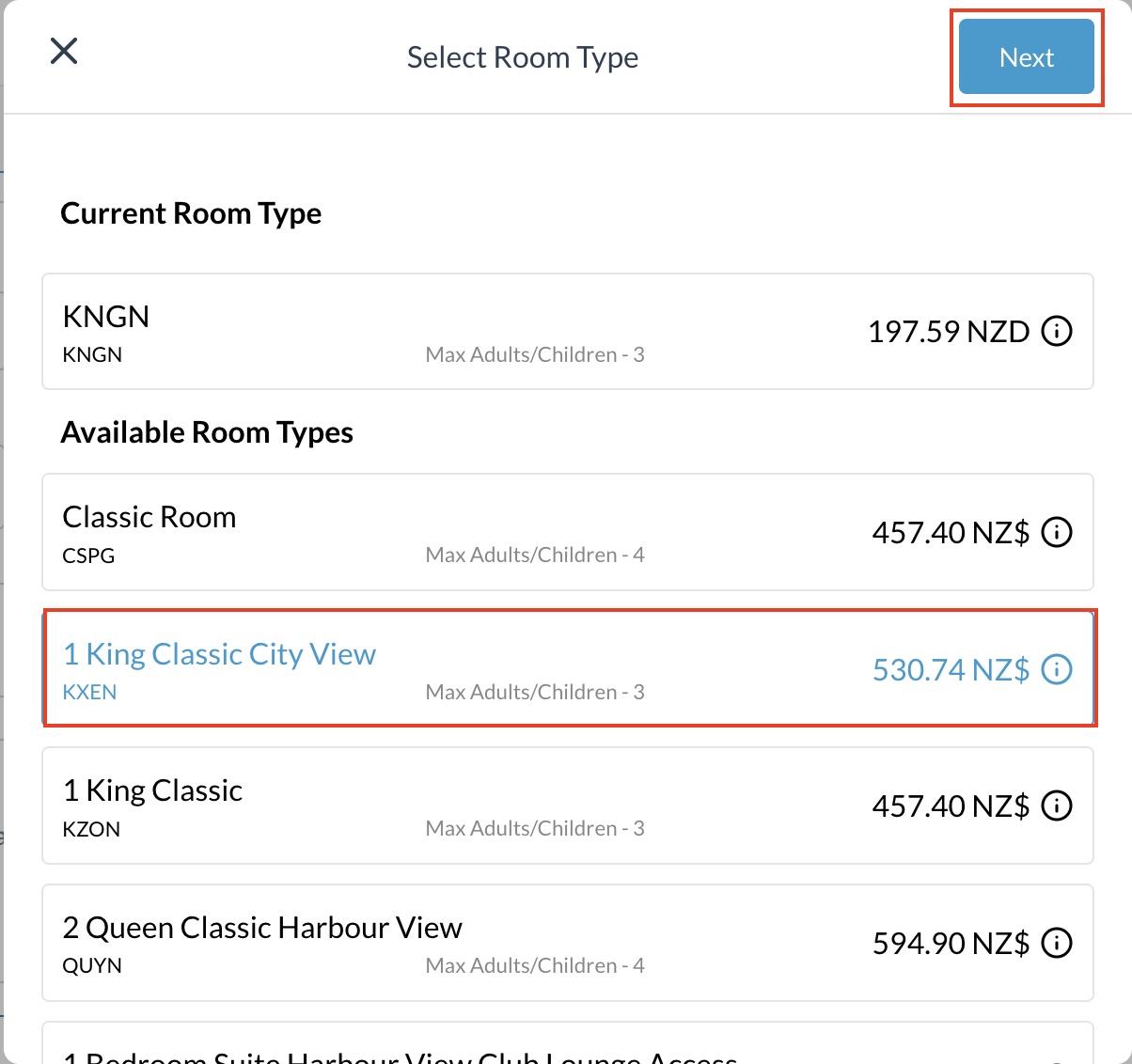
Select the new room category from the available options and click Next. |
|
|
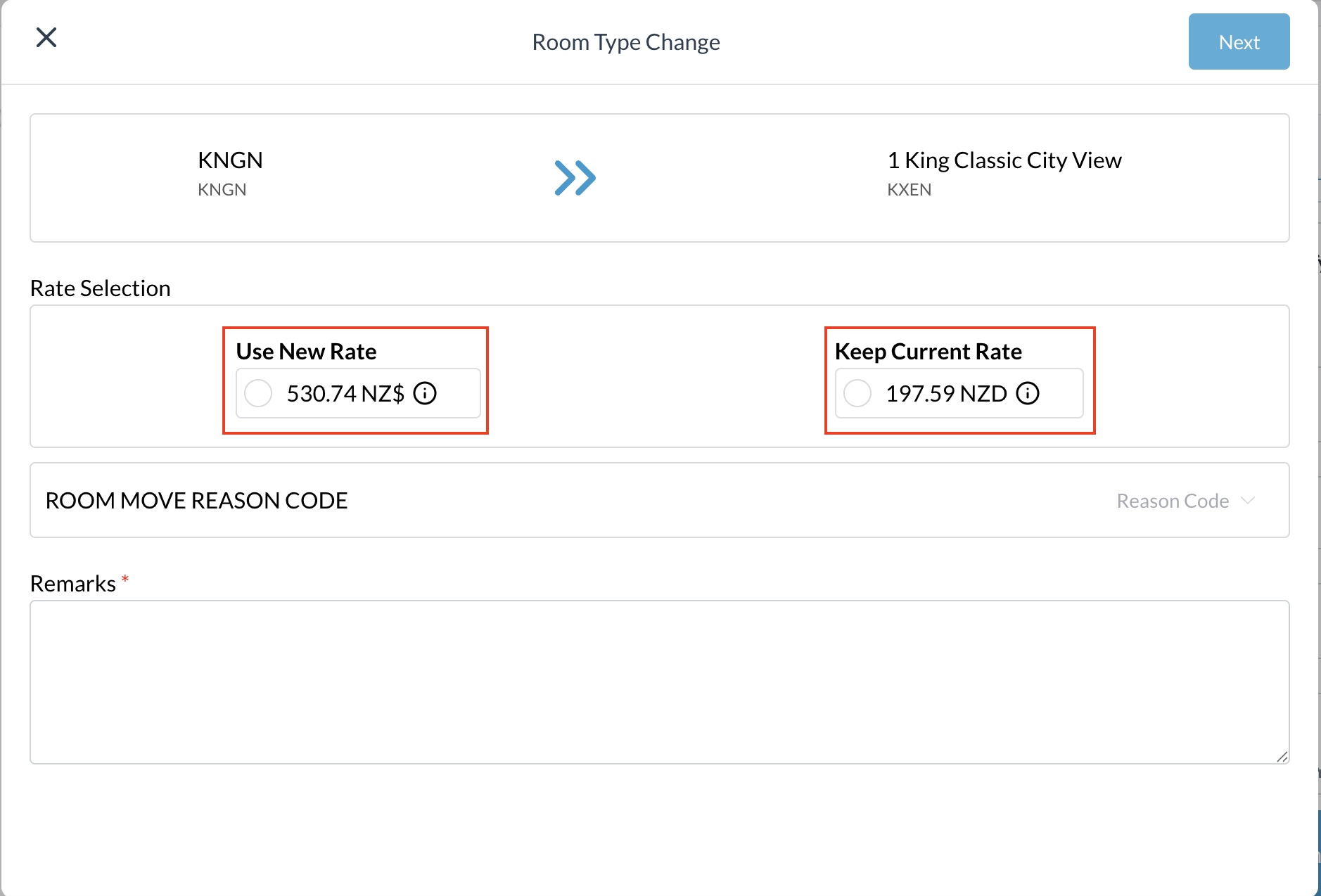
On the Consent Screen, choose one of the two mandatory options:
|
|
|
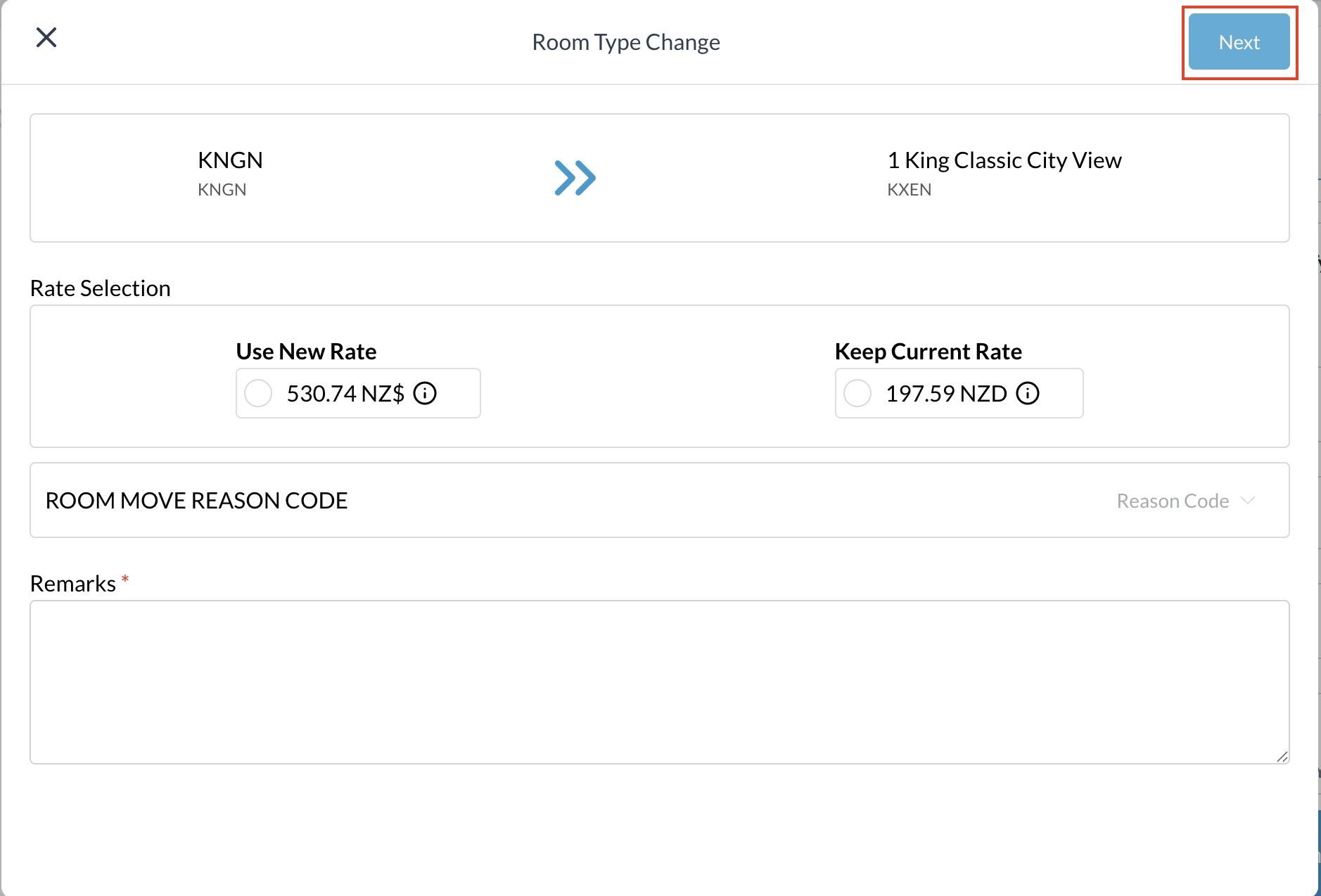
|
|
Finalize the Modification
|
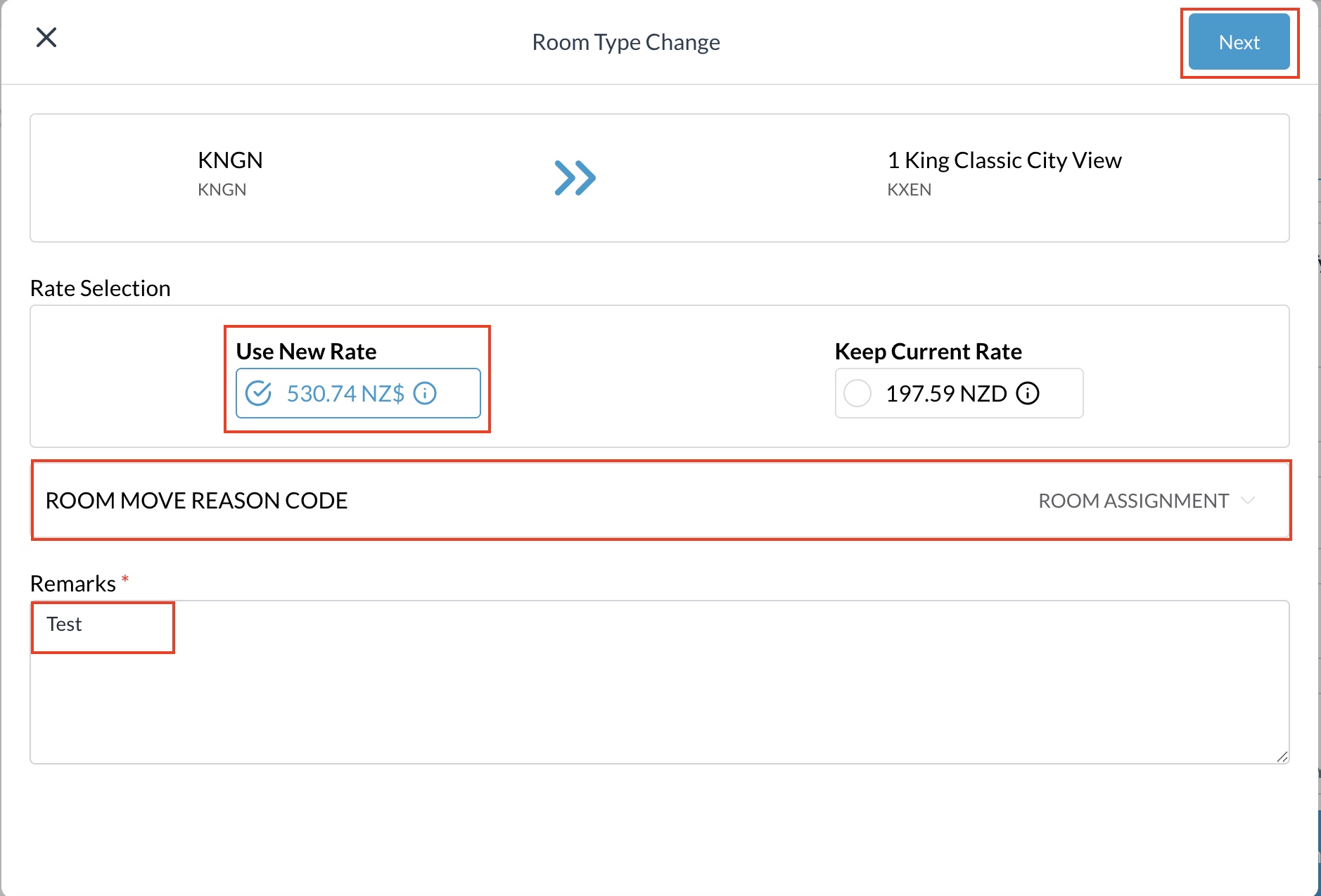
|
|
Double-check the changes and click Confirm. |
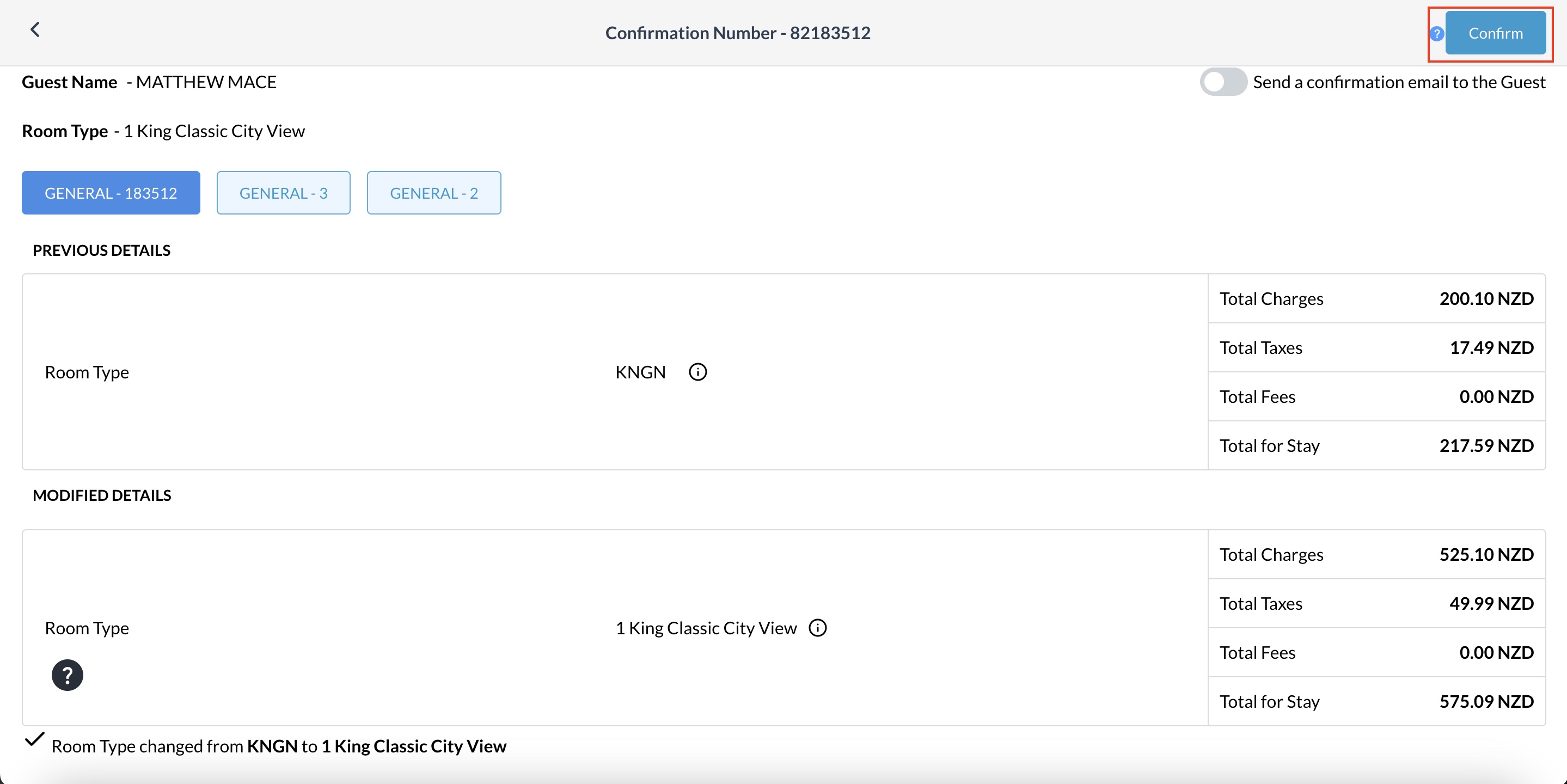
|
|
Return to the reservation and verify that the new Rate Plan and Room Type are now active. |
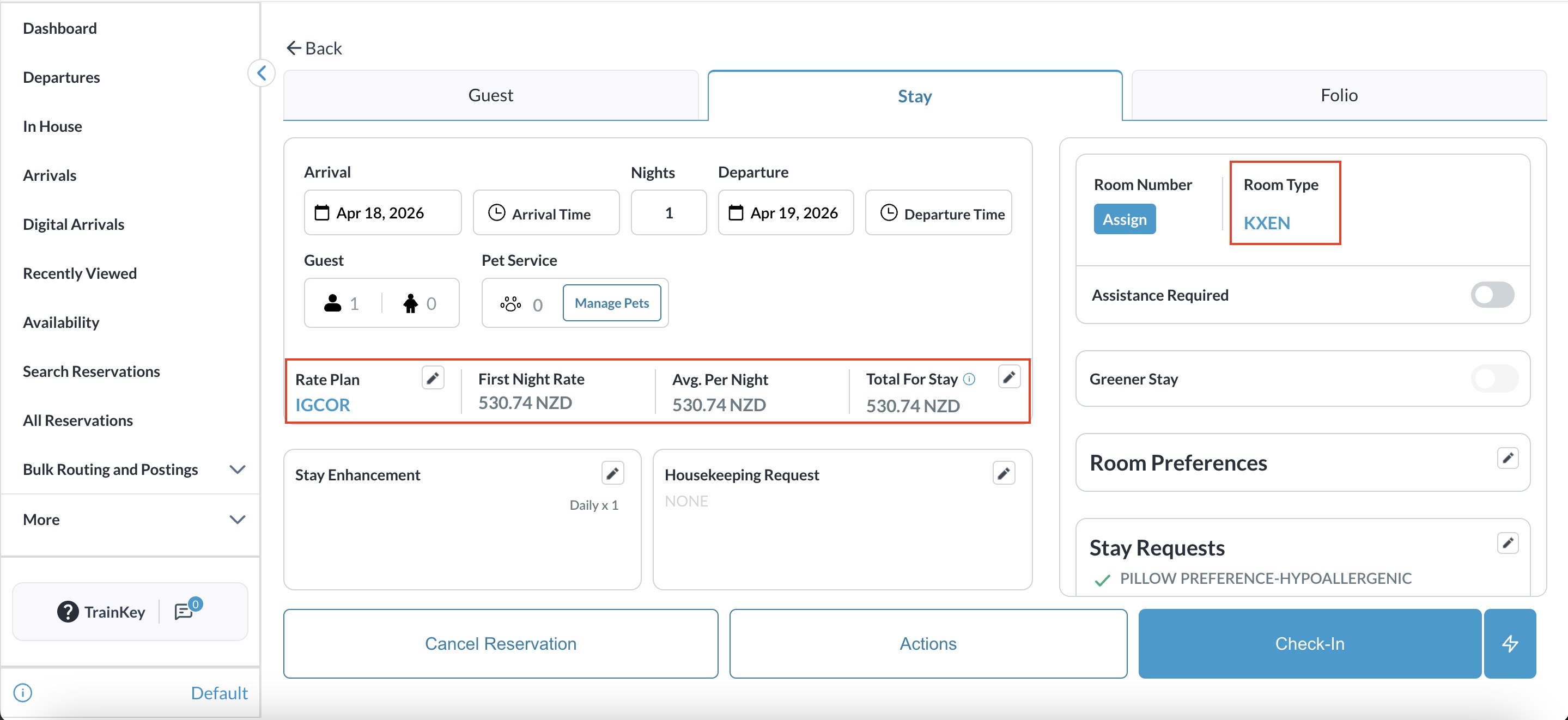
|
Manually Override Charges per Night
|
Click the Pencil Icon next to the Total for Stay to open the daily breakdown popup. |
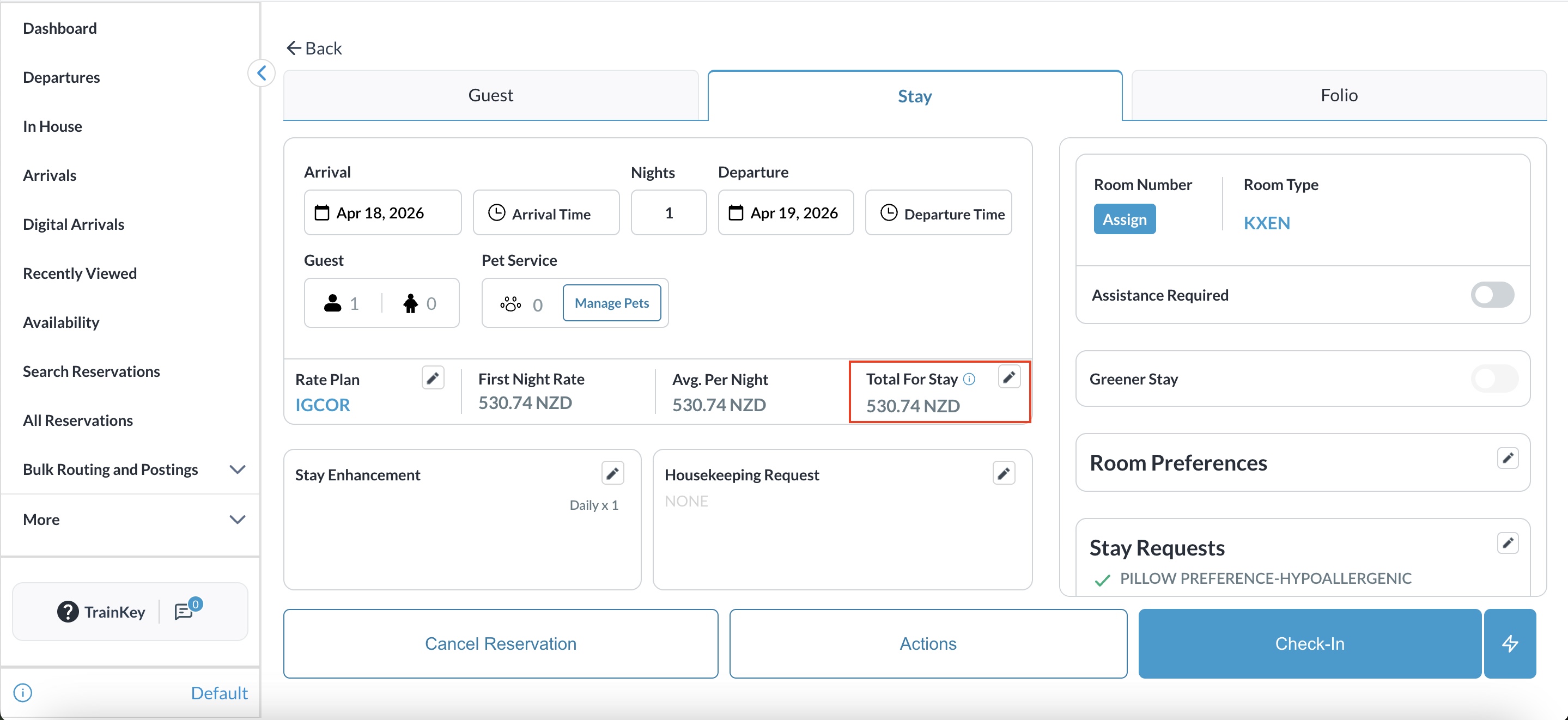
|
|
Adjust Daily Amounts
|
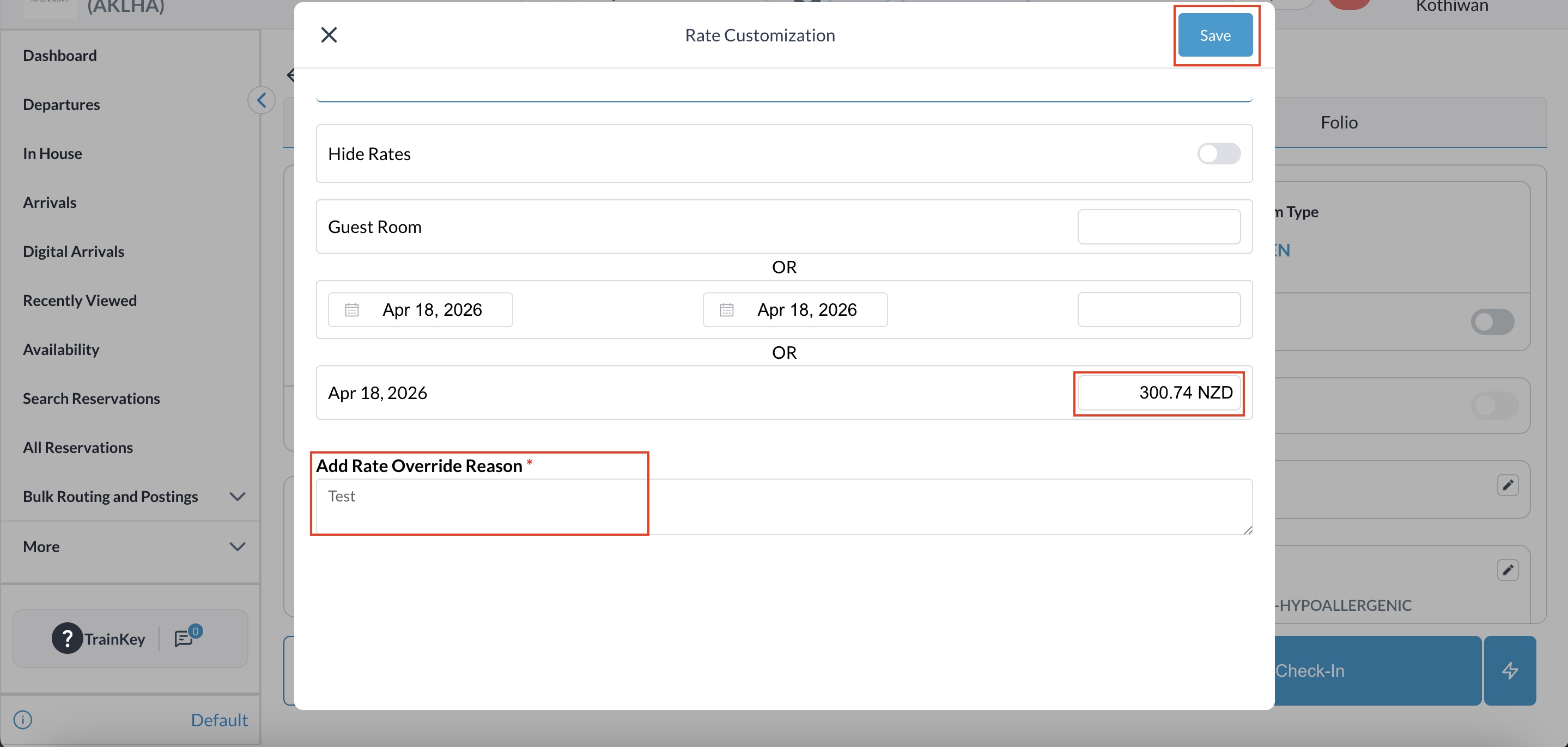
|
|
Return to the Reservation and verify that the daily charges reflect the updated manual overrides. |
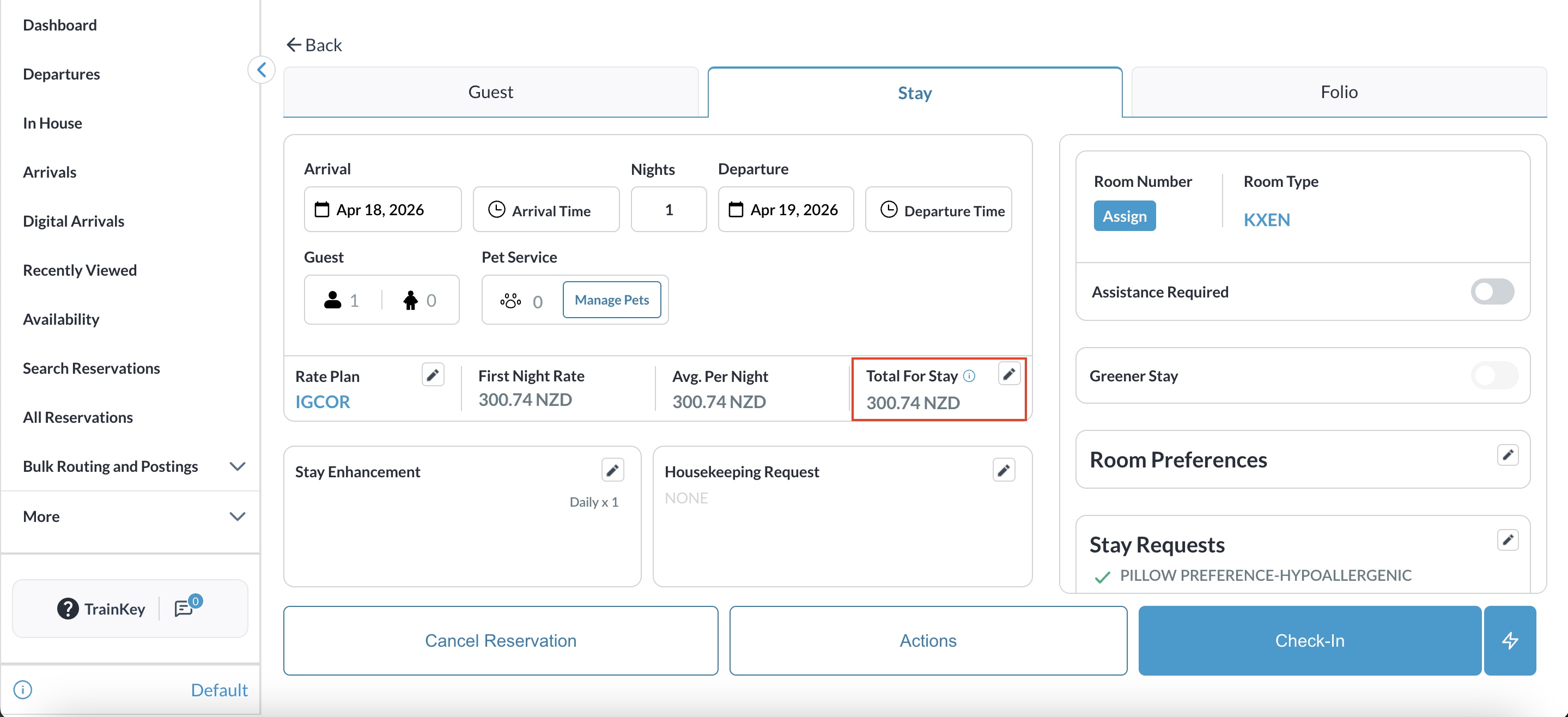
|