
Revision Date:
The purpose of this functionality is to give Users a complete flexibility when managing company profiles attached to a booking. It gives the ability to both Remove and Replace either company type directly from the Guest Details screen.
Because Corporate and Local company profiles interact differently with hotel rate plans, the system handles the actions slightly differently to protect revenue:
-
Removing a Corporate Company: Corporate profiles are usually tied to negotiated, discounted rates. If you remove the Corporate Company from the reservation, the guest is no longer entitled to that rate. Therefore, the system will automatically redirect the users to the Offers Page so you can select a new, valid rate plan for the guest.
-
Replacing a Local Company: Local companies are often attached for tracking or local billing purposes rather than strict rate fencing. If you need to swap one Local Company for another, the system allows you to replace it via the Company Search Modal without forcing user to change the guest's current rate plan.
|
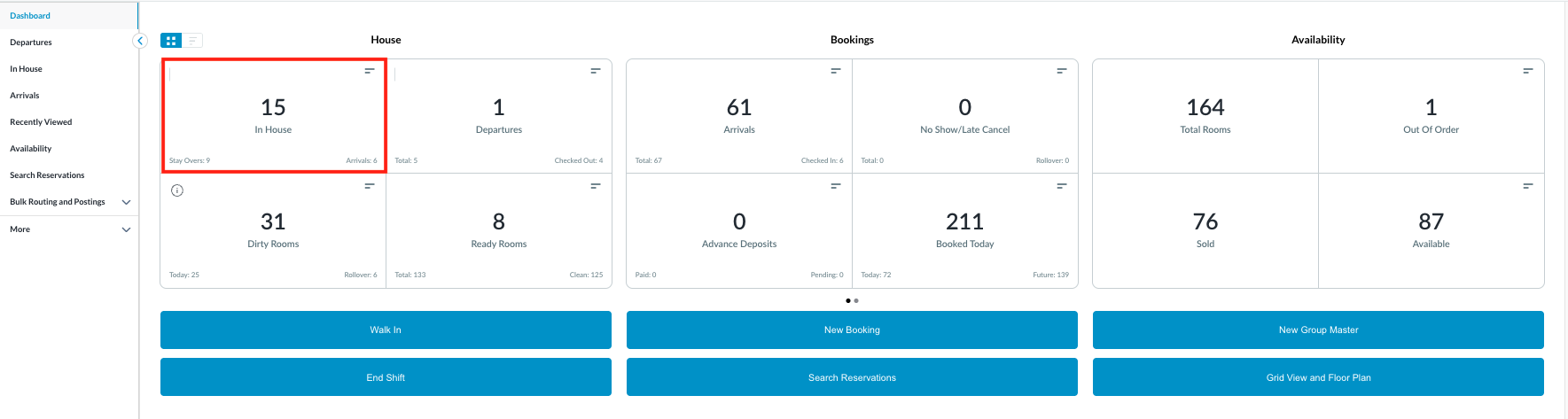
Scenario A: Replacing a Corporate Company Navigate to Frontdesk Dashboard.
|
|
|
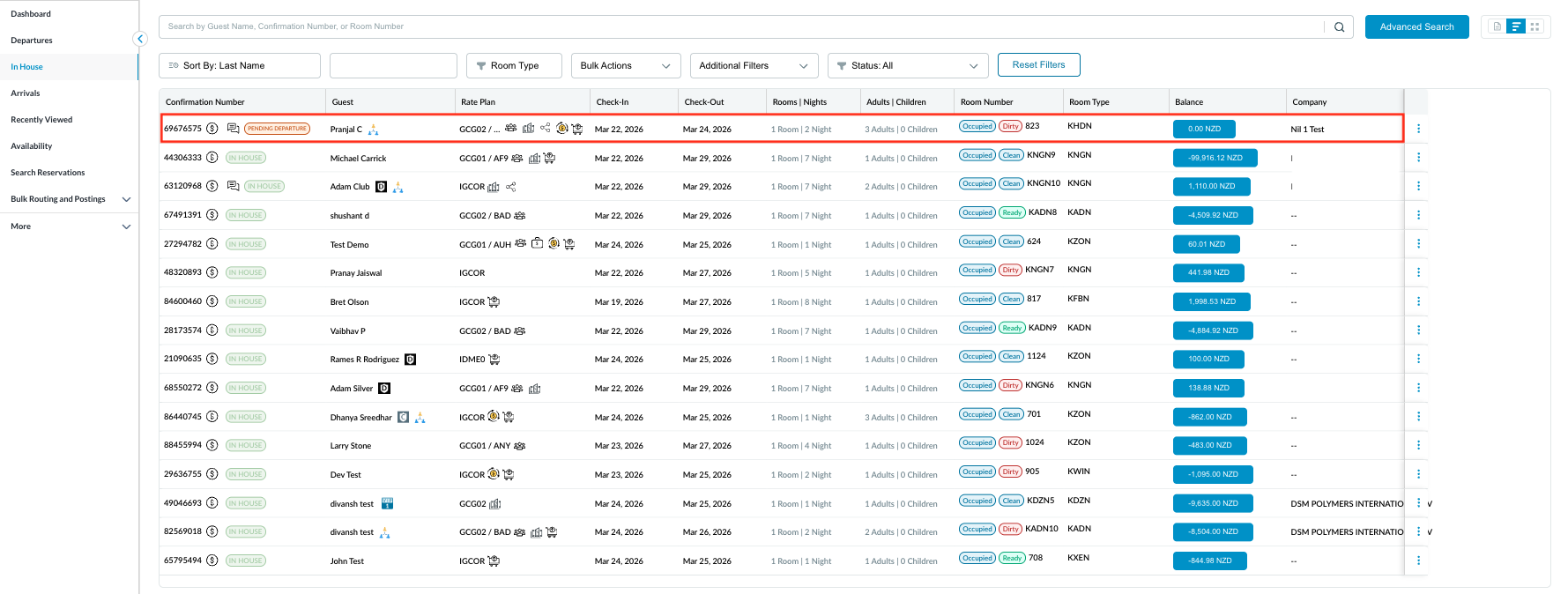
In House Reservations will be listed. Select the desired one. |
|
|
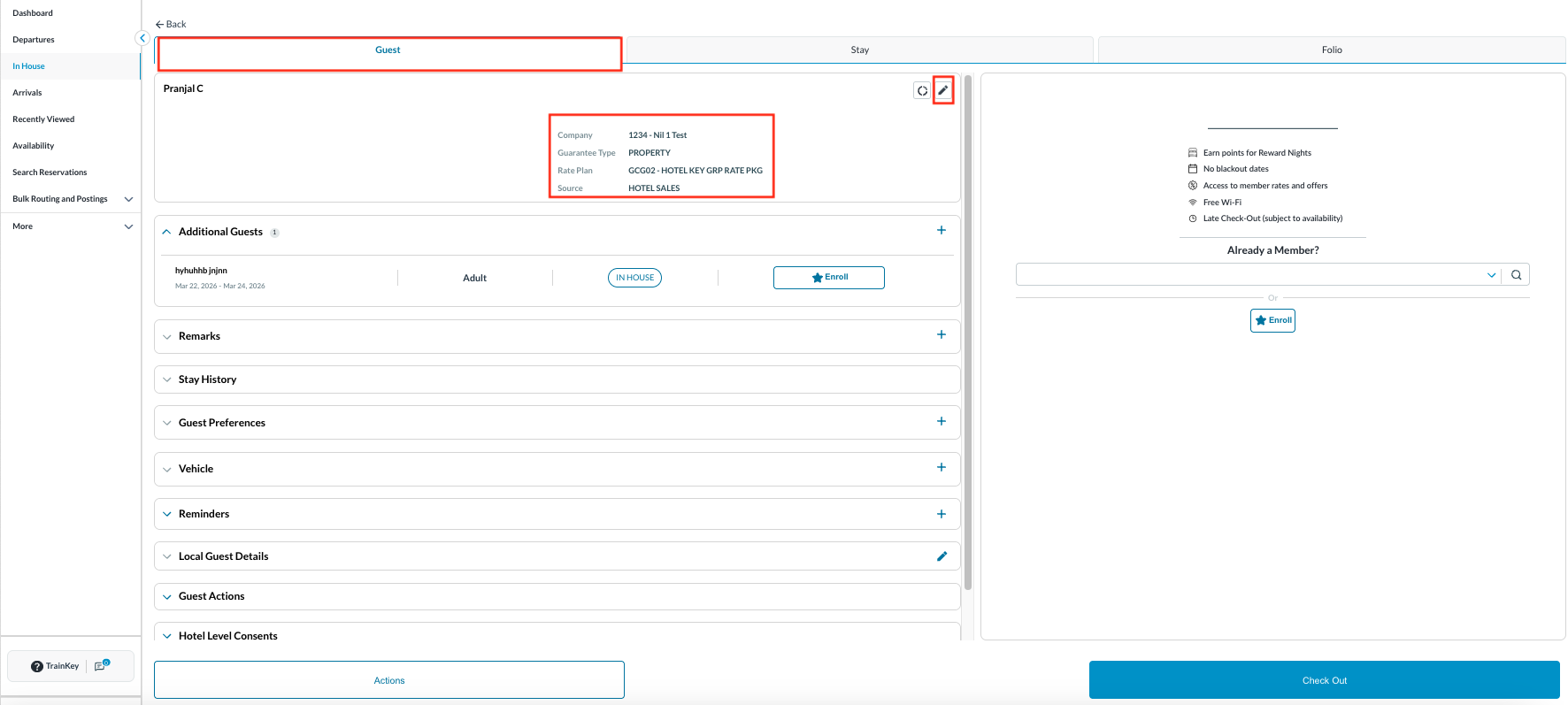
Open the Reservation and by default you are in Guest section. Click on the pencil icon to Edit.
|
|
|
Guest Details page will show up.
|

|
|
When clicked on the Company tab, company name can be seen linked to the reservation.
|

|
|
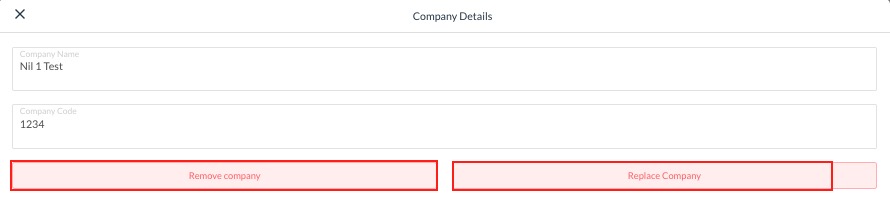
Company detail page will open.
|
|
|
Option 1 : Replace
Apply the required changes and click Done to confirm. The Corporate Company can be replaced but cannot be removed. |
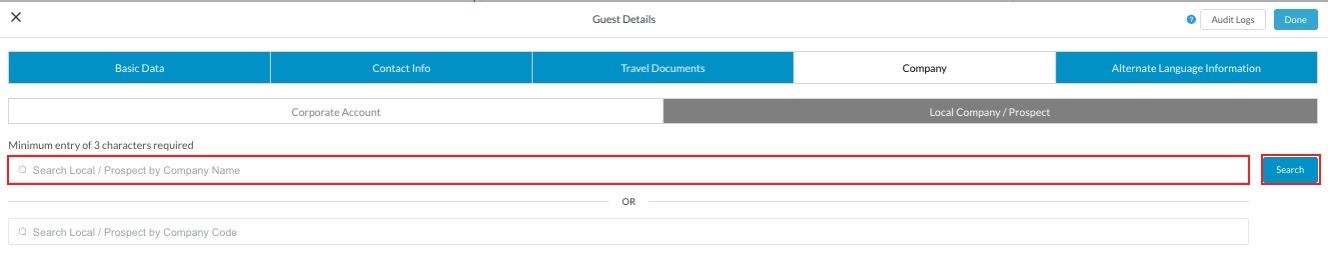
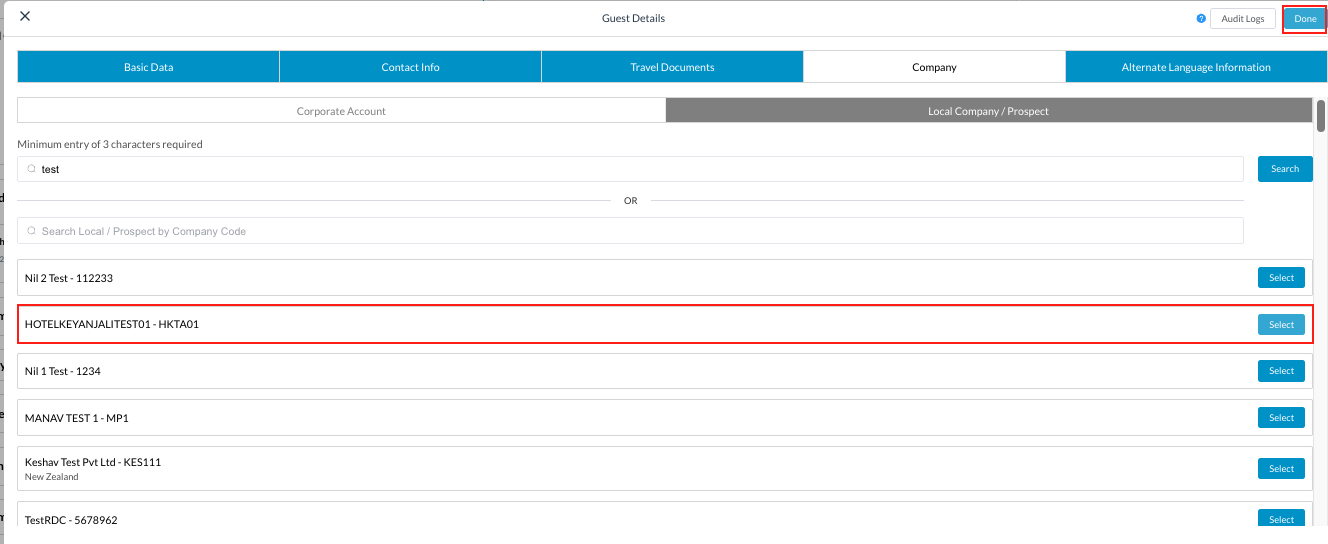
|
|
Check the changes and click Confirm. |
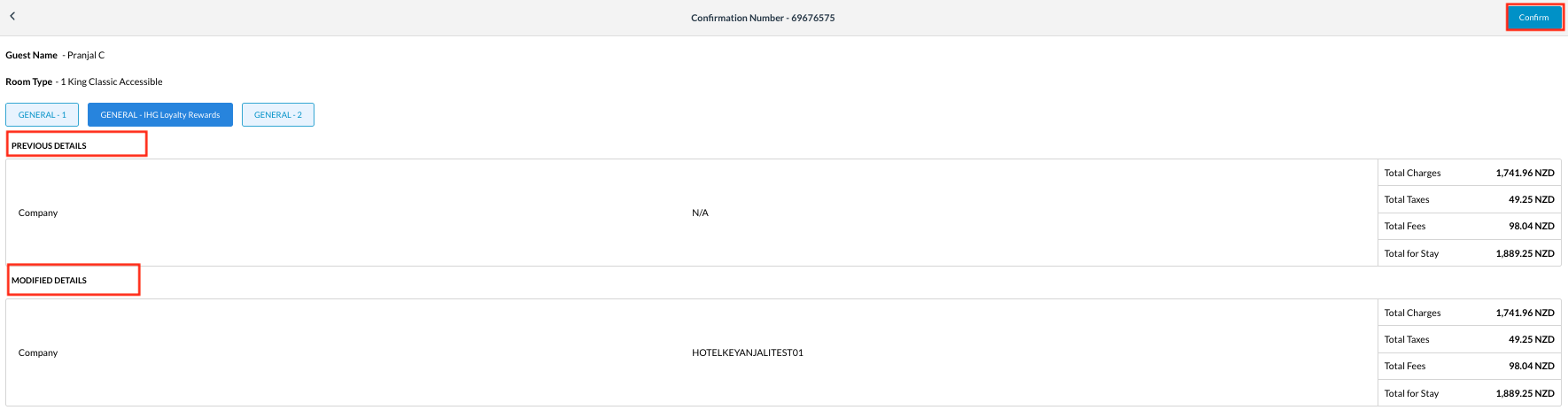
|
|
Note the new Company linked to the reservation. |
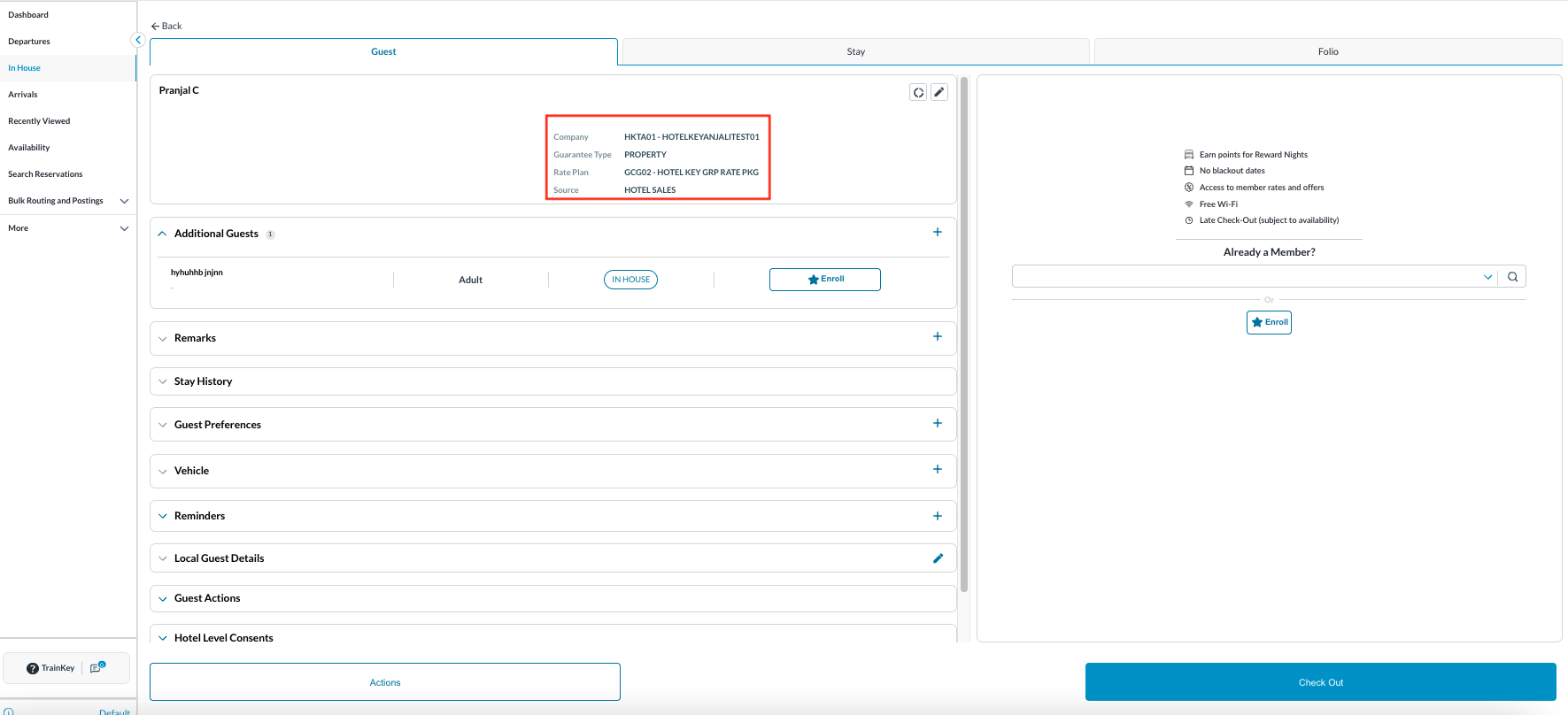
|
|
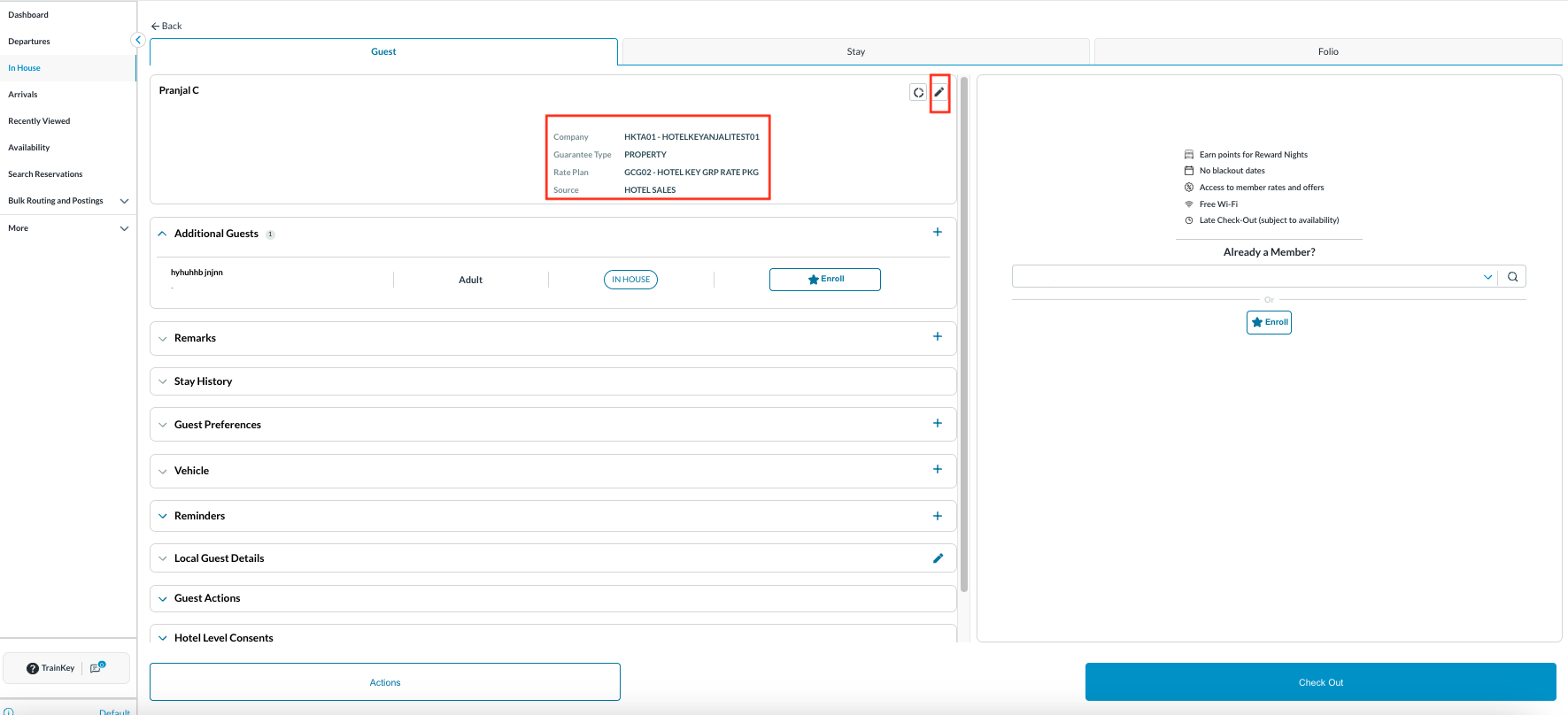
Scenario B: Removing a Local Company Open the reservation and navigate to the Guest section. Click on the pencil icon to Edit. Note the company linked to this reservation.
|
|
|
Select the Company linked |

|
|
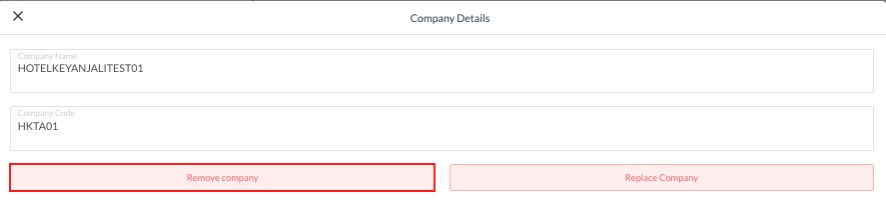
You will now see two options: "Remove Company" and "Replace Company" button. Click Remove Company. |
|
|
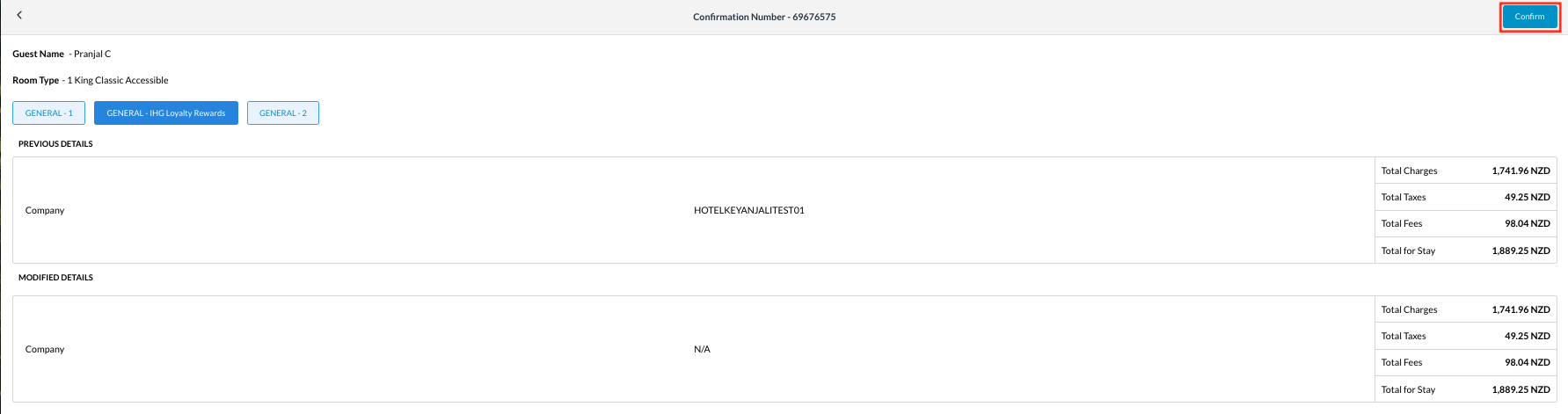
Check the changes and click Confirm. Notification message will show “Company removed successfully” |
|
|
Check Audit Logs for the changes made to the reservation. |

|