
Revision Date:
The Split Payment ensures that guests who wish to divide their total stay balance across multiple payment methods (e.g., two different credit cards, or a mix of cash and card) can do so before completing the check-in process.
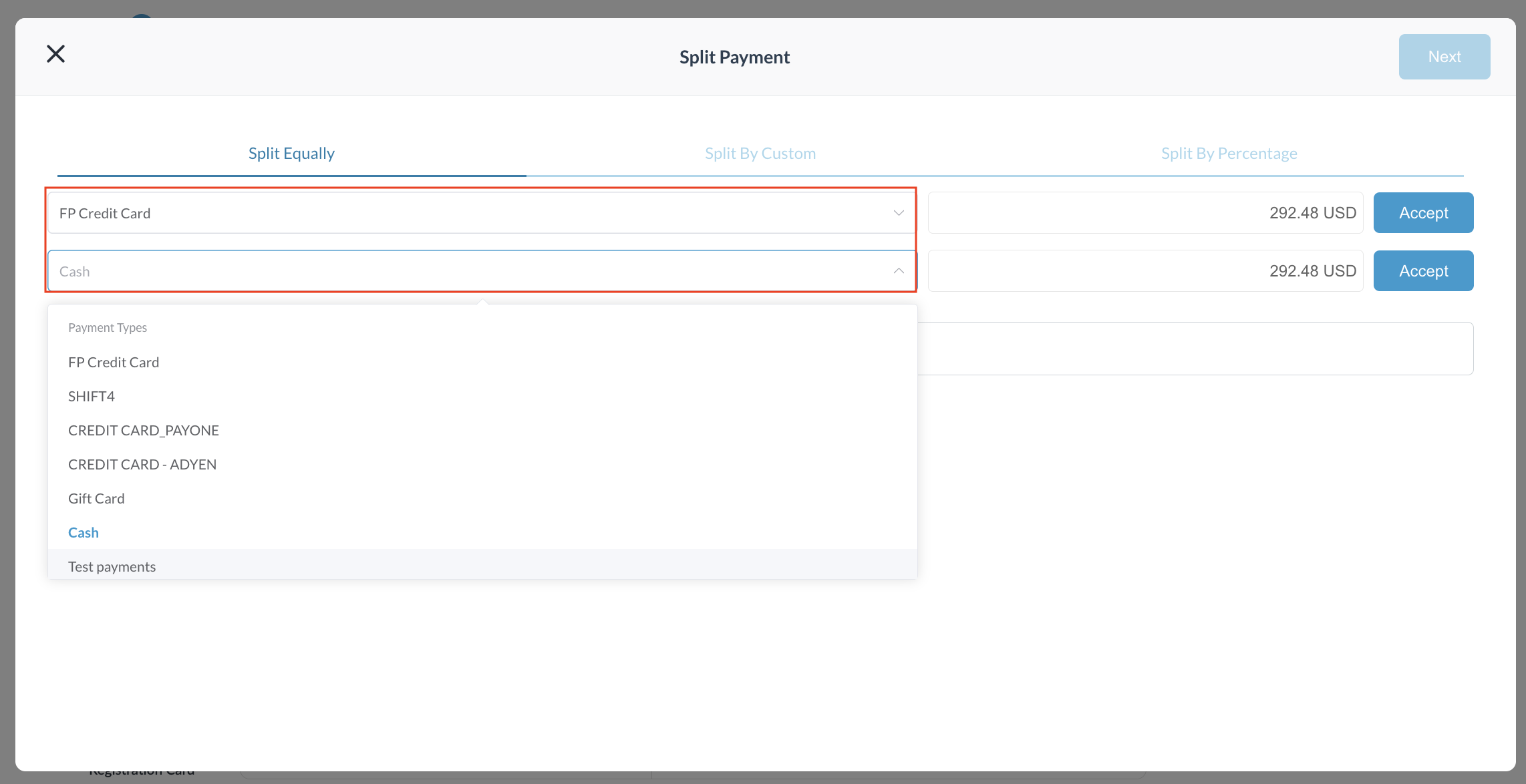
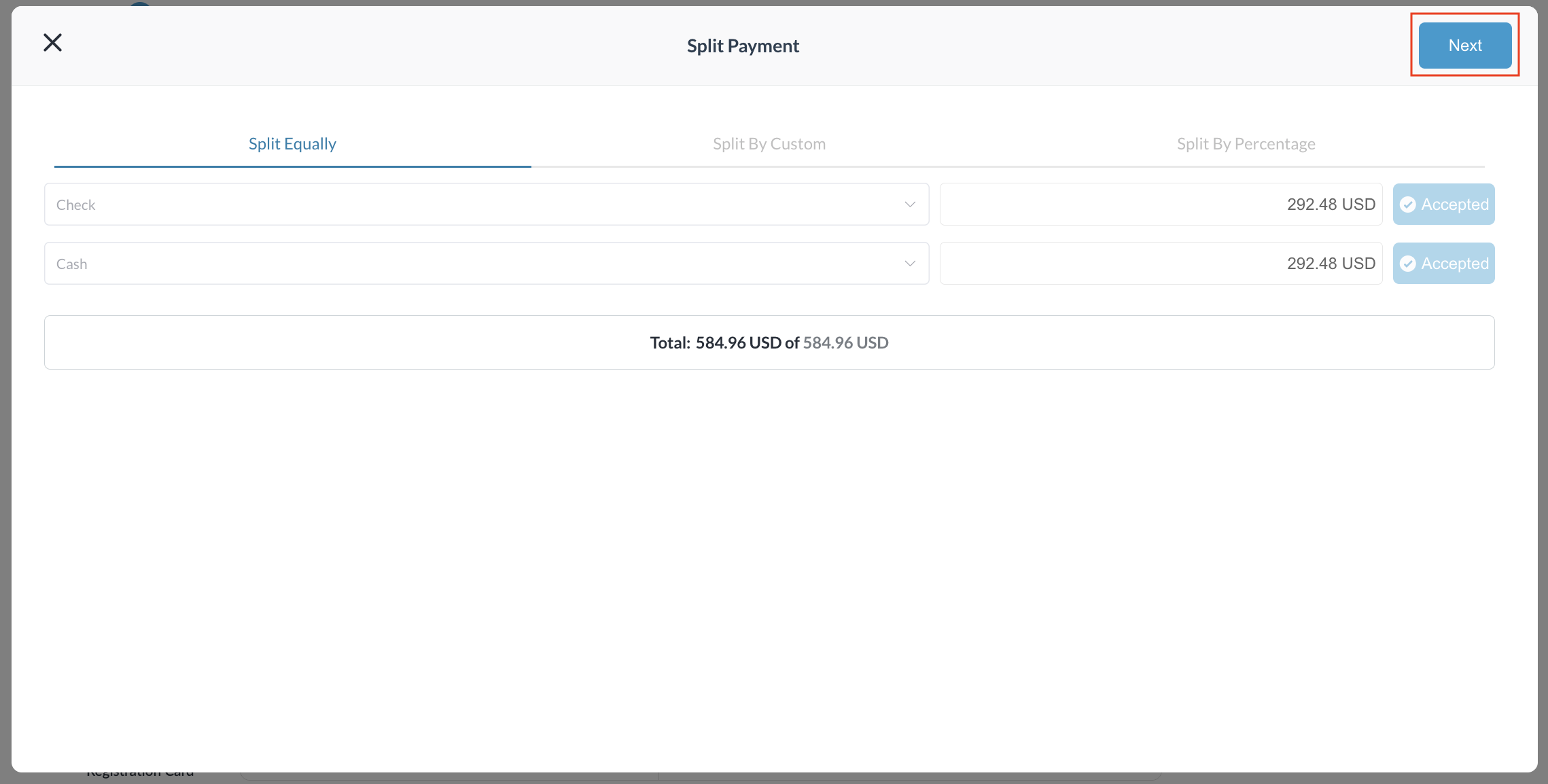
Split Equally : Divides the total balance evenly across the selected payment methods. Useful when two or more guests want to pay the same share.
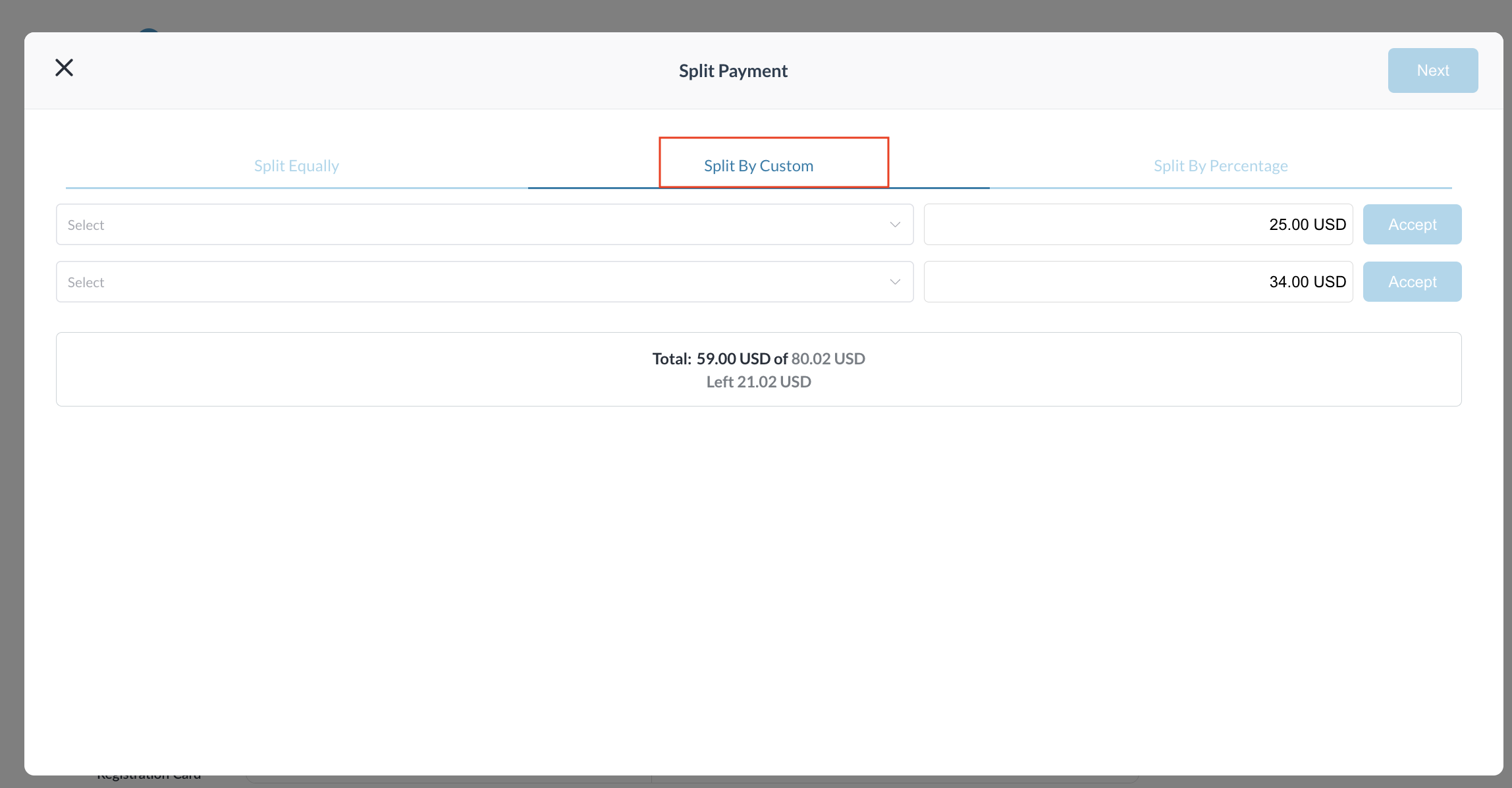
Custom amount: User types the exact amount to charge on each method. Best when one party pays a fixed share and another covers the rest.
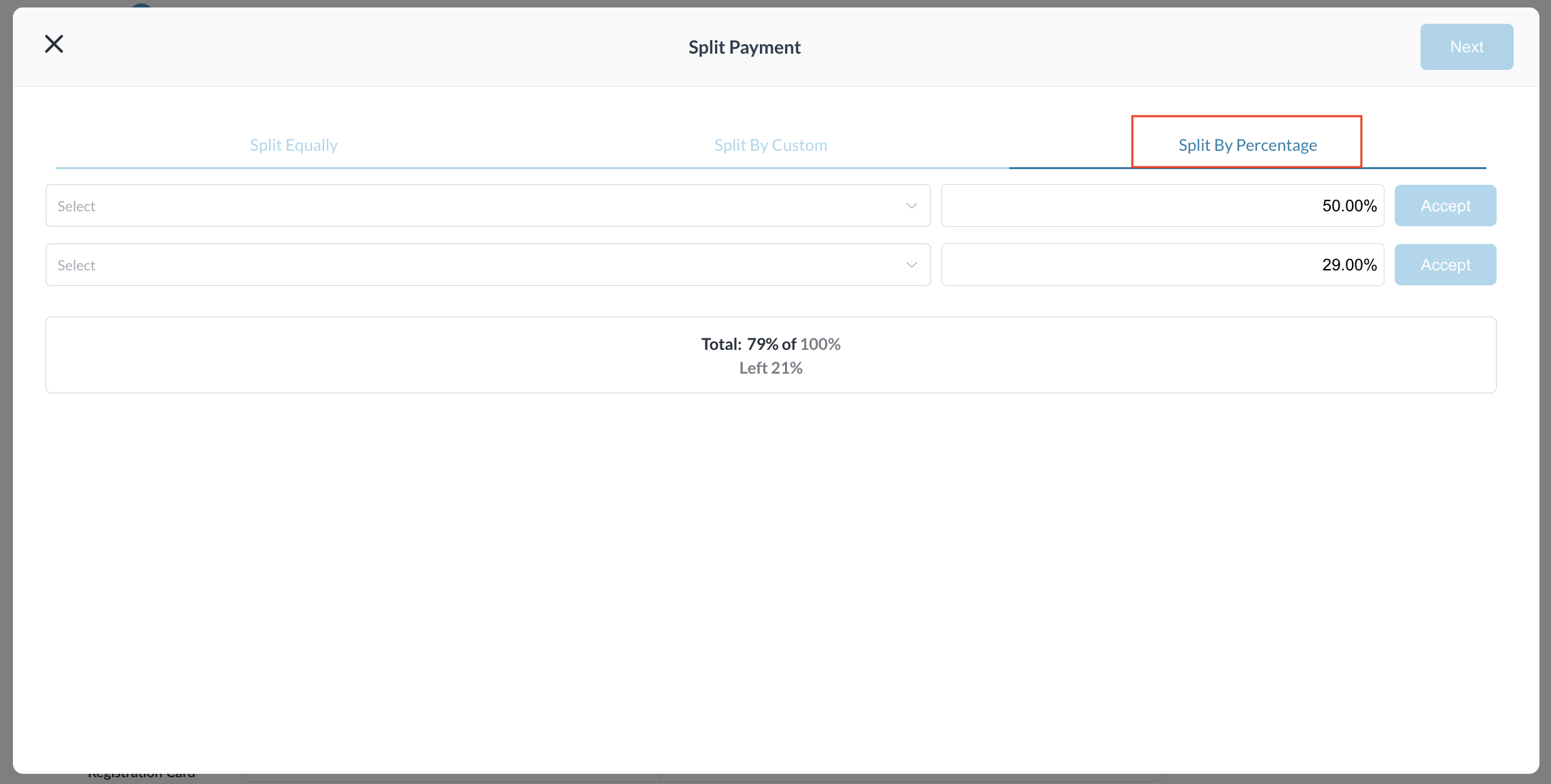
By percentage: Agent enters a percentage for each method and the system works out the amount. Useful for proportional splits like 60/40.
|
Navigate to the Frontdesk Dashboard > Arrivals |
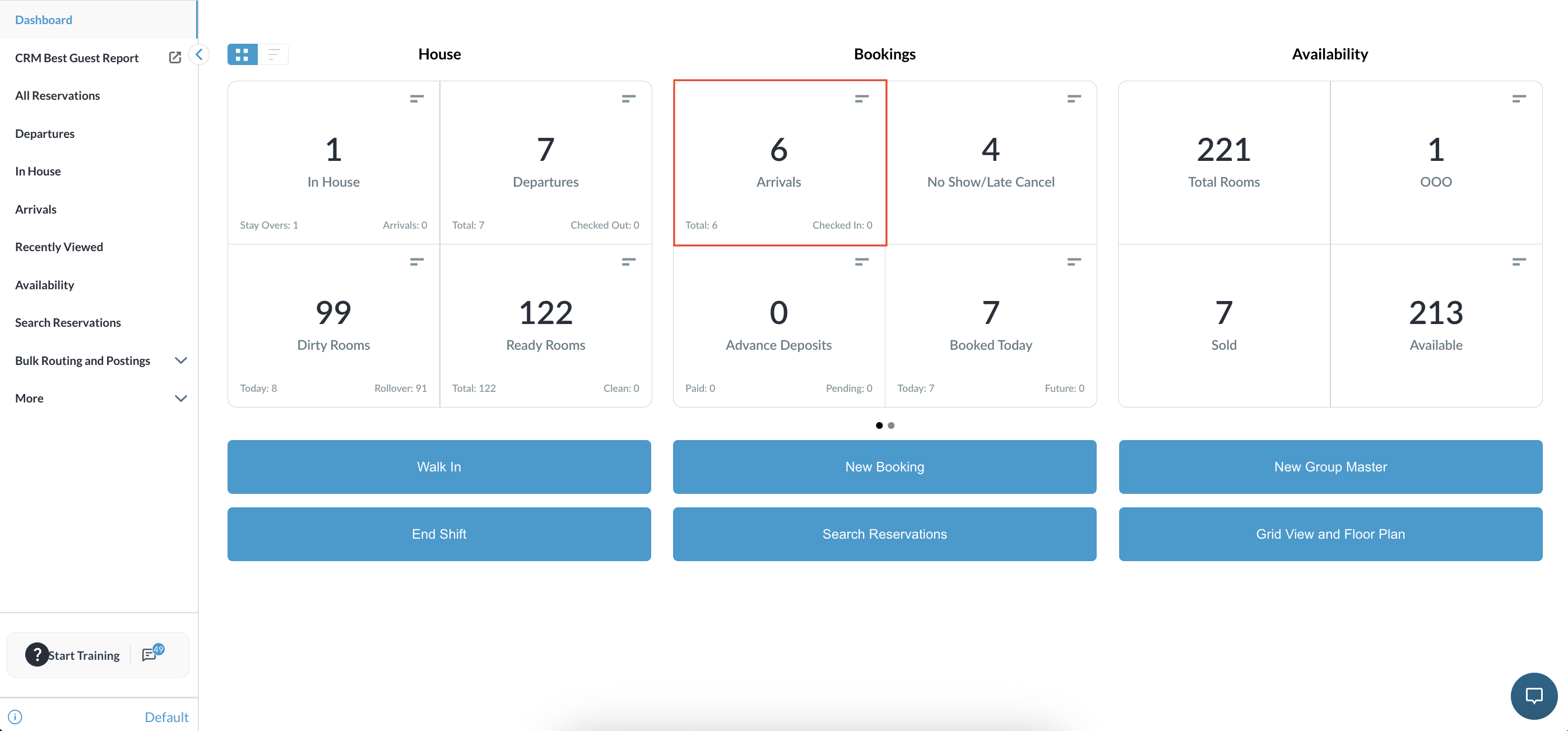
|
|
Select the desired reservation. |
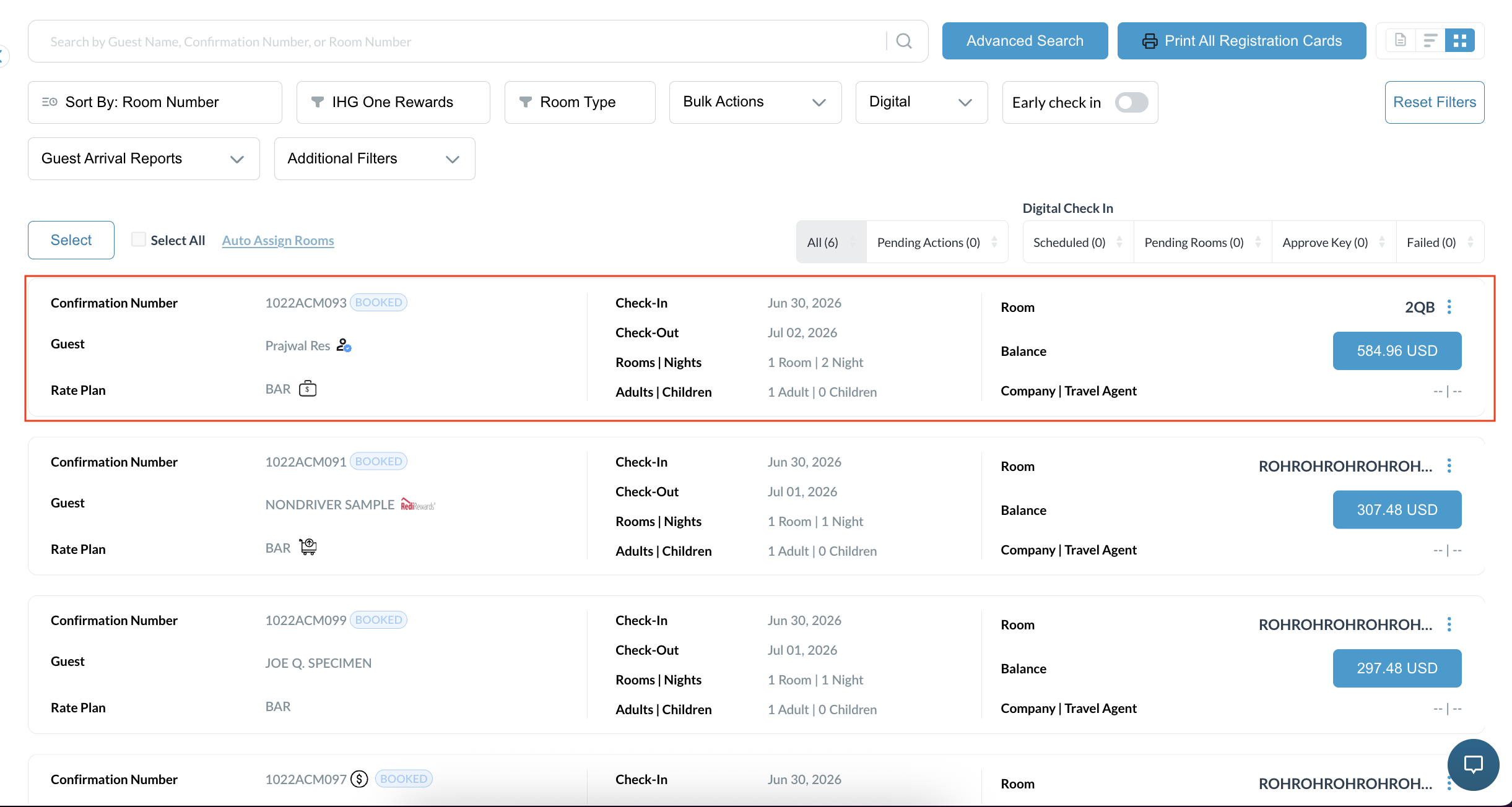
|
|
Click on Check In and proceed with the Check-In process until you reach the Payments screen. |
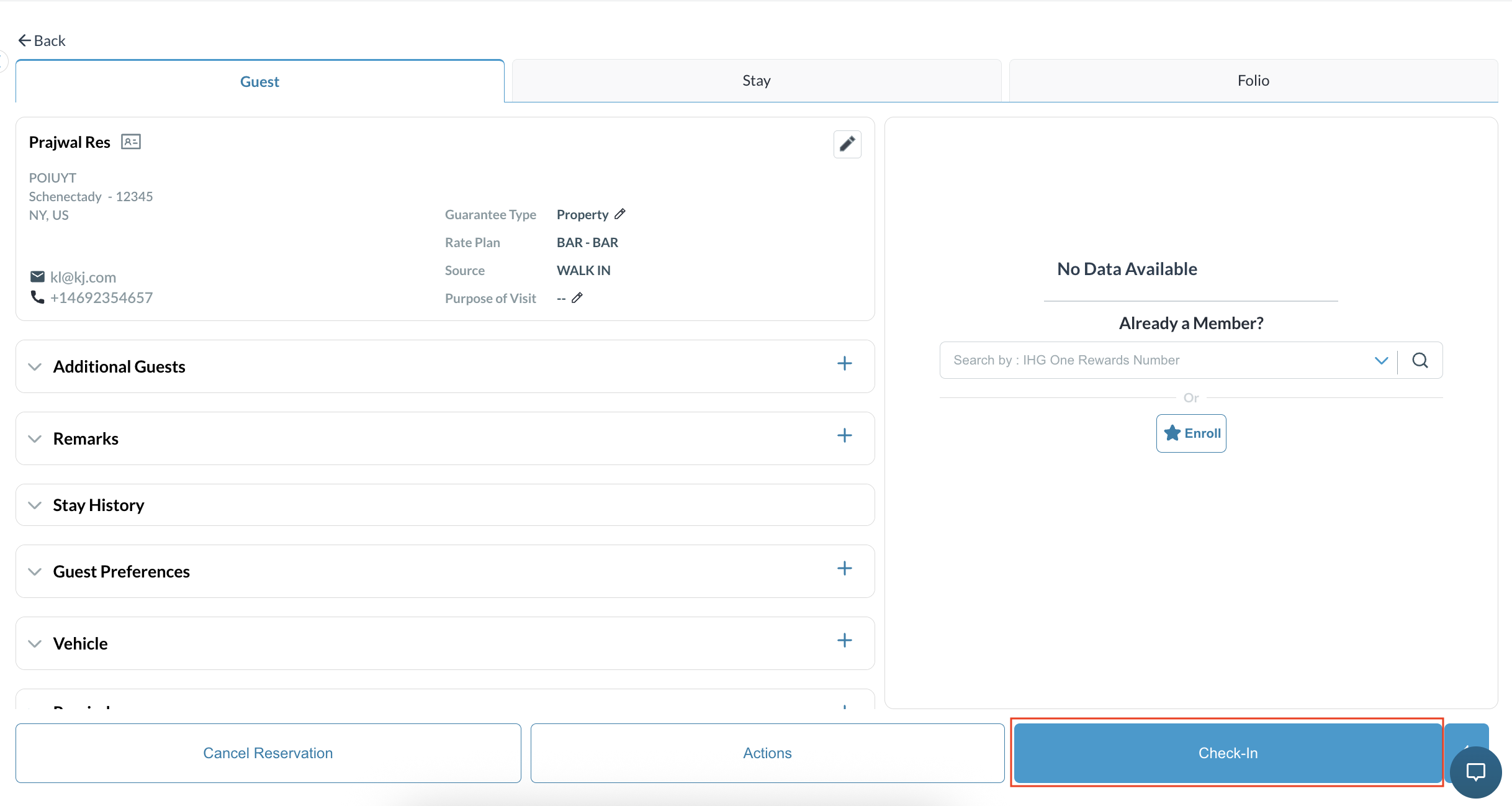
|
|
Click on Split Payment button |
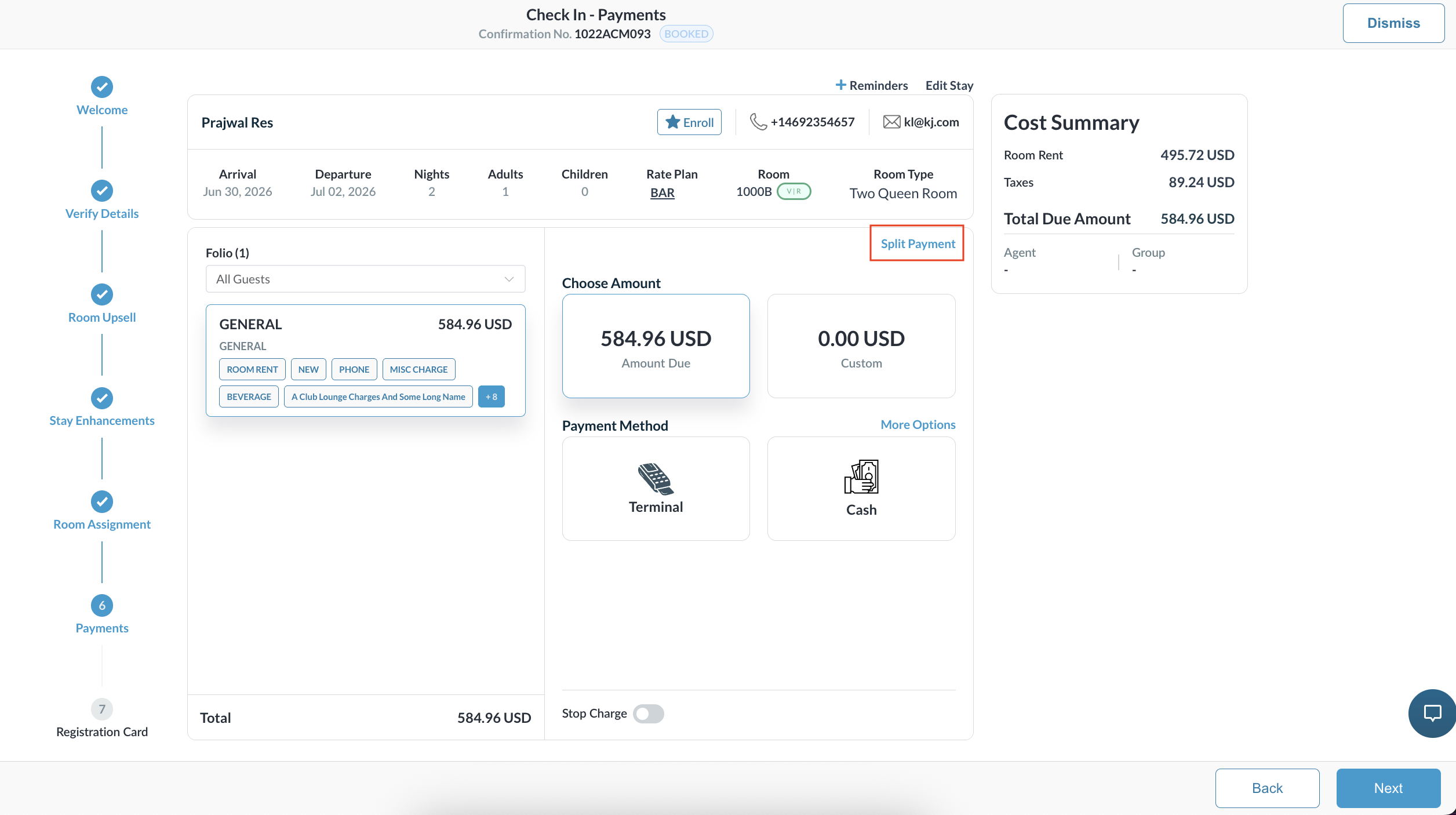
|
|
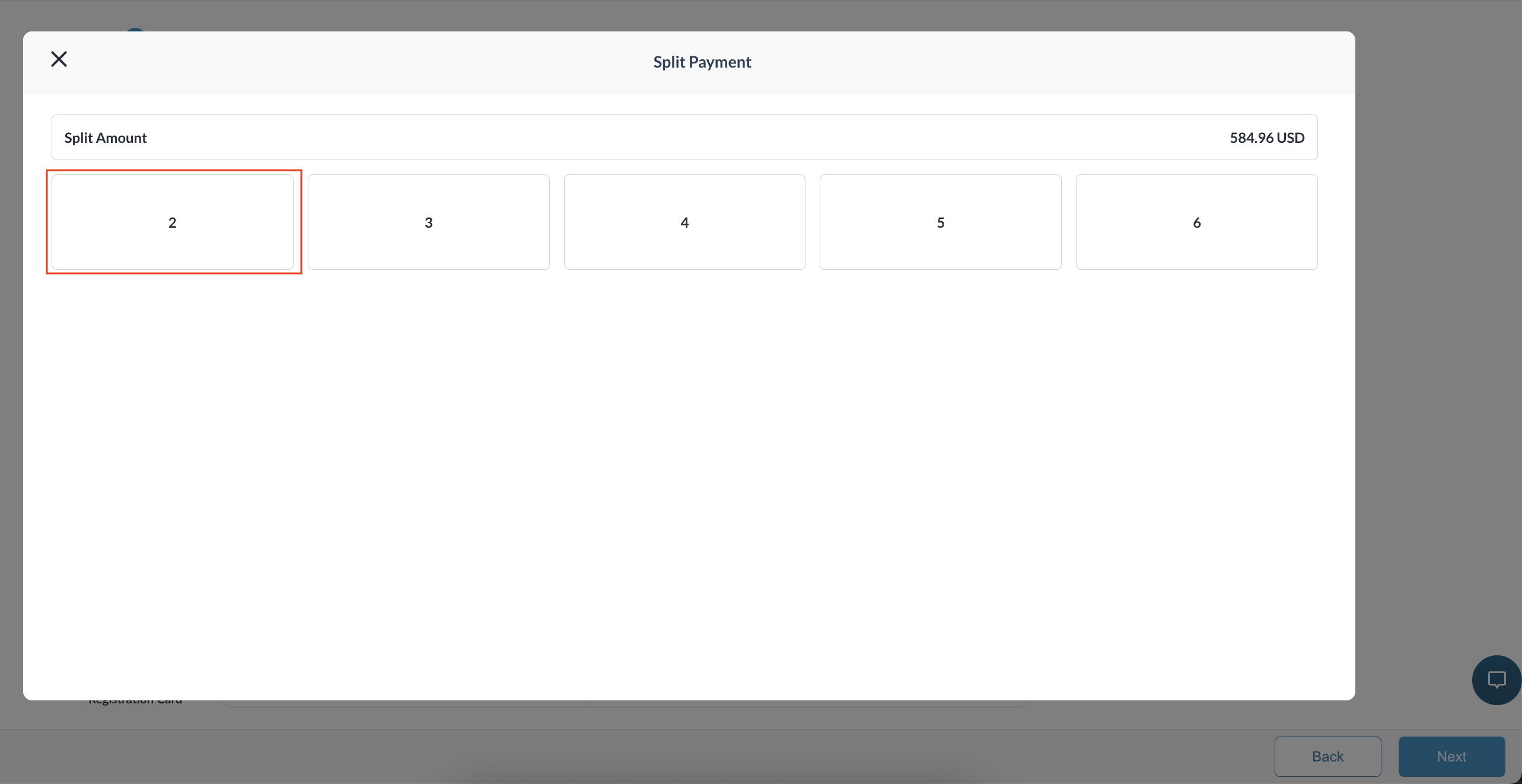
You can choose the number of splits from 2-6 to split the amount in 3 types:
|
|
This will divide the payment amount equally among the chosen number of splits.
|
|
You can divide a custom amount between the chosen number of splits.
|
|
|
|
|
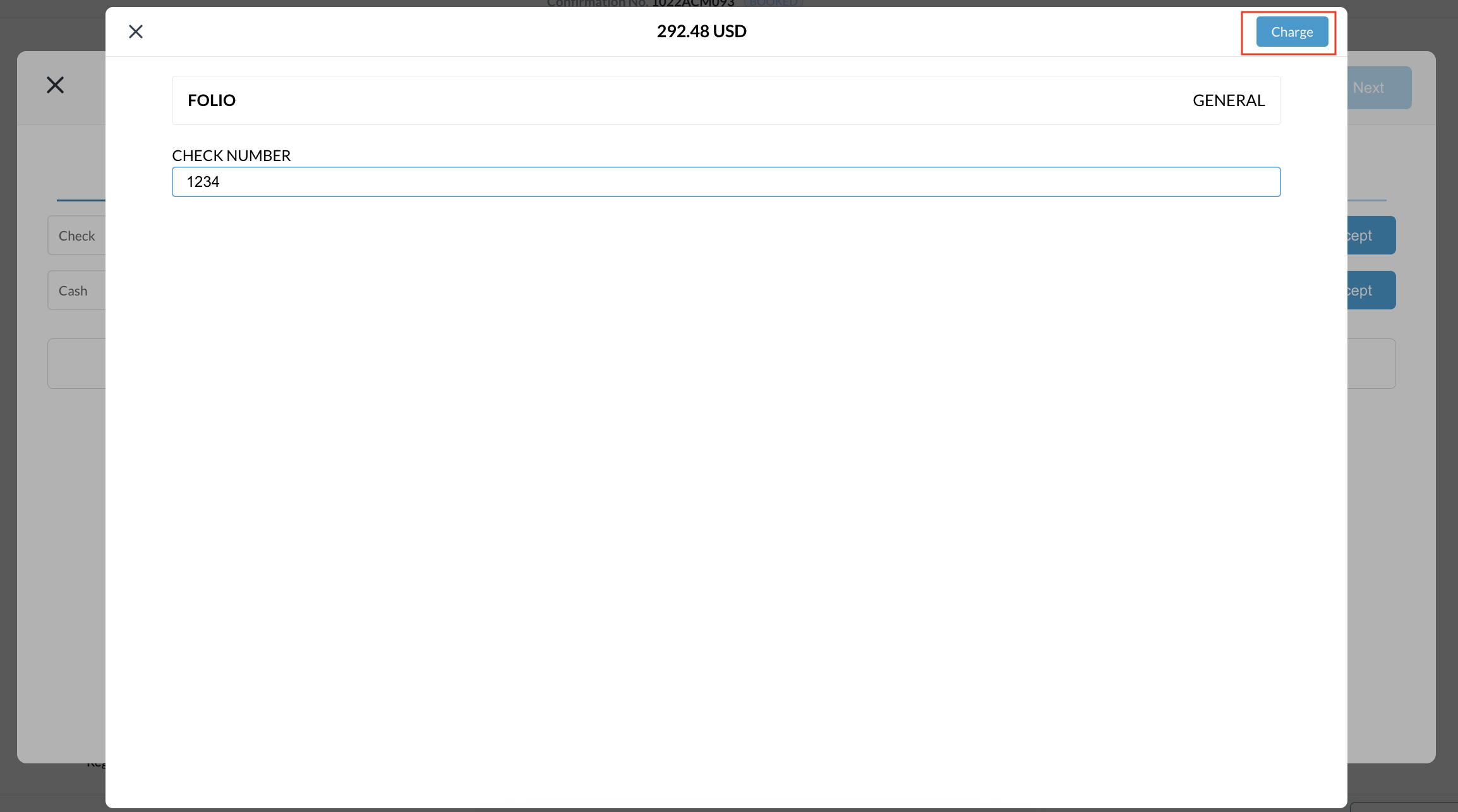
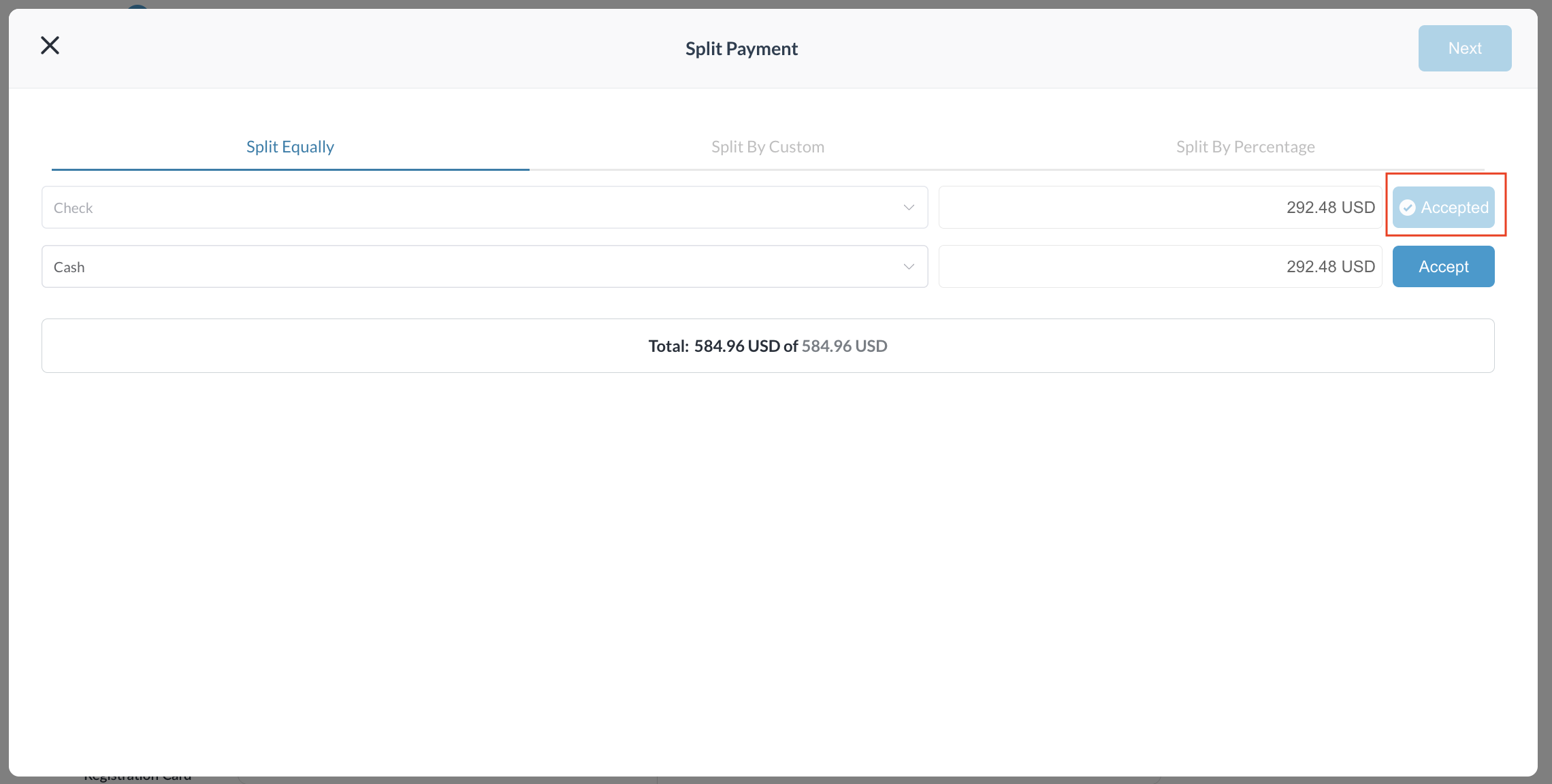
Collect Payment (Example: Cheque & Cash): For the first payment (e.g., Cheque), select the payment type, enter the amount, and click Accept.
Once payment is accepted, a success message will appear. |
|
|
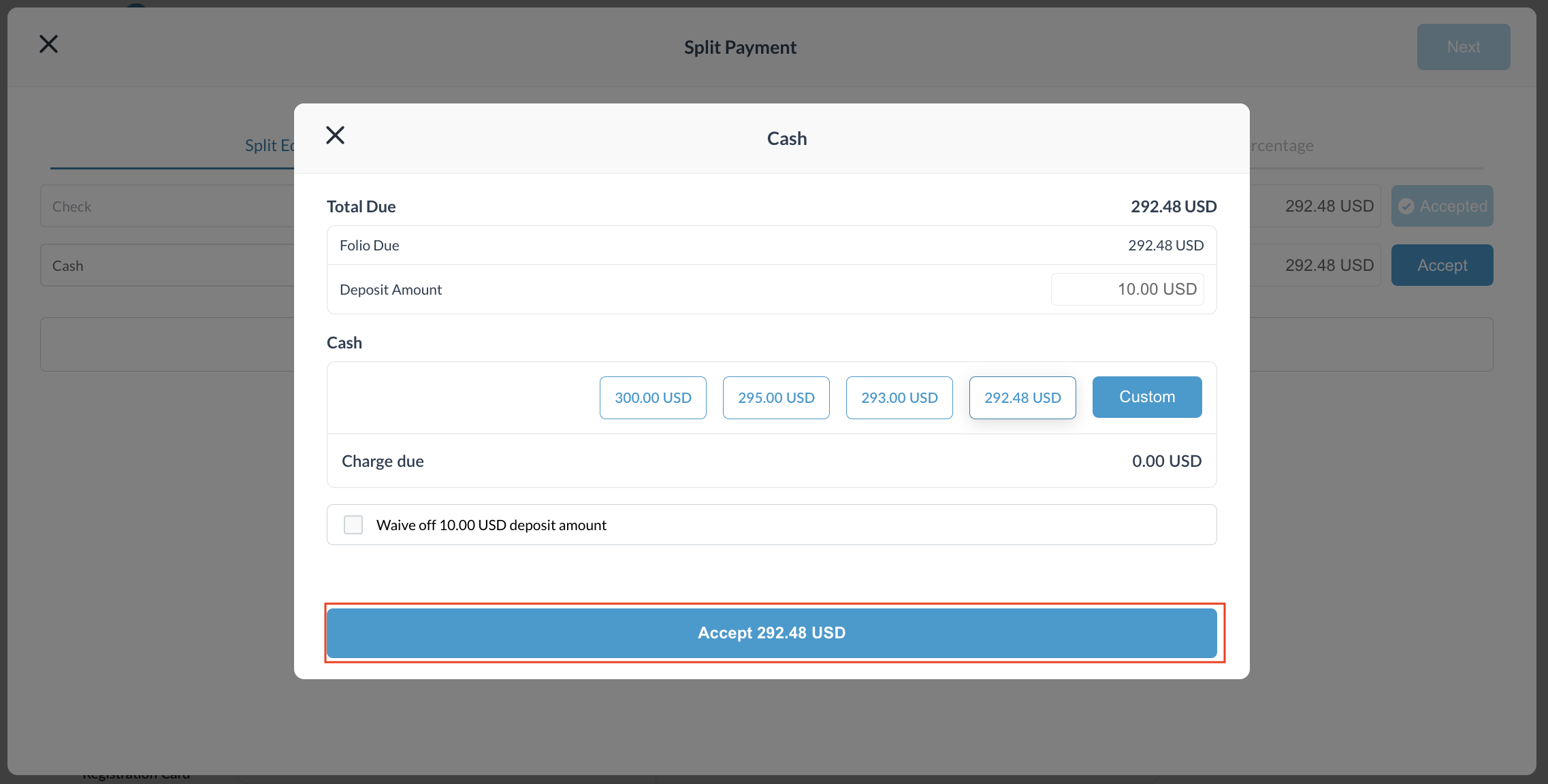
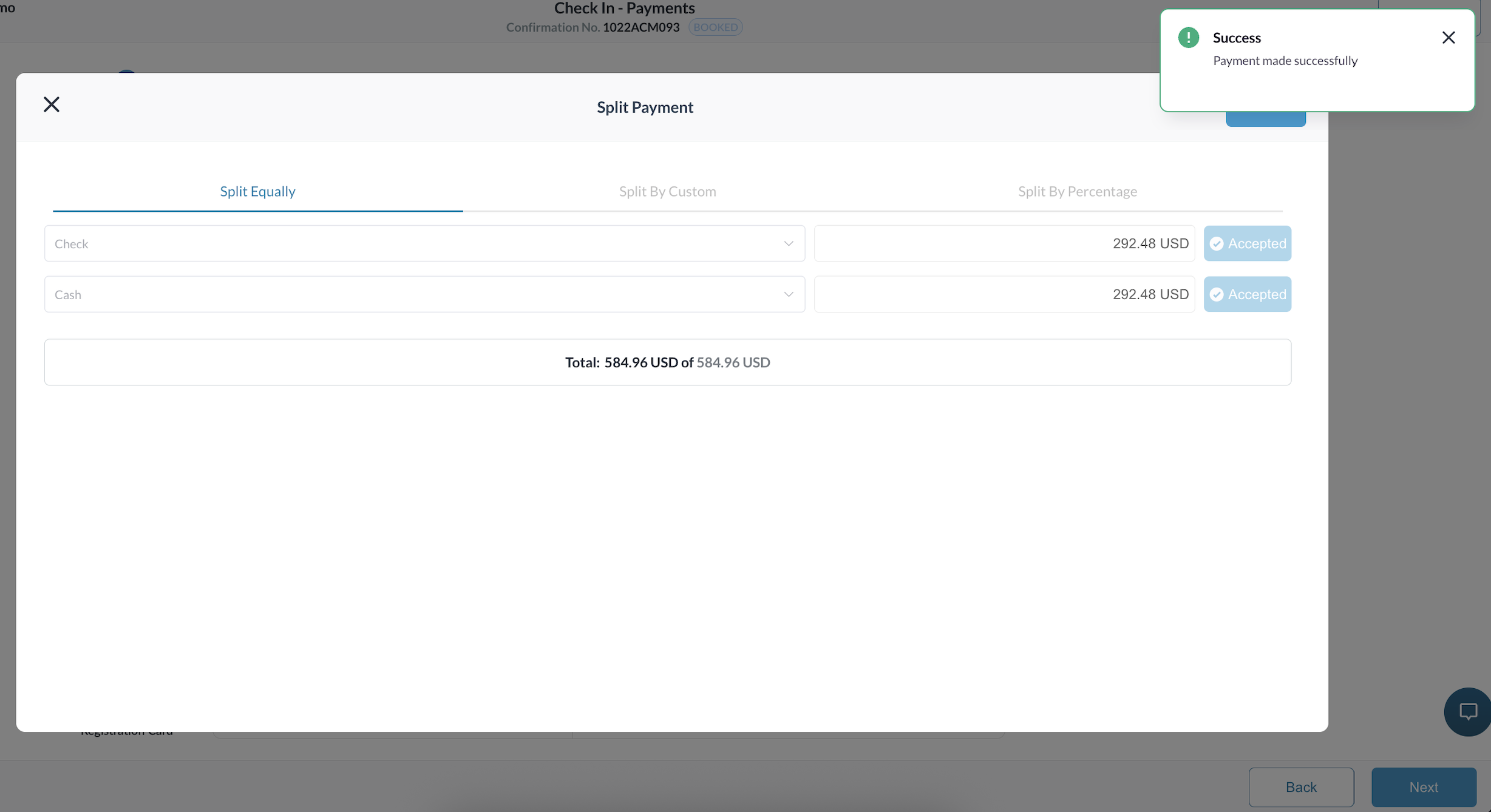
For the second payment (e.g., Cash), select the payment type, and after clicking Accept, a pop-up will appear to confirm/choose the amount to be paid. Click Accept to finalize.
Once payment is accepted, a success message will appear. |
|
|
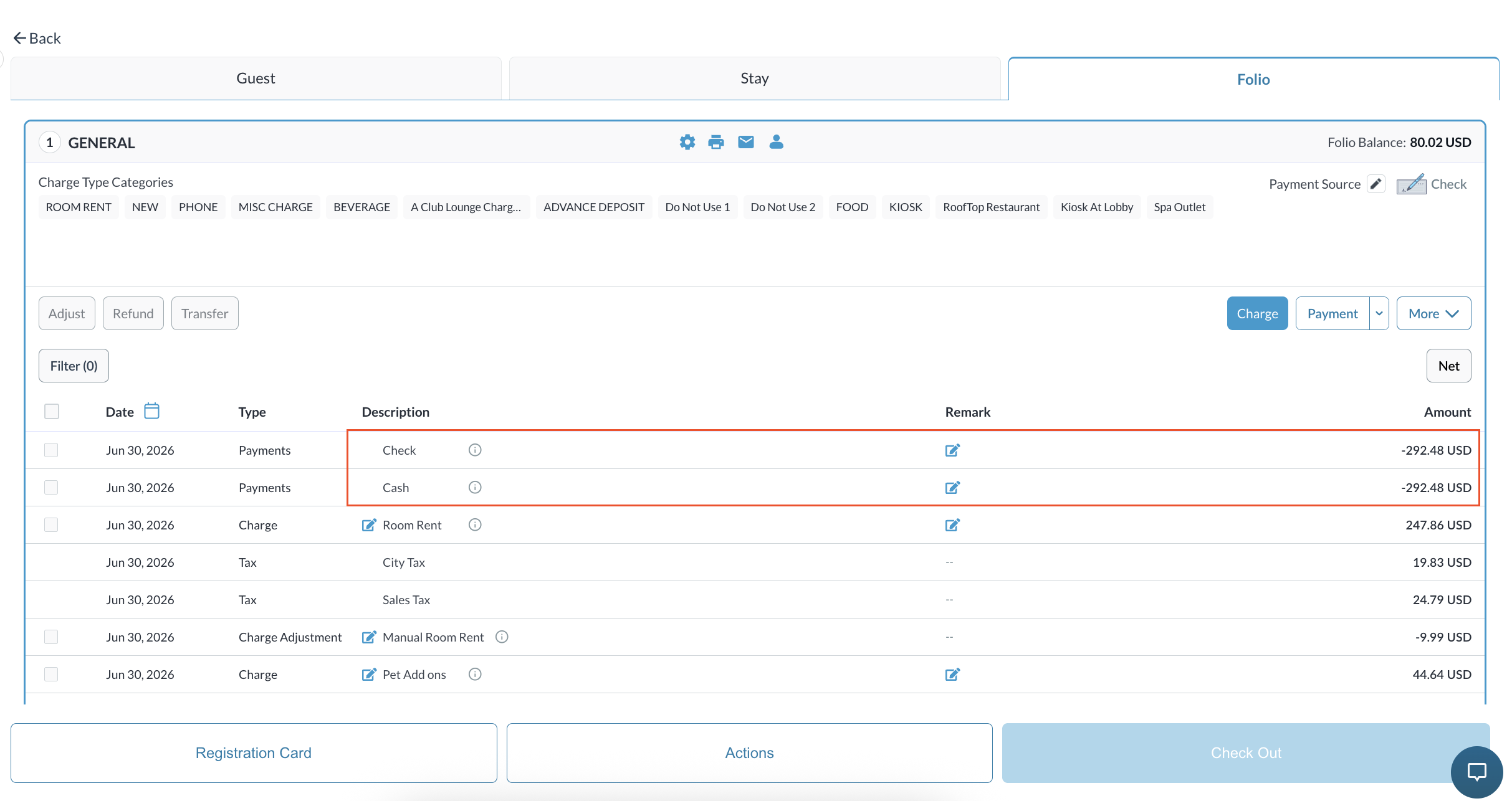
Once all splits are processed and the total matches the balance, click Next to complete the check-in process. |
|
|
|
Note:
-
Any combination of payment methods is allowed — card + card, cash + card, direct bill + card, and so on.
-
Once the split amounts add up to the total balance, the agent can authorise all payments together and complete check-in in one step.
-
The folio and balance summary update automatically to reflect the split.