
Revision Date:
The Hide Rates feature is a reservation-level setting designed to hide room rates from guest-facing screens and documents while preserving all financial posting and accounting activity.
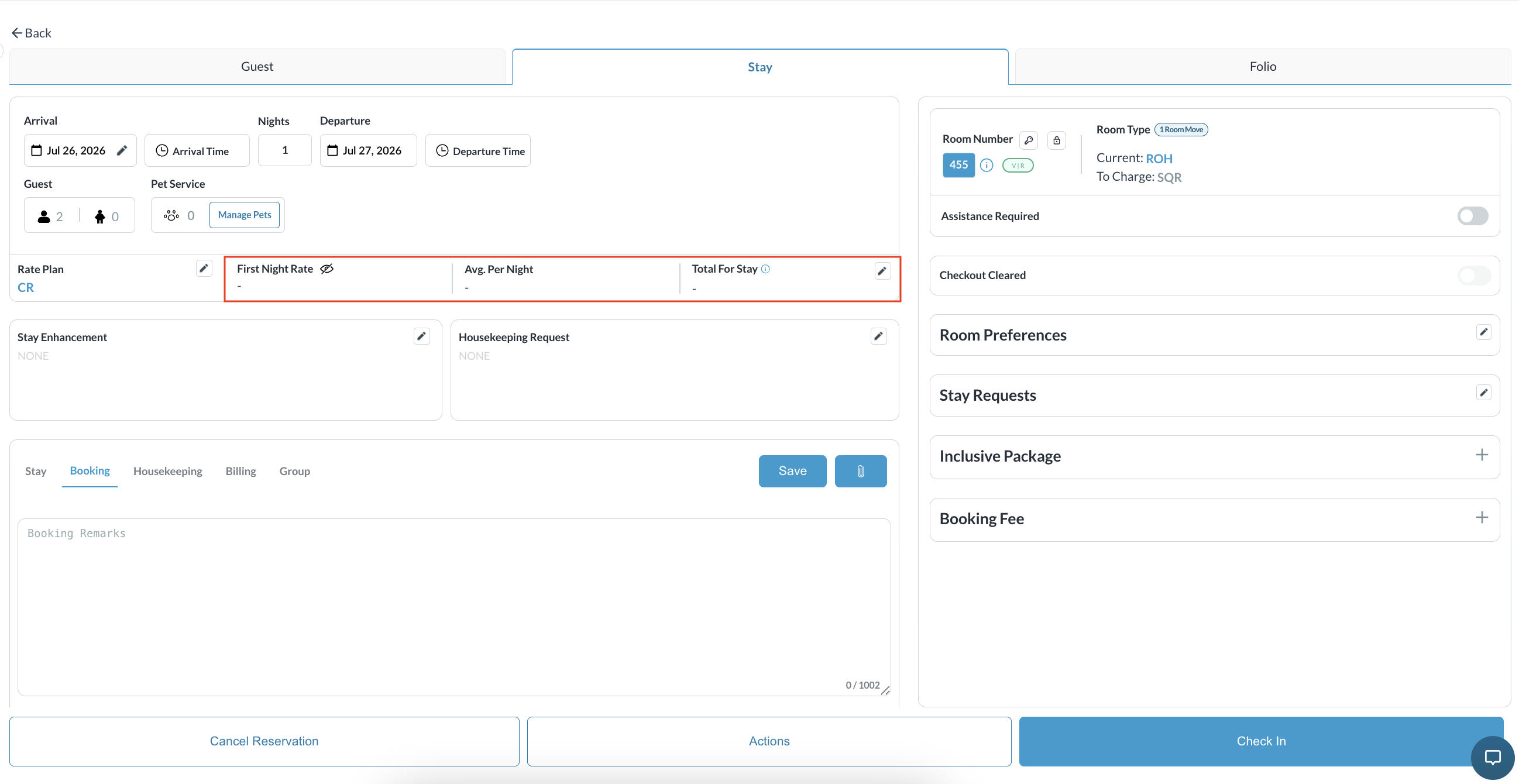
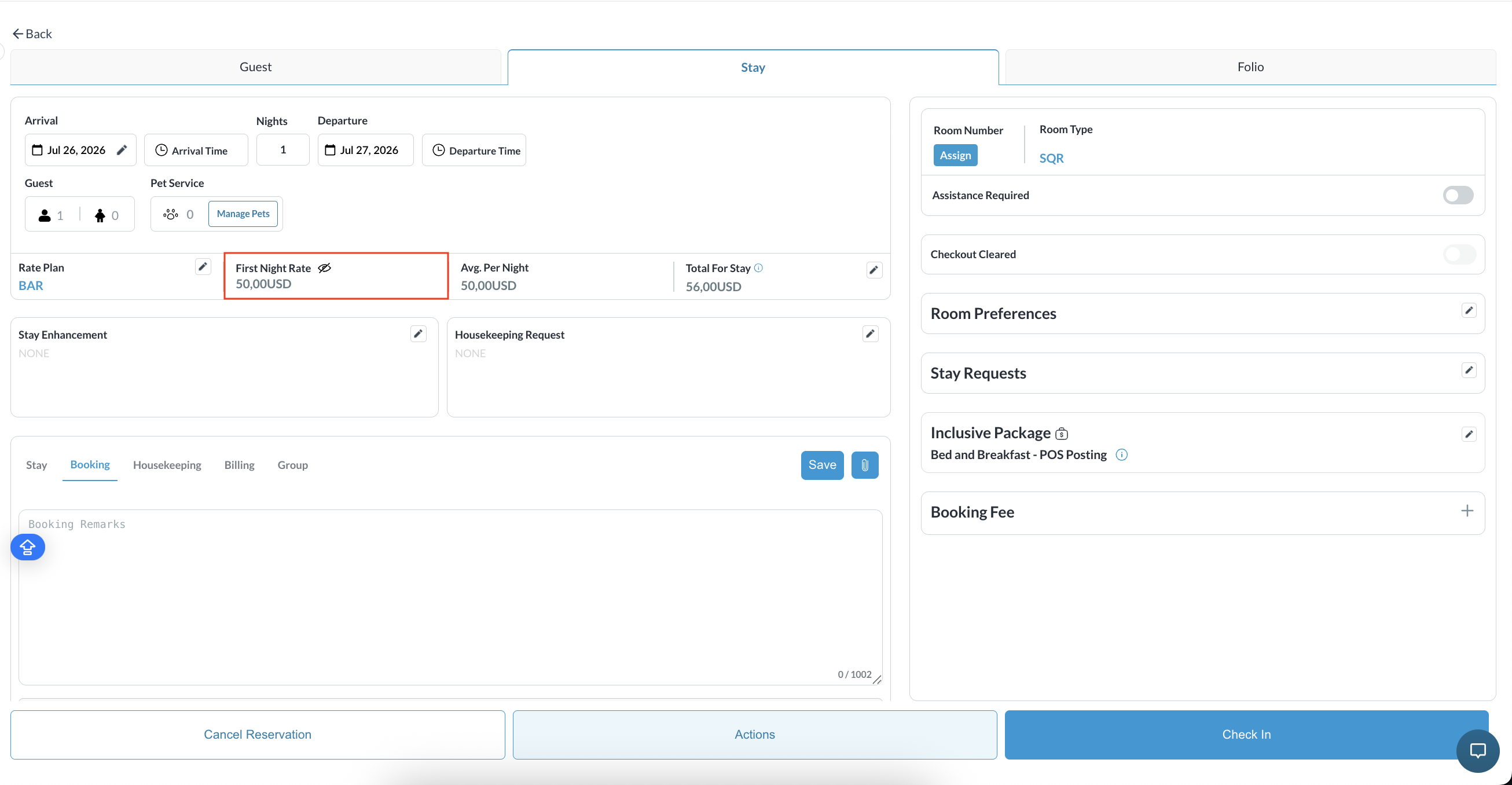
When enabled, the system automatically moves room and tax charges to a separate confidential folio, ensuring revenue continues to post normally to the General Ledger and Night Audit without exposing rate details to the guest.If a reservation is flagged to hide rates, an 'eye' icon is always displayed next to "Today's Rate" or the "First Night" rate field on the Stay Tab as a read-only visual indicator.
Use Cases
-
Confidential Corporate Rates: Hide negotiated corporate or wholesale rates from traveling employees and printed registration documents.
-
Prepaid / Third-Party Bookings: Prevent guests from seeing the hotel’s net rate when they book through an OTA or third-party channel.
-
Group Reservations: Allow event organizers or attendees to view itinerary details without exposing the master financial arrangements.
-
Complimentary or Staff Stays: Avoid showing free or heavily discounted room rates on guest-facing folios.
-
Internal Staff Visibility Control: Properties can selectively show or hide rates based on staff roles and operational policies, leveraging visual awareness without requiring permission changes.
|
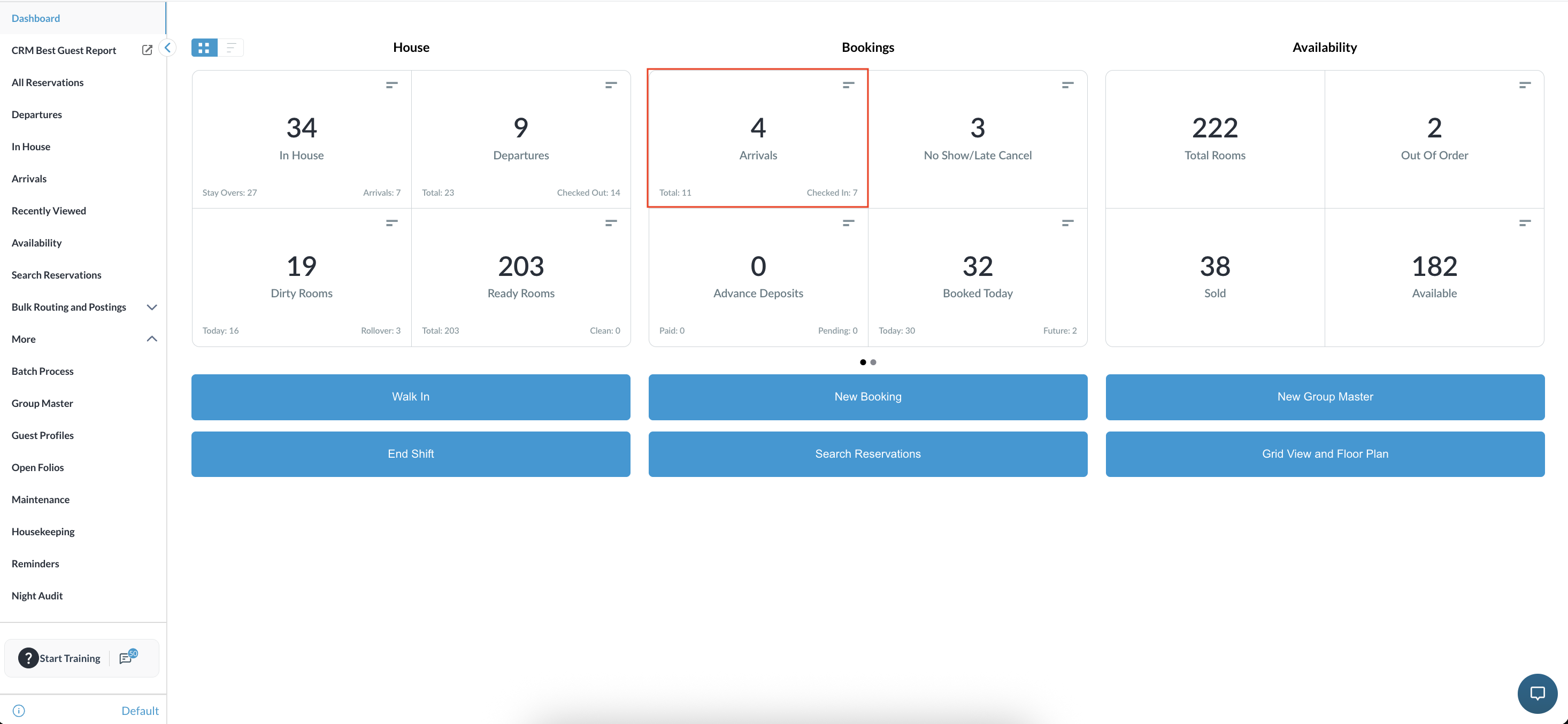
Navigate to the Frontdesk Dashboard and open the Arrivals or In-House list.
|
|
|
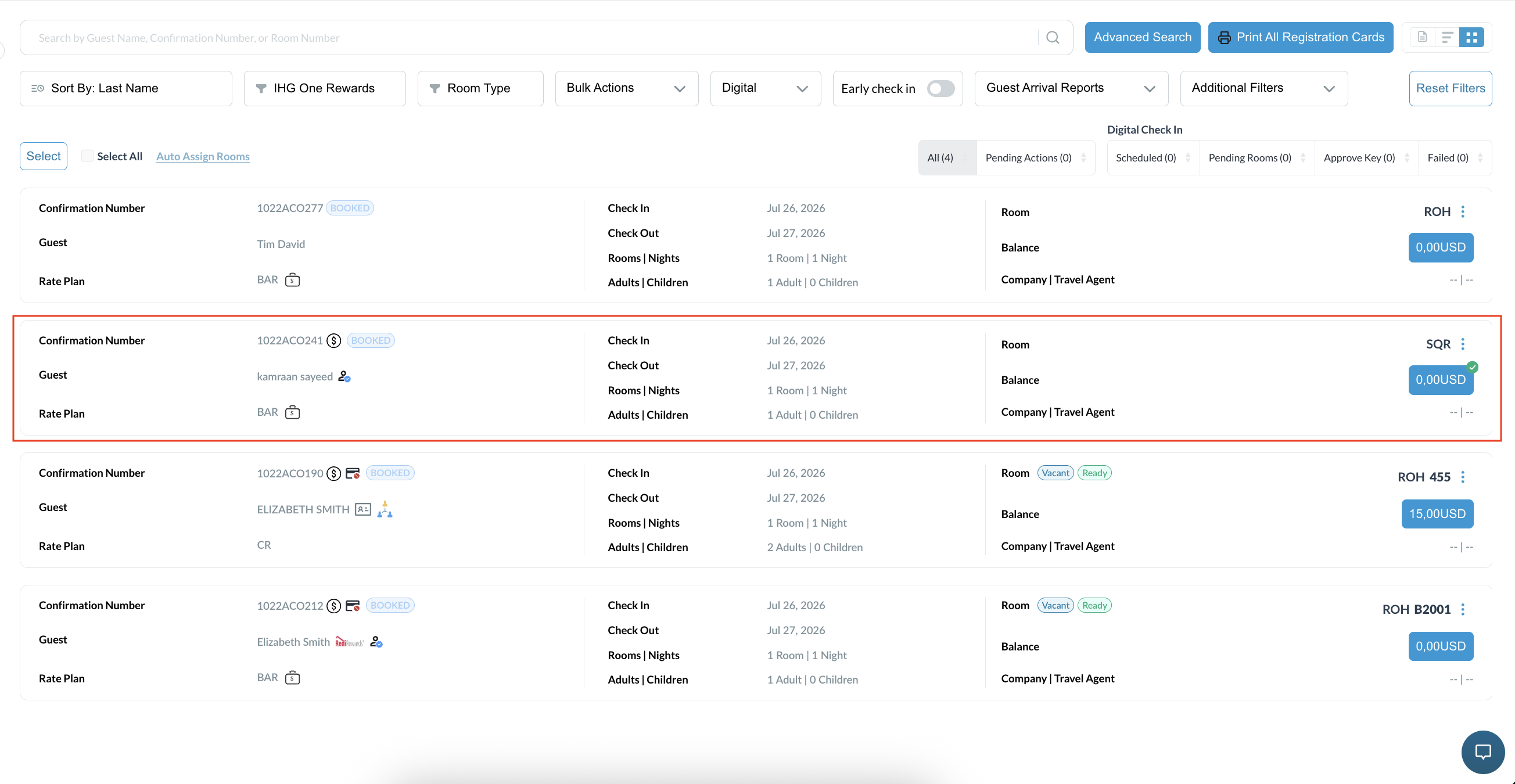
Select the desired reservation. |
|
|
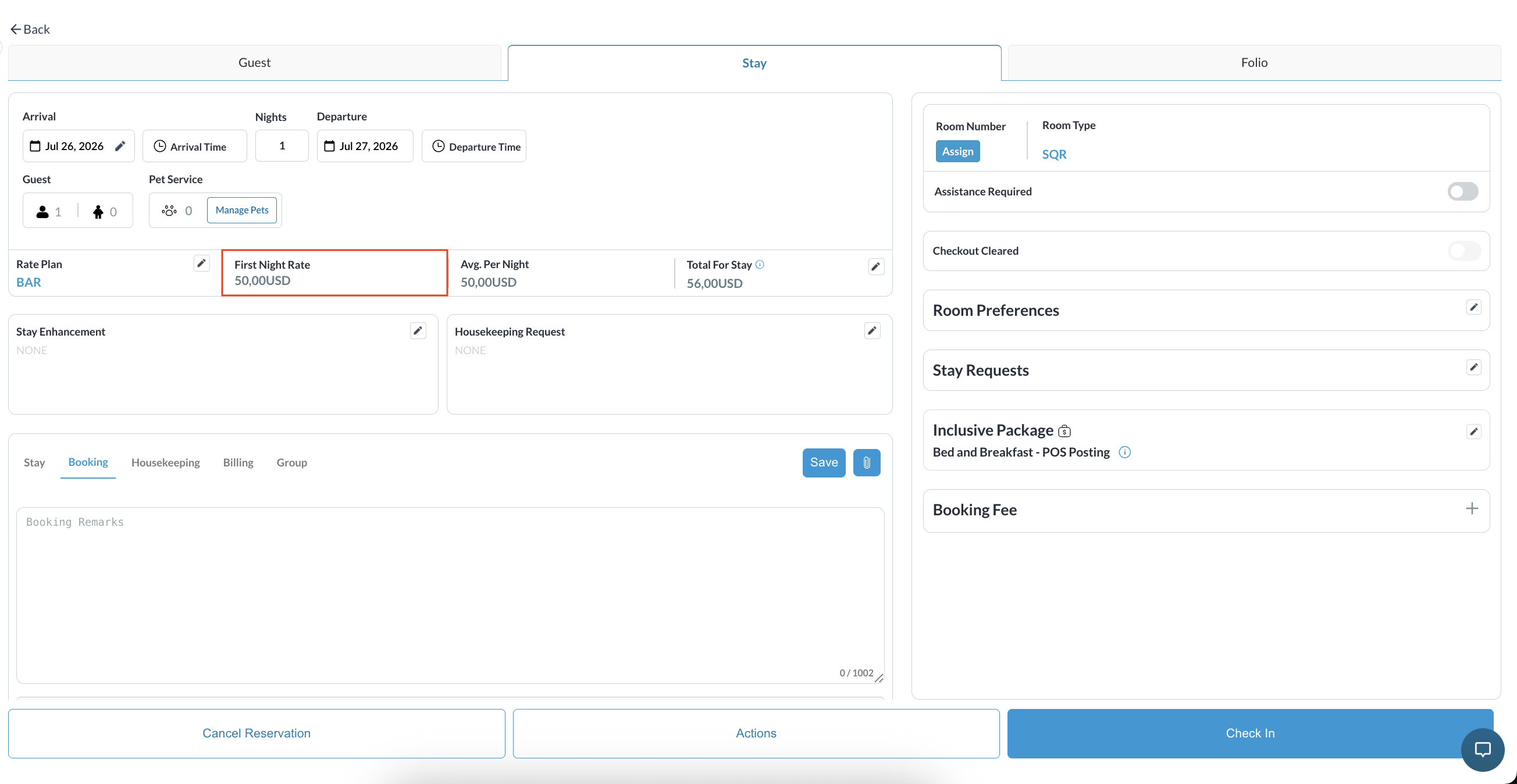
In the Stay tab, you can view the rate details. |
|
|
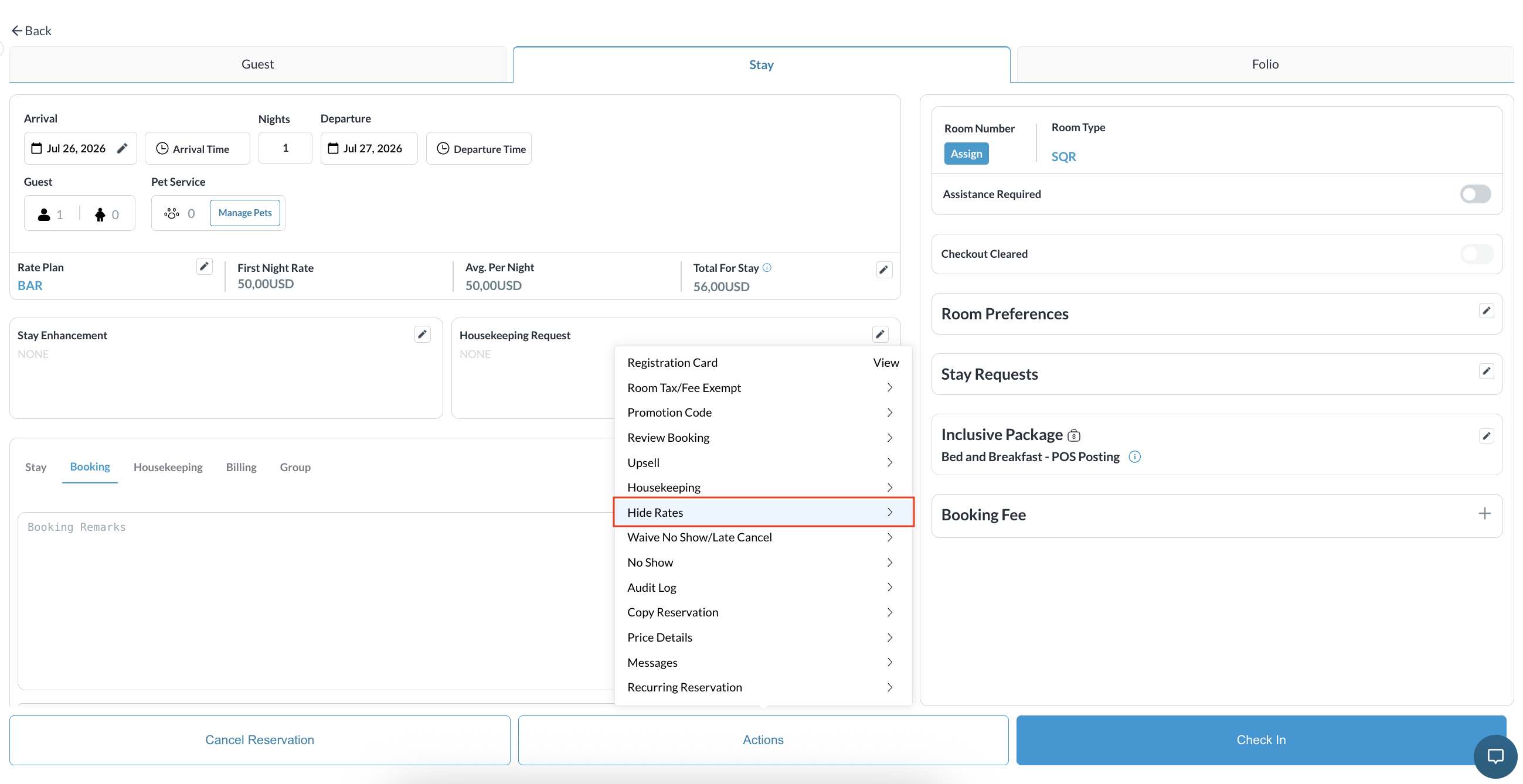
Click on Actions and select Hide Rates from the dropdown menu. |
|
|
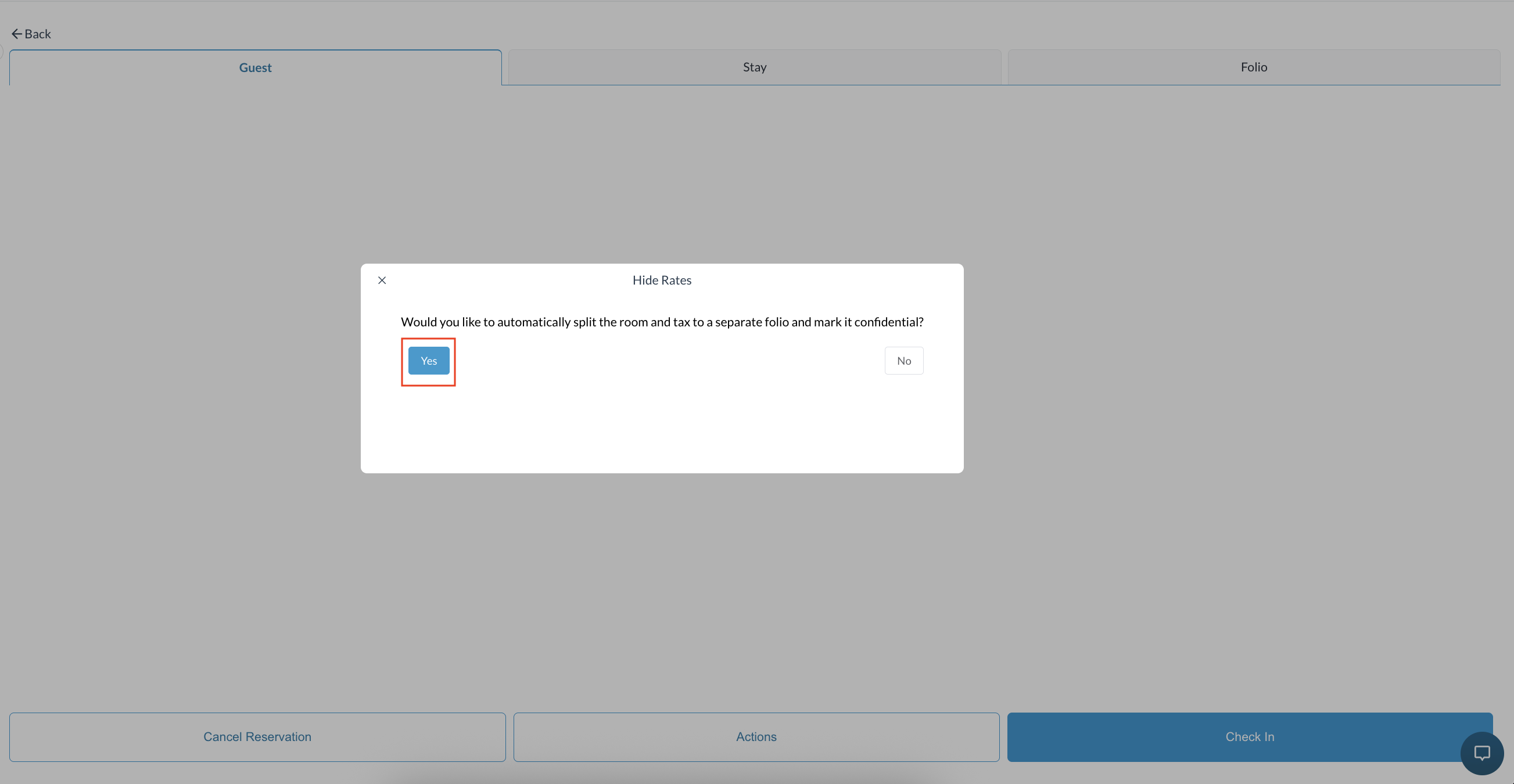
A confirmation pop-up displays: "Would you like to automatically split the room and tax to a separate folio and mark it confidential?" Confirm the action in the pop-up to successfully hide the rate. |
|
|
After enabling Hide Rate, the system will always display the 'eye' icon. The actual visibility of the rate values (Today's Rate, Average per Night, Total for Stay) depends on your dynamic property configuration:
|
|
|
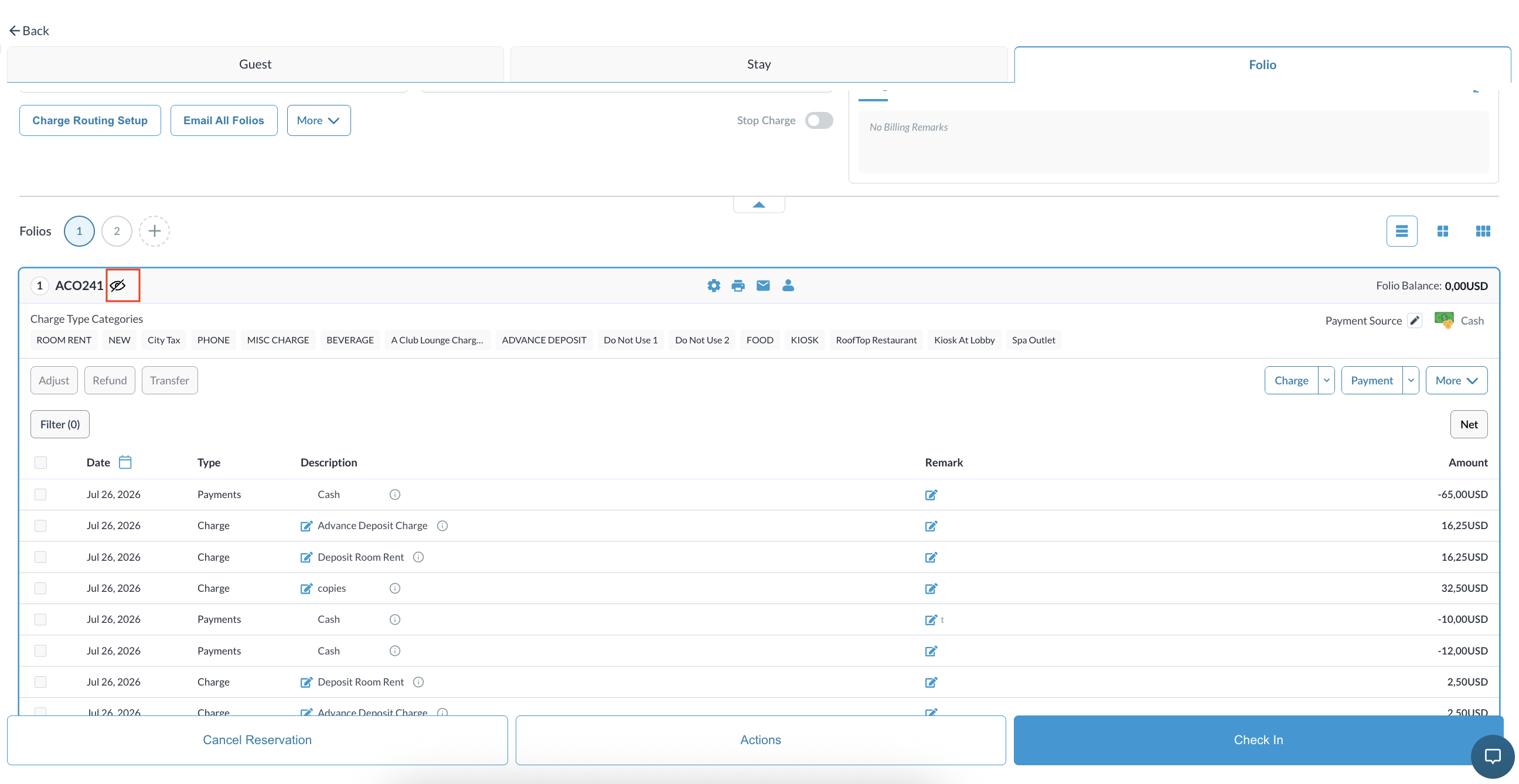
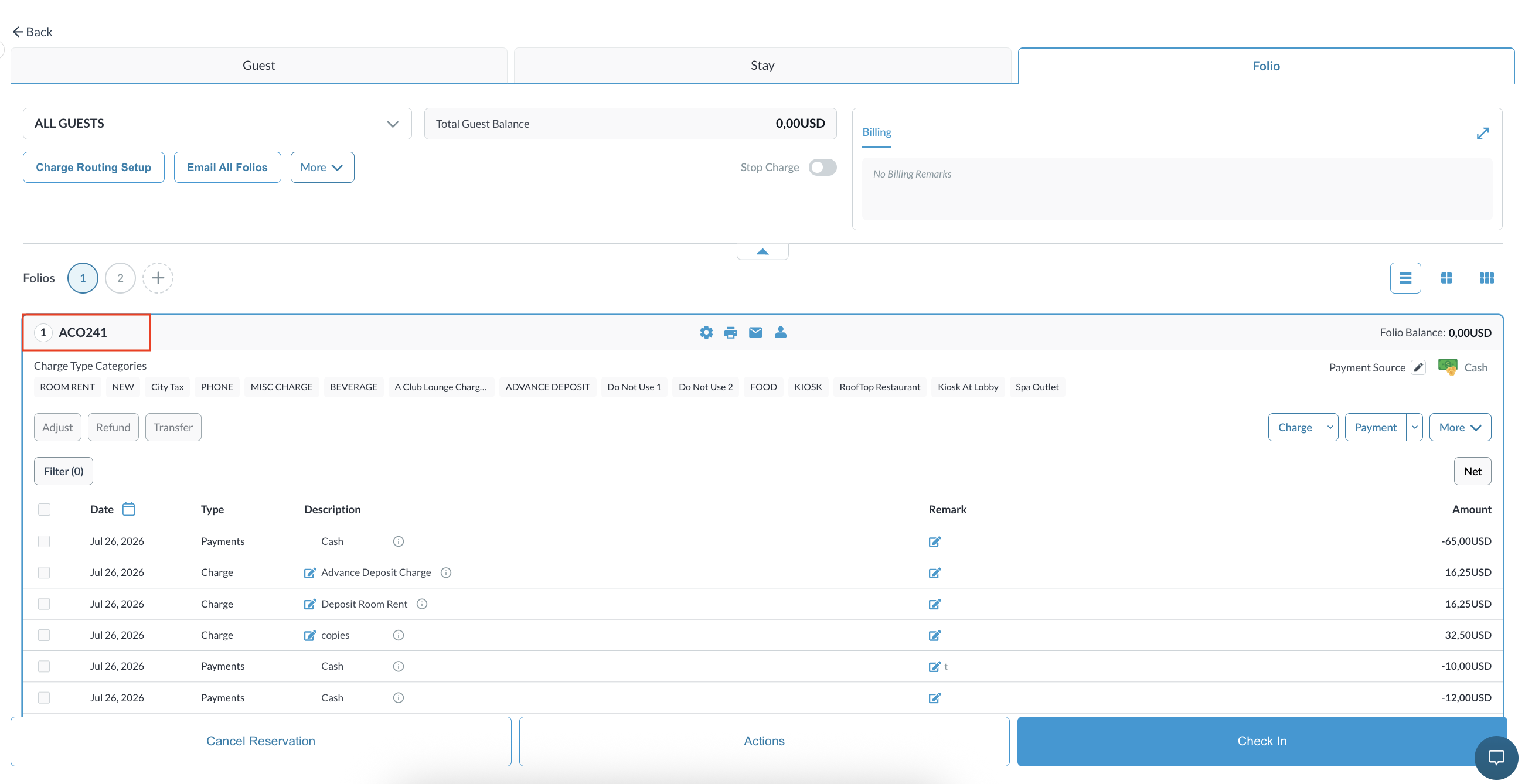
Verification Navigate to the Folio tab. The system automatically moves room rent and tax charges to a separate confidential folio. The confidential folio is identified by a Confidential indicator('eye' icon). Note: Financial postings remain intact for reporting and accounting purposes while the rate information is hidden from guest-facing views. |
|
|
If you need to undo the action, click on Actions and select Undo Hide Rates. |
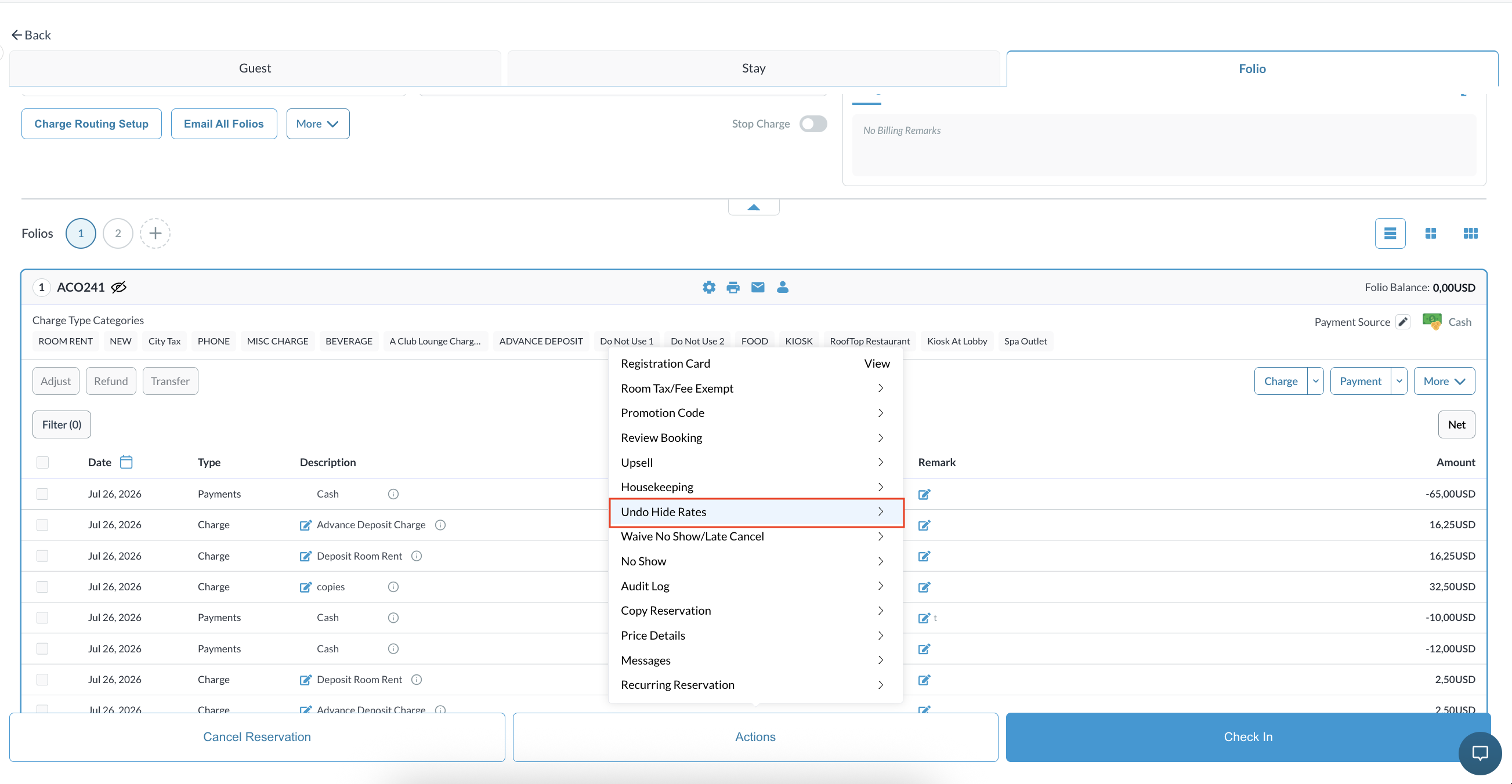
|
|
A confirmation pop-up will display. Click Yes to confirm. |
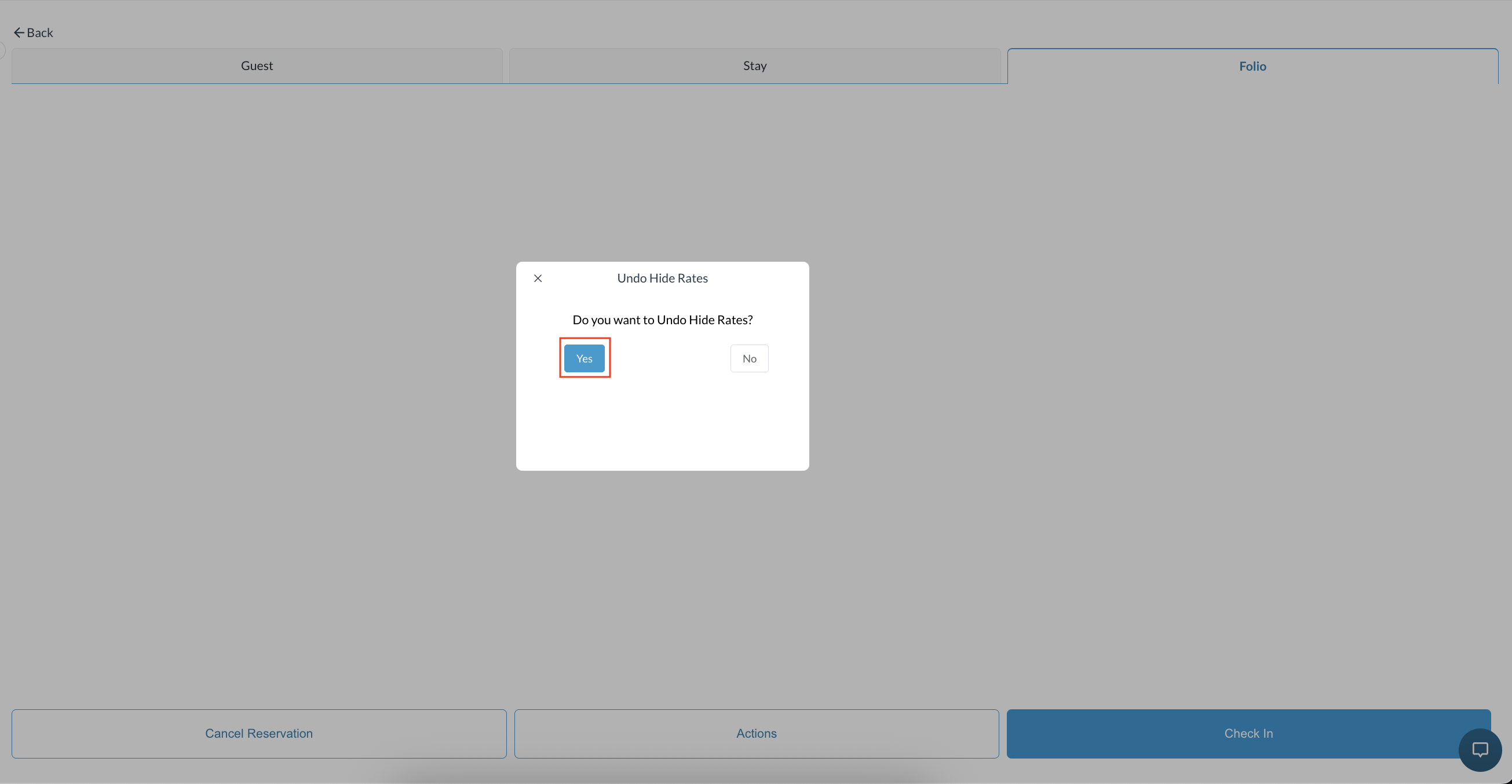
|
|
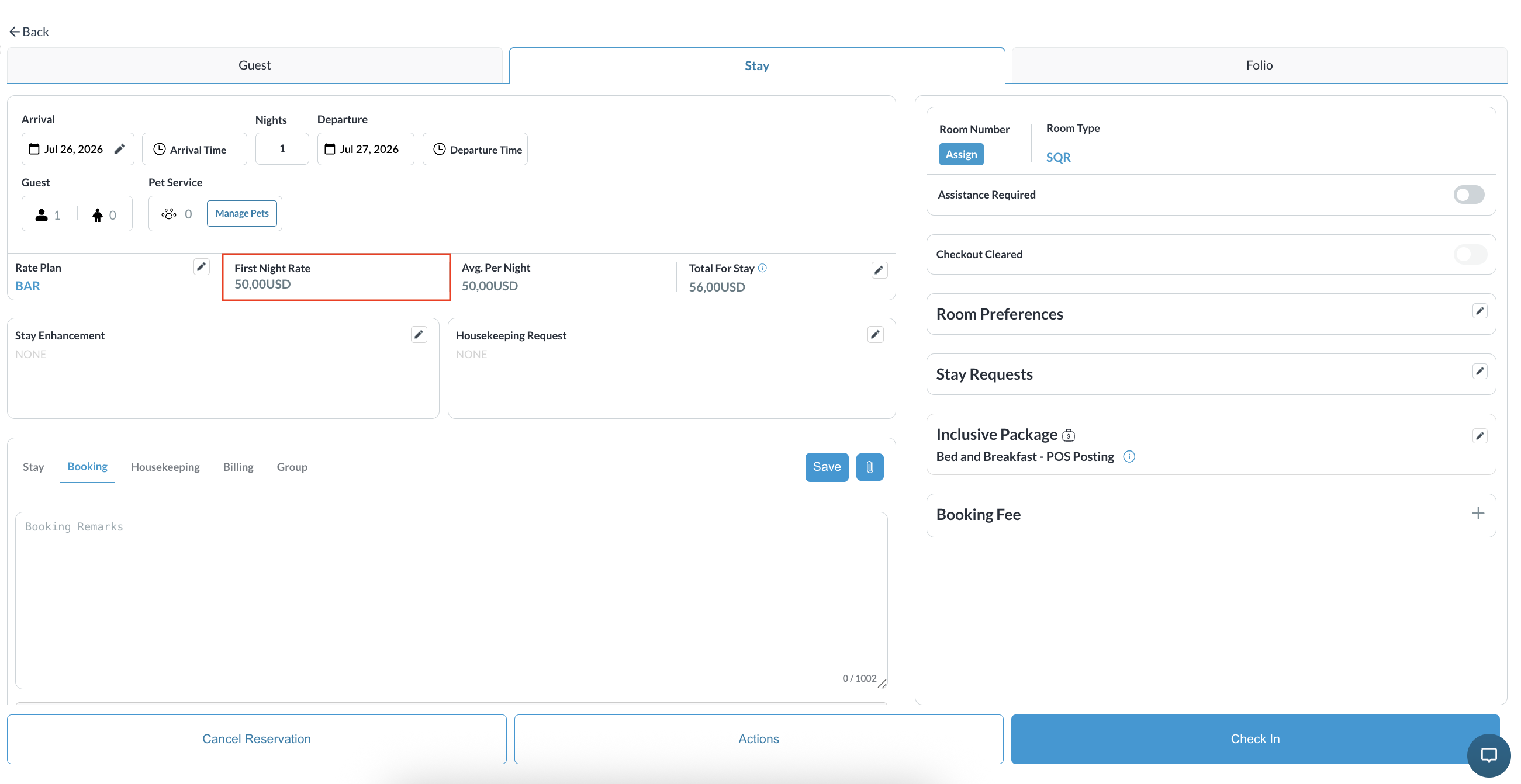
Verification
Ensure the rate values (Today's Rate, Average per Night, Total for Stay) are visible.
|
|
Notes
-
The eye icon is strictly a visual indicator; clicking it does not toggle rate visibility.
-
Financial postings remain entirely intact for reporting and accounting purposes; only the front-facing visibility is restricted.