
Revised Date:
Target Audience: Frontdesk Agents, Shift Supervisors, Property Administrators, Support Team
-
Overview & Objectives
-
Feature Name: Express Check-Out
-
Target System: Frontdesk Web (Departures)
-
Purpose: Express Check-Out allows front desk users to process multiple eligible departure reservations simultaneously in a single workflow. It provides targeted selection controls on the Departures screen, enabling agents to choose specific reservations from a "Qualified" list using multi-select checkboxes.
-
Functional Behavior: The system processes checkout exclusively for the explicitly selected records, reducing guest wait times and improving operational efficiency without risking accidental bulk check-outs.
-
Use Cases
-
Group/Tour Departures: Batch process check-outs for a departing tour group without affecting independent in-house guests.
-
Partial Floor Clearance: Selectively check out qualified reservations on a specific floor to expedite housekeeping clearance.
-
High-Volume Accuracy: Prevent accidental bulk check-outs during peak departure windows by explicitly confirming only the intended subset of reservations.
-
Selective Re-processing: Bypass reservations with unresolved folio issues to quickly clear out reservations with zero balances or valid payments.
|
⚠️ The Enable Express Check Out setting determines whether the Express Check-Out button is active and functional on the Departures screen. If disabled, the button will not be available to users. |
Workflow
|
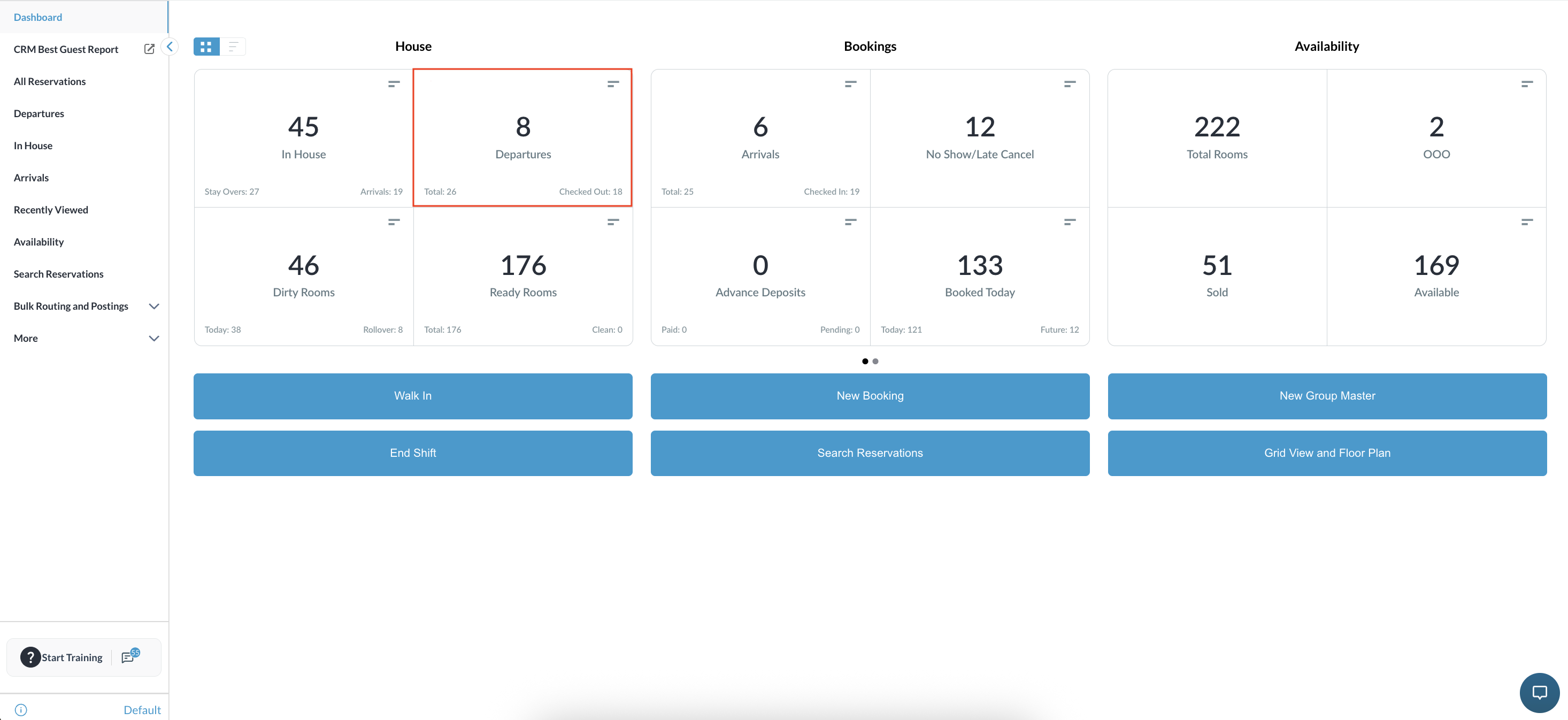
Navigate to the Departures screen on the Frontdesk Dashboard. |
|
|
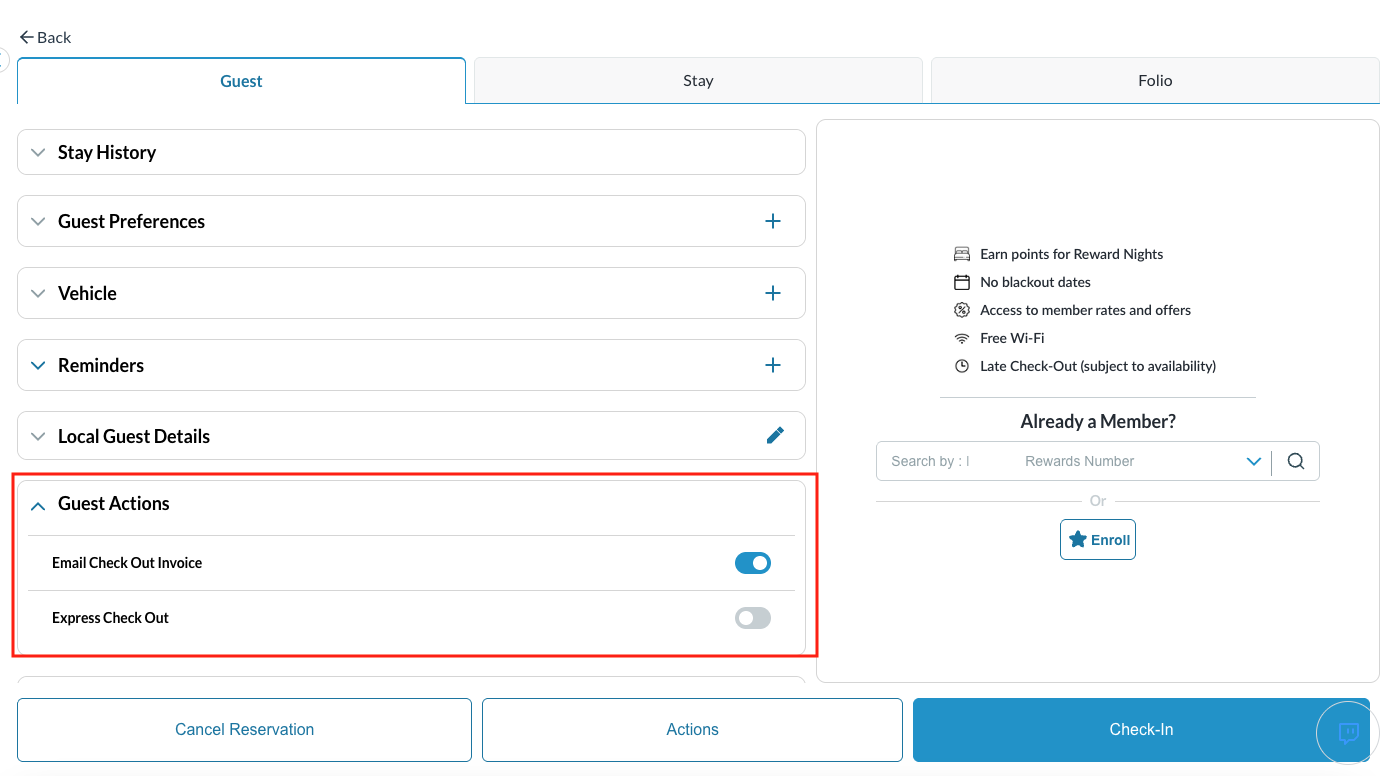
Setup the reservation for Express Checkout.
The reservation is now setup for express checkout. |
|
|
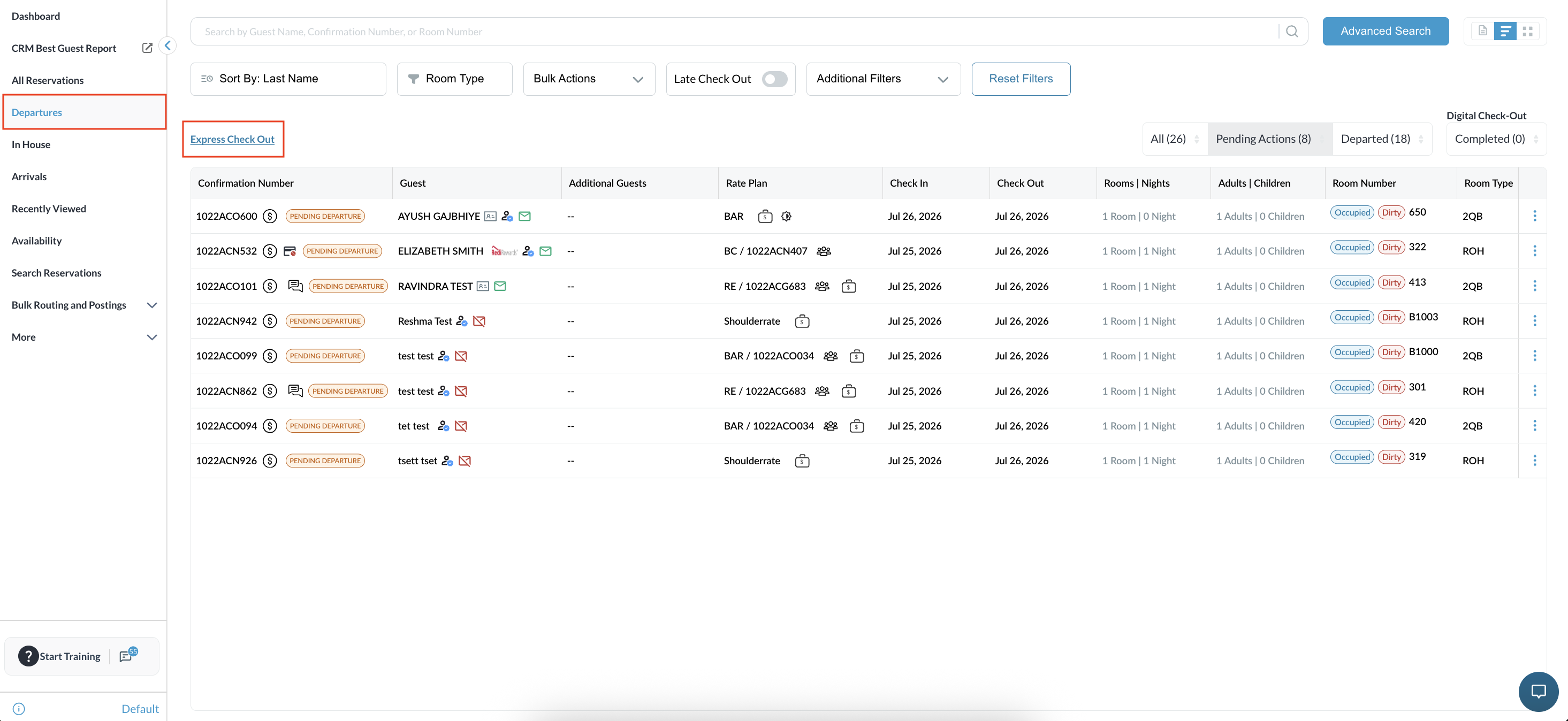
From the Departures listing screen,You can apply filters to narrow your view by selecting Pending or Departed.
Click the Express Check-Out . |
|
|
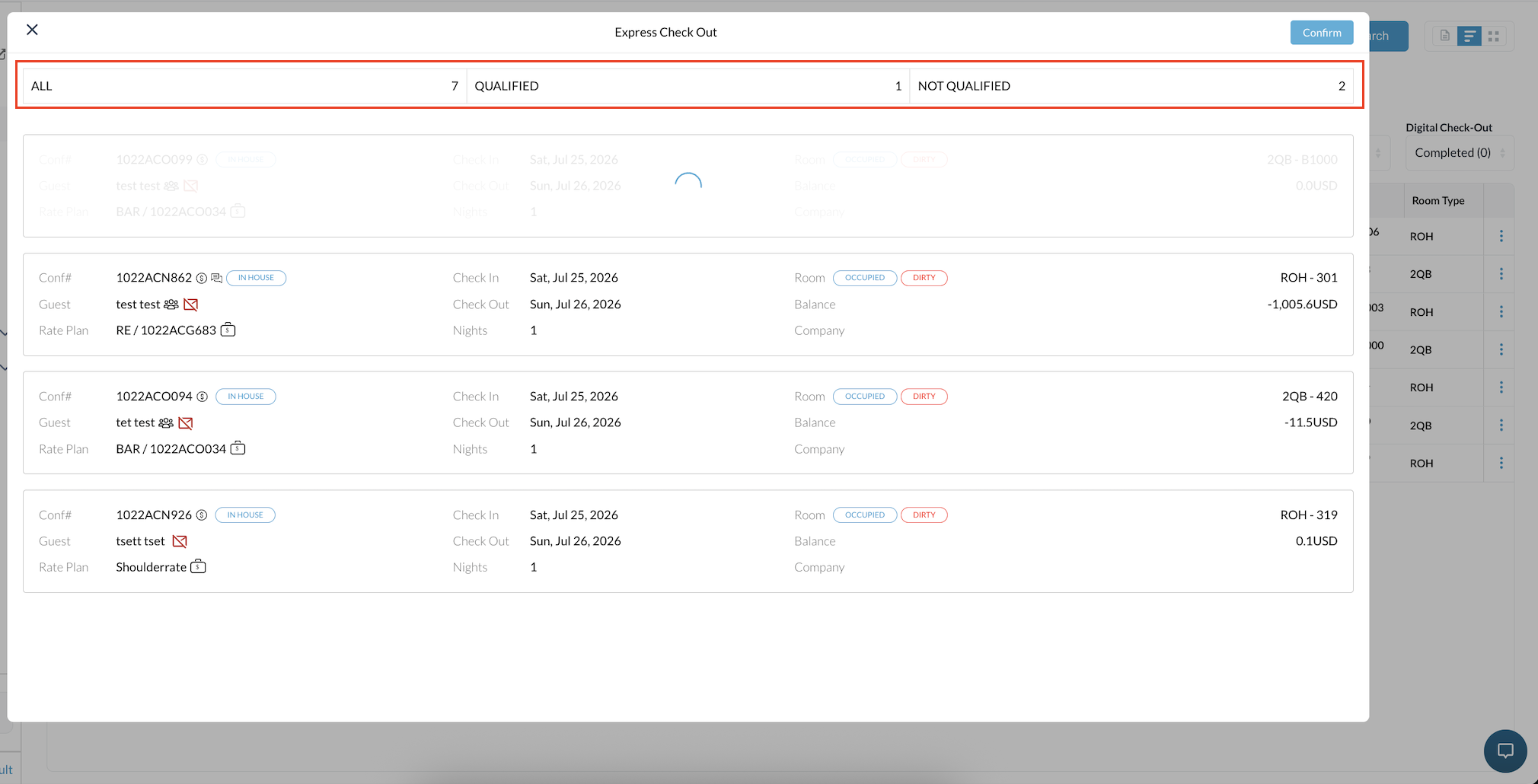
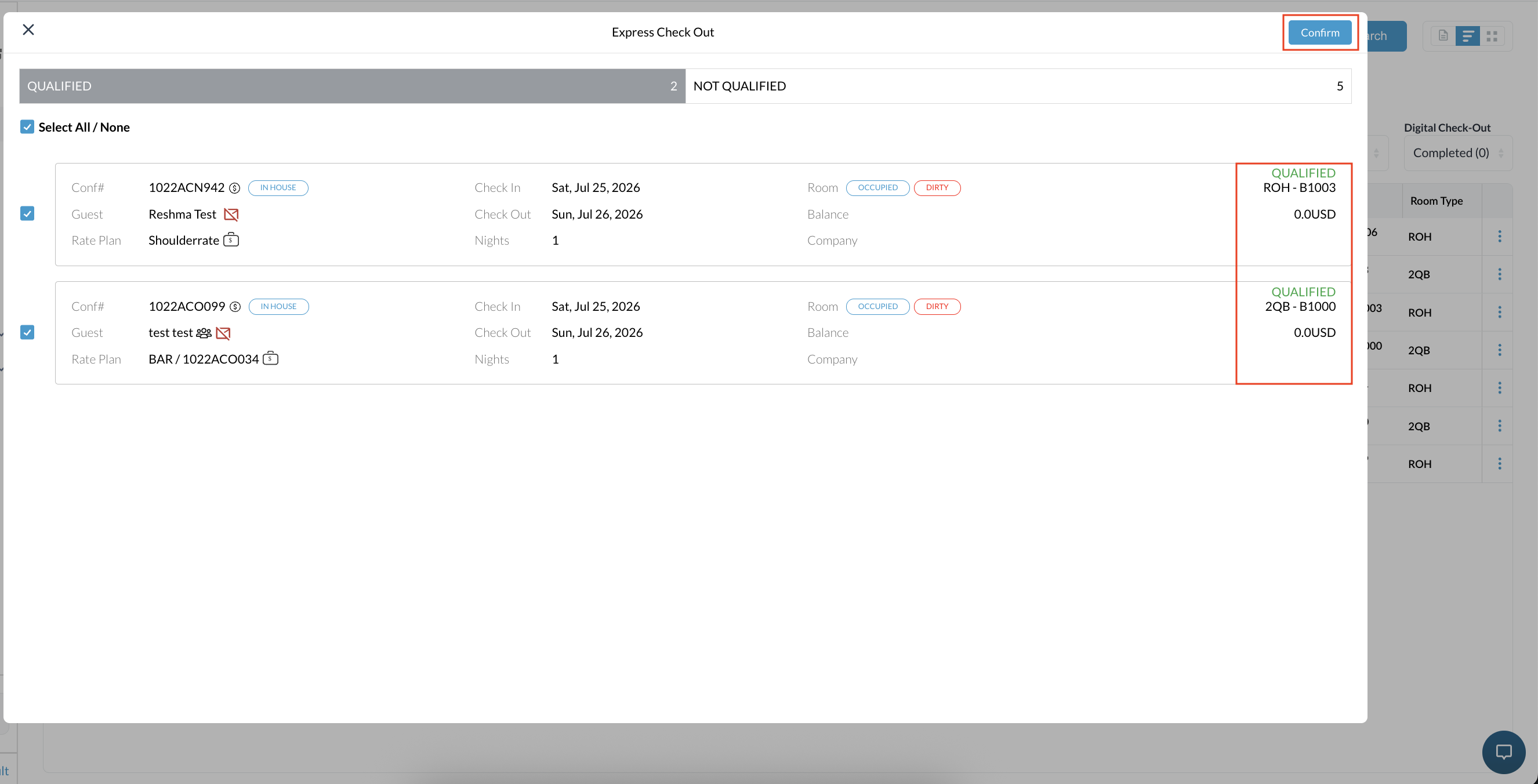
The system will automatically filter and display all reservations eligible for express check-out under the Qualified tab. Qualified Reservations meet all conditions for automatic checkout and can be processed directly through Express Check Out
|
|
|
Select or deselect specific reservations as needed. The Confirm button remains disabled until at least one reservation is selected. Click Confirm. The system will process the checkout exclusively for the selected reservations. |
|
|
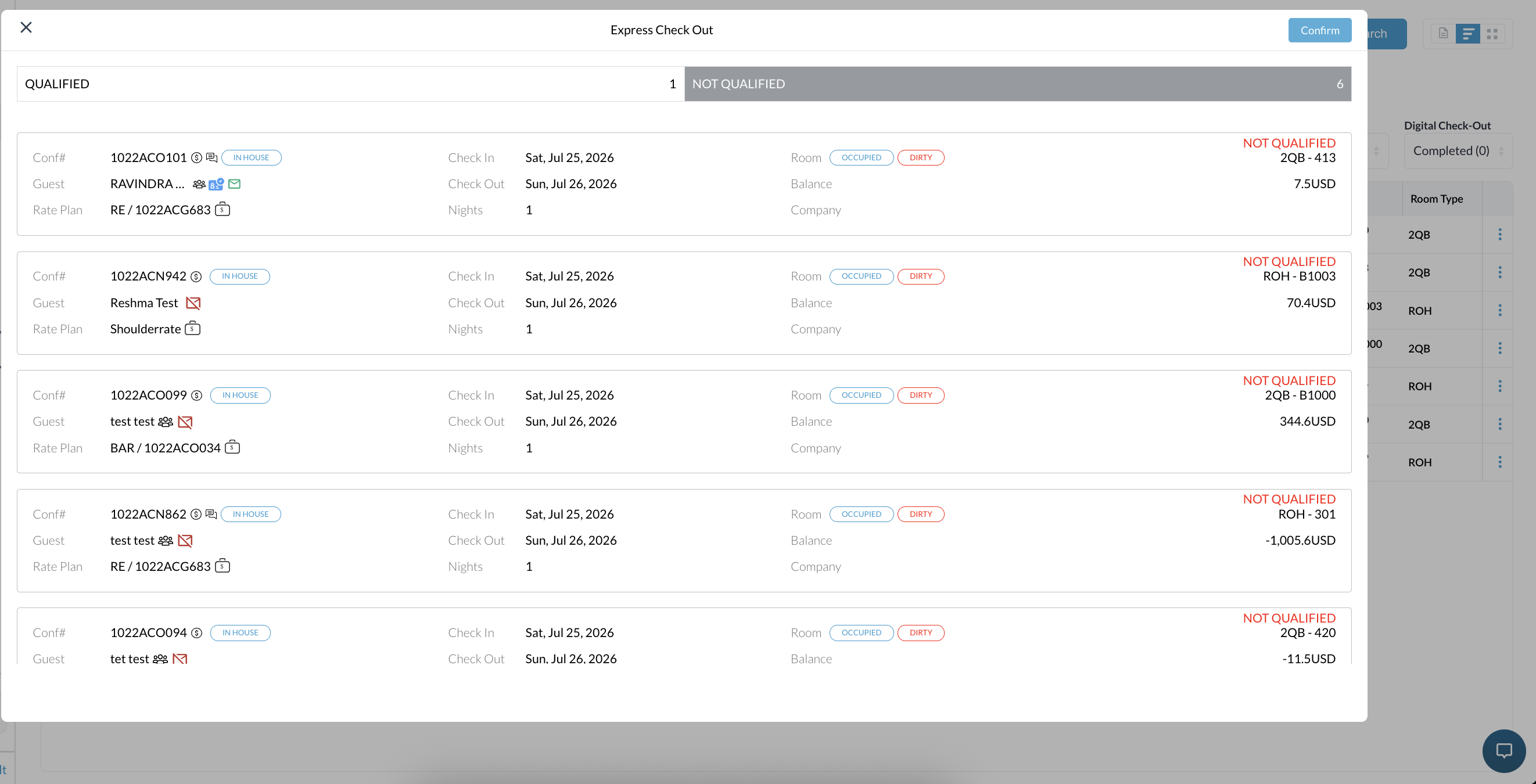
Reservations that require manual review will appear under the Not Qualified tab. Not Qualified Reservations require manual review before they can be checked out These typically include reservations with:
|
|
|
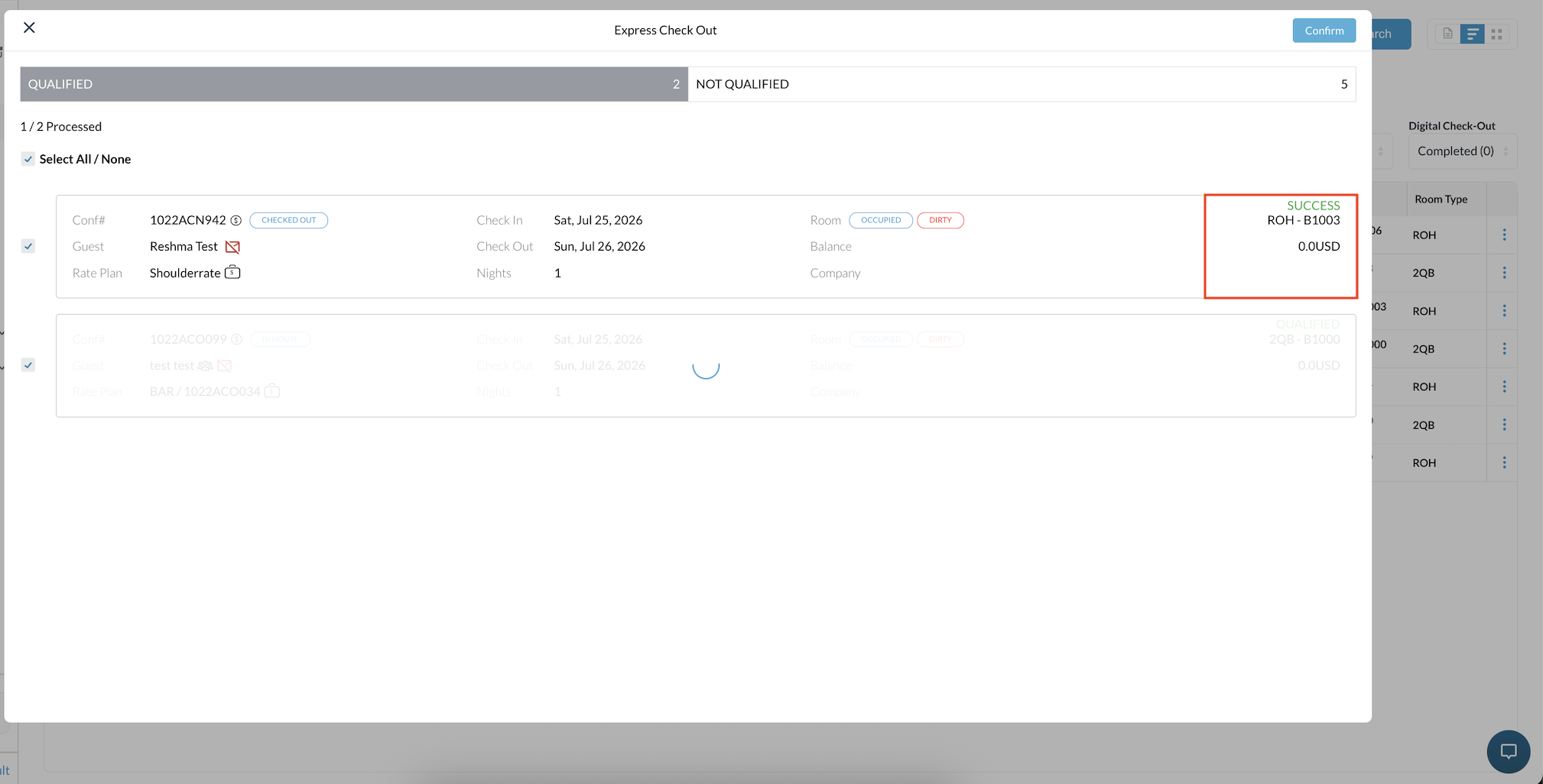
Upon successful completion, a success label is displayed for each processed reservation. |
|
|
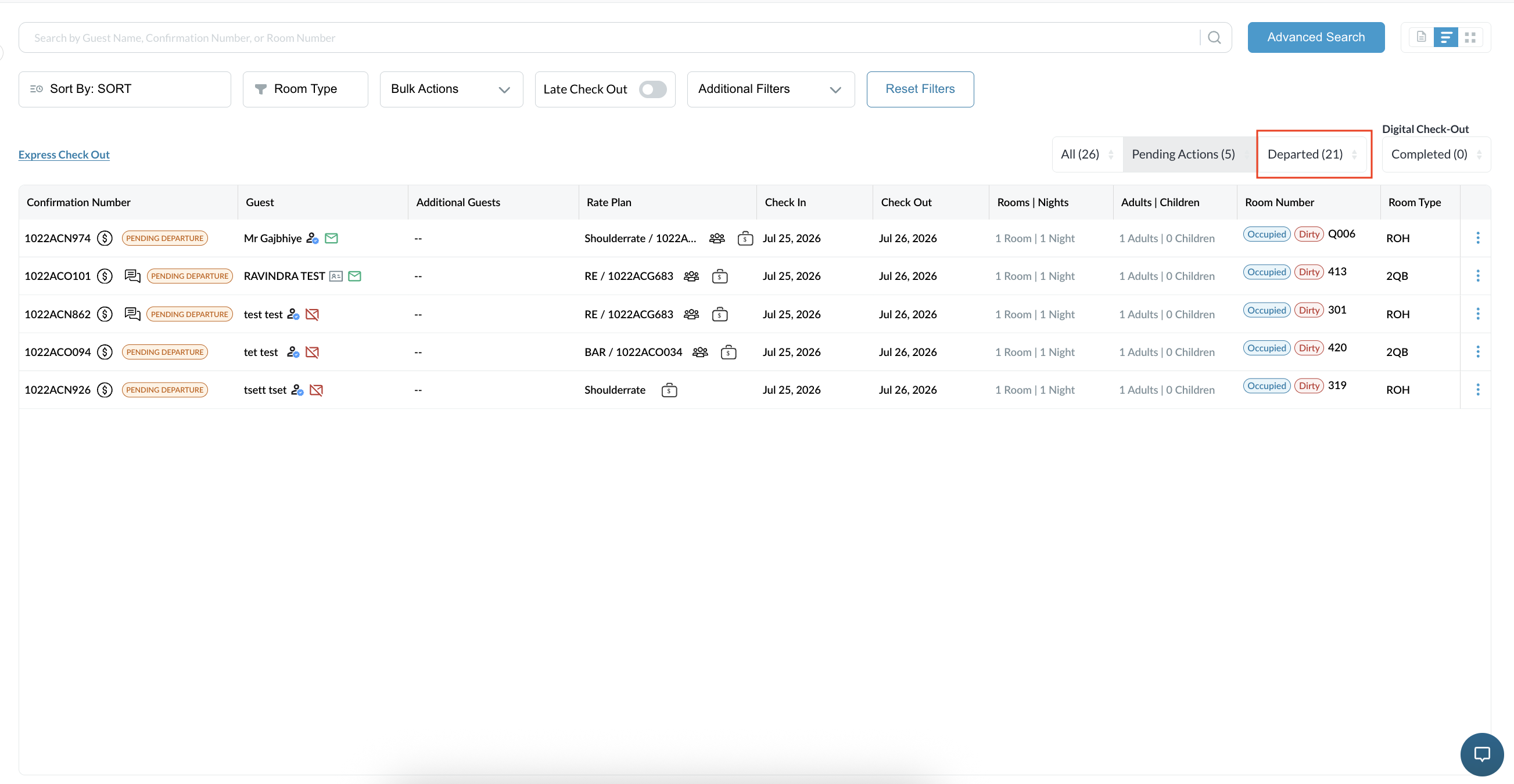
Any unselected reservations remain untouched on the Departure list. The Departures list reflects all departures for the day and the filters indicate the quantity still pending and quantity checked out. |
|