Target Roles: Front Desk Agents, Reservations Specialists, Guest Services Coordinators, Front Office Managers, Night Auditors
Last Updated:
Executive Overview
In HotelKey PMS, the three-dot Actions menu (⋮) located on the right side of every reservation row enables front desk and reservations teams to execute high-frequency operational tasks directly from list views without opening the full guest reservation. Accessible across the Arrivals, In House, Departures, and No Show/Late Cancel queues—as well as inside the unified All Reservations tab in the left navigation menu—the Actions menu dynamically adapts its available commands based on the reservation's current stay status and room assignment state.
Where to Access the Reservation Actions Menu
Operators can launch the row-level Actions menu (⋮) from five operational queue views:
All Reservations Tab (Left Navigation Menu): Unified reservation grid (Home > All Reservations) displaying status tabs across all active, arriving, departing, in-house and no show/late canceled records.
No Show / Late Cancel Queue:Home > No Show/Late Cancel (or Dashboard No Show/Late Cancel KPI tile).
📷 VISUAL CALLOUT:
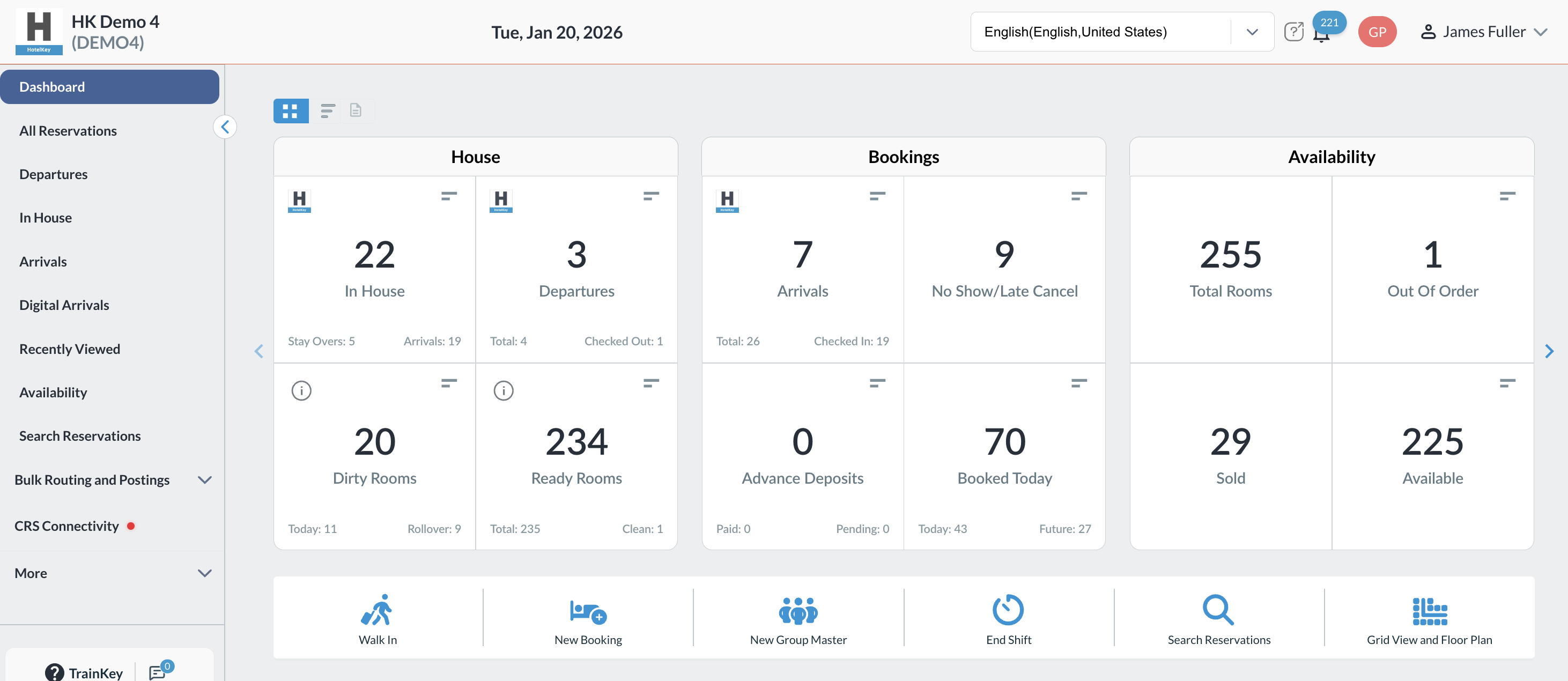
Dashboard Queue Entry Points & Row-Level Three-Dot Actions Menu (⋮)
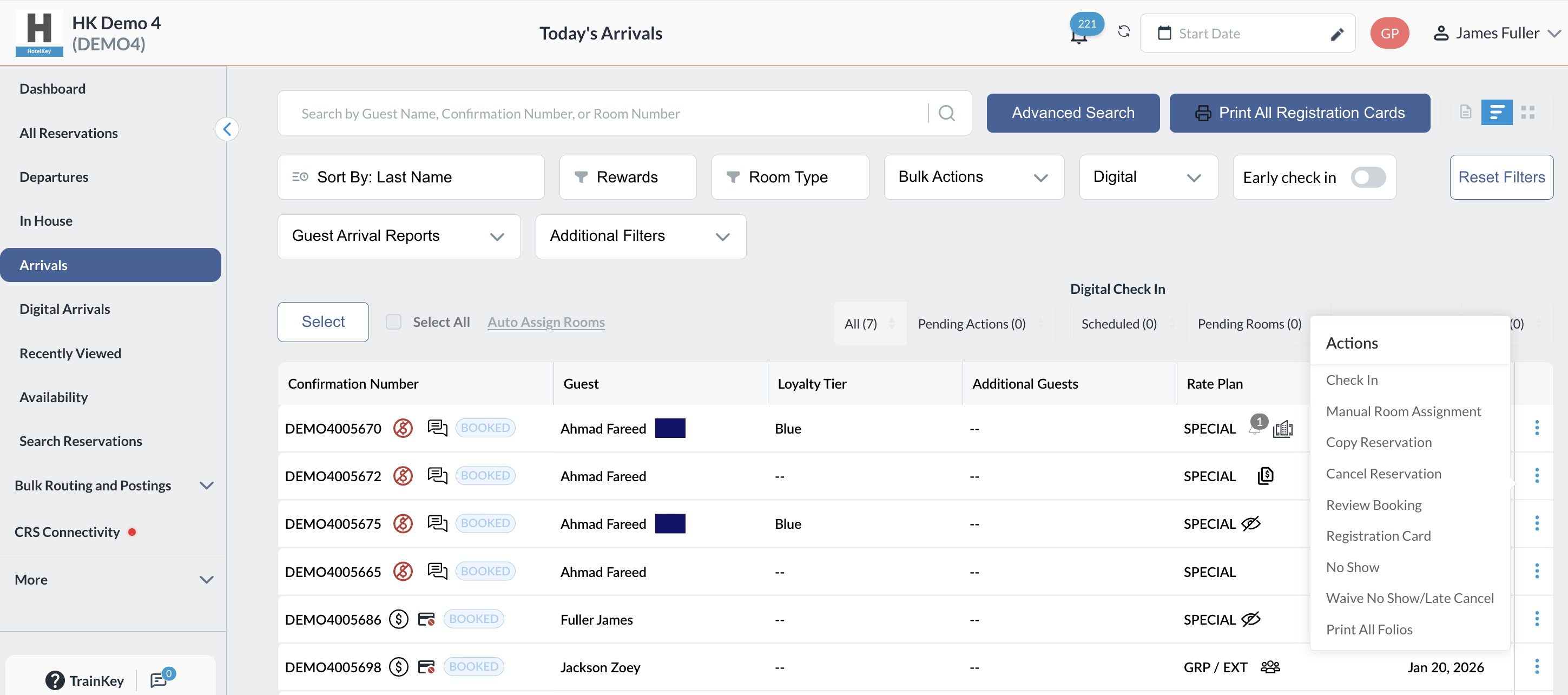
(Left) HotelKey PMS Dashboard highlighting the All Reservations tab in the left navigation menu and the In House, Departures, Arrivals, and No Show/Late Cancel KPI tiles; (Right) A reservation row showing the three-dot (⋮) menu expanded to display contextual Actions.
PMS Dashboard with Left Navigation Menu
Arrival_Actions Menu and (⋮)
Context-Sensitive Visibility Rules & Version 6.0.6 Updates
Because reservation queues display records at different stages of the guest lifecycle, HotelKey dynamically shows or hides specific menu options based on reservation state:
Conditional Visibility (Hidden Options):
Manual Room Assignment: Only displays for reservations that do not yet have an assigned room and are not in ONHOLD status. If a room number is already assigned or the reservation is placed on hold, Manual Room Assignment is automatically hidden from the Actions menu.
Undo Checkout: Only appears on reservations currently in CHECKED OUT status (typically viewed inside the Departures queue). For active IN-HOUSE or PENDING DEPARTURE rows, Undo Checkout is hidden.
Undo Checkin: Only displays for reservations currently in IN-HOUSE status.
Reinstate: Only appears on CANCELLED, LATE CANCEL, or NO SHOW reservations.
ℹ️ Release Note — Manual Room Assignment Action Item (Available in Version 6.0.6+):
Starting in HotelKey Version 6.0.6, the Manual Room Assignment action item is added directly to the row-level Actions menu (⋮) in the Arrivals and All Reservations queues. This allows front desk agents to launch the Manual Room Assignment modal straight from the arrival list without opening the reservation's Stay tab first. (Note: This quick-action menu item is not available in releases prior to version 6.0.6).
Complete Breakdown of Actions by Operational Queue
Clicking the three-dot icon (⋮) on an arriving reservation row displays:
Check In: Checks in the reservation immediately, bypassing payment source or authorization requirements.
Manual Room Assignment (v6.0.6+): Opens the Manual Room Assignment modal to select an available room (hidden if a room is already assigned or if the reservation is ONHOLD).
Copy Reservation: Opens the Copy Reservation modal, allowing you to select specific reservation details to carry over into a new booking (e.g., Company Details, Guarantee Type, Guest Details, Reward Profile, and Room Details such as Rate Plan and Room Type).
Cancel Reservation: Initiates the reservation cancellation workflow and prompts for a cancellation reason.
Review Booking: Opens a read-only summary view of the reservation's guest details, stay details, Room and Rate Details and Guarantee Details.
Print Registration Card: Generates a printable PDF registration card for guest signature at check-in.
No Show: Marks an unarrived reservation as a No Show and applies applicable no-show fee rules.
Waive No Show/Late Cancel: Waives penalty charges associated with a no-show or late cancellation.
Print All Folios: Generates and previews all folio windows associated with the reservation.
📷 VISUAL CALLOUT:
Arrivals Queue: Expanded Actions Menu (⋮)
The Arrivals table showing the expanded Actions menu on an unassigned RESERVED row, displaying Check In, Manual Room Assignment, Copy Reservation, Cancel Reservation, Review Booking, Print Registration Card, No Show, Waive No Show/Late Cancel, and Print All Folios.
Arrivals Queue: Expanded Actions Menu
2. In House Queue Actions (IN-HOUSE Occupied Reservations)
Clicking the three-dot icon (⋮) on an occupied in-house reservation row displays:
Copy Reservation: Opens the Copy Reservation modal, allowing you to select specific reservation details to carry over into a new booking (e.g., Company Details, Guarantee Type, Guest Details, Reward Profile, and Room Details such as Rate Plan and Room Type).
Undo Checkin: Reverts an accidental check-in back to BOOKED status (subject to user role permissions and folio activity rules).
Audit Log: Opens the chronological activity log tracking every modification, room move, and rate change on the reservation.
Print All Folios: Generates and previews all folio windows associated with the reservation.
📷 VISUAL CALLOUT:
In-House Queue: Expanded Actions Menu (⋮)
The In House table showing the expanded Actions menu on an unassigned, displaying Copy Reservation, Undo Checkin, Audit Log, and Print All Folios.
In-House Queue: Expanded Actions Menu
3. Departures Queue Actions (PENDING DEPARTURE vs. CHECKED OUT)
Clicking the three-dot icon (⋮) on a departure row adapts based on whether the guest has checked out:
Copy Reservation: Opens the Copy Reservation modal, allowing you to select specific reservation details to carry over into a new booking (e.g., Company Details, Guarantee Type, Guest Details, Reward Profile, and Room Details such as Rate Plan and Room Type).
Audit Log: Displays the full reservation change history.
Undo Checkout (Checked-Out Rows Only): Reinstates a CHECKED OUT reservation back to IN-HOUSE status if the guest extends their stay or requires post-checkout folio adjustments (hidden on rows that have not yet checked out).
Print All Folios: Generates and previews all folio windows associated with the reservation.
📷 VISUAL CALLOUT:
Departures Queue: Expanded Actions Menu
The Departures queue Actions menu expanded on a CHECKED OUT row displaying Undo Checkout.
Departures Queue: Expanded Actions Menu
4. No Show / Late Cancel Queue Actions (NO SHOW / LATE CANCEL Reservations)
Clicking the three-dot icon (⋮) on a cancelled or no-show reservation row displays:
Audit Log: Reviews who cancelled or marked the booking as a no-show and when the action occurred.
Reinstate: Restores a NO SHOW or LATE CANCEL reservation back to active RESERVED status so the guest can be checked in.
Copy Reservation: Opens the Copy Reservation modal, allowing you to select specific reservation details to carry over into a new booking (e.g., Company Details, Guarantee Type, Guest Details, Reward Profile, and Room Details such as Rate Plan and Room Type).
Print All Folios: Generates and previews all folio windows associated with the reservation.
📷 VISUAL CALLOUT:
No Show / Late Cancel Queue: Reinstate & Audit Actions
The No Show/Late Cancel screen showing the expanded Actions menu with Audit Log, Reinstate, Copy Reservation, and Print All Folios.