
Transferred and Routed Charges Report Overview
Parent Hub: 🛎️ Front Desk & Guest Services
Category: 🧾 Guest Folios & Billing
Target Roles: Hotel Controllers, Finance Managers, Night Auditors, Front Office Managers, Accounting Supervisors, Billing Coordinators, General Managers
Key Value: Audit manual charge transfers and automated billing routings between guest folios, group master accounts, and house accounts; verify posting classifications, clerk user accountability, and routing rule compliance; and prevent billing disputes and revenue leakage.
Executive Summary
The Transferred and Routed Charges Report is a critical financial audit, folio reconciliation, and revenue control document within the 🧾 Guest Folios & Billing category of the 🛎️ Front Desk & Guest Services hub. Designed to provide complete operational and financial visibility over folio charge movements, it itemizes both ad-hoc manual charge transfers and rule-based automated charge routings processed in the Property Management System (PMS) across specified date windows.
-
By organizing charge transfers and automated routings into 2 defined report sections: Transfer Charges Report and Routed Charges, this report enables hotel controllers, night auditors, and accounting leads to audit direct manual folio-to-folio moves (
Transfer Charges Report) alongside systematic billing rule redirects (Routed Charges). It correlates charge transfer timestamps (Date,Time) and transaction identifiers (From Transaction Number,To Transaction Number) with origin/destination account types (Sender Type,Receiver Type,From Room Number,To Room Number), routing classifications (Routing Type), dollar amounts (Total), posting descriptions (Posting Type), staff user credentials (Clerk), and operational justifications (Comments).
Key Capabilities
-
Two-Section Charge Movement Audit Structure: Separates manual ad-hoc folio charge transfers (
Transfer Charges Report) from rule-driven automated billing redirects (Routed Charges) for targeted financial auditing. -
Complete Account & Room Lineage Mapping: Tracks exact origin accounts (
From Transaction Number,From Room Number,Sender Type) and target destination accounts (To Transaction Number,To Room Number,Receiver Type, e.g., Reservation, Group, House Account). -
Routing Rule & Automation Classification: Identifies whether charge movements were triggered manually by front office staff or executed automatically by PMS billing rules (
Routing Type, e.g.,Automated). -
Posting & Departmental Category Inspection: Itemizes the specific revenue or posting type moved between accounts (
Posting Type, e.g., Accommodation, Manual Guest Room, Business Centre - Equipment Rental). -
Clerk Accountability & Audit Trail: Logs the exact staff username (
Clerk) authorizing the transaction alongside free-text operational notes (Comments) for full auditability.
Report Views & Functional Breakdown
The Transferred and Routed Charges Report presents folio charge movement data in a structured matrix across 2 defined sections:
┌────────────────────────────────────────────────────────────────────────┐
│             TRANSFERRED AND ROUTED CHARGES REPORT                      │
├────────────────────────────────────────────────────────────────────────┤
│                       2 Defined Report Sections                        │
├──────────────────────────┬──────────────────────────┬──────────────────┤
│ 1. Transfer Charges      │ 2. Routed Charges        │                  │
│    Report (Manual Moves) │    Section (Automated)   │                  │
└──────────────────────────┴──────────────────────────┴──────────────────┘
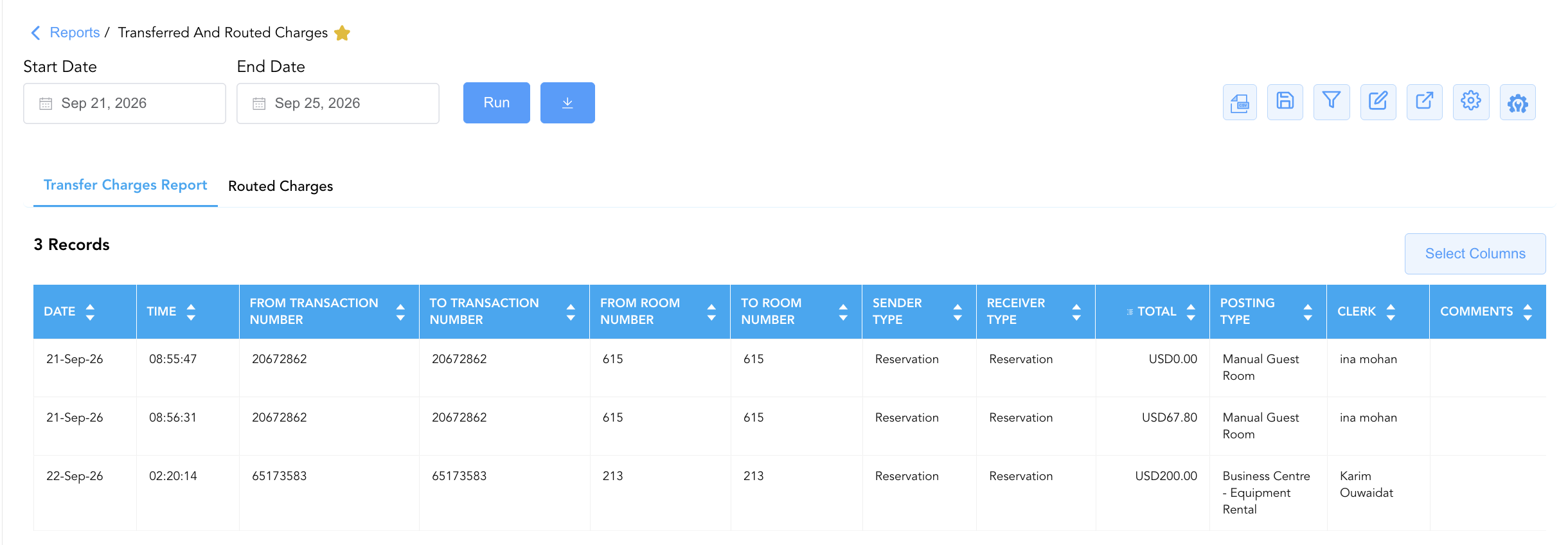
1. Transfer Charges Report Section
Monitors manual, ad-hoc charge transfers executed directly between guest folios, room accounts, or window buckets.
-
Primary Use: Auditing manual front desk charge moves, verifying guest-requested folio splits or corrections, and inspecting staff transfer comments.
-
Key Metrics: Date, Time, From Transaction Number, To Transaction Number, From Room Number, To Room Number, Sender Type, Receiver Type, Total, Posting Type, Clerk, Comments.
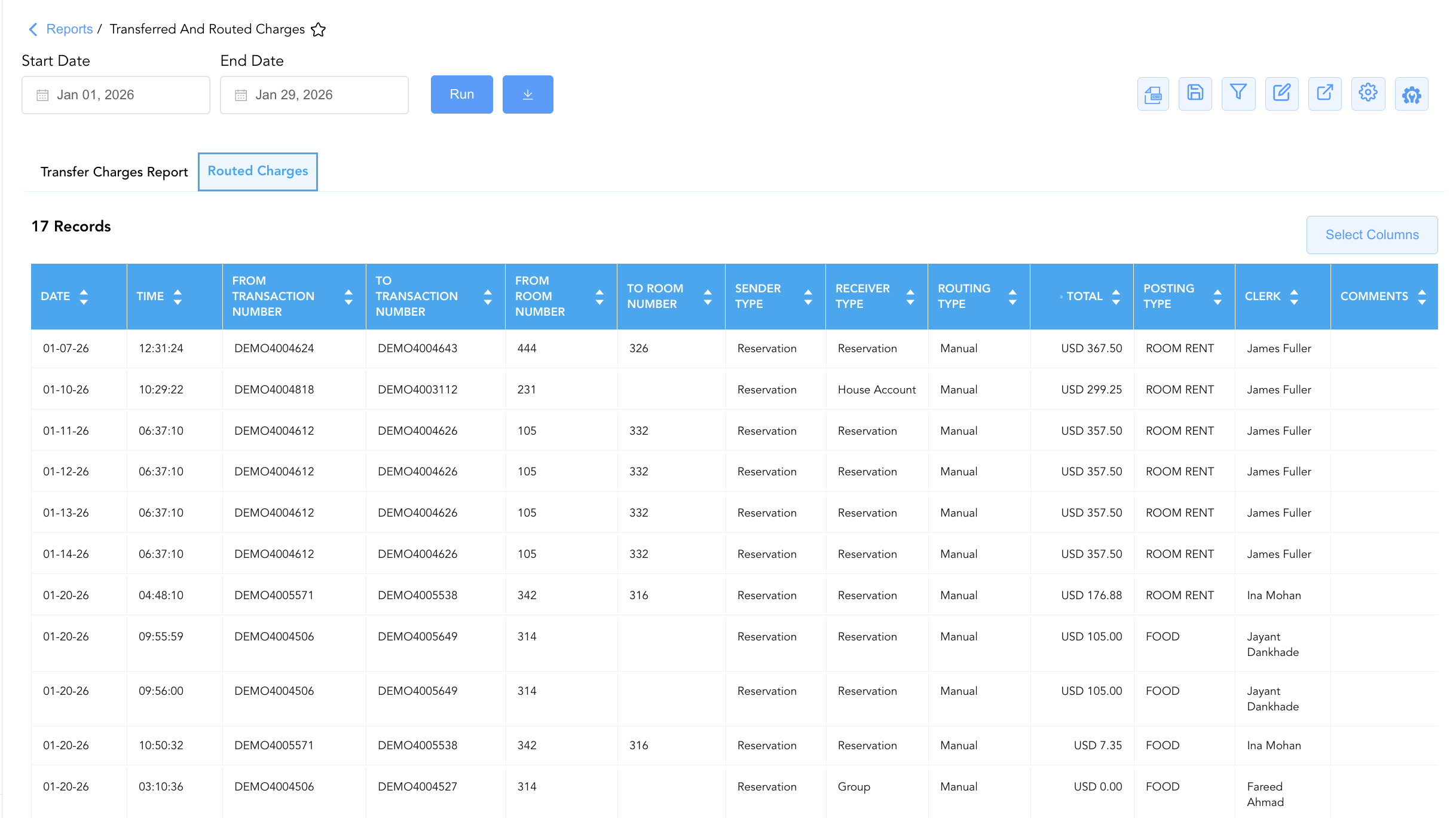
2. Routed Charges Section
Tracks charges redirected automatically by pre-configured PMS billing routing rules (such as corporate direct-bill rules, group master billing, or package routing).
-
Primary Use: Reconciling master group folio postings (e.g., room rate routed from guest folio to group master
80197390), auditing corporate billing rule accuracy, and verifying automated night audit postings. -
Key Metrics: Date, Time, From Transaction Number, To Transaction Number, From Room Number, To Room Number, Sender Type, Receiver Type, Routing Type, Total, Posting Type, Clerk, Comments.
Data Dictionary (Dynamic View Columns)
Customize your default view using the Configure (⚙️) icon on the report page. Below is the full data dictionary representing all 13 unique columns available across the 2 report sections:
💡 Coupled Financial Posting Note:
Totalrepresents the gross dollar amount transferred or routed between folios. It is marked Yes under "Includes Taxes & Fees?" because taxes and fees are coupled and posted directly with the charge; when a charge is transferred or routed, its coupled taxes and fees transfer alongside it.
|
Column Name |
Section Applicability |
Description |
Data Source / System Mapping |
Includes Taxes & Fees? |
|
Date |
Both Sections |
Calendar date on which the charge transfer or routing occurred. |
PMS Folio Audit > Transaction Date |
N/A |
|
Time |
Both Sections |
Exact timestamp recording when the charge was moved or routed. |
PMS Folio Audit > Transaction Time |
N/A |
|
From Transaction Number |
Both Sections |
Primary unique PMS transaction/reservation number where the charge originated. |
PMS Billing > Source Transaction ID |
N/A |
|
To Transaction Number |
Both Sections |
Destination PMS transaction or master account number receiving the charge. |
PMS Billing > Target Transaction ID |
N/A |
|
From Room Number |
Both Sections |
Physical guest room number from which the charge was transferred/routed. |
PMS > Source Room Number |
N/A |
|
To Room Number |
Both Sections |
Destination guest room number receiving the charge (Blank if routed to a Group Master or House Account). |
PMS > Target Room Number |
N/A |
|
Sender Type |
Both Sections |
Entity classification of the sending account (e.g., |
PMS Account Setup > Source Type |
N/A |
|
Receiver Type |
Both Sections |
Entity classification of the receiving account (e.g., |
PMS Account Setup > Target Type |
N/A |
|
Routing Type |
Section 2 |
Rule mechanism governing the charge redirect (e.g., |
PMS Routing Setup > Rule Type |
N/A |
|
Total |
Both Sections |
Gross dollar value of the transferred or routed charge, including coupled taxes and fees. |
Folio Posting > Transfer Amount |
🟢 Yes |
|
Posting Type |
Both Sections |
Revenue or transaction category code (e.g., |
PMS Charge Setup > Posting Code |
N/A |
|
Clerk |
Both Sections |
User login ID or full name of the staff member who executed or configured the transaction. |
Security Audit Trail > User ID |
N/A |
|
Comments |
Both Sections |
Free-text operational remarks or staff notes detailing the reason for the charge movement. |
PMS Folio Prompt > Remarks |
N/A |
Customization & Platform Features
User & Property Preferences
-
Personal Preference: Tailor your individual view by hiding or dragging columns. Your preferences save automatically for future sessions.
-
Property Defaults: System Admins can configure standard default layouts across all property users to streamline operational reporting. To maximize audit efficiency, group the columns into the below logical blocks:
-
Section 1: Transfer Charges Report
-
Transaction Audit Timestamps (Cols 1–2):
Date|Time -
Origin & Destination Identifiers (Cols 3–6):
From Transaction Number|To Transaction Number|From Room Number|To Room Number -
Account & Entity Scope (Cols 7–8):
Sender Type|Receiver Type -
Financial Ledger & Charge Classification (Cols 9–10):
Total|Posting Type -
Staff Accountability & Audit Notes (Cols 11–12):
Clerk|Comments
-
-
Section 2: Routed Charge
-
Transaction Audit Timestamps (Cols 1–2):
Date|Time -
Origin & Destination Identifiers (Cols 3–6):
From Transaction Number|To Transaction Number|From Room Number|To Room Number -
Account Scope & Routing Logic (Cols 7–9):
Sender Type|Receiver Type|Routing Type -
Financial Ledger & Charge Classification (Cols 10–11):
Total|Posting Type -
Staff Accountability & Audit Notes (Cols 12–13):
Clerk|Comments
-
-
Report Toolbar & Quick Actions
Use the top-right toolbar icons on the report page to manage and export your data view:
|
Icon |
Action / Feature |
Description |

|
Knowledge Article |
Opens the knowledge base article to learn how to interpret this report. |

|
Background Export |
Allows users to download up to 365 days of data directly to their computer in CSV format. |

|
Saved Views |
Saves your column filtering, sorting, and highlight preferences so you can easily reload your custom view later without reconfiguring the report. |

|
Filter |
Opens filter controls to isolate specific data within a column based on your selected criteria. |

|
Highlight |
Highlights column values in a designated color based on selected conditions. |

|
Export |
Exports and downloads the report in various formats (Excel, PDF, CSV) for offline analysis or printing. |

|
Configure |
Opens column selection controls to toggle visibility, reorder columns, or hide rows with all zeros. |

|
Additional Configuration |
Provides advanced report configuration and display formatting options to customize data presentation. |
Advanced Controls
-
Exporting & Financial Audits: Download in Excel or PDF format to support daily night audit folio balancing, corporate direct-bill audits, and general manager revenue controls.
-
Filtering: Filter Section 1 by
Clerkusername to audit staff transfer activity, or filter Section 2 byReceiver Type = Groupto reconcile master group folios. -
Highlighting (Conditional Formatting): Apply custom rules to automatically highlight high-dollar charge transfers (
Total > $200), manual guest room transfers, or uncommented transactions.
🔗 Related Reports & Next Steps
Within 🛎️ Front Desk & Guest Services & 🧾 Guest Folios & Billing:
-
Dynamic Charge Details – Comprehensive tax and surcharge audit report detailing per-person city tax postings and exemptions.
-
Recurring Charge Details – Automated repeating charge audit report for individual, group, and house accounts.
-
Departures Details Report – Manifest tracking scheduled guest departures, folio numbers, and outstanding balances.
-
Service Recovery Report – Audit report tracking guest service recovery rate adjustments and fee allowances.
Cross-Pillar Deep Dives:
-
⚖️ Ledgers & Trial Balance: Reconcile group master routed charges against City Ledger and Guest Ledger control accounts in Trial Balance.
-
💳 Payments & Transactions: Verify transferred charge settlements and direct-bill credit limits in Settlement By Payment Type.