Target Roles: Event Sales Directors, Catering Sales Managers, Conference Services Coordinators, Front Office Managers, Systems Administrators
Last Updated:
Executive Overview
In EventKey, the Event Booker Profile serves as a centralized operational and commercial repository for individual clients, corporate meeting planners, and booking agents. Accessible directly from the Actions menu on the Event Management Dashboard, the booker profile provides a comprehensive 360-degree view of client relationships. Event managers can analyze lifetime financial contributions (Lifetime, Year-to-Date, and Rolling 12-Month revenue), track forward-looking event pipelines and historical bookings, link parent corporate direct-bill accounts, establish preferred function spaces and room arrangements, set default billing and invoicing delivery protocols, define communication channels, and log timestamped remarks. Centralizing booker intelligence standardizes VIP handling, streamlines inquiry conversions, and maintains full compliance through chronological audit logs.
Configuration & Workflow Guide: Managing an Event Booker Profile
System Navigation Path
Home > Event Management > Actions > Event Booker Profile
Step
Action
Platform Guidance & Operational Details
Access Booker Lookup
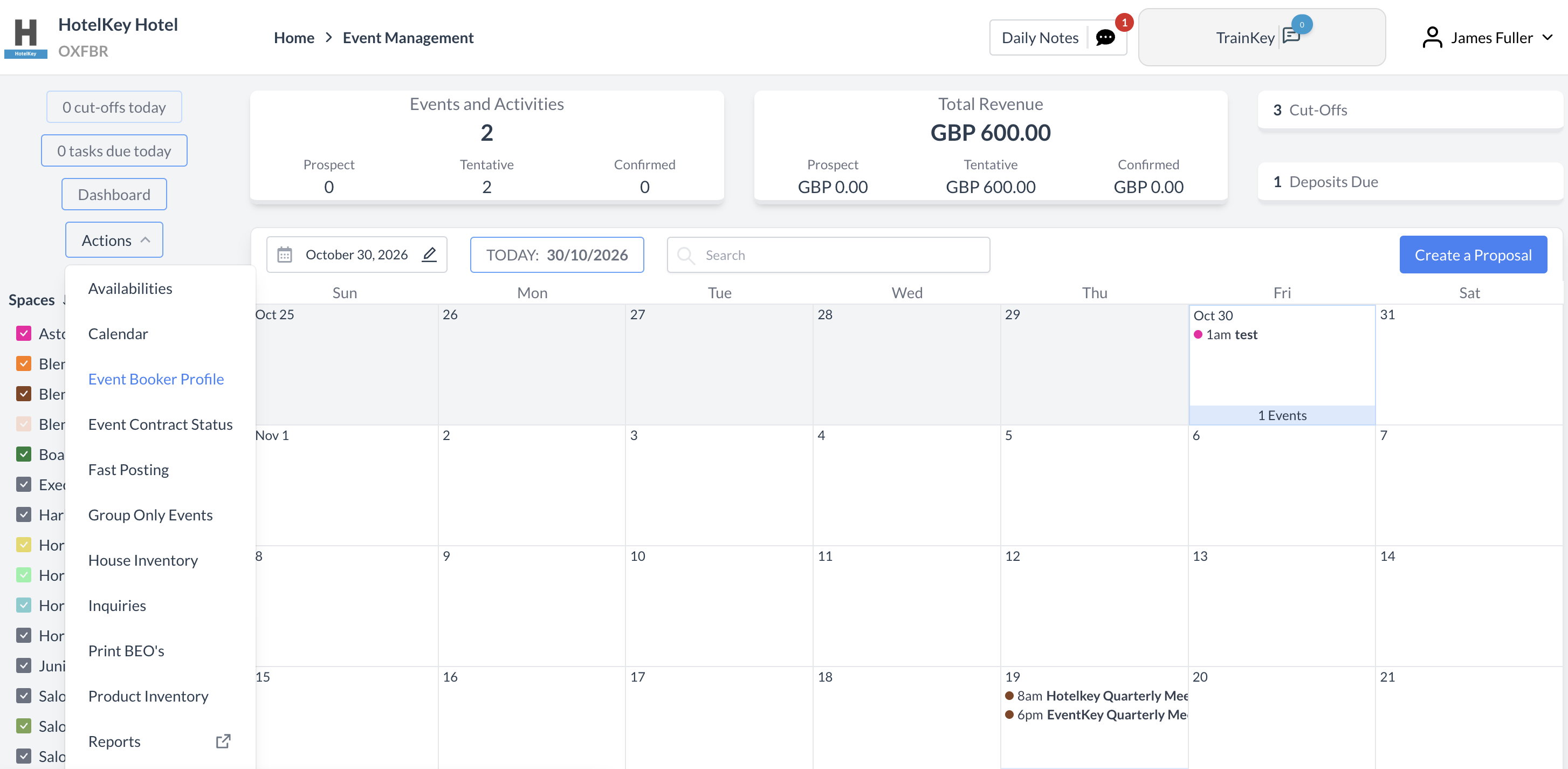
From the main Event Management dashboard, click the blue Actions button in the upper-left navigation panel and select Event Booker Profile.
Opens the Find an Event Booker Profile search console.
Search & Select Booker
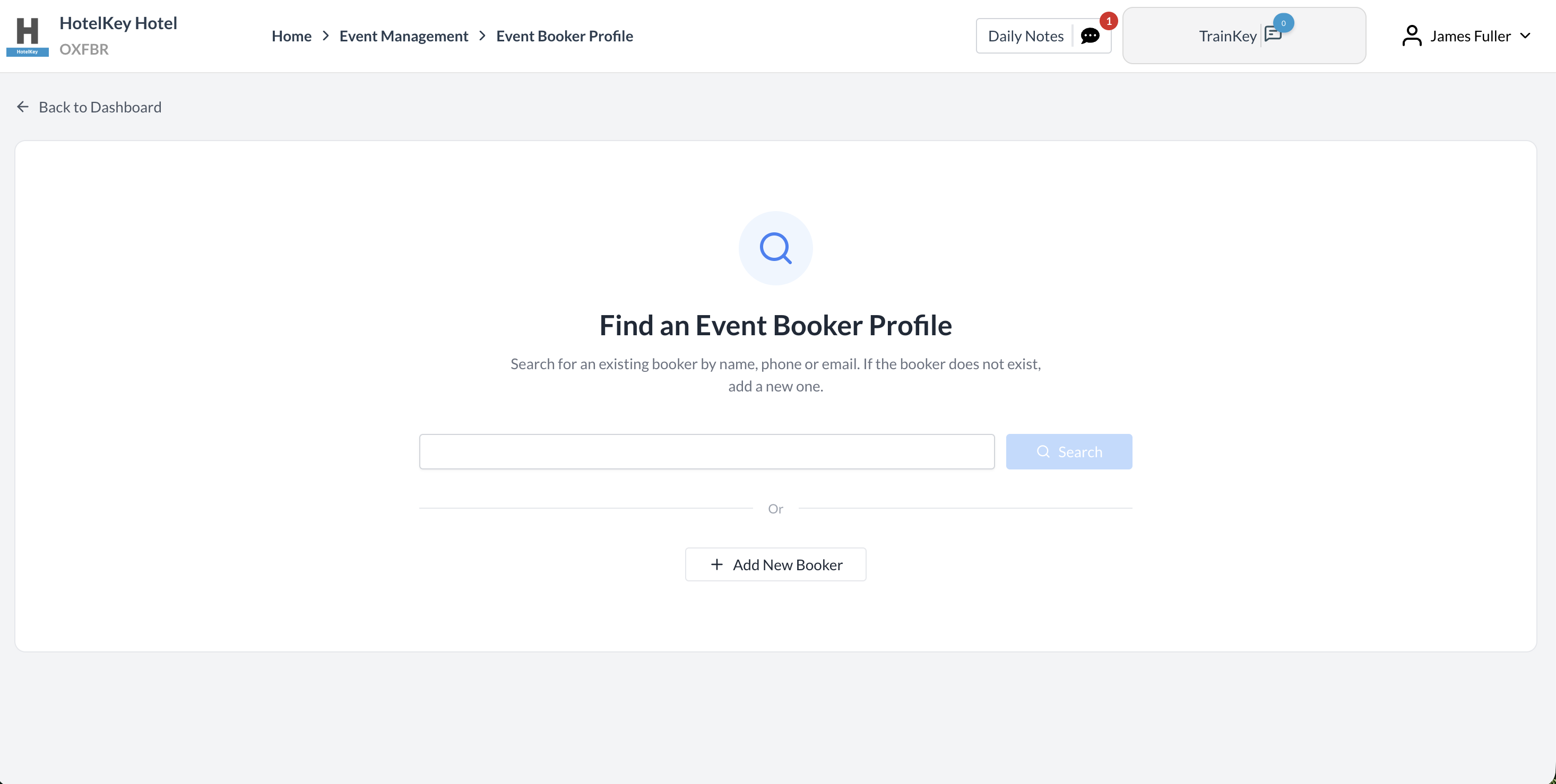
In the search query field, enter the client name, phone number, or email (e.g., type Bill Longo) and click the blue Search button.
Displays matching records in the results grid. If no record exists, operators can click + Add New Booker.
Open Booker Console
In the search results table, locate the target client row and click the white Open button in the far-right column.
Launches the comprehensive Booker Workspace displaying the client's header profile card and left-hand navigation sub-tabs.
Review Header & Dashboard
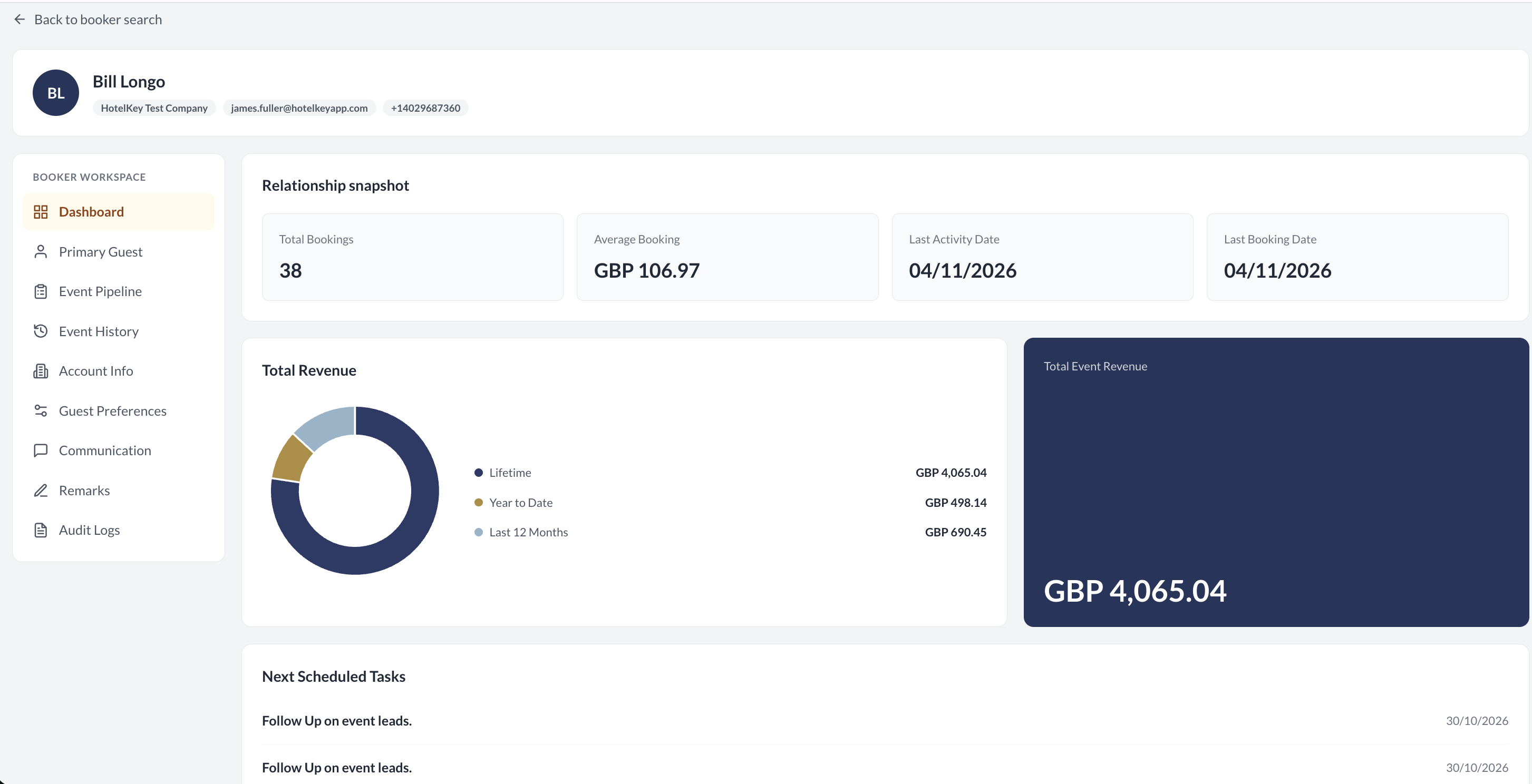
Review the Relationship snapshot (Total Bookings, Average Booking value, Last Activity Date, Last Booking Date), Total Revenue donut chart (Lifetime, Year-to-Date, Last 12 Months), total dollar contribution card, and Next Scheduled Tasks.
Provides an immediate high-level overview of commercial volume and upcoming action items assigned to the account.
Verify Primary Guest Info
Click the Primary Guest sub-tab in the left-hand Booker Workspace menu.
Displays and allows editing of contact parameters: First Name, Last Name, Physical Address, Country, Postal Code, City, State, Phone Number, and Corporate Email.
Monitor Pipeline & History
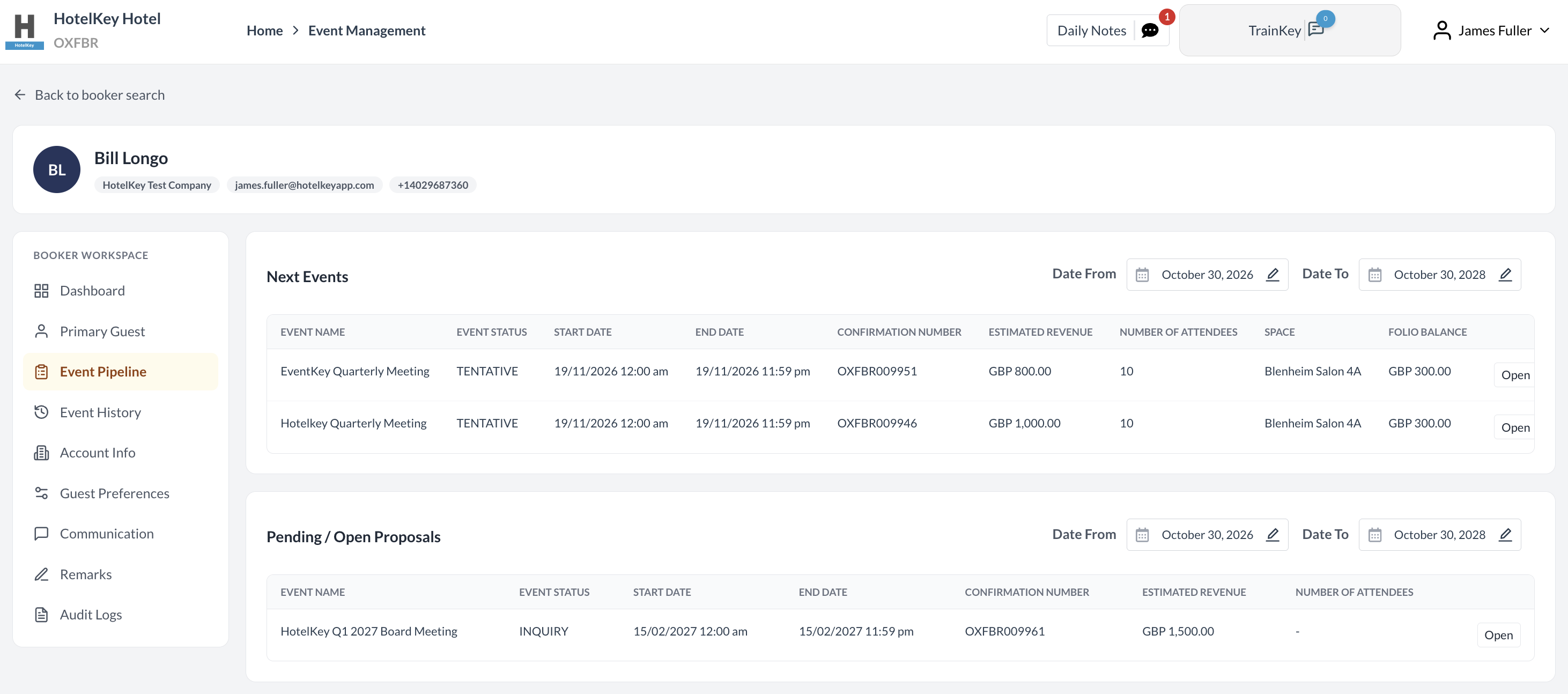
Click Event Pipeline to review active/upcoming bookings (Next Events) and tentative holds (Pending / Open Proposals). Click Event History to audit completed events, total revenue, meeting room revenue, and sleeping room pickup.
Allows sales teams to track active revenue pipelines and historical booking patterns across date ranges.
Map Parent Account Info
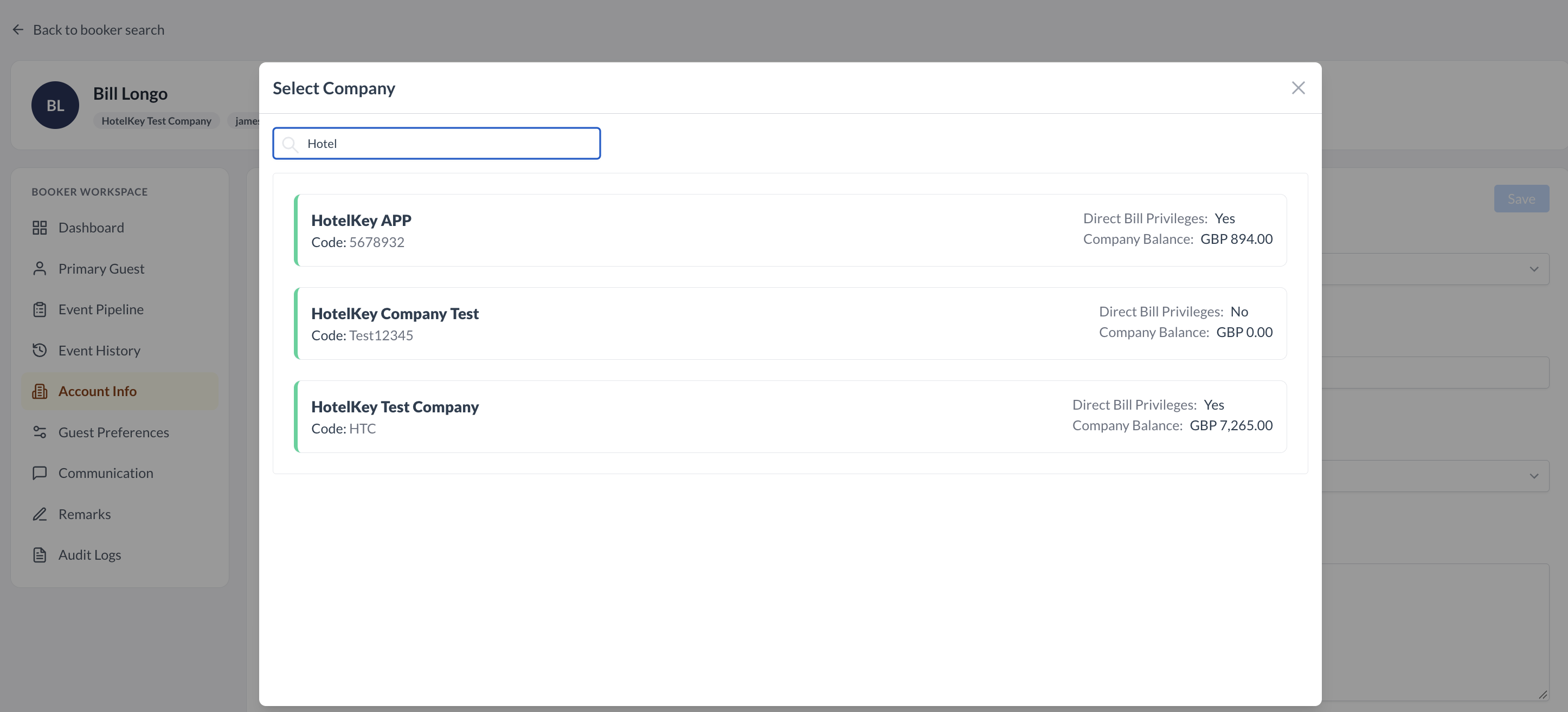
Click Account Info. Review or assign the Property Account Owner, select the Market Segment, click into Parent Company to search and link a corporate account (e.g., HotelKey APP), and set the Lead Source (e.g., Meeting Broker). Click Save.
Binds the individual planner to an enterprise corporate profile, displays direct-bill balances/privileges, and routes sales ownership.
Set Guest Preferences
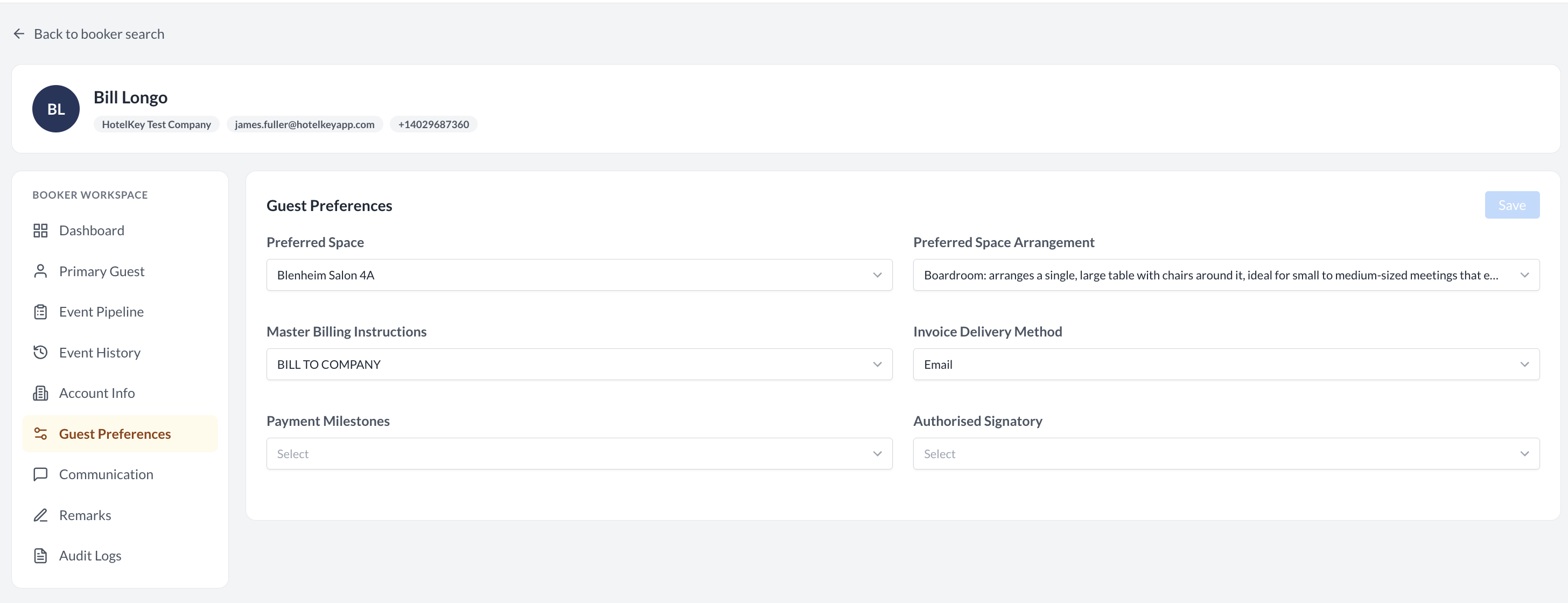
Click Guest Preferences. Select Preferred Space, choose Preferred Space Arrangement, set Master Billing Instructions (e.g., BILL TO COMPANY), define Invoice Delivery Method (e.g., Email), and assign an Authorised Signatory. Click Save.
Automatically defaults room preferences, billing routing, and invoice delivery workflows when creating new events for this booker.
Configure Communications
Click Communication. Choose the Preferred Channel (Email, Phone, Portal), set BEO Review Advance Days (e.g., 15 days), select Preferred Days of the week (e.g., MON, WED), and click + Search Contact to attach secondary billing or site contacts. Click Save.
Establishes advance timeline requirements for contract and BEO approvals and links alternate day-of coordinators.
10. Record Client Remarks
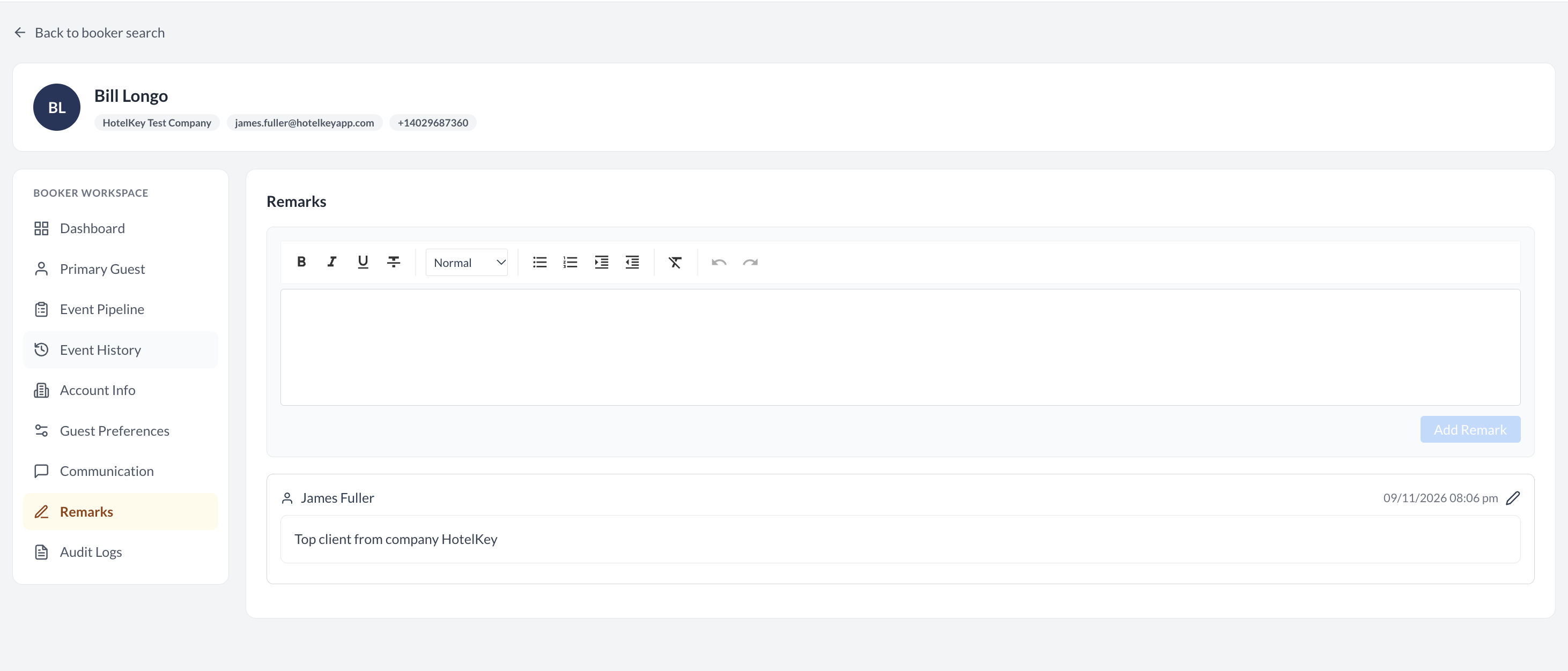
Click Remarks. Enter operational notes or VIP client preferences in the rich text box (e.g., "Top client from company Hotel Key"), format with bullet points or bolding as needed, and click the blue Add Remark button.
Timestamps and tags operational notes with the logged-in user ID for cross-shift communication.
11. Audit Profile Changes
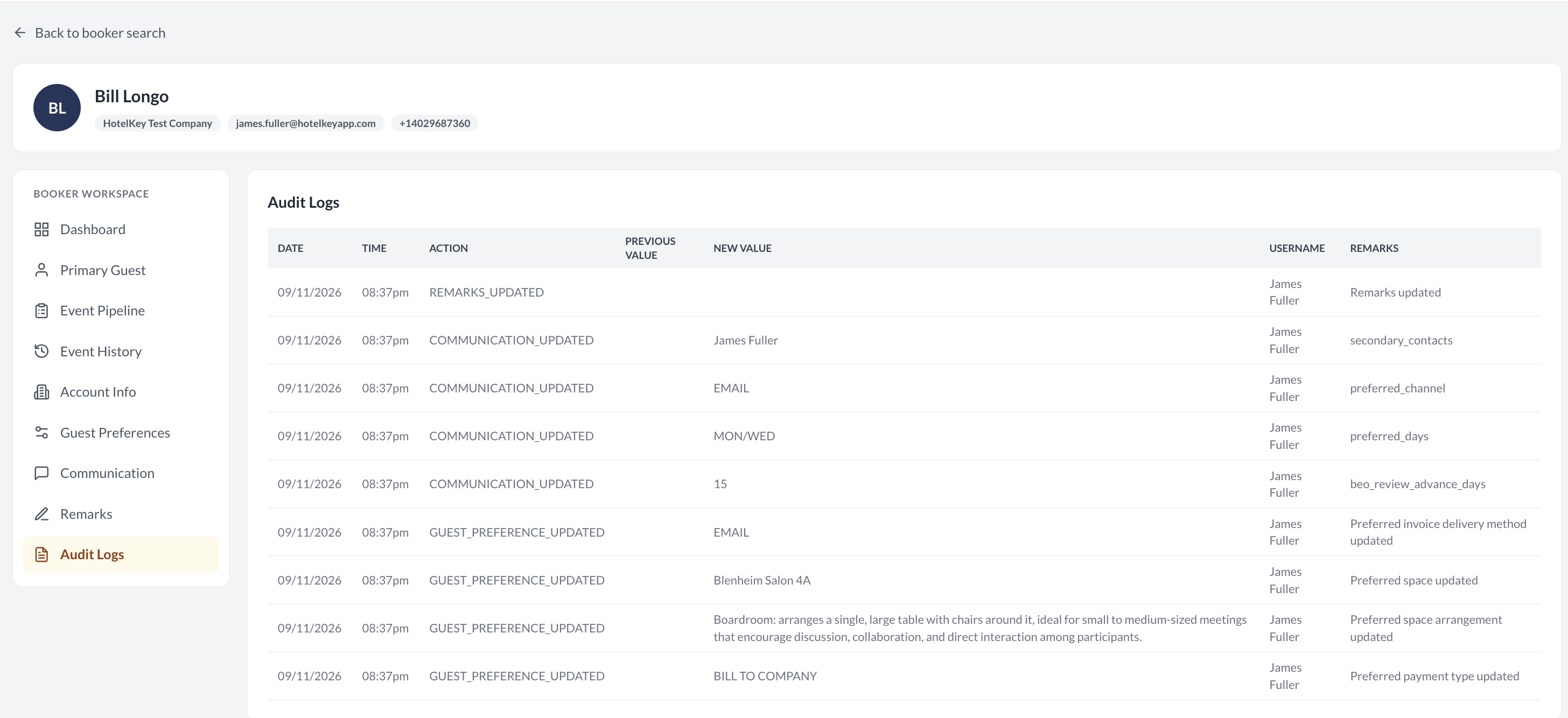
Click Audit Logs to review chronological system tracking records.
Displays date/time stamps, specific actions, previous values, updated values, user IDs, and operational remarks for complete compliance.
📷 VISUAL CALLOUT:
Event Management Actions Menu & Booker Search Console
(Left) The Event Management dashboard header highlighting the blue Actions dropdown menu expanded to show Event Booker Profile; (Right) The Find an Event Booker Profile screen displaying the search query input box populated with Bill Longo, the blue Search button, and the + Add New Booker button.
Actions Dropdown Menu
Find an Event Booker Profile Screen
Detailed Screen & Sub-Tab Breakdown
1. Header Profile Summary Card
Located permanently at the top of the Booker Workspace:
Avatar Initials Badge: Dynamic circular monogram based on client initials (e.g., BL).
Client Full Name: Primary planner name (e.g., Bill Longo).
Corporate Affiliation: Associated enterprise company name (e.g., HotelKey Test Company).
Year to Date (YTD): Gold segment reflecting current fiscal year spend (e.g., GBP 490.54).
Last 12 Months: Dark navy segment capturing trailing 365-day spend (e.g., GBP 490.45).
Total Event Revenue Card: Prominent navy metric block highlighting gross commercial contribution (e.g., GBP 4,065.04).
Next Scheduled Tasks Grid:
Chronological list of pending operational follow-ups linked to the booker (e.g., "Follow Up on event leads." with assigned due dates such as 30/10/2026).
📷 VISUAL CALLOUT:
Booker Workspace: Dashboard & Revenue Analytics
Dashboard console displaying the Relationship Snapshot KPI cards, the Total Revenue donut chart breakdown, the dark navy Total Event Revenue card (GBP 4,065.04), and the Next Scheduled Tasks table.
Booker Dashboard & Revenue Analytics Tab
3. Primary Guest Tab
Identity Fields: First Name (Bill) and Last Name (Longo).
Address Information: Street Address, Country (United States), Postal Code (68007), City, and State (NE).
Contact Channels: Phone Number (+1 4029687360) and Email (james.fuller@hotelkeyapp.com).
4. Event Pipeline & Event History Tabs
Event Pipeline:
Next Events Table: Forward-looking confirmed or tentative bookings occurring from the active date onward. Columns detail: Event Name, Event Status (TENTATIVE), Start Date, End Date, Confirmation Number (e.g., OXFBRO0951), Estimated Revenue (e.g., GBP 800.00), Number of Attendees (10), Space (Blenheim Salon 4A), and Folio Balance.
Pending / Open Proposals Table: Tracks unconfirmed inquiries, prospect leads, and open proposals awaiting client signature.
Event History:
Date Range Query Filters:Date From and Date To calendar pickers enabling customized historical audits.
Event Pipeline interface showing the Next Events table with two tentative bookings for HotelKey Quarterly Meetings in Blenheim Salon 4A, confirmation numbers, estimated revenue figures, and attendee counts.
Booker Event Pipeline Tab
5. Account Info Tab
Property Account Owner: Dropdown designating the internal sales or catering manager responsible for managing the commercial relationship (e.g., James Fuller).
Market Segment: Dropdown classifying the account's primary business type (e.g., Corporate_Business Segments).
IATA Field: Text input capturing travel agency or intermediary IATA accreditation numbers.
Parent Company Mapping:
Clicking into the Parent Company field launches the interactive Select Company modal.
Search by corporate name or code (e.g., HotelKey).
Table displays matching corporate accounts, direct-bill codes, active balances, and credit privileges (e.g., HotelKey APP, Code: 5678910, Direct Bill Privileges: Yes, Company Balance: GBP 894.00).
Selecting an account binds the company to the booker profile and displays the green toast notification (Success: Account info successfully saved).
Lead Source: Identifies the customer acquisition channel (e.g., Meeting Broker, Direct Inbound, Referral).
Notes: Freeform multi-line text area for general account background notes.
📷 VISUAL CALLOUT:
Parent Company Selection Modal
Search modal showing company lookup results for HotelKey, displaying corporate accounts, Direct Bill Privileges (Yes/No), and real-time open balances before selecting HotelKey APP.
Booker Company Selection Modal
6. Guest Preferences Tab
Preferred Space: Dropdown selector to set the booker’s favorite meeting room or ballroom (e.g., Executive Board Room, Blenheim Salon 4A).
Preferred Space Arrangement: Dropdown selector defining standard setup layouts (e.g., Boardroom: arranges a single, large table with chairs around it, ideal for small-to-medium-sized meetings).
Master Billing Instructions: Direct billing instruction rules (e.g., BILL TO COMPANY, BALANCE FORWARD, BUSINESS EDGE, CASH, CHARGE TO ROOM, CREDIT CARD).
Invoice Delivery Method: Billing distribution channel (e.g., Email, Mail, Direct to Booker).
Payment Milestones: Contract deposit terms linked to the profile (e.g., 2 Payment_Amount Schedule, 30 PCT Single Schedule, Deposit Schedule, 3 Payment Schedule).
Authorised Signatory: Identifies designated internal or external individuals authorized to execute contracts and BEOs (e.g., James Fuller, Bill Longo, Rose Nylund).
📷 VISUAL CALLOUT:
Guest Preferences Configuration Console
Screen view showing Preferred Space set to Blenheim Salon 4A, Preferred Space Arrangement set to Boardroom, Master Billing Instructions set to BILL TO COMPANY, and Invoice Delivery Method set to Email.
Booker Guest Preferences Tab
7. Communication Tab
Preferred Channel: Single-select button group to define primary communication mediums (Email, Phone, Portal).
BEO Review Advance Days: Numeric stepper (- / +) setting how many days prior to event start the BEO must be delivered for review (e.g., 15 days).
+ Search Contact Button: Launches the Search Contact lookup modal to find existing system contacts (e.g., searching James Fuller). Selecting a contact links their name, corporate email, and direct telephone number as secondary coordinators.
+ Add Contact Button: Opens manual creation form to register new auxiliary contacts directly to the profile.
8. Remarks Tab
Rich Text Formatting Toolbar: Includes Bold (B), Italic (I), Underline (U), Strikethrough, Alignment (Left, Center, Right), Paragraph styles (Normal, Heading), Numbered Lists, Bulleted Lists, and Undo/Redo controls.
Remark Text Input: Multi-line text field capturing operational notes, VIP requirements, or catering preferences (e.g., "Top client from company Hotel Key").
Add Remark Button (Blue): Commits the note to the historical log.
Remark History Stream: Displays all posted notes formatted in individual cards showing the note content, authoring staff name (James Fuller), and exact timestamp (09/11/2026 08:06 am).
📷 VISUAL CALLOUT:
Remarks Logging Interface & History Stream
The rich text remarks editor with stored remark record stamped with author James Fuller and timestamp 09/11/2026 08:06 am.
Booker Remarks Tab
9. Audit Logs Tab
Provides an immutable chronological audit trail tracking every modification made to the booker profile:
Date & Time: Exact system timestamp of modification (e.g., 09/11/2026 08:07 pm).
Audit Logs table detailing chronological system events with Date, Action, Previous Value, New Value, Username (James Fuller), and Remarks fields.
Booker Profile Audit Trail
📷 VISUAL CALLOUT:
Full Event Booker Profile Walkthrough
Event Booker Profile Walkthrough
Downstream UI & Operational Integration
Configuring and maintaining accurate Event Booker Profiles impacts multiple operational areas across EventKey:
Event Booking Acceleration: When creating new events, selecting an established booker automatically cascades their primary contact info, parent corporate billing rules, preferred spaces, and standard layouts into the event creation wizard, eliminating repetitive data entry.
Automated BEO Routing & Advance Notice: The BEO Review Advance Days parameter ensures event management task engines trigger BEO generation and review workflows with sufficient lead time before event arrival.
Corporate Direct Bill Reconciliation: Linking bookers to parent companies ensures banquet charges, meeting room rentals, and contracted group blocks route accurately to the appropriate corporate accounts receivable ledger for unified invoicing.