In EventKey, the Sub-Event Remarks editor empowers event coordinators and catering managers to document detailed, structured operational instructions directly within a function space booking. Using the built-in rich text formatting toolbar—featuring bolding, bulleted lists, nested indentation, and structured headings—planners can clearly organize room setup requirements, client welcome materials, audiovisual lists, and service directives. Once saved on the sub-event record, these formatted remarks automatically render on the main Event Record workspace and populate cleanly into the dedicated Remarks column of generated Banquet Event Orders (BEOs), ensuring banquet captains and setup crews receive legible, unambiguous execution checklists.
Step-by-Step Workflow: Adding Formatted Sub-Event Remarks & Generating a BEO
System Navigation Path
Home > Event Management > Select Event Record > Spaces panel > Edit (Sub-Event) > Remarks
Step
Action
Platform Guidance & Operational Details
Access Sub-Event Editor
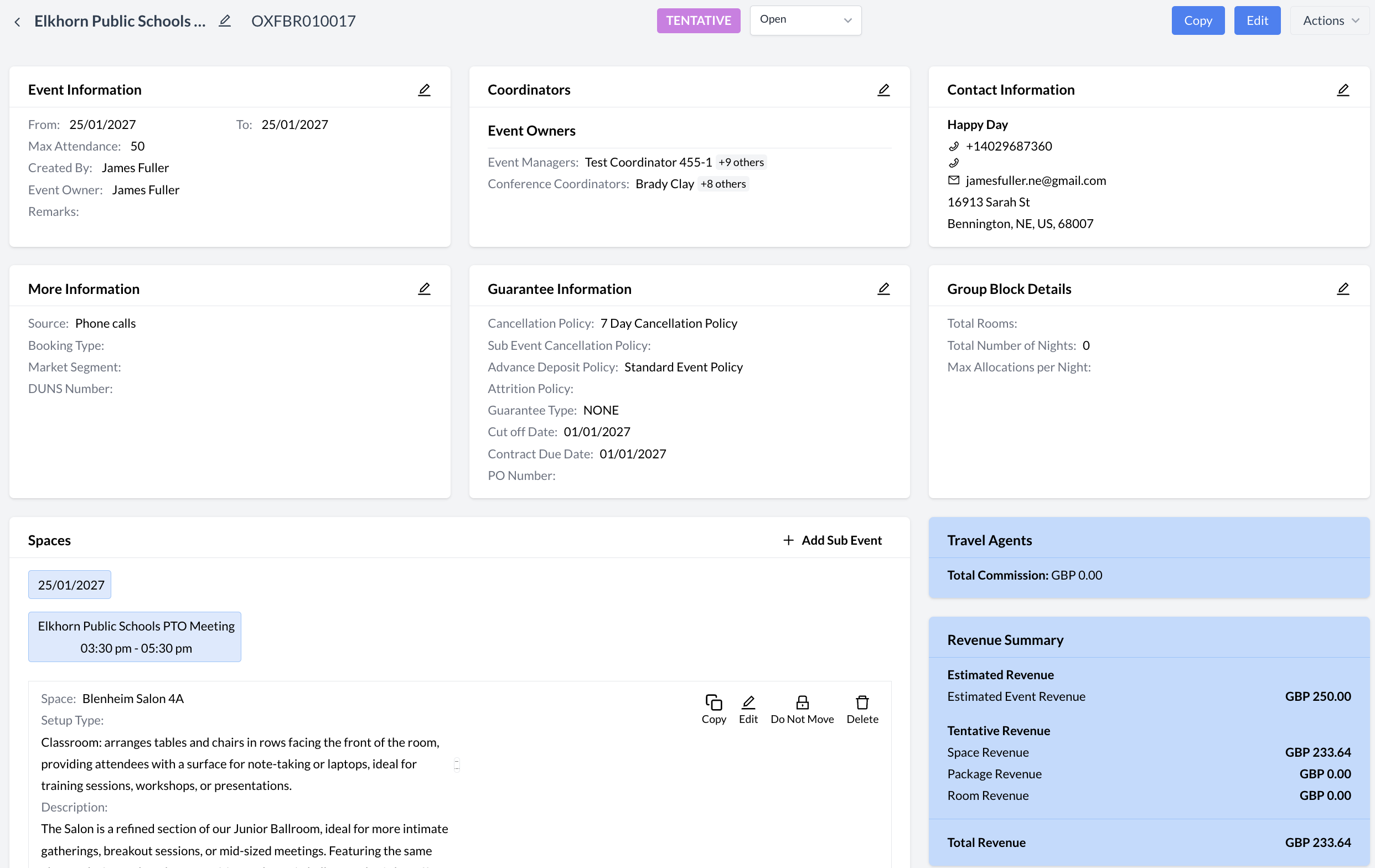
Open the target Event Record (e.g., Elkhorn Public Schools PTO Meeting, OXFBR001057). Scroll to the Spaces card and click the Edit (pencil) icon next to the scheduled sub-event.
Launches the Edit Sub-Event modal dialog displaying space scheduling, guest counts, arrangements, pricing, and description/remarks fields.
Locate Remarks Editor
Scroll down past Setup Time, Teardown Time, and Description to locate the Remarks rich text editor.
Provides an interactive formatting toolbar and multi-line text canvas for operational notes.
Format Operational Notes
Use the toolbar icons to structure your instructions:
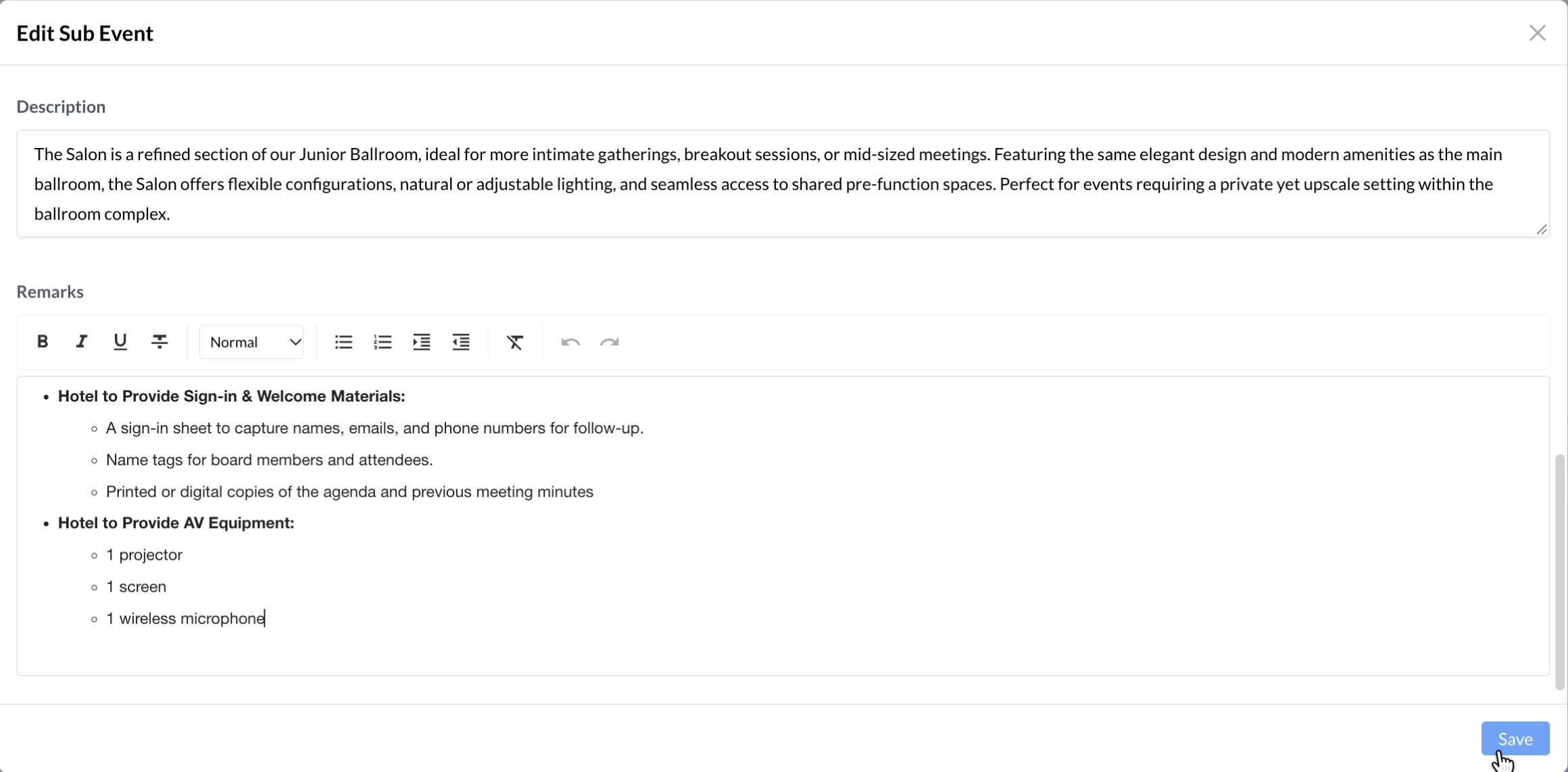
Click the Bulleted List icon and Bold (B) button to create section headers (e.g., Hotel to Provide Sign-In & Welcome Materials: and Hotel to Provide AV Equipment:).
Press Enter and click the Increase Indent icon to create nested sub-bullets detailing individual items (e.g., 1 projector, 1 screen, 1 wireless microphone).
Organizes complex room requirements into clean, scannable checklists rather than dense blocks of unformatted text.
Save Sub-Event Changes
Click the blue Save button in the lower-right corner of the Edit Sub-Event modal.
Commits the remarks to the database, displays a green confirmation banner (Updated Successfully: Sub event updated successfully), and refreshes the Event Record.
Verify Event Record Display
Inspect the updated Spaces panel on the main Event Record.
Confirms the formatted bulleted and nested remarks render clearly under the Remarks label directly beneath the space description.
Launch Print BEO Dialog
Scroll to the top of the Event Record, click the Actions dropdown button in the upper-right header, and select Print BEO.
Opens the Print BEO configuration modal.
Configure BEO Output & Generate
Verify Select Language (e.g., English (United Kingdom)), choose Select Orientation (LANDSCAPE or PORTRAIT), select Print as PDF (or Print as XLSX), and click the blue Continue button.
Renders the BEO-Report viewer displaying the formatted sub-event instructions in the Remarks column of the Sub Events table.
📷 VISUAL CALLOUT:
Event Record Spaces Panel & Edit Sub-Event Action
Main Event Record workspace highlighting the Spaces panel for Elkhorn Public Schools PTO Meeting (Blenheim Salon 4A) with the Copy, Edit (pencil), Do Not Move, and Delete action icons.
Event Record Spaces Panel & Edit Sub-Event Action
Detailed Screen & Rich Text Toolbar Breakdown
1. Edit Sub-Event Modal: Rich Text Remarks Toolbar
The Remarks editor includes a comprehensive formatting toolbar designed to structure banquet and audiovisual instructions:
Text Emphasis Controls:
Bold (B): Highlights category headers, critical timings, or VIP directives (e.g., Hotel to Provide Sign-In & Welcome Materials:).
Italic (I): Emphasizes conditional notes or client-supplied items.
Underline (U) & Strikethrough (S): Marks key deadlines or superseded setup notes.
Typography & Alignment:
Paragraph Style Dropdown (Normal): Switches between standard body text and structured heading sizes.
Text Alignment: Aligns text left, center, right, or justified.
List & Hierarchy Tools:
Numbered List: Creates sequential chronological steps for room turnovers or program agendas.
Bulleted List: Creates primary item lists.
Decrease / Increase Indent: Creates multi-level nested sub-bullets beneath primary headers (e.g., indenting 1 projector, 1 screen, and 1 wireless microphone under the AV Equipment header).
Clear Formatting (Tx): Strips pasted styling back to clean default text.
📷 VISUAL CALLOUT:
Edit Sub-Event Modal: Rich Text Remarks Configuration
Modal view showing the Remarks rich text editor populated with bolded bullet headers (Hotel to Provide Sign-In & Welcome Materials: and Hotel to Provide AV Equipment:) and indented sub-bullets detailing specific welcome and audiovisual items alongside the blue Save button.
Edit Sub-Event Modal: Rich Text Remarks Configuration
2. Print BEO Configuration Modal Displaying Rich Text Remarks
Clicking Actions > Print BEO launches the document export console:
Select Language Dropdown: Sets the localized document language and regional date/currency formatting (e.g., English (United Kingdom)).
Select Orientation Cards:
LANDSCAPE: Formats the BEO horizontally (ideal for multi-column sub-event schedules and detailed remarks).
PORTRAIT: Formats the BEO vertically for standard clipboard and binder distribution.
Print BEO Format Buttons:
Print as PDF: Generates a locked, print-ready BEO-Report preview with pagination thumbnails, zoom controls, download, and direct print icons.
Print as XLSX: Exports the BEO data into an editable Microsoft Excel spreadsheet.
Continue Button (Blue): Compiles the BEO document and opens the report preview modal.
📷 VISUAL CALLOUT:
Rich Text Remarks Walkthrough
Rich Text Remarks
Operational Best Practices & Downstream Impact
Distinguishing Description vs. Remarks:
Space Description: Automatically pulls from the master room profile in EventKey Administration (e.g., architectural details and permanent room features) and appears in the Space Details column of the BEO.
Sub-Event Remarks: Captures event-specific operational directives, client-requested equipment, and custom setup notes, printing in the dedicated Remarks column on the BEO.
Banquet Operations Execution: Using bolded headers and indented bullet points prevents critical setup details (such as registration table materials or specific microphone counts) from getting buried in narrative paragraphs, reducing setup errors on the banquet floor.
Version & Revision Control: If Enable BEO Versions is active in Application Configuration, updating sub-event remarks and regenerating the BEO automatically increments the document version so operations teams always work from the latest revision.