TrainKey, our interactive "Show Me" guided training system, is built directly into the EventKey platform to accelerate staff onboarding and support everyday navigation. Launching with 36 comprehensive guided tracks, TrainKey delivers step-by-step, hands-on walkthroughs directly inside the live user interface—highlighting exact buttons, menus, and input fields with real-time contextual tooltips as users complete actual workflows.
🌐 Language Availability & Product Roadmap:
TrainKey is currently available exclusively in English. Over upcoming releases, additional guided training tracks will be introduced alongside full multilingual support for French, Italian, German, Spanish, Japanese, and Arabic.
Home > Event Management > Header Utility Bar > TrainKey button
Step
Action
Platform Guidance & Operational Details
Launch TrainKey Console
In the top-right header utility bar of EventKey (located next to Daily Notes and the user profile menu), click the TrainKey button.
Opens the Training Tracks overlay modal displaying available curriculum modules, search utilities, and progress tracking.
Select Curriculum Category
Under the Track tab, review the Progress View indicator (e.g., 0 / 36) and click on the Manage Events curriculum card (or filter by role using Select For Role).
Expands the full directory of 36 step-by-step guided workflows covering inquiries, space availability, proposals, tasks, and event execution.
Search or Browse Tracks
Scroll through the list or enter a keyword in the Search bar (e.g., Task, Inquiry, Proposal) to filter available topics.
Displays matching guided workflows (e.g., Create an inquiry, Check space availability, Create a proposal - space + group, Create a task).
Start Interactive Guidance
Locate the desired workflow and click its LAUNCH button on the right side of the row.
Closes the modal, activates the live TrainKey Active badge in the top-right header, and displays the first interactive tooltip prompt on screen.
Follow "Show Me" Tooltips
Follow each dark instructional tooltip banner that highlights the exact UI control or field required at each step of the process.
Tooltips advance automatically as you click buttons, open dropdowns, and enter data across screens.
Complete or Exit Training
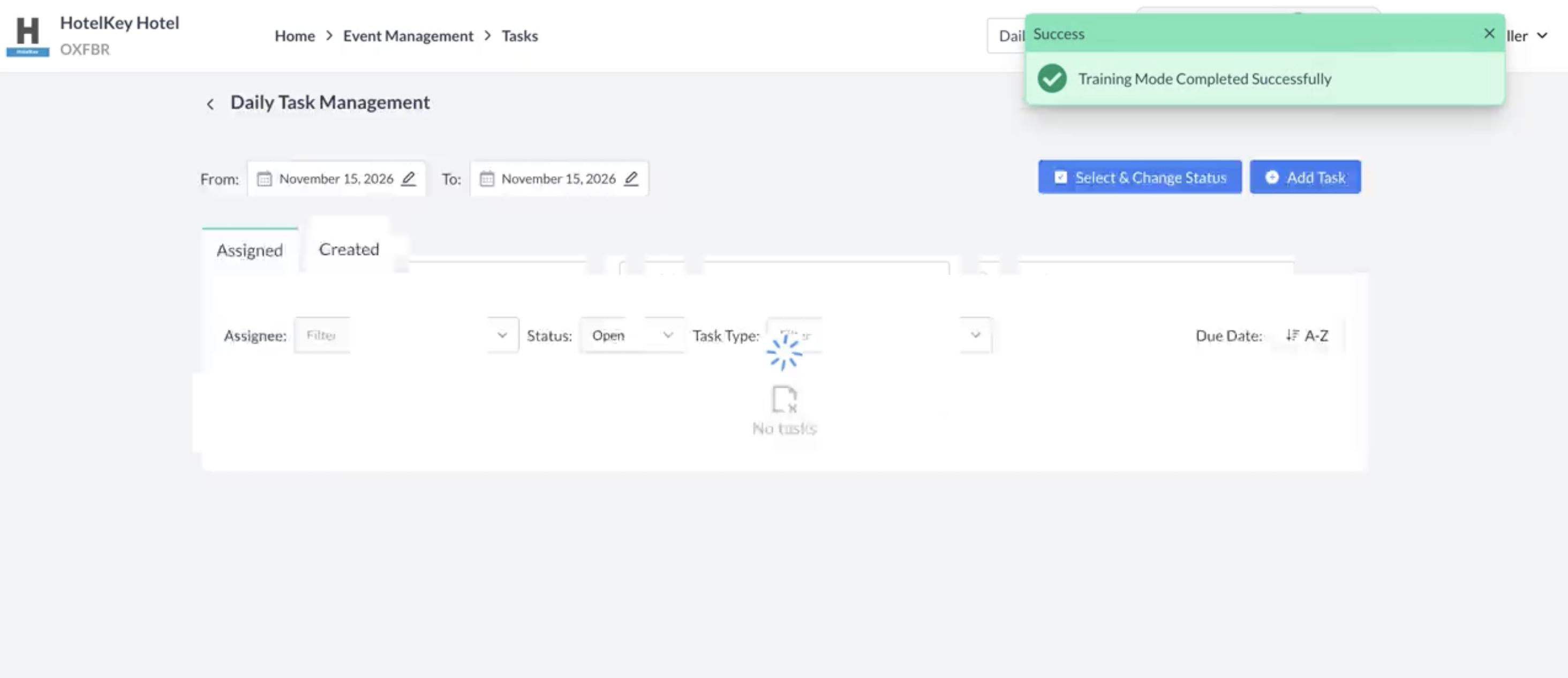
Upon finishing the final step of the workflow, a green confirmation banner displays: Success: Training Mode Completed Successfully. (To exit early at any time, click the red stop icon 🛑 next to the active track name in the top header).
Returns the header button to its standard TrainKey state and records track completion progress.
📷 VISUAL CALLOUT:
Interactive Instructional Guidance Example
Interactive Instructional Guidance Example
Detailed Screen & Interface Breakdown
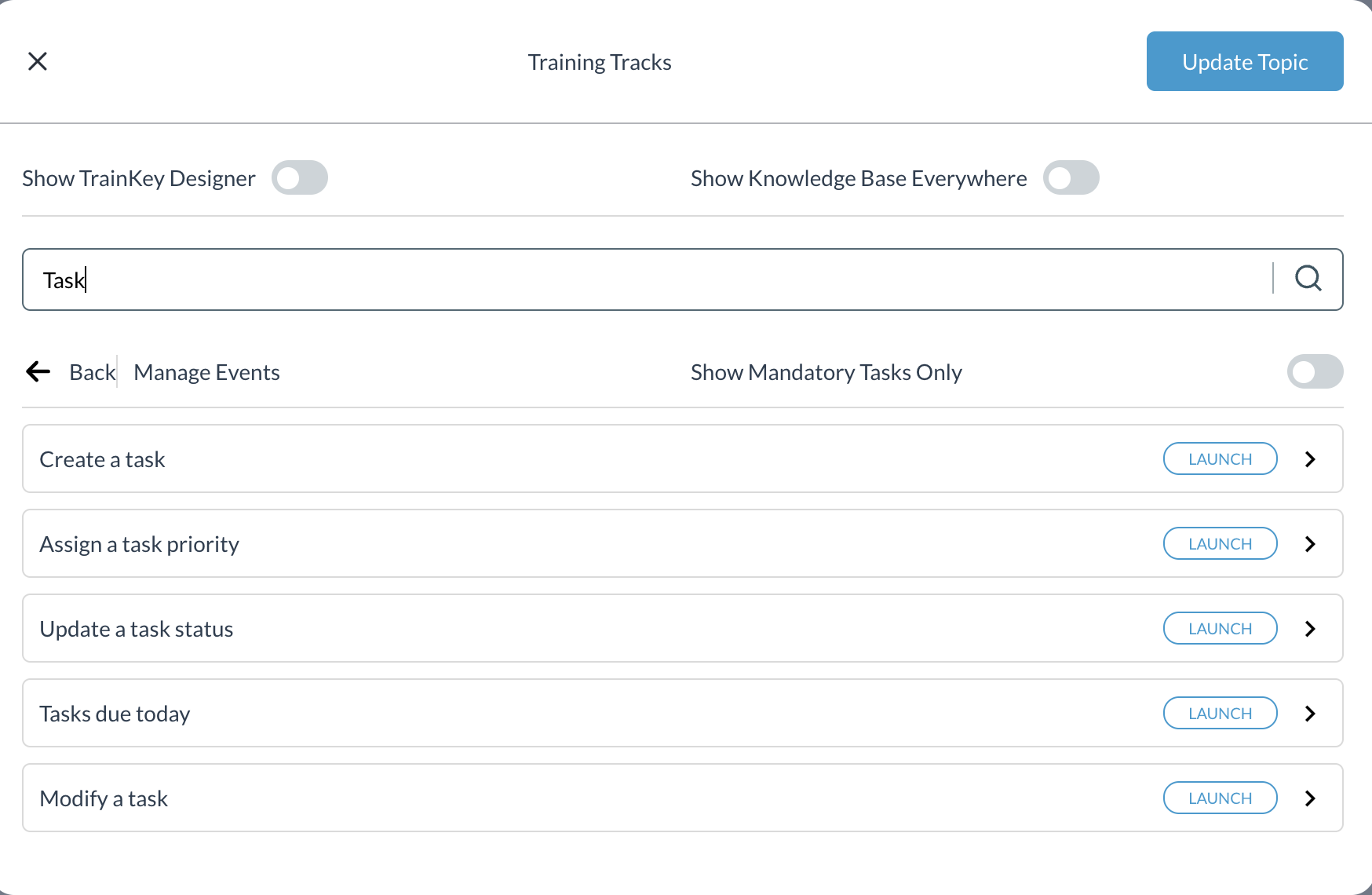
1. Training Tracks Modal Controls
Clicking TrainKey from any screen launches the central learning console:
Header Controls:
Close (✕): Exits the Training Tracks modal without starting a guide.
Show TrainKey Designer Toggle: Administrative toggle for authorized curriculum builders.
Show Knowledge Base Everywhere Toggle: Controls inline help visibility across application screens.
Update Topic Button (Blue): Refreshes and synchronizes the latest published training tracks.
Primary Navigation Tabs:
Track Tab: Houses the 36 interactive, step-by-step "Show Me" guided walkthroughs.
Resources Tab: Provides access to supplementary reference materials and documentation.
Filtering & Progress Tools:
Search Field: Instant real-time keyword filter narrowing tracks by action or module name.
Progress View / Select For Role: Tracks completed vs. total available modules (0 / 36) and filters curricula by operational job role.
Show Mandatory Tasks Only Toggle: Isolates required onboarding tracks when toggled ON.
Track Action Rows: Displays the workflow title alongside the LAUNCH button and expansion arrow (>).
📷 VISUAL CALLOUT:
Filtered Track Selection & Launch Trigger
The Training Tracks modal filtered by keyword Task, displaying matching guided workflows (Create a task, Assign a task priority, Update a task status, Tasks due today, Modify a task) and the LAUNCH button.
Training Tracks Menu
2. Active Training Mode ("Show Me" Live Overlay)
Once a track is launched, TrainKey transitions into active interactive guidance:
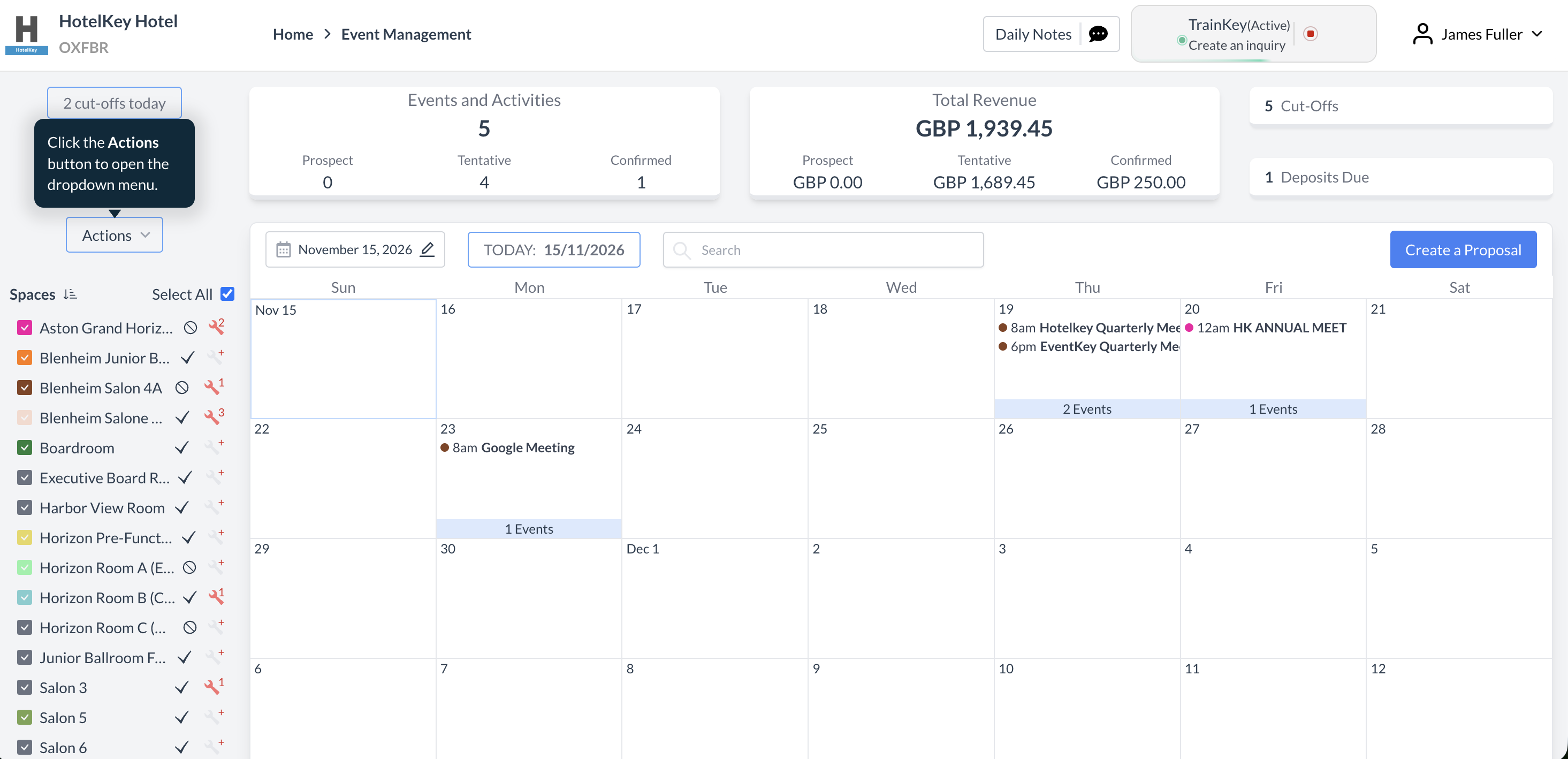
Top Header Active Indicator: The TrainKey header button updates to display TrainKey (Active), the active track title (e.g., Create a task), and a red Stop (🛑) button allowing users to terminate the walkthrough at any point.
Contextual Dark Tooltip Callouts: Floating dark instruction banners anchor directly beside the target button, dropdown, or text field (e.g., "Click the Tasks Due Today button", "Click the blue Add Task to create a new task"), guiding users step-by-step through live system screens.
Completion Confirmation Toast: Completing the final action triggers a green notification banner in the top-right corner confirming Success: Training Mode Completed Successfully and automatically deactivating Training Mode.
📷 VISUAL CALLOUT:
Active "Show Me" Tooltip Guidance & Completion Banner
(Left) Live UI screen showing the TrainKey (Active) header indicator with stop button and a dark contextual tooltip pointing directly to a UI control; (Right) The green top-right confirmation toast displaying Success: Training Mode Completed Successfully.
TrainKey (Active) with Dark Contextual Tooltip Pointing
Training Mode Successful Completion Message
Available Guided Curriculum Scope (36 Tracks)
TrainKey launches with 36 guided walkthroughs organized under Manage Events, covering end-to-end daily operations including:
Lead & Inquiry Management: Creating inquiries, modifying inquiry details, checking space availability, auditing house inventory, and converting inquiries to prospects.
Proposals & Contracting: Building space-only proposals, group-only room block proposals, and combined space + group proposals.