The Daily Notes module in EventKey centralizes day-to-day operational communication, VIP briefings, special dietary logistics, and critical event handoffs. Accessible directly from the top navigation bar, Daily Notes enables coordinators to assign tasks to specific team members, track resolution statuses in real time, upload supporting documents, and log internal staff comments without leaving the active event workspace.
Home > Event Management > Header Bar > Daily Notes
Step
Action
Platform Guidance & Operational Details
Access Daily Notes
Click the Daily Notes button in the top navigation bar (or click the Tasks due today summary card on the dashboard).
Opens the Daily Notes / Daily Task Management console.
Initiate Creation
Click the blue Create Daily Note (or + Add Task) button in the upper-right corner.
Launches the Add Task creation modal.
Select Task Type
In the Task Type dropdown, select DAILY_NOTES.
Associates the entry with daily operational briefing logic. (Note: This field requires the DAILY_NOTES task type pre-configured in Admin settings).
Set Date & Source
Verify or adjust the Due Date using the edit pencil/calendar selector, and choose a Source (e.g., Internal, Catering and Event Management).
Establishes the target operational date and department origin for the note.
Map Related Records
(Optional) Link a specific Company, Event, or Contact profile using the respective search fields.
Connects the briefing note directly to a designated client or event file.
Assign Users
Toggle Is System User ON/OFF and select one or multiple staff members from the Assigned to user multi-select dropdown.
Dispatches the task to the selected team members' dashboards.
Input Briefing Notes
Enter the detailed briefing text in the Notes box (e.g., VIP arrivals, special dietary preparations, weather contingency plans).
Captures essential operational instructions for service staff.
Save & Deploy
Click the blue Save button in the bottom-right corner.
Publishes the note to the active board under Assigned and Property tabs.
View Details & Attachments
Click directly on a note card to open the Daily Note Details modal.
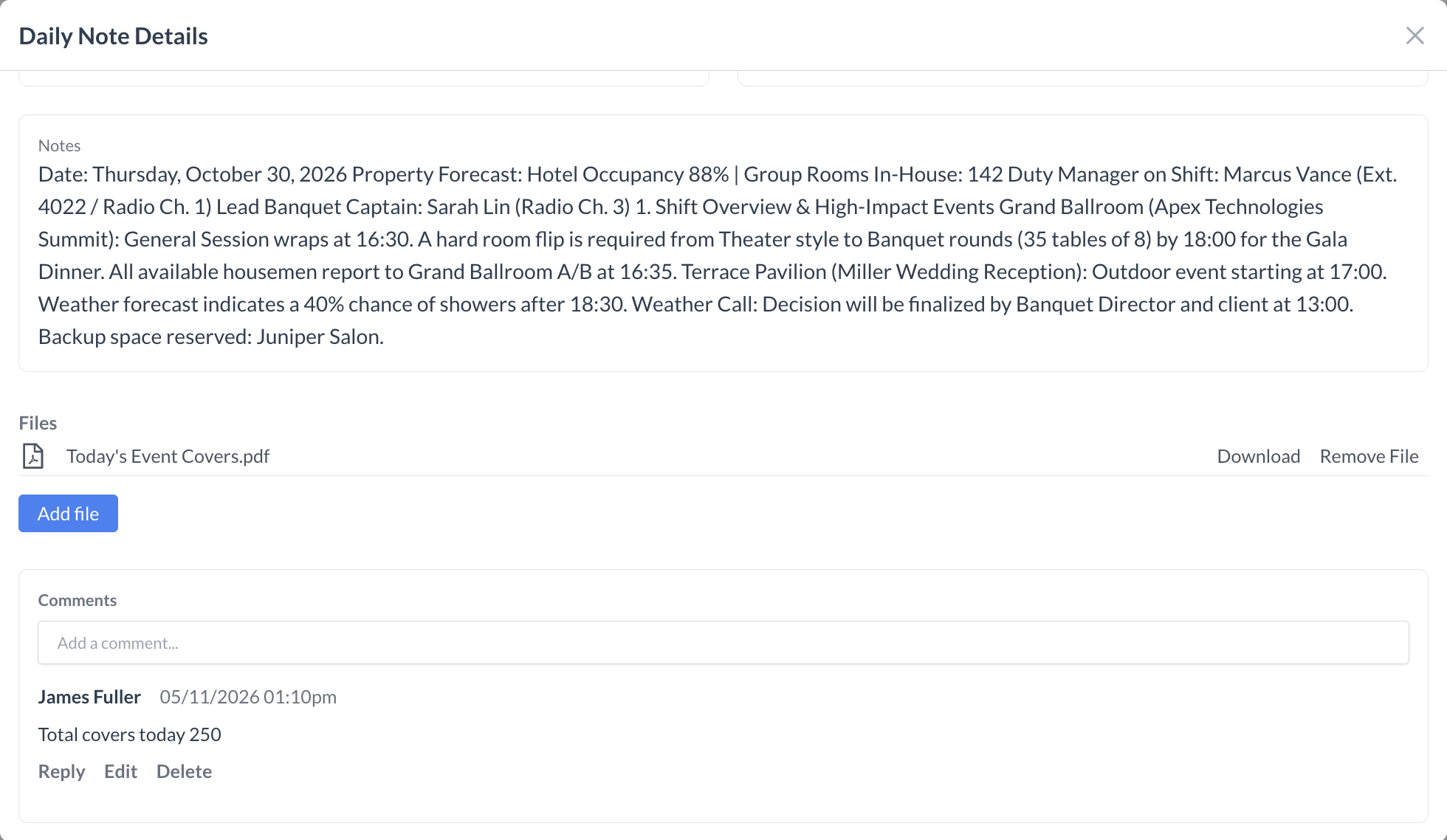
Allows users to review instructions, click Add File to attach run sheets/floor plans, post internal Comments, or click Edit / Delete.
10. Batch Status Updates
In the main list, click Select & Change Status, select the note checkboxes, and click Set Closed (or Set Open).
Updates task status instantly and displays a green confirmation notification (Status successfully updated!).
📷 VISUAL CALLOUT:
Daily Notes Navigation & Add Task Modal
EventKey navigation bar highlighting the Daily Notes button and badge count and creating Daily Notes work flow.
Daily Notes Walkthrough
Detailed Field Breakdown
Add Task / Daily Note Modal Fields
Due Date: Defaults to the active business date; click the pencil icon to assign a future operational date.
Task Type: Select DAILY_NOTES from the dropdown list to ensure the entry routes to the Daily Notes feed.
Source: Identifies the operational channel or department initiating the briefing (e.g., Internal, Catering and Event Management, Email & Online Inquiries).
Company / Event / Contact (Optional): Search inputs that establish relational links between the daily note and specific accounts, proposals, or client records.
Is System User Toggle: Toggles user filtering between active internal PMS/EventKey users and external system contacts.
Assigned to user: Multi-select dropdown supporting one or multiple assignees (e.g., sales managers, banquet captains, head chefs) who receive notification of the briefing.
Notes: Freeform multi-line text field capturing operational logistics such as:
VIP & Protocol Notes (e.g., host names, suite numbers, dedicated service staff).
This modal features a centralized Daily Notes view with a rich-text overview section for logging operational shift briefings, a Files panel supporting document uploads and downloads, and an interactive Comments thread enabling team members to post updates, reply, edit, or delete notes.
Daily Notes Modal
Daily Notes Dashboard Controls
View Tabs (Assigned vs. Property):
Assigned: Displays notes and tasks specifically allocated to the logged-in user.
Property: Displays all active operational notes published hotel-wide.
Date Filters (From / To): Calendar range controls allowing teams to inspect historical notes or review forward-looking shift handoffs.
Filters (Assignee, Status, Task Type): Refines task list by team member, status (Open, Closed), or task classification.
Select & Change Status: Bulk-action utility enabling supervisors to check multiple note boxes simultaneously and apply batch updates (Set Open or Set Closed).
System Integration & Operational Best Practices
Shift Handoffs: Review the Daily Notes feed at the start of every banquet, catering, and front office shift to audit VIP movements, weather decisions, and critical kitchen alerts.
Audit Trails & Comments: Use the inline Comments section inside each note to record live updates (e.g., confirming rain plans executed or dietary meals delivered) rather than editing the original briefing note.
⚙️ Mandatory Administrative Requirement:
To utilize this workflow, the property must have an Event Task Type created called DAILY_NOTES in system configuration. If this task type is missing from your dropdown, daily operational notes cannot be properly categorized.