In EventKey, Web Payment Links allow event managers and billing coordinators to generate secure, PCI-compliant online payment requests directly from an event folio and email them to clients. Rather than collecting sensitive credit card details over the phone or awaiting physical checks, sales teams can configure a payment link for scheduled advance deposits or final event balances, set custom link expiration windows (in days, hours, or minutes), include personalized payment instructions, and dispatch the request immediately. When the client completes payment through the hosted payment portal, EventKey automatically posts the transaction directly onto the corresponding Event Folio, updating the folio balance in real time.
Configuration & Workflow Guide: Creating & Dispatching a Web Payment Link
System Navigation Path
Home > Event Management > Select Event Record > Billing Information tab > More Payment Methods > Web Payment Links > Create New
Step
Action
Platform Guidance & Operational Details
Access Billing Information
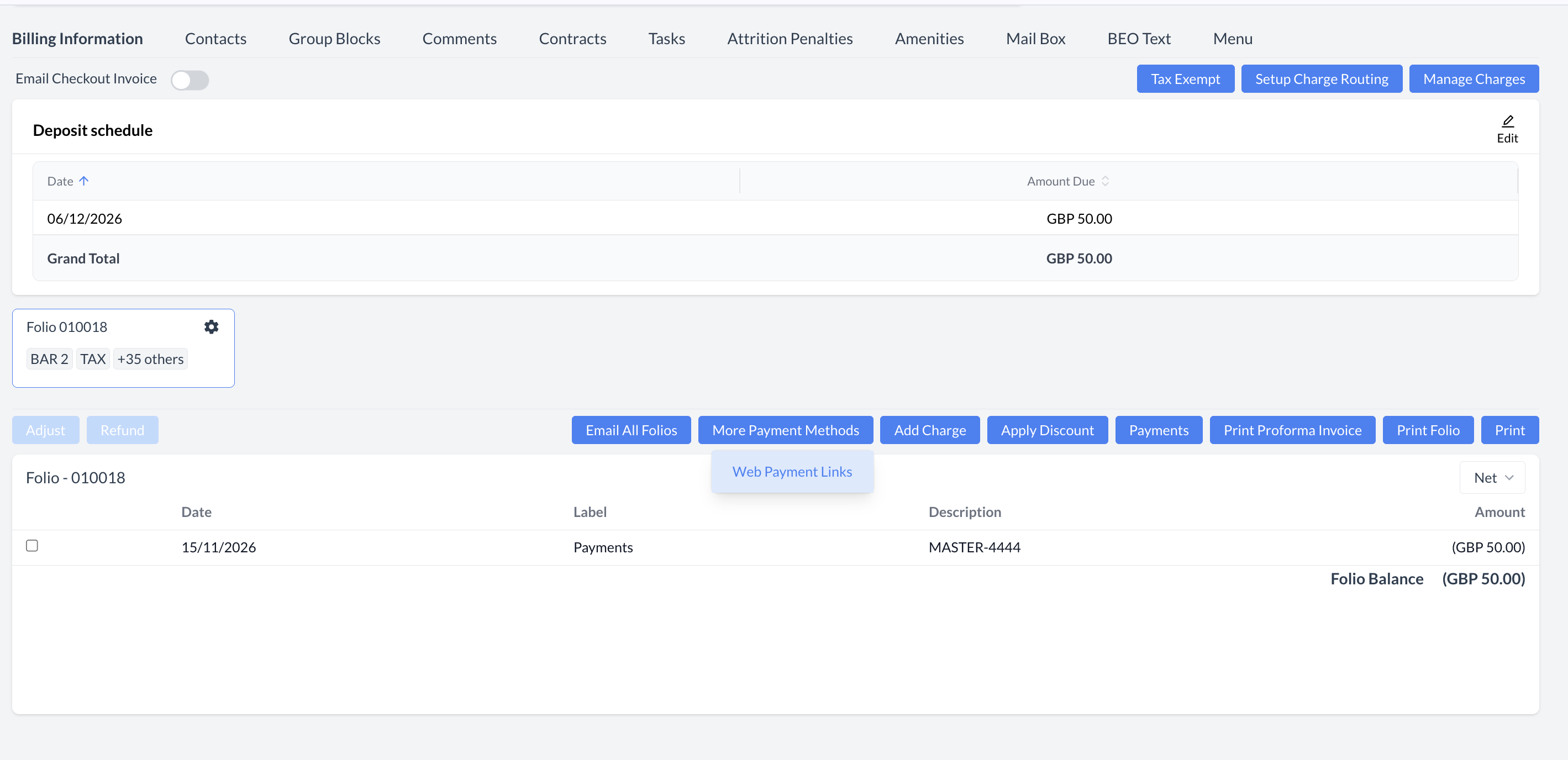
Open the target Event Record (e.g., Grinch Who Stole Christmas, OXFBR010022) and scroll down to the Billing Information sub-tab.
Displays the Deposit schedule (e.g., GBP 50.00 due) and active folio windows (e.g., Folio 010023).
Open Web Payment Links
Above the folio transaction grid, click the blue More Payment Methods dropdown button and select Web Payment Links.
Opens the Existing Payment Links overlay modal displaying active/past payment requests or a prompt to create a new link.
Initiate New Payment Link
Click the blue Create New button in the upper-right corner of the modal.
Launches the 2-step Create Payment Link wizard defaulting to Step 1: Payment Method.
Step 1: Payment Method & Notes
Choose Payment Type: Select the payment gateway option (e.g., CREDIT CARD or PLANETS- PAYMENT).
Payment Notes: Enter clear instructions for the client (e.g., Please pay event deposit of 50.00 due by end of the week to continue holding event space).
The Payment Notes text renders prominently in the client's payment request email above the PAY NOW button. Click the blue Next button.
Step 2: Payer Info & Expiration
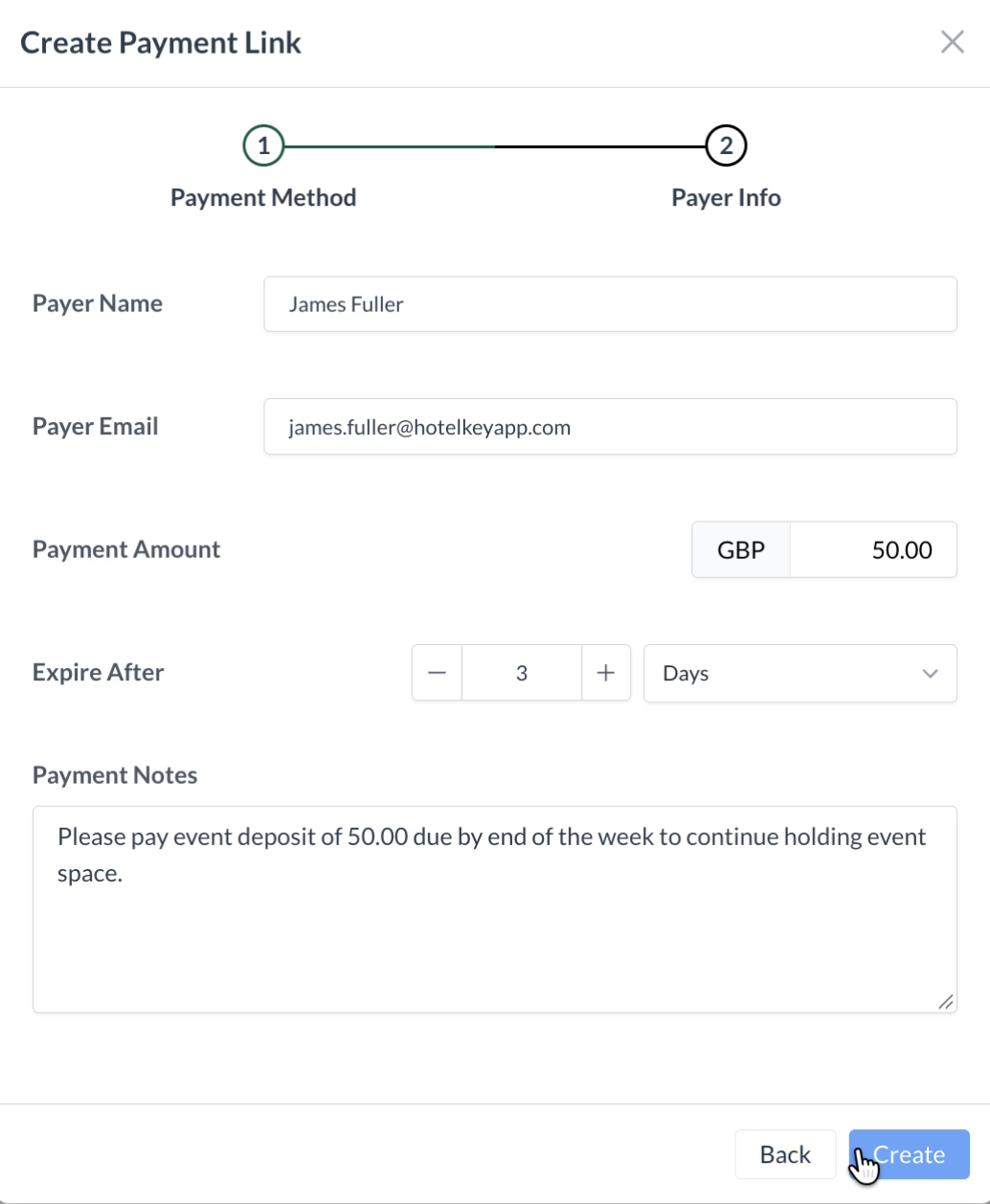
Payer Name: Enter the client's full name (e.g., James Fuller).
Payer Email: Enter the recipient's email address (e.g., james.fuller@hotelkeyapp.com).
Payment Amount: Enter the exact collection amount in property currency (e.g., 50 / GBP 50.00).
Expire After: Set the link expiration duration using the numeric stepper (- / +) and unit dropdown (Days, Hours, or Minutes, e.g., 3Days).
Configures recipient routing, payment value, and link expiration security parameters. Click the blue Create button.
Dispatch Payment Link
The system displays a green toast (Success: Successfully created.) and lists the link in the Existing Payment Links table. Click the blue Send button on the right side of the row.
Transmits the branded payment request email to the client and updates the action button to Resend (accompanied by a green Success: Updated successfully. banner).
📷 VISUAL CALLOUT:
Event Folio Billing Bar & Create Payment Link Wizard
(Left) The Billing Information sub-tab showing the Deposit schedule, folio bar, and the More Payment Methods dropdown highlighting Web Payment Links; (Right) Step 2 (Payer Info) of the Create Payment Link modal populated with Payer Name, Payer Email, Payment Amount (GBP 50.00), and Expiration (3 Days).
Billing Information Tab Featuring Web Payment Link
Create Payment Link: Payer Info
Detailed Screen & Field Breakdown
1. Create Payment Link Wizard Parameters
Step 1: Payment Method:
Choose Payment Type Radio Selector: Selects the active merchant gateway tender (e.g., CREDIT CARD).
Payment Notes Text Box: Multi-line instructional field included directly in the email body to communicate deposit deadlines, contract references, or space hold conditions.
Step 2: Payer Info:
Payer Name*: Full name of the individual or corporate contact remitting payment.
Payer Email*: Destination email address where the automated payment request will be delivered.
Payment Amount*: Monetary figure to be charged (pre-labeled with the property's base currency code, e.g., GBP).
Expire After Stepper & Unit Dropdown: Defines how long the secure payment URL remains valid before expiring (Days, Hours, or Minutes), protecting properties against outdated link submissions.
Payment Notes Preview: Displays the read-only note entered in Step 1 for verification before creation.
2. Existing Payment Links Management Console
Once created, payment requests are tracked inside the Existing Payment Links overlay:
Payer Details Column: Displays the contact icon, Name (e.g., James Fuller), and Email (james.fuller@hotelkeyapp.com).
Amount & Notes Column: Displays the requested Amount (GBP 50.00) and truncated Notes (with a More toggle to expand full text).
Expires Column: Displays the exact calendar expiration date calculated from creation (e.g., 19/11/2026).
Action Buttons:
Send / Resend Button (Blue): Initially displays Send to transmit the email; after dispatch, updates to Resend so staff can re-trigger the email reminder if the client has not yet completed payment.
Cancel Button (Blue): Voids and deactivates an uncollected payment link immediately so it can no longer be used.
📷 VISUAL CALLOUT:
Payment Link Setup Walkthrough
A step-by-step visual walkthrough on payment link setup, configuring pricing options, and sharing it directly with customers—no coding required.
When the payment link is sent, the client experiences a streamlined online checkout that syncs automatically with HotelKey PMS:
Payment Request Email:
The client receives an email titled "Payment Request - [Property Name]" displaying the property logo, Guest Name / Event Name (e.g., Elkhorn Public Schools PTO Meeting), Phone Number, prominent Payment Amount (GBP 50.00), custom DESCRIPTION notes, the blue PAY NOW button, and the link expiration timestamp.
Hosted Secure Payment Portal:
Clicking PAY NOW opens the secure web payment portal displaying the Reservation Confirmation Number (e.g., OXFBR001057), Check In / Check Out event dates, and Payment Amount (£50.00).
The client enters Card Holder Name, Card Number, Expiration Date (MM/YY), Security Code (CVC), and Postal Code, checks the Terms & Conditions / Privacy Policy acknowledgment box, and clicks Pay.
Upon gateway authorization, the screen displays a checkmark with Payment Collected Successfully!.
Automated Event Folio Posting:
Inside EventKey, the collected payment automatically posts to the corresponding Event Folio (e.g., Folio - 010018) with:
Date: Transaction settlement date (15/11/2026)
Label:Payments
Description: Masked card brand and last four digits (e.g., MASTER-4444)
Amount: Credited payment value (e.g., (GBP 50.00)), updating the Folio Balance automatically.
If a client has not completed payment, misplaced the initial email, or requests a reminder prior to the link expiration date, staff can re-trigger the payment request email directly from the Event Record:
Step
Action
Platform Guidance & Operational Details
Access Existing Payment Links
Open the Event Record, scroll to the Billing Information tab, click More Payment Methods, and select Web Payment Links.
Opens the Existing Payment Links overlay modal displaying active payment links for the event.
Verify Link Details
Locate the uncollected payment link row and verify the Payer Name, Email, Amount, and Expires date (clicking More on the notes field if full text verification is needed).
Confirms the link has not yet expired before resending.
Click Resend
Click the blue Resend button on the right side of the payment link row.
Re-dispatches the payment request email to the payer's inbox and displays a green confirmation banner in the top-right corner (Success: Updated successfully.).
📷 VISUAL CALLOUT:
Resending an Active Payment Link
The Existing Payment Links modal showing the active payment row for James Fuller (GBP 50.00, Expires 19/11/2026), the blue Resend button clicked, and the green top-right notification banner displaying Success: Updated successfully.
Resending an Active Payment Link
Canceling a Payment Link
If a payment request was created with an incorrect amount, sent to the wrong email address, or is no longer required (e.g., the client paid via check or wire transfer instead), administrators can void the active link immediately:
Step
Action
Platform Guidance & Operational Details
Access Existing Payment Links
On the Event Record's Billing Information tab, click More Payment Methods > Web Payment Links.
Opens the Existing Payment Links modal listing active payment requests.
Locate & Cancel Link
Identify the target payment link row (e.g., James Fuller, GBP 50.00) and click the blue Cancel button located directly beneath Resend.
Immediately deactivates the payment URL so the client can no longer submit payment through that link.
Verify Deactivation
Confirm the green notification toast (Success: Updated successfully.) appears and the Resend / Cancel action buttons are removed from the row, shading the entry grey.
Once canceled, a new link must be generated via Create New if online payment is still required.
📷 VISUAL CALLOUT:
Canceling an Uncollected Payment Link
The Existing Payment Links modal after clicking Cancel, displaying the greyed-out inactive row for James Fuller (GBP 50.00) with action buttons removed and the green Success: Updated successfully. toast notification.